DesktopTileLauncher
A lightweight Windows desktop launcher for quickly opening frequently-used apps, folders, and links — built as a sandbox for GenAI-assisted development + release discipline.
Quick demo
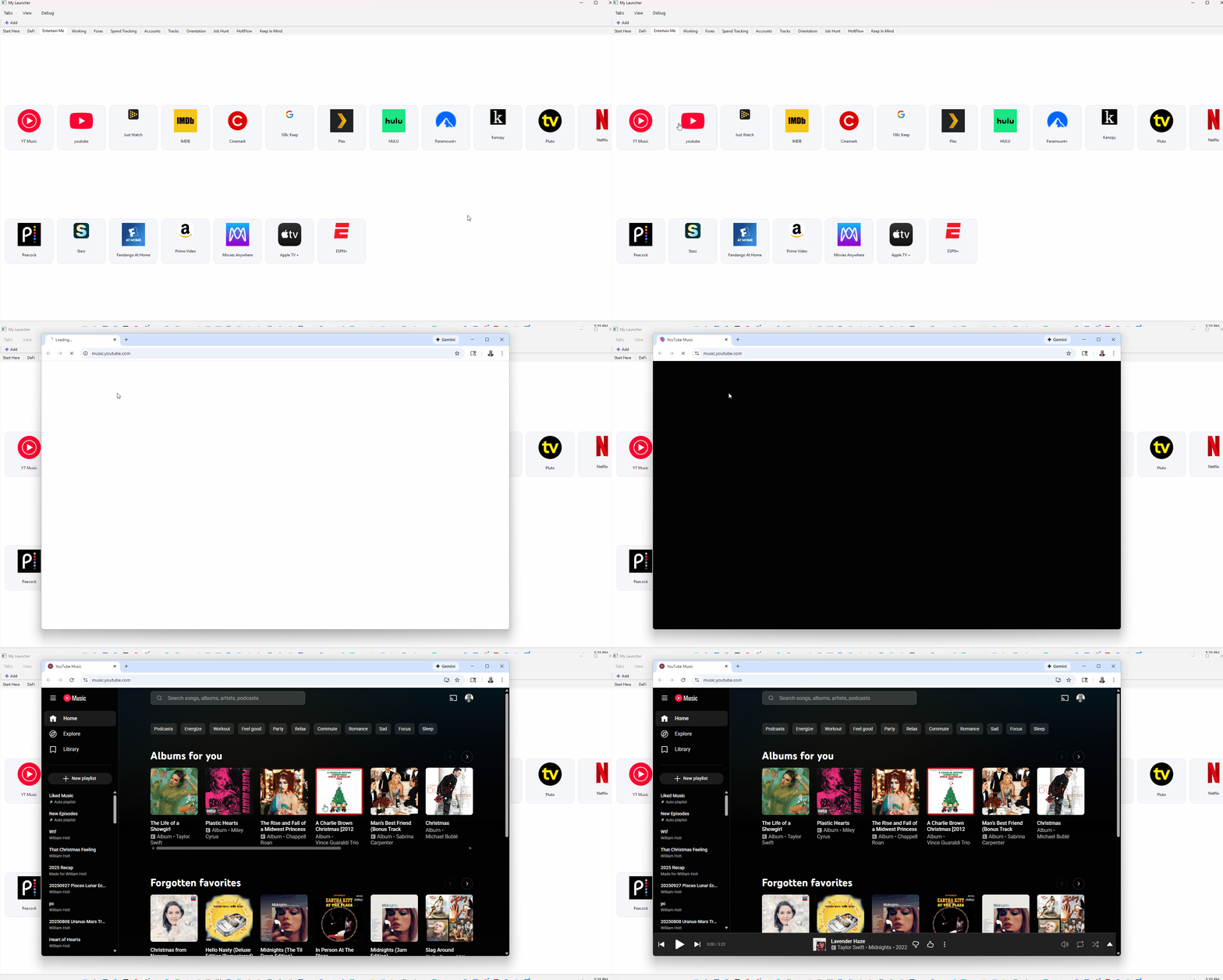
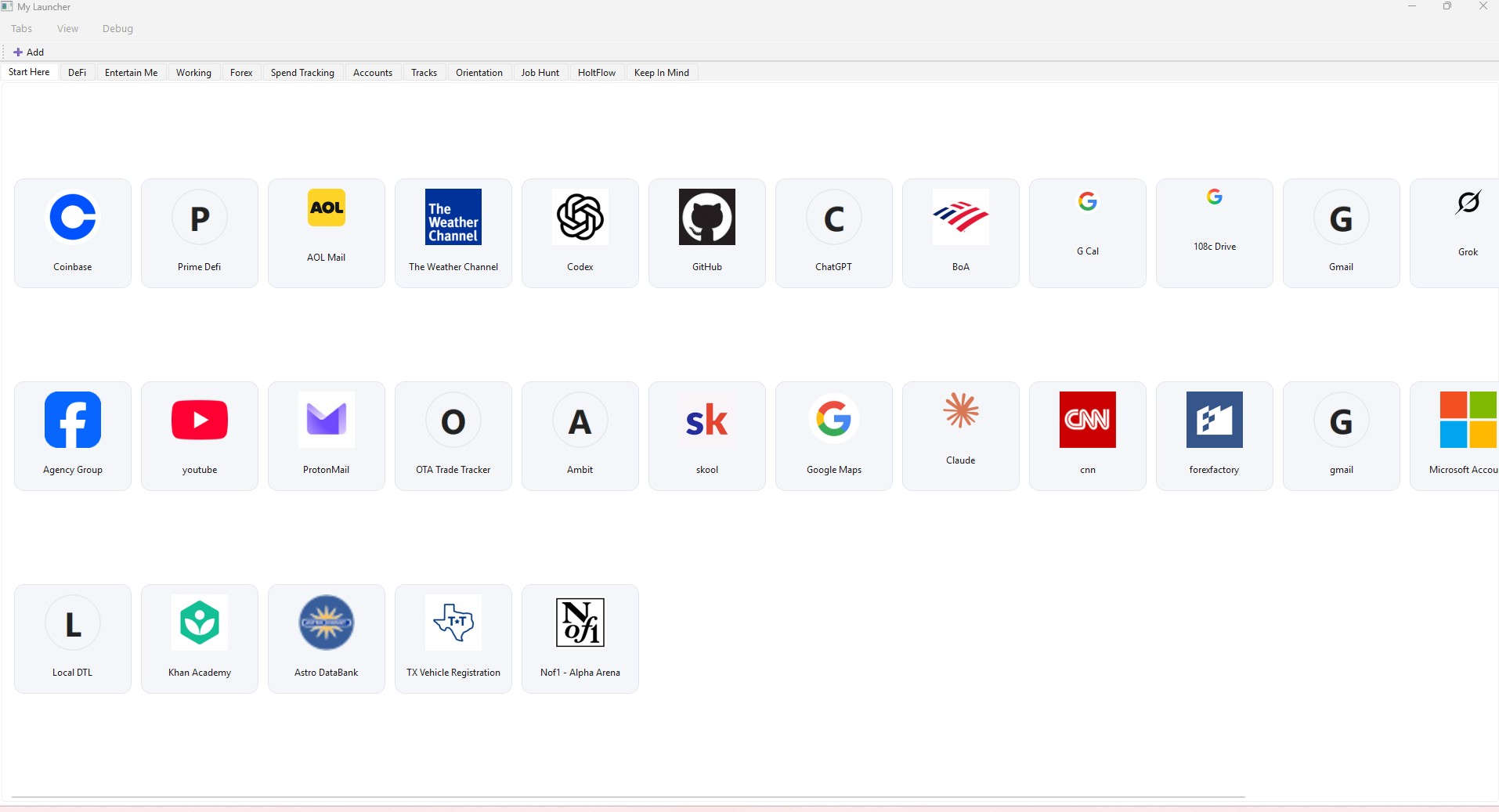
Screenshot
⬇️ Download the latest release


Install
WinGet (recommended)
winget install --id 108thecitizen.DesktopTileLauncher -e
Upgrade
winget upgrade --id 108thecitizen.DesktopTileLauncher -e
Uninstall
winget uninstall --id 108thecitizen.DesktopTileLauncher -e
Why this exists / what I learned
- Built to reduce daily friction: a lightweight Windows desktop launcher for quickly opening frequently-used apps, folders, and links.
- Used as a sandbox for AI-assisted development and agent workflows — iterating with Codex/ChatGPT/Claude and capturing “how to work on this repo” conventions in
AGENTS.md.
- Reinforced “ship means stable”: small diffs, PR-friendly iteration, and automated checks so changes stay predictable as the project evolves.
- Reinforced “ship means safe” with GitHub Actions (tests + lint/typecheck), CodeQL, Dependabot, and tag-based releases.
- Practiced release discipline: tag-driven releases via GitHub Actions, plus a documented path toward signed binaries so end-user downloads can be trusted.
- Biggest takeaway: AI can accelerate iteration, but automation + clarity (tests/CI + explicit conventions) are the real guardrails.
Code signing policy
Free code signing provided by SignPath.io, certificate by SignPath Foundation.
Status & activation
As of 2025‑09‑05, released binaries are not yet signed. We plan to begin signing starting with release tag v0.7.0 (and all tags thereafter). This section documents how signed releases will be produced and how you can verify them.
Scope (what we sign)
We sign Windows desktop artifacts intended for end users:
- the main executable
DesktopTileLauncher-.exe published on the GitHub Releases page.
- for onedir builds, the executable(s) inside the folder; the
.zip is a packaging container and is not Authenticode-signed. Verify the zip via checksums.
Intermediate CI artifacts may remain unsigned unless explicitly marked. Source code tarballs generated by GitHub are not signed.
Provenance & build process
Releases are built from Git tags in this repository via GitHub Actions. We stamp version info from the tag (ProductVersion/FileVersion) and embed standard metadata (ProductName: “DesktopTileLauncher”). Signing occurs in CI after the final EXE is produced and before checksums are computed and published.
Signing method
We use Authenticode with an RFC‑3161 timestamp so signatures remain valid after certificate expiry. The signing certificate is held by SignPath Foundation and used only for approved builds of this project.
Roles & approvals
Authors/Committers: 108thecitizen
Review/Approval for release signing: 108thecitizen
External pull requests are reviewed before merge; only tagged builds from main are submitted for release signing.
Privacy
DesktopTileLauncher does not collect telemetry. Network access is limited to user-initiated actions: opening a tile URL in your browser, adding or editing a URL tile may fetch a site icon through Google's favicon service, and completing URL entry while adding a new tile may make a best-effort request to that destination page to suggest the static page title. Explicitly refreshing selected tiles also attempts to contact each selected destination directly for a title and, when a host/domain can be derived, attempts to send that host/domain to Google's favicon service. The title lookup contacts the destination directly, requests only the top-level document, follows normal redirects, uses the response only when it is HTML/XHTML, executes no JavaScript, loads no subresources, sends no browser cookies or saved credentials, and fails silently. Full URLs, query strings, domains, tile names, retrieved titles, icon paths, and page content are not written to refresh diagnostics; only aggregate counts and result categories are recorded. The favicon lookup may make a third-party network request and may send the tile's domain/host to the favicon service. See Debugging & Crash Reports for local log locations.
Uninstall
Delete the application folder. Optionally remove per‑user logs/config in the directories listed in the README.
Verification (how to check a signed release)
- Windows UI: Right‑click the EXE → Properties → Digital Signatures tab.
- PowerShell:
Get-AuthenticodeSignature .\DesktopTileLauncher-.exe | Format-List
- SignTool (if installed):
signtool verify /pa /v .\DesktopTileLauncher-.exe
- Checksum: Compare against SHA256SUMS.txt published with the release:
Get-FileHash .\DesktopTileLauncher-.exe -Algorithm SHA256
Security & incident response
If we ever discover a compromised artifact or certificate, we will (a) revoke the affected release, (b) publish a GitHub Security Advisory with details and mitigation steps, and (c) rotate credentials and re‑issue a fixed build. Please report vulnerabilities privately via GitHub’s “Report a vulnerability” link.
Last updated: 2025‑09‑05
License
Licensed under the Apache License, Version 2.0. See LICENSE for details.
Prior releases were MIT; the text is preserved in LICENSE-MIT.
SPDX-License-Identifier: Apache-2.0
Usage
Configuration versions and recovery
DesktopTileLauncher reads at most 4 MiB of config.json for UTF-8 and JSON
parsing and rejects duplicate JSON object members at any nesting depth.
Production persists complete schema version 2: stable Workspace and Tab
identities, URL Resources, per-Tab Placements and independent orders, and
portable or device-specific settings represented as DeviceBindings. The
complete validated graph remains authoritative even when the current flat UI
does not expose every part of it.
Legacy configuration without schema_version is version 0. Explicit version 1
is the identity-only intermediate format. The registered pure consecutive steps
migrate version 0 to version 1 and version 1 to version 2 transactionally.
Migration creates exactly one Default Workspace; the launcher title is
preserved independently as application.title. Each legacy Tile becomes one
distinct URL Resource and Placement, preserving its effective appearance,
launch behavior, Tab membership, and per-Tab order.
An explicit schema_version of 0 is invalid. A malformed version value or any
unsupported version newer than 2 receives fixed Exit-only handling before
legacy construction, normalization, or saving. Invalid current version 2,
invalid version 1 source state, and migration failures also use fixed Exit-only
handling. These version and migration cases never offer Preserve and Reset.
The existing recovery choices remain unchanged for the established corrupt or
unreadable configuration categories. Startup offers exactly Exit or
Preserve and Reset. Exit is the safe default and does not change the
configuration or create a recovery copy.
Preserve and Reset first streams the original bytes into a private per-user
recovery directory beside, but not inside, the launcher icon directory. The
copy is independently verified byte-for-byte before the normal first-run
configuration is installed atomically. A reset is not attempted when copying,
verification, or the final source-change check fails. Verified recovery copies
are never overwritten or deleted automatically.
The Qt-free migration harness runs the registered pure deterministic v0-to-v1
and v1-to-v2 steps. It validates the source before preservation; a
source-validation rejection creates no recovery artifact and performs no write.
When at least one step will run, the harness preserves and independently verifies
one exact recovery copy before the first step, validates every detached
intermediate and target document, and writes deterministic UTF-8 JSON through a
guarded atomic replacement. Candidate JSON preserves non-ASCII text, sorts keys,
uses two-space indentation and LF line endings, rejects non-finite numbers, and
has no trailing newline. The harness reverifies both the source and recovery copy
immediately before replacement, then reloads and validates the installed
candidate.
After replacement, the harness must successfully reload the exact candidate
bytes before treating the installed file as transaction-owned. Retention and
rollback occur only when that exact installed candidate is first proven and its
post-write target validation then fails. With ownership still proven, the
harness retains the failed candidate privately, reverifies the permanent
recovery artifact, restores its exact original bytes atomically, and verifies
the rollback.
A reload failure or exact-byte mismatch leaves ownership unproven, and a later
live-file change revokes ownership. These cases receive fixed Exit-only,
fail-closed handling. The harness performs no retention or rollback over an
unproven live path, so it does not overwrite possibly external bytes. A rollback
that cannot be completed or verified also fails closed. Published recovery
copies and failed candidates are private, never overwritten, and never deleted
automatically.
A valid current version 2 file loads directly without a startup normalization
write and never passes through repair-oriented legacy normalization. Workspace,
Tab, Resource, Placement, and DeviceBinding IDs are not regenerated while
loading, saving, or restarting. Missing and reset configuration is installed as
a complete validated version 2 document. First-run publication is exclusive: if another
process creates config.json after the missing-file check, that file is retained and this
startup fails safely instead of replacing it.
Permitted flat-UI changes produce a detached candidate from the complete graph,
are saved atomically, and replace the authoritative graph only after persistence
succeeds. Add Tile appends a new in_use Placement to both Display and In Use
Kanban order; Duplicate Tile
inserts a distinct copied Resource and Placement after its source in both orders and copies
all of the source Placement's launch bindings under fresh binding IDs;
and URL import appends its batch in reviewed source order to both. A cross-Tab
move uses the destination position produced by the current flat Tile order and
appends to the matching destination Kanban queue. Delete Tab first discards each
owned Placement and its Placement DeviceBindings, retaining referenced Resources
as valid orphans, before removing the empty Tab.
Resource sharing, presentation overrides, and other advanced graph state that
the flat controls cannot represent losslessly remain read-only in those controls.
Unsupported mutations are disabled or rejected rather than flattening the
document. Unexposed Workspaces, archived or filtered state, independent orders,
bindings, extensions, and entity identities remain preserved across permitted
saves.
Migration recovery is not journaled. A process interruption after an atomic
candidate replacement but before post-write verification or rollback can leave
the complete candidate installed. On the next launch, DesktopTileLauncher
classifies and validates that live file normally; it does not guess which
recovery artifact to restore or automatically select one.
Add tiles
- Use the Add button on the toolbar.
- Right-click whitespace within a tab and choose Add Tile….
Import URL lists
Choose Import URLs… on the toolbar or from a tab's whitespace menu to add
several tiles at once. Paste one URL per line, or load a UTF-8 text file, select
the destination tab, and choose Review URLs. The preview keeps every nonblank
source row visible so you can edit tile names and decide whether to include valid
duplicates. Invalid rows cannot be selected. Ready URLs are selected by default;
duplicates already in the destination or earlier in the batch are not.
The import review is entirely offline: it does not visit the URLs, retrieve page
titles or favicons, or send telemetry. Names are derived locally from the URL
path or host, and the existing generated letter icon is displayed without a
favicon lookup. Imported tiles use the default browser and open in a new tab.
Tiles are appended in source order. Hidden destination tabs are labeled in the
selector and remain hidden after import.
The launcher saves the complete batch atomically; if saving fails, no tiles are
added and the reviewed list remains available for another attempt. Import accepts
HTTP and HTTPS URLs only and limits a review to 500 nonblank rows and 1 MiB of
UTF-8 text.
Refresh tile names and icons
Open the tab you want to work in and choose Select tiles. Click individual
tiles to select a subset, or choose Select all to select every tile in the
active tab. Persistent check indicators and selected styling show the current
selection, and the selection controls display its count. Clear selection
keeps selection mode open with no tiles selected; Done exits selection mode.
Switching tabs also clears the selection and exits selection mode.
With at least one tile selected, choose Refresh names and icons. Before any
lookup starts, the launcher shows a confirmation with the selected tile count
and warns that successfully retrieved names and icons replace existing custom
values. The safe default is to decline. Declining leaves the selection intact
and performs no lookup, file write, model change, or configuration save.
After confirmation, the launcher uses each selected tile's current URL to look
up the page title and favicon independently. A retrieved title replaces that
tile's name, and a retrieved favicon replaces its icon. If either individual
lookup fails, that existing field is retained exactly; failure of one lookup
does not prevent the other result from being used. Selection mode prevents URL
launches, context-menu changes, and tile dragging while selection mode is active.
When at least one field changes and staging preparation succeeds, the launcher
attempts one atomic save of a detached configuration. It swaps that configuration
into the live model and rebuilds the UI only after the save succeeds. A no-change
result performs no configuration save. Icon staging and configuration persistence
remain separate filesystem operations.
This explicit refresh is a network action: it attempts to contact each selected
destination directly for the best-effort page-title request and, when a
host/domain can be derived, attempts to send that host/domain to Google's
favicon service. Refresh diagnostics contain aggregate
counts and result categories only—not URLs, domains, names, retrieved titles,
icon paths, page content, or exception details that could expose those values.
The separate Import URLs review remains entirely offline as described above.
On Windows, selecting Google Chrome for a tile (or leaving the browser as
Default when Chrome is the system default) reveals a Chrome profile
dropdown. The list is populated from Chrome's local profile cache and includes
entries like Default, Profile 1, or names from signed-in Google accounts.
Choosing a profile pins the tile to that persona; select None to use
Chrome's last-used profile.
Each tile also provides an Open in option:
- New tab in existing window (default)
- New browser window
For Chromium browsers (Chrome/Edge), a new window adds the --new-window
switch. Firefox uses --new-tab or --new-window. If the tile targets the
system's default browser, Python's webbrowser.open is used with new=2 for a
tab or new=1 for a window. Safari and other unknown browsers fall back to
this behavior and may not differentiate between tabs and windows.
On Windows when the chosen browser is Chrome (either explicitly or because it's
the system default), the launcher invokes Chrome's command-line interface to
ensure "New browser window" always opens a separate top-level window.
Existing configurations that lack this setting are automatically migrated and
default to opening URLs in a new tab.
Auto-fit window
The View → Auto-fit Mode submenu controls how the launcher resizes itself:
- Always – recompute and resize on every move or display change.
- On startup – fit once at launch (default), then allow manual resizing.
- Off – never auto-resize; the window remembers its size and position.
Choose View → Fit to Display Now for a one-off fit regardless of the
current mode.
Debugging & Crash Reports
DesktopTileLauncher writes JSON logs to a rotating debug.log in a per-user
directory:
- Windows:
%LOCALAPPDATA%/DesktopTileLauncher/
- macOS:
~/Library/Logs/DesktopTileLauncher/
- Linux:
$XDG_STATE_HOME/DesktopTileLauncher/ or
~/.local/state/DesktopTileLauncher/
Aside from user-initiated URL opens and optional favicon lookups described
above, adding a URL tile may contact the destination page directly to suggest a
static page title. Confirmed refreshes also attempt to contact each selected
destination for a title and, when a host/domain can be derived, attempt to send
that host/domain to Google's favicon service. Title lookup requests only the
top-level document, follows normal
redirects, uses the response only when it is HTML/XHTML, executes no JavaScript,
loads no subresources, sends no browser cookies or saved credentials, and fails
silently. Refresh diagnostics record aggregate counts and result categories
only—not URLs, query strings, domains, tile names, retrieved titles, icon paths,
page content, or sensitive exception details. Bulk URL import performs none of
these lookups and records only aggregate, categorical diagnostics—not URLs,
tile names, pasted input, or source file paths. The application does not send
logs or crash data over the network. When something goes wrong, use the Create
Crash Bundle button on the crash dialog to zip the log files and a crash.json
snapshot of runtime context. Attach this bundle when filing a GitHub issue.
Running unit tests offline (Codex / air‑gapped)
We vendor Linux wheels under vendor/wheelhouse-linux/ (PySide6 wheels are split into *.whl.part-* to stay under GitHub’s 100 MB limit).
One-liner:
bash tools/offline_bootstrap.sh
# or:
make test_unit_offline