OmniConsole
> 🌐 English | 繁體中文





💡 What is OmniConsole?
OmniConsole serves as your Windows 11 XBOX Mode (FSE) Home shell on PCs and handhelds (ROG Xbox Ally X, etc.), with an OmniCharm Game Bar widget, Steam shortcuts, and Nekomata Mode to turn your gamepad into keyboard and mouse, tailored per app, so everything stays on the gamepad.
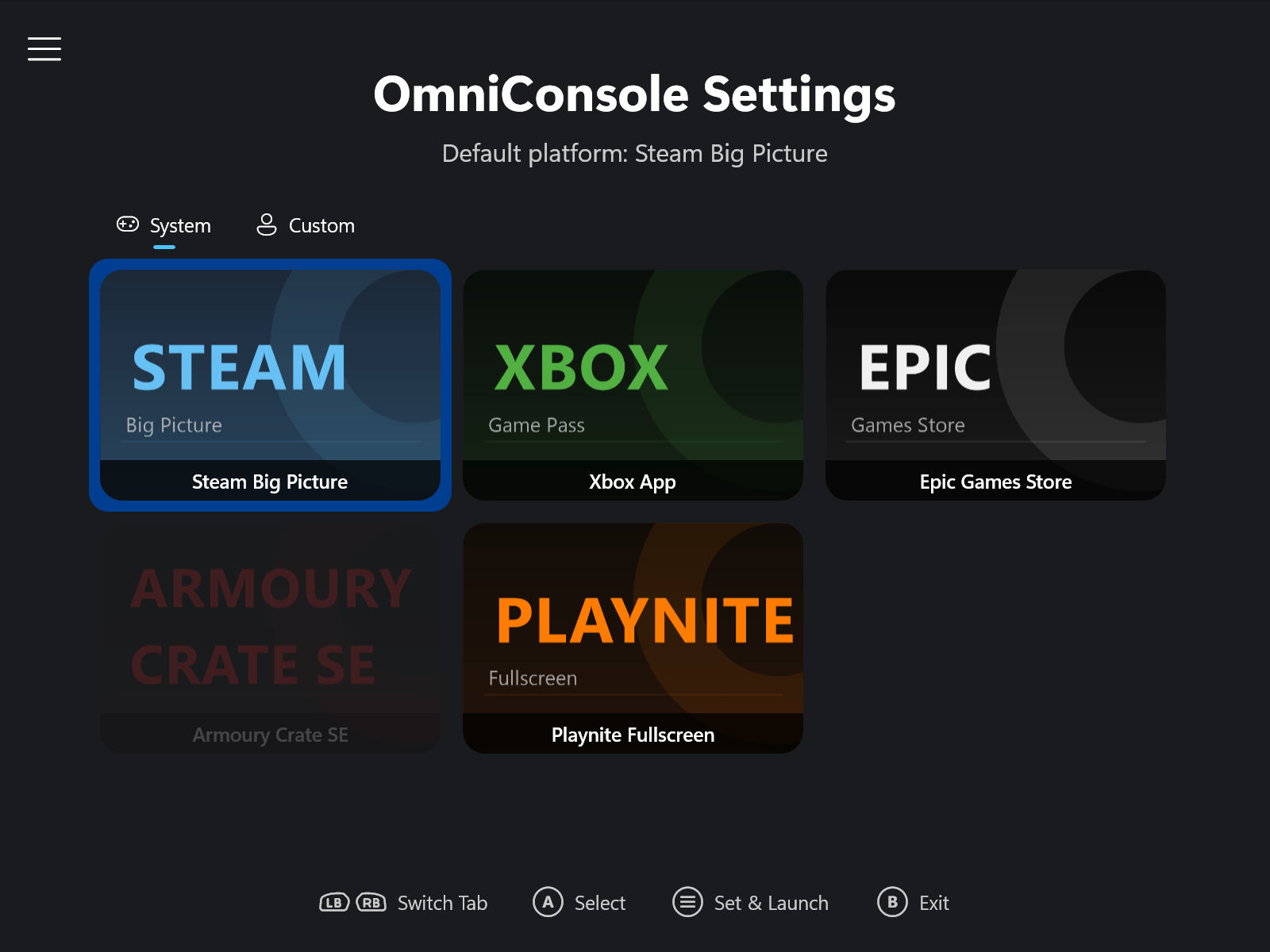
Whenever XBOX Mode (FSE) activates, OmniConsole launches your configured gaming platform. Any platform can be your XBOX Mode (FSE) Home — Steam, XBOX, Epic, Armoury Crate SE, Playnite, or anything you add.
- On boot: With "Enter XBOX mode (FSE) on startup" enabled, your gaming platform launches automatically at boot.
- During use: Press the XBOX button, then select "Home" in Game Bar to launch your gaming platform, or "Library" to open OmniConsole Settings.
✨ Features
- Automatic platform launch – Your configured gaming platform launches automatically whenever XBOX Mode (FSE) activates.
- XBOX Mode (FSE) entry & exit – When you launch OmniConsole outside XBOX Mode (FSE) (e.g., from the Start Menu), it automatically triggers the XBOX Mode (FSE) entry dialog. Under Settings → Advanced → XBOX Mode (FSE), choose what happens when you enter from the desktop: Ask every time, Restart (optimized performance), or Start now (no performance changes). The confirmation on the way back to the Windows desktop is yours to keep or leave out as well.
- Multi-platform support – Built-in support for Steam Big Picture, XBOX App, Epic Games Store, Armoury Crate SE, and Playnite Fullscreen.
- Custom platform support (Experimental) – Add your own platforms via Protocol URI, executable path, or Packaged App (MSIX / APPX), with an optional card cover image. Launch arguments are available when using the executable path type.
- Platform import & export – Share custom platform configurations as JSON, with per-user install paths saved as portable environment variables so a shared platform works on any console. Right-click or long-press a card to export; use the Import button to import shared configurations.
- Community platforms – Browse platform definitions shared by the community on GitHub, right inside the app. Search by name or submitter, preview each one's cover and launch details, and add it with a click.
- Gamepad-compatible file picker – A custom-built file picker that replaces the system FileOpenPicker (which does not support gamepad input), letting you browse for executables and cover images with a controller. A "Browse (Windows)" button is also available for users who prefer the system file picker.
- Card-grid settings UI – Large icon cards designed for large-screen and handheld use, operable with mouse, touch, or XBOX controller.
- Phantom Glass backgrounds – A frosted glass background that softly blurs and tints your desktop wallpaper behind the app. Choose from Phantom Glass, Phantom Glass Deep, or the solid Phantom Classic in Settings.
- Fluent motion throughout – The Launch screen and Settings glide in with smooth entrance animations, and every move between screens flows with a transition.
- Game Bar integration – Game Bar's "Home" button launches your gaming platform; "Library" opens OmniConsole Settings.
- Troubleshoot page – A dedicated page for XBOX Mode (FSE) recovery: restarts Game Bar to fix issues such as the "Restart for better performance" dialog not appearing, then enters XBOX Mode (FSE).
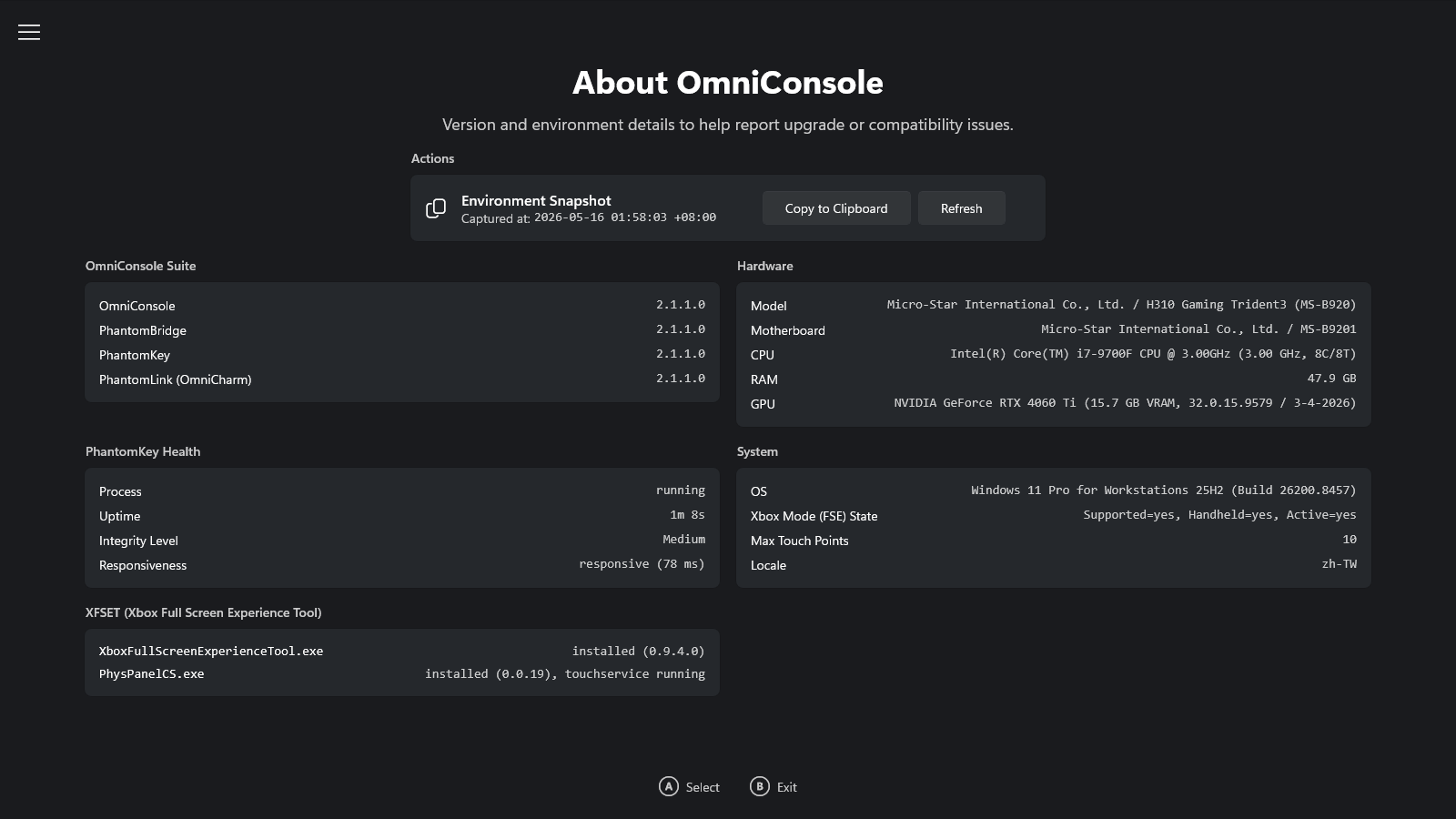
- Environment snapshot – An "About" page that captures your system, hardware, and OmniConsole health status, with one-click copy as a Markdown report for easy bug reporting.
- Gamepad support – Navigate with D-Pad or Left Stick; A to confirm, B to exit, LB/RB to switch category tabs, Y to add a custom platform, X to edit, and Menu (☰) to set the focused platform as default and launch it immediately (when running inside XBOX Mode (FSE)).
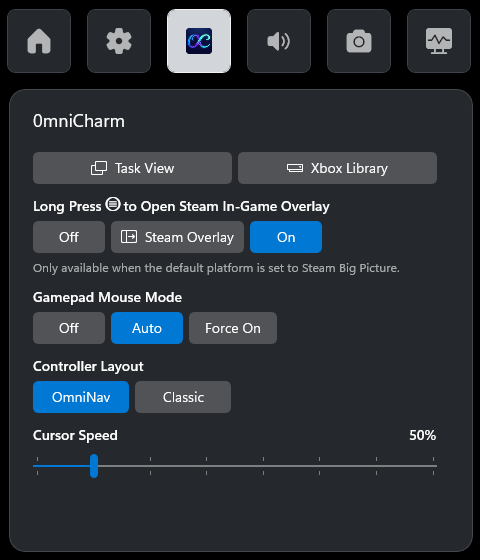
- OmniCharm widget – A Game Bar widget for in-game quick access. Open Task View, the XBOX Library, File Explorer, or the Steam Overlay in one tap; toggle Nekomata Mode, controller layout preset, cursor speed and size, and the Steam In-Game Overlay (long-press ☰). File Explorer opens straight to This PC, and Nekomata Mode's built-in mapping already covers it, so you browse and open your files with the gamepad alone.
- Gamepad Steam shortcuts – The gamepad ⧉ button controls Steam Big Picture shortcuts: short press opens the Steam Menu, long press opens the Quick Access Menu. Long press ☰ in-game to open the Steam In-Game Overlay.
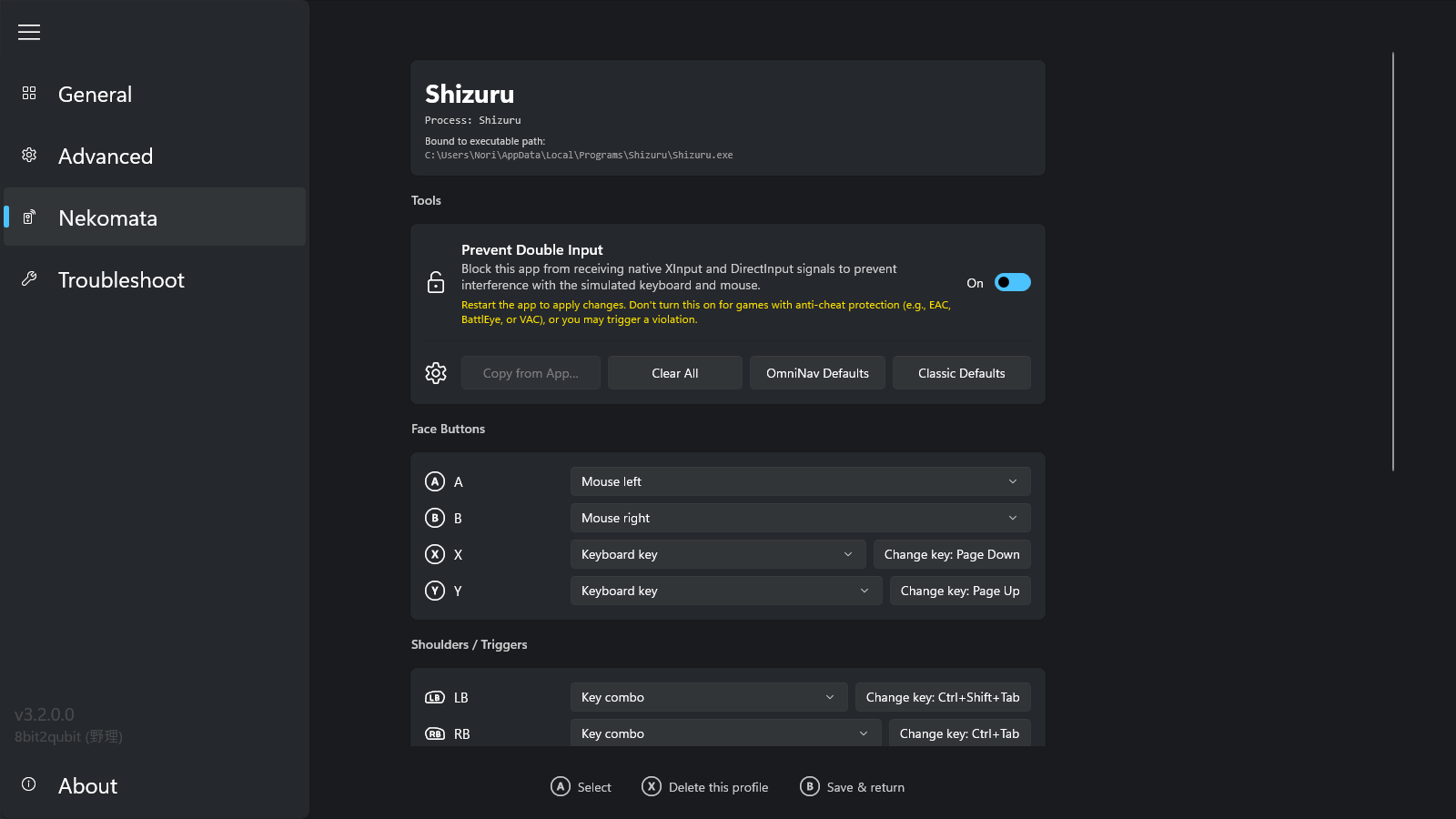
- Nekomata Mode — gamepad as mouse and keyboard, custom per-app mapping – When on, your customized profiles take over, while common apps such as browsers, File Explorer, the Windows file picker, Steam, Epic Games Store, EA Desktop, Playnite Desktop, and Discord run on OmniConsole's ready-made mapping, which you can customize too. Nekomata weaves a charm for each app, remapping XInput controls (A/B/X/Y, LB/RB, LT/RT, LS/RS, D-pad, both sticks) to a keyboard key, modifier combo, mouse button, scroll wheel, cursor movement, scrolling, arrow keys, or WASD, with three controller layouts to choose from: OmniNav, Classic, and a Custom Layout you define yourself (Pro). Each app's charm can also raise the mapping service priority with Nekomata Boost for demanding games, give any key a hold-to-repeat toggle, and prevent double input by blocking the app's own native XInput and DirectInput signals to keep them from interfering with the remapped keyboard and mouse. Open the editor from the OmniCharm widget's "Customize gamepad mapping for this app…" button.
- Cursor speed & size – Under Settings → Advanced → Nekomata you can set the cursor’s movement speed from 25% to 200%, and its size from 100% up to 800%. The OmniCharm widget carries the same two sliders.
- Custom controller layout (Pro) – Define your own default layout alongside OmniNav and Classic. Choose Custom under Settings → Advanced → Nekomata → Controller Layout Preset, then click Edit… to arrange the controller's inputs. Apps covered by built-in mapping pick it up right away, and every new app profile starts from it. The OmniCharm widget can switch to it as well.
- Administrator app support (Pro) – Gamepad mappings reach apps and games that run as an administrator. Install it from Settings → Advanced → Nekomata and approve the administrator prompt, and Nekomata Mode extends to those apps, with the OmniCharm widget opening the mapping editor for them too.
- Screen keyboards from any button (Pro) – Windows brings up a screen keyboard from Game Bar. Pro adds a direct route: assign one to a controller button and it opens without interrupting what you are doing. Pick the Gamepad keyboard, which you type on with the controller itself, or the classic On-screen keyboard, which you point at with the cursor. The On-screen keyboard also requires Administrator App Support.
- Nekomata Mode on the ROG Ally family (Pro) – These consoles ship with the manufacturer's own gamepad mapping, and Nekomata defers to it. Pro makes that a choice: turn it on under Settings → Advanced, then set Control Mode to Gamepad in Command Center. Everything Nekomata does on a desktop she does here too.
- Performance overlay controls (Pro) – Game Bar comes with Microsoft's own Performance widget for watching your framerate and system usage while you play. Pro adds a separate set of controls for adjusting RivaTuner Statistics Server's on-screen display from inside OmniConsole. Under Settings → Advanced → Performance Overlay you can turn the on-screen display on or off, show framerate statistics, add a shadow behind the text, scale it up, and set a framerate limit. The OmniCharm widget carries the same controls on its Overlay tab, so they are within reach while a game is running. Requires Administrator App Support and RivaTuner Statistics Server.
- Dedicated Settings entry – A separate "OmniConsole Settings" entry in All Apps lets you change your default platform anytime.
- Native XBOX Mode (FSE) integration – Registered as a Windows 11 XBOX Mode (FSE) Home App through the official API.
- In-app updates – Automatic checks for the latest GitHub releases, with download and install built into the Advanced settings page.
- Multilingual UI – English, Traditional Chinese (繁體中文), and Simplified Chinese (简体中文) built in, along with community-contributed languages: on the Advanced settings page, click Manage next to Community Languages to browse, download, and update them for both the main app and the OmniCharm widget at once. They stay up to date automatically across versions.
- OmniConsole Pro – A Pro page in Settings. OmniConsole is a personal interest project, written and maintained by a solo developer in their own free time, and your support keeps it going. The page carries the link and is where you activate it, and it shows who the license is for, along with the licenses on this console.
⚙️ Prerequisites
OmniConsole requires Windows 11 24H2 (Build 26100.7019) or later, along with the Full Handheld edition of XBOX Mode (FSE). Microsoft is gradually rolling out a Limited PC edition to regular PCs — use Xbox Full Screen Experience Tool (XFSET) to switch to the Full Handheld edition.
- Desktops, Laptops, Tablets & Handhelds without the Full Handheld edition: Run XFSET first.
- Native Handheld Devices (e.g., ROG Xbox Ally series): Already on the Full Handheld edition — install OmniConsole directly.
- XBOX Controller Required: Game Bar, XBOX Mode (FSE), and all gamepad features require an XBOX-compatible (XInput) controller with an XBOX button.
🚀 Quick Start
1. Install OmniConsole
Download the latest release from the Releases Page.
Option A: Install.bat (Recommended)
- Extract the
OmniConsole_*_x64.zip file and run Install.bat. It will enable Developer Mode, install the certificate, and install both MSIX packages automatically.
Option B: Manual Install
- [Critical] Go to Windows Settings → System → Advanced and enable Developer Mode.
- [Critical] Double-click the
.cer file → click Install Certificate → Store Location: Local Machine → Place all certificates in the following store → Browse → select Trusted People → Finish.
- Double-click
OmniConsole_*_x64.msix to install the main app.
- Double-click
OmniConsole.PhantomLink_*_x64-widget.msix to install the OmniCharm widget.
OmniConsole will present the Settings UI on first launch or after app updates. You can also open it manually anytime from the Start Menu:
-
Open "OmniConsole Settings" from the Start Menu (All Apps).
-
Select your preferred gaming platform from the card grid using a mouse, touch, or XBOX controller (D-Pad/Left Stick to navigate in all four directions, A to confirm):
- Steam Big Picture
- XBOX App
- Epic Games Store
- Armoury Crate SE
- Playnite Fullscreen
Your selection is saved automatically. Press B on your controller or click/press Exit to finish.
3. [Critical] Set as XBOX Mode (FSE) Home App
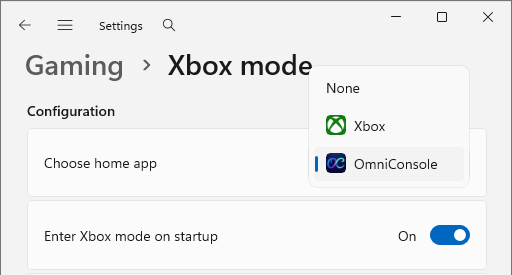
- Go to Windows Settings → Gaming → XBOX mode (FSE).
- Set "Choose home app" to OmniConsole.
- Enable "Enter XBOX mode (FSE) on startup".
4. Done!
Your gaming platform now launches via any of these entry points:
- Game Bar: Press the XBOX button, then select "Home" to launch your gaming platform, or "Library" to open OmniConsole Settings.
- Boot: Enable "Enter XBOX mode (FSE) on startup" for automatic launch at boot.
- Start Menu: Launch OmniConsole directly to automatically activate XBOX Mode (FSE).
5. Updating OmniConsole
Already have OmniConsole installed? Update from within OmniConsole Settings:
- Open OmniConsole Settings, then go to ☰ → Advanced.
- Click Check for Updates, then Download & Install. OmniConsole downloads the new version and installs it for you.
🔄 How to Revert
> ⚠️ Change the XBOX Mode (FSE) Home App setting before uninstalling OmniConsole. If OmniConsole is removed while it is still set as the XBOX Mode (FSE) Home App, Windows Task View will stop working on some builds. This is a bug in Windows itself.
- Go to Windows Settings → Gaming → XBOX mode (FSE).
- Set "Choose home app" to XBOX or None.
- Right-click OmniConsole in the Start Menu and select Uninstall, or go to Windows Settings → Apps → Installed apps to uninstall it.
- Go to Windows Settings → Apps → Installed apps and uninstall OmniCharm (the widget does not appear in the Start Menu).
🛠️ Troubleshooting
If you run into issues caused by a Windows bug, such as Game Bar failing to open or the "Restart for better performance" dialog not appearing when entering XBOX Mode (FSE):
- Open OmniConsole Settings from the Start Menu.
- Navigate to the Troubleshoot tab using the left menu.
- Click the "Run" button next to "Restart Game Bar & Enter XBOX Mode (FSE)". This restarts Game Bar and enters XBOX Mode (FSE); once Game Bar is restarted, the dialog appears as expected.
🔐 Verifying Your Installation
The only official sources for OmniConsole are the GitHub releases and the official website. If you obtained OmniConsole from anywhere else, you should verify the build is genuine. See AUTHENTICITY.md for the official certificate thumbprint and verification steps.
💻 Tech Stack
- Primary Stack: C# & .NET 10, C++
- UI Framework: WinUI 3
- Packaging: MSIX
📄 License
OmniConsole is licensed under the PolyForm Noncommercial License 1.0.0; for the full terms, see the official terms.