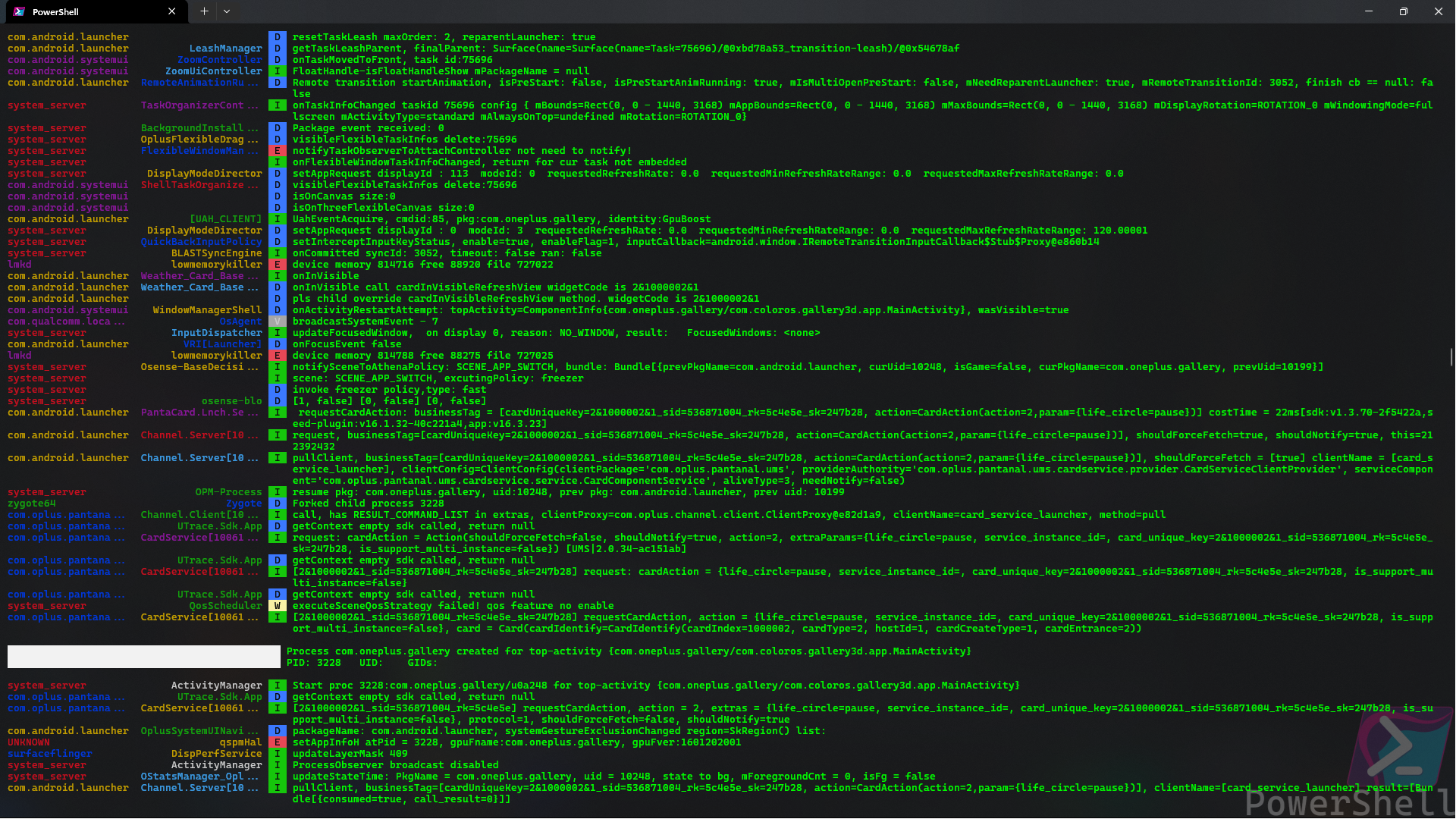
PidCat is a terminal-based Android logcat viewer designed for efficient debugging and monitoring of Android applications. Optimized for Windows, it enhances the traditional logcat experience with modern features such as VT100 color support, advanced filtering capabilities, and improved readability.
Key Features:
Colorized Output: Logs are displayed in vibrant colors, making it easier to distinguish between different log levels (e.g., debug, info, warning) and package names.
Package and Tag Filtering: Users can filter logs by specific application packages or tags, including substring matching for broader searches. For example, searching for "Timeout" will match "TimeoutJob" and "NetworkTimeout."
Regex Support: Advanced users can employ regular expressions to refine tag filtering further.
Process Tracking: PidCat automatically tracks process lifecycle events, such as starts and deaths, providing real-time updates.
Customizable Columns: Users can adjust column widths for package names, tags, and other fields to suit their preferences.
File Output: Logs can be exported to a file for later analysis or sharing.
Audience & Benefit:
Ideal for Android developers and engineers who require precise log monitoring and filtering during app development. PidCat streamlines debugging by improving the clarity and focus of log outputs, allowing users to quickly identify issues and understand application behavior. Its advanced features save time by reducing noise in logs, enabling developers to concentrate on relevant information.
PidCat can be installed via winget, making it accessible for Windows users seeking a powerful yet intuitive tool for Android development.
README
📃 PidCat
A colorized Android logcat viewer for Windows with advanced filtering capabilities
🎯 Overview
PidCat is an enhanced Android logcat viewer originally created by Jake Wharton for the Android Open Source Project. This Windows-optimized fork adds modern features including VT100 color support, advanced tag filtering with substring matching, and improved column formatting.
PidCat filters logcat output by application package name, colorizes the output for better readability, and provides powerful filtering options to help you focus on the logs that matter.
📸 Screenshots
<img src="assets/screenshot_2.png" width="800" />
✨ Features
Core Features
🎨 Colorized Output - Different colors for log levels, tags, and packages
📦 Package Filtering - Show logs only from specific app packages
🏷️ Tag Filtering - Filter by log tags with substring matching support
🔍 Regex Support - Use regular expressions for advanced tag filtering
📊 Process Tracking - Automatically tracks process starts and deaths
💻 Windows VT100 Support - Native color support on Windows 10/11
# Clone the repository
git clone https://github.com/abdalmoniem/pidcat.git
cd pidcat

# Install dependencies (if any)
uv sync

# Run directly
uv run pidcat.py com.example.app
🚀 Usage
Basic Usage
# Filter logs by package name
pidcat com.example.myapp

# Filter by multiple packages
pidcat com.example.app1 com.example.app2

# Show all logs (no package filtering)
pidcat -a

# Filter by currently running app
pidcat --current
Advanced Filtering
# Filter by specific tags
pidcat com.example.app -t MyTag -t AnotherTag

# Filter by tags with substring matching
pidcat com.example.app -t Timeout
# Matches: TimeoutJob, TimeoutJob$update, NetworkTimeout, etc.

# Use comma-separated tags
pidcat com.example.app -t MyTag,AnotherTag,ThirdTag

# Combine with log level filtering
pidcat com.example.app -t MyTag -l D
# Shows only Debug level and above

# Ignore specific tags
pidcat com.example.app -i ChattyCrap -i Noisy

# Use regex for complex patterns
pidcat com.example.app -t "^Network.*"
# Matches: NetworkManager, NetworkClient, etc.
Command Line Options
positional arguments:
  package(s)            Application package name(s)
                        This can be specified multiple times

options:
  -h, --help            Show this help message and exit.
  -v, --version         Print the version number and exit
  -a, --all             Print log messages from all packages, default: False
  -k, --keep            Keep the entire log before running, default: False
  -d, --device          Use first device for log input, default: False
  -e, --emulator        Use first emulator for log input, default: False
  -g, --color-gc        Color garbage collection, default: False
  -N, --no-color        Disable colors, default: False
  -P, --show-pid        Show package name in output, default: False
  -p, --show-package    Show package name in output, default: False
  -S, --always-show-tags
                        Always show the tag name, default: False
  -c, --current         Filter logcat by current running app(s), default: False
  -I, --ignore-system-tags
                        Filter output by ignoring known system tags, default: False
                        Use --ignore-tag to ignore additional tags if needed
  -t, --tag TAG         Filter output by specified tag(s)
                        This can be specified multiple times, or as a comma separated list
  -i, --ignore-tag IGNORED_TAG
                        Filter output by ignoring specified tag(s)
                        This can be specified multiple times, or as a comma separated list
  -l, --log-level LEVEL [V|D|I|W|E|F|v|d|i|w|e|f]
                        Filter messages lower than minimum log level, default: V
  -r, --regex REGEX     Filter output messages using the specified REGEX
  -x, --pid-width X     Width of PID column, default: 6
  -n, --package-width N
                        Width of package/process name column, default: 20
  -m, --tag-width M     Width of tag column, default: 20
  -s, --serial DEVICE_SERIAL
                        Device serial number
  -o, --output FILE_PATH
                        Output filename
📚 Examples
Example 1: Basic Package Filtering
pidcat com.example.myapp
Shows all logs from com.example.myapp with colorized output.
Updates version_info.py for Windows file properties
⚙️ Configuration
Tag Filtering Behavior
By default, tag filters use substring matching:
-t Timeout
Matches any tag containing "Timeout": TimeoutJob, NetworkTimeout, TimeoutManager, etc.
To use exact matching or regex patterns, include regex special characters:
-t "^TimeoutJob$"  # Exact match only
-t "Timeout.*Job"  # Regex pattern
Column Width Adjustment
Adjust column widths to fit your terminal:
pidcat com.example.app -m 25 -n 30
Package column: 25 characters
Tag column: 30 characters
Packages/Tags longer than width are truncated
Color Customization
Colors are automatically allocated to tags and packages using an LRU cache. Predefined colors exist for common Android tags like ActivityManager, DEBUG, etc.
🤝 Contributing
Contributions are welcome! Here's how you can help:
Fork the Repository
Create a Feature Branch
git checkout -b feature/amazing-feature
Commit Your Changes
git commit -m 'Add some amazing feature'
Push to the Branch
git push origin feature/amazing-feature
Open a Pull Request
Development Guidelines
Follow PEP 8 style guide
Use type hints where appropriate
Add comments for complex logic
Test on Windows 10/11
Update documentation for new features
📄 License
This project is licensed under the GNU General Public License 3.0 - see the LICENSE file for details.