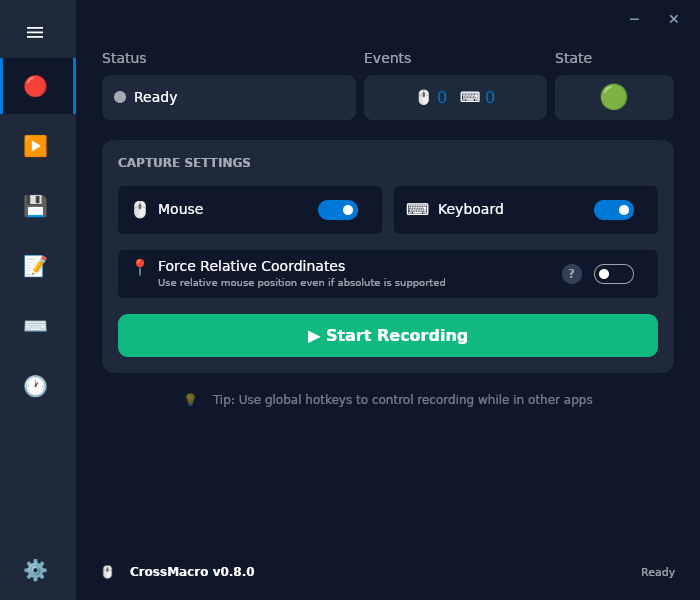
CrossMacro is a cross-platform macro application designed to facilitate the recording and playback of keyboard and mouse actions across Linux, Windows, and macOS. It offers robust features including text expansion for quick insertions, customizable shortcuts for instant macro execution, scheduling capabilities to automate tasks at specific times, playback controls with adjustable speed settings, and system tray integration for seamless management.
Ideal for power users and developers seeking to optimize repetitive workflows, CrossMacro enhances productivity by enabling the automation of complex sequences of actions. Its support across multiple platforms ensures flexibility, while its intuitive design makes it accessible for a wide range of users looking to streamline their computing tasks efficiently.
Installation on Windows can be conveniently handled via winget, with additional options available for other platforms.
README
CrossMacro
Record once. Replay whenever you need.
A free, open-source mouse and keyboard macro recorder for Linux, Windows, and macOS.
Start with a recording. Refine and automate it when you need more.
Why CrossMacro?
CrossMacro brings recording, playback, and everyday automation into one desktop
app. Start with a task you already do by hand, then decide how much to automate.
Start without writing a script. Record mouse and keyboard actions, save
the result, and replay it. The visual editor is there when you want to make
changes, not a prerequisite for your first macro.
Use your desktop. Linux Wayland and X11 are supported alongside native
Windows and macOS integrations. Setup and available capabilities depend on
your platform and desktop session.
Keep your workflow together. Reuse saved macros with shortcuts, schedules,
and triggers; keep settings and automation tasks organized in profiles.
What can you automate?
Repetitive data entry: replay form-filling steps, clicks, and clipboard
actions instead of repeating them by hand.
Everyday typing: expand abbreviations into frequently used text, such as
email addresses and standard replies.
UI checks: repeat an interaction and wait for an expected color, image,
or window before continuing.
Recurring desktop tasks: run a saved workflow from a hotkey, on a
schedule, or when the focused window matches a rule.
Install
Choose the installation channel that suits you; the stores are not the only
options. Each setup link below starts with installation before troubleshooting.
The full download guide covers every channel,
architecture selection, development packages, and checksums.
GitHub MSIX files are unsigned advanced/test packages; use Store, winget, or
portable EXE for normal Windows installation.
Linux: Wayland setup depends on the package and desktop. Native packages
may require a new login after group changes; Flatpak and AppImage may request
temporary device setup.
macOS: DMGs are unsigned and not notarized. Follow the setup guide for
Gatekeeper and privacy permissions before recording or replaying.
Your First Macro
Try typing a short phrase in an empty text editor first.
Open CrossMacro and complete your platform's setup prompts.
Record: focus the empty text editor, press F8, type your phrase, then
press F8 again to stop recording.
Replay: clear the test text and put the text cursor back at the beginning.
Keep the editor focused and press F9. Use F10 to pause or resume, or press
F9 again to stop playback.
Keep it: open Files and save the macro to reuse it. You can adjust
its steps later in the editor or attach it to a shortcut, schedule, or trigger.
These are the default hotkeys; you can change them in Settings. For macros with
mouse actions, also restore the original window layout and starting pointer
position before replaying. Test a saved macro before scheduling it; automation
needs an active desktop session.
Features
Recording and playback
Capture mouse movements, clicks, scrolling, and keyboard events, together or
independently. Adjust playback speed, countdowns, repeat counts, and delays;
pause and resume a running macro. Save recordings as reusable .macro files
and organize them into a library.
Visual editing and screen-aware actions
Edit, reorder, or remove recorded steps instead of starting over. Add text,
delays, clipboard and window actions, or build more involved workflows with
variables, loops, and conditions. Wait for colors, images, or windows before
continuing, rather than relying only on fixed delays.
Shortcuts, schedules, and triggers
Launch a macro with a global keyboard or mouse shortcut. Run tasks once, at
intervals, or on a daily or weekly schedule. Match the focused window's class,
title, or process name, or the active workspace, to trigger a macro or switch
profiles on supported desktops.
Text expansion and profiles
Turn short abbreviations into reusable text. Separate work, testing, and other
routines into named profiles that keep their macro libraries, shortcuts,
schedules, triggers, text expansions, and settings together.
CLI and local MCP integration
The graphical app, command-line interface (CLI), and
Model Context Protocol (MCP) server share the same automation
engine. Use the CLI to record, validate, and run macros or script desktop
actions with structured JSON output. The GUI-less runtime can keep automation
active without the app window, but still needs a desktop session; it is not
a display-less server mode.
MCP lets trusted local agents perform real desktop actions. Start with
restricted mode and review its permissions before granting access.
Screen capture, cursor tracking, and window control vary by platform and desktop
session. See the platform guides for supported capabilities and setup details.
Browse the documentation index for the full reference.
For questions, use Discussions
or join Discord.
Report a bug with your
version, install channel, desktop environment, and steps to reproduce it.
Contributing
Code is only one way to help. Bug reports, documentation improvements,
translations, and testing on different desktops are welcome.
See CONTRIBUTING.md to get started; pull requests target dev.