MicMixer
MicMixer is a push-to-talk mixer for your voice, your music, and your voice
changer. It routes all three into one virtual microphone and gives them
separate rules. Apps like FiveM, Discord, and any voice chat that only
accepts one microphone just see a single ordinary input; MicMixer decides what
goes into it — your normal mic, a voice changer, music, or silence — and you
can switch live, mid-session.
Download for Windows
· Windows 10/11 x64 · self-contained, no .NET install · Apache-2.0
What it's for
- Music in games without holding the game's push-to-talk. The game listens to
the cable while MicMixer's own push-to-talk gates your voice, and Music
ignores push-to-talk keeps the track flowing. Hold a key while sending
presses the game's talk key for you whenever MicMixer sends. Walk through it in
Play music in FiveM without holding push-to-talk.
- A voice changer on a key. Pick your real mic and a modified one (for
example Voicemod's virtual device); hold the hotkey to switch to the modified
voice, release to go back, with a configurable release delay.
- A separate mix for streaming or recording. The secondary output plays the
full mic-plus-music mix on an extra device that OBS or Streamlabs can capture,
with its own push-to-talk rule (by default it ignores push-to-talk), so your
stream hears everything while the game only hears what you let through the gate.
Quick setup
- Install a virtual audio cable such as VB-CABLE.
- Start MicMixer and follow the setup guide that opens, or in Settings › Devices
select your real mic, set Send the mix to to CABLE Input, and click Save.
- In FiveM, Discord, or your chat app, select CABLE Output as its microphone.
- Click Enable. Use the linked guides below for push-to-talk and music rules.
Trust at a glance
- Official releases are built by GitHub Actions from the tagged source commit.
- Releases since
v2026.7.5 include a .sha256 file for the Windows archive.
- The current Windows release is unsigned. Check the release notes for its
authoritative signing status and see the code signing policy.
Guides
The rest of this document is the detailed reference.
Features
- Routes a normal microphone to a virtual audio cable such as VB-CABLE.
- Switches to a voice-modified microphone while a global hotkey is held.
- Supports setups without a modified microphone.
- Supports a configurable release delay before switching back to the normal mic.
- Provides push-to-talk for the complete outgoing mix, including music.
- Provides an optional noise gate that keeps the mic silent between phrases, so
the virtual cable carries true silence instead of room noise.
- Provides matching volume controls for the normal mic and the processed voice,
from mute up to a 2× boost.
- Optionally lets music bypass push-to-talk, so the music keeps playing into the
virtual cable while the voice stays gated.
- Optionally lowers the music while you talk and brings it back when you stop.
- Provides a monitor-only preview mode that keeps music out of the virtual cable
entirely while you listen to it in local monitoring.
- Displays input levels for the normal and modified microphones.
- Plays MP3 files and mixes them into the virtual microphone channel.
- Captures audio directly from an external application such as Spotify.
- Downloads audio from YouTube links and converts it to MP3.
- Provides optional local monitoring with independent output and volume controls.
- Provides an optional secondary output that plays the complete mix (mic + music)
on an extra device for recording or streaming, with its own push-to-talk rule
(by default it ignores push-to-talk).
- Includes playlist search, multiple music folders, a queue, and transport controls.
- Provides a click-through status overlay with mic state, music animation, and an
optional outgoing level meter.
- Serves the same overlay as a local web page for streaming software with browser
source support, so viewers see the mic and music status even when only the game is captured.
- Includes a built-in setup guide that recognizes an installed virtual cable and
walks first-time users through devices and the hotkey.
- Shows a problem card in the main window whenever a saved device is missing or
something else differs from the saved setup.
- Uses a resizable window layout and remembers its size and state.
- Runs in the system tray and redirects additional launches to the existing instance.
- Can start automatically with Windows, hidden in the system tray.
- Writes rotating logs for troubleshooting.
Requirements
- Windows 10 or Windows 11, x64.
- A microphone.
- A virtual audio cable; VB-CABLE is recommended.
- Optional: Voicemod or another voice modifier that exposes a microphone device.
- Internet access for the first media download. MicMixer downloads
yt-dlp and
ffmpeg to its local application-data directory and verifies the files using
SHA-256. YouTube downloads also install the deno JavaScript runtime there.
Release archives are self-contained, so users normally do not need to install
.NET separately.
Download
Download the installer, MicMixer--win-x64-setup.exe, from
GitHub Releases and run
it. It installs MicMixer into Program Files and adds it to the Start menu and to
Apps in Windows Settings. The same release has the app as a zip,
MicMixer--win-x64.zip, to extract and run from a folder of your choice.
When Windows has no VB-CABLE yet, the installer offers to install it and to name
its two ends MicMixer Input and MicMixer Output. VB-CABLE is made by
VB-Audio Software: the origin of VB-CABLE is www.vb-cable.com,
and VB-CABLE is a donationware, all participations are welcome. The option can be
unticked for another cable or a manual install, and uninstalling MicMixer leaves
VB-CABLE in place.
The installer offers Run MicMixer as administrator, also in Settings →
General. While a game or program running as administrator has focus, Windows
keeps the hotkey from reaching a MicMixer that is not, and drops the keys it
holds. When MicMixer notices such a program taking focus, it says so in the main
window with a button that restarts it as administrator. Installed with the
installer and set to start with Windows, it then starts as administrator at
sign-in through Task Scheduler, without a UAC prompt. From any other folder it
does not: Windows would start whatever program replaced MicMixer.exe there as
administrator. Running as administrator, MicMixer still starts yt-dlp, the
browser and File Explorer without administrator rights, and on Windows 11 it does
not follow folder junctions made without administrator rights, so a music folder
reached through such a junction stays empty. It starts as administrator through
MicMixer.Launcher.exe, a small native program that first removes the
DOTNET_*, COMPlus_*, CORECLR_* and COREHOST_* environment variables, since
any program can set those to load a DLL, such as a profiler, into the .NET
runtime. The option needs a Windows account with administrator rights.
Alternatively, install MicMixer with Windows Package Manager:
winget install --id BenjiButten.MicMixer --exact
MicMixer is distributed outside Microsoft Store. Windows Defender SmartScreen
may show Windows protected your PC for an unsigned or newly published build.
Verify that the archive came from the official GitHub release and compare its
SHA-256 hash with the attached .sha256 file before selecting More info → Run
anyway. Windows 11 Smart App Control is a separate feature and may block unknown
unsigned apps without offering that override. See INSTALLATION.txt
for verification commands and details.
Release builds check GitHub for updates at most once every 12 hours while the
main window is open. When a newer version is available, MicMixer can download,
verify, install, and restart itself. You can also run a manual check from
About → Check for updates. A copy installed with the installer updates by
running the new installer, which asks for UAC approval unless MicMixer runs as
administrator; a copy extracted from the zip replaces its own files. Windows may
show a security warning when a new build restarts. After an update, MicMixer
shows the new version's release notes once.
Installations made through winget are updated through winget instead of the
built-in updater. Development builds do not perform update checks.
Code signing and privacy
Current releases are unsigned. Each release states its actual signing status.
See the code signing policy
for the signing scope, project roles, and build provenance. MicMixer's automatic
update checks, user-initiated media downloads, local audio processing, settings,
and logs are covered by the privacy policy.
Basic setup
Start MicMixer.exe. On the first start, a setup guide opens inside the app.
It explains what MicMixer does and how a virtual cable works, recognizes an
installed VB-CABLE, Virtual Audio Cable or Voicemeeter (or walks you through
installing VB-CABLE if none is found), and helps you pick your microphone, the
cable, your monitoring device and the hotkey. Finish saves the choices and
can start routing right away. Run it again any time from Settings › General.
To set up by hand instead:
- Install VB-CABLE and restart Windows if the
installer asks.
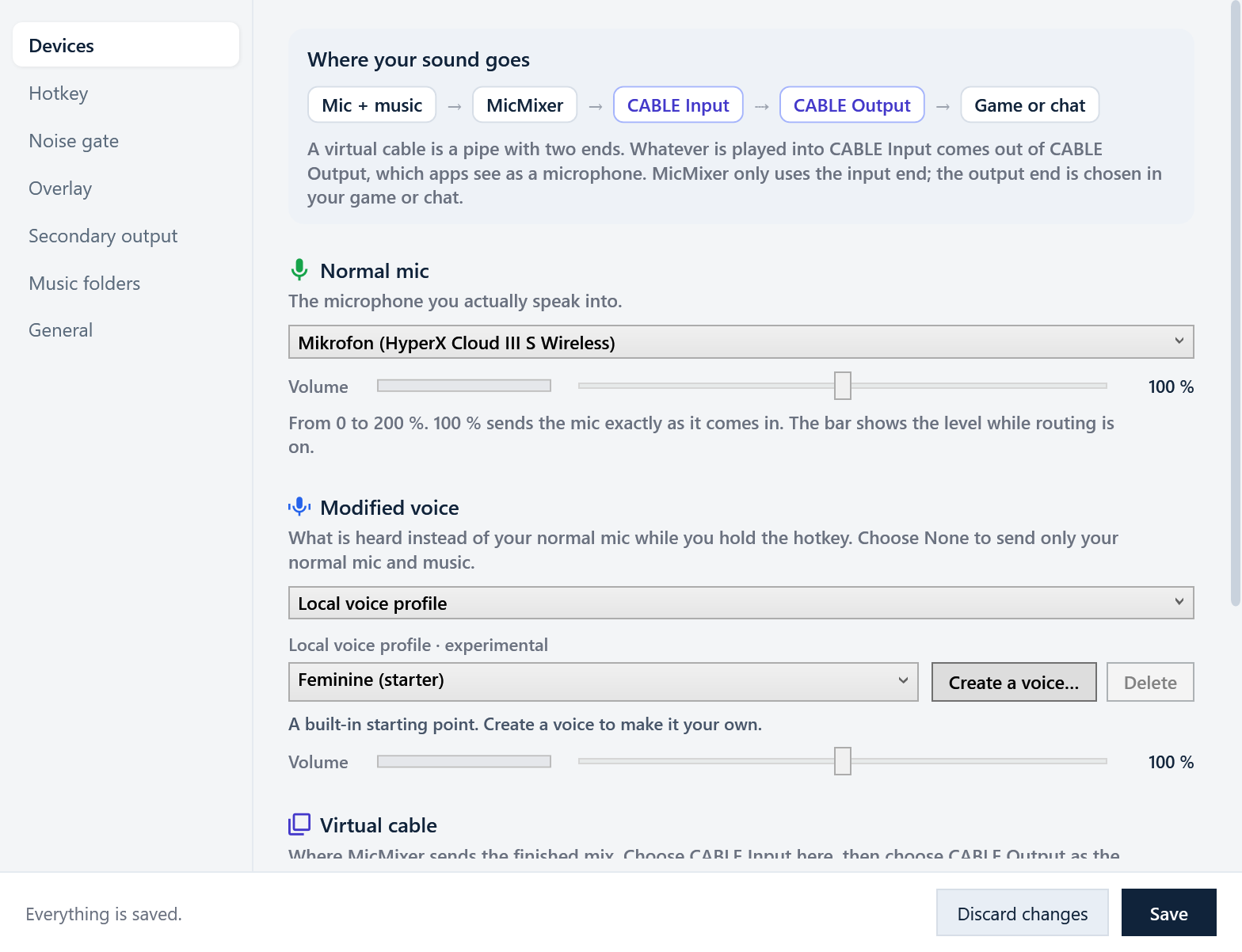
- In MicMixer, open Settings › Devices.
- Select your physical microphone under Normal mic.
- Under Voice changer, choose Off, Voice changer app (then select its
microphone, such as Voicemod Virtual Audio Device), or MicMixer voices.
- Under Virtual cable, set Send the mix to to CABLE Input (VB-Audio Virtual Cable).
- Click Save.
- In your voice chat, game, or streaming app, select CABLE Output as the microphone.
- Click Enable in the main window.
A virtual cable is a pipe with two ends: MicMixer plays the mix into CABLE
Input, and every other app picks CABLE Output as its microphone.
If the selected output does not look like a virtual cable, MicMixer displays a
warning. Click Enable again to continue with another cable driver or an
intentional non-cable output.
Main window and settings
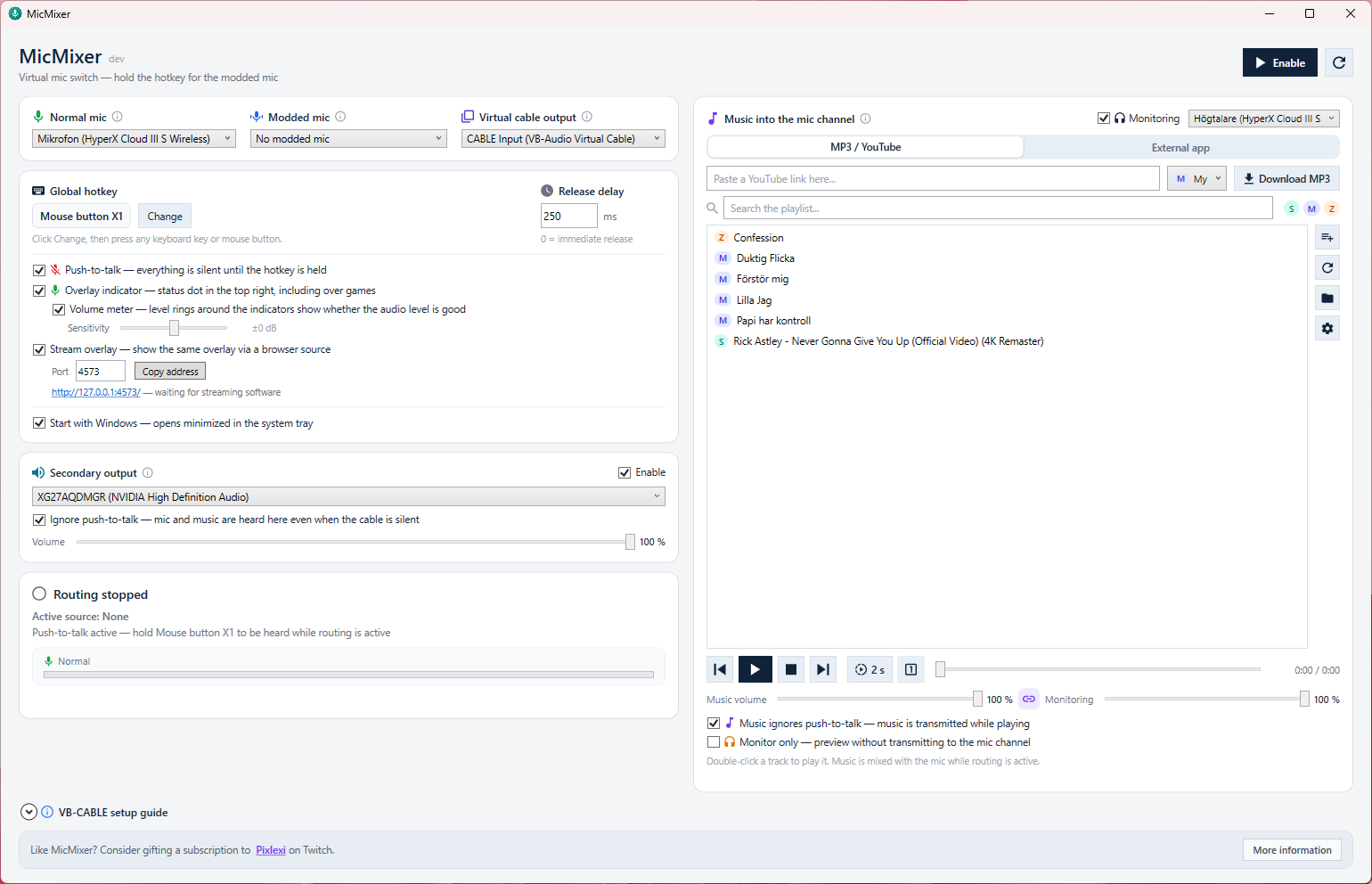
The main window holds what you use during a session: a status card, the music
player, and orange problem cards. Everything you set up once lives in a separate
Settings window with the pages Devices, Hotkey, Noise gate, Overlay,
Secondary output, Music and General.
- The status card shows whether you are heard (gray Stopped, green Live, blue
Modified voice, red Muted), what the hotkey does right now, and where the mix
goes.
- Settings changes apply immediately, but are kept for the next start only after
Save, which also closes the window. Cancel returns to the saved settings
and closes it. Closing it with its × leaves unsaved changes in use until
MicMixer restarts.
- Settings › General › What's new… shows the release notes of the running version.
- While routing is on, the microphones, the virtual cable and the secondary output
are locked because they are in use; a banner at the top of the settings window
says so and offers Stop routing.
- The saved settings are the reference for the problem cards. When a saved
device is not connected, the secondary output is misconfigured or fails, or
settings are changed but not saved, the main window shows one card per problem
with a button to the settings page that fixes it.
MicMixer never replaces a saved device with a stand-in without saying so, and
starting routing never overwrites the saved devices. Devices coming and going are
noticed while routing is off, so a card clears itself once the device is back.
- Music card controls (volumes, monitoring on/off, the music routing toggles,
source mode), the voice changer and its voice, and music folders are saved as
they change.
Hotkey and push-to-talk
In Settings › Hotkey, click Change, then press the keyboard key or mouse
button that should select the modified mic while routing is active. Add hotkey
adds more keys or buttons that do exactly the same; the hotkey counts as held
while any of them is held.
-
Hotkey held: the modified mic is routed.
-
Hotkey released: the normal mic is routed.
-
Release delay above 0 ms: the modified mic remains active until the delay ends.
The Voice changer decides what the hotkey switches to. Switch it from the row
under the status card in the main window, or in Settings › Devices. It takes
effect immediately; if routing is on, routing restarts for a moment.
-
Off: the hotkey is disabled unless push-to-talk is enabled.
-
Voice changer app: for apps such as Voicemod that create their own microphone
device. Select that device in Settings › Devices.
-
MicMixer voices (experimental): MicMixer changes your voice itself, from your
physical microphone, with no other app. Pick a voice next to the switch, or create,
edit and delete your own voices in Settings › Devices. Its Volume slider there
adjusts the processed voice only, from 0 to 200%, while routing is active.
-
Volume under the normal mic adjusts only the normal mic, on the same 0–200%
scale. 100% sends it exactly as captured. MicMixer never lowers the normal mic
on its own; raise this if it sounds quieter than your modified voice, or lower
the modified voice next to it.
Push-to-talk reverses the idle behavior: while the hotkey is not held, the virtual
cable receives silence. Neither microphone audio nor music is sent.
- It also works with the voice changer Off, in which case the hotkey gates the normal mic.
- With a modified mic selected, holding the hotkey both opens the gate and selects it.
- The release delay applies to push-to-talk as well.
- Local music monitoring is not muted by push-to-talk.
- The tray icon and overlay turn red with a crossed-out mic while the outgoing mix
is muted.
- With Music ignores push-to-talk enabled (music card), push-to-talk gates
only the microphone: the music keeps flowing into the virtual cable as long as
it plays. See Music routing.
Hold a key while sending (same page) holds a chosen key, F13–F24, down for
as long as mic or music reaches the virtual cable, with push-to-talk for as long
as you hold the hotkey, and lets go shortly after. Bind
another app's push-to-talk to that key and it transmits exactly when MicMixer
does, also while MicMixer is in the background. While music plays, the press is
repeated every second, so a game that lost the key while you switched windows
picks it up again. F13–F24 are not on a normal
keyboard: click Send key once, switch to the other app and start its key
binding, and MicMixer sends the key after 5 seconds.
Noise gate mutes the mic whenever its level stays below the threshold, so
the cable carries true digital silence between phrases instead of room noise
and hum. Apps that use voice activation on the cable
then stop treating you as talking the moment you stop speaking, even while the
push-to-talk key is still held.
- The gate opens within a few milliseconds and stays open for a quarter second
after the level drops, so short pauses do not chop words.
- The bar under the slider shows the mic level on the same scale: set the
threshold so the bar passes the knob while you talk and stays below it while
you are quiet. The label next to it tells whether the gate is open or closed.
- It applies to the normal and the modified mic alike and works together with
push-to-talk. Music is not affected.
Music sources
MicMixer can use its built-in MP3 library or capture audio from another application.
In either mode, the audio is mixed into the same virtual microphone channel as your
voice.
MP3 library
Add music by either:
- Pasting a YouTube link and clicking Download MP3.
- Opening a configured music folder and adding your own
.mp3 files.
Only links to a single video are accepted. Pasting a YouTube search, playlist, or
channel link is refused with an explanation rather than downloading everything behind
it, and a video link that carries a mix or radio list downloads just that one video.
The first download installs local copies of yt-dlp and ffmpeg. YouTube downloads
also install deno, the JavaScript runtime yt-dlp uses to unscramble YouTube's media
links. These packages are relatively large, so the first download may take longer.
The tools are reused for subsequent downloads.
The library supports search, playback controls, a queue, and multiple music folders.
When multiple folders are configured:
- Each track has a colored folder badge; hover over it to see the full path.
- Folder chips beside the search field filter the visible tracks.
- The download destination can be selected separately.
- Folders are added or removed in Settings › Music; at least one folder
remains configured.
Music can play while routing or local monitoring provides an audio clock. If neither
is active, playback pauses instead of appearing to play without advancing.
External application capture
Select the external-application source mode to capture audio from a running
application such as Spotify and route it through MicMixer. Refresh the application
list when a newly started app is not shown. Transport buttons send system media-key
commands to the active media application.
External capture availability depends on the Windows process-loopback APIs and the
selected application producing audio.
Local monitoring
Monitoring plays library music through your own headphones or speakers. It has a
separate device and volume control and does not change the level sent to other
people through the virtual microphone. Select a physical playback device rather
than the virtual cable.
Music routing
Two toggles in the music card control how the music relates to push-to-talk and
the virtual cable. Both apply immediately, also while routing runs, and both work
in external capture mode as well.
- Music ignores push-to-talk: the music keeps flowing into the virtual
cable as long as it plays, while push-to-talk still gates the microphone.
Typical use: the game should hear the music continuously, but your voice only
while you hold the hotkey. The toggle is only active while push-to-talk is
enabled — without push-to-talk, playing music is always sent.
- Monitor only: preview mode. The music is never sent to the virtual
cable; you hear it through local monitoring and can check a track or set its
volume before anyone else hears it. The secondary output still receives the
music, so streaming or recording software capturing that device hears what you hear. An
amber hint below the toggle states exactly where the music goes while the mode
is active. Monitor-only overrides the ignore-push-to-talk toggle. It is off
each time MicMixer starts.
The status card and the overlay always reflect the outcome: when push-to-talk
mutes the mic while music still flows, the pill reads Mic muted and the status
line adds "music is still transmitting", and the overlay's music circle shows the
current destination.
Lower the music while you talk (Settings › Music) turns the music down to a
set share of its volume, 25 % by default, while your mic reaches the virtual cable,
and brings it back up once you are quiet. It glides down in a few hundredths of a
second, so your first word is already on top, and up over about half a second, so
the music does not jump between phrases. Push-to-talk or the noise gate decides
when you talk: with push-to-talk alone the music stays lowered for as long as you
hold the hotkey, and with the noise gate on it comes back up in the pauses between
phrases. Push-to-talk alone counts only when Music ignores push-to-talk is on,
since otherwise the music reaches the cable only while you hold the hotkey anyway.
Without either, MicMixer cannot tell when you talk and leaves the music as it is.
The virtual cable and the secondary output are both lowered; local monitoring is
not.
Secondary output
The Secondary output section routes the complete finished mix — microphone and
music — to one extra playback device while routing is active. The branch has its
own gates, independent of the cable's: with Ignore push-to-talk enabled
(default) the secondary device keeps receiving mic + music even while the
virtual cable receives silence. Disable that option to make the secondary
microphone follow the same push-to-talk gate as the cable; the music then still
flows whenever you can hear it — while it is sent to the cable or previewed in
monitor-only mode — so a stream capturing the secondary device always hears the
music you hear.
Typical use with streaming or recording software:
- Enable Secondary output and select a playback device that you are not
otherwise using (for example an unused HDMI output or a virtual device).
- In your streaming software (for example, OBS Studio or Streamlabs Desktop),
add an audio output capture source and select the same device.
- Start routing in MicMixer. The software now records or streams the full mix, including
everything you say while push-to-talk is released.
Warnings:
- The secondary device plays your own microphone. If you pick your normal
speakers, everyone in the room hears your mic and you risk feedback into the
microphone. Prefer a device you cannot hear, or headphones.
- The capture source includes everything on that device. Any other application playing
audio to the same device ends up in the recording.
- The secondary output can never use the same device as the virtual cable (Send the mix to);
MicMixer blocks that combination because the mix would play twice on the cable.
- If the saved secondary device is missing at startup, MicMixer leaves the
selection empty and refuses to start the secondary output until you explicitly
pick a device again — it never substitutes another output on its own.
The secondary volume only affects the secondary device. Failures on the
secondary device (for example unplugging it) close only the secondary branch;
routing to the virtual cable continues.
Overlay indicator
The optional click-through overlay remains visible above borderless/windowed games
without stealing focus or intercepting mouse input. The mic circle shows the same
status colors and glyphs as the tray icon:
- Green with a mic: the normal microphone is heard.
- Blue with a modified-mic glyph: the modified microphone is heard.
- Red with a crossed-out mic: push-to-talk is muted.
- Gray (tray icon only): routing is stopped.
While music is active, a separate music circle appears to the left of the mic
circle and tells where the music goes:
- Purple with a note and dancing equalizer bars: the music is sent into the mic
channel.
- Amber with headphones: monitor-only preview — only you (and the secondary
output) hear it.
- Gray with a crossed-out note and frozen bars: the music plays but push-to-talk
currently blocks it from the cable.
The optional level rings wrap each circle: the mic ring shows the complete
outgoing mix after the gates (exactly what the cable receives), and the music
ring shows the music branch alone after the music volume — also during a
monitor-only preview, so the level can be set before anyone else hears it.
Exclusive fullscreen applications may prevent desktop overlays from being visible.
Stream overlay
When streaming software captures a game as an individual process, desktop
overlays may not be part of the captured image, so viewers never see the overlay
indicator. Enable Serve the stream overlay in Settings › Overlay and MicMixer serves
the same overlay as a local web page (http://127.0.0.1:4573/ by default)
that can be added as a browser source and layered on top of the game. The
page mirrors the desktop overlay exactly — states, level rings, equalizer bars,
and the hidden state while routing is stopped — and reconnects automatically
when MicMixer restarts. See docs/stream-overlay.md for setup
steps, URL parameters, and the wire protocol.
Local data
MicMixer stores settings, its default music folder, downloaded tools, and logs in:
%LocalAppData%\MicMixer
Important files and directories:
settings.json: devices, hotkey, volumes, folders, window state, and other settings.Music\: the default MP3 library folder.tools\: downloaded yt-dlp, ffmpeg, and deno binaries.logs\micmixer-YYYYMMDD.log: runtime logs.startup-timeline.log: a basic startup timeline.
Runtime logs roll at 5 MB, rotate daily, and are retained for 14 days.
Troubleshooting
- If nobody can hear anything, confirm that MicMixer outputs to CABLE Input and
that the receiving application uses CABLE Output as its microphone.
- If others cannot hear music, confirm that routing is active and disable noise
suppression, echo cancellation, and automatic gain control in the receiving app.
- If local monitoring is silent, enable monitoring and select your headphones or
speakers as the monitor device.
- If external application capture is silent, make sure the selected app is actively
producing audio and refresh the application list.
- If a download fails, check the internet connection and inspect the logs under
%LocalAppData%\MicMixer\logs.
- If an audio device was disconnected, reconnect it: MicMixer picks it up again by
itself when routing is off, and its card disappears. While routing is on, the
card stays until you stop routing, because the route keeps using the device it
started with. Refresh devices in Settings › Devices reads the devices again
at once, but stops routing first. Music that paused because the monitoring device
was unplugged resumes when that device is back, not on a stand-in device.
- If the secondary output shows "device was not found", reconnect the device or
select a new one explicitly; MicMixer intentionally never auto-picks a
replacement secondary device.
Development
The application project is located in src/MicMixer and targets net10.0-windows.
Build and test locally:
dotnet build .\MicMixer.slnx
pwsh -File .\scripts\Test.ps1
Local voice profiles are stored outside the repository. See local voice profiles for configuration, migration, verification and offline rendering.
Create a self-contained Windows x64 build:
dotnet publish .\src\MicMixer\MicMixer.csproj `
  -c Release `
  -r win-x64 `
  --self-contained true `
  -o .\artifacts\publish\win-x64

# The launcher is compiled with NativeAOT, which needs the MSVC build tools.
dotnet publish .\src\MicMixer.Launcher\MicMixer.Launcher.csproj `
  -c Release `
  -r win-x64 `
  -o .\artifacts\publish\win-x64
CI/CD
Pushes to main that change src/** run .github/workflows/release.yml. The
workflow restores the complete solution, runs the full test suite, publishes a
self-contained win-x64 build, optionally signs and verifies the executable,
and creates a ZIP plus SHA-256 checksum. The release tag is created for the exact
commit that was checked out and built. Documentation, tests, solution, and
workflow-only pushes do not trigger an application release.
Update RELEASE_NOTES.md with user-visible changes alongside
the app code. The workflow adds the version, commit, archive hash, and verified
signing status when it creates the GitHub Release.
For changes that benefit from integration testing, feature branches can be
combined on the optional next branch before next is merged to main. Small
fixes can go directly through a feature branch to main. Only main publishes
a release.
Run .github/workflows/build.yml manually on any branch to produce a candidate
ZIP and SHA-256 file. Candidate builds run the same restore, test, and publish
steps but do not create a tag or public release.
Support and acknowledgements
MicMixer is built and maintained by BenjiButten and released free of charge as
open-source software. A special thank you goes to Pixlexi,
who has contributed the use cases behind the app, hands-on testing, and valuable
feedback throughout development.
If you enjoy MicMixer and would like to give something back, please consider
gifting a sub to Pixlexi on Twitch.
Third-party components and their license information are listed in
THIRD-PARTY-NOTICES.txt. That file, the project
license, and the attribution NOTICE are included in published distributions.
License
MicMixer is licensed under the Apache License 2.0. Redistributions
must also preserve the applicable attribution information from NOTICE
as required by the license.
Published releases up to and including v2026.7.3 remain available under the
MIT terms under which they were originally released. Source from the Apache-2.0
relicensing commit onward is licensed under Apache-2.0.