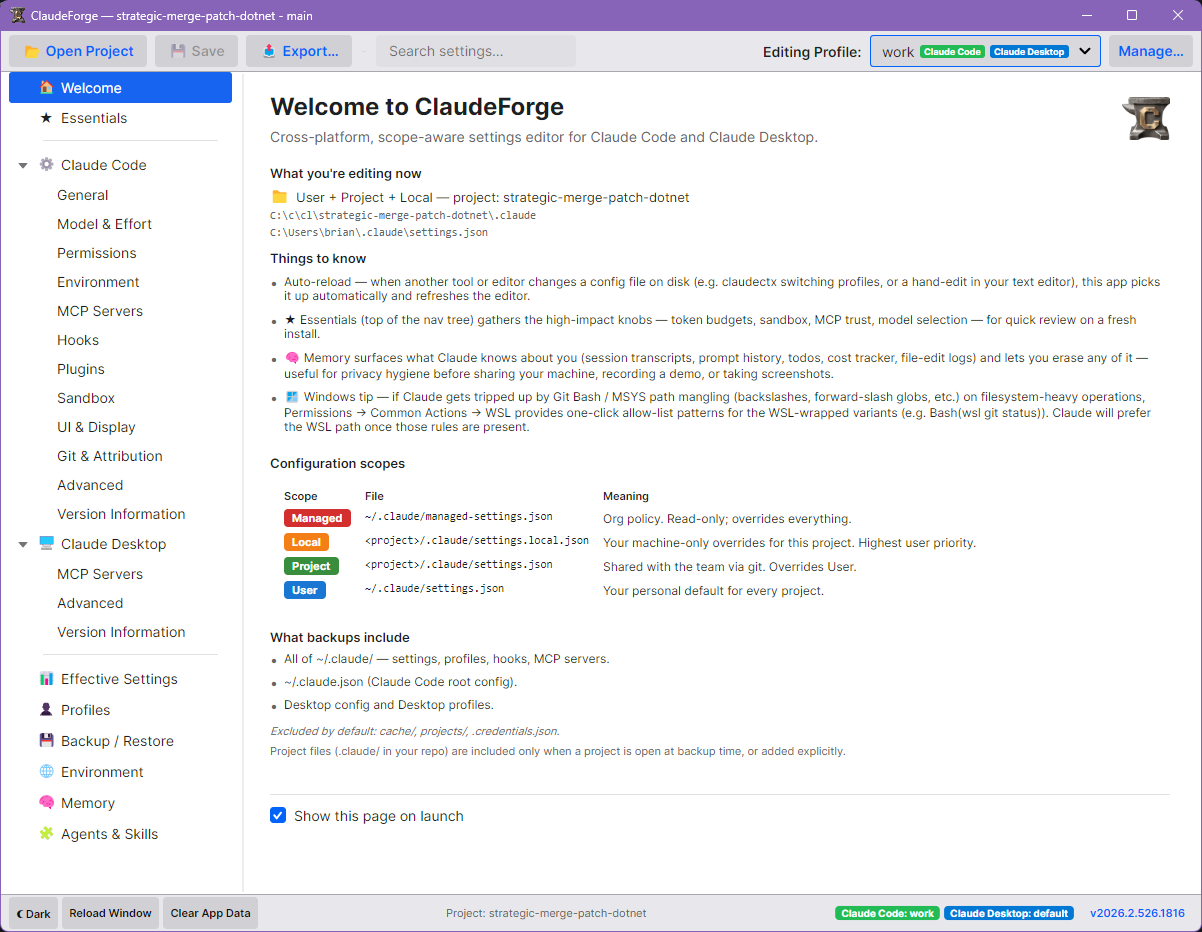
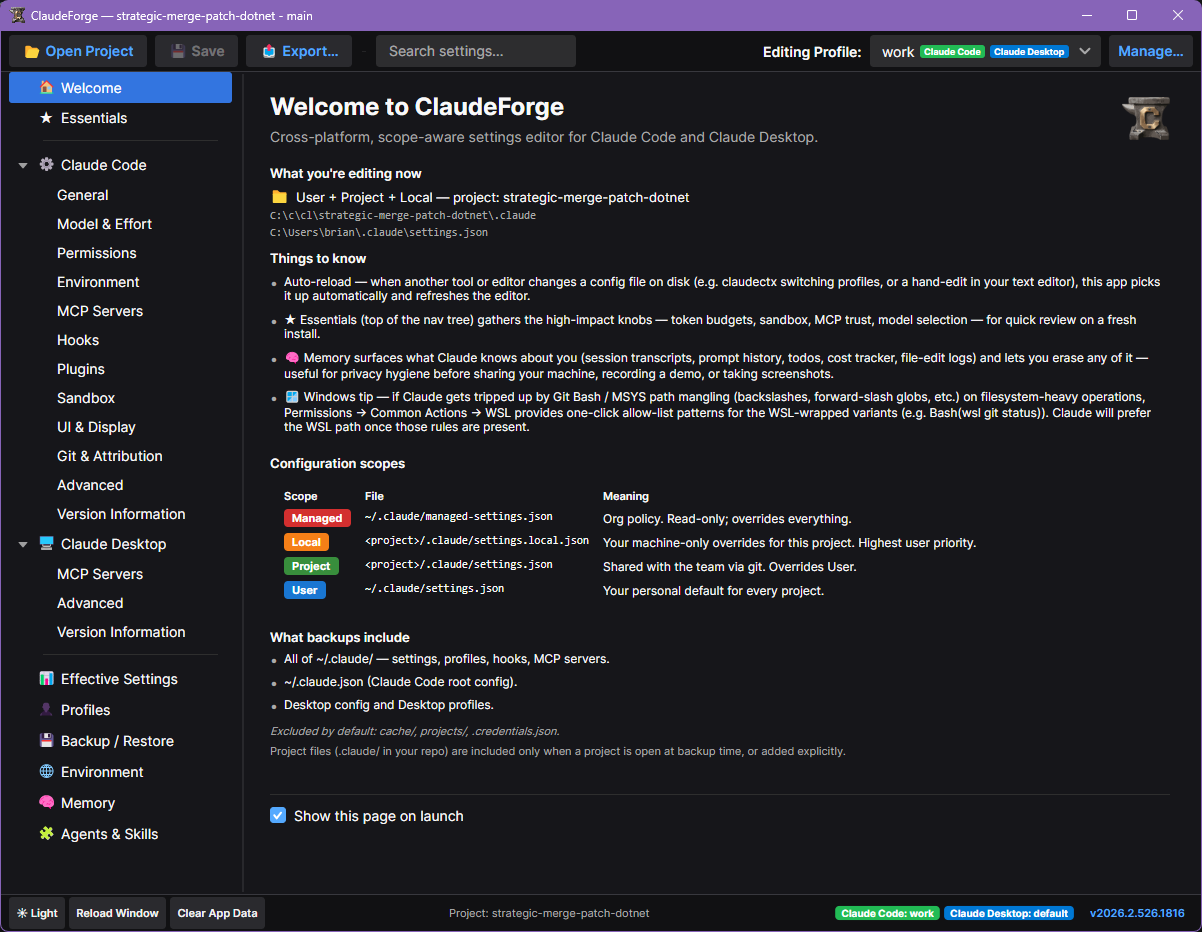
ClaudeForge





A cross-platform desktop editor for Claude Code and Claude Desktop configuration files.
What is this for?
If you use Claude Code or Claude Desktop, you have JSON configuration files in ~/.claude/ (and per-project .claude/). Editing them by hand is fine for small tweaks, but tedious when you're:
- Tuning a fresh install — token budgets, sandbox, MCP server trust, model selection are scattered across multiple files and undocumented env vars.
- Maintaining multiple projects — User vs Project vs Local scopes overlap; figuring out which file actually wins for a given setting takes attention you'd rather spend elsewhere.
- Sharing your machine, recording a demo, or shipping a screenshot — you'd like to know (and erase) what Claude has captured about you across sessions.
- Using profiles — you want to switch between "personal" and "work" Claude Code setups without copy-pasting JSON files around.
ClaudeForge is a typed editor for all of that. Every setting shows which scope provides its current value, where it's coming from, what it does, and what changing it will do. Compound editors (Permissions, Hooks, MCP servers, Marketplaces) replace error-prone freehand JSON with structured forms. The Backup / Restore page captures your entire ~/.claude/ (excluding cache + credentials by default) into a timestamped .zip you can roll back to.
Highlights
| Feature | What it does |
|---|
| ★ Essentials page | Top-of-tree page that pins the highest-impact settings — token budgets, sandbox, MCP trust, model, effort level, fast mode, auto-update channel, auto-memory, and the disable-bypass-permissions safety knob. Includes a search-deep-link to take you straight to any of them. |
| 🧠 Memory page | Surfaces what Claude has captured about you across sessions (transcripts, prompt history, todos, cost tracker, file-edit logs) and what files Claude reads on every session. Per-category delete for privacy hygiene before sharing your machine, recording a demo, or taking screenshots. |
| 🧩 Agents & Skills page | Inventory and edit your sub-agents, skills, and slash commands across User, Project, and plugin scopes — structured front-matter card, raw-YAML escape hatch, and a rendered markdown body. Filter by name, description, or source to find one among hundreds; plugin-provided items are surfaced read-only. |
| Deep links + place-keeping | --deep-link page/tab/item launches straight to a setting or artifact — see Deep links. Your position is remembered across restarts, and Reload Window restores it in full, including an in-progress edit. |
| Layered settings editor | Browse and edit all Claude Code settings across Managed → Local → Project → User scopes. Every setting shows colour-coded scope badges with explanatory tooltips. |
| Effective settings view | See the fully-merged winning value for every setting at a glance, with the source scope marked. |
| Compound editors | Permissions (with curated common-actions panel), Hooks (sortable + URL/script/MCP variants), MCP servers (env-var-aware), Marketplaces (with all 8 source variants), Enabled plugins. |
| Model-aware settings | model, effortLevel, and permissions.defaultMode are driven by a bundled model catalog that knows their relationships: the effort dropdown only offers levels the selected model supports (auto-coercing an invalidated value to the nearest one), auto mode is gated to capable models at User scope, and the model field is free-form with suggestions. |
| Profiles + claudectx interop | Manage named profiles for both Claude Code and Claude Desktop. Per-profile JSON export / import that round-trips with claudectx. See docs/CLAUDECTX-COMPATIBILITY.md. |
| Auto-reload | When another tool (e.g. claudectx) or your text editor changes a config file on disk, ClaudeForge picks it up automatically. |
| Backup / Restore | Timestamped .zip archives of all config (and optionally projects + credentials). Restore any previous backup with a preview. Sanitized mode scrubs secret-bearing values (env, MCP headers, credentials, *token, *secret, *password, *apikey, bearer) with "[redacted]" so the archive is safe to share with support / community / bug reports. Sanitized backups are non-restorable by design. |
| Add to PATH | One-click Add-to-PATH button on the Version Information page. Windows: writes HKCU\Environment\Path. macOS / Linux (new in v1): appends to the user's shell rc file (~/.bashrc / ~/.zshrc / ~/.config/fish/config.fish, auto-detected from $SHELL). |
| Search bar | Find any setting by name, JSON path, or keyword. Synthetic hits for common gotchas like --dangerouslySkipPermissions and bypassPermissions. |
| Save preview | Confirm-before-save dialog lists each file the change will be written to, plus a one-line "Saving N change(s) across M file(s)" summary. |
| Dark / light theme | Follows the system preference; toggle manually from the toolbar. |
Install
winget (Windows)
winget install Bennewitz.Ninja.ClaudeForge
Pulls the latest signed release from the Windows Package Manager Community Repository. This is a portable install — winget unpacks the self-contained ClaudeForge.exe and puts a claudeforge command on your PATH; there's no Start Menu shortcut or Add/Remove Programs entry, which is expected for portable packages. It resolves the right build for your architecture (x64 or ARM64) automatically. Update in place with:
winget upgrade Bennewitz.Ninja.ClaudeForge
Pre-built binaries
Download the latest release for your platform from the Releases page:
| Platform | File |
|---|
| Windows (x64) | ClaudeForge--win-x64.zip |
| Windows (ARM64) | ClaudeForge--win-arm64.zip |
| macOS (Apple Silicon) | ClaudeForge--osx-arm64.tar.gz |
| macOS (Intel) | ClaudeForge--osx-x64.tar.gz |
| Linux (x64) | ClaudeForge--linux-x64.tar.gz |
| Linux (ARM64) | ClaudeForge--linux-arm64.tar.gz |
Binaries are self-contained — no .NET runtime installation required. The Linux
and macOS tarballs include the platform-helper scripts described below
(linux-setup.sh / allow-app-to-run.sh).
Linux: dock / titlebar icon setup
The published binary works out of the box on X11 (Window.Icon writes the standard _NET_WM_ICON property). On Wayland (CachyOS / COSMIC, GNOME 40+, KDE 6, Sway), the protocol does not expose a per-window-icon API — compositors look up icons via a .desktop file matching the app's app_id. The release .tar.gz ships with linux-setup.sh, which installs a per-user .desktop entry pointing at the extracted binary plus the SVG icon into the hicolor icon theme:
tar -xzf ClaudeForge-linux-x64.tar.gz -C ~/ClaudeForge
cd ~/ClaudeForge
./linux-setup.sh
./ClaudeForge
The script writes only to per-user XDG paths (~/.local/share/applications/claudeforge.desktop and ~/.local/share/icons/hicolor/scalable/apps/claudeforge.svg), no sudo required. Run ./linux-setup.sh --uninstall to remove. See the script's header comments for the WHY / WHAT IT WRITES / UNINSTALL rationale.
System-wide install for distro packagers, full diagnostic commands (xprop WM_CLASS, swaymsg get_tree), and pre-rendered hicolor PNG generation for older GTK environments live in docs/LINUX-DESKTOP-INTEGRATION.md.
Windows: SmartScreen warning
ClaudeForge v1 is unsigned. Windows SmartScreen will warn the first time you run an unsigned binary downloaded from the internet — click More info → Run anyway. We're considering code-signing for a future release; meanwhile, if your security policy disallows running unsigned binaries you'll need to build from source.
macOS: Gatekeeper
ClaudeForge is not yet notarized. macOS Gatekeeper will refuse to launch the unsigned binary by default. The release .tar.gz ships with allow-app-to-run.sh, which recursively strips the com.apple.quarantine extended attribute from every file in the extracted directory:
tar -xzf ClaudeForge-osx-arm64.tar.gz -C ~/ClaudeForge
cd ~/ClaudeForge
./allow-app-to-run.sh    # add `sudo` if you extracted into a system location
./ClaudeForge
The right-click → Open → Open dialog only clears the xattr from the binary you click; the dozens of .dylib files a self-contained .NET publish ships carry their own quarantine xattr and will trip "Library not loaded: ... operation not permitted" at runtime. The bundled script clears them all in one shot. See the script's header comments for the full WHY / SECURITY rationale. As with Windows, notarization is on the post-v1 list.
Build from source
Prerequisites: .NET 10 SDK
git clone https://github.com/JanusMael/ClaudeForge.git
cd ClaudeForge
dotnet build
dotnet run --project src/ClaudeForge
To publish a self-contained single-file executable:
# Windows (x64)
dotnet publish src/ClaudeForge -c Release -r win-x64

# macOS (Apple Silicon)
dotnet publish src/ClaudeForge -c Release -r osx-arm64

# Linux (x64)
dotnet publish src/ClaudeForge -c Release -r linux-x64
Usage
Opening a project
Click 📂 Open Project to select a project folder. This loads the project-level and local-level settings files in addition to the user-level ones, and unlocks editing at those scopes.
Changing the editing scope
Each settings page has an Editing scope selector. Changes are written to the selected scope. Use this to set a value at the Project scope so it's shared with the team while leaving the User-level value untouched.
Profiles
The toolbar profile selector shows a unified dropdown covering both Claude Code and Claude Desktop profiles. Profiles that exist in both systems are merged into a single entry; CLI-only entries show a green CC chiclet; Desktop-only entries show a blue D chiclet; shared entries show both.
Selecting (global) loads the live configuration for both products. Selecting a named profile loads the matching profile data for whichever products have a profile with that name.
Click Manage… next to the profile selector to navigate to the Profiles page where you can create, apply, sync (CLI ↔ Desktop), delete, export, and import profiles. Per-profile JSON export uses claudectx's exact schema so artefacts round-trip between the two tools.
Saving
Press Ctrl+S or click 💾 Save to write all pending changes to disk. The save button is enabled only when there are unsaved changes. A preview dialog lists exactly what will change and which file each edit will be written to before any disk write.
Environment variables
The Environment section merges all layers — Process, Claude-env, OS User, OS Machine — into a single table. Select a variable to view per-scope values and edit at your chosen scope. Known Claude-related variables show a description beneath the name; high-impact env vars (MAX_THINKING_TOKENS, CLAUDE_CODE_MAX_OUTPUT_TOKENS, etc.) appear as suggested keys even when unset.
Configuration file locations
| Scope | Path |
|---|
| Managed (read-only) | Platform-specific enterprise policy directory |
| User | ~/.claude/settings.json |
| User (named profile) | ~/.claude/profiles//settings.json |
| Project | /.claude/settings.json |
| Local | /.claude/settings.local.json |
| MCP (user) | ~/.claude/mcp.json |
| Claude Desktop | ~/Library/Application Support/Claude/claude_desktop_config.json (macOS) |
Scope priority (highest first): Managed → Local → Project → User. Higher-priority scopes override lower-priority ones at the same key.
Privacy
ClaudeForge runs entirely on your machine. Specifically:
- No telemetry, no analytics, no crash reporting. The app does not phone home.
- No automatic updates. New versions ship via Releases; you choose when to upgrade.
- Local rolling logs only. A diagnostic log is written to
/logs/app-{date}-{hour}.txt (8-hour rolling buckets, 3-day retention) for your own troubleshooting. Never uploaded anywhere. The log path is printed to stderr at startup so you can find it.
- Secret-bearing values are auto-redacted in logs. Any change to a key under
env, headers, credentials, or auth (or whose name contains token / secret / password / apikey / api-key / bearer) has its value replaced with [redacted] before logging. Path-segment-aware so MCP HTTP headers are protected even when nested deep. Tested in SensitiveKeysTests.
- Backups exclude credentials by default. Toggle separately if you want them included.
- Sanitized backup mode is the recommended way to share your config for support / community / bug reports. Same scope as a normal Settings-only backup, but every
*.json value whose key matches the secret-classifier (above) is rewritten to "[redacted]" before being added to the .zip. The .credentials.json file is dropped entirely regardless of the toggle. The resulting archive is non-restorable by design — a "Restore" attempt on a sanitized backup is refused with a clear message. The Restore list shows a yellow "Sanitized (for sharing)" chip on these archives. Regular SettingsOnly and Full backups store secrets in plaintext (since they have to be restorable); the Backup page surfaces a one-line advisory reminding you of that and pointing at Sanitized mode if you intend to share.
If you find a privacy issue, please open an issue marked security rather than emailing publicly.
Debug flags
ClaudeForge accepts a small set of command-line flags useful for testing UI states. All flags are case-insensitive; unknown args pass through to Avalonia untouched.
| Flag | Effect |
|---|
--showInstallBanner | Force the install-guidance banner on top of MainWindow even when Claude is detected. |
--windows / --macos / --linux | Emulate the requested platform for UI-display purposes. The Desktop config path, install-banner shell command, backup-manifest platform tag, and About page render as if the host OS were the requested platform. Real platform-intrinsic APIs keep using the real host OS. |
--showAllNew | Force every property in every editor to render with the "✨ NEW" badge. Useful for QA / screenshots / verifying badge styling without mutating the schema or snapshot cache. |
--culture | Override CurrentUICulture with the named specific culture (e.g. en-US, zh-CN, fr-FR). Validated against the .NET predefined-culture list — unrecognised codes are rejected with a Serilog warning and the OS default is used. Useful for verifying the resx fallback path on cultures with no satellite. |
--deep-link | Launch straight into a page, tab, or item instead of wherever you left off. See Deep links. |
--writer | Which writer saves your config files. The default (jsonc) edits in place, so your comments, blank lines, key order, and indentation survive a save and only the settings you changed appear in a git diff. legacy restores the older behaviour of re-serializing the whole file, which reformats it — a recovery hatch in case the in-place writer ever mangles a file, and it is going away after one release. If you need it, please open an issue with the before/after so it can be fixed. Unrecognised values fall back to the default. |
--debug-help | Log the available flags. |
Passing any flag emits a startup log line so log captures always say which flags shaped the session:
[DebugFlags] active: --showInstallBanner, --linux, --culture zh-CN
Deep links
--deep-link opens the app at a specific place rather than wherever you
were last. Handy for shortcuts, scripts, and anything that wants to hand a user
straight to the right setting.
ClaudeForge --deep-link claude-code/permissions
ClaudeForge --deep-link agents-skills/skills/pdf
The path is page[/tab][/item], or product/page[/tab][/item] for the settings
pages nested under a product:
| Path | Lands on |
|---|
essentials | The Essentials page |
agents-skills | Agents & Skills |
agents-skills/skills | Agents & Skills, Skills tab |
agents-skills/skills/pdf | …with the pdf skill open |
agents-skills/skills/pdf@user | …disambiguated when several sources ship a pdf skill |
claude-code/permissions | Claude Code → Permissions |
claude-code/permissions/properties | …on its Overview tab |
claude-code/hooks/hooks.flow | Hooks, on the Flow diagram tab |
effective-settings/json | Effective Settings, Raw JSON tab |
backup-restore/restore | Backup / Restore, Restore tab |
Every settings page takes properties, effective and json; a page that
contributes its own tab addresses it the same way, which is what hooks.flow is.
In the name@source form, a plugin's source is itself a path, so its separators
are written as : to keep the whole thing inside one segment —
math-olympiad@claude-plugins-official:plugins:math-olympiad. Copy deep link
does this for you; either spelling is accepted if you type one by hand.
You don't have to compose these by hand. Open an agent, skill, or command and use
Copy deep link in its toolbar — that puts the exact path on your clipboard,
already qualified so it can't land on a same-named item from another plugin. It's
also how you hand someone else a pointer to a specific artifact.
Page and tab ids are stable identifiers, not display labels, so a link keeps
working in any language. A settings page's id is its sidebar name lower-cased with
punctuation collapsed to - (MCP Servers → mcp-servers).
A path that doesn't work says so rather than failing quietly. A malformed one is
reported on your terminal, with the valid pages listed:
[ClaudeForge] --deep-link 'agents-skills//pdf' rejected: path contains an empty segment.
  Expected: --deep-link [/[/]]   e.g. agents-skills/skills/pdf
  Pages: welcome, essentials, claude-code, claude-desktop, effective-settings, ...
  Tip: open an item in the app and use "Copy deep link" rather than composing one by hand.
A well-formed but unresolvable path — a deleted skill, a product this machine
doesn't have — raises a warning in the status bar instead, since by then the terminal
has its prompt back. Either way the app still launches normally; a stale shortcut
never blocks startup.
When a deep link opens an item, the list behind it is filtered to that item and
the filter box is outlined to show the narrowing came from the link. Clear the
filter to get the full list back.
Your position is also remembered on its own: quitting while an item is open and
relaunching returns you to that item. Reload Window (F5) goes further and
restores the full state including an in-progress edit — your unsaved text comes
back with it.
Maintenance CLI tools
Conceptually distinct from debug flags: command-line arguments that run a task and exit without ever opening the GUI window. Useful for periodic disk-hygiene that's safe but tedious to do by hand.
| Flag | Effect |
|---|
--cleanup-restore-sidecars | Walk ~/.claude/ recursively and delete every *.bak file left behind by previous restores. Each Restore operation copies any overwritten file aside as .pre-restore-{stamp}.bak; these sidecars accumulate proportionally to restores × files-restored and can occupy several gigabytes after a few weeks of heavy use. The tool prints a heartbeat every 1,000 deletions plus a final summary Scanned N file(s); deleted M (X.X MB reclaimed); P failure(s). Read-only Git pack-object sidecars are handled with a retry-after-clearing-readonly fallback. Real-world impact: a profile with 99,307 accumulated sidecars reclaimed 3.3 GB on one run. Safe to invoke at any time — the only files touched are *.bak and no GUI state is changed. |
# Windows
.\ClaudeForge --cleanup-restore-sidecars

# macOS / Linux
./ClaudeForge --cleanup-restore-sidecars
(Heads-up Windows users: the binary is WinExe-subsystem so it normally detaches from the console at launch. The cleanup tool attaches to the parent terminal so output is visible — no need to redirect stderr.)
Documentation
| Document | Purpose |
|---|
| CHANGELOG.md | Per-release feature / fix summaries. |
| CONTRIBUTING.md | How to set up a dev environment, coding conventions, and the pull-request workflow. |
| SECURITY.md | How to report a vulnerability privately, response timeline, disclosure policy. |
| CODE_OF_CONDUCT.md | Community standards (Contributor Covenant 2.1) and enforcement guidelines. |
| DISCLAIMER.md | What this software does to your machine and what that means for your data. |
| AGENTS.md | LLM-shaped operational rules: hard invariants, cross-cutting checklists, anti-patterns, test seams. |
| .github/WORKFLOWS.md | CI / release workflow reference — what each job does, how to trigger a release, secrets and variables map. |
| XamlQuality's avalonia-gotchas.md | Avalonia 12 + .NET 10 foot-guns hit while building this app. |
| docs/ESSENTIALS-PAGE.md | The Essentials page's curated card list, severity tiers, add-a-card checklist. |
| docs/LINUX-DESKTOP-INTEGRATION.md | X11 vs Wayland window-icon resolution, .desktop install for per-user / packager. |
| docs/CLAUDECTX-COMPATIBILITY.md | Profile interop contract with the claudectx CLI. |
| LOCALIZATION.md | How to add, modify, and translate user-visible strings. |
| TRIMMING.md | PublishTrimmed pipeline — ILLink wiring, suppression XML, diagnostic flow. |
| PLATFORM.md | IPlatformInfo abstraction, debug flags, redirectable-vs-platform-intrinsic guide. |
Contributing
Contributions welcome. Please open an issue before submitting a pull request for non-trivial changes.
- Fork the repository
- Create a feature branch (
git checkout -b feat/my-feature)
- Make your changes, including tests
- Run tests:
dotnet test
- Submit a pull request
See CONTRIBUTING.md for the full contributor guide.
> If you find this tool useful, I accept tips / donations:
>
> ❤️ ~B
License
MIT — see LICENSE for details.