Ubuntu on WSL and Ubuntu Pro for WSL



Contents
- Ubuntu on WSL
- Ubuntu Pro for WSL
- Basic usage of Ubuntu on WSL
- Basic usage of Ubuntu Pro for WSL
- System components of the Pro for WSL app
- Documentation
- Contribute
- Project and community
Ubuntu on WSL
Develop with Ubuntu on WSL •
Automatic setup of Ubuntu on WSL with Cloud init •
Enabling GPU acceleration with CUDA
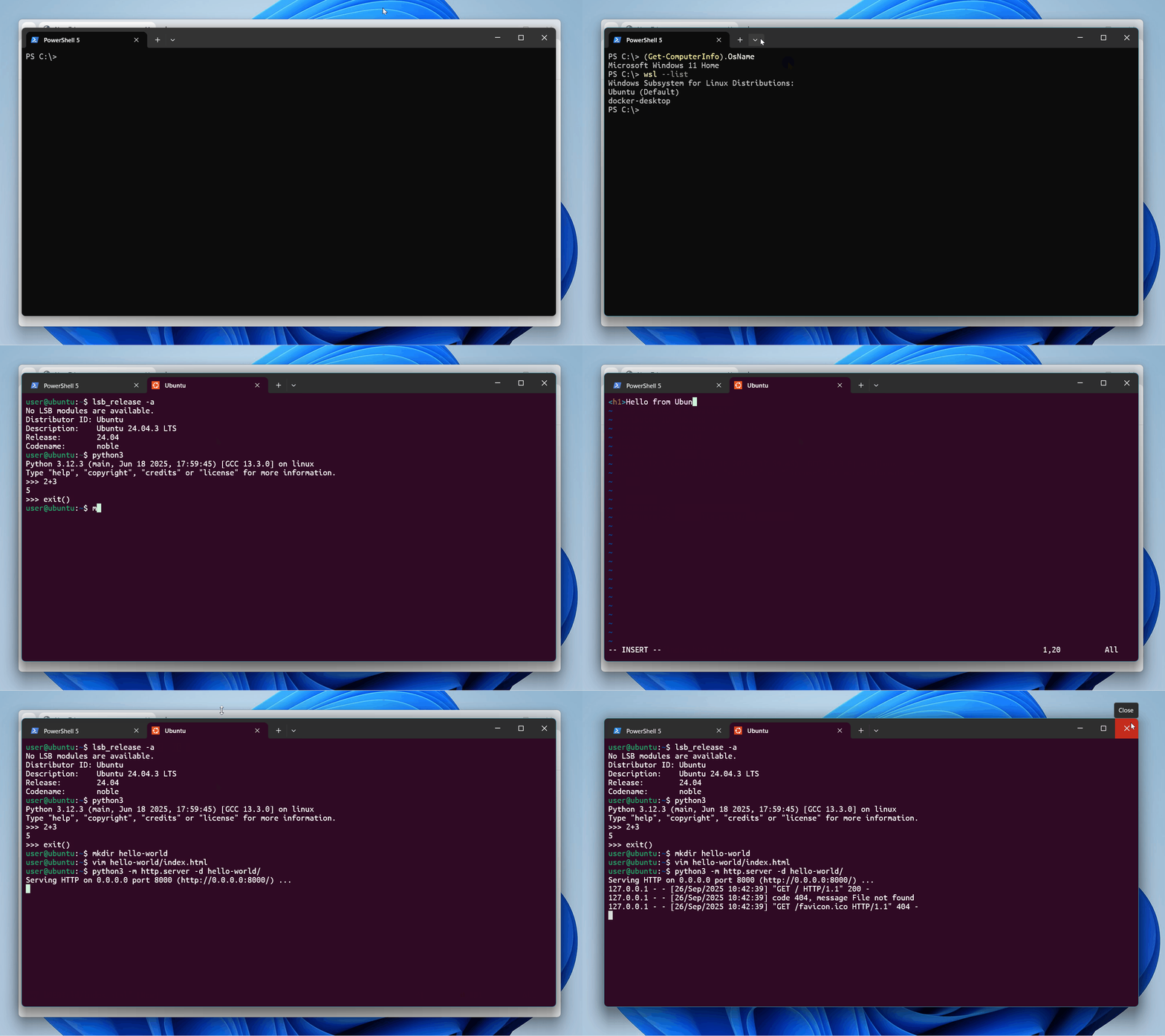
Ubuntu on WSL provides a fully-functional Ubuntu terminal environment on
Windows. It's a lightweight and performant alternative to other methods of
using Ubuntu on Windows, such as dual-booting or conventional virtual machines.
With built-in developer tooling and excellent interoperability with the host
OS, it's a fast way of setting up a powerful development environment.
Ubuntu Pro for WSL
Get started with Ubuntu Pro for WSL •
Remotely enforce startup of Pro agent •
Get an Ubuntu Pro subscription
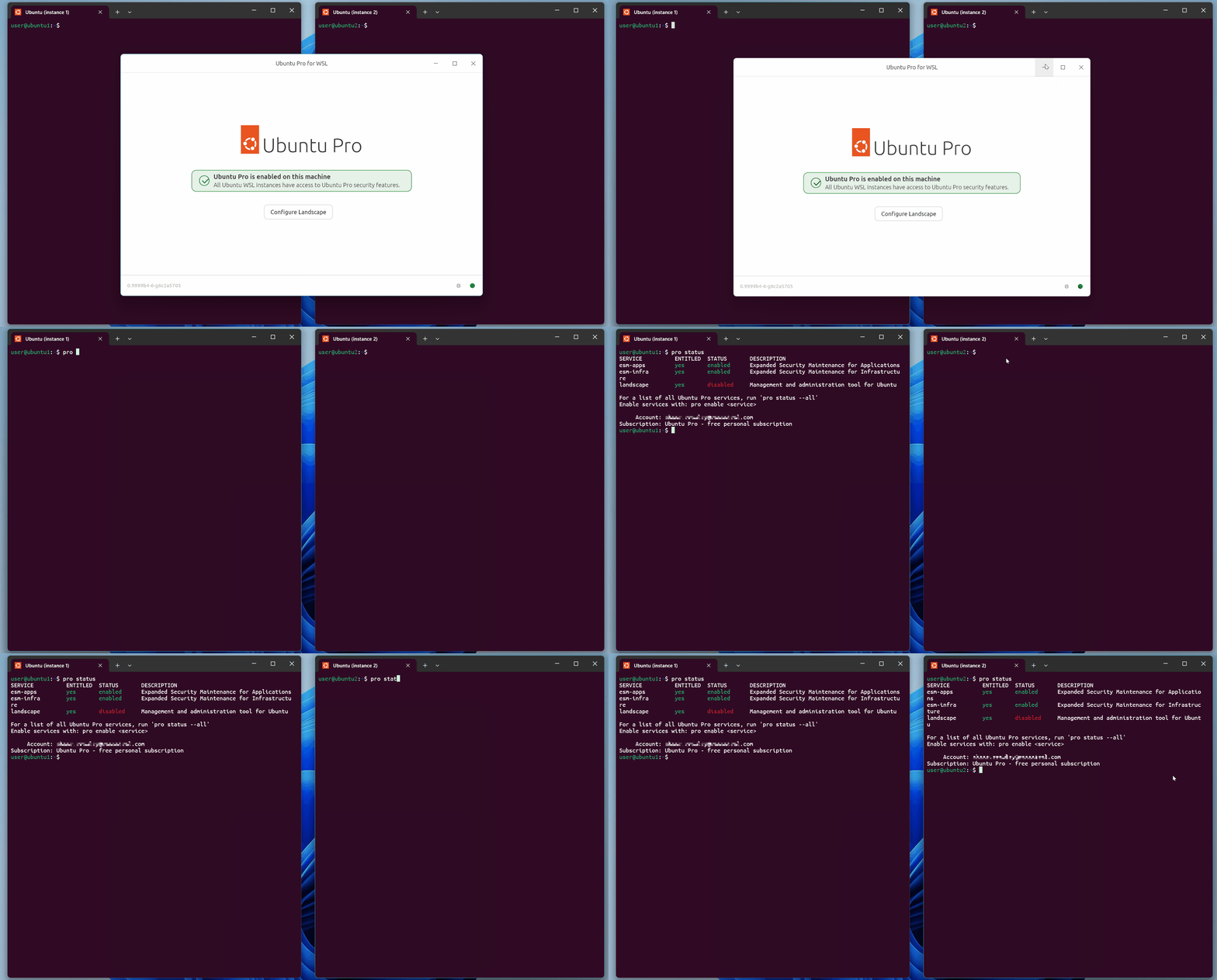
Ubuntu Pro for WSL is a separate Windows application that automates the
attachment of your Ubuntu Pro subscription. It solves the problem of needing to
manually Pro-attach each new Ubuntu instance created on a Windows machine when
you want the security benefits of Ubuntu Pro. For organisations, it enables
automated Pro-attachment at scale for fleets of devices.
> [!TIP]
> You can get a free Pro subscription for up to 5 machines.
Basic usage of Ubuntu on WSL
Ubuntu distros can be installed on Windows by running the following command in PowerShell:
wsl --install
> [!NOTE]
> When you install and enable WSL for the first time,
> the latest Ubuntu LTS release is installed as "Ubuntu".
To see the Ubuntu distros available to install, run:
wsl --list --online
To list what Ubuntu instances are installed and available to run on your machine:
wsl -l -v
To open a specific instance of Ubuntu on WSL in its home directory:
wsl ~ -d
Then you can use that instance just like any other Ubuntu machine, for writing
code, running scripts, and even opening Linux GUI
apps.
Basic usage of Ubuntu Pro for WSL
Find and install the Ubuntu Pro for WSL application in the Microsoft Store.
After installation, open the application and enter your Ubuntu Pro token.
> [!TIP]
> If you are a system administrator, you can also use the Windows registry to
> add a Pro token. After the Ubuntu Pro app has run at least once, the relevant
> key will be available as HKEY_CURRENT_USER\Software\Canonical\UbuntuPro. The
> Pro token can be added as data for the UbuntuProToken value.
Now, all instance of Ubuntu on WSL will be automatically Pro-attached on your machine.
You can confirm this in any Ubuntu instance with:
pro status
System components of the Ubuntu Pro for WSL app
This repository contains the source code for Ubuntu Pro for WSL.
The application consists of the following components:
- A Windows MSIX package, consisting of an agent with its user interface. See Windows Agent.
- An Ubuntu WSL Pro Service and its associated API, which controls the Pro and Landscape status between the agent running on Windows and the WSL instance. See WSL Pro Service.
- An interface between the agent and Ubuntu Pro, to handle the transactions with the contract server.
- An interface between the agent and Landscape, to manage the WSL instances from Landscape.
- A WSL management API, which controls the lifecycle of the WSL instances, like provisioning, updates, and starting or stopping the WSL instances.
Documentation
Our official documentation
includes tutorials, guides, references, and explanations on both:
- The Ubuntu on WSL distribution
- The Ubuntu Pro for WSL application
Documentation is maintained in the docs directory of this repository. It is
written in markdown, built with Sphinx, and published on Read the
Docs.
Contribute
This is an open source project and we warmly welcome community contributions, suggestions, and constructive feedback. If you're interested in contributing, please take a look at our Contribution guidelines first.
- To report a bug, please create a new issue in this repository, using the Report an issue template.
- For suggestions and constructive feedback, use the Request a feature template.
Project and community
We're friendly! We have a community forum at https://discourse.ubuntu.com where we discuss feature plans, development news, issues, updates and troubleshooting.
For news and updates, follow the Ubuntu twitter account and on Facebook.