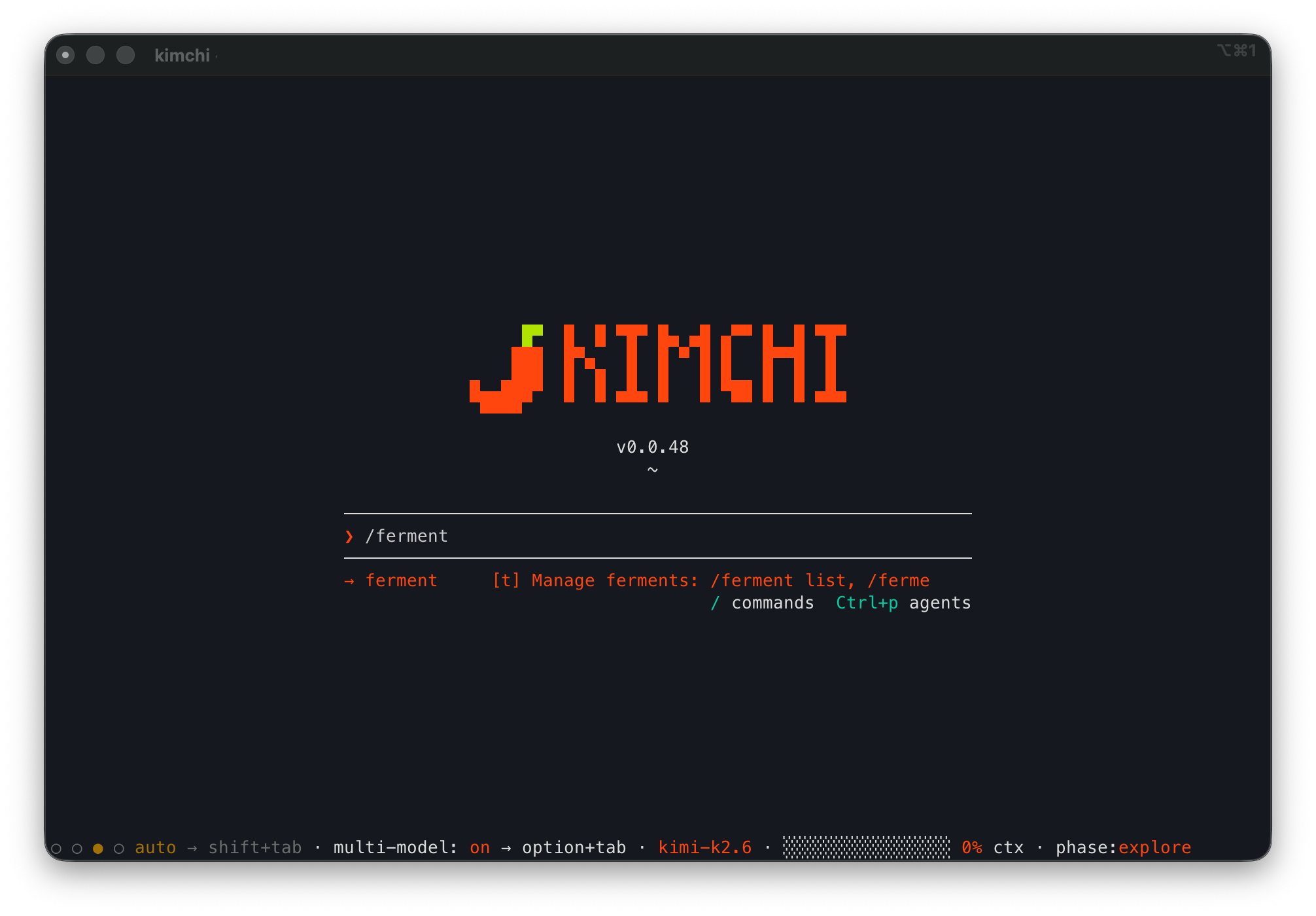
Kimchi is a terminal coding agent that routes tasks to different large language models by role, such as orchestrator, builder, reviewer, and explorer, through its multi-model orchestration.
README
A coding agent CLI powered by kimchi. Built on the pi-mono coding agent SDK, kimchi gives you an AI-powered development assistant in your terminal that connects to kimchi's LLM infrastructure.
The install script also adds Kimchi's work-reporting plugins to the official Claude Code and Codex CLIs it finds. They show what those sessions cost per pull request in the Kimchi console, using your Kimchi sign-in, and leave your inference settings unchanged. Kimchi's updates keep them current. To remove them, run kimchi-bridge uninstall both.
The one-liner runs the installer in memory, so the PowerShell execution policy does not apply to it. If you instead downloaded install.ps1 and want to run it as a file (blocked by the default Restricted policy), use:
Run kimchi --help to see all available subcommands and flags.
Models
Model selection
The supported model list is fetched at startup from the kimchi metadata service. Use /model or ctrl+p in the interactive CLI to switch between available models.
Kimchi operates in one of two modes:
Mode
Status line indicator
Behavior
Multi-model
multi-model (orchestrator-id)
The orchestrator delegates each task to the model assigned for that role
Single-model
model name
All work runs on the selected model directly
Use ctrl+p to cycle through models. The last entry in the cycle is multi-model. You can also open the /model picker and select a specific model or multi-model from the list.
In single-model mode the orchestration system prompt (environment, tools, research rules, guidelines, phase tagging) stays active, but task classification and delegation are disabled. The subagent tool remains available if you explicitly ask the agent to delegate.
Model roles
In multi-model mode, each task type is handled by a specific role. Each role can have one model or a pool of candidates — the orchestrator reads model tier and description and picks the best fit for each task.
Use /multi-model in the interactive CLI to toggle models on/off per role, or edit ~/.config/kimchi/harness/settings.json directly:
Research beyond the codebase — web search, documentation lookup, external sources.
Defaults are hardcoded in DEFAULT_MODEL_ROLES. Roles accept any provider/model-id string or an array of strings. Only non-default values need to be specified; missing keys fall back to defaults.
How delegation works
The orchestrator receives explicit per-phase directives generated from the role configuration. For each pipeline phase (plan, build, review, explore, research), the system prompt tells the orchestrator exactly what to do:
Roles it owns (its model ID appears in the role pool): "DO perform this work yourself."
Roles it does not own: "DO NOT perform this work yourself. Delegate to Agent(type: X, model: Y)." — with the concrete model IDs from the pool.
Review is always delegated, even when the orchestrator has the reviewer role, to ensure independence via a fresh context.
When a role pool has multiple models, the orchestrator picks the lightest-tier model that fits the task and escalates to heavy-tier only for complex work (concurrency, algorithms) or as a retry after a standard-tier model has failed.
Built-in models (kimchi-dev) have tier and description baked in. External models need metadata — see below.
Model metadata
External models (Anthropic, OpenAI, or any non-builtin provider) have no built-in tier or description. Without metadata, they default to standard tier, vision: false, and an auto-generated description based on their assigned roles. To give the orchestrator better routing information, add a modelMetadata section to settings.json:
{
  "modelRoles": {
    "builder": ["kimchi-dev/minimax-m2.7", "anthropic/claude-sonnet-4-5"],
    "reviewer": "anthropic/claude-sonnet-4-5"
  },
  "modelMetadata": {
    "anthropic/claude-sonnet-4-5": {
      "tier": "heavy",
      "description": "Strong general-purpose model — use for complex builds and thorough reviews."
    }
  }
}
Field
Default
Description
tier
standard
light, standard, or heavy. Used for complexity-based routing.
description
Auto-generated
Shown to the orchestrator so it can match model strengths to task requirements.
vision
false
Whether the model supports image input.
With the metadata above, the orchestrator will use minimax for simple build chunks and Claude for complex ones. Without it, both models look like standard-tier to the orchestrator and selection is arbitrary.
Metadata can also be managed interactively via /multi-model → "Edit model metadata" — this is the only in-app path for configuring or overriding metadata, so model selection stays uninterrupted. Custom overrides can be reset to defaults from the same menu. Metadata for builtin models can be overridden the same way.
Phase tracking
Kimchi tags every LLM request with a phase:{name} label for usage analytics and cost attribution. The orchestrator sets the phase as work progresses and it is displayed in the status line.
Phase
Description
explore
Navigating the codebase, reading files to understand structure
plan
Designing, breaking down tasks, writing specs
build
Writing, modifying, or refactoring code
review
Analyzing output, verifying correctness
research
Investigating documentation, researching issues
Subagents inherit the current phase from the orchestrator but cannot change it.
Tags
Kimchi supports tagging LLM requests for usage tracking and cost attribution. Tags are included with every request and displayed in the status line, grouped by key with color coding.
Commands
Command
Description
/tags
List all active tags
/tags add key:value ...
Add one or more tags (e.g., /tags add project:myapp team:backend)
/tags remove tag ...
Remove one or more user-defined tags
/tags clear
Remove all user-defined tags
Tag format
Tags use key:value format. Key and value must start and end with alphanumeric characters (middle characters may include -, _, .), each 64 characters max, 10 tags total.
Tag defaults hierarchy
Default tags are resolved from three sources, strongest first:
Project config — the nearest .kimchi/tags.json found walking up from the working directory (so monorepo subdirectories pick up the repo-level file)
Global config — ~/.config/kimchi/tags.json
export KIMCHI_TAGS="team:backend,project:api"
Sources are unioned; when two sources define the same tag key, the stronger source's value wins. Default tags are shown with an [env], [project], or [global] marker in the /tags list; user-added tags show as [user].
Auto-tags
Two tags are added automatically to every request and do not count toward the 10 tag limit:
model:{model_id} -- the model handling the request
phase:{phase} -- the current work phase
Persistence
User-defined tags (added via /tags add) are persisted with the session: once a session has its own tag set (created by any /tags add, /tags remove, or /tags clear), it fully overrides the defaults above and is restored when the session resumes. KIMCHI_TAGS must be set per session; it is the strongest source while present.
Ferment V2
Ferment V2 is an experimental, branch-scoped objective controller. It keeps one objective active across turns, uses the normal Todo tools for tactical work, and does not create Ferment phases, workers, or worktrees. See the Ferment V2 runtime guide for the lifecycle and persistence contract.
Enable Ferment V2 under /resources → Experimental, then restart Kimchi. It is disabled by default.
Command
Description
/ferment-v2
Create an objective, or confirm replacement of an unfinished Ferment V2 run
/ferment-v2 --tokens
Create an objective with a token budget, such as --tokens 50k
/ferment-v2
Show the current objective, status, revision, and latest completion evaluation
/ferment-v2 edit [objective]
Edit in place and redirect work to the new revision
/ferment-v2 pause
Stop automatic continuation without aborting a running tool
/ferment-v2 resume
Reactivate the current run
/ferment-v2 clear
Clear the run from the current session branch
Ferment V2 state is stored in the native session journal, so restart, resume, rewind, and fork follow the selected branch. An old turn cannot update an edited or replaced run because model updates must match both its ID and revision.
At turn_end, Ferment V2 checkpoints the current session's assistant usage and active time. Reaching a token budget stops continuation before evaluation and changes the run to budget_limited. At the later settled checkpoint, an independent tool-free evaluator returns met, impossible, or continue only while the pending-input, tool-availability, identity, and stop-condition gates permit. The fermenting time counter counts active agent turns; cancellation, repeated errors, unchanged continuation, or evaluator unavailability pause the run. Runtime accounting is for the current session; the Terminal-Bench adapter separately aggregates valid usage from all discovered session files, including nested or child files.
Ferment V2 directs the agent to track tactical progress in the normal Todos widget without creating a second feature-specific checklist. update_ferment_v2 complete records an optional runtime completion claim and ends the working turn; it never completes the run by itself. The claim response stays hidden while evaluation runs. In interactive mode, a met verdict still requires a visible, fully completed Todo list for the current revision; headless mode has no visible widget and may proceed directly from evidenced met. Both start one buffered final-answer turn. update_ferment_v2 blocked remains immediate. Regular work tools remain available while the list is created or reconciled.
Evaluation details stay out of the visible transcript. /ferment-v2 shows the evaluation count and latest verdict/reason; the evaluator uses the session model, or the configured judge role when multi-model is enabled, and records each check in a child session. Todo observations are valid only for the current session, Ferment V2 ID, and revision. User objective and Todo mutations wait for active work to settle before changing that state.
Settings
Ferment V2's policy numbers are adjustable. Edit ~/.config/kimchi/harness/settings.json directly, under a single fermentV2 key:
Whether to automatically queue a continuation turn for a resumed active Ferment V2 run on session start.
maxUnchangedContinuations
3
Consecutive continuation turns without recorded progress before the Ferment V2 run pauses itself.
maxConsecutiveErrors
3
Consecutive agent-error turns before the Ferment V2 run pauses itself.
defaultTokenBudget
unset
Token budget applied to /ferment-v2 when --tokens isn't given. An explicit --tokens always overrides this.
evaluationTimeoutMs
180000
How long the independent completion check is allowed to run before it's treated as unavailable.
Only non-default values need to be specified; missing or invalid keys fall back to their default rather than failing the extension. There is no separate evaluator-model setting -- it uses the judge model role from Model roles. The full evaluator evidence and failure-handling rules are in the runtime guide.
Ferment -- cross-session project management
Ferment is Kimchi's progressive-refinement project mode for multi-session work. Instead of starting from scratch each chat, Ferment persists a structured plan (goal, phases, steps) as a JSON state file.
Quick start
kimchi --ferment "Build Tetris"
Or inside an active session:
/ferment new "Build Tetris"    # create a ferment
/ferment auto                   # keep going until done or blocked
Concepts
Ferment -- the top-level project (e.g. "Build Tetris", "Auth rewrite")
Phase -- a milestone within the project (e.g. "Canvas & Grid", "Movement")
Step -- a single executable task within a phase (e.g. "Create index.html")
Decision -- an architectural choice recorded for posterity
Memory -- a gotcha, convention, or pattern encountered during work
State machine
All lifecycle transitions are validated by a deterministic finite state machine that enforces valid state changes and prevents illegal operations (e.g. completing a step before it starts, skipping an already-completed phase).
running -- activate_ferment_phase starts a phase, agent executes steps
paused -- user intervention required, or paused with /ferment pause
complete -- all phases terminal
Continuation policy
Controls whether the active ferment advances across phase boundaries.
Policy
Behavior
Command
manual
Ask before moving to the next phase
/ferment manual
automated
Keep going until complete, blocked, paused, or user input is needed
/ferment auto
Pause/resume is separate: /ferment pause stops the ferment, /ferment resume continues it using the current policy. /ferment exit leaves Ferment mode without deleting or abandoning the ferment; planned/running work is paused first, active Ferment UI/tools are cleared, and you can later select it from /ferment list or /ferment switch.
Commands
Command
Description
/ferment
Start a new ferment via prompt
/ferment new "Name"
Create new ferment
/ferment switch
Resume by ID prefix or name
/ferment delete
Delete permanently
/ferment export
Export stats to JSON
/ferment progress
Open phase/step navigator overlay
/ferment manual
Set manual continuation policy
/ferment auto
Set automated continuation policy
/ferment pause
Pause the active ferment lifecycle
/ferment resume
Resume the active ferment lifecycle
/ferment exit
Leave Ferment mode without deleting the ferment
Recovery
Every session writes a ferment_reference entry in the session log. On next start, the harness reads this entry and resumes from the exact state.
# Day 1
$ kimchi --ferment "Build Tetris"
# ... agent works, crashes, terminal closes ...

# Day 2
$ kimchi --ferment "Build Tetris"
# -> Rehydrates state, continues Phase 2 exactly where it left off
Where state lives
.kimchi/
  ferments/
    .json          -- snapshot (machine-readable plan state)
    .events.jsonl  -- append-only audit log of every transition
  sessions/
    .jsonl    -- chat history + tool calls
Every mutation is persisted as an append-only event with pre/post state hashes, enabling full auditability. Stats (phase/step counts, timing, model usage, grade distributions) are computed on demand from the snapshot and exported via /ferment export.
For full documentation see docs/ferment.md and docs/ferment-storage-schema.md.
LSP Integration
kimchi ships with built-in Language Server Protocol (LSP) support, giving the agent type-aware code intelligence. The extension loads by default — no configuration required.
Supported languages
Language
Server
Install
TypeScript / JavaScript
typescript-language-server
npm i -g typescript-language-server typescript
Go
gopls
go install golang.org/x/tools/gopls@latest
Servers are auto-detected via which on PATH. If a server binary is not found, the corresponding tools are silently unavailable.
Tools
Tool
Description
lsp_diagnostics
Get type errors, warnings, and linter diagnostics for a file
lsp_hover
Get type information and documentation for a symbol at a position
lsp_definition
Navigate to the definition of a symbol (supports typeDefinition and implementation variants)
lsp_references
Find all references to a symbol across the codebase
lsp_rename
Atomically rename a symbol across all files
The agent is prompted to prefer LSP tools over text-based alternatives (e.g., lsp_definition over grep for navigating to definitions). File changes made via edit, write, or read are automatically synced to the language server.
Status bar
When LSP servers are active, the status bar shows the server name(s) and current diagnostic error count (e.g., LSP: typescript-language-server (3 diags)).
Remote Sessions
Hand off an in-progress session to a cloud sandbox with /teleport — the agent keeps running when you close your laptop, switch machines, or hand off to a teammate. Resume from the CLI, the Kimchi console, or VS Code.
> Requires Kimchi CLI v0.1.52+. Check with kimchi --version, update with kimchi update. Not available on Windows.
/teleport
Commands
Command
Description
/teleport [name] [flags]
Rsync working tree to a cloud sandbox and foreground it
/remote-sessions
Browse all workspaces and sessions; reattach with Enter
/sync up|down --workspace --source --target
Push or pull files without restarting the session
/terminal [name-or-id]
Open a raw SSH shell on the sandbox
/teleport flags
Flag
Description
--workspace
Reuse an existing workspace instead of creating a new one
--git-repo
Clone from a git URL instead of rsyncing local files
--branch
Branch to check out after cloning (requires --git-repo)
--allow-dirty
Proceed with uncommitted changes
--force
Override the 5 GB workspace size limit
--no-git-token
Skip git credentials prompt
--skip-session
Start remote agent fresh (don't upload current session history)
Workspace templates (kimchi_workspace.yaml)
Declare how the sandboxes your project creates should be shaped — workspaces minted by /teleport and headless cloud agents alike — in a kimchi_workspace.yaml at the root of your project:
resources — CPU, memory, and disk requests as Kubernetes quantity strings (500m, 1Gi, 20Gi) — quote them: unquoted plain numbers (cpu: 2) are read as numbers by YAML and refused, naming the field. Omit a field to inherit the org default.
dependencies — CLI tools installed in the sandbox at boot, in the form [registry:]tool[@version] (e.g. "jq", "node@22", "prettier@latest"). Up to 50 unique entries.
egressPolicy — outbound network policy enforced by the in-pod sidekick proxy. allowed/denied entries are lowercase domains (optionally a leading *. wildcard) or IPv4/IPv6 CIDRs, each optionally suffixed with :; denied always wins. denyByDefault omitted means fail-closed: only allowed destinations pass. Set denyByDefault: false explicitly for the default-allow posture (everything passes except denied).
Unknown fields inside a section are refused rather than silently ignored, and invalid values stop the command before anything is sent, naming the offending field. When you run kimchi from a subdirectory, the file is looked up walking toward the repository root.
Templates apply only when a workspace is created — resources are immutable once provisioned, and dependencies/egress policy are applied at boot of the first pod. Editing the file later won't change an existing workspace: delete it (/remote-sessions) and re-teleport to pick up new values.
Once teleported, you're in the PTY overlay — a fullscreen tabbed terminal. Use Ctrl+B c / n / p to open and switch tabs. Press Ctrl+D to drop back to local kimchi; the sandbox and agent keep running.
Run kimchi setup for an interactive first-time configuration.
CAST AI SSO login
kimchi login offers Sign in with CAST AI (SSO) as the recommended login option: a standard OAuth 2.0 Authorization Code + PKCE (S256) browser login against the CAST AI Auth0 tenant of the selected region. The resulting credential (with a refresh token) is stored in the harness auth.json, and expired access tokens are refreshed automatically — including in remote/ACP sessions — with no re-login.
After sign-in, Kimchi lists the organizations available to your CAST AI account and asks you to pick one (a single-organization account is selected automatically; long lists are paged ten at a time). The selected organization is stored with the credential and sent as the X-CastAi-Organization-Id header on every gateway request; organization-scoped credentials are refreshed non-interactively, so long-running sessions keep working without re-login.
On SSH/headless machines, complete the login by pasting the final redirect URL into the prompt shown in the terminal instead of relying on the loopback callback.
The sign-in flow uses a fixed loopback callback at http://localhost:8765/callback (the redirect URI registered with the Auth0 application); only one CAST AI sign-in can run at a time per machine.
The SSO flow can be pointed at any authorization server (e.g. a dev tenant) through environment overrides:
Variable
Purpose
KIMCHI_OAUTH_CLIENT_ID / KIMCHI_OAUTH_CLIENT_ID_
OAuth client id (per-region value wins)
KIMCHI_OAUTH_AUTHORIZE_URL
Override the authorize endpoint
KIMCHI_OAUTH_TOKEN_URL
Override the token endpoint
KIMCHI_ORGANIZATIONS_URL
Override the user-organizations listing
KIMCHI_OAUTH_AUDIENCE
Optional audience parameter for both endpoints
KIMCHI_OAUTH_USE_ID_TOKEN
1 (default) sends the ID token to the gateway, 0 sends the access token
Agent config
Kimchi stores its configuration (settings, sessions, models) under:
~/.config/kimchi/harness/
TUI wheel-scroll speed
Mouse-wheel scroll speed in fullscreen mode is configurable via tui.wheelScrollLines (synced to pi's fullscreenWheelScrollLines setting) — see docs/tui-wheel-scroll.md.
Context files
You can provide custom instructions that are injected into the system prompt on every session. Kimchi discovers two kinds of context files:
Global — applied to every session, regardless of project:
~/.config/kimchi/harness/AGENTS.md
Place rules that apply everywhere (e.g., your name, code style preferences, or global tool defaults) in this file. It is loaded before any project-level files.
Project-level — applied when working in a specific directory tree. Kimchi walks from the working directory up to the filesystem root and collects one context file per directory:
AGENTS.md
CLAUDE.md
Per directory, AGENTS.md takes priority over CLAUDE.md. A .local.md variant (e.g. AGENTS.local.md) is appended to its primary file for user-specific, gitignored overrides.
When both global and project files exist, global instructions appear first in the prompt, followed by ancestor directories, and finally the working directory. This means project-level rules can refine or override global ones.
Packages
Kimchi supports native Pi packages. kimchi install npm: installs a package only for Kimchi, while pi install npm: keeps the package owned by the original Pi harness. Kimchi can also load original Pi packages through the Pi package lookup resource, so both CLIs can use Pi packages without sharing Kimchi's install scope.
If the same package is installed in both places, the Kimchi install wins. Disable original Pi package lookup with:
kimchi update                       # update installed packages, then Kimchi itself
kimchi update --extensions          # update installed packages only
kimchi update context-mode          # update one package by source or display name
kimchi update self                  # update Kimchi itself only
kimchi update v1.2.3                # install a specific Kimchi release (downgrades work too)
kimchi update v1.2.3-rc.1           # install a release candidate
kimchi update --canary              # install the latest canary build from master
Self-update checks call the GitHub API, which allows only 60 unauthenticated
requests per hour per IP. When a token is available — from GITHUB_TOKEN or
GH_TOKEN, or the gh CLI's stored credential — kimchi sends it along and
gets GitHub's 5,000/hour budget instead. A bad token is detected (401) and
retried unauthenticated, so a stale token never blocks an update.
HTTP proxy
Kimchi respects HTTP_PROXY / HTTPS_PROXY environment variables for network requests.
Hooks
Users can add custom Bash hooks to rewrite or block shell commands before they run. Global hooks live in ~/.config/kimchi/harness/hooks/bash/; project hooks live in .kimchi/hooks/bash/ and default to disabled until enabled from /resources or kimchi resources enable ....
See docs/hooks.md for the hook protocol and examples.
Migrating from another coding agent
On first run, kimchi looks for an existing Claude Code, OpenCode, or Cursor installation and offers to migrate its MCP servers. If anything is migratable you will see a one-shot prompt:
+  Claude Code + OpenCode + Cursor configuration found
|
|  MCP servers: filesystem, github, ripgrep
|  Claude Code skills: 4 in ~/.claude/skills
|  OpenCode skills: 2 in ~/.config/opencode/skills
|  Cursor skills: 3 in ~/.cursor/skills
|
*  Migrate MCP servers to Kimchi?
|  * Migrate now
|  * Skip this time
|  * Never ask again
Discovered MCP servers are merged into ~/.config/kimchi/harness/mcp.json. Existing Kimchi entries always win on name collisions, so re-running the migration is safe.
The prompt is only shown when something is actually worth migrating. If neither agent is installed or both are empty, the wizard skips silently.
$OPENCODE_CONFIG, then ~/.config/opencode/opencode.json, opencode.jsonc, config.json, ~/.opencode.json
~/.config/opencode/skills/
Cursor
~/.cursor/mcp.json, then ~/.config/cursor/mcp.json
.cursor/skills/, then ~/.cursor/skills/
For OpenCode, both the modern (mcp block) and legacy Go-binary (mcpServers block) schemas are supported. Servers with enabled: false are skipped. For Cursor, servers with disabled: true are skipped.
Conflict resolution
When the same MCP server name appears in multiple sources:
Within one agent: earlier files win; project-level entries win over top-level (Claude Code); modern mcp block wins over legacy mcpServers (OpenCode); ~/.cursor/mcp.json wins over ~/.config/cursor/mcp.json (Cursor).
Across agents: Claude Code wins over OpenCode, which wins over Cursor.
Against existing Kimchi config: your entries in ~/.config/kimchi/harness/mcp.json always win.
"Never ask again"
Stored in ~/.config/kimchi/config.json (migrationState: "skip-forever"). Delete that field to re-trigger the prompt. Adding support for another agent is a small change -- drop a new definition into src/agent-discovery/agents/ and append it to the registry.
Extensions
Plannotator (interactive plan review)
Plannotator is a third-party Pi extension that opens a browser-based UI for reviewing and annotating a plan whenever the agent submits one, as an alternative to the native terminal plan-review menu.
Install it like any other package:
kimchi install npm:@plannotator/pi-extension
Plannotator pops up automatically whenever the agent calls the plan-mode submit_plan tool in an interactive session — no extra configuration needed. It races against Kimchi's native terminal plan-review menu; whichever you respond to first wins, and the other is cancelled. It stays silent (does not pop up) for:
This script checks and installs node, pnpm, and bun if missing, initializes git submodules, runs pnpm install, copies resources, and starts the harness with pnpm run dev.
Manual setup
git clone git@github.com:getkimchi/kimchi.git
cd kimchi
# Currently a no-op (no submodules after superpowers removal); kept for future use
git submodule update --init --recursive
corepack enable
pnpm install
Commands
Command
Description
pnpm run build
Compile TypeScript to dist/ and copy theme assets
pnpm run dev
Run the CLI locally via Bun
pnpm run check
Biome lint + TypeScript type check
pnpm run lint
Biome lint only
pnpm run lint:fix
Biome lint with auto-fix
pnpm run test
Run tests with vitest
pnpm run test:smoke
End-to-end smoke tests
Running locally
Propagate resources before first run:
node ./scripts/copy-resources.js --dev
Run the CLI directly via Bun:
pnpm run dev
Or build a standalone binary:
pnpm run build:binary
./dist/bin/kimchi
Project structure
src/
  entry.ts              -- Entry point
  cli.ts                -- CLI logic & harness initialization
  cli-args.ts           -- Argument parsing
  config.ts             -- Auth & config loading
  models.ts             -- Model metadata fetching & registration
  setup-wizard.ts       -- First-run wizard
  commands/             -- CLI subcommands (setup, login, config, update, ...)
  extensions/           -- Agent extensions
    agents/             -- Subagent system (personas, manager, memory)
    orchestration/      -- Task classification, model registry, delegation
    ferment/            -- Ferment lifecycle tools & UI
    mcp-adapter/        -- MCP server integration
    permissions/        -- Tool auth flows
    behaviours/         -- Contextual prompt behaviours
    web-fetch/          -- Web content fetching
    web-search/         -- Web search
    lsp/                -- Language Server Protocol
    login/              -- OAuth flows
    onboarding/         -- Session mode startup wizard
  ferment/              -- Ferment state machine, event store, stats
  modes/
    interactive/        -- TUI harness
    acp/                -- JSON-RPC over stdio (IDE integration)
    teleport/           -- Remote session multiplexing
  agent-discovery/      -- Detection & migration of other coding agents
  config/               -- Config loading & merging
  auth/                 -- API key management
  utils/                -- Shared helpers
Benchmarking
The benchmark/ directory contains tools for smoke-testing kimchi sessions and auditing their quality.
Manual benchmarks (benchmark/manual/) -- run predefined tasks against different models and compare results. See benchmark/manual/README.md.
Terminal-bench-2 (benchmark/terminal-bench-2/) -- run the terminal-bench suite (89 tasks) against kimchi inside Docker containers. See benchmark/terminal-bench-2/README.md.
Session audit (benchmark/audit-session/) -- audit a completed session for phase discipline, code quality, architecture, testing, model alignment, and cost efficiency. See benchmark/audit-session/README.md.
Release
Standalone binaries are built automatically by GitHub Actions when a version tag is pushed (v*). Binaries are compiled with bun build --compile and require no runtime on the user's machine.
Supported platforms:
macOS (amd64, arm64)
Linux (amd64, arm64)
Windows (amd64)
Release assets follow the naming convention kimchi_{os}_{arch}.tar.gz for macOS/Linux and kimchi_windows_amd64.zip for Windows, with a checksums.txt (SHA256) for verification.