Primary Purpose:
a1s is a terminal-based tool designed to facilitate the browsing, editing, creation, and observation of over 1000 AWS resources across various accounts and regions. It leverages the CloudControl API to provide a comprehensive interface for managing these resources efficiently.
Key Features:
Resource Management: Enables users to browse, edit, create, and observe AWS resources using the CloudControl API.
Credential Support: Supports multiple credential types including SDK profiles, assumed roles, and self-managed IAM Identity Center SSO registrations.
Customizable Views: Allows users to customize views with custom columns, sorting options, and filtering capabilities.
Export Functionality: Provides the ability to export resource details to JSONL format for further analysis or record-keeping.
Resource Navigation: Features related-resource jumps, enabling quick navigation between connected resources within the application.
Write Operations: Supports creating new resources from schema-derived YAML skeletons and editing existing ones with a diff/confirm step.
Type Catalogue: Offers a catalogue of CloudFormation types for easy activation and management, enhancing resource discovery and utilization.
Read-Only Mode: Ensures security by allowing operation in read-only mode to prevent unintended changes.
Theming: Supports user-defined themes, including accent colors for visual distinction between different credentials or environments.
Observability Tools: Integrates CloudWatch metrics, logs, and history for comprehensive monitoring and debugging capabilities.
Service-Specific Interfaces: Provides dedicated interfaces for services like S3, DynamoDB, Kinesis, SQS, and more, enhancing usability for specific tasks.
Audience & Benefit:
Ideal for cloud engineers, DevOps professionals, and AWS administrators seeking a streamlined way to manage AWS resources. The tool enhances productivity by offering efficient resource management across multiple accounts and regions, enabling better collaboration with read-only modes and improved observability through integrated metrics and logs. This results in more efficient workflows and informed decision-making processes.
Installation:
a1s can be installed via winget for ease of setup and integration into existing development environments.
This tool is designed to empower users with a robust set of features, enabling them to manage their AWS resources effectively and efficiently within a terminal interface.
README
a1s
> Note: this codebase is AI-generated, under active development and testing, and
> should be used at your own peril.
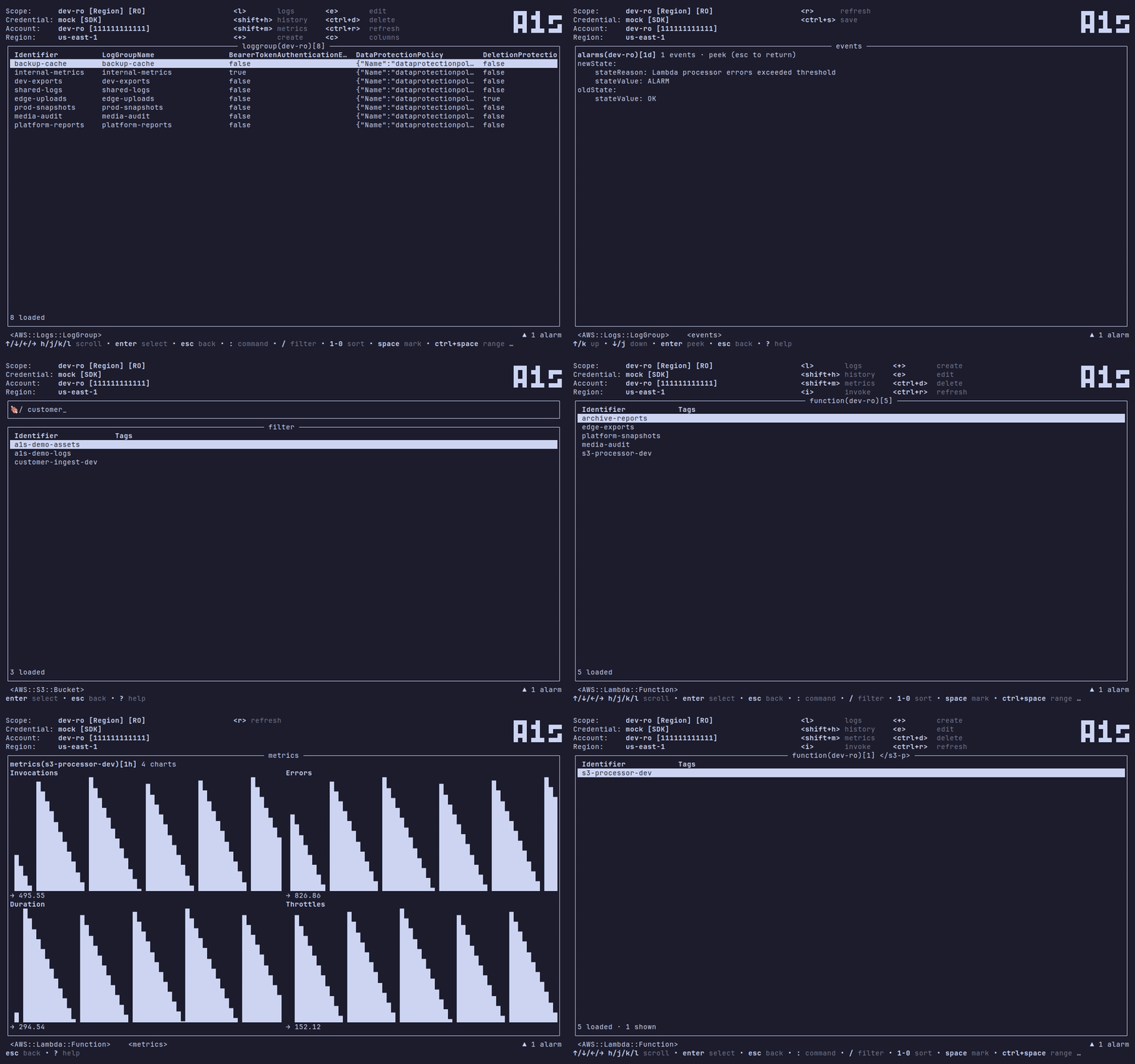
a1s is a k9s-style terminal UI for AWS: browse, edit, create, and observe 1000+ resources
across accounts and regions, powered by the CloudControl API.
Browse any CloudControl resource across credentials, regions, and scopes —
filter, sort, mark rows, pick columns (including tag columns), and
view or edit resource details as YAML.
Multiple credential types: SDK profiles, assumed roles (with chaining), and
self-managed IAM Identity Center SSO registrations.
Scopes: one credential in one region, or a named group of region scopes.
Customizable views: persisted, per-resource type views with custom columns
(including tag columns) and sorting.
Export resource information: Export individual or bulk resource details from
your custom views to JSON(L)
Related-resource jump: press o on any row to see jumpable references;
enter on a reference peeks that resource read-only, and peeks chain.
References that use a secondary key (one that is not the target type's primary
identifier) are resolved on demand by a bounded, cancellable scan of the
target type before the peek opens. The reference catalog is user-extendable.
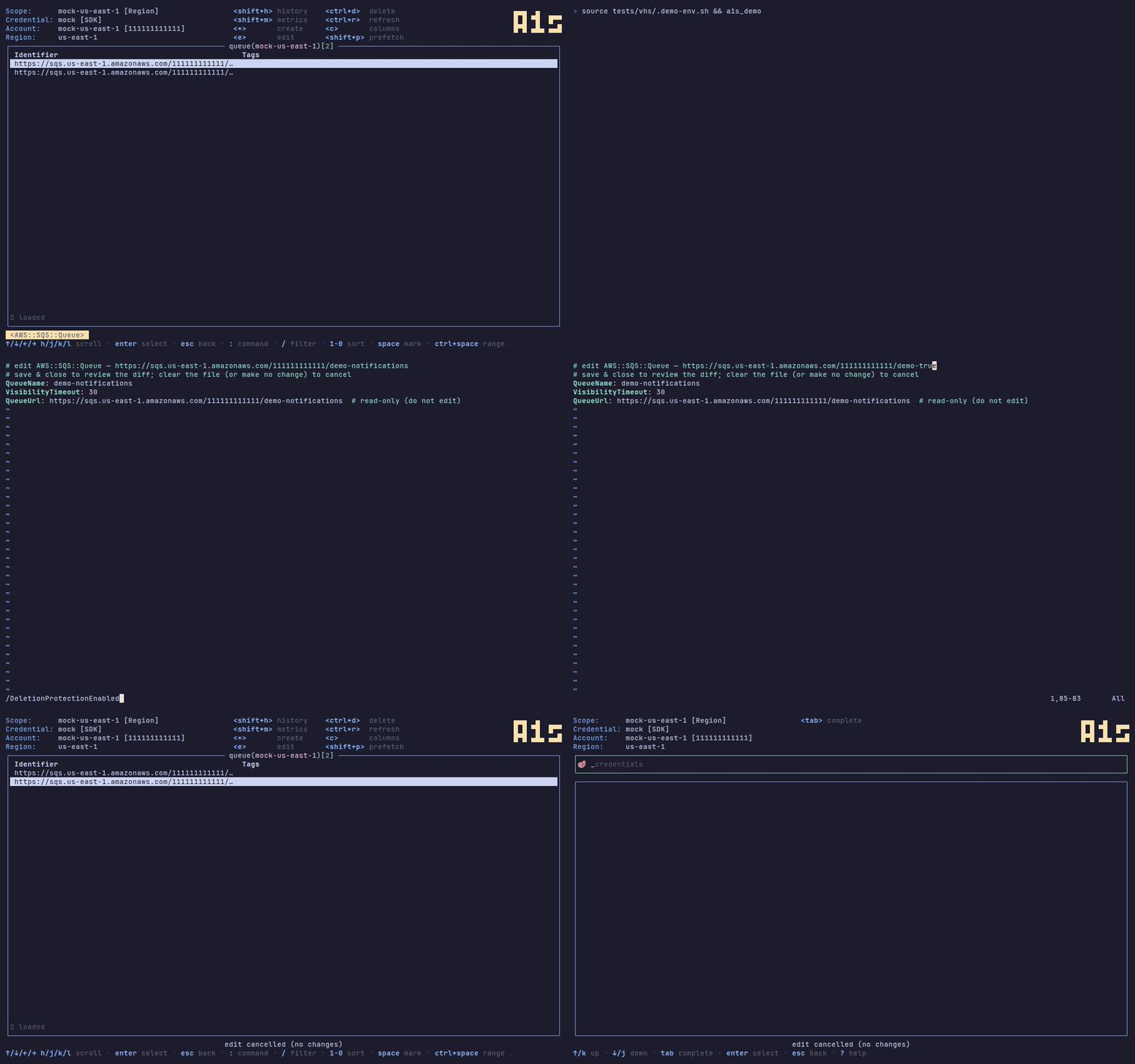
Write resources: + creates from a schema-derived YAML skeleton, e edits
the live YAML with a diff/confirm step, bulk-delete via marked rows.
Type catalogue: :types opens a sorted catalogue of every known
CloudFormation type — description, status, mutability, and operations — with
enter to activate one.
Theming: built-in skins plus user themes/ directory; per-credential accent
colors as a visual guard rail for production accounts.
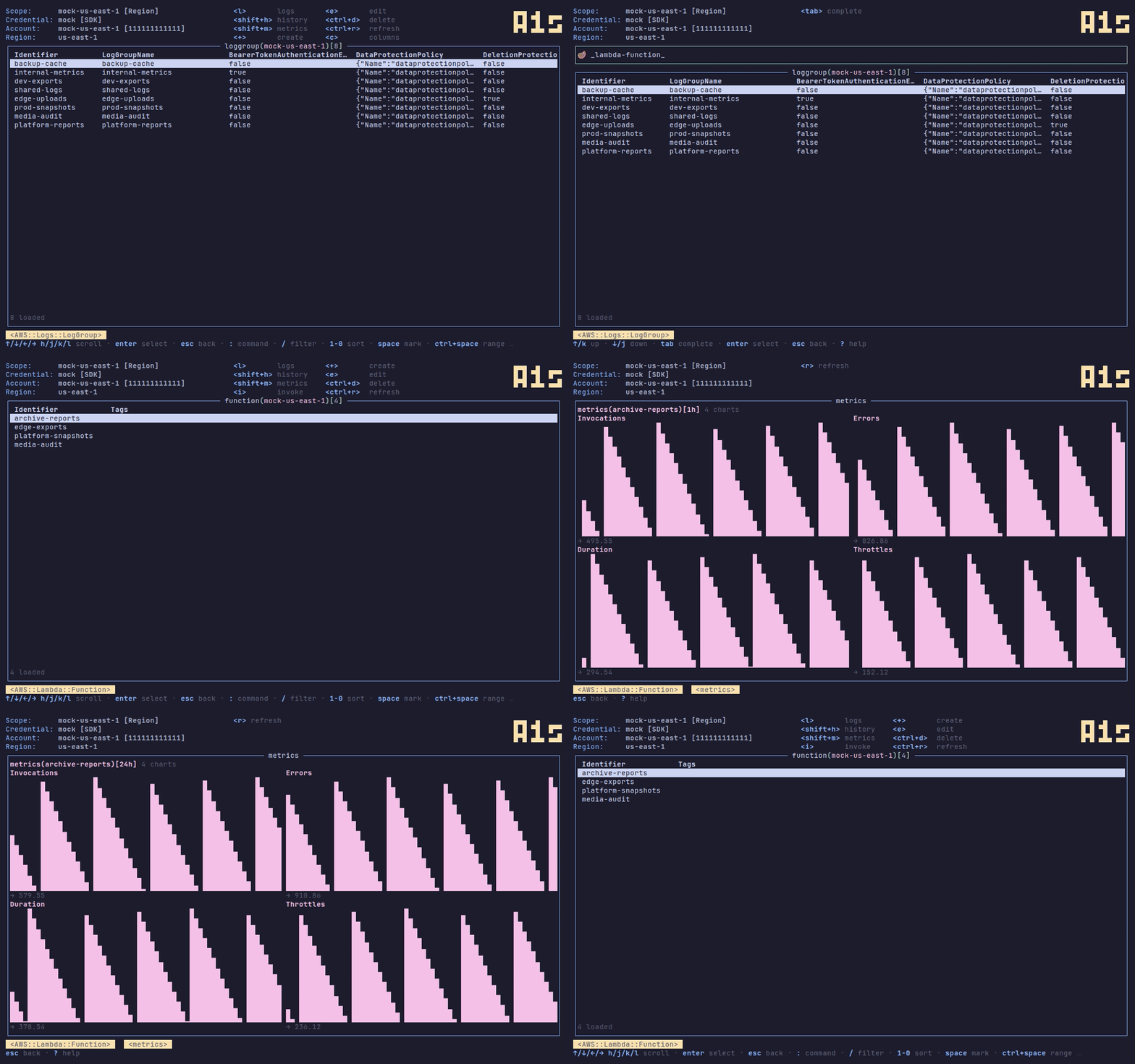
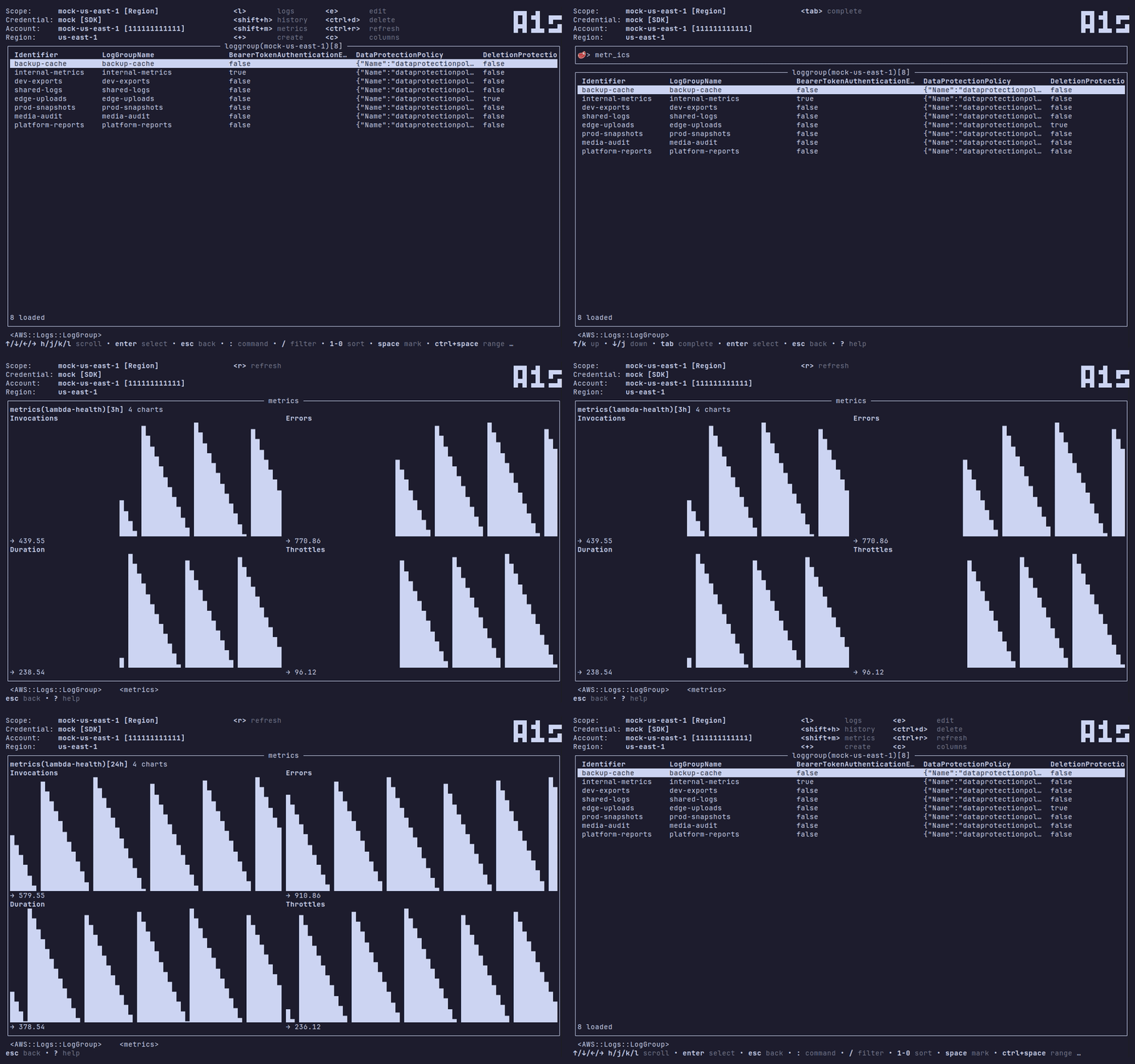
CloudWatch metrics: M opens a sparkline grid for catalogued types
(Lambda, EC2, DynamoDB, RDS, SQS, SNS, …), with configurable named views.
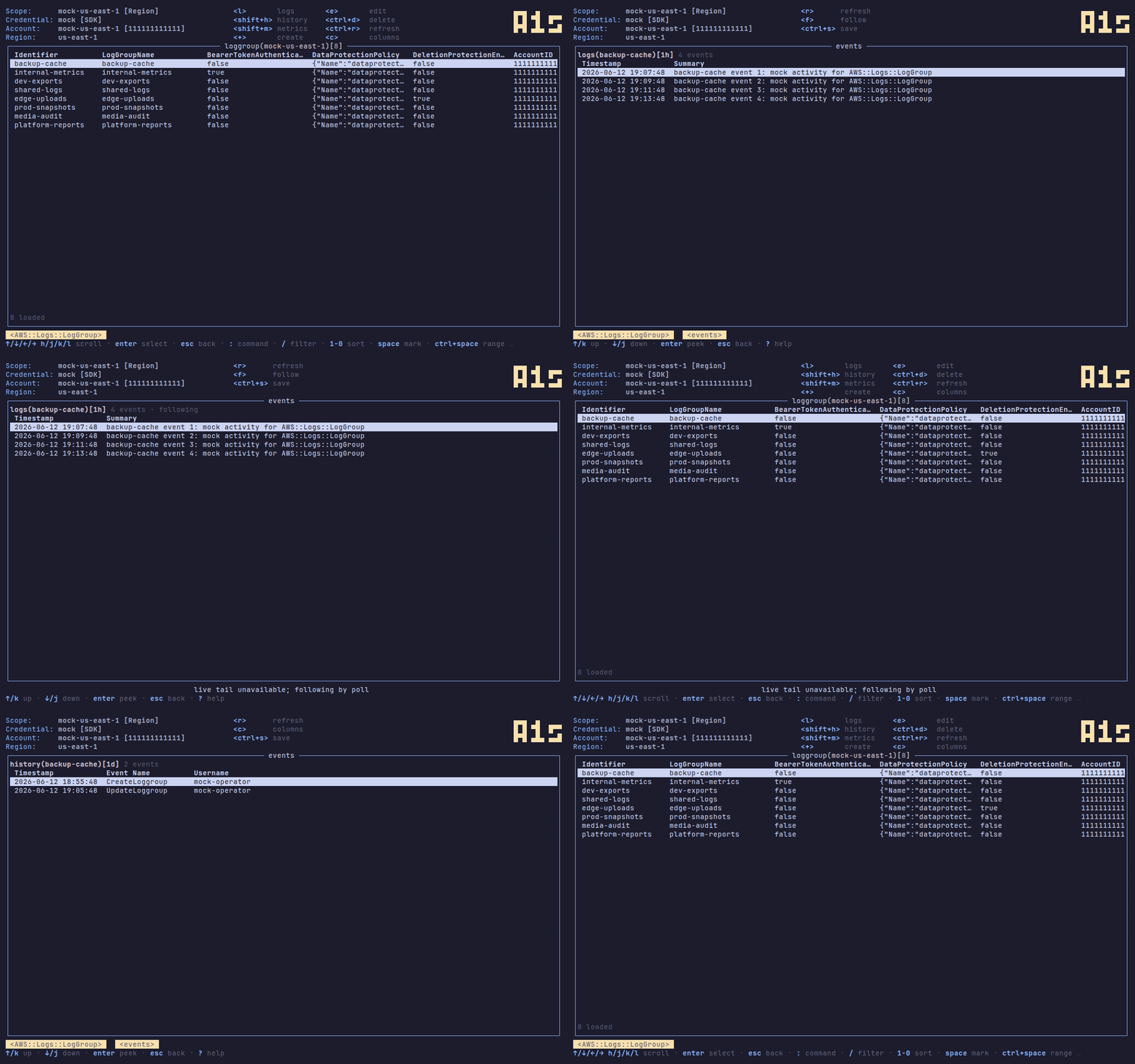
Logs and history: l tails CloudWatch logs (live-follow with f); H
opens CloudTrail event history with configurable time windows.
Scope change watch: background CloudTrail polling raises a ● N changes
badge; :changes opens the scope-wide feed; stale rows are marked ·.
CloudWatch alarms: a ▲ N alarms badge counts alarms currently in ALARM
state (all group-member regions summed); :alarms opens the alarm
state-transition history feed, the companion to :changes. The badge clears
itself when alarms recover.
Service-specific surfaces: S3 object browser, DynamoDB query-first viewer,
Kinesis shard tailer, SQS poll modal, SNS publish, Step Functions executions,
Secrets Manager reveal, ECS exec, Lambda invoke, SSM sessions, CloudFormation
stack events, EKS → k9s handoff.
> Note: the service-specific interfaces are the most likely place you will find
> bugs or broken functionality..
Install
Pre-release: build from source with Go 1.26+.
go install github.com/chucklehead-dev/a1s/cmd/a1s@latest
Or build a local binary:
go build -o ./a1s ./cmd/a1s
Tagged releases will ship archives for Linux (amd64/arm64), macOS (arm64), and
Windows (amd64/arm64) on GitHub Releases, plus Homebrew, Scoop, and WinGet
packages.
First Run
Start the TUI:
a1s
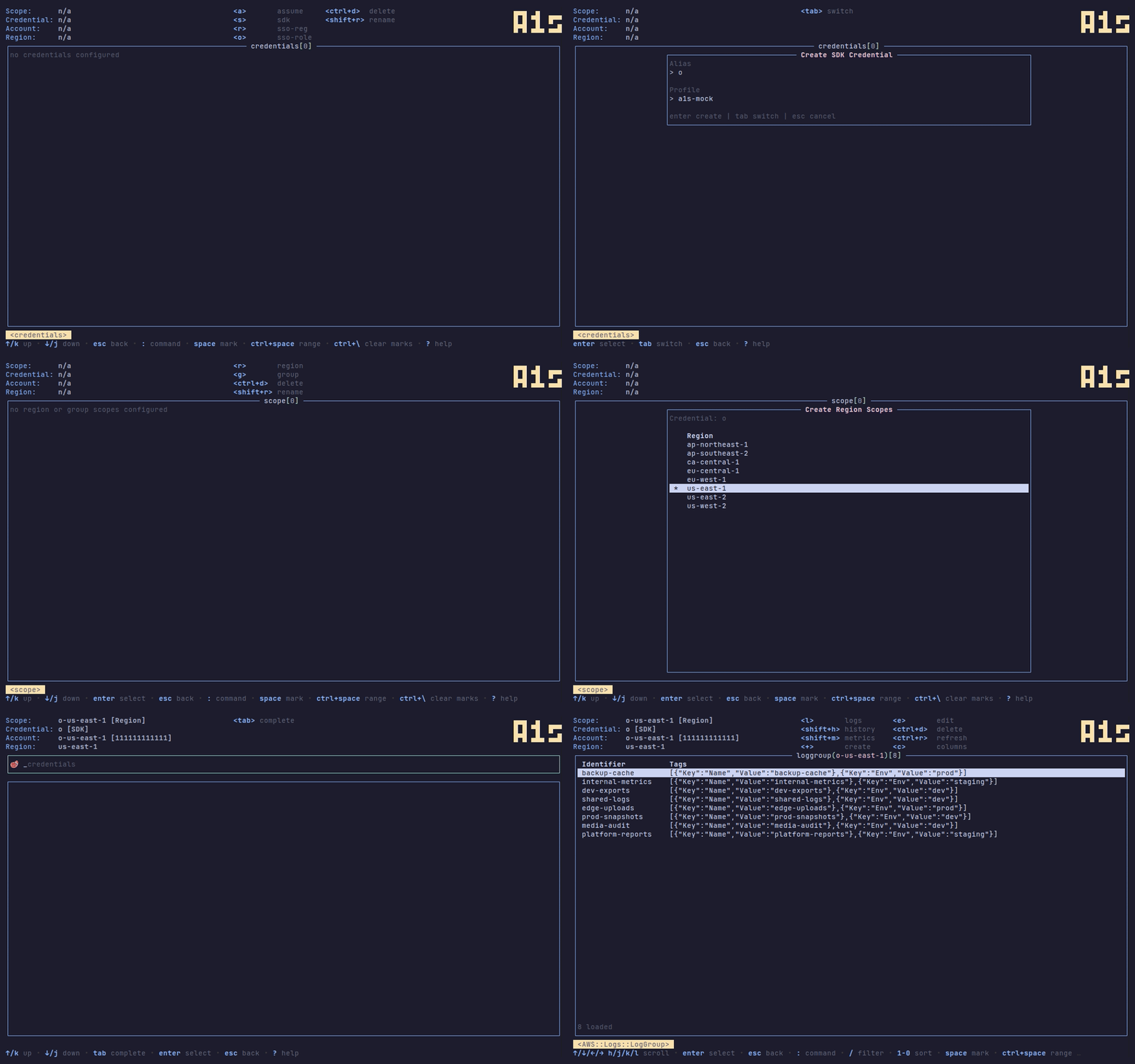
If no credentials or scopes exist, the app opens the credentials table.
a1s uses the AWS SDK for Go and the credentials available to it: SDK profile
credentials can come from the normal AWS config files, environment variables,
SSO cache, instance metadata, or any other SDK-supported provider. The principal
you browse with needs permissions for the AWS services and CloudControl calls
used by the selected resource type; some types are region-specific, some are
global, and CloudControl availability varies by type and region.
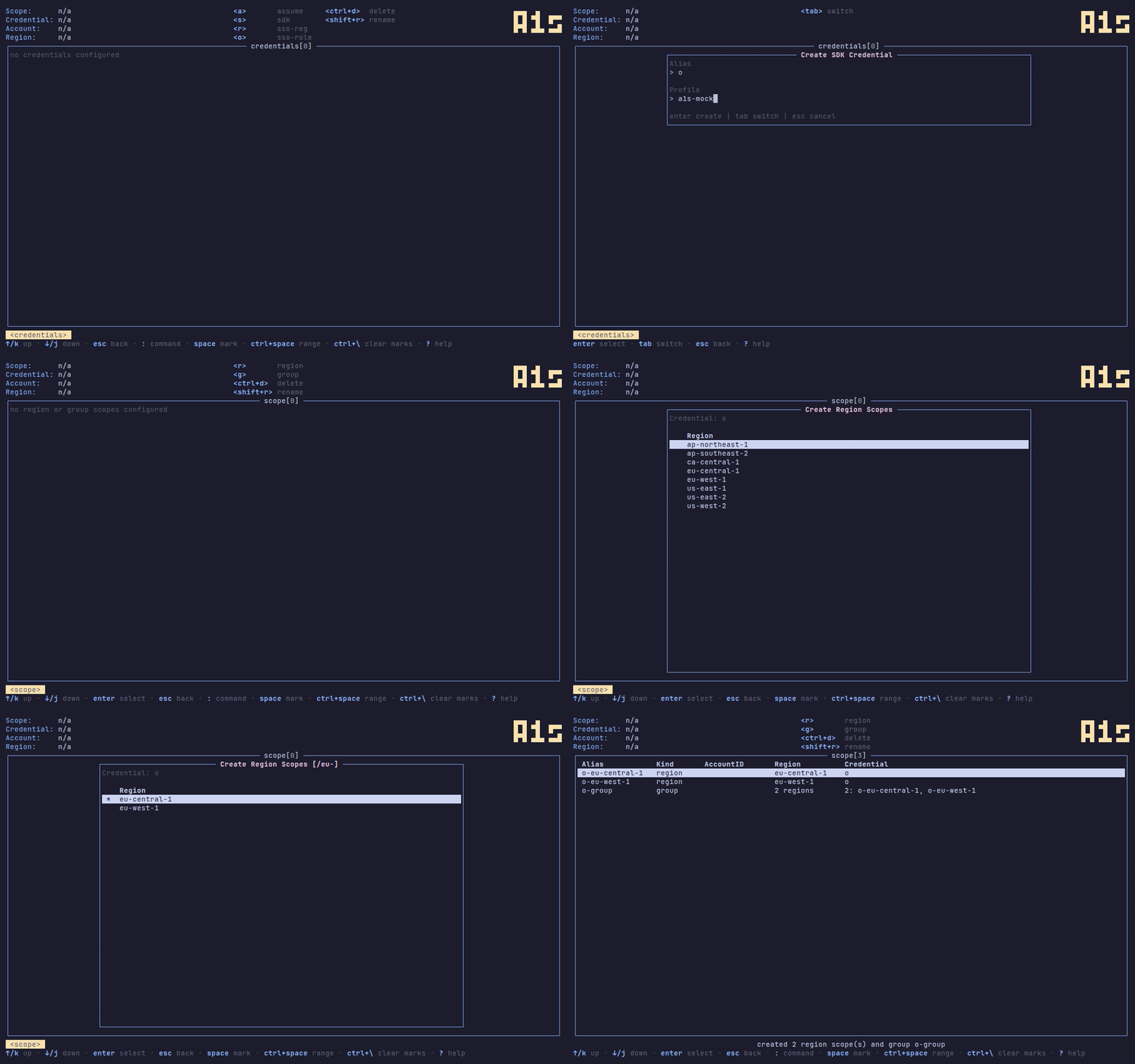
Create a credential:
Press s for an SDK profile credential — a picker lists the profiles
discovered in your AWS config/credentials files (see
SDK Profile Discovery).
Press a for an assume-role credential.
Press r for an SSO registration.
Mark one or more SSO registrations and press o to create SSO role
credentials.
Create a scope:
Open the command palette with :.
Run scope or scopes.
Press r to create region scopes from one or more credentials.
Press g to group marked region scopes.
Press / inside the role and region-scope pickers to filter the list live
(same substring / re: / ~ / ! grammar as the table filter).
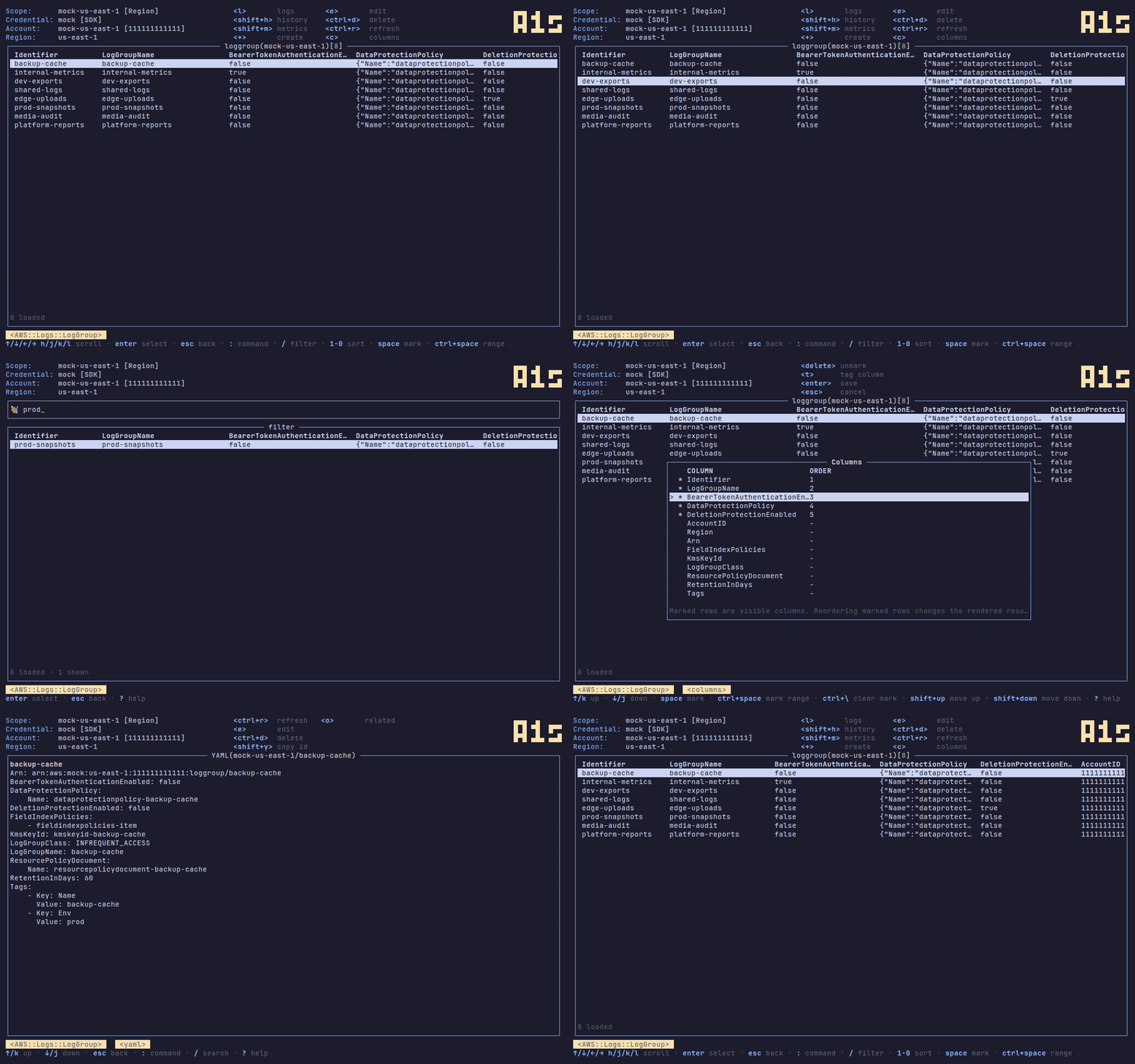
Browse resources:
Open the command palette with :.
Enter a resource type such as AWS::S3::Bucket, or use an alias such as s3.
Move with the arrows or j/k; h/l pan wide tables horizontally.
Press y to open the selected resource as YAML; / inside the detail view
searches the YAML (n/N jump between matches).
Press Y to copy the selected row's identifier to the clipboard.
Press / to filter the active resource table. Filters have modes: plain
text is a case-insensitive substring, re: is a regex, ~ is a fuzzy
subsequence match, and a leading ! inverts any of them.
Press digits 1–9 (and 0 for the 10th column) to sort by the addressed
visible column; repeat to cycle ascending → descending → off. The sort
persists per resource type.
Press c to choose columns, including tag:Key tag columns.
Press space to mark rows (ctrl+space marks a range, ctrl+\ clears
marks); bulk actions like delete and tagging operate on marked rows.
Press shift+p to prefetch resource details.
Press ctrl+s to export the table to JSONL (visible columns or full
properties).
Press ctrl+r to refresh the active screen.
Press E to open the grouped listing-error table when a multi-region or group
browse hits per-scope failures.
Recall earlier palette commands and filter queries with up/down — both
prompts keep a per-session history.
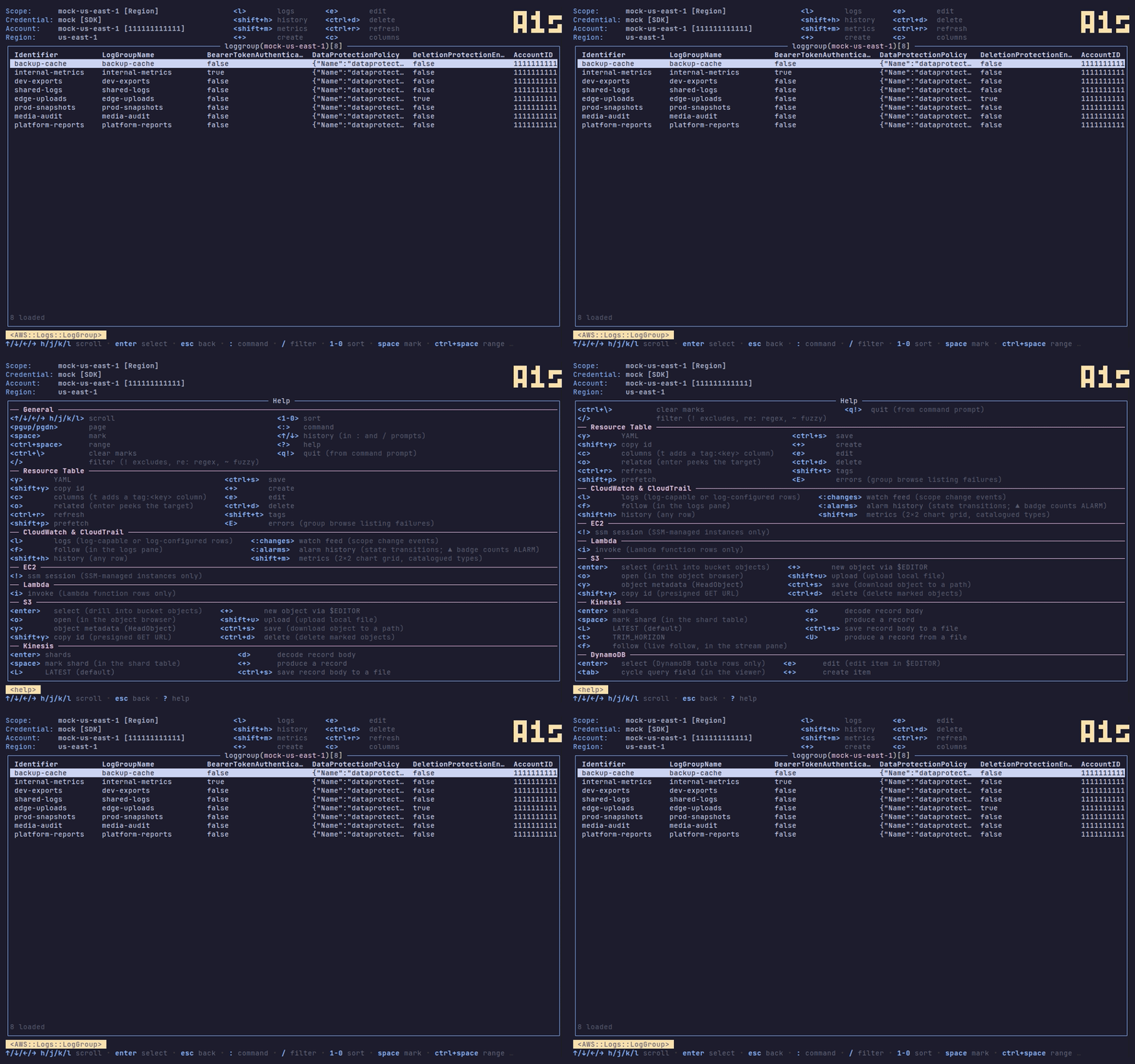
Press ? to open the fullscreen help screen (grouped by General, Resource
Table, and service-specific sections).
Run q! from the command palette to quit.
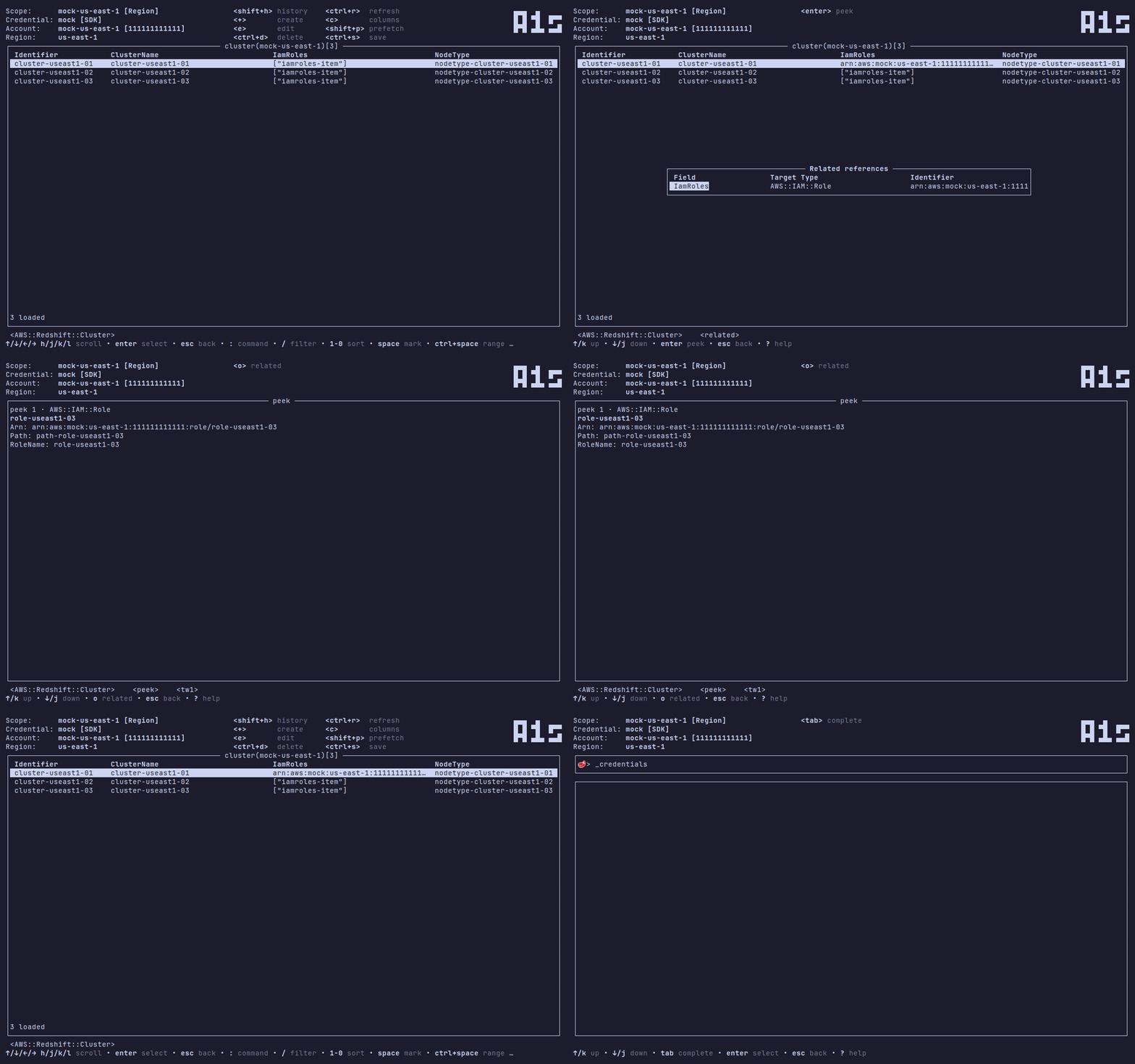
Press o to open the selected resource's related references; enter on a
jumpable row peeks the referenced resource read-only, and peeks chain.
Type catalogue
Run :types from the command palette to open the type catalogue: a sorted table
of every known CloudFormation type with Type, Description, Status, Mutability,
and Ops columns. The Ops column is a fixed LRCUD encoding — List, Read, Create,
Update, Delete — with - for an operation the type does not support (a
read-only type reads LR---, an immutable type LRC-D). When a scope is active,
types that are not enabled anywhere in it render faint. Press / to filter the
catalogue, and enter to activate the selected type: with a scope active it
opens that scope's resource list on the type; with no scope active it drops into
the scope picker so you can choose one first.
Resource table, type catalogue, S3 browser, pickers, YAML search
[ / ]
Widen / narrow the time range
Logs, CloudTrail, metrics
esc
Back / close one level
Everywhere
All mutating verbs are blocked in read-only mode. Most hotkeys are rebindable via
a keybindings: section in config.yaml — see
docs/CONFIGURATION.md.
Views
Per-type table layout lives in a k9s-style views: section of config.yaml:
an ordered columns list (property names, AccountID/Region origin
columns, or tag:Key entries) plus a persisted sortColumn: Name:asc.
Column-picker and digit-sort changes write back to the active type's view.
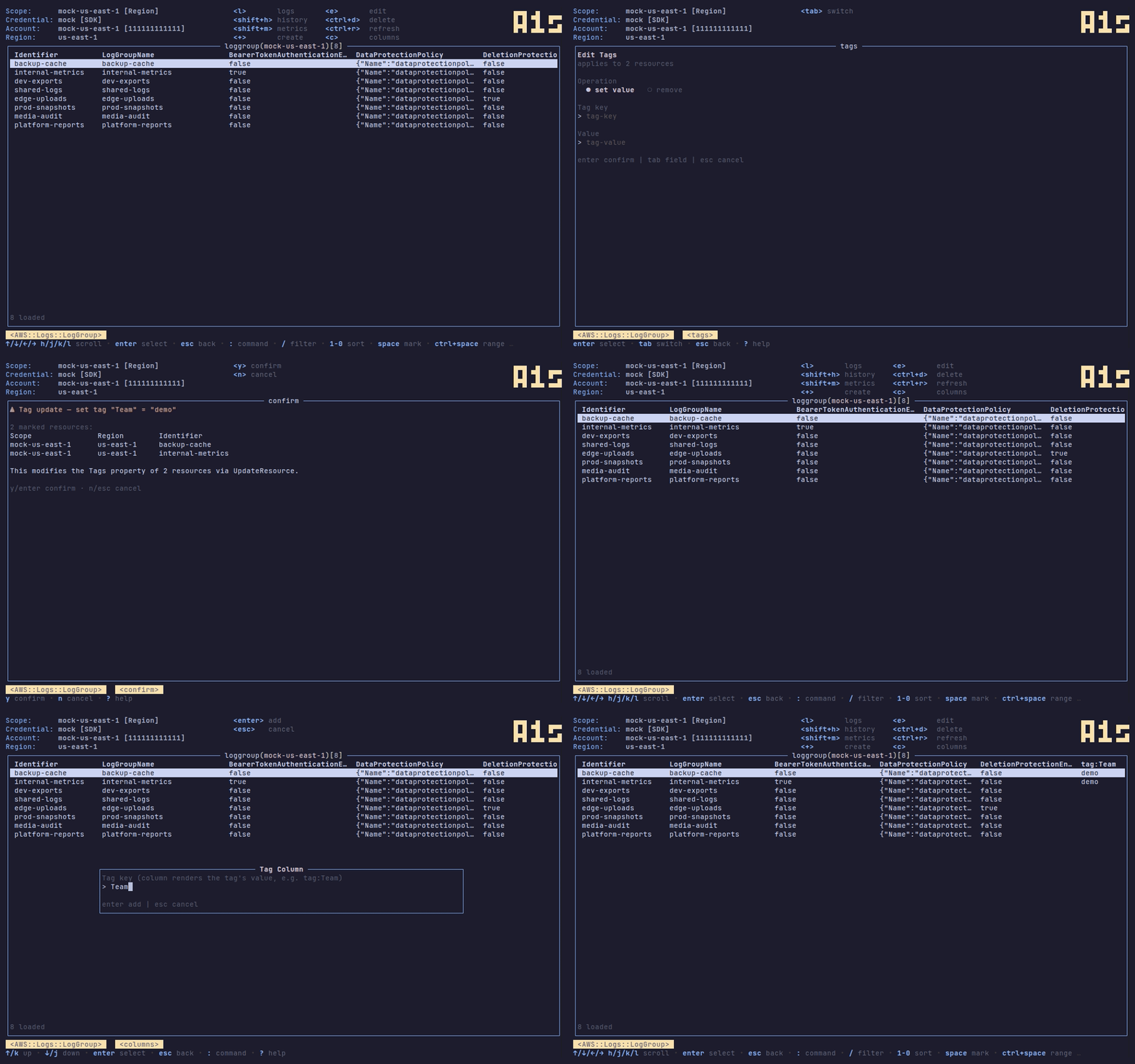
Press T over marked rows to bulk-set or remove a tag, then use c → t in
the column picker to add a tag:Key column that shows the tag values inline.
Writing Resources
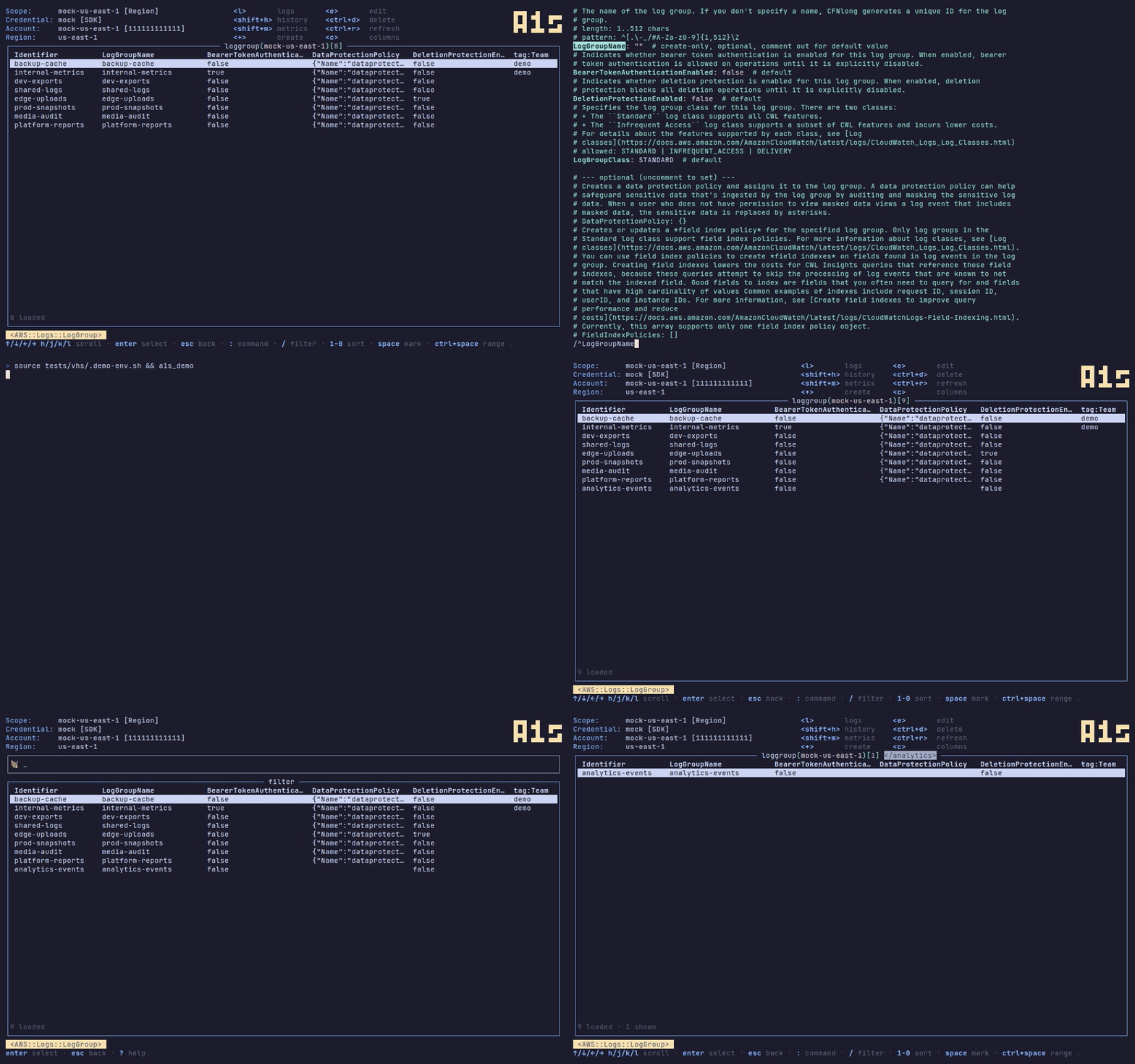
+ opens a schema-derived YAML skeleton in $EDITOR; fill in the required
fields, save, and confirm to send the create through CloudControl. Status polls
until the operation reaches SUCCESS and the new row appears in the list.
e opens the selected resource's live YAML in $EDITOR. After saving, a1s
shows a diff and asks for confirmation before patching via CloudControl. Press
esc to cancel without writing.
Observability
Logs and CloudTrail
Press l on a log-capable resource to tail its CloudWatch logs — f follows
live; press H on any resource for its CloudTrail event history. [/] widen
and narrow the time window.
A resource is log-capable either by convention — the group is derived from
the row's identifier: log groups, Lambda functions (/aws/lambda/),
CodeBuild projects (/aws/codebuild/), EKS clusters
(/aws/eks//cluster), AppSync APIs — or by configuration: any
resource whose loaded detail carries a log-group reference (Step Functions
logging, ECS task awslogs-group, API Gateway access logs, custom Lambda/
CodeBuild groups). The configured path resolves once the row's detail is
loaded.
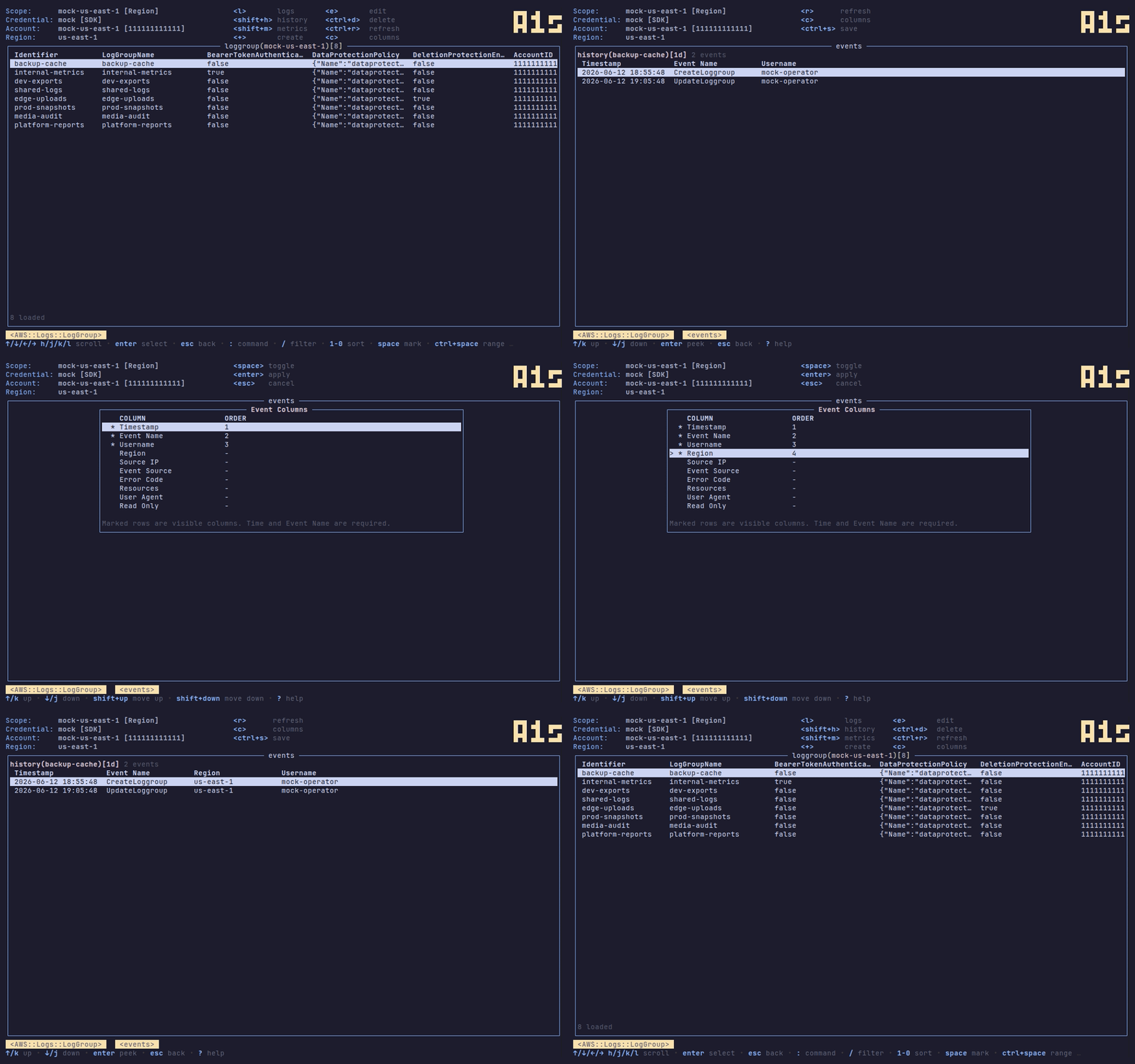
On the CloudTrail tables (H and :changes), c opens a column picker for the
event columns, just like the resource table.
Change watch
While a scope is active, a1s watches its CloudTrail event history in the
background and raises a ● N changes badge when something in the scope
changes; run :changes to open the scope-wide change feed. Rows that were
touched by a recent change event are marked with a · staleness dot in the
table until they are refreshed.
CloudWatch alarms
While a scope is active, the same background watch polls each member region for
alarms currently in ALARM state and renders a ▲ N alarms badge beside the
● N changes badge. The count is the live sum across all member regions; it
clears itself automatically when alarms recover — it is not an unread-items
counter and is not reset by opening :alarms.
Run :alarms to open the alarm state-transition history feed: every member
region's DescribeAlarmHistory StateUpdate items merged into the shared
event-stream pane (Timestamp | Alarm | Summary columns), windowed and
navigable with [/] like the other history feeds. The peek shows the raw
HistoryData JSON for each transition. Requires an active scope.
CloudWatch Metrics
Press M on any row whose resource type has catalogued metrics to open a 2×2
sparkline grid for that resource. The grid shows up to four preset metrics
(Invocations/Errors/Duration/Throttles for Lambda, CPU/network for EC2, and so
on) loaded in one batched call. Use [ to widen the time window (1h → 3h →
24h → 7d), ] to narrow it, and r to refresh. Press esc to close.
Press tab to cycle between a type's metric views when more than one is
configured. The preset catalog can be extended in config.yaml: a
metrics.views section adds named per-type views, and metrics.custom declares
free-standing CloudWatch views (literal dimensions, not tied to a row) that open
with :metrics from the command palette — bare :metrics lists the
configured names. See docs/CONFIGURATION.md.
Service-Specific Features
S3
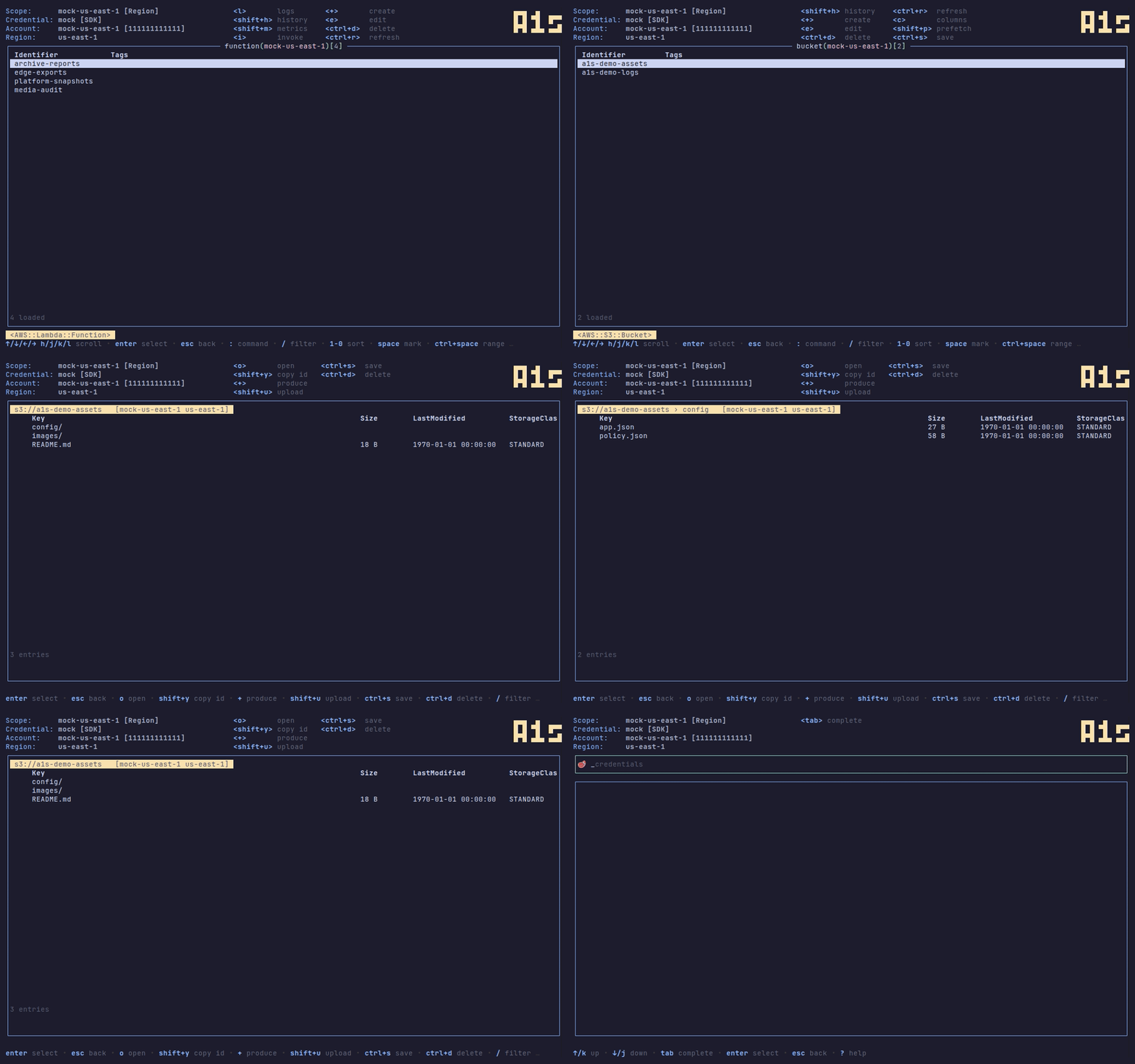
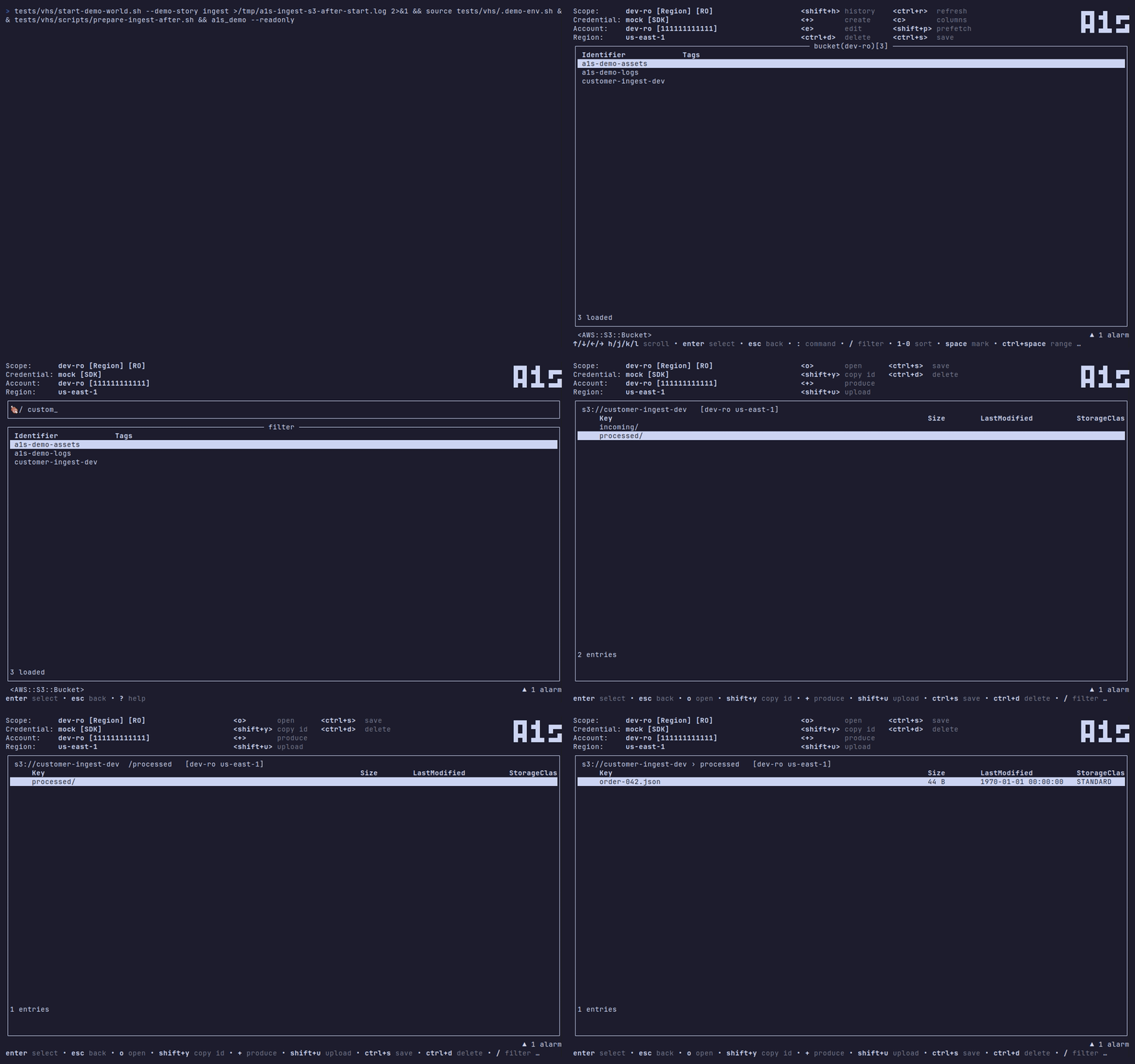
Press enter on an AWS::S3::Bucket row to open the S3 object browser for
that bucket. The browser is prefix-aware: CommonPrefixes render as folder rows
(pinned above object rows), and enter on a folder drills into that prefix. Press
esc to pop back one level; at the root it closes the browser.
Key
Action
enter
Drill into a prefix folder
y
Object metadata detail (HeadObject)
o
Open object for viewing — text verbatim, JSON pretty-printed, binary as hex
Y
Copy a presigned GET URL to the clipboard
/
Filter objects and prefixes in the current listing
ctrl+s
Export the selected object to a local path
+
New object via $EDITOR then a key prompt
U
Upload a local file (multipart for large files)
ctrl+d
Delete marked objects (batch, y/n confirm)
esc
Pop prefix / close browser
The breadcrumb s3://bucket › folder › subfolder › reflects the current prefix
stack.
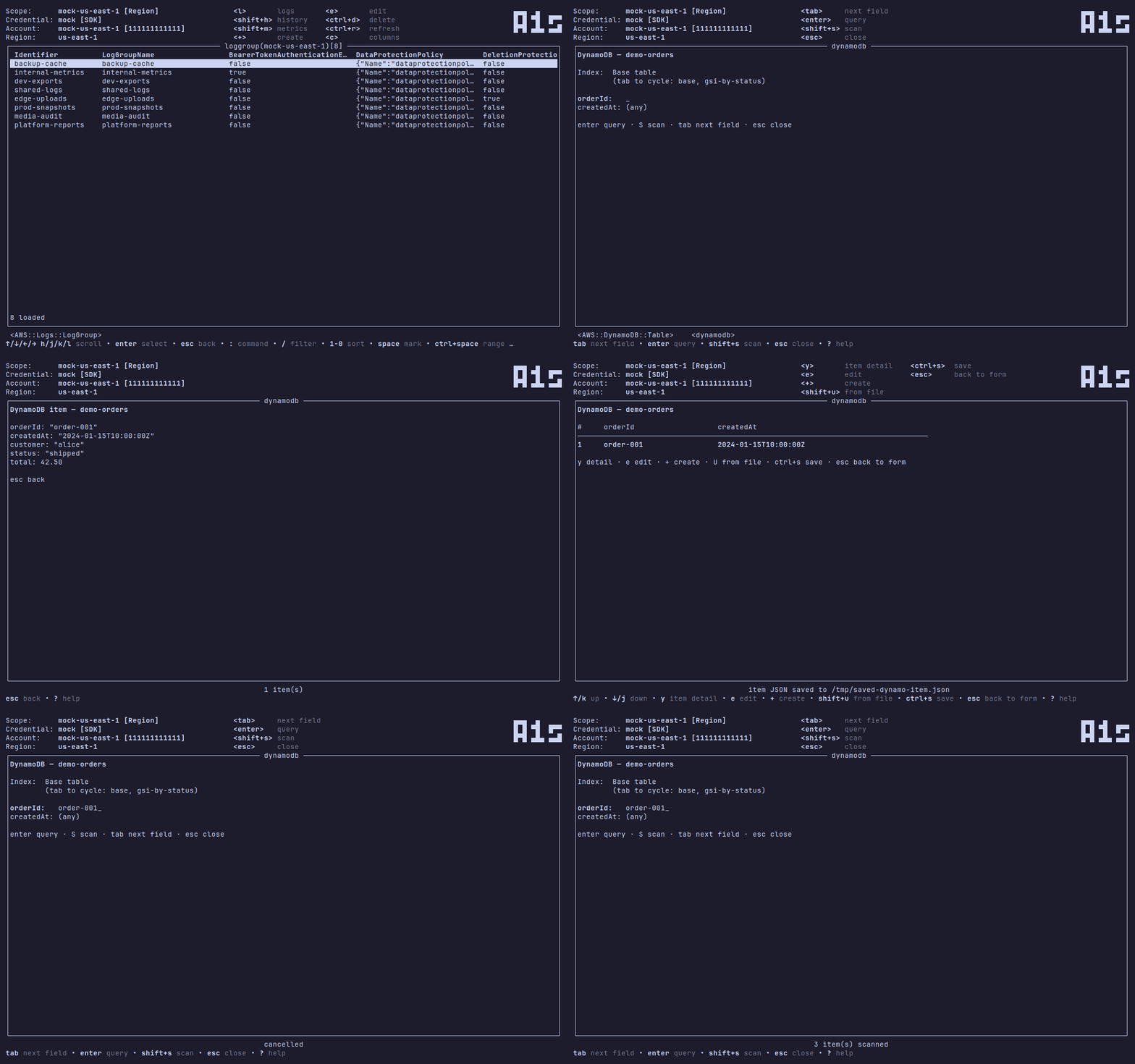
DynamoDB
Press enter on an AWS::DynamoDB::Table row to open the query-first viewer.
DescribeTable resolves the key schema (PK, SK, GSIs) before the form opens; the
schema is cached so switching back skips the round-trip.
The query form shows: PK value (required), optional SK condition (=,
begins_with, between, <, >), and an index selector (base table or any GSI
by name). Submitting runs a Query; results render in a table with PK and SK
pinned as the first columns.
Scan is the explicit fallback: shift+s shows a cost warning. Confirming
runs a Scan with a 1-page cap; m loads the next page.
Key
Phase
Action
enter
Resource list
Open viewer
tab
Query form
Cycle field focus
enter
Query form
Run query
shift+s
Viewer
Scan (cost-gated); m loads the next page
y
Results
Item JSON detail
e
Results
Edit item in $EDITOR → diff → PutItem
+
Results
Create item via $EDITOR
ctrl+s
Results
Save selected item JSON to a file
U
Results
Create item from a file
esc
Results / detail
Back to query form / results
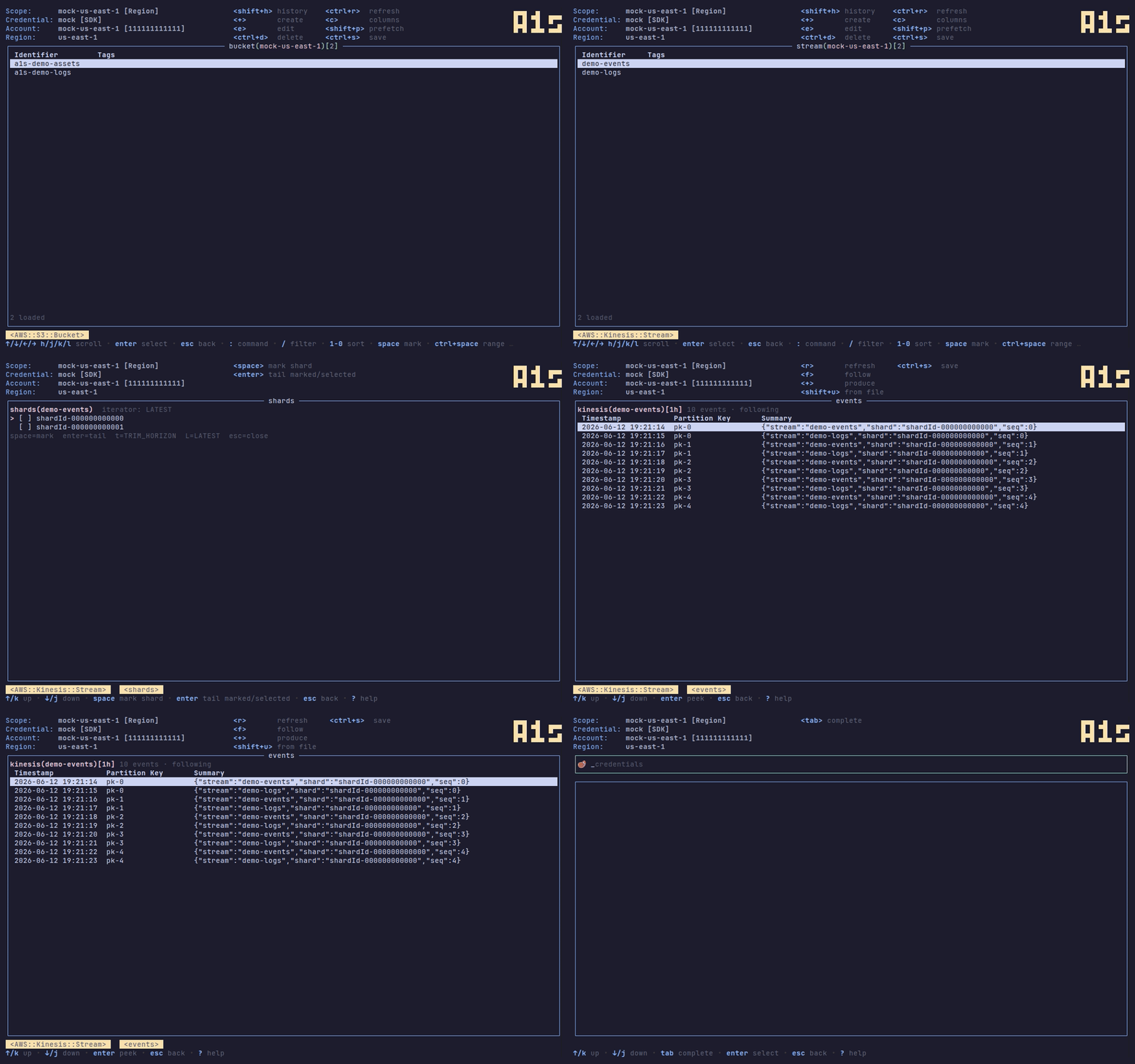
Kinesis
Press enter on an AWS::Kinesis::Stream row to open the shard table. The
table lists open shards; mark shards with space (or leave all unmarked to tail
the cursor shard), choose an iterator type, then press enter to start tailing.
Iterator types: L sets LATEST (default — only new records); t sets
TRIM_HORIZON (all seeded records from the beginning).
Key
Context
Action
enter
Resource list
Open shard table
space
Shard table
Toggle shard mark
L
Shard table
Set iterator to LATEST
t
Shard table
Set iterator to TRIM_HORIZON
enter
Shard table
Start tail on marked (or cursor) shard(s)
d
Stream pane
Decode record body (JSON pretty-print or plaintext)
f
Stream pane
Toggle live follow (poll-based, 2s–30s backoff)
+
Stream pane
Produce a record via $EDITOR + partition key prompt
ctrl+s
Stream pane
Save record body to a file
U
Stream pane
Produce a record from a file
esc
Any
Back / close
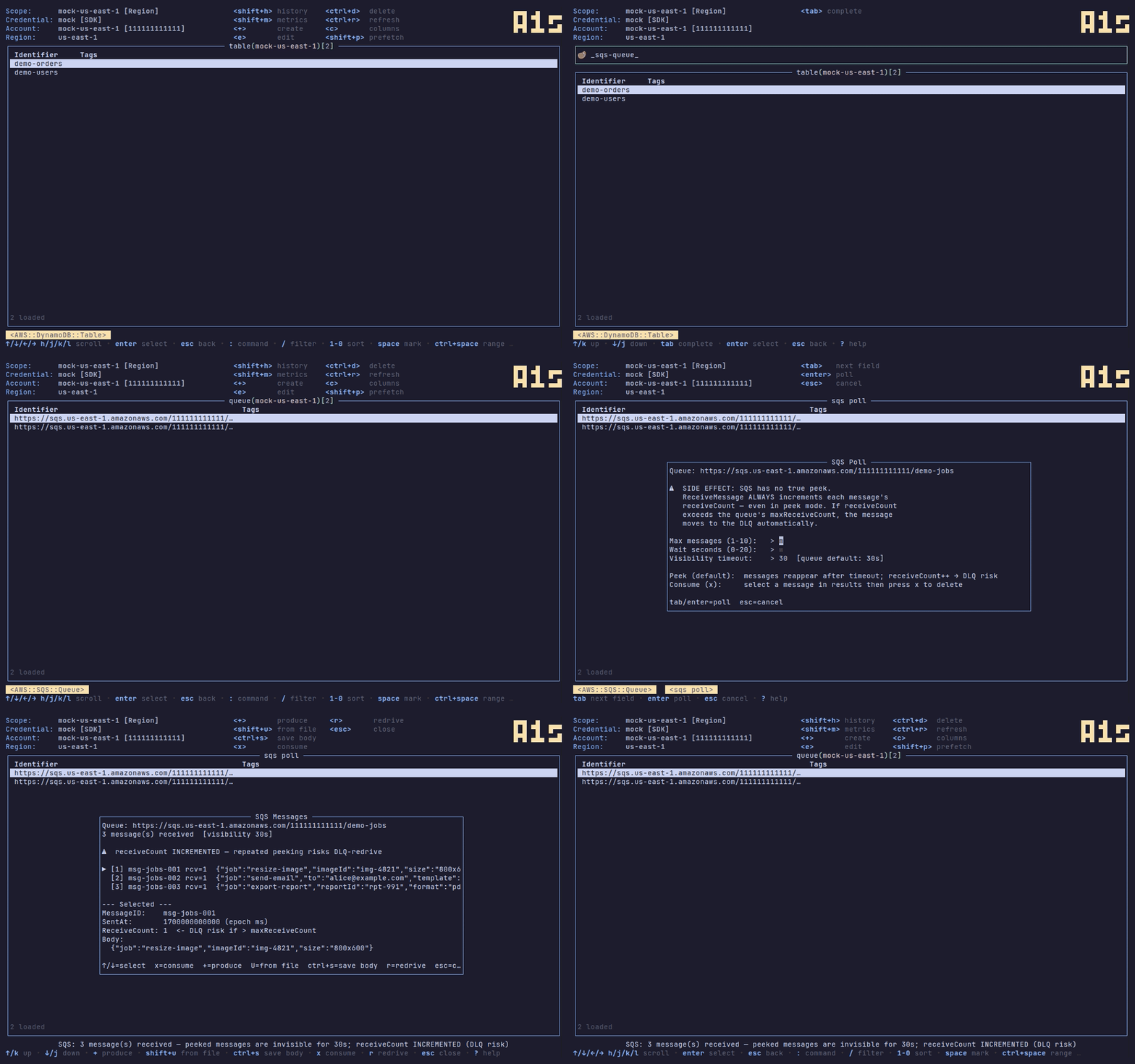
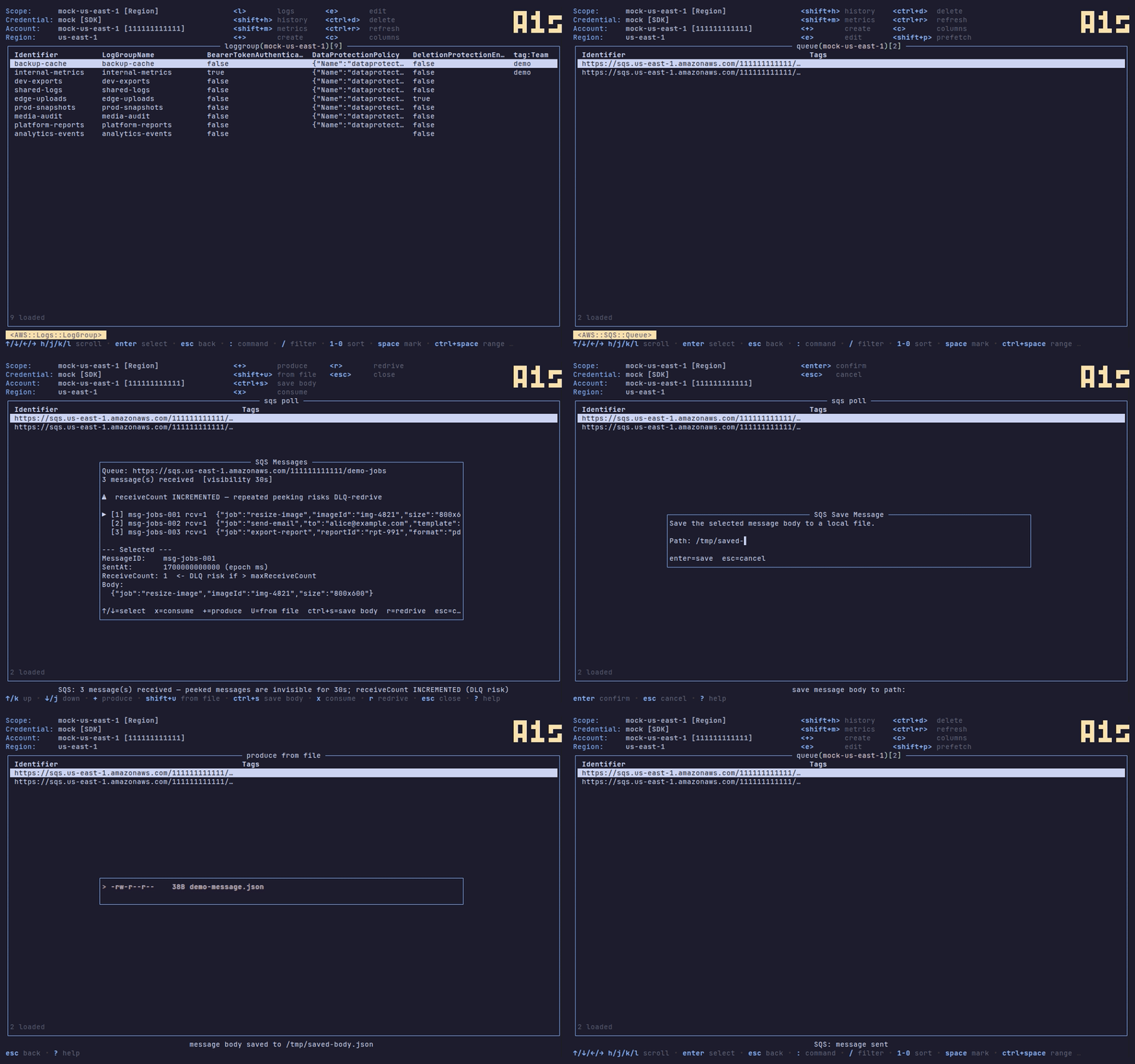
SQS
Press p on an AWS::SQS::Queue row to open the poll modal. Fill in the
bounded poll form (number of messages, wait seconds, visibility timeout) and
submit to receive messages.
Important: SQS has no side-effect-free peek. Every ReceiveMessage call
increments ApproximateReceiveCount on each returned message, even in peek mode.
When receiveCount exceeds the queue's maxReceiveCount, the message is
automatically moved to the DLQ — without any explicit consume action. The modal
warns of this prominently in the results header.
Key
Context
Action
p
Resource list
Open poll modal
enter
Poll form
Submit poll
x
Results
Consume (delete) selected message — confirm-gated
+
Results
Produce a message via $EDITOR
ctrl+s
Results
Save message body to a file
U
Results
Send a message from a file
r
Results
Redrive DLQ messages to source (StartMessageMoveTask)
esc
Any
Close modal
Polling is allowed in read-only mode; consume (x), produce (+), and redrive
(r) are blocked.
SNS
Press + on an AWS::SNS::Topic row to publish. a1s opens a parameter form
(subject; FIFO topics also require a message group ID), then $EDITOR for the
message body, then a confirm step that shows the topic's subscriber count before
sending.
Key
Context
Action
+
Resource list
Publish to topic (form → $EDITOR body → confirm)
Step Functions
Press enter on an AWS::StepFunctions::StateMachine row to open its
executions in the event-stream pane; press + to start a new execution
(input JSON via $EDITOR).
Key
Context
Action
enter
Resource list
Open executions stream
+
Executions pane
Start execution via $EDITOR
Secrets Manager
Press enter on an AWS::SecretsManager::Secret row to reveal its value
behind a confirm gate. Revealed values are never logged, cached, or written to
disk.
Key
Context
Action
enter
Resource list
Reveal secret value (confirm-gated)
ECS
Press x on an AWS::ECS::Service row to exec into a running container
(confirm-gated; hands off to the session-manager plugin like SSM sessions).
Key
Context
Action
x
Resource list
Exec into a container (confirm-gated)
Lambda Invoke
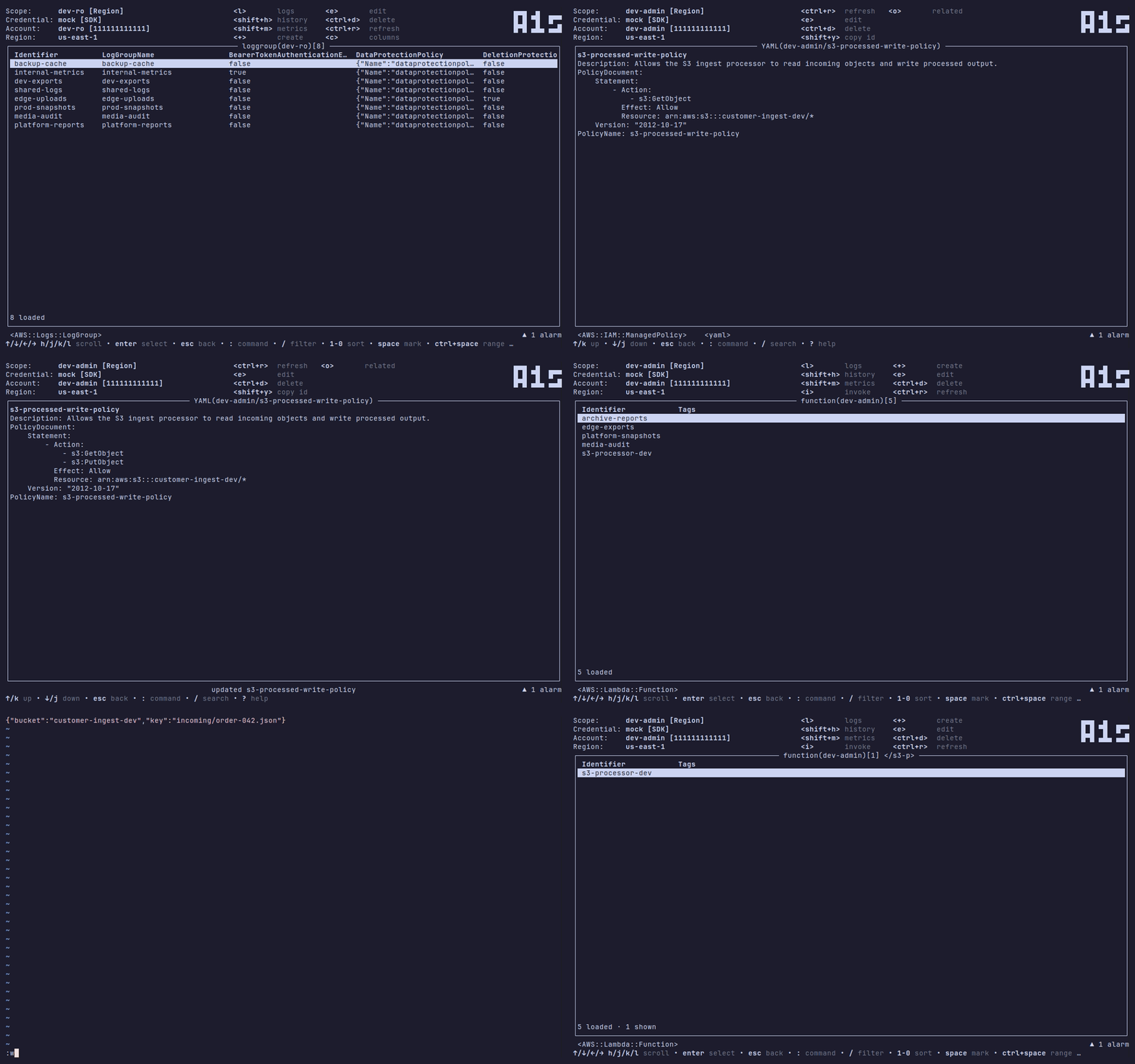
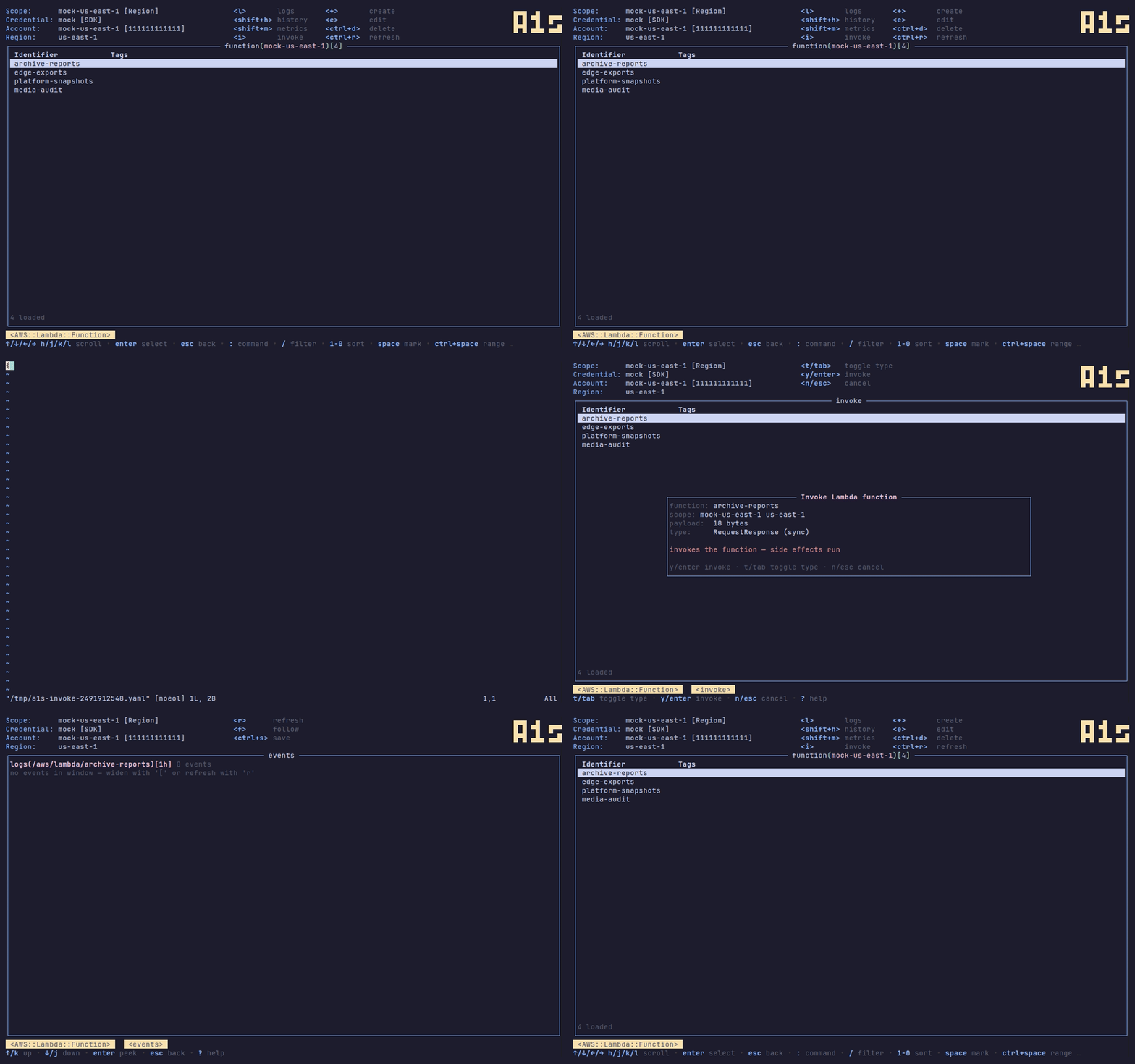
Press i on an AWS::Lambda::Function row to invoke the function. a1s opens
the payload in $EDITOR as a JSON file (defaulting to {}); save and quit to
advance to the confirmation modal, which shows the function name, payload
size, and invocation type (RequestResponse or Event, toggled with t).
Press y to invoke. The result view shows the HTTP status, any function error,
the response payload, and the CloudWatch log tail. Press l from the result
view to jump directly to the function's CloudWatch logs.
EC2 / SSM Sessions
Press ! on an AWS::EC2::Instance row to start an SSM Session Manager
session for that instance. a1s verifies that the instance is SSM-managed, then
lets you choose between an interactive shell or a port-forwarding session. A
port-forwarding session prompts for local and remote ports. Press y on the
confirmation modal to start the session; a1s calls ssm:StartSession and
hands the terminal over to the session-manager-plugin binary for the duration
of the session.
SSM sessions require the session-manager-plugin binary on PATH. Install it
from the AWS documentation.
SSM sessions are blocked in read-only mode.
CloudFormation
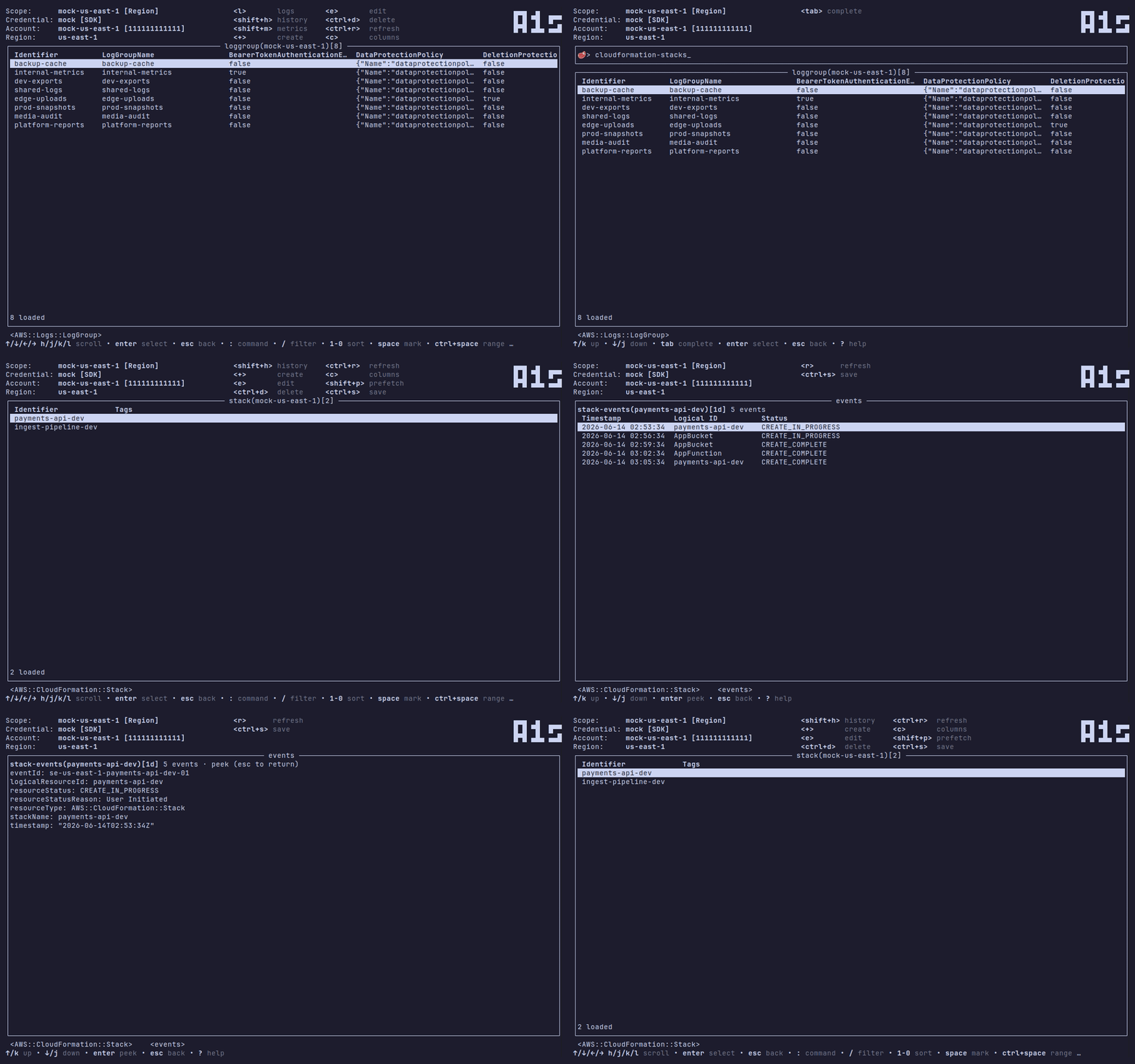
Press enter on an AWS::CloudFormation::Stack row to open the stack's
event history in the event-stream pane. The pane shows each stack event as
a row (Timestamp | Logical ID | Status); the peek detail carries the full event
including the status reason, which is too long to fit in a table cell but is
what operators look for when diagnosing a failed deployment. Window keys
([/]) widen and narrow the time range; r refreshes.
Key
Context
Action
enter
Resource list
Open stack event history
[ / ]
Event pane
Widen / narrow time window
r
Event pane
Refresh
enter
Event pane
Peek event detail (status reason)
esc
Event pane
Close
EKS
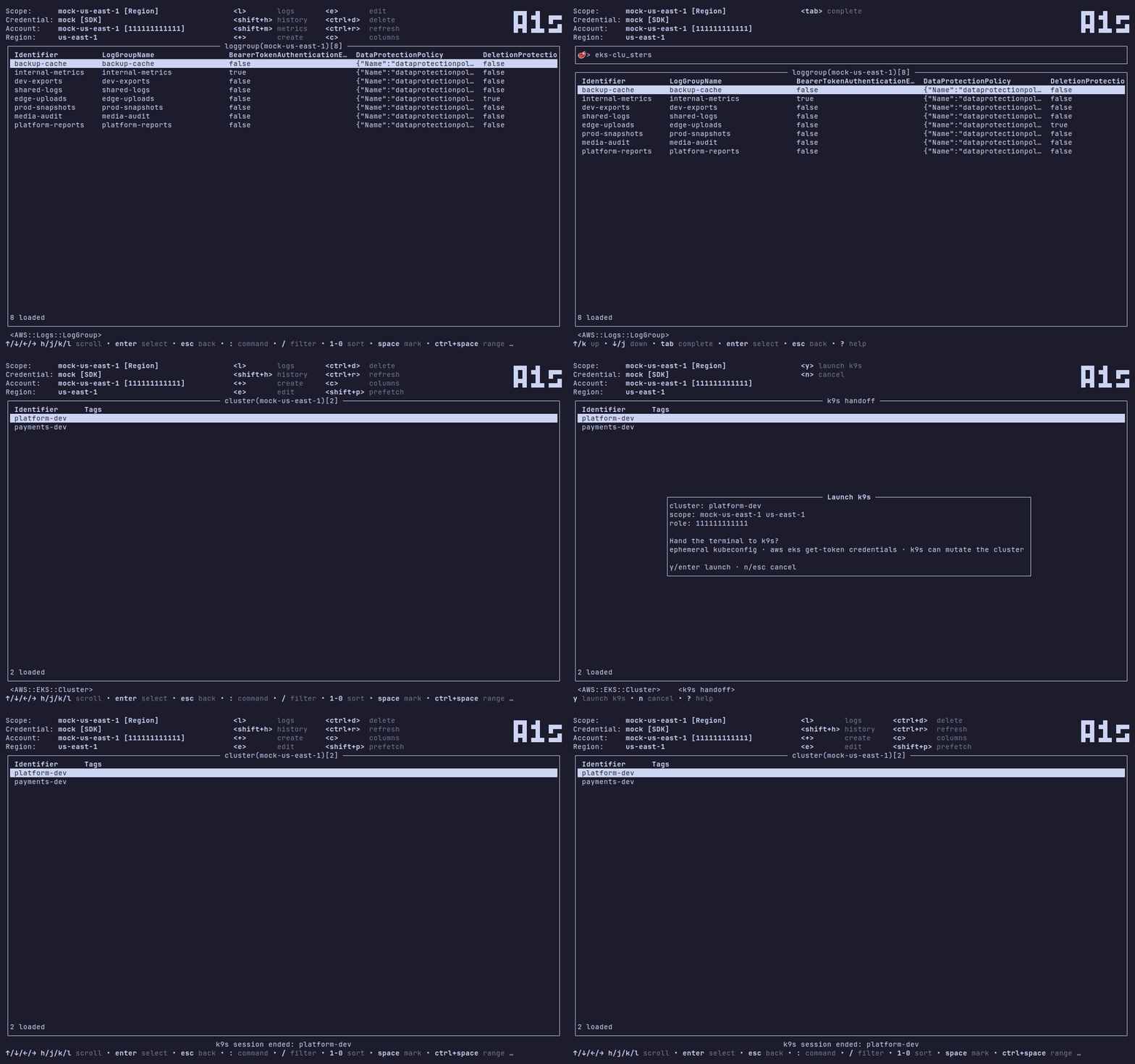
Press enter on an AWS::EKS::Cluster row to hand the terminal to
k9s. Before any AWS call fires, a confirmation modal
names the cluster, scope, and role. Confirming calls eks:DescribeCluster
through the row's origin-scope client, writes an ephemeral kubeconfig to a
0600 temp file (never ~/.kube/config), and launches k9s with KUBECONFIG
pointing at it. The kubeconfig uses an exec credential plugin
(aws eks get-token) so tokens are minted on demand for the whole k9s session.
The temp file is deleted on every k9s exit.
Prerequisites: k9s and aws CLI must be on PATH. If either is missing
a1s shows an install hint and does not open the modal.
Read-only mode: the action is read-only-gated. In read-only mode enter
falls through silently to the standard open-detail behavior rather than showing
a blocked-action notice, because enter has a non-mutating meaning on any row.
Key
Context
Action
enter
Resource list
Open k9s confirm modal
y / enter
Confirm modal
Describe cluster + write kubeconfig + launch k9s
n / esc
Confirm modal
Cancel
esc
Preparing
Cancel kubeconfig build
Read-Only Mode
Start with a1s --readonly (or set readOnly: true in config.yaml) to
disable resource create, edit, and delete for the session. The header shows
an [RO] marker; --readonly=false lifts a read-only config for one run.
Theming
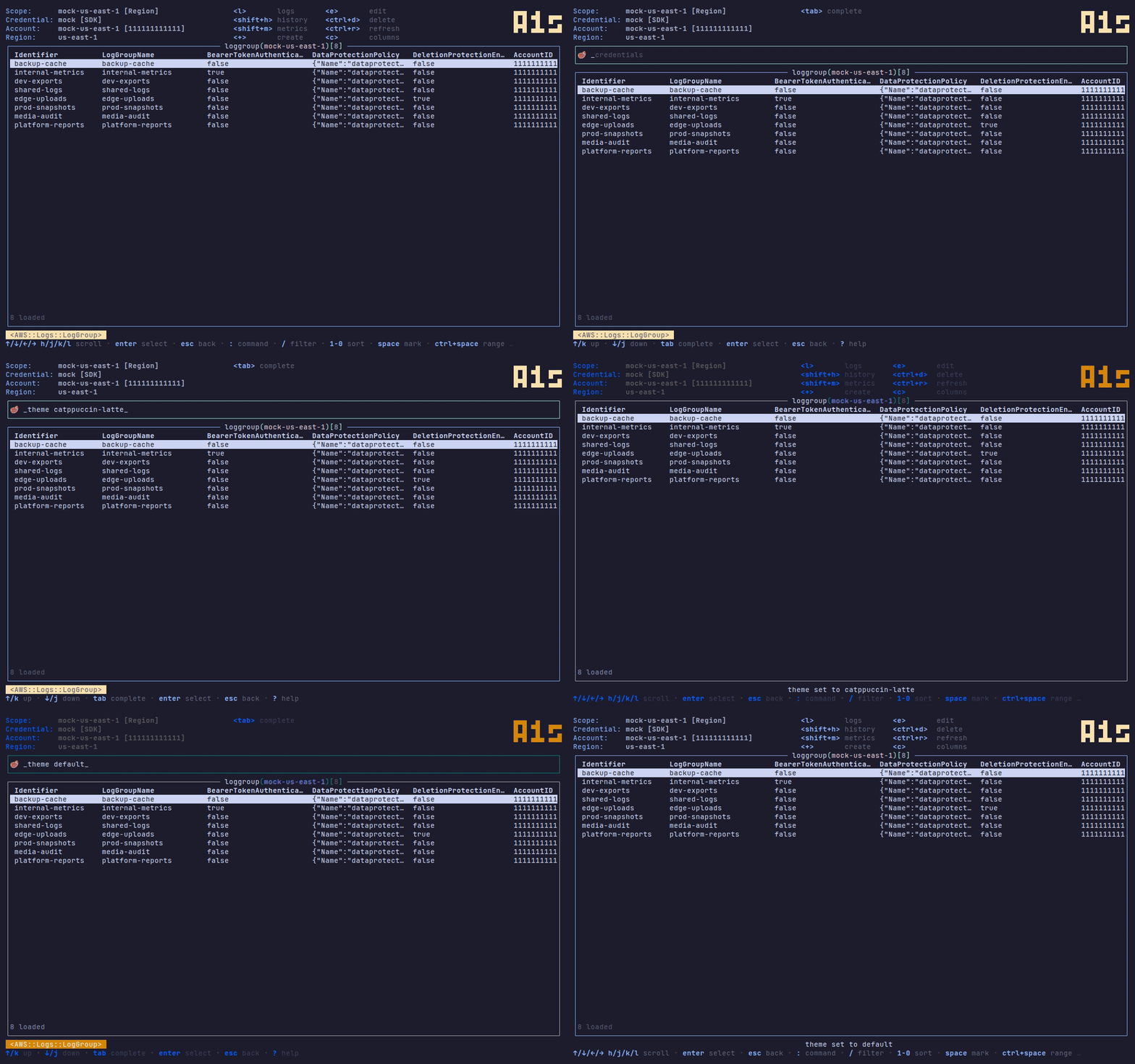
skin: in config.yaml selects a color skin, k9s-style: built-ins
plus user skins from a themes/ directory next to the config file. A
theme: block overrides individual roles on top of the skin. Credentials
and scopes accept an accent: color used while that scope is active — a
visual guard rail for production accounts. :accent sets the active
scope's accent live from the command palette (:accent none clears it),
persisting to the same config field.
Resource Type Aliases
New configs include common aliases for resource types such as S3 buckets, EC2
instances, EBS volumes and snapshots, RDS instances, IAM roles and policies,
Lambda functions, SQS queues, SNS topics, and VPC resources.
Use the command palette to add an alias:
alias buckets AWS::S3::Bucket
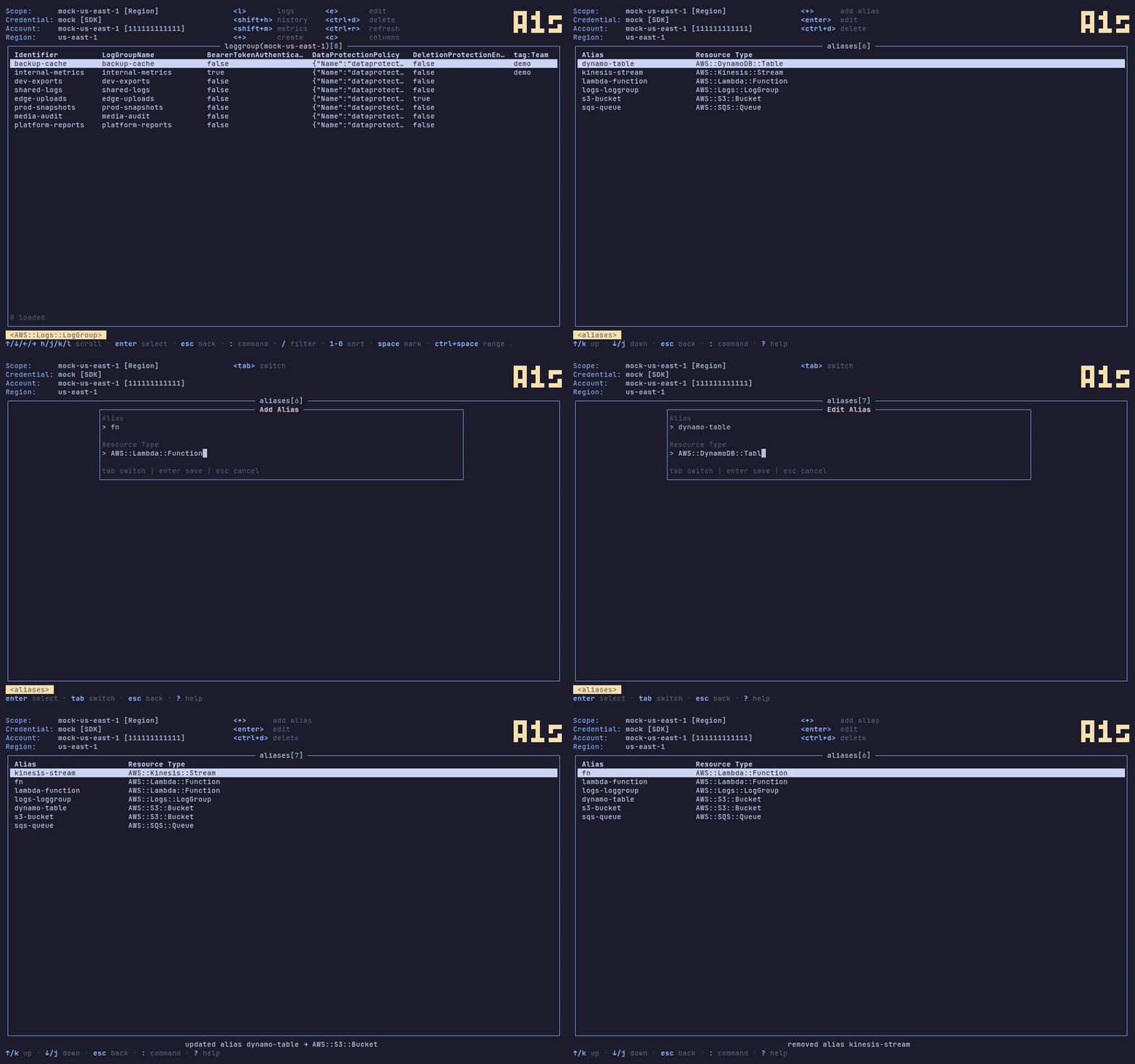
Run aliases from the command palette to open the alias table: + adds an
alias, enter edits the selected one, and ctrl+d deletes it (with
confirmation). Aliases are also stored in config.yaml under
resourceTypeAliases, where they can be edited directly.
SDK Profile Discovery
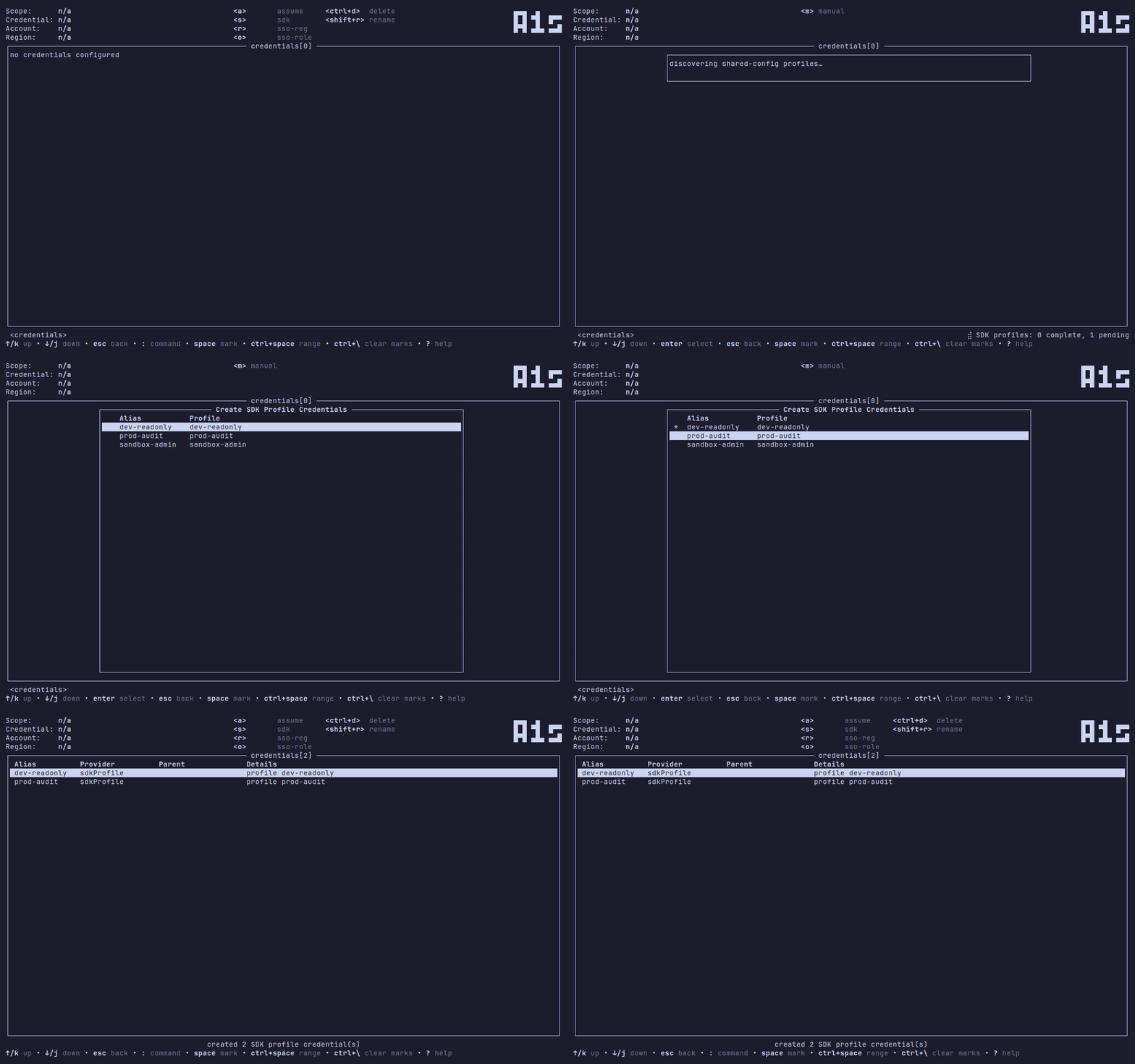
Press s on the credentials table to open the SDK profile picker. The AWS SDK
for Go has no ListProfiles API, so a1s discovers profiles by scanning the
section headers of the shared config file ([default], [profile NAME] —
[sso-session ...] and [services ...] sections are excluded) and the shared
credentials file ([NAME]), merged config-file order first and deduplicated.
AWS_CONFIG_FILE and AWS_SHARED_CREDENTIALS_FILE override the default
~/.aws/config / ~/.aws/credentials paths. Each profile is enriched
best-effort with its credential-source type (sso / assume-role / web-identity /
process / static) and region; a profile that fails to load still appears with
blank columns.
Selecting rows creates sdkProfile credentials with the profile name as the
default alias (suffixed for uniqueness). Profiles that already back a
credential show as exists and cannot be re-created. If discovery finds
nothing — or the profile you want is not in the files — press m for the
original manual two-field form; esc there returns to the picker.
Key
Context
Action
s
Credentials table
Open the profile picker (starts discovery)
enter
Picker
Create credentials for marked rows (or the cursor row)
space / ctrl+space / ctrl+\
Picker
Mark / range-mark / clear marks
/
Picker
Filter rows live (same grammar as the table filter)
m
Picker
Manual entry (the original alias + profile form)
esc
Picker
Cancel back to the credentials table
esc
Manual form
Return to the picker
SSO Credentials
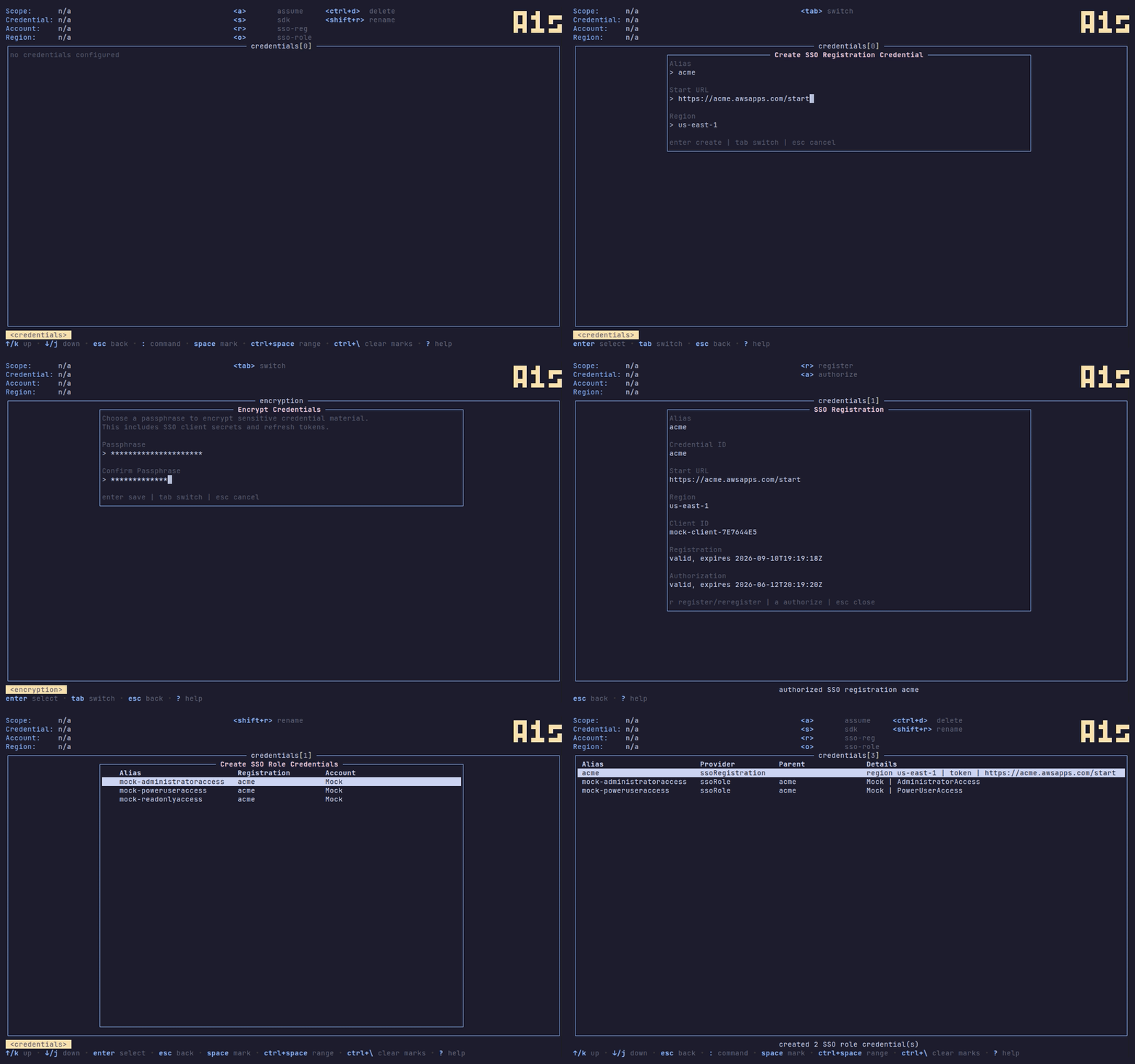
In addition to typical SDK-managed credentials, A1s can also make IAM Identity
Center SSO registrations directly. SSO registrations are treated as a type of
credential. Creating one opens a registration modal and starts OIDC client
registration and device authorization. The modal shows the client ID,
registration expiration, authorization status, and authorization expiration.
The first SSO flow that writes sensitive material prompts for a passphrase. That
passphrase encrypts SSO client secrets and refresh tokens with
age before they are written to
credentials.yaml. If encrypted credentials already exist, startup prompts for
the passphrase before launching the TUI.
Configuration
Configuration is split by sensitivity:
config.yaml stores non-sensitive settings, credentials definitions, scopes,
aliases, views (columns and sort), fetch settings, keybindings, read-only
mode, and skin/theme values.
credentials.yaml stores sensitive SSO registration material and is encrypted
when it contains non-empty credentials.
By default these files live under the platform user config directory in an a1s
subdirectory. On Linux this is usually ~/.config/a1s.
Caches live under the platform user cache directory in an a1s subdirectory. On
Linux this is usually ~/.cache/a1s.