ClickPaste is a Windows 10/11 notification area application designed to paste clipboard contents as keystrokes into any target location with a simple click. This tool simplifies transferring text or data across applications, even into elevated processes when installed correctly.
Key Features:
Runs in the notification area for quick access.
Configurable hotkeys to trigger actions quickly.
Multiple typing modes (text insertion or keystroke simulation).
Adjustable delays between keystrokes for smooth pasting.
Optional confirmation before pasting large clipboard content.
Installable via winget for seamless setup.
Ideal Audience & Benefits:
Ideal for users who frequently need to transfer text across applications, ClickPaste offers a reliable and customizable solution. Whether you're working with standard apps or elevated processes, it ensures efficient and accurate clipboard management.
README
ClickPaste
Windows 10/11 notification area app in C# that can paste clipboard contents as keystrokes to whatever location you click.
Starting
You can install ClickPaste using the MSI installer or get the portable ZIP from the Releases page
Note that in order to paste to UAC-elevated processes, Microsoft requires the ClickPaste binary to be run from the system drive's "Program Files" folder.
(The easiest way to achieve that is to use the MSI installer.)
Launch ClickPaste from a shortcut or by double-clicking ClickPaste.exe.
Usage
First of course, you need to have some text in your clipboard. Then:
Click the target notification icon to begin:
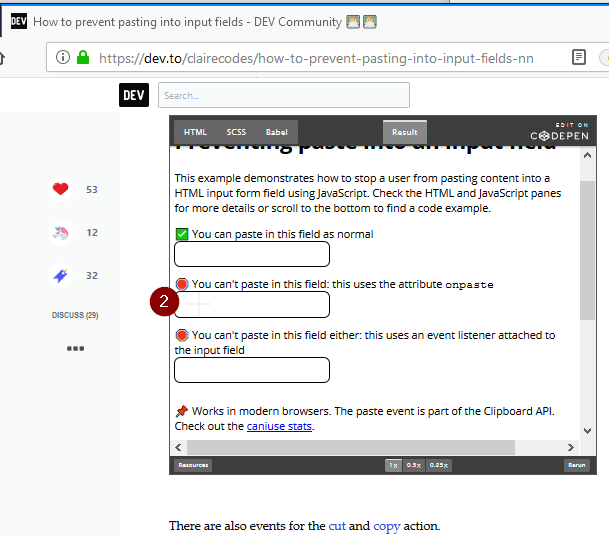
Click to choose a location you want to paste the text:
Your clipboard contents should be typed as keystrokes onto the window you selected:
Settings
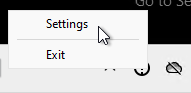
Right-click the notification icon and select Settings.
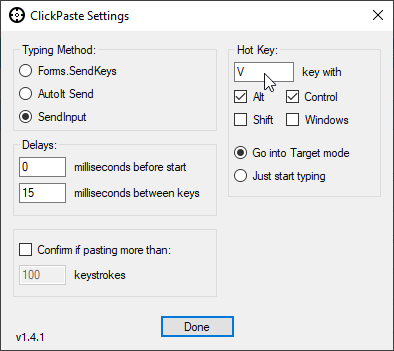
You can change between key typing modes,
Set how much delay there is before and between keystrokes,
Trigger a confirmation when the clipboard contains more than a chosen number of characters,
Configure what "hot key" combination will be used (Clear the key textbox with delete or backspace if you wish to have no hotkey),
Configure whether the "hot key" will activate the target selector to pick a paste location or just start typing immediately.
Stopping
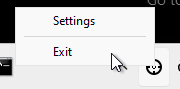
Right-click the notification icon and select Exit.