cv4pve-report is a reporting tool designed to export your entire Proxmox VE infrastructure into a single navigable Excel file. This comprehensive tool captures detailed information about nodes, virtual machines (VMs), containers, storages, users, firewall rules, backup jobs, and resource pools, with every row in the summary tables linking to its corresponding detail sheet.
Key Features:
Generates a single .xlsx file with dedicated sheets for each node, VM, and storage.
Fully navigable interface where summary rows link to detailed sheets, and detail sheets include an index for quick navigation.
Provides cluster-wide insights into users, API tokens, multi-factor authentication (MFA), groups, roles, access control lists (ACLs), firewall rules, backup jobs, replication, software-defined networking (SDN), and resource pools.
Detailed node information including services, network configurations, disks, SMART data, RRD metrics, APT updates, SSL certificates, and tasks.
Storage inventory with content listings, backup jobs, and RRD metrics.
Three profiles (Fast, Standard, Full) to balance speed and detail based on specific needs.
Operates with a read-only API token, eliminating the need for root access.
Audience & Benefit:
Ideal for system administrators, DevOps engineers, and IT teams managing Proxmox VE environments. This tool provides a consolidated view of infrastructure, enabling efficient auditing, inventory management, and compliance reporting without requiring direct root access to nodes. The ability to generate detailed reports in Excel format simplifies sharing insights with stakeholders and streamlines decision-making processes.
cv4pve-report can be installed via winget for ease of use across supported platforms.
Fully navigable — every node, VM and storage in the overview tables is a hyperlink to its dedicated detail page. Click and you're there.
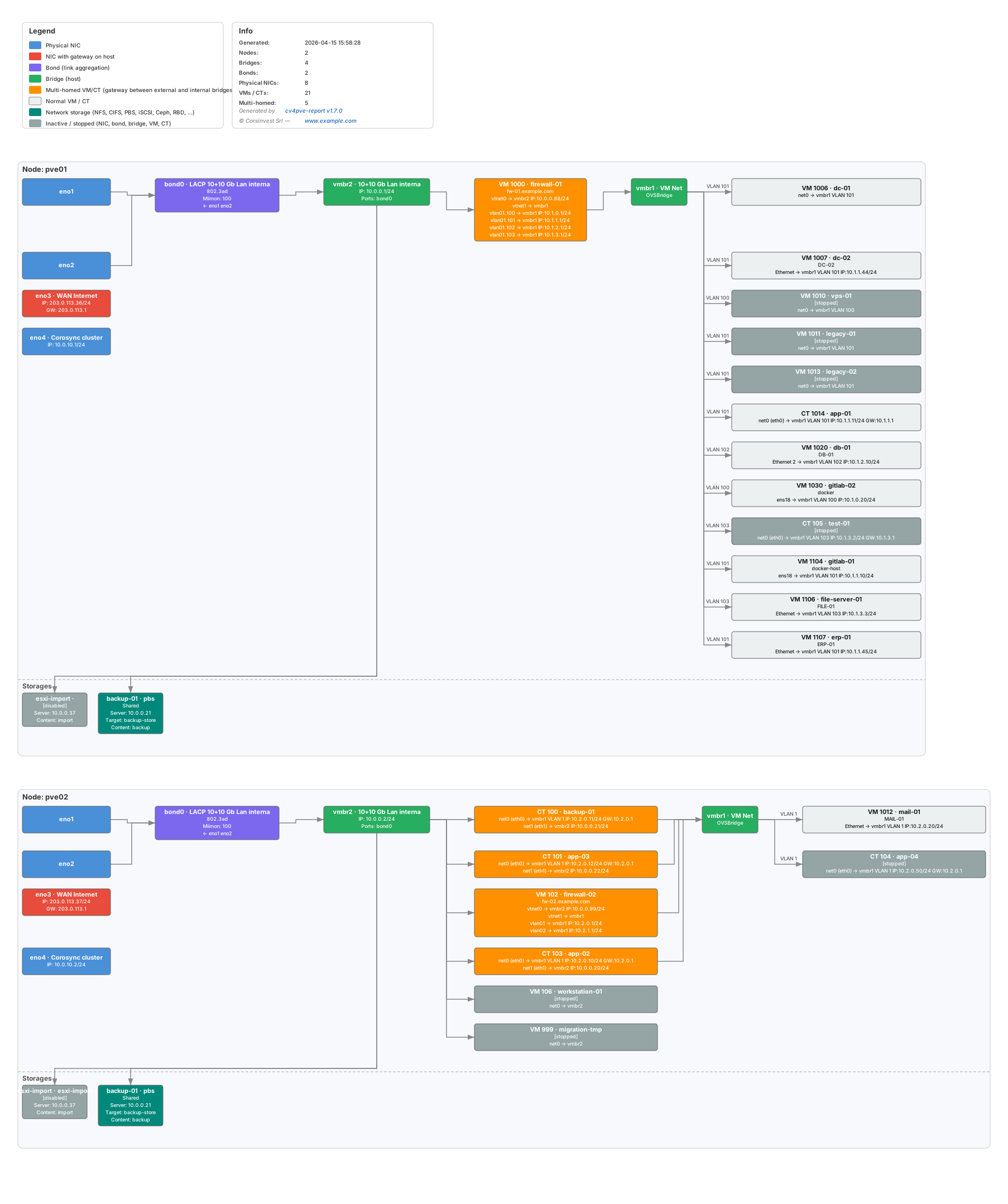
Network Diagram — each export also produces an SVG showing the full network topology per node (physical NICs → bonds → bridges → gateway VMs → internal bridges → leaf VMs) plus a dedicated strip for network-backed storage. Open it in any browser — see the guide and sample.
Resilient by design — a single broken endpoint (a storage with a corrupt RRD file, a node returning 500, missing permissions on a sub-resource) no longer aborts the report. Failed calls are collected into a dedicated page that lists severity, section, the full Proxmox error message and the API endpoint that failed — each row is hyperlinked to the relevant detail page (VM, node, cluster, …). 501 on endpoints missing in older PVE versions is silent, everything else surfaces as a you can act on. The Issues page only appears when there is something to report.
RVTools is a pure inventory tool for VMware — it exports infrastructure data to Excel, nothing more. The cv4pve suite follows the Unix philosophy — each tool does one thing and does it well. Use them together for complete coverage.
./cv4pve-report ... export                  # Excel (default)
./cv4pve-report ... export --format Html    # HTML zipped site
./cv4pve-report ... export --format Json    # JSON zipped dataset
With --output / -o you choose the output path. All formats now produce a single .zip — extract it to access the files inside (a .xlsx for Excel, an index.html plus assets for HTML, one JSON per section for JSON). The network topology SVG (network-diagram.svg) is bundled in the same zip. If the path you pass doesn't end in .zip, the extension is appended automatically.
Output Formats
All three formats expose the same data using the same logical layout — one section per topic (Cluster, Nodes, VMs, Containers, Storages, …) plus per-resource detail (one per node, VM and container). Only the rendering differs: a sheet per section in Excel, a page per section in HTML, a file per section in JSON. Pick the one that matches what you need to do with the report — each format has its own full reference under docs/.
For analysts and capacity planning. Extract the zip and open report.xlsx in Excel, LibreOffice Calc or any spreadsheet tool.
One workbook, one sheet per section (Cluster, Nodes, VMs, Containers, Storages, …) plus per-node and per-VM detail sheets at the end
Hyperlinks everywhere — click a node, VM or storage in any list to jump straight to its detail sheet; every detail sheet has a ← Back link to its overview
Per-sheet index — every detail sheet starts with a clickable index of its tables so you can jump to the section you need
Native filtering / sorting / pivot — every table is a real Excel table; use built-in autofilter, sort, slicer or pivot the data without exporting elsewhere
Network topology SVG — bundled inside the zip as network-diagram.svg; open in any browser to see the full network map (NICs → bonds → bridges → VMs → storages) — guide
> Full reference: Excel format guide — sheet order, per-sheet contents, hyperlinks and Excel-specific behaviour.
HTML output (--format Html)
Report_20260506_120000.zip ← static website (extract and open index.html)
For sharing on a wiki, ticket system or with non-technical stakeholders. Extract the zip and open index.html in any browser — works fully offline, no server needed.
Static website — index.html plus one page per section, all linked together; navigate with the sidebar like any wiki
Search & sort — global sidebar filter (find any node, VM or container by id or name), per-table search and click-to-sort headers on every column
Light & dark theme — toggle in the top corner; auto-follows your OS preference
Share a single page — every node/VM/container detail page has an Export button (top right) that bundles the page as a stand-alone .html file (CSS and table interactions inline) — paste it into a ticket or attach it to an email without sending the whole report
Built for large clusters — sidebar groups (Nodes, VMs, Containers) load their entries on demand, so the report stays fast and the zip stays small even with thousands of guests; tested up to 2700+ VMs
Print-friendly — dedicated print stylesheet hides chrome and lays tables out for paper / PDF export from the browser
Network topology SVG — bundled inside the zip and accessible from the sidebar — guide
> Full reference: HTML format guide — page layout, sidebar behaviour, theme, export button and lazy-loading for large clusters.
JSON output (--format Json)
Report_20260506_120000.zip ← multi-file JSON dataset (extract and parse with jq, Power BI, scripts, …)
For automation, scripting and integrations. Extract the zip and consume the files with jq, Python, PowerShell, Power BI, or any tool that reads JSON.
One file per section — cluster.json, nodes.json, vms.json, storages.json, … plus nodes/.json, vms/.json and containers/.json for per-resource detail; same logical layout as the Excel sheets and HTML pages
Stable file paths — perfect for snapshot diffs: store the extracted zip in git and diff -r two snapshots to see exactly which VMs/nodes/storages changed
Pipeline-friendly — small file size (≈ a few MB even on 2700+ VM clusters; gzip compresses heavily), easy to ingest from CI / cron / monitoring jobs
Rich metadata — metadata.json carries the schema version, timestamp, application info and per-section generation stats
Network topology SVG — bundled as network-diagram.svg inside the zip
> Full reference: JSON format guide — file layout, schema, naming conventions and jq examples for common tasks.
Response Files
Arguments can be stored in a response file and referenced with @filename. This is useful to avoid repeating connection parameters on every run.
Issues — diagnostic page that aggregates any per-resource failure encountered while collecting data; appears only when there is at least one issue and is linked from the Summary/cover and the sidebar so it's the first thing you see when something didn't work
Network topology — auto-generated SVG diagram of physical NICs, bonds, bridges, gateway VMs and network-backed storage — guide
How you can shape it:
Three profiles — --fast for a quick scan on large clusters, default Standard for daily reporting, --full for audits and capacity planning
settings.json — bring your own config to enable/disable exactly the sections you want — see Settings Reference
Flexible target selection — @all, pools, tags, nodes, ID ranges, wildcards, exclusions — see VM/CT Selection Patterns
API token support, cross-platform (Windows, Linux, macOS), no root access required
APT repositories, available updates and installed package versions
Cluster nodes
Settings Reference
Three built-in profiles (--fast, default, --full) cover the common cases — see the profiles comparison above. For fine-grained control bring your own settings file:
cv4pve-report create-settings --full > settings.json   # generate from a profile
cv4pve-report ... export --settings-file=settings.json  # use it
> Full reference: Settings guide — all properties, annotated JSON example, skip-heavy-section flags, and performance tuning (MaxParallelRequests, ApiTimeout, QemuAgentTimeout).
VM/CT Selection Patterns
The Guest.Ids setting supports the same powerful pattern matching as cv4pve-autosnap:
Pattern
Syntax
Description
Example
All VMs
@all
All VMs/CTs in cluster
@all
Single ID
ID
Specific VM/CT by ID
100
Single Name
name
Specific VM/CT by name
web-server
Multiple
ID,ID,ID
Comma-separated list
100,101,102
ID Range
start:end
Range of IDs (inclusive)
100:110
Wildcard
%pattern%
Name contains pattern
%web%
By Node
@node-name
All VMs on specific node
@node-pve1
By Pool
@pool-name
All VMs in pool
@pool-production
By Tag
@tag-name
All VMs with tag
@tag-backup
Exclusion
-ID or -name
Exclude specific VM
@all,-100
Tag Exclusion
-@tag-name
Exclude by tag
@all,-@tag-test
Node Exclusion
-@node-name
Exclude by node
@all,-@node-pve2
@all                          # all VMs/CTs
100,101,102                   # specific IDs
100:200                       # IDs from 100 to 200
@pool-production              # all VMs in pool "production"
@tag-backup                   # all VMs tagged "backup"
@node-pve1                    # all VMs on node pve1
@all,-100,-101                # all except VM 100 and 101
@all,-@tag-test               # all except VMs tagged "test"
%web%                         # VMs whose name contains "web"
Support
Professional support and consulting available through Corsinvest.