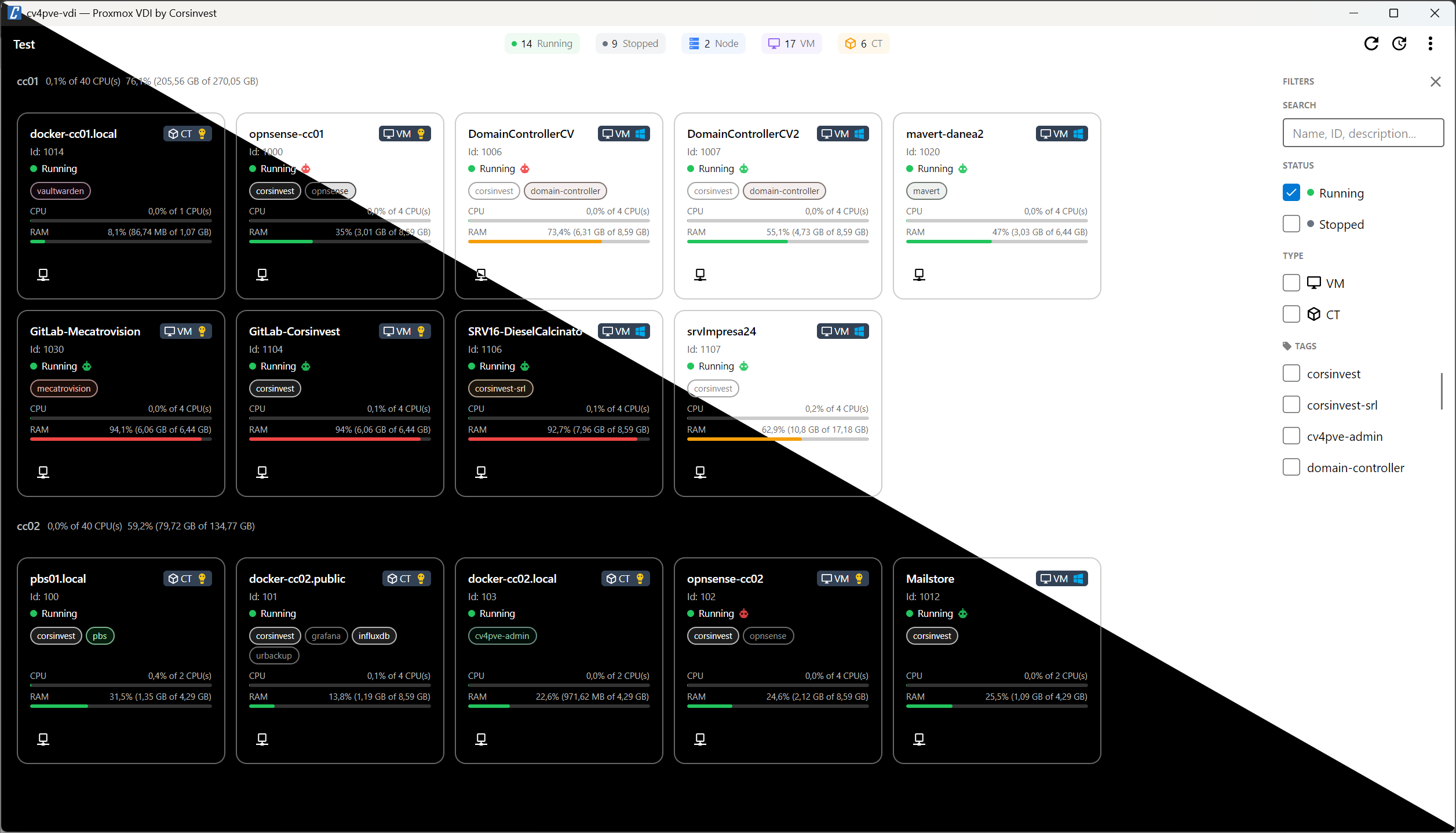
cv4pve-vdi is a desktop VDI client designed to provide a streamlined interface for managing and connecting to virtual machines (VMs) and containers in Proxmox VE. It eliminates the need to access the Proxmox web UI by offering direct SPICE and RDP connections.
Key Features:
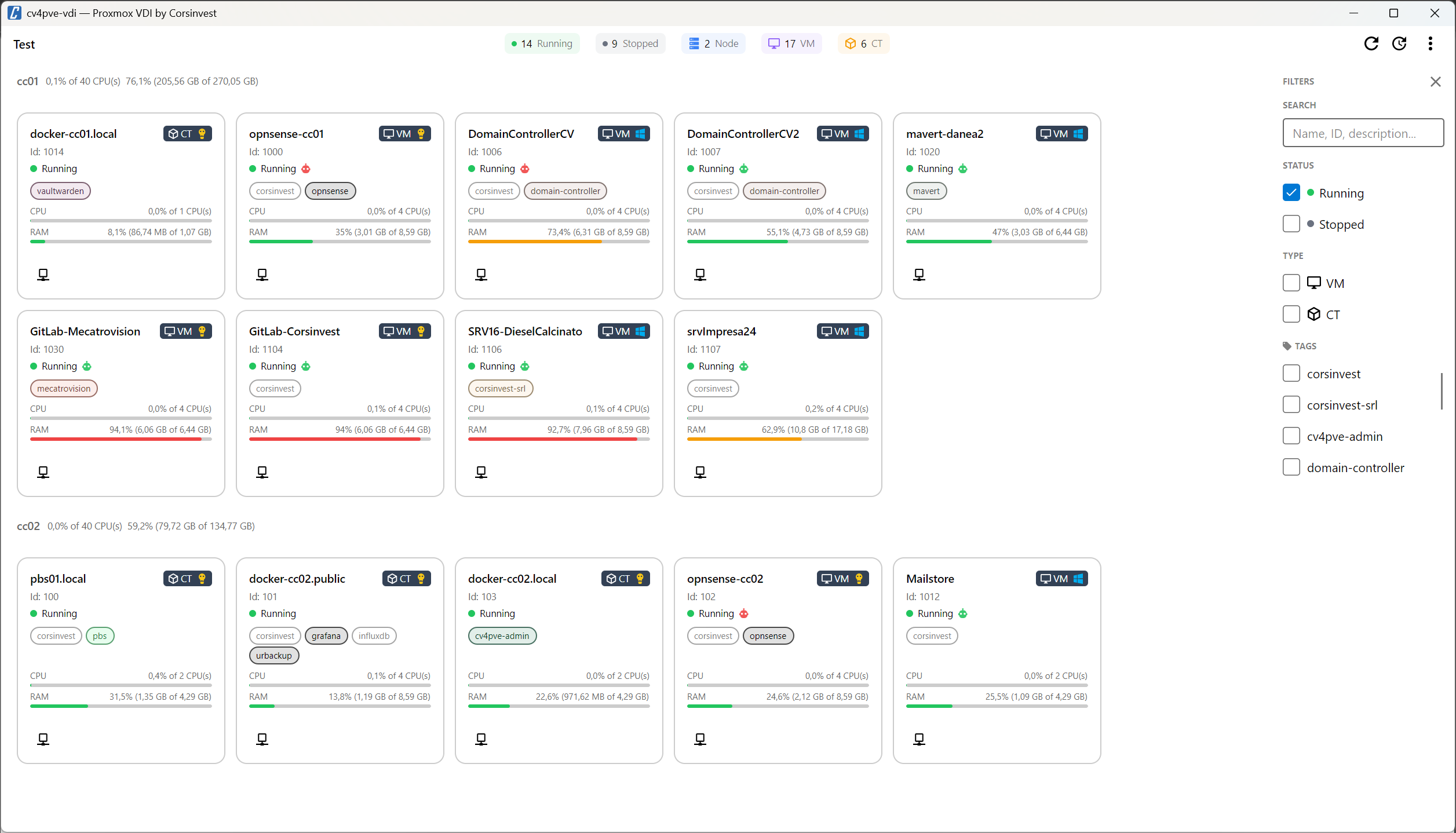
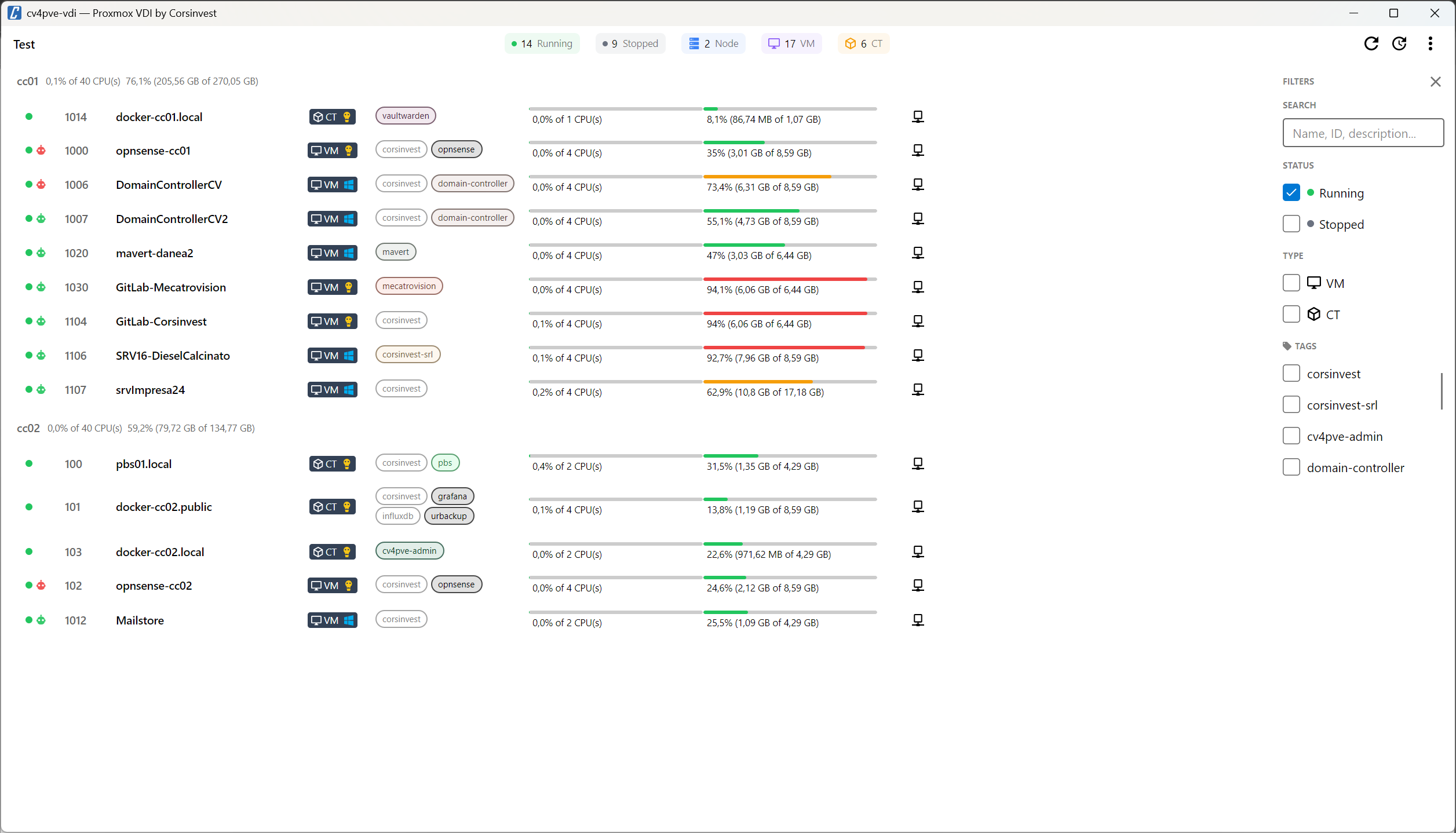
Card and List Views: Switch between visual layouts to browse VMs and containers.
SPICE Console Access: Launch SPICE consoles via remote-viewer for seamless VM interaction.
RDP Support: Connect to VMs using mstsc (Windows) or xfreerdp (Linux/macOS).
VM Power Control: Start, shut down, or reset VMs directly from the interface.
Real-Time Monitoring: View CPU and RAM usage in real time for each VM/container.
Auto-refresh Functionality: Refreshes every 10 seconds to keep data current.
Filtering Capabilities: Organize VMs and containers by node, status, type, or tags.
Multi-host Support: Manage multiple Proxmox VE clusters from a single interface.
Theme Customization: Choose between light and dark themes for optimal visibility.
Audience & Benefit:
Ideal for system administrators and IT professionals managing Proxmox VE environments. This tool allows efficient VM and container management without the need to repeatedly access the web UI, streamlining operations across multiple clusters. It supports a variety of use cases, including remote desktop sessions (RDP) and direct VM console access via SPICE.
The software can be installed on Windows using winget.
cv4pve-vdi is a desktop VDI client for Proxmox VE. It provides a graphical interface to browse, filter and connect to virtual machines and containers via SPICE, VNC and custom service launchers (RDP, SSH, and any other tool) — without opening the Proxmox web UI.
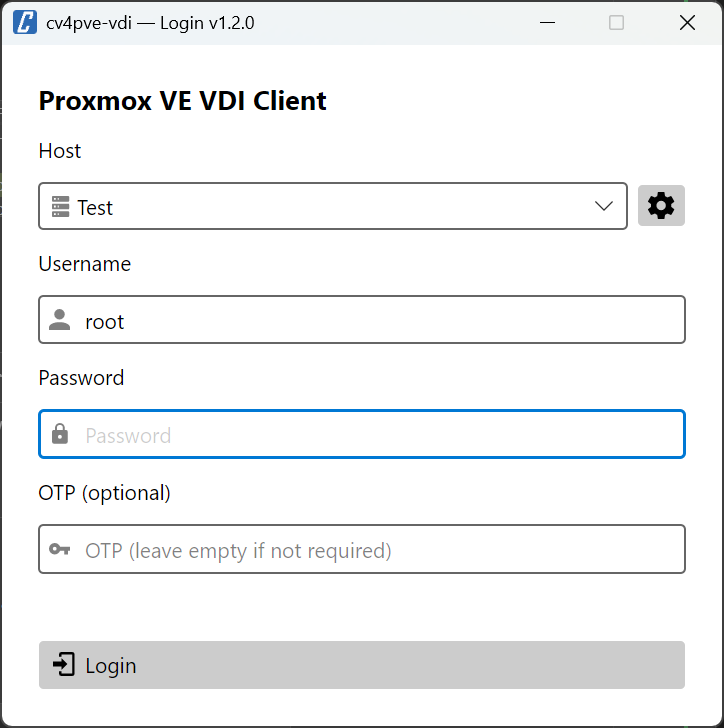
Login
Card view
List view
Quick Start
Download the latest release from the releases page, extract and run:
./cv4pve-vdi
Features
Core Capabilities
Card and list view — switch between a visual card layout and a compact list
SPICE console launch via remote-viewer
VNC console via internal WebSocket bridge — no firewall rules or node-side configuration required (see docs/BRIDGE-VNC.md)
Custom service launchers — RDP, SSH, PuTTY and any other tool (see docs/LAUNCHERS.md)
Per-VM services — multiple connections per VM with auto-discovery and RDP single sign-on (see docs/SERVICES.md)
Kiosk mode — lock down the application for thin-client and shared-workstation deployments (see docs/KIOSK.md)
Switch user — sign out and return to the login screen without restarting the app (from the More menu)
VM/CT power control — Start and Shutdown buttons (with optional confirmation)
Real-time stats — CPU and RAM usage bars per VM
Auto-refresh every 30 seconds — toggle from the toolbar
Filter sidebar — filter by node, pool, status, type and tags
Tag support — color-coded badges with Proxmox VE tag colors
Multi-host — manage multiple Proxmox VE clusters from a single client
Theme support — Light and Dark themes
Configurable — full settings UI for appearance, launchers, clusters and kiosk (see docs/SETTINGS.md)
VM Badges and Indicators
Each VM card and list row shows visual indicators:
Badge
Description
🟢 Running dot
VM is running
⚫ Stopped dot
VM is stopped
VM / CT / Node badge
Resource type with OS icon
🟢🔴⚫ Agent icon
QEMU guest agent status: green = running, red = not responding, gray = ping disabled or unknown
🔊 Audio icon
SPICE audio device configured
🔌 USB icon
SPICE USB redirect configured
📋 Clipboard icon
SPICE clipboard sharing configured
Tag badges
Proxmox VE tags with color
CPU / RAM bars
Real-time resource usage
Guest setup
A few features (SPICE audio/USB/clipboard, QEMU guest agent badge, auto-resolving the VM IP) require components installed inside the VM. See docs/GUEST-SETUP.md for the prerequisites.
> [!NOTE]
> Only VMs and containers with actionable VDI capabilities are shown — running VMs with SPICE/VNC/services available, or stopped VMs configured for SPICE display (qxl/spice). SPICE and service checks run in parallel batches with caching to keep refreshes fast on large clusters.
Installation
Permissions Required
Permission
Purpose
VM.Console
Launch SPICE and VNC consoles
VM.PowerMgmt
Start / Shutdown VMs
VM.Audit
Read VM configuration and status
VM.Monitor
QEMU guest agent interaction (agent ping, IP detection for services)
Sys.Console
Launch node shell (SPICE)
Linux Installation
# Check available releases and get the specific version number
# Visit: https://github.com/Corsinvest/cv4pve-vdi/releases

# Download specific version (replace VERSION with actual version like v1.0.0)
wget https://github.com/Corsinvest/cv4pve-vdi/releases/download/VERSION/cv4pve-vdi-linux-x64.zip

# Alternative: Get latest release URL programmatically
LATEST_URL=$(curl -s https://api.github.com/repos/Corsinvest/cv4pve-vdi/releases/latest | grep browser_download_url | grep linux-x64 | cut -d '"' -f 4)
wget "$LATEST_URL"

# Extract and make executable
unzip cv4pve-vdi-linux-x64.zip
chmod +x cv4pve-vdi
./cv4pve-vdi
Windows Installation
Option 1: WinGet (Recommended)
# Install using Windows Package Manager
winget install Corsinvest.cv4pve.vdi
Option 2: Manual Installation
# Check available releases at: https://github.com/Corsinvest/cv4pve-vdi/releases
# Download specific version (replace VERSION with actual version)
Invoke-WebRequest -Uri "https://github.com/Corsinvest/cv4pve-vdi/releases/download/VERSION/cv4pve-vdi-win-x64.zip" -OutFile "cv4pve-vdi.zip"

# Extract
Expand-Archive cv4pve-vdi.zip -DestinationPath "C:\Tools\cv4pve-vdi"
macOS Installation
# Check available releases at: https://github.com/Corsinvest/cv4pve-vdi/releases
# Download specific version (replace VERSION with actual version)

# Apple Silicon (arm64)
wget https://github.com/Corsinvest/cv4pve-vdi/releases/download/VERSION/cv4pve-vdi-osx-arm64.zip
unzip cv4pve-vdi-osx-arm64.zip

# Intel (x64)
wget https://github.com/Corsinvest/cv4pve-vdi/releases/download/VERSION/cv4pve-vdi-osx-x64.zip
unzip cv4pve-vdi-osx-x64.zip

chmod +x cv4pve-vdi
./cv4pve-vdi
SPICE Client Setup
A SPICE viewer (remote-viewer) must be installed to use SPICE and VNC consoles.