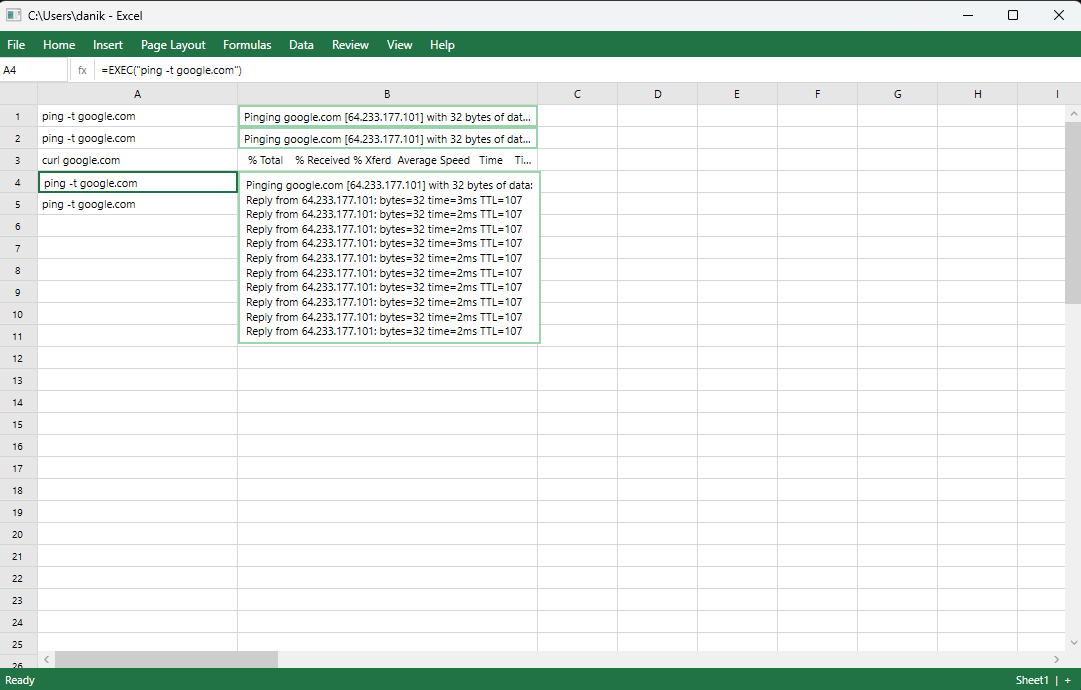
CellShell is a WPF application designed to function as a terminal shell while resembling Microsoft Excel. This unique tool allows users to type commands in column A and receive output in column B, simulating a spreadsheet interface while enabling command-line functionality. It supports both cmd.exe and PowerShell with live streaming of output and the ability to execute multiple commands concurrently.
Key Features:
Live Streaming Output: Real-time updates as commands run, just like in a terminal.
Concurrent Execution: Run independent commands across rows simultaneously.
Expandable Output: Double-click any cell to view full command results in a scrollable overlay.
Shell Toggle: Switch between cmd.exe and PowerShell directly from the status bar.
Process Management: Kill active processes using Ctrl+C, similar to a terminal.
Customizable Interface: Resize columns and rows, just like in Excel.
Functional Menus: Navigate menus that mimic Excel's behavior but execute shell commands.
Audience & Benefit:
Ideal for users who prefer command-line interfaces but want the flexibility of blending into spreadsheet-based environments. CellShell offers a unique way to execute CLI commands while maintaining an Excel-like appearance, perfect for creative workflows or discreet terminal use. It can be installed via winget for seamless integration into Windows environments.
README
CellShell
A project made to annoy both TUI and GUI lovers - CLI in the form of excel
What is this?
CellShell is a WPF application that looks exactly like Excel but is, in fact, a shell. Type commands into column A, get output in column B. You can even pretend to be using excel while doing what you truly loive, using a cli.
Every command is wrapped in the only formula that matters: =EXEC("your command here").
Features
Looks like Excel — Is it a feature? Debatable
Is a terminal — Type any shell command. ping, curl, git, dotnet, etc.
Live streaming output
Concurrent execution — Run multiple commands at once. Each row is independent.
Expand output — Double-click any cell to see the full output in a scrollable overlay. Running commands auto-scroll.
Shell toggle — Click cmd ▾ in the status bar to switch between cmd.exe and PowerShell. Formula bar shows =EXEC() or =EXEC.PS().
Ctrl+C — Kill the active row's process. Like a real terminal, except it looks like you're editing a spreadsheet.
Resizable columns and rows — Drag to resize, just like the real thing. Double-click a cell to auto-expand.
The menus work — They just don't do what you'd expect. Try Help > Clippy.
Requirements
Windows 10/11
Getting Started
Grab CellShell.exe from the latest release and run it. No install needed.
Writes a log to cellshell-debug.log in the output directory.
Project Structure
CellShell/
Core/
CellData.cs # Row state: command, output, status, process handle
CommandExecutor.cs # Shell execution with streaming output
SpreadsheetModel.cs # Grid logic, formatting, no WPF dependencies
MainWindow.xaml.cs # The disguise: canvas rendering, animations, overlays
App.xaml.cs # Startup, console attachment, graceful shutdown
Tests/ # xUnit tests for CommandExecutor and SpreadsheetModel
FAQ
Q: Why?
A: I saw a really cool TUI project and got inspired to make a really bad one. Its not even a TUI anymore, to be more excel-like!
Q: Does it actually do spreadsheet things?
A: No. Could it? Probably.
Q: Can I save my work?
A: No. It's a terminal. Just scroll up.