Battery Hub reads the battery level of your wireless HID devices and shows each one on a live dashboard, with a per-device indicator in the system tray. Built with Electron.
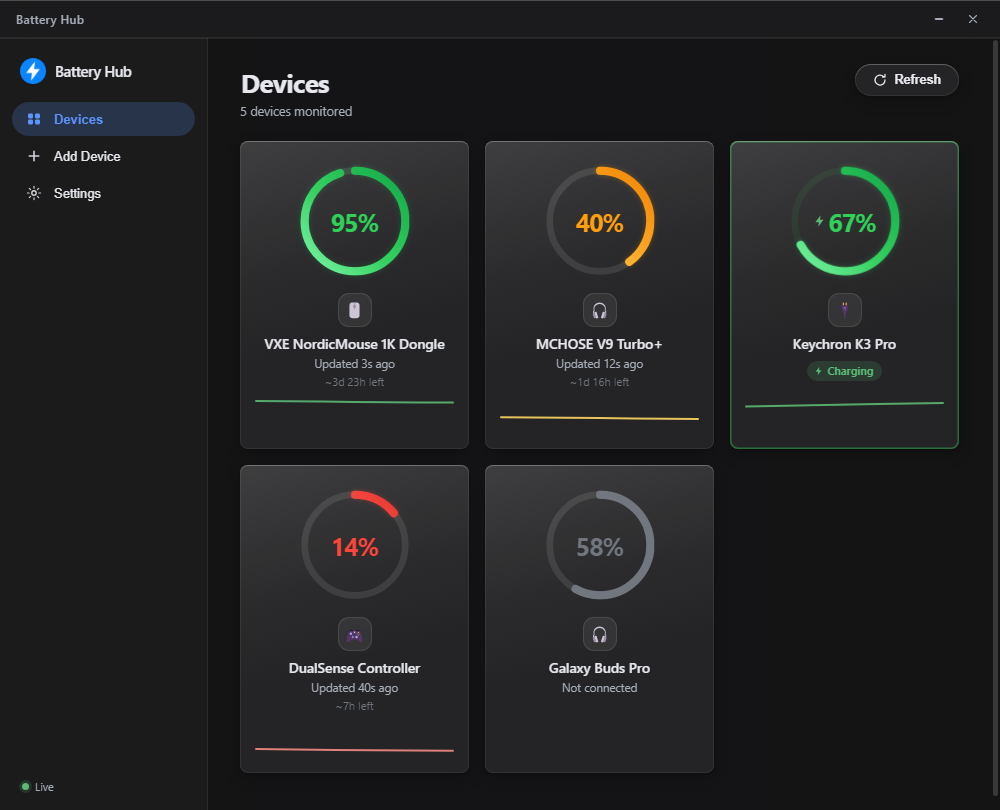
The dashboard, shown with sample devices. Regenerate with npx electron scripts/screenshot.js.
Features
- Multi-device dashboard — mice, keyboards, headsets and controllers, each with a colour-coded charge ring.
- System-tray icons — a live battery indicator per device beside the clock.
- History & estimates — a recent-trend sparkline and a time-left estimate derived from the drain rate.
- Low-battery notifications — Windows alerts when a device falls below a configurable threshold.
- Guided calibration — a 30-second scan detects the battery byte for devices that aren't recognised automatically.
- Liquid-glass interface — translucent Windows 11 acrylic design with light/dark themes and a reduce-motion option.
- Auto-updates — delivered through GitHub Releases.
Installation
Download the latest Battery Hub Setup x.y.z.exe from the releases page and run it. Battery Hub installs per-user and requires no administrator rights.
Windows SmartScreen shows a "Windows protected your PC" prompt because the installer isn't code-signed — select More info → Run anyway. Code signing certificates are issued to identified publishers for a recurring fee; this project is unfunded, so builds are unsigned. See Verifying a download if you'd like to confirm the file's integrity first.
Verifying a download
Every release is built and published by GitHub Actions directly from a tagged commit — no binaries are uploaded by hand — and each one ships a SHA256SUMS.txt. To confirm your download matches, run:
(Get-FileHash "Battery-Hub-Setup-1.1.5.exe" -Algorithm SHA256).Hash
and compare the result with the checksum in that release's SHA256SUMS.txt. Pasting the same hash into VirusTotal will show any scan results for the exact file.
Usage
Adding a device
Open Add Device. Recognised devices show an auto-detected badge — click Add. Otherwise choose Calibrate & Add:
- Start the 30-second scan.
- Power the device off and on while it scans — many wireless devices only report their battery on power-up.
- Select the value that matches your current battery percentage.
- If the device reports on a different scale, enter your real percentage and it's converted automatically from then on.
Reading a card
Each card shows the current percentage and ring (green / yellow / red), a charging indicator, a history sparkline, an estimated time remaining, and the age of the last reading. Every device also appears as a tray icon that fills and changes colour with the charge.
Settings
Theme and accent colour, card density, reduce animations, low-battery threshold, tray behaviour, launch at login, and refresh interval.
Devices can be renamed, given a custom icon, dragged to reorder, or hidden from the ⋯ menu. Hiding keeps the device and its calibration but stops polling and removes its tray icon; hidden devices are listed below the grid and can be restored at any time.
Build from source
Requires Node.js.
npm install
npm start        # run in development
npm run dist     # build the Windows installer into dist/
Project structure
| Path | Purpose |
|---|
src/main | Electron main process — HID polling, tray, notifications, updates. |
src/main/hid/drivers | Per-device battery drivers. |
src/renderer | Application UI. |
scripts | Icon generation and build tooling. |
Native node-hid runs in an isolated utility process, so a driver fault can't bring the app down.
Troubleshooting
- "Can't read this device's battery." Some devices block battery requests at the driver level and can't be read.
- Nothing captured during calibration. Rerun the scan and power the device off and on while it runs.
- Crash logs are written to
%APPDATA%\battery-hub\battery-hub.log.
Contributing
Device support requests and pull requests are welcome — see CONTRIBUTING.md.
Release history is in CHANGELOG.md, and security reports are covered by
SECURITY.md.
License
MIT © 2026 DORON177