Portify
See every port in use, and take one back with a click.
You know the drill: EADDRINUSE: address already in use :::3000. Then netstat -ano | findstr 3000, squint at a PID, taskkill /PID 12841 /F. Three commands and a visual lookup, ten times a day.
Portify replaces that with:
$ portify kill 3000
✔ port 3000 freed: node (PID 12841) terminated
…or one click in the desktop app.
What it is
Two front ends over one engine:
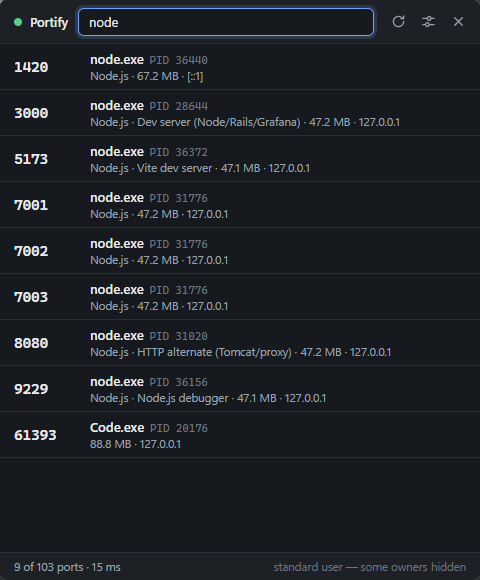
portify — a CLI. One binary, no runtime, under 1 MB, a scan takes about 10 ms.- Portify — a desktop app that lives in the system tray. Search, click, port is free.
Both are built from the same Rust core, so they can never disagree about what a port is or what killing one means.
Status
Portify is at 0.1.0 and is a ground-up Rust rewrite of an earlier Python version. Being straight about where it stands:
| State |
|---|
| CLI | Tested by hand on Windows and Linux; exercised on macOS by CI on every push (scan, JSON output, info, completions, every exit code) |
| Desktop app | Verified by hand on Windows 11: tray, hotkey, list, filter, kill with confirmation, force-kill, notifications, settings persistence, single instance |
| Windows | Primary target. CLI and app both verified end to end |
| macOS | CLI runs green on CI's macOS runners; the desktop app has never been launched on a Mac |
| Linux | CLI tested; the desktop app is built by CI but not hand-tested |
| Installers | Built by CI, not code-signed — expect a SmartScreen/Gatekeeper warning |
| Package managers | Scoop and crates.io. winget submitted; Homebrew not yet |
Install
Nothing to build and no runtime to install — every binary below is prebuilt and
self-contained. They are not code-signed, so Windows shows a SmartScreen
warning ("More info → Run anyway") and macOS a Gatekeeper one.
Desktop app
Download from the latest release:
| Platform | File |
|---|
| Windows | Portify_x.y.z_x64-setup.exe (or the .msi for deployment) |
| macOS, Apple silicon | Portify_x.y.z_aarch64.dmg |
| macOS, Intel | Portify_x.y.z_x64.dmg |
| Linux | Portify_x.y.z_amd64.AppImage, or the .deb |
CLI
Scoop (Windows) — this repository is the bucket, so there is nothing else to add:
scoop bucket add portify https://github.com/dfagundez/portify
scoop install portify
Cargo (anywhere Rust is installed) — the binary is named portify; the crate
takes the -cli suffix because portify on crates.io belongs to an unrelated
library:
cargo install portify-cli
Or download the binary — no toolchain needed:
# Linux
curl -sL https://github.com/dfagundez/portify/releases/latest/download/portify-cli-linux-x86_64.tar.gz | tar xz
sudo mv portify /usr/local/bin/

# macOS, Apple silicon (use portify-cli-macos-x86_64.tar.gz on Intel)
curl -sL https://github.com/dfagundez/portify/releases/latest/download/portify-cli-macos-aarch64.tar.gz | tar xz
sudo mv portify /usr/local/bin/
On Windows, unzip portify-cli-windows-x86_64.zip and put portify.exe anywhere on your PATH.
/usr/local/bin rather than ~/.local/bin or ~/.cargo/bin on purpose: sudo
replaces your PATH with a fixed secure_path, so a portify in your home
directory works but sudo portify reports command not found — and reaching
other users' processes is exactly what you need sudo for.
Optional tab-completion — portify completions prints the script for
bash, zsh, fish, PowerShell or Elvish. Where it goes depends on your setup:
# zsh with oh-my-zsh, prezto or any framework that runs compinit for you
portify completions zsh > "${ZSH_CACHE_DIR:-$HOME/.oh-my-zsh/cache}/completions/_portify"

# plain zsh — the fpath line must come *before* your `compinit` call
mkdir -p ~/.zsh/completions
portify completions zsh > ~/.zsh/completions/_portify
# then in ~/.zshrc, above compinit:  fpath=(~/.zsh/completions $fpath)

# bash
portify completions bash | sudo tee /etc/bash_completion.d/portify >/dev/null

# fish
portify completions fish > ~/.config/fish/completions/portify.fish
zsh caches its completion index, so delete ~/.zcompdump* and open a new shell
if nothing happens on the first try.
From source
Needs Rust 1.95+. For the app, also Node 20.19+ (Vite 7's floor; CI builds on 22).
From a checkout of this repository:
# CLI
cargo install --path crates/portify-cli

# Desktop app
cd app && npm install && npm run tauri build
Note that cargo install puts the binary in ~/.cargo/bin, which sudo cannot
see — copy it to /usr/local/bin if you need elevated scans.
Platform prerequisites for the desktop app:
- Windows — WebView2 (already present on Windows 10/11) and the MSVC build tools with the C++ workload — the
Microsoft.VisualStudio.2022.BuildTools winget package alone installs no compiler and no linker, and the build fails with linker link.exe not found. See docs/TESTING-WINDOWS.md.
- macOS — Xcode command line tools.
- Linux —
libwebkit2gtk-4.1-dev libgtk-3-dev libayatana-appindicator3-dev librsvg2-dev patchelf.
CLI
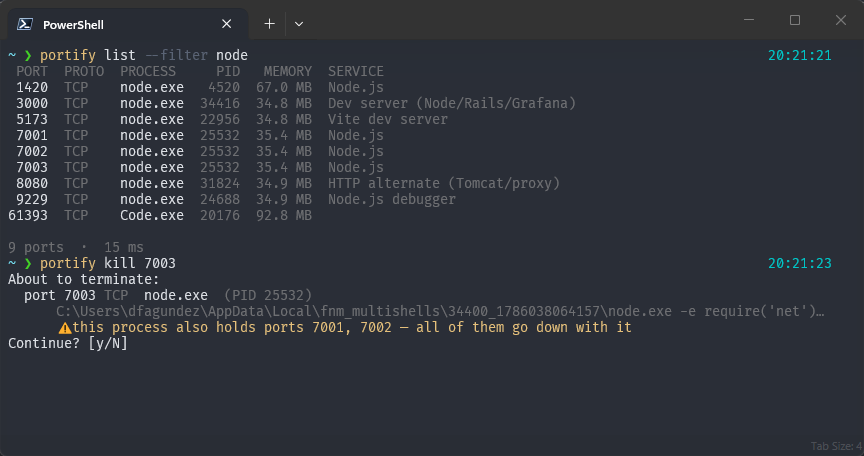
$ portify
 PORT  PROTO  PROCESS       PID    MEMORY  SERVICE
 3000  TCP    node       753572  236.7 MB  Dev server (Node/Rails/Grafana)
 5432  TCP    postgres     4410   28.1 MB  PostgreSQL
 6379  TCP    redis-server 4711   12.3 MB  Redis

 3 ports  ·  7 ms
One row per port, not one per socket: a dev server binding IPv4 and IPv6 on three interfaces is one line, the way you think about it.
Outbound UDP client sockets — a browser on QUIC, a VPN agent phoning home — are
hidden by default. They sit on OS-assigned ephemeral ports, nobody is ever trying
to free one, and on Windows they outnumber real listeners about two to one.
--all shows them; naming a port explicitly (portify 54995) always finds it.
Commands
| Command | What it does |
|---|
portify | List every port in use |
portify 3000 | Show what is holding port 3000 |
portify kill 3000 | Free port 3000 |
portify kill 3000 8080 -y | Free several ports, no prompt |
portify kill --pid 12841 | Kill a specific process |
portify watch | Live view, refreshed on an interval |
portify info | Host details and whether you are elevated |
portify completions | Shell completion script |
Bare numbers are ports, never PIDs. Killing by PID is always explicit via --pid, so a typo can't take down an unrelated process.
Options worth knowing
portify list --all           # everything: established connections and outbound UDP sockets
portify list --filter node   # match process name, path or command line
portify list --proto udp     # one protocol
portify list --raw           # one row per socket instead of per port
portify list --wide          # show full command lines
portify list --json          # machine-readable, stable shape
portify kill 3000 --force    # skip SIGTERM, go straight to SIGKILL
Filters compose — portify list --filter node --proto tcp 3000 means all three
at once, not whichever one wins. Ports are bare arguments, so portify list 3000 8080
narrows to those two.
list, kill and watch also answer to ls, k and w.
Exit codes
| Code | Meaning |
|---|
| 0 | Success |
| 2 | Nothing found |
| 3 | Permission denied |
| 4 | Bad input |
| 5 | Internal error |
portify 3000 >/dev/null || echo "port 3000 is free"
Desktop app
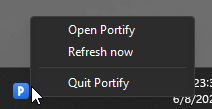
Lives in the tray. Left-click the icon to show or hide the window; right-click for the menu.
Ctrl+Alt+P from anywhere shows or hides the window, even when Portify has no focus- Every port in use, one row each, refreshed on your interval
- Type to filter by port, process, PID, service or command line
- Kill on any row — a second click confirms, shift-click skips the confirmation and force-kills
- No taskbar button: the window comes and goes, the tray icon stays
- Closing the window hides it; the app quits from the tray menu only
- Follows your system light/dark theme
Killing is deliberate
The first click arms the row, the second confirms — and in between, Portify tells
you what else goes down with it. One process fronting several ports is common
(a WSL relay, a reverse proxy, a dev server with a debugger attached), so "free
port 7003" can quietly mean "drop three of them".
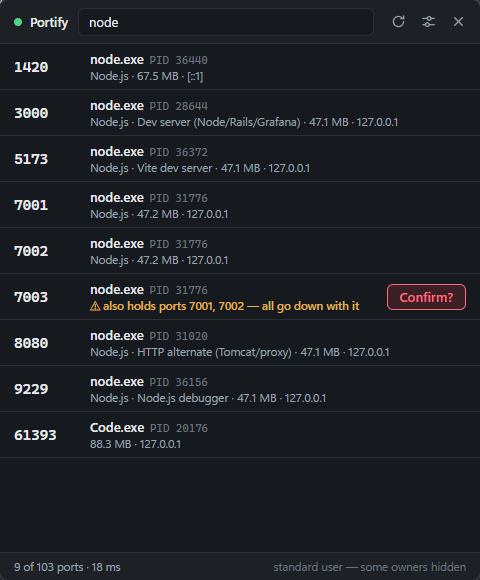
Shift-click skips the confirmation and force-kills immediately.
From the tray
Settings (sliders icon, stored in your OS config directory):
| Setting | Default |
|---|
| Refresh interval | 5 s (or manual) |
| Show / hide shortcut | Ctrl+Alt+P (editable, or empty to disable) |
| Notify on kill result | on |
| Ask before killing | on |
| Include established connections | off |
| Hide window when it loses focus | off |
WSL
Portify only sees the operating system it is running in, and WSL2 is a separate
one with its own network stack.
Run it on Windows and your WSL services do appear — but as wslrelay.exe,
the bridge Windows runs to forward localhost into the VM. Killing that frees
the Windows side of the port without touching the process inside Linux, and one
relay usually fronts every forwarded port at once. Portify warns you before
that happens.
To manage the real processes, install the Linux CLI inside your distribution too
— it is a separate install from the Windows one, and the two do not conflict:
# Inside WSL
curl -sL https://github.com/dfagundez/portify/releases/latest/download/portify-cli-linux-x86_64.tar.gz | tar xz
sudo mv portify /usr/local/bin/
Most WSL users end up with both: the desktop app for native Windows ports, and
portify inside the distribution for everything running in Linux.
Permissions
Portify can only see and kill what your user account can.
- Windows — ports owned by other users, services, or elevated processes show as
(hidden) with no PID. Run Portify as Administrator to see and kill them.
- macOS / Linux — same, with
sudo.
portify info tells you which side of that line you are on. Portify never asks for elevation on your behalf and never escalates silently.
Safety rules
Portify refuses to kill:
- itself
- PID 0
- PID 1 (init) on Unix, PID 4 (System) on Windows
A graceful kill sends SIGTERM, waits, and escalates to SIGKILL only if the process ignores it — because "the kill succeeded but the port is still taken" is the one outcome this tool must never produce. On Windows, where there is no SIGTERM, both modes are a single TerminateProcess.
How it is built
portify/
├── crates/
│   ├── portify-core/     Scanning, grouping, killing, service catalogue
│   └── portify-cli/      The `portify` binary (clap)
├── app/
│   ├── src/              Frontend: TypeScript, no framework (24 KB built)
│   └── src-tauri/        Tauri v2 shell: tray, window, IPC commands
├── assets/               Icon sources
└── scripts/              generate-icon.mjs — regenerates the icons
portify-core has no UI and no async: a full scan is milliseconds, so callers just call it on a timer. Sockets come from netstat2, process identity from sysinfo.
Roadmap
Planned work lives in issues labelled
roadmap.
React with 👍 on what you want — that ordering is what decides the next build.
- See WSL ports from the Windows app. Detect WSL, query Portify inside the
distribution, and show both sets of ports in one list, labelled by origin.
- Name the service inside
svchost.exe. Windows hosts dozens of unrelated
services in copies of one executable; asking the service control manager which
ones live in a PID turns twenty identical rows into useful information.
- Signed installers. Removing the SmartScreen and Gatekeeper warnings needs
a code-signing certificate.
Contributing
See CONTRIBUTING.md. In short: cargo test --workspace, cargo clippy --workspace --all-targets, cargo fmt --all, and build the frontend before touching the app crate.
License
MIT — see LICENSE.