



Premiere Companion is a productivity tool for Adobe Premiere Pro that lets you instantly apply video effects, audio effects, transitions, and presets - all from a fast, keyboard-driven search bar without ever leaving your timeline.
> Think of it as a free, open-source alternative to the Excalibur plugin, but with the added ability to apply Presets.
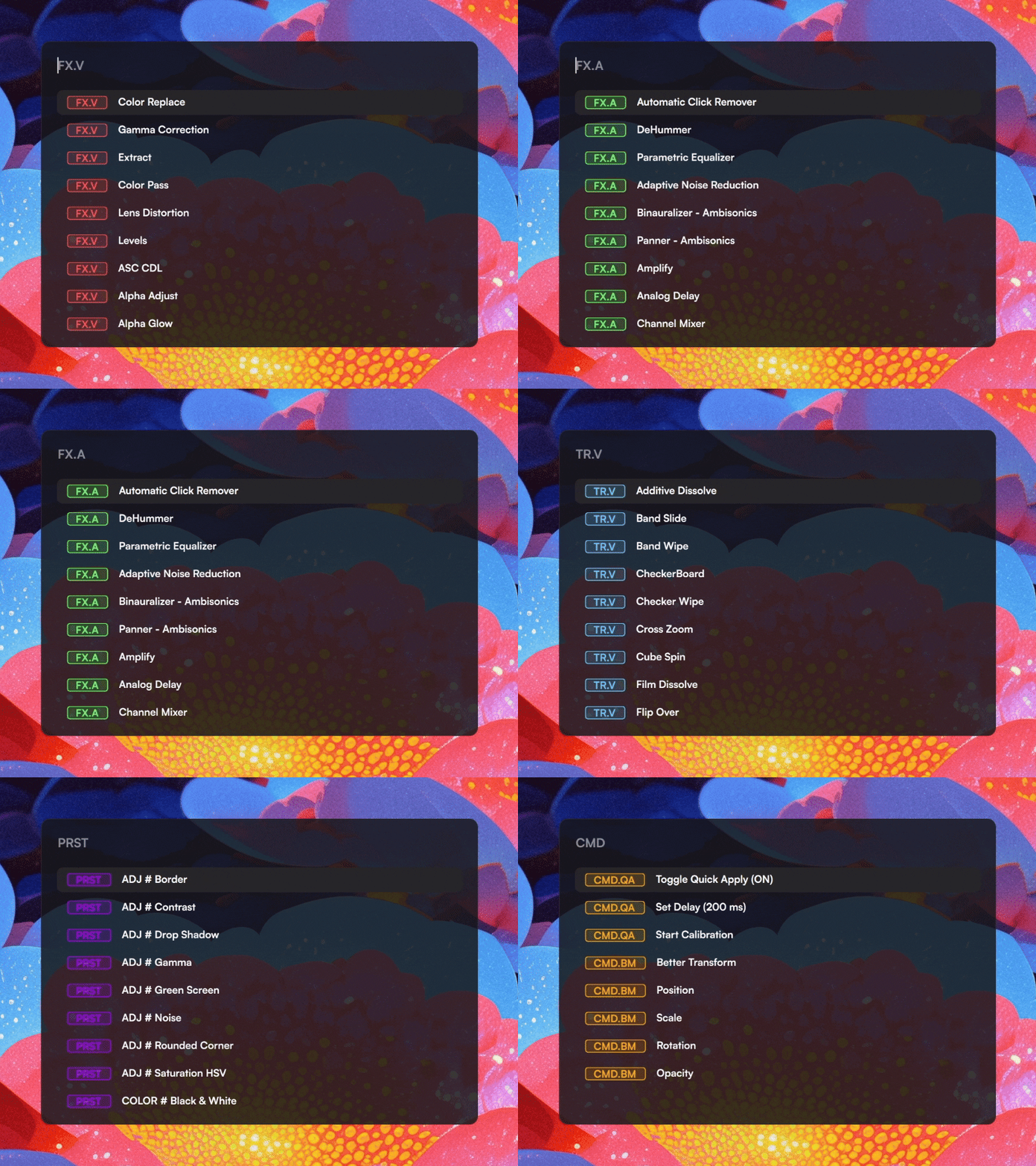
<b>🧩 Why "Premiere Companion" over similar plugins ?</b>
Unlike traditional alternatives (such as Excalibur), splitting the tool into a desktop app and a plugin brings significant advantages:
- Blazing Fast & Reliable Hotkeys: Shortcut detection happens globally at the OS level, bypassing Premiere's sluggish shortcut engine for a lightning-fast search bar.
- Future-Proof (UXP API): Built on Adobe's modern UXP architecture, perfectly adapted for the future while leaving behind the dying ExtendScript API.
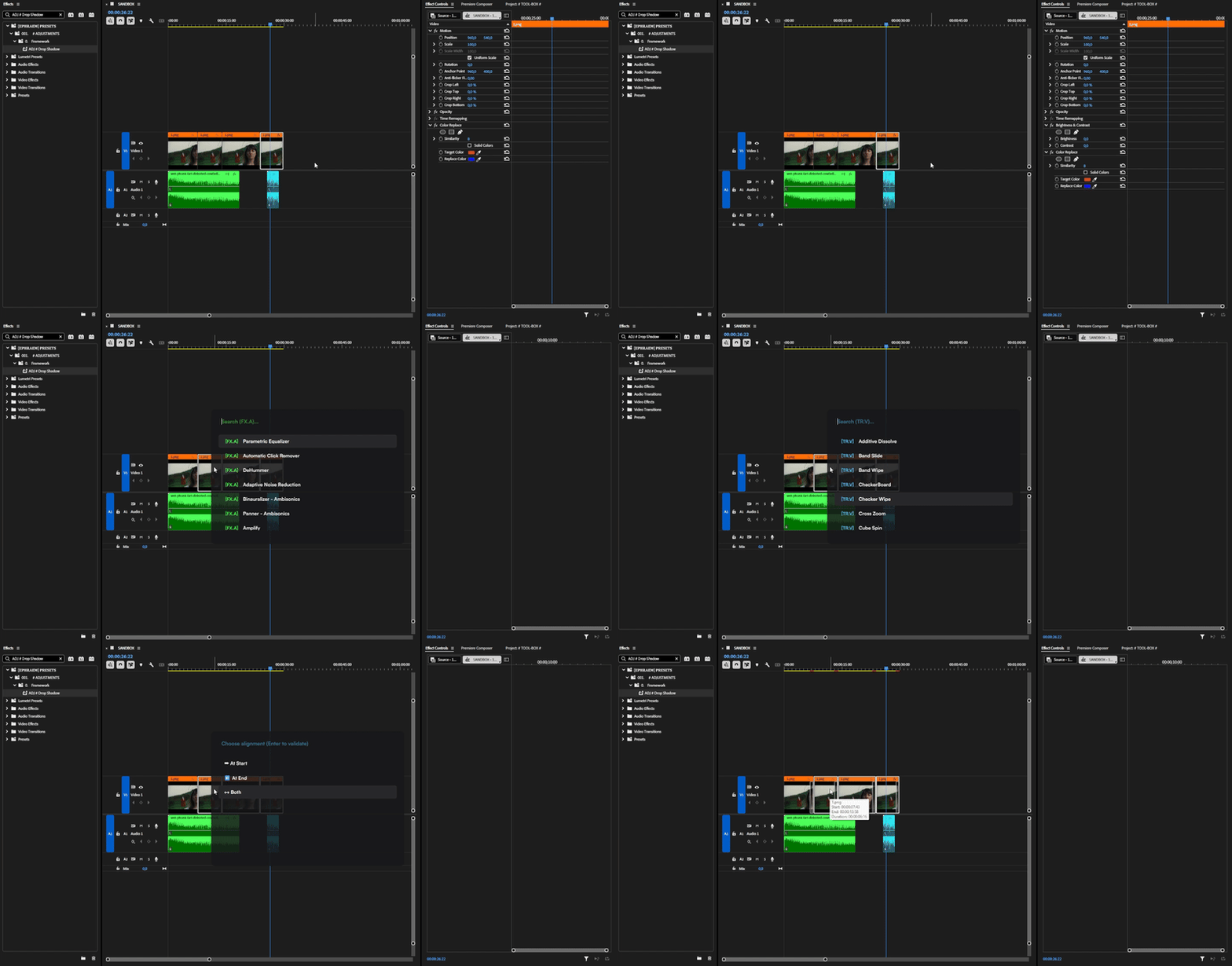
- True Preset Application (Custom Keyframes Preserved): Other tools use code hacks that ruin complex custom animations (like Bezier curves). Companion simulates a physical drag-and-drop, applying presets natively without destroying your keyframes.
- Free & Open-Source: It is fully transparent, community-driven, and completely free to use.
✨ Features
- 🪄 Custom Macros - Create powerful sequences of actions (apply an effect, then a preset, then adjust opacity) and trigger them with a single click or command.
- 🖱️ Better Motion HUD - A revolutionary way to adjust clip properties (Position, Scale, Rotation, Opacity) using mouse movements with a real-time floating HUD.
- 🔄 Better Transform - Use the combined Transform tool to switch between Position, Scale, and Rotation on the fly using mouse button modifiers (RMB/MMB).
- ⚡ Instant Search Bar - Summon a floating search bar from anywhere with a fully customizable shortcut (default:
Ctrl+Space) while Premiere Pro is in focus.
- 🛠️ Dynamic Commands - Control the application directly from the search bar (e.g.,
/QA to toggle Quick Apply, /BM for Better Motion).
- ⌨️ Global Hotkeys - Assign any effect, preset, or macro to a global keyboard shortcut that works even when Premiere is focused.
- 🗂️ Category Navigation - Use the
← / → arrow keys to cycle through element categories (Transitions, Video FX, Audio FX, Presets, Macros, All).
- 🔍 Live Filtering - Results update as you type with a smart scoring algorithm that prioritizes recently used items.
- 🎯 Preset Support (Quick Apply) - Apply your saved Premiere Pro presets automatically using recorded mouse positions and hardware-level input simulation.
- 🎨 Dynamic Theming - A fully customizable UI with 40+ adjustable parameters driven by a JSON configuration file.
- 🔗 Hold-to-Sync - Interactive logo with a progress gauge: hold for 2 seconds to force a full database synchronization.
📋 Prerequisites
Before using Premiere Companion and the plugin, make sure you have:
- Adobe Premiere Pro 25.6.1 or a Beta version that supports UXP plugins.
🚀 Installation
-
✅ Setup / Portable
Download the Setup.exe or Portable.zip from the Releases page.
-
✅ Winget
winget install Ephraem.PremiereCompanion
-
🛠️ From Source
Clone the repository, then install the dependencies:
pip install PyQt6 pywin32 pyautogui websockets pynput
Run src/InputBar.pyw (as Administrator for global hotkeys).
Once configured, for a detailed breakdown of how to use the search bar (keyboard navigation, category filtering, transition alignment, recent items, and more) :

📖 Getting Started
📡 Connect to Premiere Pro
Premiere Pro must be closed if you install/update the plugin.
-
Go to Settings -> Configure -> Install Plugin.
-
Open Premiere Pro and load the Premiere Companion plugin (Look at the top bar, Window > UXP Plugins > Premiere Companion (Listener)).
-
In both the plugin panel and the Premiere Companion application, verify that the WebSocket Port matches exactly. You can check and adjust this in Settings → Premiere Pro → Configure.
When the connection is established:
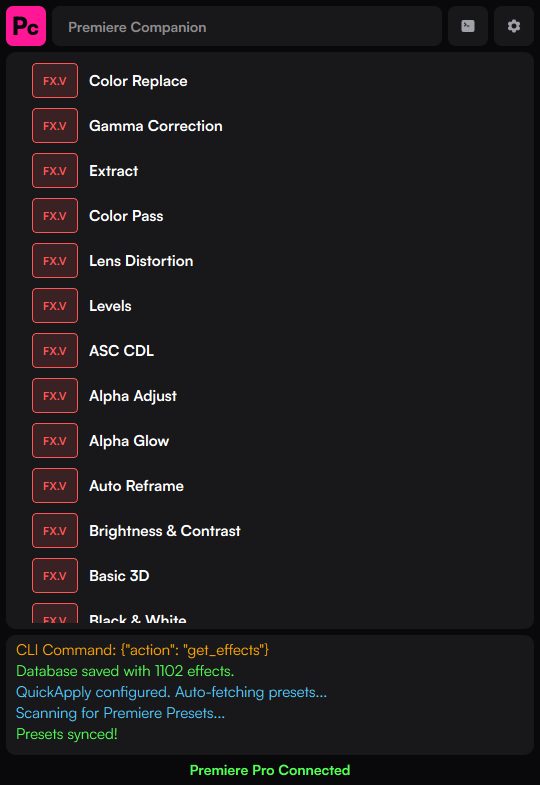
- The console at the bottom of the app will display a green confirmation essage.
- The plugin panel will also indicate that it is connected.
🧹 Recommended - Apply a Regex Clean (Transition Names)
> This step is strongly recommended if you want clean, readable names for your transitions.
The Premiere Pro API does not expose a clean way to retrieve formatted transition names - raw internal names often include plugin prefixes, codes, and technical identifiers (e.g., AE.ADBE Cross Dissolve PrTr).
To fix this, go to the Regex page and use one of these options:
- 🤖 Auto-Generate Rules - Analyzes all your fetched transitions and automatically builds cleanup rules. Works well for most setups.
- 📄 Import my personal rules file - Download and use my pre-made regex ruleset, crafted specifically for a clean Premiere Pro effect list. (Link coming soon)
Rules are applied in order and can be individually reordered, edited, or deleted.
🎉 You can now apply any effect or transition directly via the search bar using Ctrl+Space while Premiere Pro is focused. This shortcut is configurable in the Keymaps page.
By default, transitions, video effects, and audio effects work immediately once connected. To make Presets applicable, further configuration is required. (See below.)
🗺️ Roadmap & Known Issues
I am constantly adding new features! Check out our Roadmap to see:
- ❌ Known limitations (e.g., UXP API limits on audio transitions).
- 🏗️ What we're currently working on (WIP).
- 🗒️ Backlog of ideas, including the upcoming Custom Command Compositions feature.
🛠️ Tech Stack
- Language: Python 3
- GUI: PyQt6
- Communication:
asyncio, websockets
- OS Integration (Windows):
ctypes, win32gui (Global hotkey hooking & window management), pyautogui (Input simulation)
- Data Persistence: Local JSON files for configurations, keybinds, and themes.
📄 License
GPL-3.0 license - see LICENSE for details.