Advanced Dirt Removal for DaVinci Resolve





Preferred on Windows (avoids SmartScreen prompts from manually running downloaded .exe files):
winget install FabioColor.AdvancedDirtRemoval
Fallback: download from Latest Release:
installer ZIP for your platform (*-win64.zip or *-macos.zip).
Manual .setting install is also available.
Advanced Dirt Removal provides professional dirt removal capabilities with two specialized versions for different workflows:
- Linear Version: Optimized for standard footage (Rec.709, sRGB, etc.)
- Cineon Version: Optimized for film scans with built-in Cineon→Linear→Cineon conversion
Both versions are professional Fusion macros for DaVinci Resolve that improve film restoration capabilities, making it a viable low-cost platform for archival and educational restoration projects. Designed primarily for use in Fusion page workflows, they extend the built-in Automatic Dirt Removal with motion-masking, manual recovery tools, and diagnostic views to handle challenging restoration work without expensive specialized software.
🎥 Video Tutorial
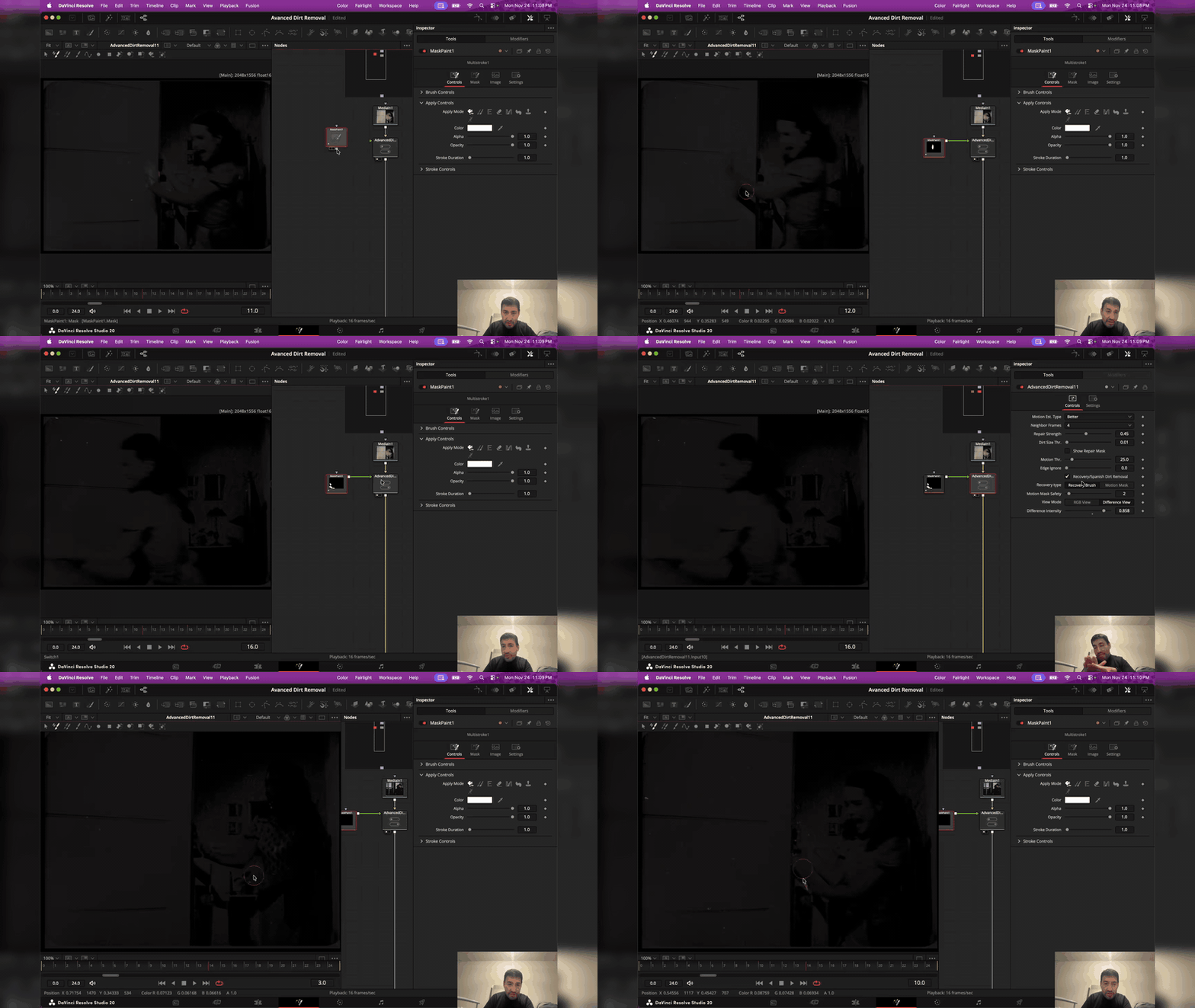
▶️ Watch the complete tutorial on YouTube
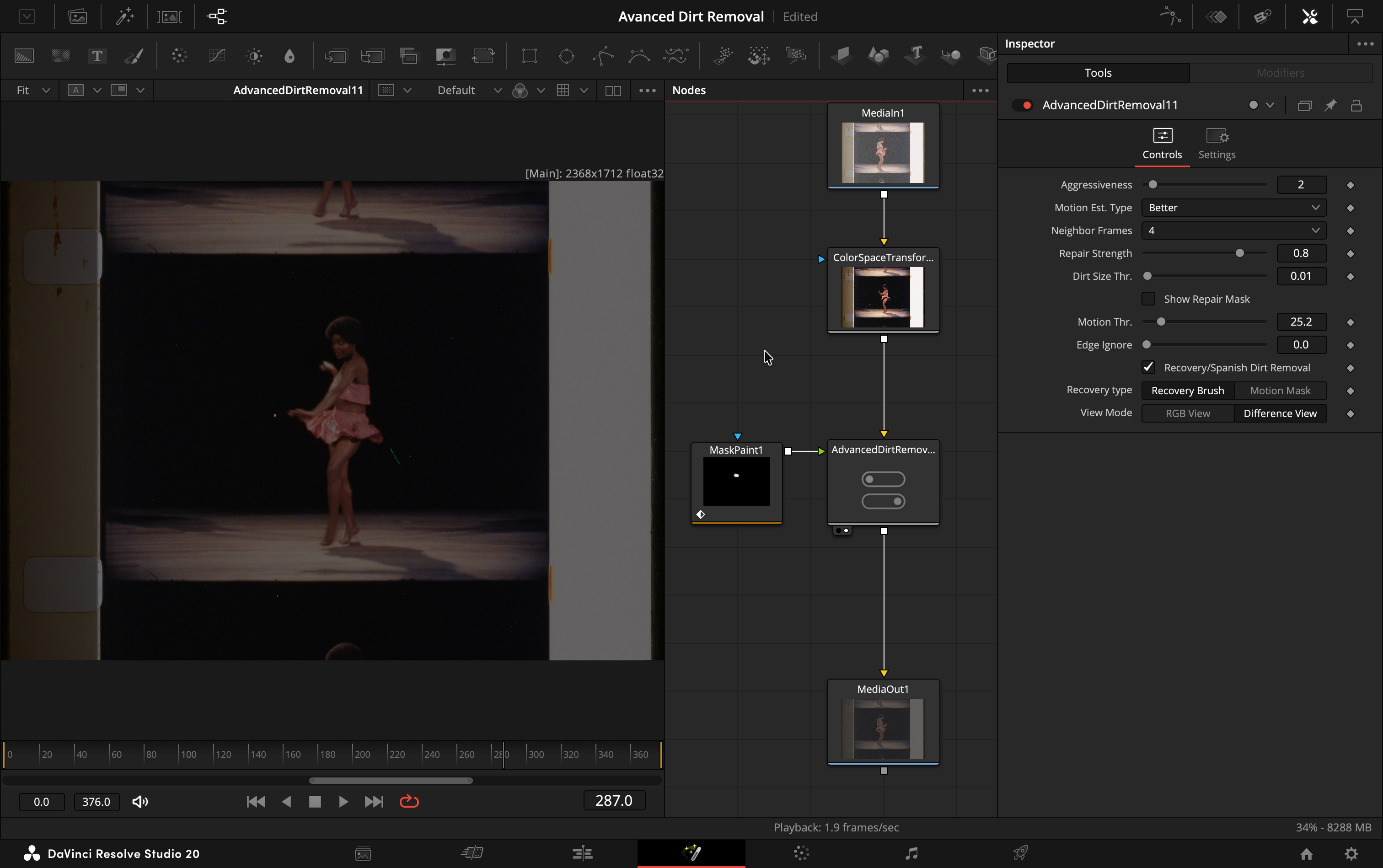 Manual recovery brush workflow for precise restoration control
> 🎯 Perfect for: Educational institutions, archives, non-commercial restoration projects, and making film preservation more accessible
Known Issue: Dust Polarity Controls
A previous release included Dust Polarity controls for white-only and black-only dirt filtering. Those controls do not reliably limit cleanup by dust color and may interfere with the core Recovery Brush and Spanish Dirt Removal workflows.
If you see Dust Polarity controls in the macro, update to this release. This version removes those controls and restores the expected Recovery Brush, Spanish Dirt Removal, Motion Mask, and Cineon behavior. Selective white/black dust cleanup remains planned for a future release once it works reliably across the full workflow.
✨ Key Features
🔄 Accessible Recovery Options
- Motion Mask: Automatically restricts repairs to low/no-motion areas
- Recovery Brush: Manual painting to restore original details when automatic fails
- Spanish Dirt Removal: Paint targeted repairs directly while preserving the recovery workflow
🎨 Enhanced Processing
- Leverages existing DaVinci Resolve tools (optical flow, noise reduction, deflicker)
- Uses built-in ResolveFX VideoRestoration engine
- No additional software purchases required
👁️ Educational Diagnostics
- Difference View: See exactly what's being changed
- Difference Intensity: Adjust visibility for different footage contrast levels
- Spanish Dirt Removal: Learn different brush techniques
- Iterative Workflow: Understand and refine restoration decisions
📦 Installation
Quick Setup
Windows (preferred - winget):
winget install FabioColor.AdvancedDirtRemoval
To update later:
winget upgrade FabioColor.AdvancedDirtRemoval
Installer ZIP fallback from Latest Release:
- Windows:
AdvancedDirtRemoval-Setup--win64.zip (extract and run contained .exe; may trigger SmartScreen prompt)
- macOS:
AdvancedDirtRemoval--macos.zip (extract and run contained .pkg)
Manual fallback: use the two .setting files
-
📥 Download both macro files from the latest release:
Advanced Dirt Removal.setting (for linear footage)Advanced Dirt Removal Cineon.setting (for Cineon film scans)
-
📂 Install to your DaVinci Resolve Fusion directory:
Primary Installation (Fusion Page):
| Platform | Path for Fusion Page |
|---|
| 🍎 macOS | ~/Library/Application Support/Blackmagic Design/DaVinci Resolve/Fusion/Macros/ |
| 🪟 Windows | %APPDATA%\Blackmagic Design\DaVinci Resolve\Support\Fusion\Macros\ |
| 🐧 Linux | ~/.local/share/DaVinciResolve/Fusion/Macros/ |
Optional (Edit/Cut Pages):
| Platform | Path for Edit/Cut Pages |
|---|
| 🍎 macOS | ~/Library/Application Support/Blackmagic Design/DaVinci Resolve/Fusion/Templates/Edit/Effects/ |
| 🪟 Windows | %APPDATA%\Blackmagic Design\DaVinci Resolve\Support\Fusion\Templates\Edit\Effects\ |
| 🐧 Linux | ~/.local/share/DaVinciResolve/Fusion/Templates/Edit/Effects/ |
-
📋 Copy both .setting files to the chosen location
-
🔄 Restart DaVinci Resolve
> 💡 Tip: On macOS, press Cmd+Shift+G in Finder and paste the path. On Windows, paste the path in Explorer's address bar.
>
> ⚡ Best Practice: Install to the Macros folder for full Fusion page functionality including manual recovery workflows
>
> 🎯 Version Choice: Use the Linear version for standard footage, Cineon version for film scans. Both macros will appear in your Effects panel after restart.
Simple step-by-step guide: docs/INSTALL.md
Maintainer release notes: docs/MAINTAINERS_RELEASE.md
🚀 Usage
Fusion Page Workflow (Recommended)
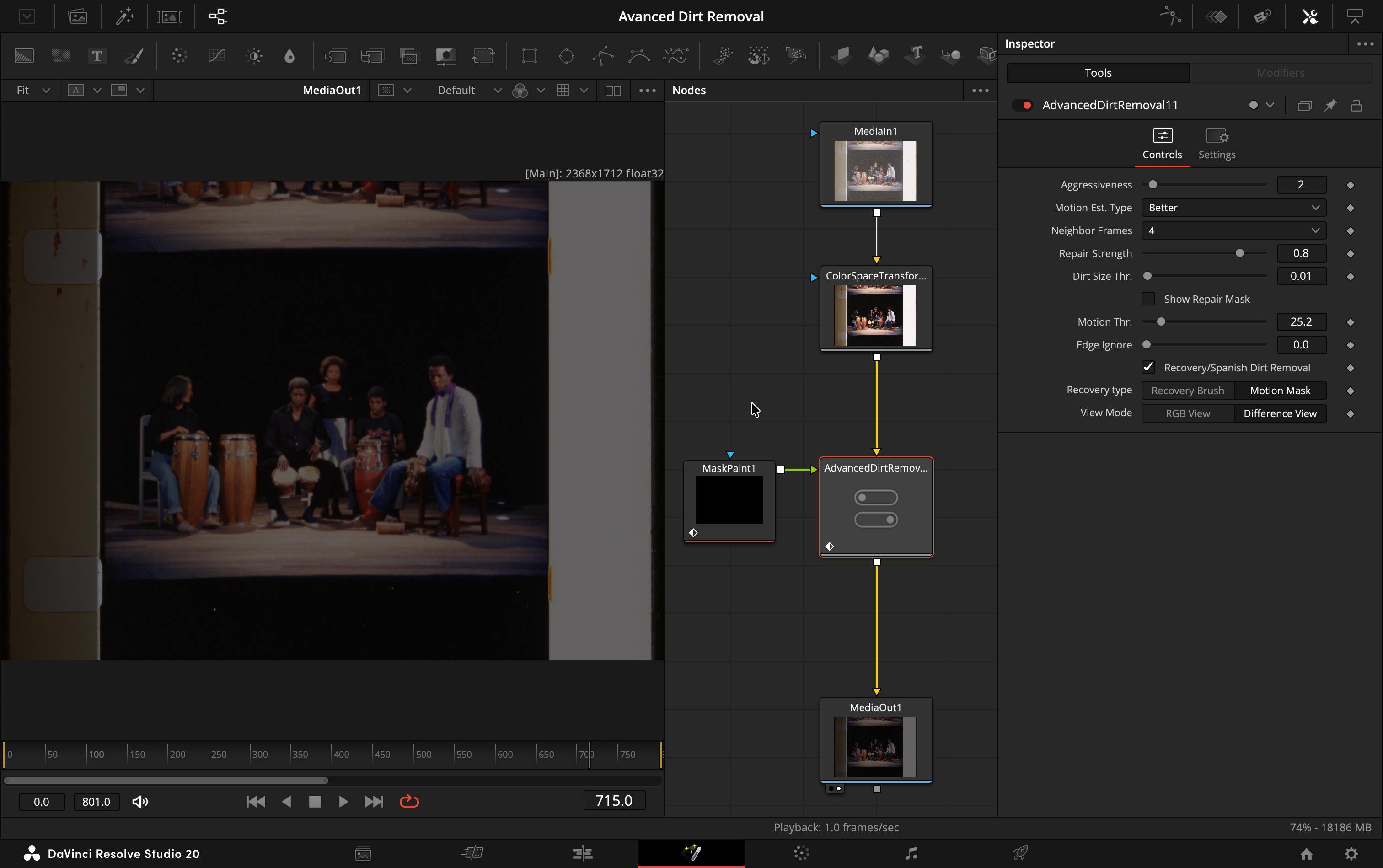 Automatic motion-based dirt removal restricting repairs to stationary areas
-
Open Fusion Page
- Navigate to your DaVinci Resolve project
- Switch to the Fusion page (bottom toolbar)
-
Add the Macro
- Press
Shift+Space (tool selector)
- Type "Advanced Dirt Removal" (for linear footage)
- Or:
Advanced Dirt Removal Cineon (for film scans)
- Or:
Add Tool > Templates > Macros > [choose appropriate version]
-
Connect Your Flow
- Create flow:
MediaIn → Advanced Dirt Removal → MediaOut
- Drag connections between nodes
-
Choose Recovery Mode
- Motion Mask (default): Automatic motion-based protection
- Recovery Brush: Manual painting control (requires Mask Paint tool connection)
-
Process Cineon Log Footage (if needed)
- For Cineon log film scans: Use "Advanced Dirt Removal Cineon" macro
- For standard footage: Use "Advanced Dirt Removal" macro
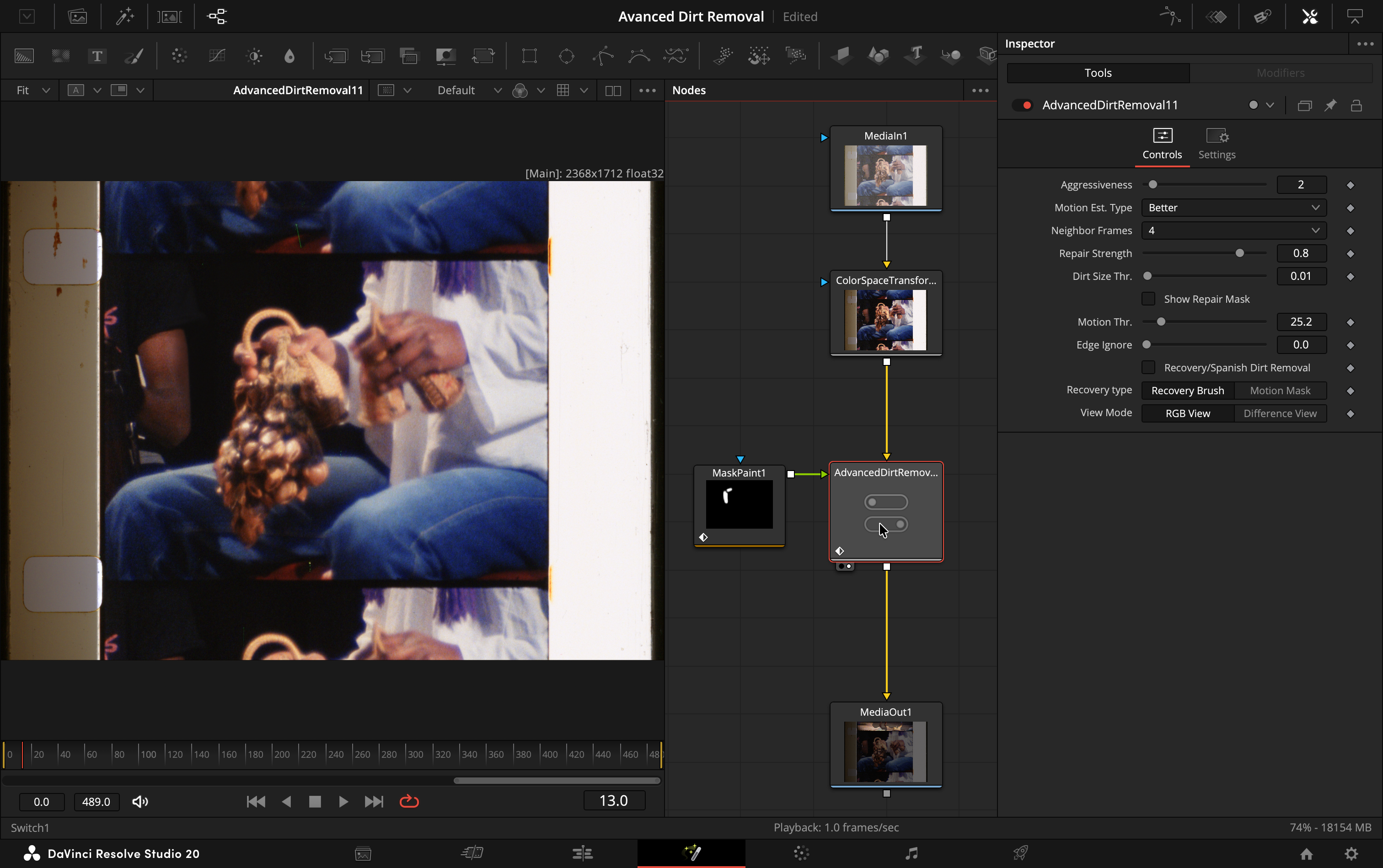 Spanish Dirt Removal mode - paint to target specific repairs
- Fine-tune Parameters
- Adjust dirt detection sensitivity
- Control motion threshold
- Set temporal processing strength
- Use Difference View for diagnostic feedback
Edit/Cut Page Usage (Optional)
While primarily a Fusion macro, Advanced Dirt Removal can also be applied as an effect on the Edit/Cut pages:
-
Apply to Clip
- Select clip in timeline
- Effects Library → Toolbox → Video Effects → Fusion Effects
- Drag "Advanced Dirt Removal" onto clip
-
Limitations on Edit/Cut Pages
- Recovery Brush mode requires Fusion page workflow
- Manual mask painting not available
- Motion Mask mode works normally
Advanced Techniques
🎭 Spanish Dirt Removal Mode
> 📝 Note: Requires Mask Paint tool connection (see Recovery Brush Workflow below)
- Recovery Polarity (Default): Paint to protect original details
- Spanish Polarity: Paint to target specific repairs directly
- Toggle the "Spanish Dirt Removal" checkbox to switch modes
🔍 Difference View
- Toggle to see exactly what's being changed
- Perfect for iterative refinement
🎨 Recovery Brush Workflow
> ⚡ Required Setup: To use Recovery Brush or Spanish Dirt Removal, you must connect a Mask Paint tool to the labeled corrector input on the Advanced Dirt Removal macro.
Connection Steps:
- Add a Mask Paint tool to your Fusion composition
- Connect the Mask Paint output to the "Mask Paint/Magic Mask" input on Advanced Dirt Removal
- Set Recovery type to "Recovery Brush"
- Paint your mask and see results in real-time
Usage:
- Paint to recover specific details
- Toggle Spanish Dirt Removal for different brush behavior
- Combine with automatic motion detection
- Real-time feedback with difference view
🎨 Cineon Log Workflow
> 📝 Note: For archival film scans with Cineon log encoding
Use the Advanced Dirt Removal Cineon macro which includes built-in Cineon→Linear→Cineon conversion, making film restoration workflows seamless.
When to Use Cineon Version:
- Archival film scans (Cineon, DPX with Cineon log encoding)
- Film transfer workflows using standard Cineon log
- Any footage requiring Cineon log to linear processing
- Professional film preservation projects
Simple Workflow:
MediaIn → Advanced Dirt Removal Cineon → MediaOut
Step-by-Step Instructions:
-
Add MediaIn and MediaOut nodes to your composition
-
Add Advanced Dirt Removal Cineon:
- Press
Shift+Space and type "Advanced Dirt Removal Cineon"
- Connect:
MediaIn → Advanced Dirt Removal Cineon → MediaOut
-
Configure Settings (optimized for film scans):
- Repair Strength: 0.5 (optimized for linear space)
- Motion Threshold: 55 (higher threshold for film material)
- Difference Intensity: 0.9 (better visibility for diagnostics)
-
For Recovery Brush with Cineon Log:
- Add a Mask Paint tool
- Connect to the macro's "Mask Paint/Magic Mask" input
- Set Recovery type to "Recovery Brush"
- Paint to restore specific film details
Benefits of Integrated Cineon Processing:
- Automatic Conversion: Built-in Cineon→Linear→Cineon pipeline
- Optimized Processing: All dirt removal happens in linear color space
- Preserves Film Characteristics: Output maintains original Cineon log encoding
- Professional Workflow: Designed specifically for film restoration work
- Better Results: Optical flow and motion analysis work optimally in linear space
Technical Details:
- Input: Accepts Cineon log footage
- Processing: Converts to linear, performs dirt removal, converts back to Cineon
- Output: Maintains original Cineon log for archival compatibility
- No Manual Setup: All conversions handled automatically
Standard Footage:
For Rec.709, sRGB, or other standard footage, use the normal "Advanced Dirt Removal" macro:
MediaIn → Advanced Dirt Removal → MediaOut
🎛️ Controls Reference
Core Settings
| Control | Purpose | Default | Notes |
|---|
| Recovery type | Choose between automatic or manual recovery | Recovery Brush (0) | 0 = Recovery Brush, 1 = Motion Mask |
| View Mode | Toggle output between final result and diagnostic | RGB (1) | 0 = Difference View, 1 = RGB Output |
| Difference Intensity | Adjust visibility of difference view | 0.6 (Linear) / 0.9 (Cineon) | Higher = more visible difference (0.0-1.0) |
Motion Analysis
| Control | Purpose | Default | Notes |
|---|
| Motion Mask Safety | Optical flow motion detection intensity (renamed from "Aggressiveness") | 2 | Controls motion mask precision |
| motionThreshold | Sensitivity for motion-based masking | 25 (Linear) / 55 (Cineon) | Lower = more areas treated as motion |
Dirt Detection
| Control | Purpose | Default | Notes |
|---|
| temporalThreshold | How aggressive the dirt detection is | 0.45 (Linear) / 0.5 (Cineon) | Lower = more sensitive, detects smaller defects |
| dirtSize | Minimum size of defects to detect | 0.01 | Smaller = detects tinier dirt particles |
| motionEstType | Motion estimation algorithm | HS_Better | Different methods for motion calculation |
| supportLength | Temporal window for analysis | SUPPORT_LENGTH_4 | How many frames to analyze together |
Selective white/black dust cleanup is planned for a future release. It is not included in this version so the core Recovery Brush, Spanish Dirt Removal, Motion Mask, and Cineon workflows remain reliable.
Advanced Options
| Control | Purpose | Default | Notes |
|---|
| Recovery/Spanish Dirt Removal | Toggle brush polarity behavior | Recovery (1) | 1 = Paint protects, 0 = Paint targets |
| edgeAttenuation | Reduce processing near edges | 0 | Helps avoid edge artifacts |
| showRepairMask | Display the repair mask | 0 | For diagnostic purposes |
| Input | Purpose | Required |
|---|
| Main Input | Source footage to process | ✅ Yes |
| Mask Paint/Magic Mask | External mask for Recovery Brush | Only for paint features |
> 💡 Learning Tip: Start with default settings and adjust temporalThreshold and dirtSize first. Use View Mode to switch to Difference view to see exactly what's being detected and changed.
⚙️ Requirements
- DaVinci Resolve 18+ (Studio recommended)
- ResolveFX Plugins: VideoRestoration, Deflicker, NoiseReduction
- Adequate GPU memory for complex processing chain
- Fusion page access for full feature set (especially Recovery Brush)
> 💡 Note: Recovery Brush and Spanish Dirt Removal features require the Fusion page and a Mask Paint tool connection. Edit/Cut pages support basic automatic dirt removal only.
📄 License
This project is licensed under the MIT License - see the LICENSE file for details.
Making film restoration accessible to archives, educators, and preservation enthusiasts