Claude Code Switcher
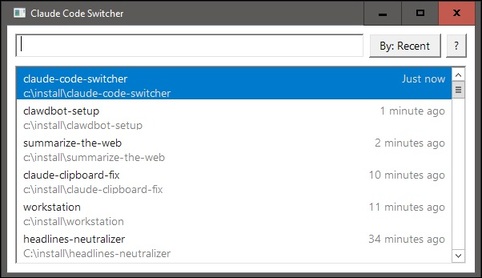
A fast, native Windows utility for switching between Claude Code projects. Shows all your Claude Code projects in a popup dialog sorted by most recently used, with fuzzy search filtering.
> Latest Version: 0.3.2 | See What's New
Features
- Native Win32 GUI for minimal startup time
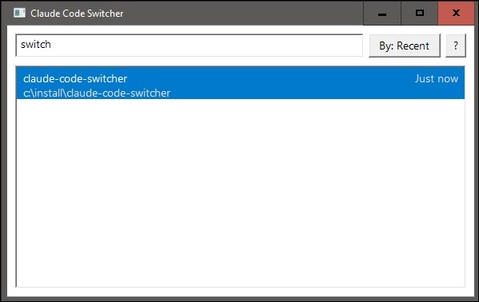
- Fuzzy search to filter projects as you type
- Sort by recent use (default) or alphabetically by name
- Configurable terminal: Windows Terminal, WezTerm, cmd.exe, or custom command
- Keyboard-driven: fully usable without mouse
- Launcher-style behavior: closes automatically when losing focus
- DPI-aware: scales properly on high-DPI displays
- Optional update notifications via GitHub Releases
Installation
Winget
winget install Fanis.ClaudeCodeSwitcher
Scoop
scoop bucket add fanis https://github.com/fanis/scoop-apps
scoop install claude-code-switcher
Chocolatey
choco install claude-code-switcher.portable
Manual download
Download claude-code-switcher.exe from the latest release and place it anywhere on your system.
Terminal Configuration
By default, the switcher auto-detects your terminal (Windows Terminal, then WezTerm, then cmd.exe). You can change this in Settings (F1) or by editing ~/.claude-code-switcher/config.json:
{"terminal": "wezterm"}
Options: "" (auto-detect), "wt", "wezterm", "cmd", or a custom command with {dir} and {claude} placeholders.
The built-in WezTerm profile prefers wezterm.exe from your PATH and launches projects with wezterm start --new-tab, so it reuses an existing WezTerm window when possible and starts a new one otherwise.
Requirements
- Windows 10/11
- Claude Code installed and used at least once
Building
# Clone the repository
git clone https://github.com/fanis/claude-code-switcher.git
cd claude-code-switcher

# Build the executable
go build -o claude-code-switcher.exe -ldflags="-H windowsgui" .
The -ldflags="-H windowsgui" flag prevents a console window from appearing when launching the app.
Usage
- Run
claude-code-switcher.exe
- Type to filter projects by name
- Use arrow keys to navigate the list
- Press Enter to open the selected project in your configured terminal
- Press Escape to close without selecting
Keyboard Shortcuts
Up/Down Arrow: Navigate project listEnter: Open selected projectEscape: Close the switcherTab: Toggle sort between recent/nameCtrl+Backspace: Delete word in searchF1: Settings
Integration with Hotkeys
For quick access, bind the executable to a global hotkey using:
- AutoHotkey: Create a script with
^!c::Run "path\to\claude-code-switcher.exe"
- PowerToys Keyboard Manager: Map a shortcut to launch the exe
Update Notifications
On first launch, you'll be asked whether you'd like to receive update notifications. If enabled, the app checks GitHub Releases for new versions in the background. When a new version is found, you'll be notified once on the next launch with an option to open the download page.
- Checks happen at most once per day
- Dismissed versions won't be shown again
- Toggle anytime in Settings (gear icon or F1)
- No auto-download or auto-install - you choose when to update
Settings are stored in ~/.claude-code-switcher/config.json.
How It Works
The switcher reads Claude Code's project data from ~/.claude/projects/ directory. Each project's last-used timestamp is extracted from sessions-index.json files.
Provenance
This application was authored by Fanis Hatzidakis with assistance from large-language-model tooling (Claude Code).
All code was reviewed, tested, and adapted by Fanis.
Licence
Copyright (c) 2026 Fanis Hatzidakis
Licensed under PolyForm Internal Use License 1.0.0
See LICENSE.md