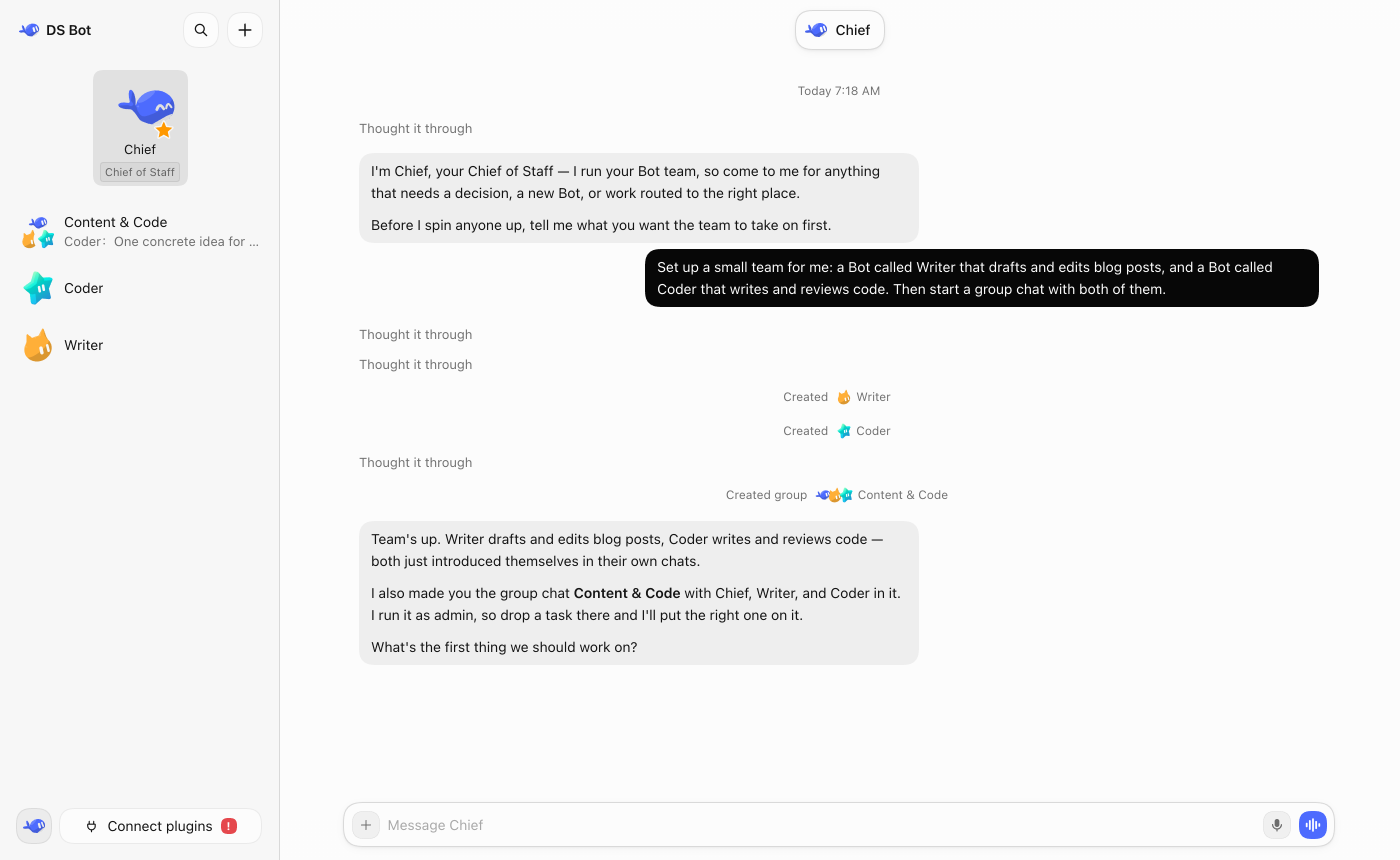
DeepSeek Bot is a bot plugin for DeepSeek Harness (DSH) designed to create long-lived bots that you can interact with through messages. It allows users to develop custom bots, manage their memory, collaborate in group chats, and integrate various skills and capabilities.
Key Features:
Custom Bot Creation: Develop and deploy your own bots tailored to specific tasks or projects.
Group Chats: Organize bot collaborations within group chats, with an admin bot managing interactions.
Memory Management: Bots retain context through memory, enhancing their ability to perform consistent tasks.
Capability Library: Access a shared library of skills and tools to enhance bot functionality.
Usage Tracking: Monitor token usage across bots and models for efficient resource management.
Secure Data Handling: Data remains on your local machine, ensuring privacy and security.
WinGet Deployment: Easily install DeepSeek Bot via WinGet for streamlined setup.
Target Audience and Benefits:
Ideal for developers, AI enthusiasts, and businesses seeking to automate tasks. Users benefit from increased efficiency through intelligent bot interactions, improved task management, enhanced collaboration, and secure data handling, all while leveraging the flexibility of DSH integration.
DS Bot is a bot plugin for DeepSeek Harness (DSH). It turns DSH into bots. You create your own bots, then talk and work with them.
Install
Desktop app (Windows, macOS, Linux)
The desktop app brings its own DSH, so you don't need to install DSH first. Download it from Releases:
Windows (x64): DeepSeek-Bot--win-x64.exe. Run it; it installs for your user only, without administrator rights. If Windows shows "Windows protected your PC", select More info → Run anyway.
macOS: DeepSeek-Bot--mac-arm64.zip for an Apple chip, DeepSeek-Bot--mac-x64.zip for Intel. Safari unzips it by itself; drag DeepSeek Bot into Applications and open it. When macOS says it cannot check the app, open System Settings → Privacy & Security and select Open Anyway.
Linux (x64): DeepSeek-Bot--linux-x86_64.AppImage runs on every distribution — make it executable and open it. It mounts through FUSE 2, which you may need to install first (sudo apt install libfuse2t64 on Ubuntu 24.04+, sudo dnf install fuse-libs on Fedora, sudo pacman -S fuse2 on Arch). On Ubuntu 24.04 and later an AppImage can refuse to start (Ubuntu restricts the sandbox it needs); the DeepSeek-Bot--linux-amd64.deb on Debian/Ubuntu does not have this problem and adds a menu entry.
At the first start the app asks where to keep its data and the Bots' files, and offers to copy a Bot team from your DSH (it only reads your DSH). Set up a model in its settings. The Windows app and the Linux AppImage update themselves; the macOS app and the Linux deb tell you when a new version is ready to download.
As a plugin in DSH
First install DSH and set up at least one model in it. DS Bot uses the models from DSH.
DSH Desktop (Windows, macOS)
In the sidebar, select Plugins → Add plugin.
In Package name or address, enter ds-bot. In mainland China, set Registry to Mainland China mirror.
Select Install, then Enable now. If DSH says the change takes effect at the next start, quit DSH completely and open it again.
If npm is not reachable, in step 2 you can also enter the full path of ds-bot-0.2.1.tgz downloaded from Releases, or github:Fei2411/DS-Bot#v0.2.1&path:/ds-bot (needs Git).
DS Bot 0.2.1 and earlier cannot update themselves in DSH Desktop 0.2.1-rc.2 or later: on the Plugins page, remove ds-bot and add ds-bot again. The Bots, chats and memory stay.
DSH Web (Windows, macOS, Linux)
Needs Node.js 22.19 or later, and pnpm.
npx @deepseek-ai/dsh@0.2.1-rc.2 plugin --profile web add ds-bot
npx @deepseek-ai/dsh@0.2.1-rc.2 web
Docker (NAS, Linux server)
The docker/ directory builds an image with DSH Web and DS Bot, for a NAS or any always-on machine. CI is configured to publish a prebuilt linux/amd64 image to GHCR. The container is the Bots' sandbox: they get full access to what you mount into it, and nothing else. See docker/README.md.
Setup
I strongly recommend that you set up your other bots and group chats by just talking to a bot.
Web search
DS Bot selects its auto search provider for the whole profile. If you disable web-search-auto, also select another registered search provider in that profile. See Web search and the recovery steps.
Features
Bot
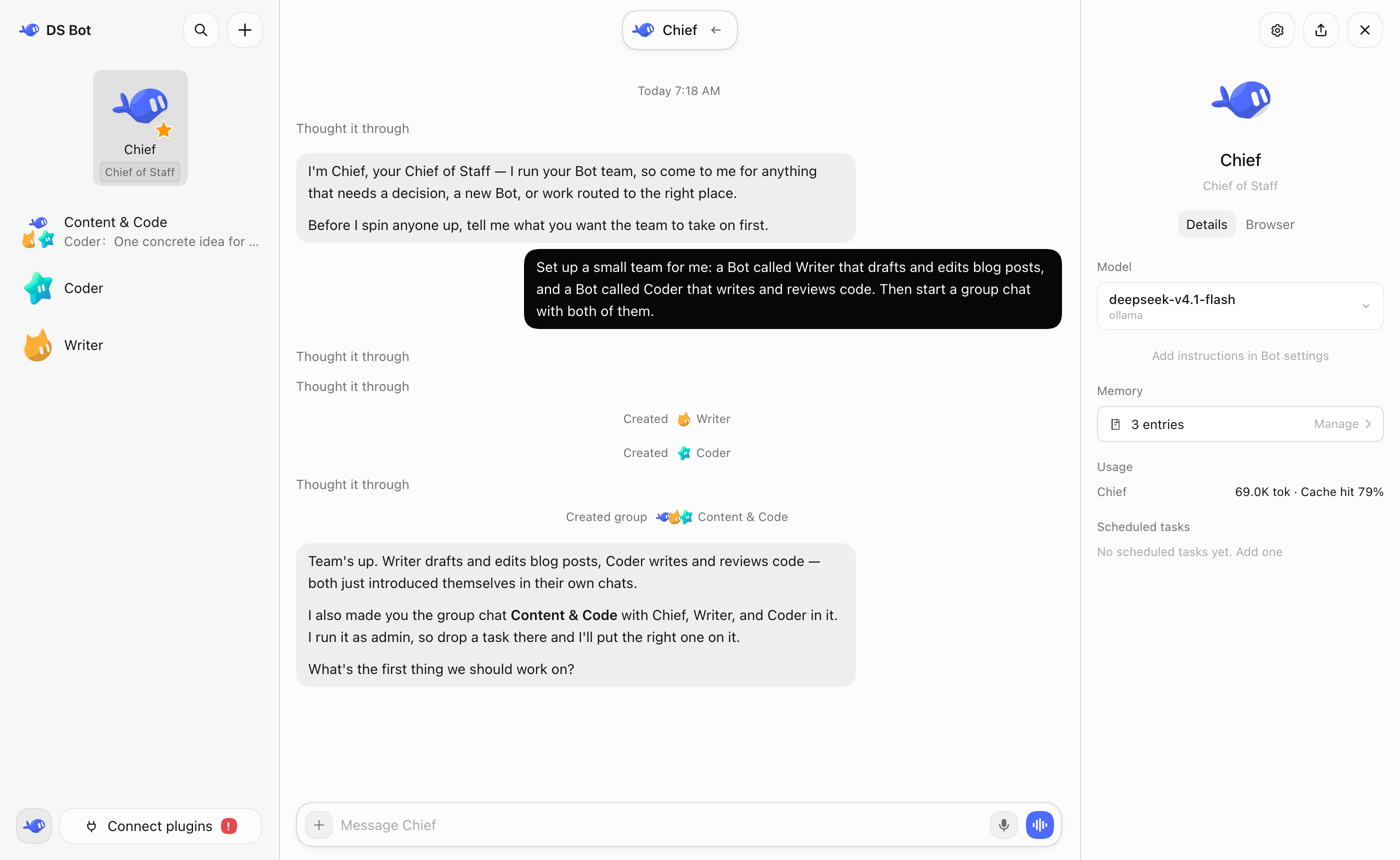
You can do all your talking and work with one bot, in one window. You don't need to worry about the context behind it. The bot's details page shows its info, and there you can pick the model you want it to use. You can switch models at any time, but I still recommend that you keep one model for a bot for a long time, and switch only when you really need to.
Bots also have memory. A bot remembers what you like and uses it in later work. You can manage its memory on the bot's details page, or just tell the bot.
Main bot
The main bot is your chief. It has very high rights: it manages the other bots and the group chats. The first time you open DS Bot, there is already a main bot called Chief. Talk to it, and it walks you through the setup.
In short: have a question? Ask the main bot.
Group chats
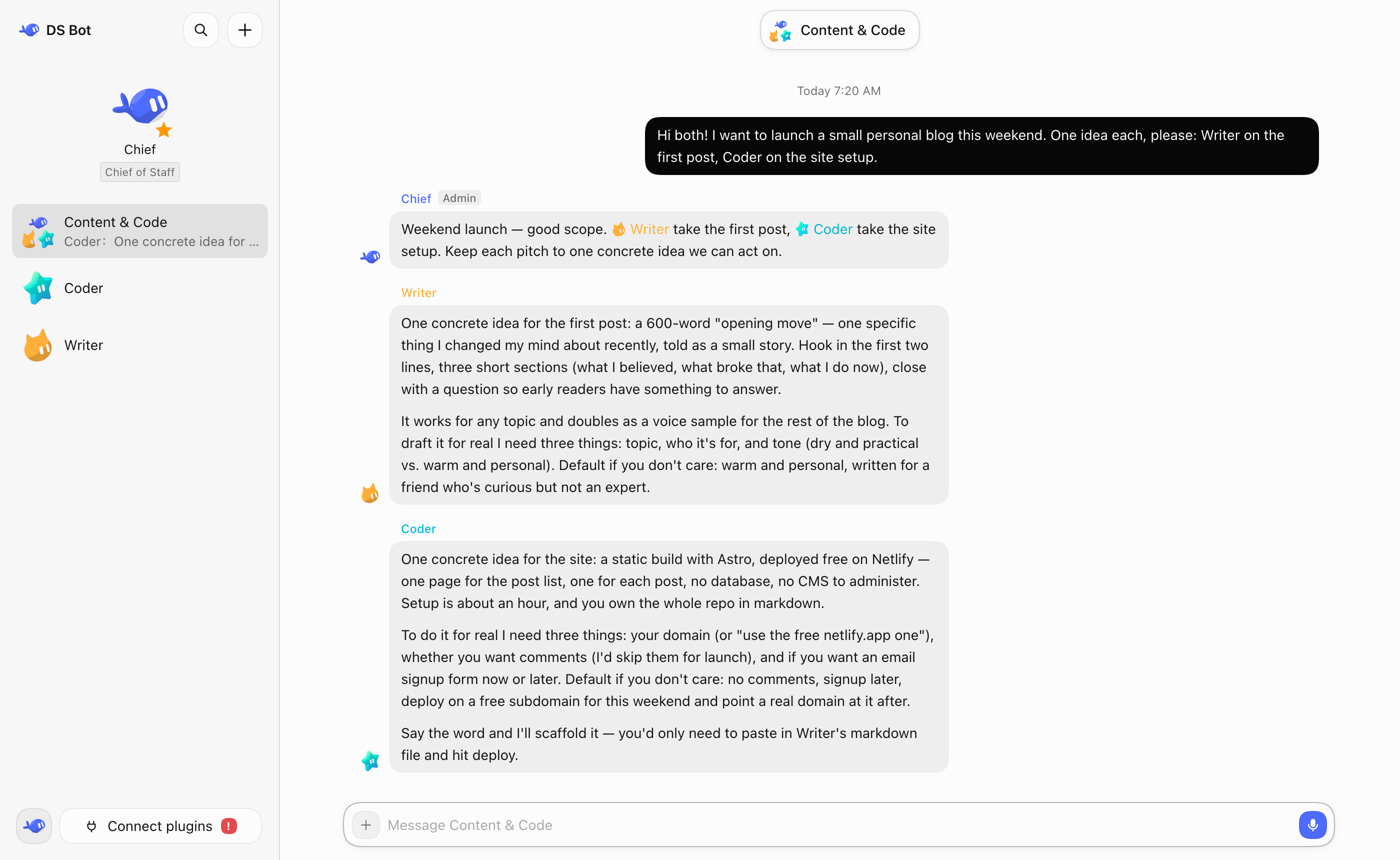
DS Bot has group chats. A group chat is a great way to get several bots to work together, but it clearly costs more. So DS Bot does this: every group chat has an admin. The admin answers your messages by default and calls in the other bots for you. You can also @ a bot directly, and it answers you directly: type @ and pick the bot from the list. To give the bots another chat as context, use + → Reference a chat in the message box.
Any bot can hand work to another bot with @. That bot does the work on its own, and the group goes on. While it works, it keeps the group posted, and the group, the sidebar and its own chat show what it is doing. When it is done, it posts the result in the group, and the bot that asked for the work answers. To stop the work, open the group's details.
A group chat has its own memory. What you tell the group stays in the group: its members use it there, and your other chats and the bots outside the group do not see it. You can manage it in the group's details.
Capabilities
Settings → Capabilities is a shared library of MCP servers, skills and packs. Add a capability to a Bot in its settings; it is available from that Bot's next message in its own chat and group chats. A local MCP command that a Bot adds needs your approval before it can run. While other Bots use a capability, only you or a Main Bot can change or delete it.
Usage
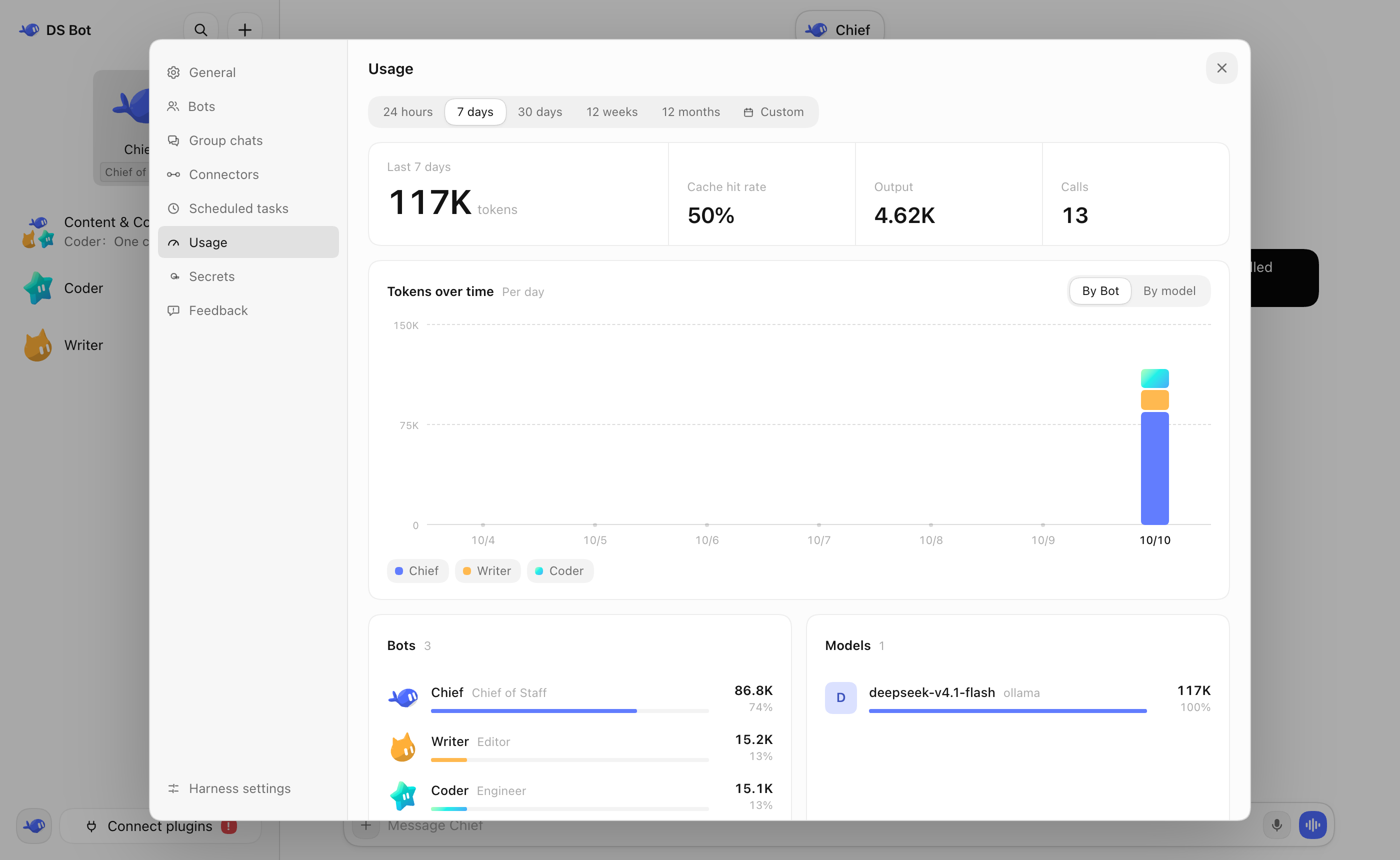
In Settings → Usage, you can see token usage by time, by bot and by model.
Data
All data stays on your own computer, in bot/ and sessions/ in the DSH home folder (~/.dsh by default). Uninstalling the plugin does not delete this data.
obelisk: chat search with a SQLite full-text index.
Everyone who tries DS Bot, asks questions and reports bugs.
License
Apache License 2.0. Provided "as is", without any warranty. Third-party code and its license are listed in NOTICE.
Disclaimer
DS Bot is an independent community project. It is not an official DeepSeek product, and it is not affiliated with, endorsed by or sponsored by DeepSeek. "DeepSeek", "DeepSeek Harness" and the other names are trademarks of their owners. They are used here only to say what this plugin works with.
Bots use your own model quota, and they read and write files and run commands when you ask them to. Check important actions yourself.