MeetingRecorder
A companion to Speakr: a small
Windows tray app that records your meetings and calls and sends them to your
self-hosted Speakr server for transcription and summaries.
It records both sides of a call without a virtual audio cable: your
microphone mixed with whatever your speakers or headset are playing (Teams,
Zoom, Google Meet, WhatsApp, a softphone and so on). One hotkey starts it, the
same hotkey stops it, and a notification tells you when Speakr has the notes
ready.
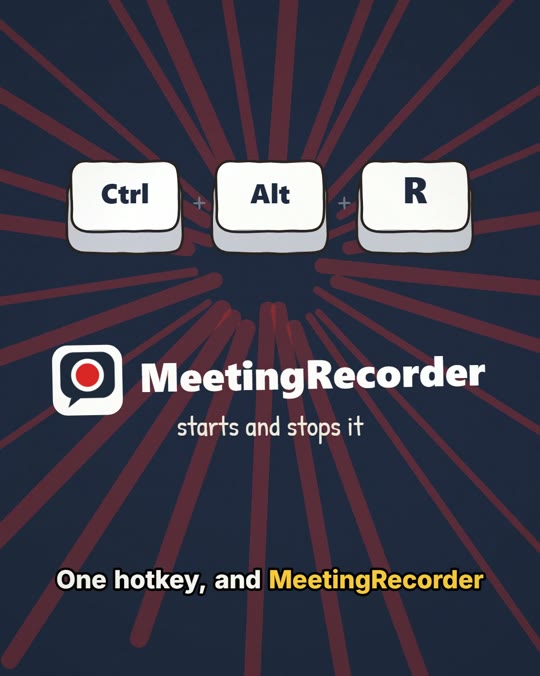
Watch MeetingRecorder in 35 seconds (with sound).
- Tiny and native. A single signed
.exe of about 1 MB, written in C++
against WASAPI. No runtime, no background services, no window to manage.
- Crash-proof recordings. Audio is written to disk as it's recorded (Opus,
about 11 MB per hour). A crash or power cut loses under half a second, and
the interrupted recording is still uploaded.
- Sensitive mode. One click keeps a recording on this PC only. It's never
uploaded.
- Markers. Press a hotkey at a key moment. In Speakr's notes, each marker
becomes a link that jumps to that point in the audio.
- Tags. Pick Speakr tags from the tray menu before or during a call, so
Speakr can apply the right summary prompt.
- Reliable uploads. Uploads are queued and retried while the server is
unreachable (laptop offline, VPN down), and the app follows each recording
until Speakr has finished with it.
- A moment to change your mind. A recording waits 60 seconds (you can
change this) before it uploads. In that time, Keep last recording on this
PC stops it.
- Recordings window. See every recording, where it is and what happened to
it. Play it, open it in Speakr, upload it or delete it.
- Only the apps you choose. Record audio from just Teams or Zoom, so a
music player or a notification sound stays out of the recording.
- Separate channels. Optionally put your voice on the left and everyone
else on the right, which helps Speakr tell speakers apart.
- Safe with servers. A recording is only ever sent to the server it was
made for. Anything else waits for you to say yes.
Install
With winget:
winget install Feridoun.MeetingRecorder
This runs the installer below. winget upgrade Feridoun.MeetingRecorder
updates it later.
Or download from Releases:
MeetingRecorder-Setup-.exe: installer. Installs for your user
only (no admin prompt) and can start MeetingRecorder when you sign in.MeetingRecorder--portable.zip: the same .exe with no installer.
Both are code-signed. Needs Windows 10 or 11 (64-bit) and a Speakr server you
can reach. Without one, MeetingRecorder still records to your PC and keeps the
recordings there (see the Recordings window and local-only mode below).
On first start, MeetingRecorder asks for:
- Your Speakr address, e.g.
https://speakr.example.com or
http://192.168.1.20:8899.
- An API token. In Speakr, open Account settings > API tokens and create
one. MeetingRecorder keeps it in Windows Credential Manager, never in a file.
Click Test to check both, then Save. The test runs in the background,
so the window and your hotkeys stay responsive if the server is slow. You can
change them later under Settings in the tray menu.
If you close the window without setting up Speakr, recordings stay on this PC.
They are held: when you add a server later, MeetingRecorder asks before
sending them (see Held recordings).
Use
A grey dot appears in the tray.
| Action | Shortcut | Tray |
|---|
| Start / stop recording | Ctrl+Alt+R | double-click the icon |
| Pause / resume (paused time is left out) | Ctrl+Alt+P | menu |
| Add a marker | Ctrl+Alt+K | menu |
Click the icon for the menu, which also has Sensitive, Tags, upload
status, Keep last recording on this PC, Upload now, Open Speakr,
Recordings..., the recordings folder and Settings. If another app
already uses one of the shortcuts, MeetingRecorder tells you at start-up and
leaves that shortcut out of the menu.
Tray icon colours: grey idle, red recording, purple recording in
local-only mode, amber paused. Hover over it for the elapsed time and upload
status.
When you stop, the recording uploads after a short grace period (60 seconds by
default). When Speakr has finished (usually a minute or two after that), a
Notes ready notification appears. Click it to open the recording in Speakr.
Upload delay and "Keep last recording"
The grace period is Upload after in Settings: 0 to 3600 seconds, and 0
uploads at once. While it runs, the tray menu item Keep last recording on
this PC makes the recording local-only, so it is never uploaded. Use it when
a call turned out to be private.
It only works until the upload starts. If the recording has already gone to
Speakr, MeetingRecorder tells you, and you need to delete it in Speakr. Sensitive
recordings have no delay because they never upload.
Recordings window
Tray menu > Recordings... lists every recording on this PC, newest first,
with its date, length, title, status and any details (for example "Cut short by
a crash" or "Audio file missing"). It updates while it's open, and counts down
"Uploading in 45 s" for recordings in the grace period.
Select a recording to use:
| Button | What it does |
|---|
| Open in Speakr | Opens it in Speakr (also on double-click or Enter). Only if it is in Speakr |
| Play | Plays the audio in your default player |
| Show in folder | Shows the file in Explorer |
| Upload | Sends it to your current server, after asking. Works for local-only, held, refused and missing recordings |
| Keep on this PC | Stops a recording that hasn't been sent yet from ever uploading |
| Delete | Deletes the audio and details from this PC, after asking. A copy already in Speakr stays there |
Buttons that don't apply to the selected recording are greyed out. A line
under the list says why Upload is unavailable (no server set up, or the audio
file is gone).
Held recordings
MeetingRecorder never sends a recording to a server it wasn't made for. A
recording is held if you made it before Speakr was set up, or for a
different server address from the one in Settings. It stays on your PC, and a
notification tells you. The tray menu then shows Upload N held
recordings..., which asks:
- Yes uploads them all to the server in Settings.
- No keeps them on this PC only (local-only).
- Cancel leaves them held.
You can also deal with them one at a time in the Recordings window.
Tags in the tray menu lists your Speakr tags. Ticked tags apply to the
recording in progress and to the ones after it, until you change them. Each
launch starts with the Default tags from Settings ticked (Call by
default). A default tag that doesn't exist in Speakr yet is created on the
first upload.
Audio devices
By default MeetingRecorder records Windows' default communications microphone and
default playback device, and follows them when they change. To record a
specific device instead, pick it under Microphone or Playback in
Settings. The choice takes effect as soon as you save, even
mid-recording. If the chosen device isn't connected, MeetingRecorder uses the
Windows default and switches back when the device returns.
If Windows blocks desktop apps from using the microphone (Settings > Privacy &
security > Microphone), MeetingRecorder tells you so, rather than saying no
microphone was found. If the microphone is silent for a minute, it warns you
too.
Detect calls
MeetingRecorder notices when a call starts in Teams, Zoom, Webex, Slack, Skype,
WhatsApp, Discord, 8x8, MicroSIP, Linphone or RingCentral, or in Google Meet
or Teams in a browser. It watches which apps are using a microphone (the same
list the Windows Volume Mixer shows). For a browser, a window must also be
showing the meeting. Detect calls in Settings chooses what happens:
- Ask me whether to record (the default): a notification says "Teams call
detected". Click it, or press
Ctrl+Alt+R, to record. When the call ends, a
notification offers to stop the recording.
- Record automatically, and stop when the call ends: recording starts by
itself, with a reminder to tell everyone on the call. A recording that
detection started and stopped within 20 seconds (a microphone check on
Teams' pre-join screen, for example) is thrown away.
- Off.
A call counts as started once an app has used the microphone for 2 seconds,
and as ended once it has stopped for 10 seconds, so switching headsets doesn't
split a recording. Muting yourself in the call app doesn't end the call,
because those apps keep the microphone open while you're muted.
A recording made during a call is named after it: Weekly sync (Teams) when
the meeting's window gives its name (Teams, and Google Meet meetings with a
name), otherwise Zoom call 30 Sep 2026 14:02. The tray menu shows Record
Teams call while a call is going on.
Only record audio from these apps
By default MeetingRecorder records everything your PC plays. To record only your
call app, list it under Only these apps in Settings, comma-separated,
e.g. Teams.exe, Zoom.exe. Only audio those apps play is recorded, including
audio from their child processes (browsers and call apps often play sound from
helper processes). Your microphone is recorded as usual.
This needs a recent build of Windows 10 or 11. If it can't start, MeetingRecorder
warns you and records all playback audio instead. Leave the box
empty to record all playback audio.
Separate channels
Tick Record me and the others on separate channels (stereo) in
Settings to record your microphone on the left and everything else on the
right, at 32 kbps (about 14 MB per hour). Speakr can use that to tell you apart
from the others. If you change it mid-recording, it applies from the next
recording.
Echo cancellation (optional)
By default MeetingRecorder opens the microphone normally. Set
"echo_cancellation": true in config.json (there is no checkbox for it) to
open it as a communications stream, which asks Windows to apply echo
cancellation where your device supports it. What you get depends on the device
and its driver. Windows may also turn other apps' audio down while you record
(see Sound settings > Communications), which is why it is off by default.
Pause and loud audio
Pause cuts at the moment you press it. When two loud sources add up, a soft
limiter eases the peaks down instead of clipping them.
Sensitive recordings
Where the audio ends up depends on how your Speakr server is set up. It might
transcribe locally (e.g. WhisperX) or send audio to a cloud speech or
summarisation service. For anything that must stay on your PC, tick
Sensitive: keep on this PC only before or during the recording. The tray
dot turns purple and the recording is never uploaded. Sensitive mode stays on
for the next recordings until you untick it.
You can also start every launch in local-only mode (Start in local-only
(sensitive) mode in Settings), or, after recording, choose Keep last
recording on this PC from the tray menu (see above).
Recordings kept on this PC are still listed in the Recordings window, where
you can play them, and upload one later if you change your mind.
Please record lawfully
The rules on recording calls vary by country and state. Many places require
everyone on the call to consent, and some workplaces have their own policies.
Tell people you're recording. MeetingRecorder doesn't announce itself to other
people on the call.
Settings
Tray menu > Settings has everything in one window: the Speakr connection,
audio devices, default tags, hotwords, how long to keep audio, the upload
delay, which apps to record, call detection, separate channels, local-only mode at launch and
Start MeetingRecorder when I sign in to Windows. Saved changes apply straight
away, apart from the channel layout, which applies from the next recording.
Saving only tests the connection if you changed the address or token, so you
can change a device or tag while the server is unreachable. If the address
uses plain http:// to something that isn't on a private network, Settings
warns you (see Good to know).
The settings live in %APPDATA%\MeetingRecorder\config.json (Open settings
file in the Settings window). Edits made by hand apply within 10 minutes, or
straight away after Upload now.
{
  "server_url": "https://speakr.example.com",
  "tags": ["Call"],
  "hotwords": "",
  "keep_audio_days": 14,
  "sensitive_by_default": false,
  "microphone": "",
  "speakers": "",
  "upload_delay_seconds": 60,
  "separate_channels": false,
  "echo_cancellation": false,
  "loopback_apps": [],
  "call_detection": "ask"
}
| Key | Meaning |
|---|
server_url | Your Speakr address |
tags | Tags ticked when MeetingRecorder starts |
hotwords | Comma-separated names and jargon to help transcription, e.g. "Anika, Kubernetes, SLA" |
keep_audio_days | Delete local audio this many days after Speakr has finished with it (0 = keep forever). Only recordings with notes ready are ever deleted. Local-only, held, failed, stuck and missing recordings keep their audio |
sensitive_by_default | Start every launch in local-only mode |
microphone, speakers | Windows device IDs to record; empty follows the Windows default. Easiest to pick in Settings |
upload_delay_seconds | Seconds to wait after you stop before uploading, 0 to 3600 (default 60; 0 = at once) |
separate_channels | true records stereo: your microphone on the left, everyone else on the right |
echo_cancellation | true opens the microphone as a communications stream so Windows can apply echo cancellation where the device supports it. Windows may lower other apps' sound while recording. Default false; not in Settings |
loopback_apps | Only record audio from these apps, e.g. ["Teams.exe", "Zoom.exe"]. Empty records all playback audio |
call_detection | When a call starts: "ask" (default) offers to record it, "auto" records it and stops when it ends, "off" does nothing. See Detect calls |
If config.json can't be read (a typo that breaks the JSON, or a locked file),
MeetingRecorder starts in local-only mode so nothing is uploaded by accident, and
tells you. Fix the file, or save from Settings: saving replaces it, and
keeps the old one as config.json.bad. Saving otherwise keeps your key order
and any keys MeetingRecorder doesn't know.
Where recordings go
%LOCALAPPDATA%\MeetingRecorder\sessions\ (tray menu > Open recordings
folder). This is kept out of Documents because Documents is often synced to
OneDrive.
Each recording is _.opus (48 kHz, mono or stereo, plays in VLC,
browsers and most players) plus a .json file whose upload_state shows its
progress:
upload_state | Meaning |
|---|
local_only | Sensitive; never uploaded |
pending | Waiting to upload: in the grace period, or retried while Speakr is unreachable |
held | Made before Speakr was set up, or for another server. Waits for you (tray menu > Upload held recordings, or the Recordings window) |
uploaded | In Speakr, being transcribed and summarised |
done | Notes ready |
failed | Speakr couldn't process it (see upload_error; reprocess it in Speakr) |
rejected | Speakr refused the upload (see upload_error; tray menu > Retry refused uploads) |
missing | Speakr no longer has it (deleted there, or it's a different server). The audio is kept here; upload it again from the Recordings window if you want it |
stuck | Speakr hadn't finished a day after the upload. Check it in Speakr |
The .json file also records which server the recording was made for, and
when a pending upload is due.
If a crash or power cut leaves a recording with no readable .json file, it is
recovered when MeetingRecorder next starts: a new .json file is made and the
recording is kept local-only, because whether it was sensitive is lost with
the file. Upload it from the Recordings window if you want it in Speakr. A
damaged .json file is set aside as .json.bad. Recordings cut short by a
crash whose details survived are still uploaded.
Uninstalling leaves your recordings and settings in place.
Good to know
- Unless you pick one, the microphone is Windows' default communications
device, which Teams and Zoom normally use too. If you plug in a headset or
connect Bluetooth mid-call, recording moves to the new device.
- Without a headset, your microphone also picks up the other side from your
speakers, so their voices appear twice, slightly offset. A headset is
best for clean transcripts. On speakers,
"echo_cancellation": true in
config.json may help where your device supports echo cancellation, but
Windows may lower other apps' sound while you record.
- MeetingRecorder records your microphone even when you're muted in Teams,
Zoom or another call app. Their mute button doesn't reach MeetingRecorder. For
a private aside, use Pause (
Ctrl+Alt+P) or Sensitive.
- Plain
http:// sends your recordings and API token across the network
unencrypted. Use https:// if you can. Settings warns you about http://
addresses that aren't on a private or local network (such as 192.168.x.x,
10.x.x.x, .local names or Tailscale names) and asks before saving one.
Private addresses don't trigger the warning, but they are still unencrypted.
- Retention never deletes audio for a recording that went missing in Speakr,
or one that failed or got stuck there. Those keep their audio until you
delete them.
- A single click opens the menu after a short pause (the double-click time), so
a double-click can start or stop recording instead.
- If Speakr sits behind a proxy or tunnel with an upload size limit (Cloudflare
allows 100 MB, about 9 hours of audio), very long recordings will be refused.
Build from source
Needs Visual Studio 2022 with the Desktop development with C++ workload
(includes CMake, Ninja and vcpkg).
.\build.ps1 # or: .\build.ps1 -Config debug
The output is build\release\MeetingRecorder.exe. Dependencies (opus,
libopusenc, nlohmann-json) come from vcpkg in manifest mode and are linked
statically.
build.ps1 also builds and runs the unit tests (tests/, the non-UI logic:
settings, recording files, upload decisions). Add -SkipTests to skip them,
or run build elease\MeetingRecorderTests.exe directly.
To build the installer and portable zip as well (needs
Inno Setup 6):
.\tools\release.ps1 -AllowUnsigned           # test build
.\tools\release.ps1 -CertThumbprint    # signed release (see tools\sign.ps1)
| File | Role |
|---|
src/main.cpp | Tray icon, menu, hotkeys, tags, held recordings, session lifecycle |
src/CallDetector.* | Finds calls in progress from Windows' audio sessions and window titles |
src/CallLogic.h | Call detection's decisions (which app, meeting name, when a call starts and ends) as small pure functions |
src/Recorder.* | WASAPI microphone + loopback capture, mixing, device selection and changes |
src/OpusFileWriter.* | Crash-tolerant Ogg Opus output |
src/Session.* | The .json file for each recording, and crash recovery |
src/Uploader.* | Background upload queue, Speakr status polling, tag lookup, audio retention |
src/UploadLogic.h | The uploader's decisions (same server, timestamps, Speakr status) as small pure functions |
src/HistoryWindow.* | The Recordings window |
src/SettingsDialog.* | The Settings window: Speakr connection, devices and the rest of config.json |
src/HttpClient.* | WinHTTP client (streams uploads from disk) |
src/Config.* | config.json and the Credential Manager token |
src/Json.h | Type-checked JSON reads that never throw |
tests/ | Unit tests (run by build.ps1 and CI) |
installer/MeetingRecorder.iss | Inno Setup script |
Roadmap ideas
- Fill in the title and participants from your calendar
- Prompt for a title when you stop
- Configurable hotkeys
Issues and pull requests are welcome.
Privacy
MeetingRecorder has no telemetry and only talks to the Speakr server you set up.
See the privacy policy.
Licence
MIT. MeetingRecorder is an independent project, not affiliated with
Speakr. Third-party licences are in
THIRD_PARTY_NOTICES.txt.