FlightDeck scans your Microsoft 365 signals — email, Teams, meetings, documents — and surfaces what needs your attention, ranked by priority. Track items over time with automated monitoring and walk into every meeting prepared with AI-generated briefings. All AI responses are grounded in your real M365 data with deep-link citations. Every prompt is visible and editable — no black boxes.
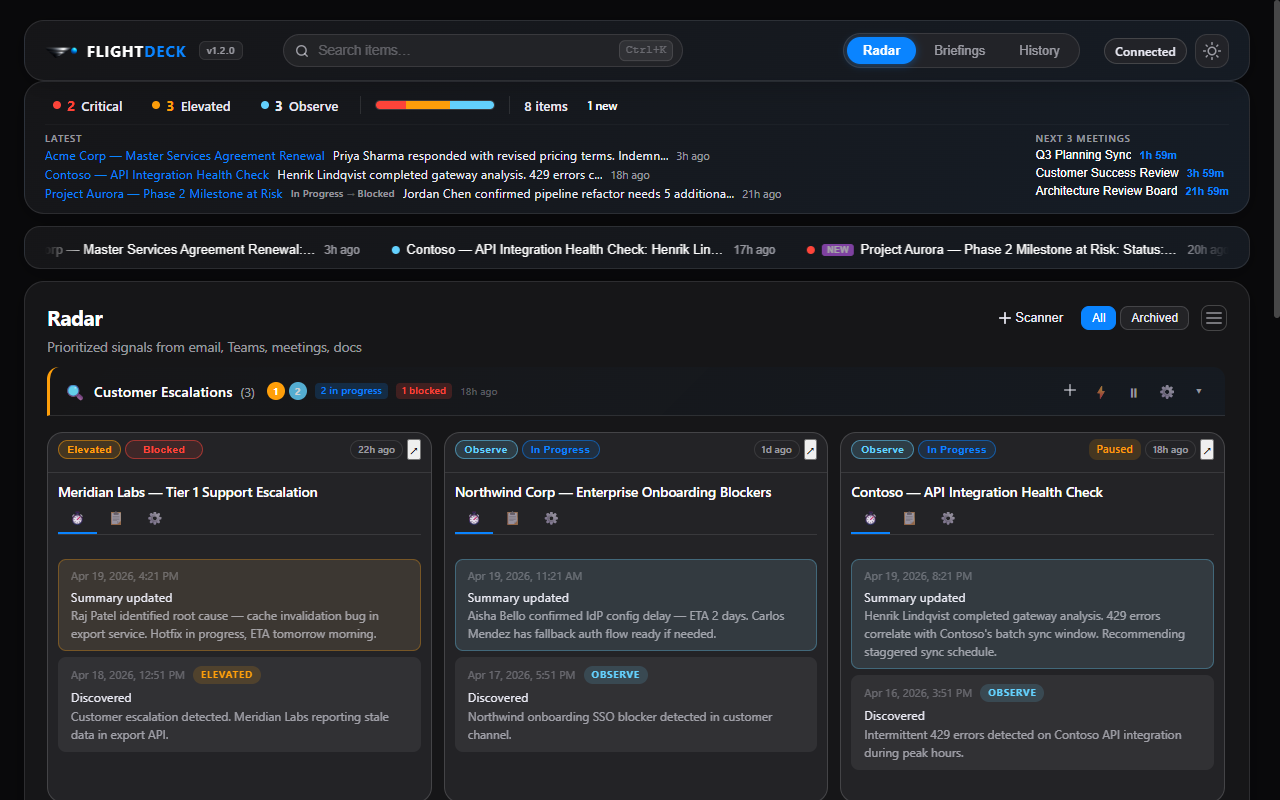
Table of Contents
Features
| Feature | Description |
|---|
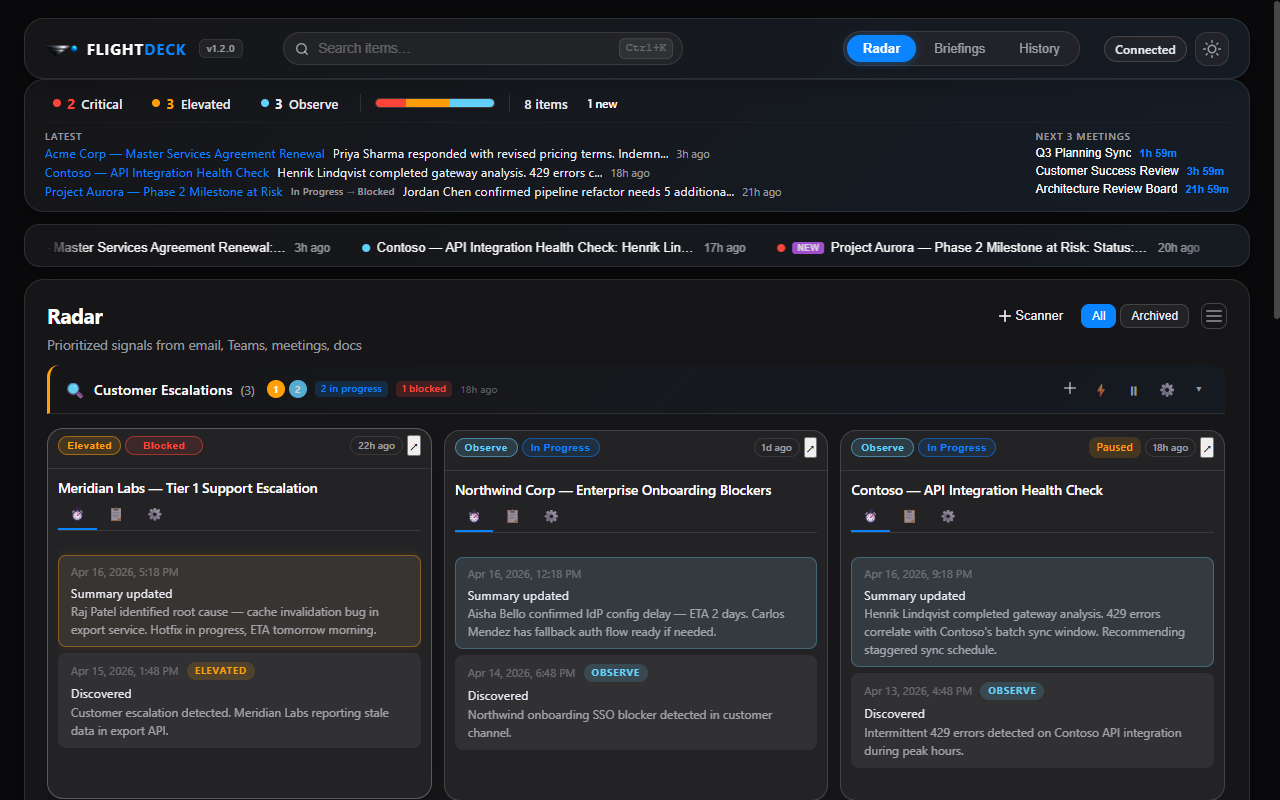
| 📡 Radar | AI-prioritized signals classified as Critical / Elevated / Observe, organized by scanner |
| 🔍 Scanners | Named, scheduled AI scans with customizable prompts, dedup, auto-monitor, and notification controls |
| 📌 Tracking | Enable monitoring on any item with configurable schedules, signals, and desktop notifications |
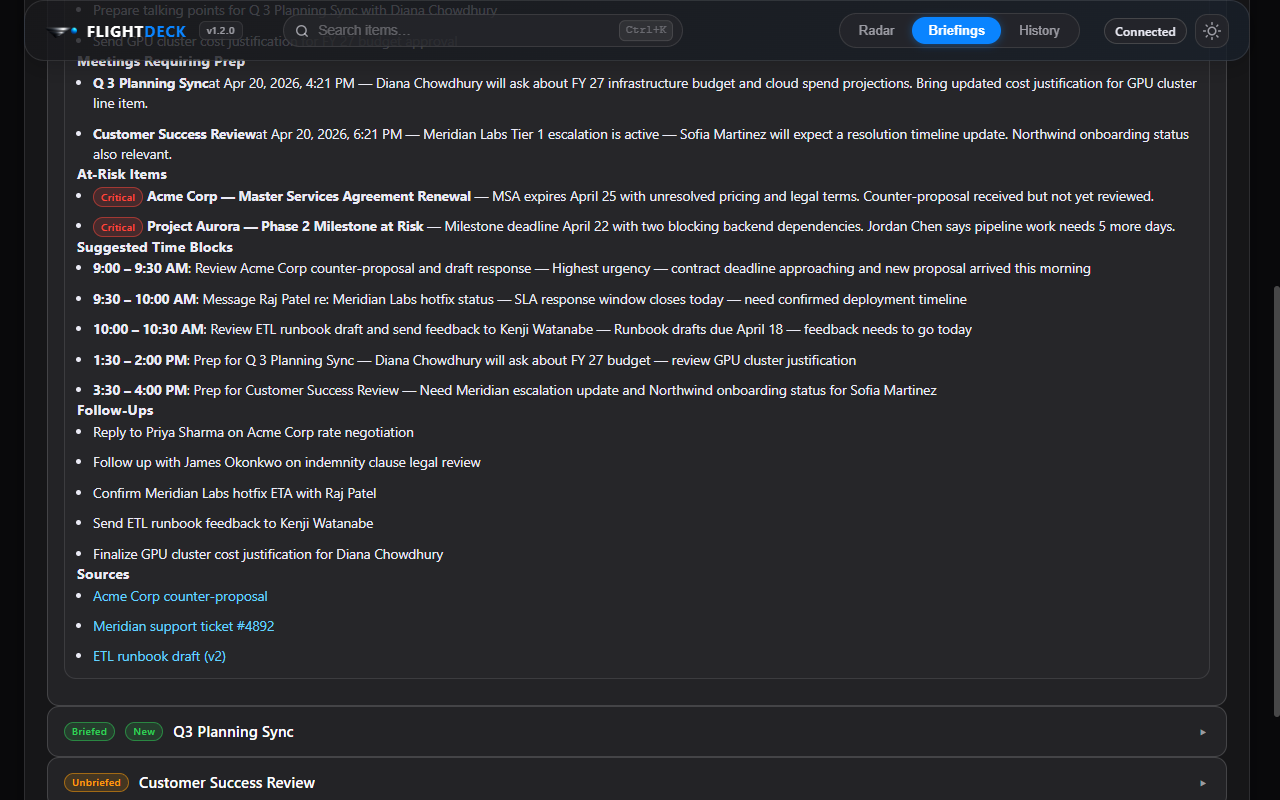
| 📋 Briefings | One-click AI meeting prep — headline, key updates, risks, talk track, and more |
| ☀️ My Day | Daily briefing synthesizing meetings, tracked items, and priorities into a morning summary |
| 🕘 History | Audit trail of every scan, update, and detected change |
| 🔎 Search | Global search (Ctrl+K) across all items and briefings |
| 🖥️ System Tray | Runs in the background; monitors schedules and delivers notifications even when minimized |
| 🌓 Light / Dark Theme | Toggle between light and dark modes; follows system preference by default |
| 🪟 Pop-out Windows | Open any tracked item in its own window with real-time sync |
| ♻️ Lifecycle Management | Items progress through in-progress → blocked → waiting → complete → archived with auto-detection |
> [!TIP]
> See docs/user-guide.md for the full user guide with screenshots and walkthrough of every feature.
📡 Scan — surface what matters
Scanners are named, scheduled AI scans that you configure with custom prompts. Each scanner runs on its own schedule and surfaces items ranked by urgency: Critical, Elevated, or Observe. Items include a summary, the people involved, source links, and suggested next steps.
📌 Track — monitor what you care about
Enable monitoring on any item, or add a custom tracked item directly to a scanner. FlightDeck monitors items on a schedule you configure — by interval, day/time, or one-time — and notifies you via desktop toast when it detects net-new data.
📋 Brief — prepare for every meeting
Generate AI-powered briefings for your upcoming meetings. Each briefing surfaces key updates, decisions needed, top risks, a talk track, and follow-ups — all sourced from your real M365 activity.
Prerequisites
| Requirement | Details |
|---|
| Node.js | v18 or later (download) |
| WorkIQ CLI | npm i -g @microsoft/workiq — installed globally |
| Microsoft Copilot license | Required by WorkIQ for M365 data access |
| Tenant admin consent | Your organization must grant WorkIQ access to M365 signals |
Quick Start
Install from release
Windows:
winget install FlightDeck.FlightDeck
macOS:
Download the latest .dmg from GitHub Releases, open it, and drag FlightDeck to Applications.
Build from source
git clone
cd FlightDeck
npm install
npm start          # builds the renderer then launches Electron
On first launch, click Enable WorkIQ in the connect banner — FlightDeck auto-accepts the EULA and connects. Once connected, a Radar scan and calendar refresh run immediately.
> [!NOTE]
> On macOS, FlightDeck looks for workiq and node in /opt/homebrew/bin, /usr/local/bin, and /usr/bin. If you installed Node or WorkIQ to a non-standard location, ensure they are in your PATH.
Build installers
npm run dist          # Windows MSI
npm run dist:mac      # macOS DMG
npm run dist:linux    # Linux AppImage + deb
Build output goes to the dist/ directory.
Demo Mode
Demo mode loads synthetic fixture data so you can explore FlightDeck without a WorkIQ connection or Copilot license.
npm run demo            # launch with cached demo data
npm run demo:reseed     # regenerate fixtures, then launch
Demo mode is read-only — scanners and monitoring are disabled.
Project Structure
FlightDeck/
├── src/
│   ├── main/                      # Electron main process
│   │   ├── index.js               # App lifecycle, window & tray creation
│   │   ├── ipc-handlers.js        # IPC channel handlers (ask-workiq, store, popout, …)
│   │   ├── pty-bridge.js          # node-pty bridge to WorkIQ CLI
│   │   ├── store.js               # electron-store persistence (flightdeck-data, flightdeck-cold)
│   │   ├── utils.js               # Logging, URL safety, HTML/markdown helpers
│   │   ├── window-state.js        # Persist & restore window bounds
│   │   └── ipc/
│   │       └── tracker-popout.js  # Popout window IPC handlers
│   ├── svelte/                    # Renderer process (Svelte 5 + Vite)
│   │   ├── App.svelte             # Root component — routing, engines, persistence
│   │   ├── main.js                # Main window entry point
│   │   ├── popout.js              # Pop-out window entry point
│   │   ├── components/            # UI components (27 Svelte files)
│   │   │   ├── RadarView.svelte
│   │   │   ├── BriefingsView.svelte
│   │   │   ├── HistoryView.svelte
│   │   │   ├── TrackerCard.svelte
│   │   │   ├── ScannerSection.svelte
│   │   │   ├── SearchOverlay.svelte
│   │   │   └── …
│   │   └── lib/                   # Core logic & state
│   │       ├── stores.js          # Svelte reactive stores (items, scanners, meetings, …)
│   │       ├── persistence.js     # electron-store read/write via IPC
│   │       ├── scanner-engine.js  # Scanner tick engine
│   │       ├── monitor-engine.js  # Per-item monitoring tick engine
│   │       ├── json-parser.js     # Extract JSON from LLM output
│   │       ├── prompts.js         # Prompt template builders
│   │       ├── actions.js         # History, item CRUD helpers
│   │       ├── utils.js           # Renderer-side utilities
│   │       └── models/            # Data-model helpers (item, scanner, tracking)
│   ├── prompts/                   # Markdown prompt templates sent to WorkIQ
│   │   ├── radar-scan.md
│   │   ├── briefing.md
│   │   ├── day-briefing.md
│   │   └── scanner-template.md
│   ├── shared/
│   │   └── ipc-contract.js        # IPC channel name constants
│   ├── styles/                    # CSS (design tokens + component sheets)
│   ├── app.html                   # Main window HTML shell
│   ├── popout.html                # Popout window HTML shell
│   └── preload.js                 # contextBridge → window.workiq API
├── dist-renderer/                 # Vite build output (generated)
├── test/                          # Tests (Node.js built-in test runner)
│   └── helpers/                   # Electron mocks
├── docs/                          # Architecture docs & screenshots
├── scripts/                       # Tooling (screenshot capture)
├── vite.config.js                 # Vite + Svelte build configuration
├── svelte.config.js               # Svelte compiler config
└── package.json
Architecture
FlightDeck is an Electron app with a Svelte 5 renderer built by Vite.
┌──────────────────────────────────────────────────────┐
│  Renderer  (Svelte 5 · dist-renderer/)               │
│  stores.js ←→ persistence.js ──IPC──→ electron-store │
│  scanner-engine.js / monitor-engine.js               │
│  json-parser.js / prompts.js                         │
├──────────────────────────────────────────────────────┤
│  preload.js  (contextBridge → window.workiq)         │
├──────────────────────────────────────────────────────┤
│  Main Process  (Node.js)                             │
│  ipc-handlers.js → pty-bridge.js → node-pty          │
│  store.js (electron-store)                           │
└──────────────┬───────────────────────────────────────┘
               │ workiq ask -q "prompt"
               ▼
        WorkIQ CLI → Microsoft Copilot → Microsoft Graph (M365)
- The renderer loads a prompt template and sends it via IPC to the main process
- The main process spawns a
node-pty pseudo-terminal running the WorkIQ CLI
- WorkIQ forwards the prompt to Microsoft Copilot, which queries Microsoft Graph
- The JSON response flows back through the PTY, gets ANSI-stripped and parsed
- The renderer normalizes the payload, updates Svelte stores, and persists state to electron-store via IPC
> See docs/architecture.md and docs/architecture-diagrams.md for detailed Mermaid diagrams.
Data Persistence
All application state is persisted via electron-store (JSON files in the OS user-data directory), accessed from the renderer through IPC calls to the main process.
| What | Store | Key / Location |
|---|
| Radar items, scanners, briefings, history, preferences | flightdeck-data | Per-field keys via storeGet / storeSet |
| Archived / completed items (cold storage) | flightdeck-cold | items |
| Window bounds & maximized state | File | /window-state.json |
| Theme preference | localStorage | fd-theme (only theme uses localStorage) |
History is auto-pruned to 200 entries / 30 days. Stale briefings (for past meetings) are pruned on load.
Scripts Reference
| Script | Command | Description |
|---|
| start | npm start | Build renderer then launch Electron |
| dev | npm run dev | Vite dev server (renderer only, hot reload) |
| build:renderer | npm run build:renderer | Vite production build → dist-renderer/ |
| demo | npm run demo | Launch with demo fixture data |
| demo:reseed | npm run demo:reseed | Regenerate demo fixtures, then launch |
| screenshots | npm run screenshots | Capture screenshots via Playwright |
| test | npm test | Run all tests (Node.js built-in test runner) |
| dist | npm run dist | Build renderer + Windows MSI installer |
| dist:mac | npm run dist:mac | Build renderer + macOS DMG |
| dist:linux | npm run dist:linux | Build renderer + Linux AppImage/deb |
Testing
Tests use the Node.js built-in test runner — no extra framework required.
npm test
| File | Covers |
|---|
main-utils.test.js | URL normalization, HTML escaping, markdown→HTML |
main-window-state.test.js | State load/save, on-screen detection |
main-pty-bridge.test.js | ANSI stripping, Node executable discovery |
main-ipc-handlers.test.js | IPC channel handler logic |
main-ipc-tracker-popout.test.js | Tracker pop-out IPC |
Security
- Context Isolation enabled;
nodeIntegration disabled
- Content Security Policy:
default-src 'self'; style-src 'self'; script-src 'self'
- External URLs are intercepted and opened in the system browser — never inside the Electron window
- URL validation rejects non-HTTP(S) schemes before opening
- HTML in LLM output is escaped before rendering
- All renderer ↔ main communication goes through a typed IPC contract (
ipc-contract.js)
Tech Stack
Contributing
Contributions are welcome! Whether it's a bug report, feature idea, or a pull request — we'd love your help.
See CONTRIBUTING.md for development setup, coding conventions, branching workflow, and the release process.
License
This project is licensed under the Apache License 2.0.