English | Chinese
ft (FileTools) is a powerful command-line interface (CLI) tool designed for developers and advanced users, offering a high-performance, cross-platform solution for file management and task automation. Ditch cumbersome shell scripts and platform-specific challenges; ft empowers you to effortlessly manage your file workflows.
Core Features:
- Exceptional Performance: Leveraging asynchronous file stream processing,
ft efficiently handles massive file operations, achieving a low memory footprint and outstanding throughput.
- Seamless Cross-Platform Compatibility: Pre-compiled binaries are available for Windows, Linux, macOS, and major architectures. Master once, deploy anywhere.
- Intelligent Matching & Filtering: Utilize flexible Glob wildcards, combined with file time and size attributes, to precisely target desired files.
- Rich Built-in Subcommands: Provides essential file processing subcommands such as
list, search, clean, rmdir, archive, unarchive, mirror (incremental mirroring), erase (secure wipe), and fdups (duplicate file finder), ready out-of-the-box.
- Powerful Task Automation:
execute: Automate complex file workflows by batch running ft's built-in subcommands via YAML configuration.shell: Acts as a universal task orchestrator, integrating and batch executing any native system CLI applications to enable cross-tool automation.
ft is your ideal choice for routine operations, file deployment, and data processing, making file operations efficient and straightforward.
Getting Started
Get started now and experience the power of ft's cross-platform file management and automation capabilities.
Install ft
-
Recommended (Instant Use):
Download pre-compiled binaries, then simply unzip and run.
- 💡 Learn More: Consult the Quick Start Guide to understand
ft's wildcards, paths, regular expressions, argument values & quoting, and workflows.
-
For Dart/Flutter Users:
dart pub global activate --executable=ft filetools
-
Using install.sh Script:
The installation script provides automatic setup across platforms.
curl -sSL https://raw.githubusercontent.com/huanguan1978/ft/main/install.sh | bash
The script automatically detects your OS and architecture, downloads the appropriate binary, and installs it to your system. Supports macOS, Linux, and Windows (Git Bash/MSYS2/Cygwin).
-
Using Package Managers:
-
Developer Integration:
Integrate ft's source library into your Dart/Flutter project.
Using ft
- General Help:
ft help
- Command Specific Help:
ft help (e.g., ft help list)
Begin your ft journey!
Core Feature Overview
Each ft subcommand efficiently leverages asynchronous file streams to perform operations on a list of files after path matching and filtering.
These subcommands are configured via global parameters and subcommand-specific parameters (unique to each subcommand).
Subcommand Categories
1. Read-Only Subcommands (Data Retrieval & Non-Modifying Operations)
list: List entities matching a glob pattern.search: Regular expression text content matching.fdups: Find duplicate files.archive: Archive files/directories.unarchive: Unarchive files/directories.mirror: Incrementally synchronize files/directories.
replace: Find and replace text.rmdir: Remove empty directories.clean: Clean files/directories.wipe: Securely wipe files (with multiple overwrites).
3. Automation & Orchestration Subcommands
execute: Batch run ft internal subcommands (via YAML configuration).shell: Batch run native system CLI applications (via YAML configuration).
ft provides comprehensive built-in help documentation, which you can query directly via the command line.
1. General Help (ft help)
Running ft help will display an overview of all global options and available subcommands.
$ ft help
FileTools: cross-platform glob & streams.

Usage: ft  <source></source> [arguments]

Global options:
-h, --help                        Print this usage information.
-v, --verbose                     Show additional command output.
    --version                     Print the tool version.
    --source=               Specify the source (file|directory)
    --config=               Loads a config file for variable referencing
    --config_txt=           Loads a yaml text for variable referencing
    --config_gen                  Generate a custom config on curdir.
    --[no-]errexit                exit on error.
                                  (defaults to on)
    --define                      Define or override a variable from command line
    --pattern                     Glob pattern
                                  (defaults to "**")
    --excludes                    Glob pattern after exclusion (e.g. --excludes='.**')
    --fields                      show fields (ok, action, type, mime, perm, time, size, extra)
    --mime_file=            load additional MIME types from an external file (e.g. mime.types)
    --mime_overrides              Override or add MIME types (e.g. 'tml=text/toml,toml=application/toml')
    --mime_includes               Filter by MIME types or subtypes (e.g. 'text/markdown,text,markdown')
    --mime_excludes               Exclude specific types or subtypes (e.g. 'application/zip,zip')
    --size_le                     file size less than (in bytes, unit:B|K|M|G|T|P)
    --size_ge                     file size greater than (in bytes, unit:B|K|M|G|T|P)
    --time_le                     file time before (yyyyMMddTHHmmss | yyyyMMdd)
    --time_ge                     file time after (yyyyMMddTHHmmss | yyyyMMdd)
    --time_type=        file time type (changed | modified | accessed)

          [changed]               ctime - change time
          [modified] (default)    mtime - modification time
          [accessed]              atime - access time

Available commands:
  archive     archive source file|directory to target file.
  clean       clean source file|diretory
  execute     execute command blocks defined in `--config`, using `--source` as the working directory.
  fdups       find duplicate files from source diretory
  list        listing all entities that match a glob
  mirror      mirror source file|diretory to target directory
  rmdir       remove empty source directory
  search      search with regexp or replace.
  shell       execute script blocks defined in `--config`, using `--source` as the working directory.
  unarchive   unarchive tar|tgz source file to target directory
  wipe        secure wipe source file|diretory

Run "ft help " for more information about a command.
2. Specific Subcommand Help (ft help )
Running ft help will show the subcommand's detailed usage, unique parameters, and rich examples. Below is the help output for the list subcommand, fully demonstrating how to combine global parameters for file matching and filtering:
$ ft help list
listing all entities that match a glob

e.g. list CWD, use . or $PWD (Unix-like) or $CURDIR (ft define)
  ft list .

e.g. list CWD, all *.md, use variable name.
  ft list '$CURDIR' --pattern='$mdfiles' --define='mdfiles=**.md'

e.g. list CWD, all *.md, use mimetype.
  ft list . --mime_includes='text/markdown' -v

e.g. list CWD, excluding hiddens, verbose, pretty output.
  ft list . --excludes='/**/.**' --fields=ok,action,type,perm,time,size -v

e.g. list CWD, only hiddens, verbose output, show extra.
  ft list . --excludes='/**/.**' --no-matched --fileds=extra -v

e.g. list ~/Downloads, file size >= 100M, show size.
  ft list ~/Downloads --size_ge=100m --fields=size

e.g. list ~/Downloads, file time <= 20240101, show time.
  ft list ~/Downloads --time_le=20240101 --fields=time

e.g. list ~/Downloads, use relative time (quantity unit ago).
  ft list ~/Downloads --size_ge=100m --time_le='1 month ago' --fields=size,time

Usage: ft list <source></source> [arguments]
-h, --help                    Print this usage information.
    --[no-]matched            Show all matches if enabled, otherwise, show non-matches.
                              (defaults to on)
    --type=             match type (file, directory, link)

          [file] (default)    is file
          [directory]         is directory
          [link]              is filesystem link

Run "ft help" to see global options.
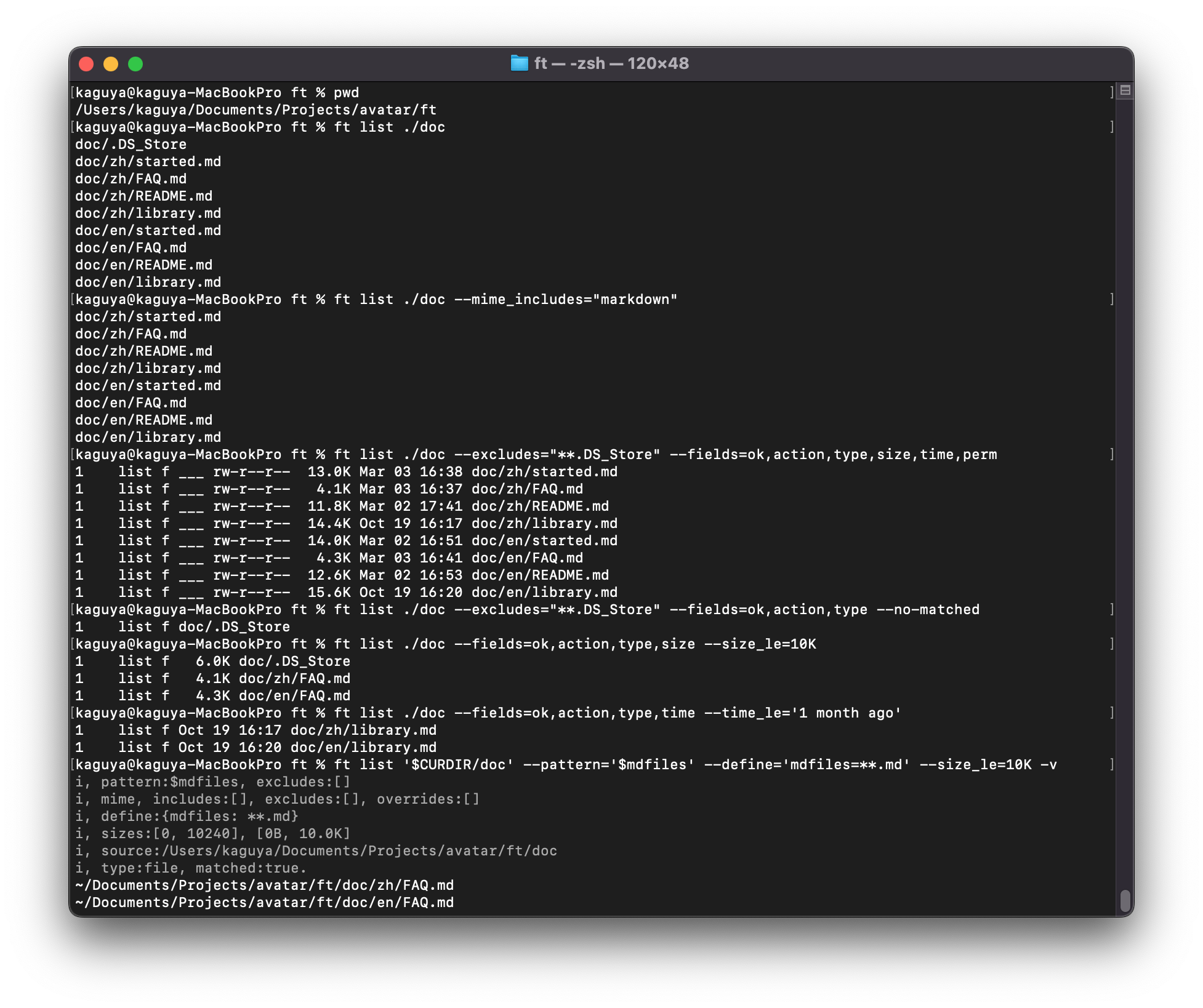
the example output for the list subcommand:
Automation & Orchestration
ft execute is ft's core automation feature, allowing you to batch and cross-platform run a series of ft internal subcommands through simple YAML configuration files. Ditch complex platform-specific scripts and manage your tasks with a unified configuration.
(For integrating native system commands, please use the ft shell subcommand.)
execute Subcommand Usage Overview:
$ ft help execute
execute command blocks defined in `--config`, using `--source` as the working directory.

e.g. generate a custom config on current directory.
  ft --config_gen
  ft --config=ft.yaml --config_gen

e.g. run commands (default block) in current directory.
  ft execute . --config=ft.yaml

e.g. run commands (use blocks in order) in current directory.
  ft execute . --config=ft.yaml --blocks=commands,my_commands

Usage: ft execute <source></source> --config= --blocks= [arguments]
-h, --help                  Print this usage information.
    --blocks=    execute command block in order provided.
                            (defaults to "commands")
    --delay=       delay between blocks.
                            (defaults to "1")

Run "ft help" to see global options.
Quick Experience:
Want to see ft:filetools in action on a real project?
Check out my case studies:
Incrementally mirror documents within a user's temporary desktop workspace to allow tracing back documents from recent days.
-
Generate Configuration File:
$ ft execute . --config=ft-mirror-desktop.yaml --config_gen
-
Edit Configuration File:
commands:
  - ft mirror ~/Desktop '~/Documents/FileShows/mirror/Desktop/$CURDATE/$CURDATETIME' --fields=ok,action,type
  - ft rmdir --force '~/Documents/FileShows/mirror/Desktop/$AGODATE1WEEK' --fields=ok,action,type
  # - ft rmdir --force --keeptop ~/Documents/FileShows/mirror/Desktop/ --time_type=changed --time_le='1 week ago' --fields=ok,action,type,time
-
Run Task:
$ ft execute . --config=ft-mirror-desktop.yaml

i, run:ft mirror ~/Desktop '~/Documents/FileShows/mirror/Desktop/20251009/20251009075522' --fields=ok,action,type
i, run:ft rmdir --force '~/Documents/FileShows/mirror/Desktop/20251002'  --fields=ok,action,type
err: chk, path: notFound, /Users/kaguya/Documents/FileShows/mirror/Desktop/20251002
1  mirror f ~/Documents/FileShows/mirror/Desktop/20251009/20251009075522/Screenshot 2025-09-01 at 16.23.53.png
1  mirror f ~/Documents/FileShows/mirror/Desktop/20251009/20251009075522/.DS_Store
1  mirror f ~/Documents/FileShows/mirror/Desktop/20251009/20251009075522/memo.txt
👉 Explore configurations, examples, and screenshots.
Modular Integration Guide
ft employs a three-stage processing architecture. This modular design, through a clear separation of concerns, provides excellent maintainability, extensibility, and ease of use, facilitating rapid developer integration and feature customization.
This architecture includes:
- Input Preparation: Environment and parameter setup.
- Core Logic Execution: Invoking encapsulated modules.
- Output Post-processing (Optional): For feature extension and result customization.
Code Example:
import 'package:filetools/ft.dart';
// file: example\ft_example_action.dart

// Glob all files in the current path (excluding hidden directories or files), outputting logs to a string buffer.
void actionList2() {
  // Stage One: Input Preparation
  final logger = StrBufLogger();

  final excludes = [r'.**'];
  final source = '.';
  final action = BasicPathAction(source, excludes: excludes)..logger = logger;

  // Stage Two: Core Logic Execution
  late Stream? aStream;
  try {
    aStream = action.list();
  } on ArgumentError catch (e) {
    logger.stderr(e.toString());
  } catch (e) {
    logger.stderr(e.toString());
  }

  // Stage Three: Output Post-processing
  if (aStream == null) return;
  late StreamSubscription subs;
  subs = aStream.listen(
    (event) {
      var (entity, stat, extra) = event.asRecord;
      logger.stdout(
        'path:${entity.path}, time: ${stat.modified}, size:${stat.size}, extra: $extra.',
      );
    },
    cancelOnError: true,
    onDone: () {
      logger.stdout('i, list, done.');
      print(logger.toString()); // output all.
      logger.clear();
    },
    onError: (e, s) {
      logger.stderr('e, list, $e.');
      subs.cancel();
    },
  );

  // ufn_lastline
}
💖 Support the Project
If you find this tool helpful and would like to see it continue to improve and evolve, please consider showing your support.
- ⭐ Star the Repo: This is a great encouragement. Your stars help more people discover this tool and gain more recognition in the community.
- ☕ Support the Developer (Global): Any contribution, however small, is a huge affirmation of my work. You can support via GitHub Sponsors or Buy Me a Coffee.
- 🐼 Support via Ifdian (Mainland China): Users in China can also show support via Ifdian.
Thank you for your support, which is a vital boost that keeps me focused on the project's continuous iteration; because of you, more people can benefit from this tool much sooner.