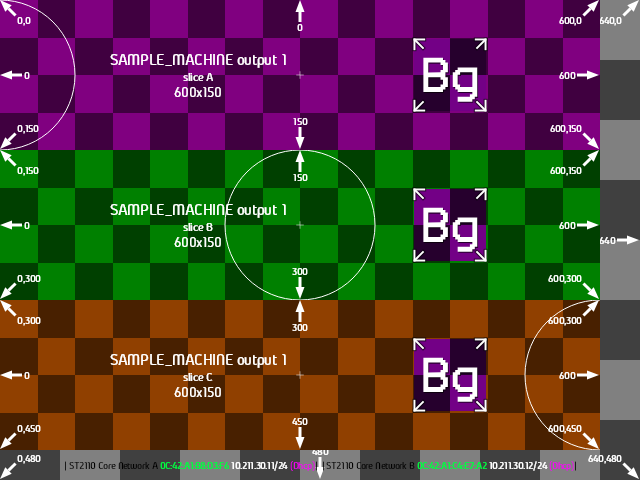
BgRaster is a fast console application designed to generate and assign per-display wallpapers for Windows systems. Inspired by Sysinternals BgInfo, it has been modernized to cater to creative professionals such as AV technicians, video engineers, and real-time graphics specialists.
Key Features:
Generates one PNG file per display, sized to the monitor's native resolution and anchored to its desktop position.
Supports multiple layers including text, network adapter info, custom logos (SVG/PNG), alignment grids, crosshairs, and solid backgrounds.
Utilizes format strings with ${tokens} for dynamic substitution and allows independent size and color cycling per rendered line.
Offers slicing functionality to split outputs into multiple regions, each with different settings.
Runs in a short-lived and idempotent manner: it exits after completing its task and skips re-rendering when configuration, version, and hardware fingerprint match the previous run.
Configurable via TOML files with CLI overrides, ensuring flexibility and ease of use.
Audience & Benefit:
Ideal for creative professionals who need dynamic and customizable wallpapers for multi-display setups. BgRaster provides a fast, efficient solution to visualize network status, machine identification, or custom graphics across multiple screens without runtime dependencies.
Installable via winget, it runs as a portable single-file executable built for speed through NativeAOT compilation.
README
BgRaster
Inspiration
BgRaster is inspired by the classic Sysinternals utility BgInfo. It was executed perfectly in 2000, but its structure and features feel dated today. In particular, it's focused on the needs of an IT administrator from that era. It's missing many features that would be valuable to a creative professional in the 2020s.
Summary
BgRaster is a fast console application that uses modern frameworks and APIs to generate and assign wallpapers for any displays it finds. It has many features targeted at creative professionals like AV technicians, video engineers, and real time graphics specialists. It has a rich set of command-line options, but its full power lies in its TOML configuration files.
The source is free under the MPL-2.0. Using the official builds (BgRaster.zip from GitHub Releases, and the Chocolatey and winget packages) in revenue-generating activities, by an organization or self-employed professional with at least USD 10,000 in annual gross revenue, requires the fee under OSMFEULA.txt. Whoever owns the computers that run BgRaster pays, once, not per computer or per job: USD 10, 40 or 60 per month for fewer than 10, 10 to 100, or more than 100 employees, with one-time annual tiers available. The fee is per application: it covers BgRaster, and other GameshowPro applications have their own. Hobbyists, schools, charities, anyone below the threshold and organizations that have engaged Barjonas LLC owe nothing. The fee funds maintenance, not support. Prefer not to pay? Build from source instead. To pay, become a Sponsor.
Full details:
Highlights
One PNG per video output - each Windows monitor receives a wallpaper sized to its native resolution, anchored to its desktop position.
Multiple layers - text, network adapter info, labeled edges, custom logos (SVG/PNG), alignment grids, crosshairs, and solid backgrounds, each with independent positioning and styling.
Format strings - ${tokens} for dynamic substitution in text and network layers, with `` line breaks and independent size/color cycling per rendered line.
Slices - outputs have one slice by default, but can be split into any number, each with different settings.
Short-lived - BgRaster runs until its work is done then exits. No lingering processes, no HTML rendering overhead, no OS hooks.
Idempotent - early-exits when configuration, version, and hardware fingerprint all match the previous run.
Portable - single-file .exe without runtime dependencies, built for speed via NativeAOT compilation.
Sample output
View sample TOML
--8<-- "sample-config/readme-sample.toml"
Supported environments
Component
Requirement
OS
Windows 10 1809+ or Windows 11
Architecture
x64
Privileges
Any user
DPI
Per-Monitor v2 aware
Linux and macOS are not supported - the project is intentionally Windows-specific.
When does the wallpaper get updated?
Like the original BgInfo, BgRaster runs gets its work done as fast as possible and shuts down. Depending on your use case, you might want to automate its execution with a login script, scheduled task or simply a desktop shortcut.
Quick start
> [!NOTE]
> Options 1 to 3 install official builds, which the maintenance fee covers for revenue-generating use. Option 4 builds BgRaster yourself, and no fee applies to that.
Option 1 - Chocolatey
With Chocolatey installed and the default repository in your sources list, run the following from an administrative PowerShell session (Chocolatey installs machine-wide and requires elevation):
choco install BgRaster -y
> [!NOTE]
> Chocolatey packages undergo a moderation process which can take several days to a week. If the Chocolatey badge shows a version older than the latest GitHub release and you want the new version immediately, please use winget or the manual installation option below.
Option 2 - winget
With the Windows Package Manager (winget, included in Windows 10 1809+ and Windows 11), run:
winget install GameshowPro.BgRaster
This unzips BgRaster into winget's package store and exposes it as a BgRaster command on your PATH.
> [!NOTE]
> Running this command in an administrative shell is recommended so that later you can run BgRaster from any directory without specifying its full path.
>
> Like Chocolatey, winget submissions are moderated and can lag the latest GitHub release by a few days.
Option 3 - Manual Install
Download the latest BgRaster.zip from the Releases page, unzip it, and place the extracted files anywhere on disk. BgRaster.exe and libSkiaSharp.dll need to stay in the same folder. If you want debugging symbols, download BgRaster.pdb separately.
The published binary lands in src/bin/Release/net10.0/win-x64/publish/BgRaster.exe.
First run, no arguments
.\BgRaster.exe
This writes one PNG per discovered output to %TEMP%\BgRaster\ and a lastRun.toml describing what it did. The PNGs as assigned to the desktop of each output.
If the file you specified doesn't exist, it will be created containing the defaults that were used. This is a great starting point for your own custom configuration.
The next time you run, it will load its config from this file rather than using defaults. If you don't specify a config file path, it will still find it if it exists in one of the default locations:
In the same folder as BgRaster.exe.
%LocalAppData%\BgRaster
%AppData%\BgRaster
%ProgramData%\BgRaster, but only if administrators control it
The %ProgramData% example above must run from an administrative (elevated) shell. A non-elevated shell makes you the owner of the folder and file, and BgRaster then ignores that file when no --config is given. See Machine-wide config.
Sample configurations
Identification overlay - show machine name, output index, and resolution on each screen:
[text]
format = ["${MachineName} output ${OutputIndexPlusOne}"]
subtitle = ["${Width}x${Height}"]
size = ["3vh"]
x = ["85vw"]
y = ["85vh"]

[background]
color = ["#101820"]

[grid]
size = ["100px"]
coordinates = [true]
Network adapter info - display MAC, IP addresses, speed, and status per output:
`` tokens create line breaks. Size and color arrays cycle independently per rendered line - first adapter name gets size[0]/color[0], first IP line gets size[1]/color[1], wrapping around.
Per-output color wash - cycle red / green / blue across three outputs:
[background]
color = ["#FF0000", "#00FF00", "#0000FF"]
Slice a 4K wall into four HD quadrants:
[[output]]
target = 0

[[output.slice]]
x = "0"
y = "0"
width = "50vw"
height = "50vh"

[[output.slice]]
x = "50vw"
y = "0"
width = "50vw"
height = "50vh"

[[output.slice]]
x = "0"
y = "50vh"
width = "50vw"
height = "50vh"

[[output.slice]]
x = "50vw"
y = "50vh"
width = "50vw"
height = "50vh"
Labeled edges - show desktop coordinates at screen edges for alignment (great for multi-projector blends):
As a project started in 2026, yes, substantial parts of this application were built using AI tools. I could never have achieved the application scope, automation, test framework, and quality of documentation in my spare time without it. Be assured that the design, concept, functional testing, and documentation proof-reading burned many human neuron hours.
I also built BgRaster to make it easy to have your LLM of choice help you with your complex configurations. Just point it at this documentation, describe what you're looking for, and have it generate the config file for you.
Authors
Hi, I'm Hamish Barjonas. I provide custom solutions for the broadcast production, live entertainment, and sports industries. Yes, including game shows. See more details here. As a keen FOSS advocate, I try to keep as much non-customer-specific code open for the wider community as possible, under the GameshowPro umbrella. If you're in a related industry, I'd love to collaborate! You can contact me here.
License
BgRaster is open source under the Mozilla Public License 2.0. You can use it, modify it, embed it in your own products and redistribute it. If you distribute changes to BgRaster's own files, those changes must be published under the MPL. Combining BgRaster with your own proprietary code is fine.
The official builds are covered by the maintenance fee described above; the source itself is not.
"BgRaster" is a trademark; the license covers copyright and patents, not the name. See TRADEMARKS.md for what that does and does not allow, which is more permissive than people usually expect.
Contributions are welcome. See CONTRIBUTING.md for the grant that is asked for and why.
 BgRaster