Nanopad



A simple, portable Win32 text editor in the spirit of classic Windows Notepad.
Developed with the assistance of AI tooling.
See CHANGELOG.md for release-to-release user-facing changes.
Read more about my experiences with AI and this project on my blog.
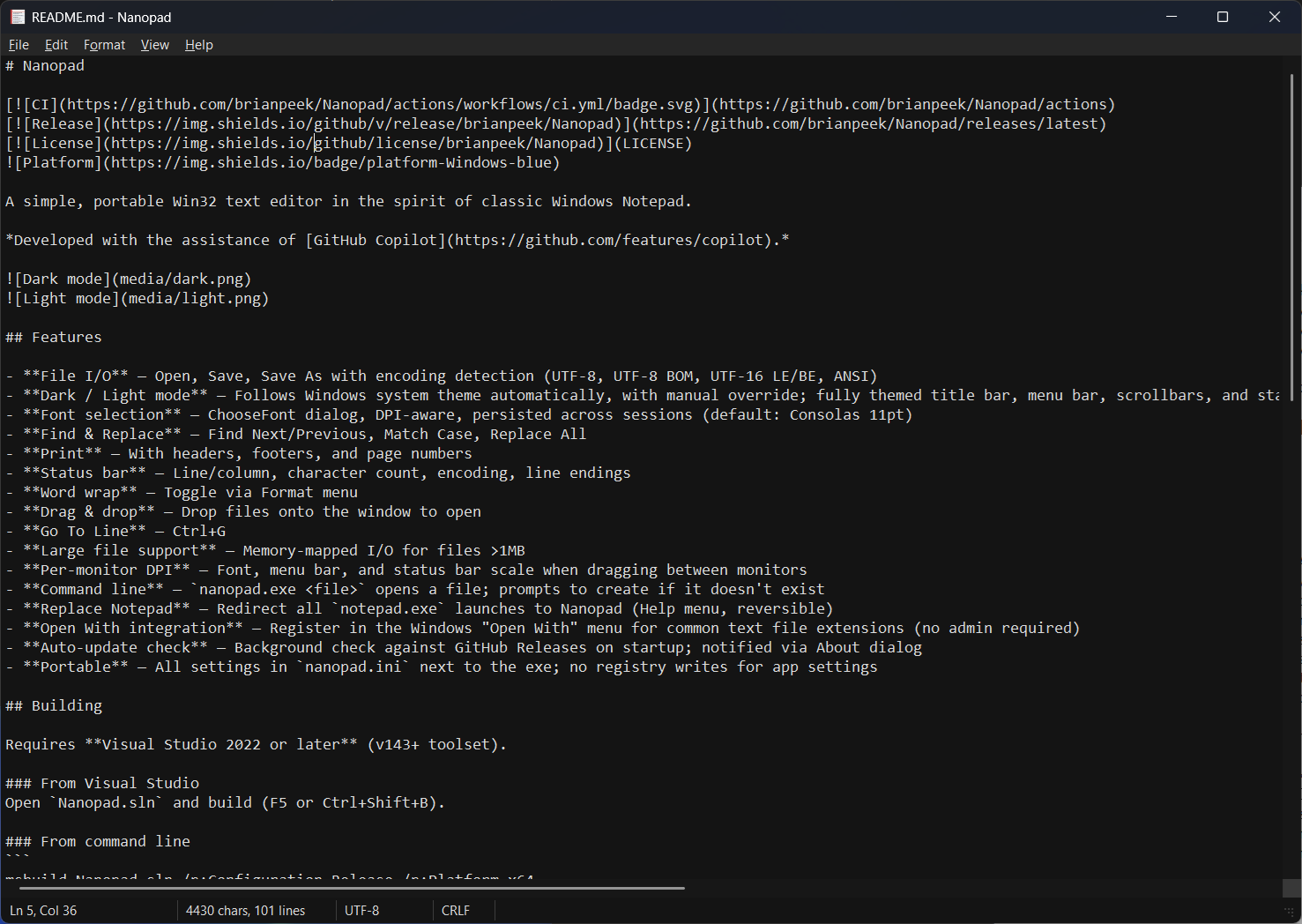
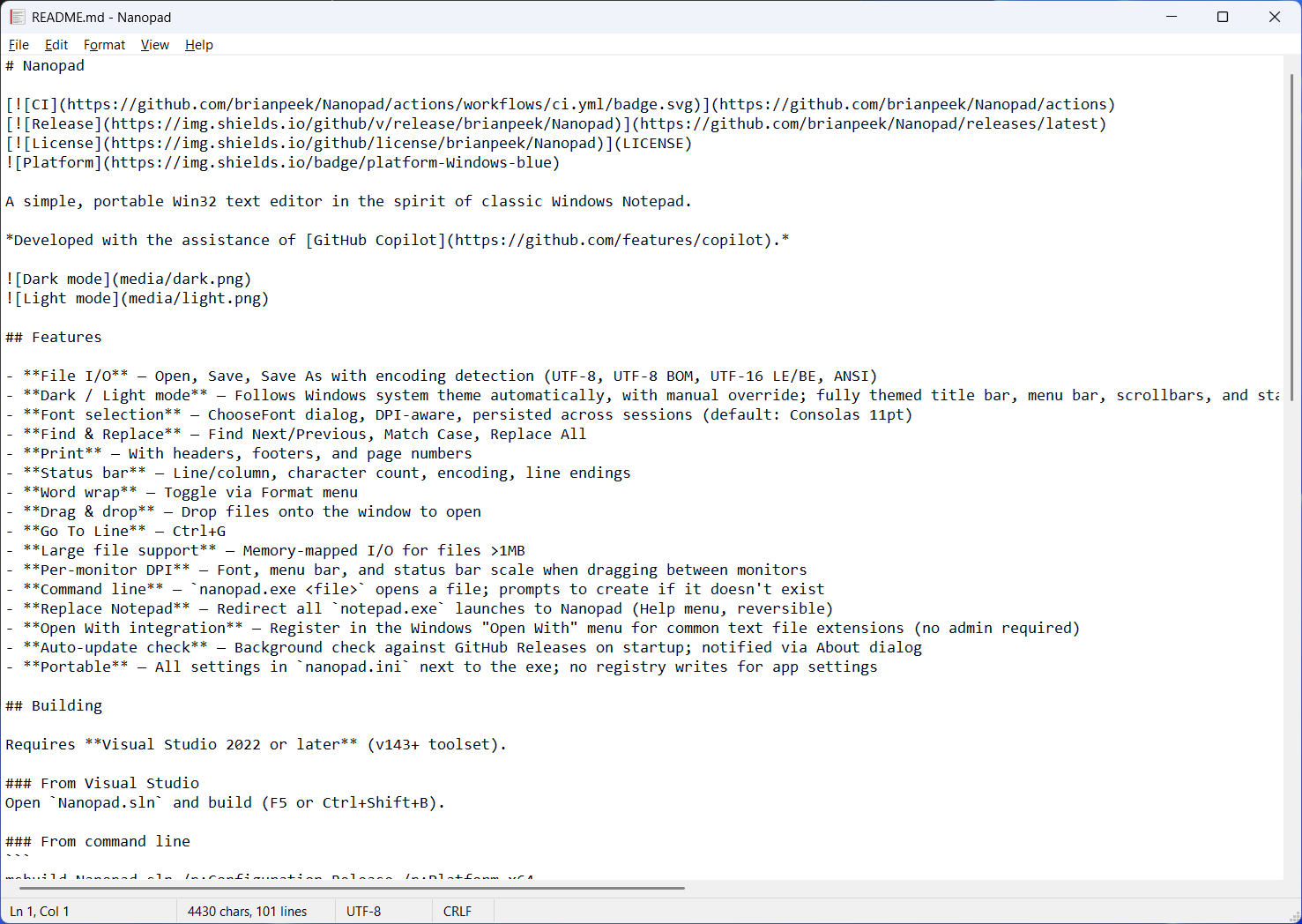
Features
- File I/O — Open, Save, Save As with encoding detection (UTF-8, UTF-8 BOM, UTF-16 LE/BE, ANSI)
- Dark / Light mode — Follows Windows system theme automatically, with manual override; fully themed title bar, menu bar, scrollbars, and status bar
- Font selection — ChooseFont dialog, DPI-aware, persisted across sessions (default: Consolas 11pt)
- Zoom — Ctrl+mouse wheel, View menu (Zoom In/Out, Restore Default Zoom), or Ctrl+Plus / Ctrl+Minus / Ctrl+0
- Find & Replace — Find Next/Previous, Match Case, Replace All
- Triple-click — Selects the whole line under the cursor
- Print — With headers, footers, and page numbers
- Status bar — Line/column, character count, encoding, line endings
- Word wrap — Toggle via Format menu or Alt+Z
- Drag & drop — Drop files onto the window to open
- External file reload — Reloads when the open file changes on disk; prompts first if you have unsaved edits
- Crash & shutdown recovery — Autosaves unsaved text and offers to restore it after a crash, power loss, or a Windows Update restart; registers for automatic restart so Windows relaunches Nanopad after an update reboot
- Go To Line — Ctrl+G
- Large file support — Memory-mapped I/O for files >1MB
- Per-monitor DPI — Font, menu bar, and status bar scale when dragging between monitors
- Command line —
nanopad.exe opens a file; prompts to create if it doesn't exist
- Replace Notepad — Redirect all
notepad.exe launches to Nanopad (Help menu, reversible)
- Open With integration — Register in the Windows "Open With" menu for common text file extensions (no admin required)
- Explorer context menu — Add "Edit with Nanopad" to the right-click menu for all files
- Auto-update check — Background check against GitHub Releases on startup; notified via About dialog
- Portable — All settings in
nanopad.ini next to the exe; no registry writes for app settings
Building
Requires Visual Studio 2022 or later (v143+ toolset).
From Visual Studio
Open Nanopad.sln and build (F5 or Ctrl+Shift+B).
From command line
msbuild Nanopad.sln /p:Configuration=Release /p:Platform=x64
Output: bin\Release\nanopad.exe
CI/CD
- Push/PR to master — Builds Debug + Release automatically via GitHub Actions
- Tag a release —
git tag v1.0.0 && git push --tags triggers a release build that creates a GitHub Release with a zip containing the exe, README, CHANGELOG, and SHA256 checksum
- Version is stamped automatically from the git tag into
version.h — no manual version bumps needed
System Requirements
- Windows 10 1809+ for full feature set (dark mode, themed menus/scrollbars, DPI scaling)
- Windows 10 1607+ runs with graceful degradation (dark mode features silently disabled)
- All dark mode APIs are loaded dynamically — no hard dependencies on specific Windows versions
Keyboard Shortcuts
| Shortcut | Action |
|---|
| Ctrl+N | New |
| Ctrl+O | Open |
| Ctrl+S | Save |
| Ctrl+Shift+S | Save As |
| Ctrl+P | Print |
| Ctrl+Z | Undo |
| Ctrl+X/C/V | Cut/Copy/Paste |
| Ctrl+A | Select All |
| Ctrl+F | Find |
| F3 / Shift+F3 | Find Next / Previous |
| Ctrl+H | Replace |
| Ctrl+G | Go To Line |
| Ctrl+Plus / Ctrl+Minus | Zoom In / Out |
| Ctrl+0 | Restore Default Zoom |
| Alt+Z | Toggle Word Wrap |
| Ctrl+Shift+W | Close Window |
Settings
Stored in nanopad.ini next to the executable (portable — no registry writes):
- Font face, size, weight, italic, charset, quality
- Theme mode (System / Light / Dark)
- Word wrap on/off
- Window position, size, and state (normal/maximized)
- Original Notepad debugger value (for safe restore after Replace Notepad)
Unsaved text is autosaved to a transient per-instance nanopad-recovery-.recovery file next to the executable. It is written on shutdown and periodically while editing, then deleted on a clean exit; if it survives (crash, power loss, or update restart) Nanopad restores it automatically on the next launch -- no prompt. Each running instance uses its own file, and when several sessions are recovered each is reopened in its own window.
System Integration
Add to Open With
Help → Add to Open With registers Nanopad in the Windows right-click "Open with" menu for common text file extensions (.inf, .ini, .log, .ps1, .psd1, .psm1, .scp, .txt, .wtx). Uses HKCU — no admin required. Toggle off to unregister.
Help → Windows Integration → Add "Edit with Nanopad" to Explorer adds a right-click context menu entry for all file types. Uses HKCU — no admin required. On Windows 11, appears in "Show more options". Toggle off to unregister.
Replace Notepad
Help → Replace Notepad redirects all notepad.exe launches system-wide to Nanopad via Image File Execution Options. Requires administrator privileges (UAC prompt). The original IFEO state is saved to nanopad.ini and can be fully restored by unchecking the option.
License
MIT
Contributing
See CONTRIBUTING.md and AI_POLICY.md.