xlflow HarumiWeb
Use this command to install xlflow:
winget install --id=HarumiWeb.Xlflow -e Excel VBA development framework for CLI-first humans and AI agents.
winget install --id=HarumiWeb.Xlflow -e Excel VBA development framework for CLI-first humans and AI agents.

Excel VBA development, rebuilt for CLI-first humans and AI agents.





xlflow is an Excel VBA development framework for the AI agent era.
It turns .xlsm workbooks into a source-controlled, CLI-driven development workflow where VBA can be exported, edited, linted, imported, tested, traced, and executed from the command line.
> [!TIP] > Think of xlflow as a development harness around Excel VBA: it does not replace Excel, but it makes Excel VBA projects much easier to operate from terminals, scripts, CI-like local checks, and AI coding agents.
These samples were created by an AI agent using xlflow with only minimal natural language instructions.
  <img src="docs/images/world-news.png" width="100%" />
  Macro that summarizes world news in Excel using NewsAPI


  <img src="docs/images/stock-price.png" width="100%" />
  Macro that retrieves stock prices and displays them in Excel


  <img src="docs/images/gen-qrcode.png" width="100%" />
  Macro that generates QR codes using cell colors and displays them in Excel


  <img src="docs/images/tetris.gif" width="100%" />
  Macro that allows playing Tetris within Excel


  <img src="docs/images/space-invader.gif" width="100%" />
  Macro that allows playing Space Invader on a UserForm


  <img src="docs/images/calendar-picker.png" width="100%" />
  Rich calendar picker
Traditional VBA development is still heavily tied to the Excel UI and the Visual Basic Editor. That works for small manual edits, but it becomes painful when you want repeatable development, source control, tests, diffs, or AI-agent-assisted changes.
| Pain in normal VBA development | What xlflow adds |
|---|---|
VBA code is trapped inside .xlsm files | Export/import VBA as .bas, .cls, and .frm source files |
| UserForms cannot be handled declaratively | Generate UserForms from YAML definitions with xlflow form build |
| Runtime failures are hard to locate | Return structured errors, diagnostics, and trace logs |
| Workbook changes are hard to review | Compare values, formulas, sheets, and exported VBA source |
| AI agents cannot safely operate Excel through the UI | Provide stable CLI commands and JSON output |
pull → fmt → edit → push → lint → test/run → inspect
| Area | Capabilities |
|---|---|
| Source control | Export and import standard modules, class modules, UserForms, and document modules |
| Execution | Run macros from the CLI with typed arguments |
| Testing | Discover and run VBA test procedures |
| Formatting | Conservative, non-destructive VBA formatting for .bas and .cls source files |
| Linting | Catch Option Explicit omissions, Select/Activate, broad error handling, implicit variants, public module fields, and interactive operations |
| GUI safety | Detect file pickers, input boxes, modal message boxes, and other automation-hostile boundaries |
| Debugging | Collect trace events and return runtime diagnostics |
| Diffing | Compare workbook cell values, formulas, sheet structure, and exported VBA source |
| AI agents | Return stable JSON and install bundled Skills for Codex, Claude, Cursor, Gemini, GitHub Copilot-style agent workflows, and other agents |
> [!IMPORTANT] > xlflow is Windows-first. Workbook operations use Microsoft Excel + COM + PowerShell.
| Requirement | Needed for |
|---|---|
| Windows | Excel COM automation |
| Microsoft Excel | new, init, list forms, inspect form, form snapshot, form build, form export-image, pull, push, run, export-image, edit, test, macros, trace, doctor |
| PowerShell | Excel automation bridge |
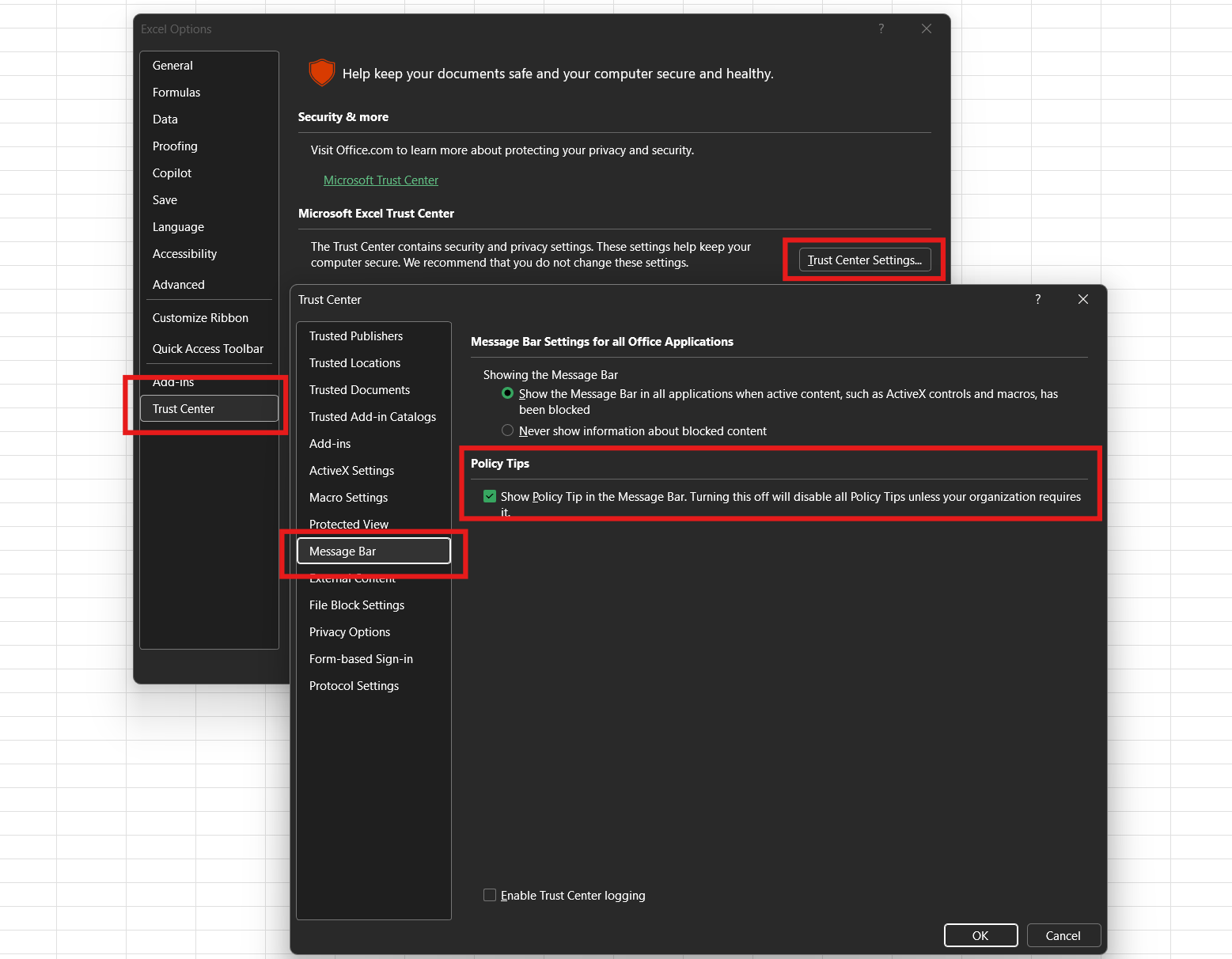
| Trust access to the VBA project object model | Reading and writing VBA projects |
> [!NOTE]
> Commands that do not require Excel COM, such as lint, fmt, parts of diff, and Go unit tests, can be verified in non-Excel environments.
> [!WARNING]
> In Excel, enable Trust access to the VBA project object model before using commands that read or write VBA code. Without it, pull, push, run, and related commands may fail even when Excel itself is installed.
>
> Details
> In Excel options, please enable "Trust Center" → "Macro Settings" → "Trust access to the VBA project object model".
> 
winget install HarumiWeb.Xlflow
Use upgrade to update an existing installation:
winget upgrade HarumiWeb.Xlflow
> [!NOTE] > winget availability may lag behind a GitHub Release while the manifest is submitted and accepted upstream. > Use Scoop or the GitHub Releases ZIP when you need the newest release immediately.
scoop bucket add harumiweb https://github.com/harumiWeb/scoop-bucket
scoop install xlflow
Download prebuilt Windows binaries from:
https://github.com/harumiWeb/xlflow/releases
> [!IMPORTANT]
> Current prebuilt distribution targets Windows only.
> Commands that interact with workbooks still require Microsoft Excel, Excel COM automation, and Trust access to the VBA project object model.
> The release binary already embeds the runtime PowerShell bridge scripts, so xlflow.exe can run workbook commands without sidecar *.ps1 files.
Verify the downloaded ZIP against the published checksums.txt file:
Get-FileHash .\xlflow_windows_x86_64.zip -Algorithm SHA256
certutil -hashfile .\xlflow_windows_x86_64.zip SHA256
The reported SHA256 must match the entry for xlflow_windows_x86_64.zip in checksums.txt.
> This confirms file integrity against the published checksum file. It does not prove publisher identity and is not a substitute for Windows Authenticode signing.
Verify the GitHub Actions provenance attestation with GitHub CLI:
gh attestation verify .\xlflow_windows_x86_64.zip --repo harumiWeb/xlflow
> This confirms the artifact attestation published for the release artifact. It does not mean the ZIP is Authenticode-signed by a Windows publisher certificate.
go install github.com/harumiWeb/xlflow/cmd/xlflow@latest
go install may contact the Go module mirror and checksum database configured in your Go environment. For direct source checkout development and CI, treat the Go version declared in go.mod as the supported toolchain source of truth; the repository CI and release workflows resolve Go from that file.
Verify the installation:
xlflow version
xlflow --help
For development checkout usage:
go run ./cmd/xlflow --help
With Taskfile:
task run -- --help
Create a new xlflow project and macro-enabled workbook:
xlflow new Book.xlsm
new automatically pushes the scaffolded VBA modules into the new workbook, so a later pull starts from the same initial source.
Or start from an existing workbook:
xlflow init Book.xlsm
init automatically pulls VBA out of the copied workbook into src/, so you can edit source files immediately without a separate bootstrap pull.
Install the AI agent Skill during project creation:
xlflow new Book.xlsm --with-skill --agent codex
Interactive xlflow new and xlflow init render a welcome banner and may check the latest GitHub Release through the GitHub Releases API. Disable that request for one invocation with --no-update-check, or set XLFLOW_NO_UPDATE_CHECK=1 to disable it for interactive scaffolding in your environment.
xlflow doctor --json
> [!TIP]
> If pull, push, run, or test fails because of Excel, COM, PowerShell, or VBIDE settings, run doctor first.
xlflow pull --json
Edit the exported .bas, .cls, and .frm files under src/ with your normal editor. When folder mode is enabled, nested directories under each configured source root are mapped to Rubberduck-compatible @Folder(...) annotations during push.
xlflow push --json
xlflow macros --json
xlflow run Main.Run --json
For unattended automation, prefer headless mode:
xlflow run Main.Run --headless --json
If the macro uses XlflowUI.MsgBox or XlflowUI.InputBox, keep the run headless by providing scripted responses. Add --ui-stream when you want realtime dialog visibility in the terminal while preserving JSON stdout:
xlflow run Main.Run --headless --msgbox confirm-save=yes --inputbox customer-name=fallback-user --ui-stream --json
--ui-stream writes lines such as xlflow: ui kind=msgbox id=confirm-save source=default result=yes to stderr and keeps InputBox values redacted by default. When --ui-stream is enabled, the final JSON result also includes the same dialog activity under top-level ui.events.
If the macro intentionally shows file pickers, message boxes, or UserForms, use interactive mode:
xlflow run Main.Run --interactive --timeout 5m --json
xlflow lint --json
xlflow test --json
When a test run uses XlflowUI, you can use the same response flags and realtime stream:
xlflow test --msgbox test-confirm=ok --inputbox test-user=alice --ui-stream --json
When having an AI agent edit VBA using xlflow, it is recommended to install the Skill provided by xlflow into the agent's environment.
xlflow skill install
You can also install it at the same time you launch a project.
xlflow new Book.xlsm --with-skill
If you wish to manage skills using a manager such as vercel-labs/skills, please install the skill as follows.
npx skills add harumiWeb/xlflow/internal/agentskill/templates --skill xlflow
While you can leave the creation of the project itself to an AI agent, it is recommended that the initial project setup be performed by a human.
xlflow new Book.xlsm --with-skill
Using the installed skill, please provide instructions for what you want to achieve in natural language.
/xlflow Create a macro that enters "Hello, world!" into cell A1 using VBA
The bundled xlflow skill also teaches agents when to add --ui-stream for headless XlflowUI flows, how to keep stdout JSON-safe, and how to interpret the final human-readable UI section or JSON ui.events payload.
Use attach when a human has Excel open and you want to validate the active workbook before working with it:
xlflow attach --active --json
> [!NOTE]
> attach is a safety check. It confirms that the active Excel workbook matches the configured excel.path; it does not change the target used by pull, push, or run.
Inspect GUI boundaries before deciding whether a macro can run headlessly:
xlflow inspect-gui --json
| Result | Recommended action |
|---|---|
| No GUI boundaries | xlflow run ... --headless --json |
File picker, InputBox, modal MsgBox, or UserForm detected | Use XlflowUI.MsgBox and XlflowUI.InputBox |
| GUI code wraps core logic | Refactor core logic into parameterized headless procedures |
> [!WARNING]
> Headless automation and modal Excel UIs do not work well together. We recommend using inspect-gui before unattended execution and replacing existing MsgBox or InputBox calls with XlflowUI.
New xlflow new projects include src/modules/XlflowRuntime.bas. During xlflow run and xlflow test, xlflow injects a workbook-scoped execution mode marker before user VBA starts, so code can branch without process inspection hacks.
If XlflowRuntime.IsHeadless() Then
  Debug.Print "running unattended in " & XlflowRuntime.ModeName()
Else
  MsgBox "Running interactively"
End If
run --headless resolves to headless, run --interactive resolves to interactive, and test resolves to test. Plain run falls back to interactive unless the xlflow process environment sets XLFLOW_MODE=interactive|headless|ci|agent|test.
| Command | Purpose | Typical usage |
|---|---|---|
new | Create a new xlflow project and .xlsm workbook | xlflow new Book.xlsm |
init | Initialize xlflow from an existing workbook | xlflow init Book.xlsm |
doctor | Diagnose Excel, COM, PowerShell, and VBIDE access | xlflow doctor --json |
attach | Validate the workbook currently active in Excel | xlflow attach --active --json |
backup list | List rollback-capable workbook backups | xlflow backup list --json |
pull | Export VBA components into src/ | xlflow pull --json |
push | Import VBA source back into the workbook | xlflow push --json |
rollback | Restore the workbook from a saved backup | xlflow rollback --latest --json |
session | Keep the configured workbook open for fast loops | xlflow session start |
status | Show project, source, workbook, and session state | xlflow status --json |
save | Save the workbook held by a session | xlflow save --session --json |
runner | Manage the persistent xlflow runner marker module | xlflow runner install --json |
process | Manage local Excel processes (list, cleanup) | xlflow process list --json |
macros | Discover runnable macro entrypoints | xlflow macros --json |
list forms | Discover workbook UserForms and expected source paths | xlflow list forms --json |
form snapshot | Persist strict Designer UserForm state as JSON or YAML spec |
Detailed command behavior, options, JSON payloads, and troubleshooting notes now live in the documentation site.
Use the README as a quick overview and the documentation site as the source for command-level details.
xlflow reads xlflow.toml from the project root.
# Project identity and entry point.
[project]
# Project name used in output messages. Falls back to the workbook base name.
name = "Book"
# Default macro invoked by xlflow run when no positional macro is given.
entry = "Main.Run"

# Excel automation settings.
[excel]
# Path to the workbook, relative to the project root or absolute.
path = "build/Book.xlsm"
# Make the Excel application window visible during automation.
visible = false
# Suppress Excel alert dialogs (e.g. overwrite confirmations).
display_alerts = false

# Source tree directories.
[src]
# Directory for standard .bas modules.
modules = "src/modules"
# Directory for class .cls modules.
classes = "src/classes"
# Directory for UserForm .frm files.
forms = "src/forms"
# Directory for workbook document module text.
workbook = "src/workbook"

# VBE component folder support (Rubberduck-style).
[vba]
# Enable @Folder("A.B") annotations and nested source paths.
folders = true
# How xlflow handles @Folder annotations during push.
# Valid values: "update", "preserve", "ignore".
#   "update"    – rewrite from source directory layout.
#   "preserve"  – keep existing annotations as-is.
#   "ignore"    – disable folder annotation read/write.
folder_annotation = "update"
# Automatically assign default folder annotations based on source paths.
default_component_folders = true

# UserForm source mode.
[userform]
# Where UserForm code-behind lives in the source tree.
# Valid values: "frm", "sidecar".
#   "frm"     – code is kept inside the exported .frm file.
#   "sidecar" – code is split into src/forms/code/.bas.
code_source = "sidecar"

# Static analysis rules.
[lint]
# Require Option Explicit in every module.
require_option_explicit = true
# Forbid Select / Activate patterns.
forbid_select = true
# Forbid Activate usage.
forbid_activate = true
# Forbid On Error Resume Next.
forbid_on_error_resume_next = true
# Detect implicitly typed Variant variables.
detect_implicit_variant = true
# Forbid public fields in standard modules.
forbid_public_module_fields = true
# Forbid interactive input (MsgBox, InputBox, etc.) in headless runs.
forbid_interactive_input = true
project.entry is used when xlflow run is invoked without a macro name.
Set forbid_interactive_input = false when the project intentionally uses dialogs or UserForms and you want to suppress VB007 warnings. This only affects lint output; xlflow run --headless still blocks GUI boundaries.
Syntax safety lint rules for typographic quotes, C-style quote escapes, unclosed or mismatched procedures, and malformed line-continuation underscores are always enabled because they prevent VBE compile dialogs before push or run opens Excel.
In new projects, the following helper modules are scaffolded on the workbook side:
src/modules/XlflowRuntime.bassrc/modules/XlflowUI.bassrc/modules/XlflowDebug.bassrc/modules/XlflowAssert.basThe purpose of each module is as follows:
XlflowRuntime is used for branching execution modes: interactive, headless, ci, agent, and test.XlflowUI wraps MsgBox, InputBox, Application.GetOpenFilename, Application.FileDialog, Application.GetSaveAsFilename, and folder pickers, allowing the same VBA to be used for both interactive and unattended execution.XlflowDebug mirrors XlflowDebug.Log to the terminal during xlflow run / xlflow test while maintaining standard VBA Immediate Window output.XlflowAssert is a minimal scalar assertion helper used for workbook-side testing.Example:
Dim answer As VbMsgBoxResult
Dim files As Variant

answer = XlflowUI.MsgBox("confirm-save", "Save workbook?", vbYesNo + vbQuestion, "Orders")
files = XlflowUI.GetOpenFilename("source-files", MultiSelect:=True)
XlflowDebug.Log "running in", XlflowRuntime.ModeName()
In unattended execution, you provide dialog responses via the CLI.
xlflow run Main.Run --headless --msgbox confirm-save=yes --filedialog get-open:source-files=C:\temp\a.txt --filedialog get-open:source-files=C:\temp\b.txt --ui-stream --json
If you want to treat a headless file dialog as "Cancelled," use @cancel.
xlflow run Main.Run --headless --filedialog folder:export-dir=@cancel --json
To introduce bundled helper modules into an existing project, you can use the following commands during bootstrap or as an add-on:
xlflow init LegacyBook.xlsm --with-module
xlflow module install --push
Every command can return AI-agent-friendly JSON by passing --json.
The basic envelope is:
{
  "status": "ok",
  "command": "lint",
  "error": null,
  "logs": []
}
On failure, status is failed, and error.code and error.message are returned.
{
  "status": "failed",
  "command": "run",
  "error": {
    "code": "macro_failed",
    "message": "Main Err 5: inputPath is required",
    "source": "Main",
    "number": 5,
    "phase": "invoke_macro"
  },
  "logs": []
}
> [!TIP]
> AI agents and automation scripts should treat status, command, error.code, and command-specific top-level fields as the primary contract.
| Code | Meaning |
|---|---|
0 | Success |
1 | Validation failure, such as lint, macro, or test failure |
2 | CLI argument or configuration error |
3 | Environment error, such as Excel, COM, VBIDE, or PowerShell failure |
> [!NOTE]
> diff returns exit code 0 even when differences are found. Inspect diff.summary.total_diffs to determine whether inputs differ.
MIT License. See LICENSE.
xlflow form snapshot UserForm1 --out src/forms/specs/UserForm1.yaml --json |
form build | Create a Designer-backed UserForm from a saved spec | xlflow form build src/forms/specs/UserForm1.yaml --json |
form export-image | Export a runtime UserForm to a PNG image | xlflow form export-image UserForm1 --out artifacts/UserForm1.png --json |
run | Execute a macro from the CLI | xlflow run Main.Run --json |
export-image | Export a worksheet range to a PNG image | xlflow export-image --sheet QR --range A1:AE31 --json |
edit | Mutate a live session workbook for setup and tuning | xlflow edit cell --sheet Input --cell B2 --value ABC123 --session --json |
trace | Enable, collect, and clean VBA trace logs | xlflow trace enable --json |
test | Run VBA tests | xlflow test --json |
diff | Compare workbook content and optional VBA source | xlflow diff before.xlsm after.xlsm --json |
inspect | Inspect saved workbook snapshots or explicit live session state | xlflow inspect range --sheet Result --address A1:F20 --session --json |
lint | Lint VBA source | xlflow lint --json |
fmt | Format VBA source conservatively | xlflow fmt --write --json |
analyze | Analyze runtime-risk patterns without opening Excel | xlflow analyze --json |
check | Run lint, analyze, and doctor as a preflight | xlflow check --keepalive --json |
inspect-gui | Detect GUI interaction boundaries | xlflow inspect-gui --json |
skill install | Install the bundled xlflow Skill for AI agents | xlflow skill install --agent codex |
version | Show the installed xlflow build metadata | xlflow version |