PigeonPost
🌐 Website ·
🔒 Privacy Policy ·
⬇️ Microsoft Store ·
⬇️ GitHub Releases ·
🐛 Support
PigeonPost is a lightweight Windows 11 tray application that exposes a simple
local HTTP API for transferring files and clipboard content from any network-connected
device to your Windows PC.
Any HTTP-capable client can use it — automation tools like Android Tasker,
command-line utilities like curl, scripts, or custom apps.
No cloud service, no account, no setup beyond the app itself.
The HTTP API is fully documented in the wiki —
making it straightforward to build a native companion app for Android, Linux, macOS,
or any other platform.
iPhone and iPad users can get the PigeonPost Companion app:

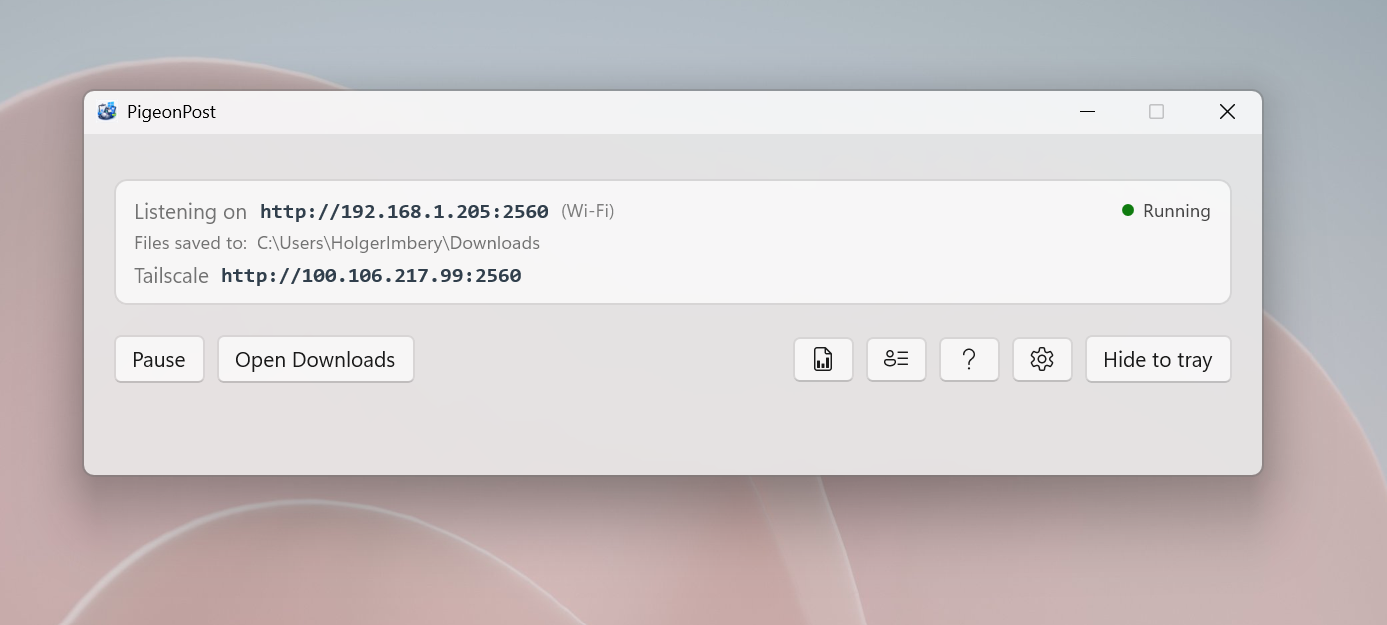 minimal layout
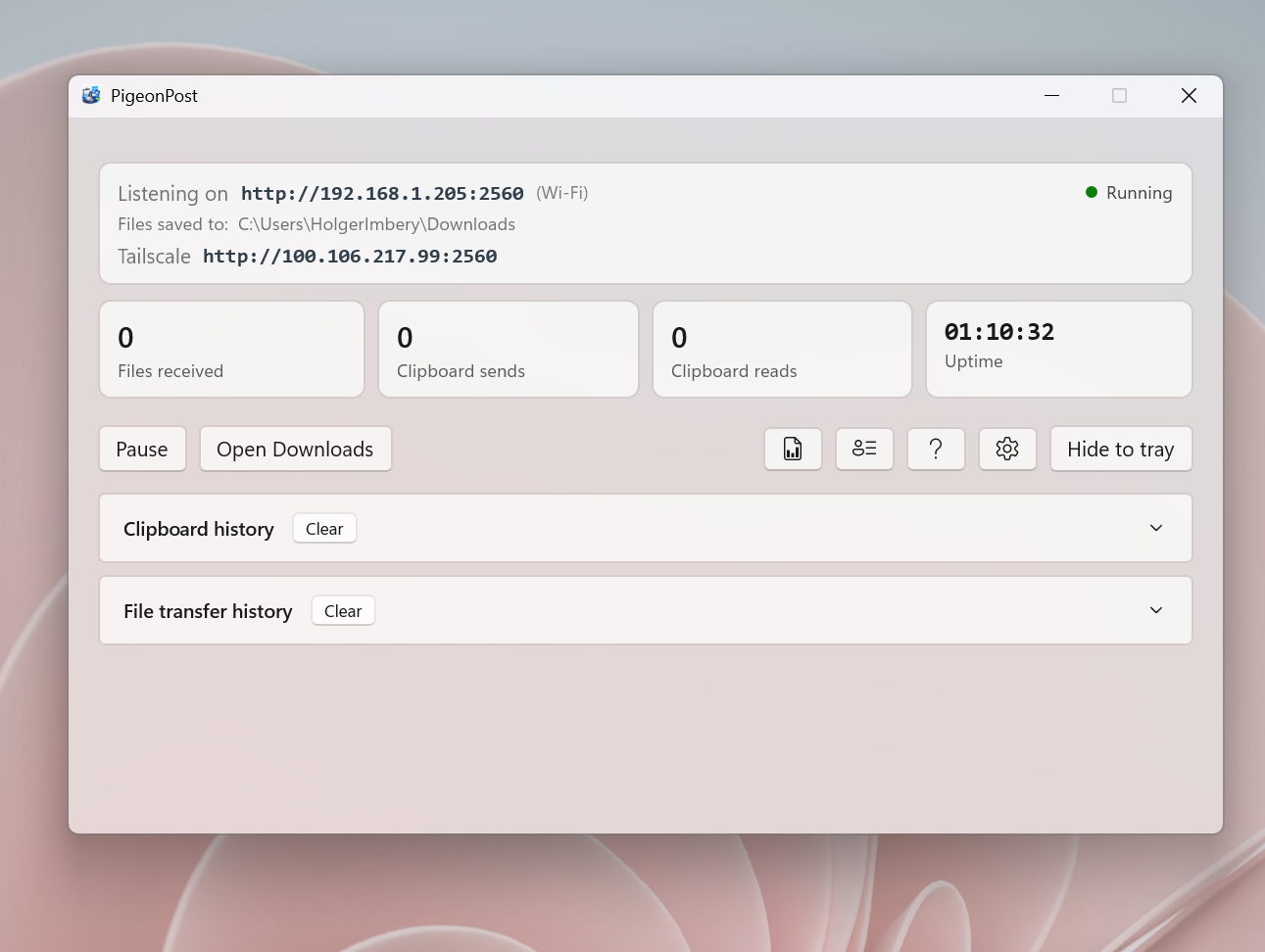 maximal layout
What you get
- Local HTTP API on port 2560 — receive files, read and write the clipboard
- Pigeon + envelope app icon shown in the title bar, taskbar, and Alt+Tab
- Mica window with automatic dark / light theming (Windows 11 Fluent colour palette)
- Live status indicator mirrored on the tray icon (green = running, amber = paused)
- Stat cards: Files received · Clipboard sends · Clipboard reads · Uptime
- Collapsible activity log with colour-coded entries that adapt to the current theme; every entry shows the sender's IP address
- Pause / Resume — keeps the port open but returns
503 to all incoming requests
- Open Downloads button
- Settings dialog (⚙️ gear button) — split into basic and advanced sections. The "Show advanced settings"
ToggleSwitch sits at the very top of the Settings window so it is always reachable. Basic covers: downloads folder, theme, autostart, notifications, features, and updates. Advanced (revealed by the toggle) covers: Security (bearer token, IP allowlist, token rotation), Keep Awake, Network (port, virtual adapter filtering), and Webhook. Advanced settings are hidden by default so standard users see only what they need
- Feature toggles (Settings → Features) — individually show or hide the Peers menu button, the Clipboard history panel, and the File transfer history panel (all default to
false); individually show or hide each of the four stat cards — Files received, Clipboard sends, Clipboard reads, and Uptime (all default to true); the main window height adjusts automatically whenever a panel or card section is toggled
- Bearer token authentication — optional; generate a random token once, copy it to any client, toggle enforcement on/off without restarting the server
- Configurable HTTP port (Settings → Network) — choose any port from 1024 to 65535 (default 2560); the listener restarts automatically on save
- Maximum file size limit (Settings → Files) — reject oversized uploads with HTTP 413 before buffering; set to 0 for unlimited
- Subfolder routing — received files can be saved into subdirectories automatically; path traversal is sanitised
- IP allowlist (Settings → Security) — block requests from unlisted IPs using exact addresses or CIDR ranges; empty list accepts all
- Server token rotation reminder (Settings → Security) — configure a reminder interval in days; an amber ⚠ warning appears when the token is overdue for rotation
- Toast notification on receive (Settings → General) — Windows toast fires whenever a clipboard item or file is received
- Clipboard history panel — collapsible panel in the main window; keeps the last 50 received clipboard texts with timestamp, source IP, and preview; enable in Settings → Features → Show Clipboard history
- Image clipboard support — receive images via
clipboard: send with an image Content-Type; supports JPEG, PNG, GIF, BMP, TIFF, HEIF
- File transfer history panel — collapsible panel in the main window; keeps the last 100 received files with time, filename, size, and source IP; Open and 📁 Show in Folder buttons per entry; Clear button; enable in Settings → Features → Show File transfer history
- Help button (❓) — opens the GitHub repository documentation in your default browser
- Minimize to tray — the close button hides the window; left-click the icon to restore
- Tray context menu: Show window · Pause / Resume · Quit
- Start with Windows — optional autostart toggle; app launches hidden to tray
- Smart network monitoring — detects WiFi ↔ LAN switches, IP changes, and offline events; restarts the listener automatically on relevant changes; shows interface type
(Wi-Fi) / (Ethernet) / (Offline) next to the listen address
- Virtual adapter filtering — automatically excludes Hyper-V, VMware, and VirtualBox virtual adapters from IP selection; configurable in Settings → Network
- mDNS / Bonjour auto-discovery — advertises the server as
_pigeonpost._tcp on the local network so the iOS companion app can find your PC automatically without typing an IP address
- PC-to-PC Peers — push clipboard text or files directly to other PigeonPost instances on the same network; peers are auto-discovered via mDNS, optionally secured with a bearer token, and saved for quick reuse; supports broadcast to all peers, send text directly to a peer, and peer groups
- Keep Awake — allow trusted peer PCs to prevent sleep / screensaver via
keepawake: ping; configurable whitelist in Settings → Keep-awake; supports scheduled keep-awake windows so the PC stays awake automatically during configured time windows (e.g. Mon-Fri 09:00-18:00)
- Webhook on receive (Settings → Webhook) — fire a JSON POST to a configured URL on every file or clipboard receive; fire-and-forget so webhook failures never delay the operation; includes a Test webhook button
- Auto-update — checks GitHub Releases on startup and every 24 hours; shows an in-app banner when a new version is available; one click installs and restarts
- Multi-language UI — fully localised in 7 languages: English (en-US), German (de-DE), French (fr-FR), Spanish (es-ES), Italian (it-IT), Hindi (hi-IN), and Simplified Chinese (zh-CN); auto-detects Windows display language or lets you choose a different language manually in Settings → Appearance → Language; restart required to apply
- Demo / Presentation Mode — two-PC presentation tool; the sender PC loads a
.txt script and pushes each line to the receiver's clipboard one by one; the receiver shows an always-on-top overlay with the current and next line; navigation via buttons or Ctrl+Shift+←/→/R on both windows
PC-to-PC Peer Sharing
PigeonPost can push clipboard content and files directly to other PigeonPost instances running on the same network — no cloud relay, no account.
Open the Peers window (🖥️ button in the main window — enable via Settings → Features → Show Peers menu) to:
- Discover — nearby PigeonPost PCs appear automatically via mDNS/Bonjour while the window is open
- Save — click Add to Peers on a discovered machine (or fill in the form manually) and optionally add a bearer token for authenticated endpoints; assign an optional group tag (e.g.
Home, Work) for filtering
- Edit — update the name, host, port, token, or group of any saved peer at any time with the ✏️ button
- Send — click Send Clipboard or Send File on any saved peer to push content instantly; use the ✉ button to send text directly to a peer without touching the local clipboard
- Broadcast — click Send Clipboard to All to push the current clipboard to every saved peer at once; use the group filter and Send to Group to target a specific group
Full setup and usage details are in the PC-to-PC Peers wiki page.
Authentication
PigeonPost includes optional bearer token authentication — disabled by default.
Full details (setup, client usage, curl examples, status codes) are in the
HTTP API Reference → Authentication wiki page.
Localization
PigeonPost is fully localised. Every label, tooltip, and message is available in
7 languages:
| Language | Locale |
|---|
| English | en-US |
| German | de-DE |
| French | fr-FR |
| Spanish | es-ES |
| Italian | it-IT |
| Hindi | hi-IN |
| Simplified Chinese | zh-CN |
Go to Settings → Appearance → Language to switch. Choose Auto-detect (follows
your Windows display language) or select a language manually. A restart is required
to apply the change.
Want to contribute a translation? See the
Adding a New Language
wiki page. All translations are .resw resource files — no coding required.
Demo / Presentation Mode
Demo Mode turns two PigeonPost PCs into a presentation script runner:
- Sender PC (PC 2) — loads a
.txt file (one line per slide/clip), then sends
each line to the receiver's clipboard on demand.
- Receiver PC (PC 1) — an always-on-top overlay shows the current clipboard
content and a preview of the next line.
Navigation works via buttons in either window or with keyboard shortcuts —
Ctrl+Shift+→ (next), Ctrl+Shift+← (back), Ctrl+Shift+R (resend) — on both
the sender and receiver.
Full setup and usage details are in the
Demo / Presentation Mode
wiki page.
Install
Option 1 — Microsoft Store (recommended)
The preferred installation method. Get PigeonPost from the Microsoft Store for automatic system-managed updates and a fully verified installation:

https://apps.microsoft.com/detail/9N8PQB3FXMZH?hl=en-us&gl=DE&ocid=pdpshare
Option 2 — winget
Install via Windows Package Manager from the command line:
winget install HolgerImbery.PigeonPost
To upgrade later:
winget upgrade HolgerImbery.PigeonPost
Option 3 — GitHub Releases (direct installer)
Download the installer for your architecture from the latest GitHub Release and run it.
> ⚠️ Beta releases (versions with a -beta.* suffix) are development and testing builds published for early feedback. They may contain bugs, incomplete features, or breaking changes. For production use, always install the latest stable release. Beta builds are clearly marked on the Releases page.
| Architecture | Installer |
|---|
| Intel / AMD 64-bit (most PCs) | PigeonPost-win-x64-Setup.exe |
| ARM 64-bit (Snapdragon X, Surface Pro X, …) | PigeonPost-win-arm64-Setup.exe |
> ⚠️ Note: The installer downloaded from GitHub is not code-signed. Your browser may show a security warning when downloading, and Windows SmartScreen may prompt you before running it. This is expected behaviour for unsigned executables — the file is safe. To avoid these warnings, prefer the Microsoft Store or winget options above.
The installer is built by Velopack and handles installation, Start Menu shortcuts, and future auto-updates.
Each architecture has its own update feed (releases.win-x64.json / releases.win-arm64.json).
Velopack stamps the channel into the installation so the in-app updater always fetches the correct feed automatically — no configuration required.
Documentation
Full documentation is in the project wiki:
| Page | Description |
|---|
| HTTP API Reference | Clipboard operations (including images), file transfer with subfolder routing, IP allowlist, bearer authentication, status codes, and curl examples |
| iOS Shortcuts | Step-by-step Shortcuts setup for iPhone / iPad (English + German) |
| Remote Access | Tailscale setup (Windows 11 + iOS), creating a tailnet, enabling HTTPS |
| Localization | Supported languages, language picker, auto-detect vs manual, contributing translations |
| Demo / Presentation Mode | Two-PC presentation tool: sender loads a script, receiver gets each line on the clipboard; navigation buttons and keyboard shortcuts |
| Build from Source | Prerequisites, build & run, Velopack publish, project layout |
| How It Works | HTTP listener binding, bearer auth, IP allowlist, clipboard/file history, webhook, mDNS, network change handling, scheduled keep-awake, dark / light mode |
| PC-to-PC Peers | Discover, save, and push clipboard / files to other PigeonPost PCs; broadcast to all peers; peer groups; scheduled keep-awake |
| Adding a New Language | Step-by-step guide to contribute a new locale: resource file, project entry, language picker, RTL support |
| Troubleshooting | Common issues, fixes, security notes, and 401 errors |
License
Copyright (c) 2026 Holger Imbery
Licensed under the MIT License — see the LICENSE file for the full text.