Use this command to install Lumina Terminal with WinGet:
winget install --id=Iewnfod.LuminaTerminal -e
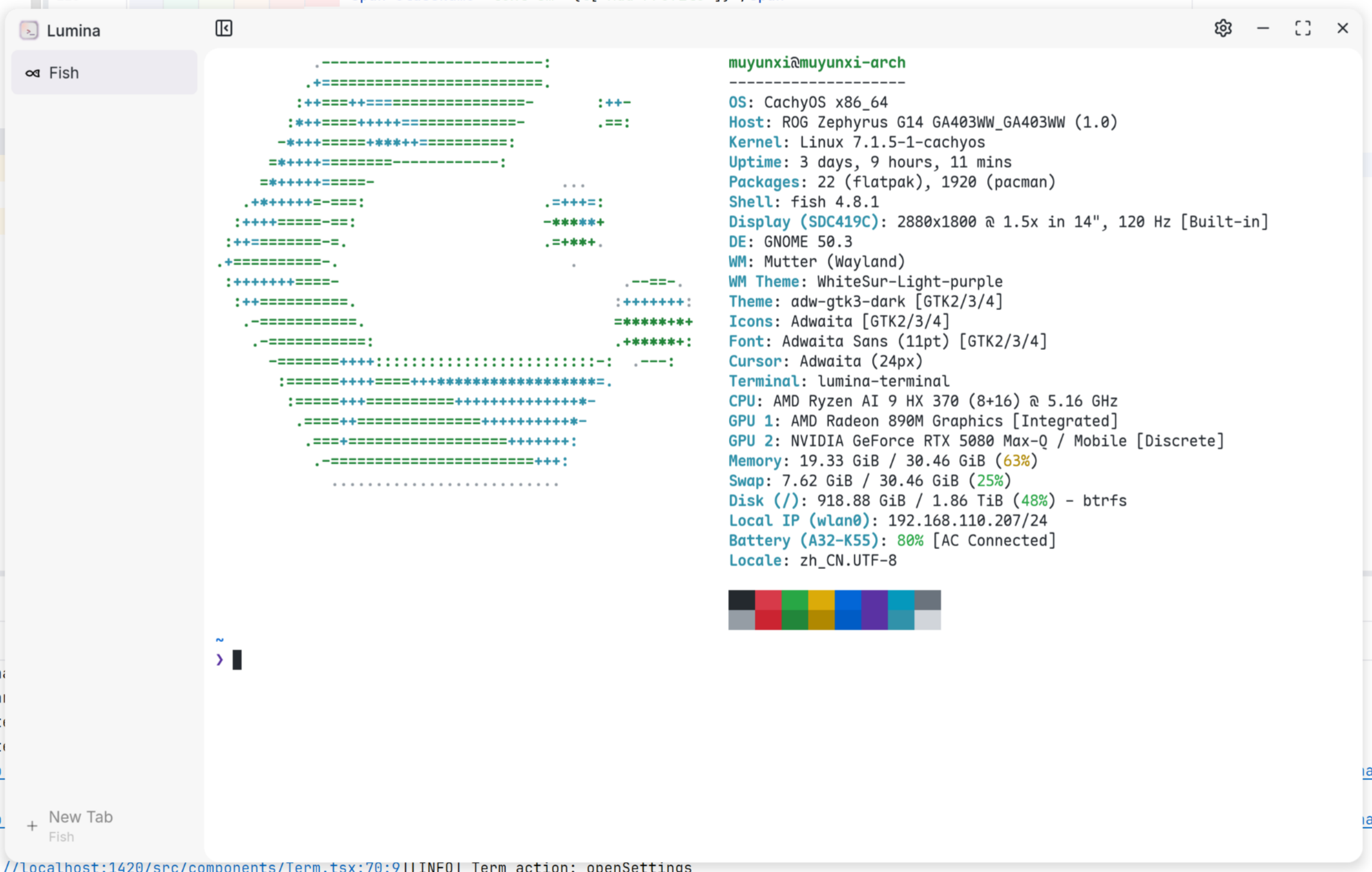
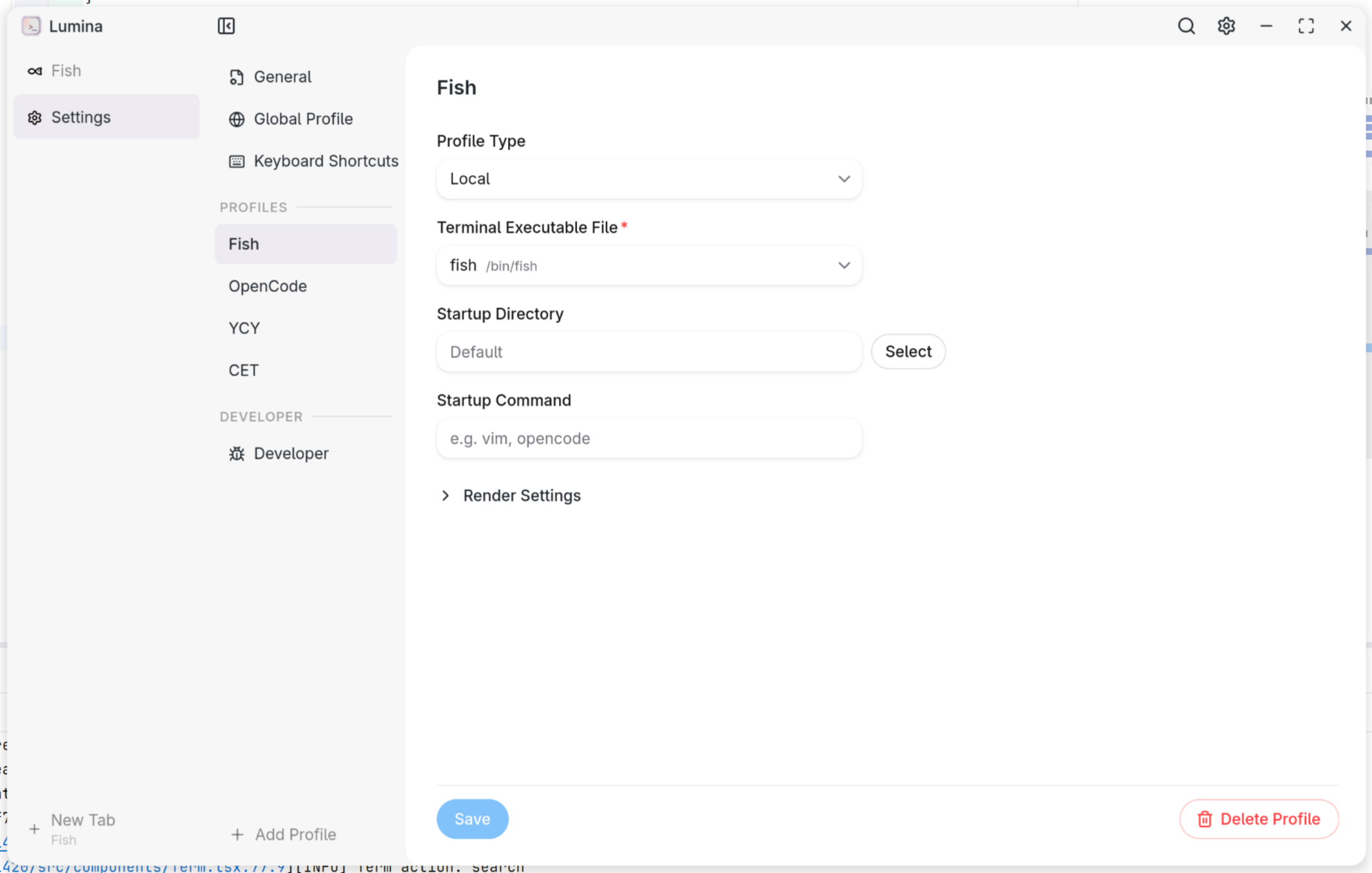
Lumina Terminal is a modern, cross-platform terminal emulator built with Tauri, React, and Xterm.js, featuring a sleek UI, a command palette, and customizable profiles. Each tab runs a real shell process with multi-tab support, tear-off tabs, find-in-terminal, configurable shells (PowerShell, WSL, Git Bash, or any executable), an optional WebGL renderer, and session save and restore.
Multi-tab terminal backed by portable-pty — each tab runs a real shell process
Tear off tabs — move a tab into its own window (Ctrl+Shift+L / Cmd+Shift+L) while keeping the running process and scrollback alive
Find in terminal (Ctrl+F / Cmd+F) — match-case / whole-word / regex with a live result counter, via addon-search
Configurable shell per profile — PowerShell, WSL, Git Bash, or any executable
Wrap a profile as an app — generate a desktop launcher (.desktop / .app / Start-Menu shortcut) that opens the profile in its own window: its own title, working directory and sidebar visibility, with the icon auto-derived from the startup command (or picked manually). Launchers regenerate on every settings save and orphaned ones prune themselves. Configure per profile in Settings → Profiles.
Optional programming ligatures via the real OpenType GSUB table (Fira Code www///, JetBrains Mono ==, …)
Chunked output batching — smoothly handles large text dumps without blocking the UI
Drag and drop files into the terminal to insert their paths; auto-resize on window/container changes
MCP server (experimental) — optionally expose terminal state (open tabs, running command, cwd, recent output) to local AI clients over a read-only loopback endpoint, via rmcp. Enable in Settings → Developer.
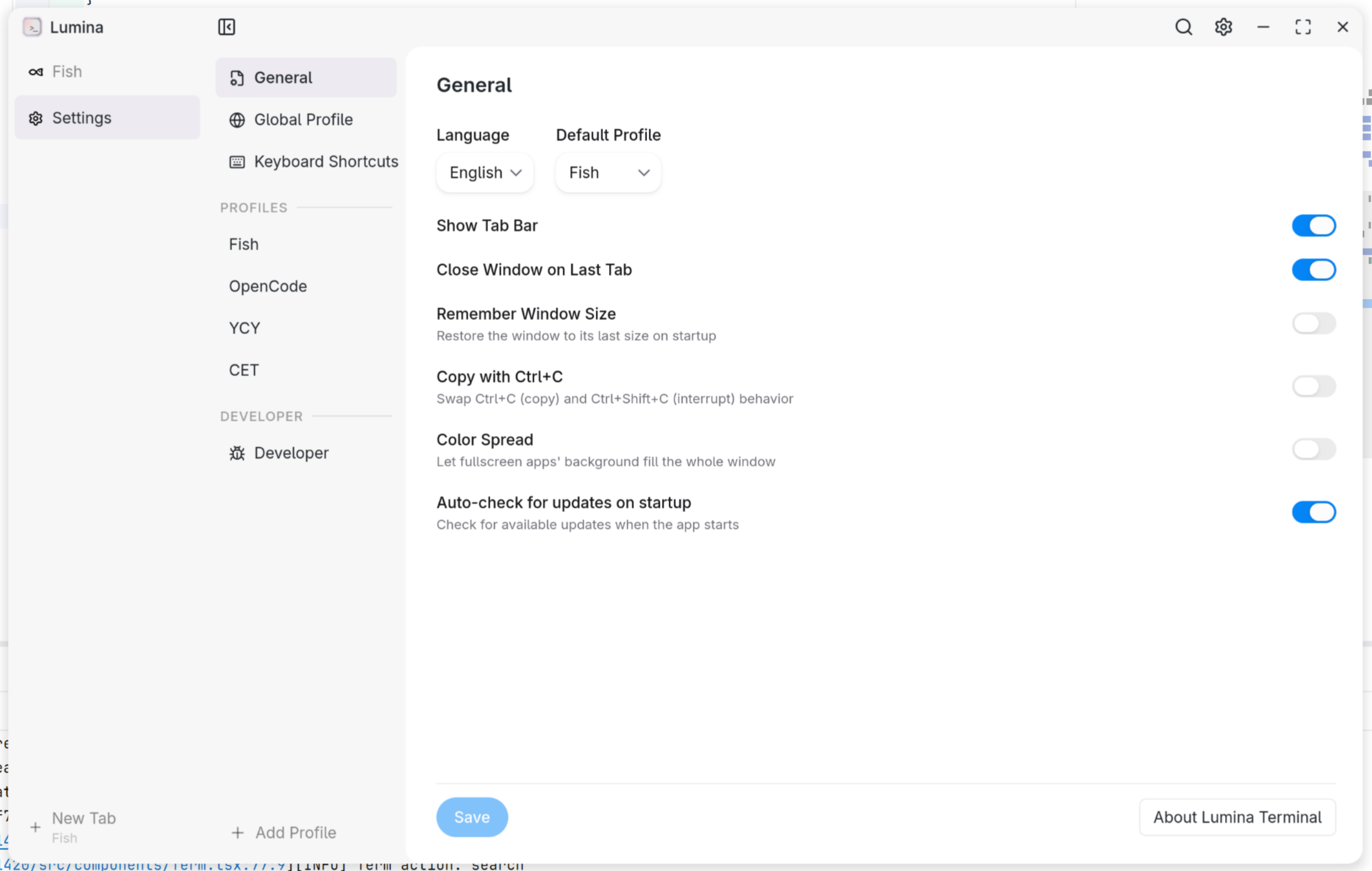
Shell completion popup — TAB in zsh/fish tabs is intercepted via shell integration: the shell's own completion candidates (commands, files, git subcommands, descriptions) are sent to Lumina and rendered as a floating, keyboard-navigable suggest popup (VSCode-style) instead of the shell's in-buffer list; accepting an entry inserts it into the line editor. A single unambiguous match completes silently. Works for new terminals while enabled; bash/nu/pwsh/SSH tabs keep native behavior. Toggle in Settings → General. An opt-in, experimental as-you-type mode requests candidates automatically after a short typing pause — no TAB needed, the popup follows along and narrows as you type (works on already-open zsh/fish terminals; off by default, may not work reliably).
Auto proxy sync — detect system proxy changes (GNOME gsettings / KDE kioslaverc / macOS scutil / Windows registry) and keep http_proxy / HTTPS_PROXY / all_proxy / no_proxy in sync inside already-running bash/zsh/fish tabs, applied silently by the shell-integration prompt hook — no restart, no visible keystrokes. Manually exported proxies are never touched. Toggle in Settings → General.
User Interface
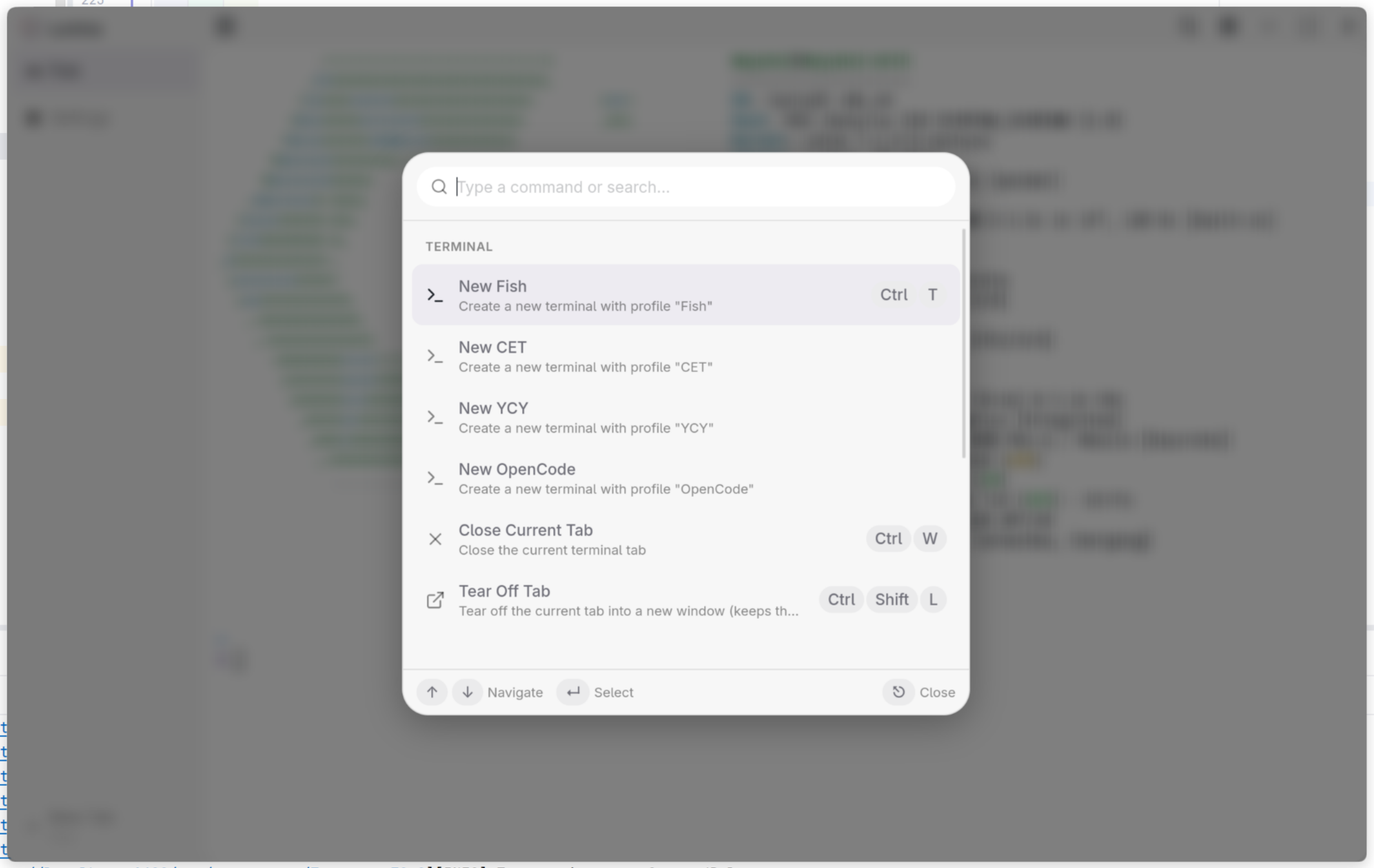
Command Palette (Ctrl+Shift+P / Cmd+Shift+P) — search and execute commands with keyboard navigation
Tab Bar — sidebar with drag region and hover-close, toggleable via title bar or palette
Command icons — the tab icon follows the running command (vim, neovim, opencode, Claude Code, …). User-defined rules: plain command names or regex matched against the whole command line, with built-in app icons or your own imported SVG/PNG. Configure in Settings → Command Icons.
Custom Title Bar — window controls integrated with the terminal theme on Windows & Linux; double-click any drag region (title bar, sidebar header, empty state) to maximize/restore
Auto Theme — UI light/dark mode syncs to the terminal background color
Color Spread — a fullscreen TUI's uniform edge background fills the window chrome for an immersive look (toggleable)
Keyboard Shortcuts
Fully customizable keybindings stored in the config file. Defaults:
Ctrl/Cmd+T — New tab · Ctrl/Cmd+W — Close tab (closes the app from the empty state)
Ctrl/Cmd+Shift+L — Tear off tab · Ctrl/Cmd+F — Find
Ctrl/Cmd+Shift+C — Copy selection · Ctrl/Cmd+Shift+A — Select all
Ctrl/Cmd+Shift+V — Paste (native Ctrl/Cmd+V paste also works)
Copy falls through to the shell when nothing is selected, so even Ctrl+C can be bound to copy and still sends SIGINT on an empty selection
Profiles
Multiple named profiles with per-profile shell, dimensions, font, theme, and startup command (e.g. vim, opencode — tab closes on exit; passed to the remote host for SSH profiles)
Custom terminal themes via JSON files (xterm.js ITheme format) with live color preview
i18n
English · Simplified Chinese (简体中文)
Welcome Wizard
First-run onboarding: language → profile → confetti finish
Command-line options
Lumina accepts Alacritty-style launch flags (with Lumina-specific --profile and --sidebar). When a tab-shaping flag (-e, --working-directory, -T, --hold, --profile) is given, a single tab is opened with the overrides and session restore is skipped; --sidebar only overrides the sidebar for this launch and does not affect tab seeding.
Flag
Description
-e, --command ...
Command + args to run on startup. Runs through the profile's configured shell; the tab closes when the command exits unless --hold is given. Tokens after it belong to the command, except Lumina's own flags (-T/--title, --hold, --working-directory, --profile), which still parse as flags — so -e nvim -T nvim runs nvim and titles the window "nvim". Use -- to pass everything after it to the command verbatim (e.g. -e -- ssh -T host).
--working-directory
Start the shell in this directory.
-T, --title
Set the window title.
--hold
Keep the terminal open (frozen, read-only) after the command exits.
--profile <NAME>
Open a configured profile by name; other flags layer on top. Falls back to the default if not found. (Lumina-specific)
--sidebar <SHOW|HIDE>
Show/hide the sidebar for this launch only, ignoring the setting without overwriting it (the first explicit toggle drops the override). (Lumina-specific)
--version / --help
Print version / usage and exit (no window).
lumina-terminal -e nvim                         # run nvim; closes on :q
lumina-terminal -e nvim -T nvim                 # run nvim, title the window "nvim"
lumina-terminal --hold -e ls -la                # run ls -la, keep the output
lumina-terminal --working-directory ~/projects -e npm run dev
lumina-terminal --profile work                  # open the "work" profile
lumina-terminal --hold --profile dev -e cargo build
lumina-terminal -T "build log"                  # set the window title
lumina-terminal --sidebar hide                  # hide the sidebar this launch (setting untouched)
Configuration
The user config lives in config.toml (TOML, hand-editable — comments included). Every option — including the ones with no Settings UI — is documented in the Configuration Reference. A legacy config.json from older versions is still parsed and migrated automatically on first launch; the original is kept as config.json.bak. The file is watched live: hand-edits apply without a restart, and the app's own saves patch the document in place, so your ordering and comments survive. Render options (font, theme, cursor, …) hot-apply to running terminals; rows/cols and the webgl toggle take effect on new terminals only.
Performance
Lumina Terminal's rendering pipeline is tuned to stay smooth under heavy output — large cat, ANSI-dense TUIs, scrolling, and unicode — while keeping memory bounded via read backpressure.
Benchmarks below use vtebench (the same suite Alacritty uses), reporting 90th-percentile sample latency (lower is better). Lumina is compared against three peers:
Alacritty — native Rust + OpenGL, the performance ceiling for any terminal
Tabby — Electron + xterm.js, a popular web-tech terminal
VS Code integrated terminal — Electron + xterm.js, the most widely used web-tech terminal
Benchmark
Lumina
Alacritty
Tabby
VS Code
cursor_motion
58ms
9ms
89ms
165ms
light_cells
41ms
8ms
60ms
138ms
medium_cells
4ms
8ms
73ms
320ms
dense_cells
135ms
25ms
247ms
473ms
scrolling_fullscreen
6ms
10ms
74ms
139ms
scrolling
257ms
158ms
198ms
730ms
scrolling_top_region
176ms
172ms
191ms
1296ms
scrolling_bottom_region
263ms
128ms
198ms
1250ms
scrolling_top_small_region
277ms
138ms
175ms
1391ms
scrolling_bottom_small_region
248ms
190ms
181ms
1364ms
sync_medium_cells
4ms
9ms
72ms
164ms
unicode
4ms
7ms
73ms
56ms
Lumina matches or beats Alacritty on several benchmarks (medium_cells, scrolling_fullscreen, sync_medium_cells, unicode) and comfortably outperforms both Tabby and the VS Code integrated terminal across the board — while running the same underlying web rendering stack.
For a pure rendering-stress test, DOOM Fire (a continuous full-screen ANSI animation) measures sustained frames per second (higher is better):
Lumina
Alacritty
Tabby
VS Code
fps
~420
~1800
~175
~60
Lumina sustains ~7× the framerate of Tabby and VS Code under continuous heavy repaint.
> Tested on AMD Ryzen™ AI 9 HX 370 w, NVIDIA GeForce RTX™ 5080 Laptop GPU, Arch Linux.
Development
git clone https://github.com/iewnfod/lumina-terminal.git
cd lumina-terminal
pnpm install
pnpm tauri dev
See CONTRIBUTING.md for the development setup, app-icon guide, and code standards. The full architecture and contributor rules live in AGENTS.md.
Technology Used
<!-- lumina:tech-stack — anchor parsed by the About page; keep on its own line -->