Pinote is a lightweight floating markdown scratchpad app designed to provide quick access for jotting down notes, TODOs, code snippets, and ideas without disrupting your workflow. Its primary purpose is to serve as an always-available tool for efficient note-taking and markdown editing.
Key Features:
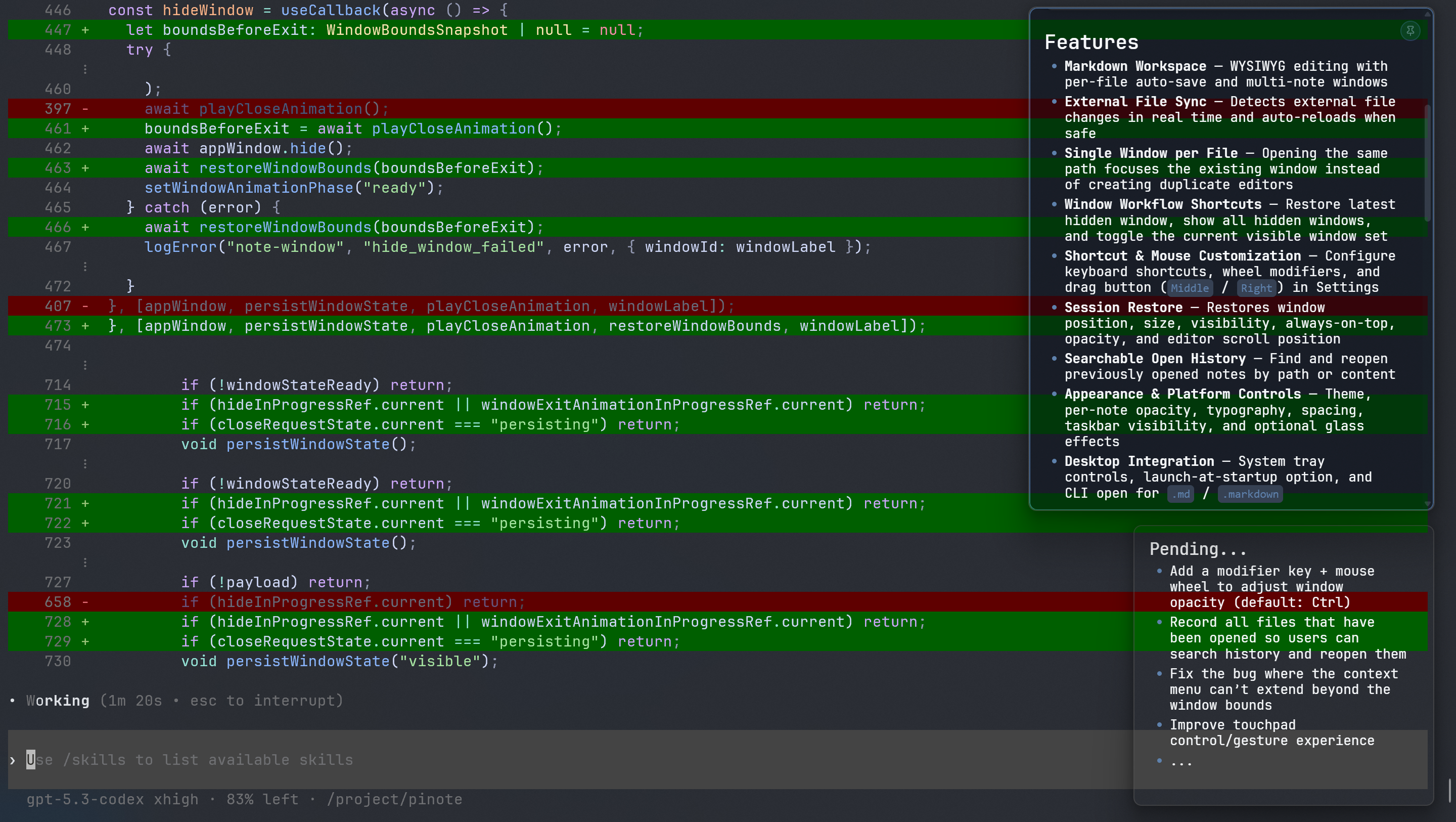
Markdown Notes: Edit Markdown content in sleek WYSIWYG windows, supporting multiple open notes simultaneously.
File Sync: Automatically detects external file changes and reloads them safely.
Window Management: Toggle features like always-on-top, read-only mode, opacity adjustments, and visibility per note.
Custom Shortcuts: Modify keyboard shortcuts, wheel modifiers, and drag button settings in the preferences menu.
Session Restore: Saves and restores window positions, sizes, and states for a seamless experience across sessions.
Appearance Customization: Adjust themes, typography, spacing, opacity, and glass effects to suit your workspace.
Audience & Benefit:
Ideal for professionals, developers, writers, and anyone who needs quick access to notes while maintaining focus on their primary tasks. Pinote enhances productivity by offering a distraction-free environment for note-taking, task management, and content creation. Its ability to sync files and restore session states ensures that your workflow remains uninterrupted, making it an essential tool for those seeking efficiency and flexibility in their digital workspace.
Pinote can be installed via winget, ensuring easy setup on compatible systems.
Pinote is a lightweight floating Markdown note app for desktop. Keep multiple notes close at hand for TODOs, code snippets, and temporary ideas without leaving your current workspace.
Markdown Notes — Edit Markdown in lightweight WYSIWYG windows, with multiple notes open at once.
File Sync — Detect external file changes and reload them when it is safe.
Window States — Set always-on-top, read-only, opacity, position, size, and visibility for each note.
Window Shortcuts — Create notes, restore hidden notes, show all hidden notes, or toggle the current visible set.
Custom Controls — Change keyboard shortcuts, wheel modifiers, and the mouse button used to move windows.
Session Restore — Restore window state, scroll position, and the last visible set after restarting Pinote.
History Search — Find and reopen previous notes by path or content.
Appearance — Choose the interface language and theme, then adjust typography, spacing, and glass effects.
Desktop Integration — Use tray controls, launch at startup, and open files from the command line. Windows also supports File Explorer context menus and Markdown file association.
Updates — Check for updates automatically at startup or manually from Settings.
Keyboard Shortcuts
Default Shortcut
Action
Alt+S
Restore hidden notes
Alt+Shift+H
Show all hidden notes
Alt+D
Show or hide notes
Alt+C
New note
Alt+A
Toggle always on top
Alt+R
Toggle read-only mode
Ctrl+Shift+D
Toggle theme
Esc
Hide note
Ctrl+Shift+W
Close note
Shortcuts can be changed in Settings. New note, restore hidden notes, show all hidden notes, and show or hide notes are global shortcuts that work from other apps.
Mouse Interactions
Default Interaction
Action
Alt + Wheel
Resize the window around the pointer
Ctrl + Wheel
Adjust note opacity
Middle click
Toggle always on top
Middle drag
Move the note window
Right click
Open the note menu
Wheel modifiers and the mouse button used to move windows can be changed in Settings. When right drag is selected, a right click still opens the note menu.
CLI
pinote /path/to/note.md
pinote ./daily.markdown
Each .md or .markdown path opens in its own note window. If the file is already open, Pinote focuses the existing window.