Simple SFTP Server
A clean, personal SFTP server for Windows: pick a folder, add a user (or hit
Quick Start), and hand someone a ready-to-paste connection card. Each user is
locked to their own folder, sign-in is by password or key, and you watch
connections and transfers live. Secure connections only.
Built by JDE-Projects, home of the Simple X Tools suite.
If you enjoyed this project and would like to buy me a coffee, check out my Ko-fi.
Preview
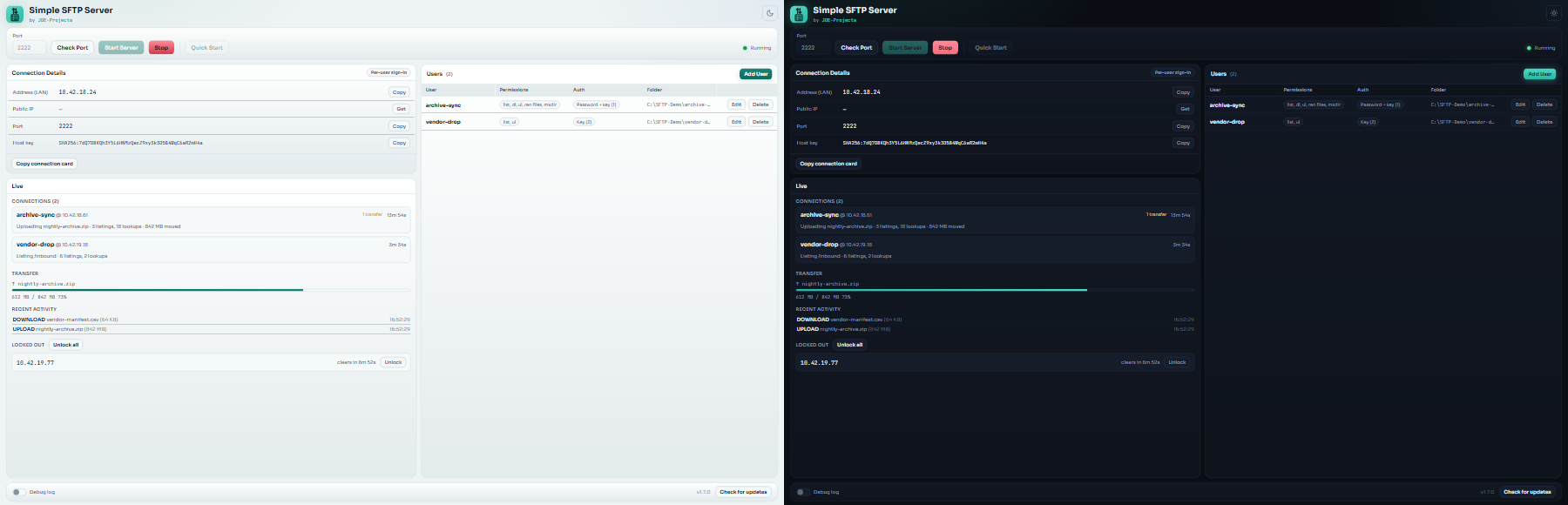 Dark and light themes
Highlights
- Quick Start: one click brings a full-access share live with a fresh random
password in a copyable connection card.
- Users with a per-user folder (a real folder picker, or "Make folder"), and a
jail so each user only ever sees inside their own folder.
- Three access modes per user: read-only, read & write, or upload-only
(a drop box). Deleting and renaming is off unless you allow it.
- Sign-in by password, public key, or both, with a built-in Ed25519 (default)
or RSA-4096 key generator for users who have none.
- Connection card: LAN address, on-demand public IP, port, and the host-key
fingerprint, all copyable for first-connection verification.
- Live panel: connected clients with what each one is doing right now (listing a
folder, reading file details, transferring), running request counts and bytes
moved, in-flight transfers, a recent-activity feed, and locked-out IPs with
one-click Unlock.
- Brute-force lockout: repeated failed logins block that account for fifteen
minutes, with an address-level backstop against password spraying and a
manual override.
- Concurrent connections are capped, per address and overall, so a flood of
half-open connections can't exhaust the server.
- Default port 2222 (no admin needed), with a plain-language message if a port
is already in use, plus a pre-flight port check.
- Built-in check for updates against GitHub Releases.
- Optional debug log, off by default; no passwords or key material are written
to it.
- Secure transport only: weak or vulnerable algorithms are disabled, so the
server runs securely or fails with a clear message (no unsafe fallback).
How it works
- Backend: paramiko over SSH/SFTP, one jailed session per connection.
- Config:
server_config.json next to the app (usernames, folders, settings,
and one-way bcrypt password hashes; never a plaintext password).
- Host identity: an Ed25519 host key generated on first run and kept next to
the app, so its fingerprint stays stable for clients to trust. An RSA host
key of 2048 bits or more, which versions up to 1.5.0 could write in rare
cases, is still accepted and kept.
- Window: pywebview on the Qt backend, UI in
simple_sftp_server-UI.html.
Download and run
Two ways to get it from the Releases page - pick one:
- Installer (recommended): download
SimpleSFTPServer-vX.Y.Z-setup.exe and
run it. It installs the app, adds a Start menu shortcut, and can be removed
later from Add or Remove Programs. Installs just for you by default (no admin
needed); you can choose all users during setup.
- Portable .zip: download
SimpleSFTPServer-vX.Y.Z.zip, extract it, and run
Simple SFTP Server.exe from inside the extracted folder. No install - good
for a locked-down PC or a USB stick. Keep the folder together; the exe needs
the files next to it.
Or install the same installer from the command line with WinGet:
winget install --exact --id JDE-Projects.SimpleSFTPServer
Either way: Windows only, no Python or setup required. Unsigned, so SmartScreen
may warn the first time: More info > Run anyway. On first connection a client
also needs your firewall to allow the port, and for access from outside your
network, a port-forward to this machine.
Updating
Simple SFTP Server doesn't update itself. The bottom bar has a Check for
updates button that tells you when a newer release is out; when it does,
get the new version from the Releases page the same way you
first installed it.
- Installer: download the new
SimpleSFTPServer-vX.Y.Z-setup.exe and run
it. It installs over your current copy and keeps your saved users, folders,
and theme choice.
- Portable .zip: download and extract the new
SimpleSFTPServer-vX.Y.Z.zip.
To keep your saved users and settings, copy server_config.json from the
old folder into the new one. Also copy host_ed25519, the server's host
key, so its fingerprint stays the same for clients who already trust it;
otherwise every client will see a fingerprint-changed warning on first
reconnect. Copy simple_sftp_server.pref too, for your theme choice.
- WinGet: run
winget upgrade --exact --id JDE-Projects.SimpleSFTPServer.
It runs the installer over your current copy, same as the Installer option
above. The WinGet listing can trail a new release by a few days while
Microsoft reviews it.
Saved-user passwords exist only as bcrypt hashes inside server_config.json,
so there's nothing else to carry over.
Verify this download (optional)
This release was built on GitHub from this public source, not on a personal
machine, and is signed with a build-provenance attestation. To confirm your
download is genuine, install the GitHub CLI and run:
gh attestation verify SimpleSFTPServer-vX.Y.Z.zip \
  --repo JDE-Projects/Simple-SFTP-Server \
  --signer-repo JDE-Projects/Build-Tools
A Verification succeeded! line means the file was built by the published
pipeline from this repo. You can also check the file against the published
.sha256.
Build from source (optional)
- Python 3 on PATH.
pip install -r requirements.txt (pinned versions: PySide6, pywebview,
paramiko, cryptography, bcrypt, and PyInstaller)- Keep
simple_sftp_server.py, simple_sftp_server-UI.html, the fonts/
folder, the .ico, and .png together.
- Run from source:
python simple_sftp_server.py
- Build the .exe:
Build_Simple_SFTP_Server.bat -> dist\Simple SFTP Server\Simple SFTP Server.exe
Using it
- Quick Start for an instant share: click it, reveal the password, and send
the connection card. The share folder is
QuickStart-Share next to the app,
with full access (read, write, delete, rename).
- For anything narrower, add a user instead: set a username, a folder, an
access mode, and a password or public key. That user is locked to that
folder.
- Press Start (or Quick Start) and give the other person the address, port,
and their sign-in details from the connection card. Have them verify the
host-key fingerprint on first connection.
- Watch the Live panel for who is connected and what is transferring. Unlock
an address if it gets locked out after failed logins.
- Generate an Ed25519 or RSA key pair for a user who needs one and hand them
the private key. The public key is filled into the user form, but it is
only saved to the account when you click Save, alongside any keys already
listed (it does not replace them).
Uploaded files keep their original modified date when the client asks for it,
as WinSCP does with its Preserve timestamp option (on by default). The server
only changes dates, and only on files uploaded in that same connection;
folders and other existing files are refused. Requests to change permissions
or ownership are refused as unsupported and nothing is changed. That includes
OpenSSH's sftp put -p, which always asks for permissions with the dates: it
shows "Operation unsupported", the file still uploads, and it gets the upload
time as its date.
Firewall and network access
The first time the server starts listening, Windows shows its own one-time
"Windows Security Alert" popup asking whether to allow the app through Windows
Defender Firewall. Clicking Allow needs administrator rights. If you are not an
administrator, or you dismiss or deny the popup, no allow rule is created (and
Windows may even add a block rule), so inbound connections stay blocked with no
further prompt on later launches.
If that happens, an administrator can add an allow rule after the fact in
Windows Defender Firewall (Control Panel > Windows Defender Firewall >
Advanced settings > Inbound Rules), allowing the app or the chosen port for
the profile you use (Private, Public, or Domain).
The app also runs a quick, read-only check of the Windows Firewall state after
it starts, and shows an amber warning in Connection Details if it looks like
the firewall may be blocking the chosen port. That check only sees Windows
Defender Firewall, so it cannot detect a third-party firewall (common in some
antivirus suites) or a router blocking the connection; no warning does not
guarantee a client on another network can reach you.
For access from outside your local network, forward the chosen port on your
router to this machine's LAN address, in addition to allowing it locally.
Third-party firewalls, if you run one, may also need the port opened
separately from Windows Defender Firewall.
Security and privacy
- Saved-user passwords are stored only as a one-way bcrypt hash and are never
shown again after you save them. Public-key users store only their public
key text. No plaintext password is ever written to disk.
- The Quick Start password lives in memory only, is revealable as often as you
like while it runs, and is wiped when you stop it; every launch makes a new
one.
- Generated passwords use a cryptographic random source: 20 characters, no
look-alikes, with letters, digits, and symbols guaranteed.
- Each user is jailed to their folder; paths that try to escape it are refused.
- Failed logins are rate-limited per account (five strikes, fifteen-minute
lockout), with a wider address-level backstop against spraying across
usernames, plus a manual unlock.
- Only modern, secure key-exchange, ciphers, and MACs are offered; known-weak
algorithms are disabled. There is no "compatibility" downgrade.
- The host key persists next to the app so its fingerprint is stable; treat
that file as private and do not commit it.
- The optional debug log is off by default; when on it writes
Debug_Log_MMDDYYYY_HHMMSS.txt next to the app. It records activity and
errors but no passwords or key material, and a redaction pass on every entry
enforces that even for captured error traces. Each file stops at 5 MiB and
logging continues in a new file. The app keeps the current file plus up to 3
older ones (20 MiB at most), deleting the oldest at launch, when logging is
turned on, and when a file fills. It deletes only files named exactly like
its own logs, and shows a warning if a log can't be written or an old one
can't be deleted.
- Network use. Other than the job you ask of it, this app makes one automatic network call: a check to GitHub for a newer release (at startup and when you press Check for updates), which sends only a version request. When you press Get for the Public IP, the app sends a plain request to api.ipify.org and falls back to checkip.amazonaws.com if needed. That service necessarily sees your public IP address because that is how the lookup works. The app collects and sends no personal data, usage data, or analytics.
- Privacy policy. The full privacy policy for this app and the other JDE-Projects tools is at https://jde-projects.com/privacy.
A note on how this was built
This project was built with AI assistance. The design decisions, feature
direction, and real-world testing were directed by me. The code was written
and revised with an AI assistant against that direction. Treat it like any
community tool: review and test it before relying on it.
License
Released under the PolyForm Noncommercial License 1.0.0 (see
LICENSE). Personal and any noncommercial use, modification, and
noncommercial redistribution are permitted; commercial use is not. Keep the
copyright notice; no warranty. This tool bundles third-party code; see
THIRD-PARTY-LICENSES.txt.
For commercial licensing, see the JDE-Projects support page.