Notchpoint
A notch for Windows 11 that shows how much of your AI usage is left.
It hangs from the top edge of your screen, hides itself until you need it, and costs about 15 MB and no measurable CPU to leave running all day.
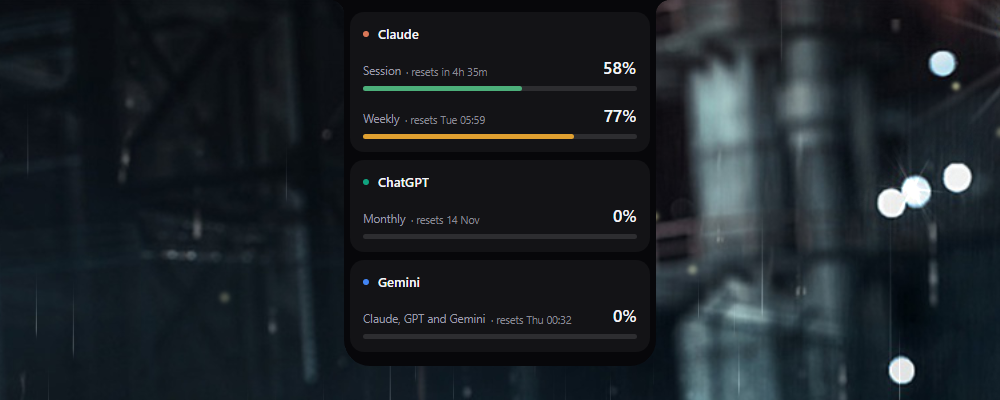
Move the mouse to the top of the screen and it appears.
Click it and it opens.

What it shows
| Provider | Read from | Windows shown |
|---|
| Claude | Claude Code's own credentials | 5-hour session, weekly |
| ChatGPT | Codex CLI's own credentials | monthly |
| Gemini | Antigravity, over loopback | a row per allowance |
Each provider shows a ring only if you have that tool installed.
A ring never draws an arc when the reading failed, because an empty ring would look like "plenty left", which is the one wrong answer a usage meter must never give.
A figure also disappears once its window resets, rather than sitting there going quietly out of date. A session reading from before its reset is not stale, it is wrong.
It also knows whether Claude Code is working or waiting on you, and spins the ring while it works.
When you hit a limit
It shows even when your usage cannot be read. If you work in the Claude desktop app, nothing refreshes the Claude Code CLI's credential file, so its token expires within hours and the usage endpoint goes quiet.
Notchpoint also reads the refusals Claude Code records in its own session transcripts, which need no credential at all. So a session or weekly limit appears within a second of hitting it, says when the window reopens, and clears itself when it does.
Install
winget install JKC.Notchpoint
That is the whole thing - winget is built into Windows 10 and 11, so nothing else is needed.
Updating
winget upgrade JKC.Notchpoint
There is no need to close Notchpoint first. The installer closes it, updates it, and opens it again, so it is back on screen as soon as the update finishes.
This works even if you installed from the download rather than through winget: winget recognises the installed copy either way.
Updating keeps your settings.
Notchpoint does not update itself or check for updates in the background, so run that now and then to pick up new versions.
Or download it
Grab the latest NotchpointSetup-x.y.z.exe from the Releases page and run it.
One file, about 11 MB, nothing else to install.
There is no .NET runtime or other prerequisite, because the app is compiled ahead of time to native code.
It installs per user, so there is no administrator prompt.
Everything goes under %LOCALAPPDATA%\Programs\Notchpoint, and it registers in Apps & Features like any normal program.
The installer offers two optional tick boxes:
- Start Notchpoint when I sign in to Windows.
- Install Claude Code session hooks. Off by default, because it edits
settings.json, where your own hooks live. It is append-only, backs the file up first, and uninstalling removes only its own entries.
With Scoop
If you use Scoop:
scoop bucket add notchpoint https://github.com/iamprincejkc/Notchpoint
scoop install notchpoint
Scoop installs it portably, so it lives under ~\scoop\apps\notchpoint with no Apps & Features entry.
scoop update notchpoint picks up new releases, and scoop uninstall notchpoint removes it.
Your settings stay in %APPDATA%\Notchpoint either way, so they survive both.
The manifests behind both package managers live in this repo: winget/ and bucket/.
First run
There is nothing to sign in to.
Notchpoint reads the credentials the tools you already use have written for themselves.
If you are signed in to Claude Code, Codex or Antigravity, the matching ring lights up on its own within a few seconds.
When a sign-in expires, that provider's card shows a Sign in button, so you can fix it where you noticed it rather than hunting through settings.
It starts the provider's own browser flow and Notchpoint picks up the result on its next read.
There is no password field in Notchpoint and there never will be.
Sign-in opens each vendor's own browser flow, and an app that asks for your Anthropic or OpenAI password directly is indistinguishable from one phishing you.
Using it
The notch stays hidden, leaving a 2-pixel strip along the very top of the screen, so it never covers a browser tab.
- Throw the mouse at the top edge to reveal it.
- Click to expand the detail card, with a bar and a reset time per window.
- Move away to dismiss it.
- Right-click the tray icon for Settings, Refresh usage now, and Quit.
A few behaviours worth knowing:
- Rings carry a letter,
C for Claude and G for ChatGPT, so you can tell them apart without relying on colour.
- A spinning arc means a Claude Code session is working right now.
- You get a tray balloon at 80% and 100% of any window, once per crossing.
- A provider only says anything about its state when something is wrong. A healthy card is just names and numbers.
- It hides completely while a fullscreen game or video owns the screen, because a topmost window costs presentation latency in games.
- Numbers refresh when you open the notch, when you bring an AI app to the front, and when you sign in to one, as well as on a timer.
Where it sits
Any screen edge, anywhere along it. The top is the default, but it can hang from the bottom, left or right instead.
- Drag it along its edge to move it. A short press still opens the card; it only moves once you drag a few pixels along the edge.
- Or set it in Settings, under Appearance: pick the edge, then slide it along.
Both take effect straight away and are remembered.
On the left and right edges the collapsed notch turns vertical, with its rings stacked, while the expanded card stays the right way up so its text is still readable.
On the bottom edge it sits just above the taskbar rather than behind it.
Settings
Right-click the tray icon and choose Settings, or run Notchpoint.exe settings.
You can change the notch size, which edge it sits on and where along it, which providers get a ring, whether it starts with Windows, whether it yields to fullscreen apps, and whether the Claude Code hooks are installed.
Privacy
- Notchpoint reads credential files, it never writes them, and it never refreshes or rotates a token. Refreshing a token behind Claude Code's back can sign you out of the tool you actually work in.
- Nothing is sent anywhere except to each provider's own usage endpoint, using that provider's own credential.
- Gemini is read over loopback from a process already running on your machine. No credential is involved.
- There is no telemetry, no analytics and no update check.
Uninstall
winget uninstall JKC.Notchpoint
Or Apps & Features, or the Uninstall Notchpoint shortcut in the Start menu.
If you installed it with Scoop, use scoop uninstall notchpoint instead.
Your settings at %APPDATA%\Notchpoint are kept on purpose, and the uninstaller tells you where they are.
Delete that folder by hand if you want them gone.
Uninstalling also removes Notchpoint's own hook entries from settings.json and leaves every other hook exactly where it was.
Requirements
- Windows 10 or 11, 64-bit.
- That is all.
Troubleshooting
"Windows protected your PC" when running the installer.
The installer is not code-signed yet, so SmartScreen warns about it.
Click More info, then Run anyway.
You can check the file against the SHA256 published on the release before you do.
A ring is missing.
Notchpoint only shows a provider whose tool is installed.
Open Settings to see what it detected.
Gemini says "not running".
That is normal and not an error, it just means Antigravity is closed.
Open Antigravity and the ring fills in by itself.
Everything looks wrong and you want to see why.
Notchpoint.exe doctor
That prints which credentials were found, whether each endpoint answered, whether the hooks are installed, and where the notch decided to place itself.
Credits
Inspired by vinzdg/codenotch for macOS.
No code is shared between the two.
Notchpoint is closed source and free to use.