Password Manager
Interface
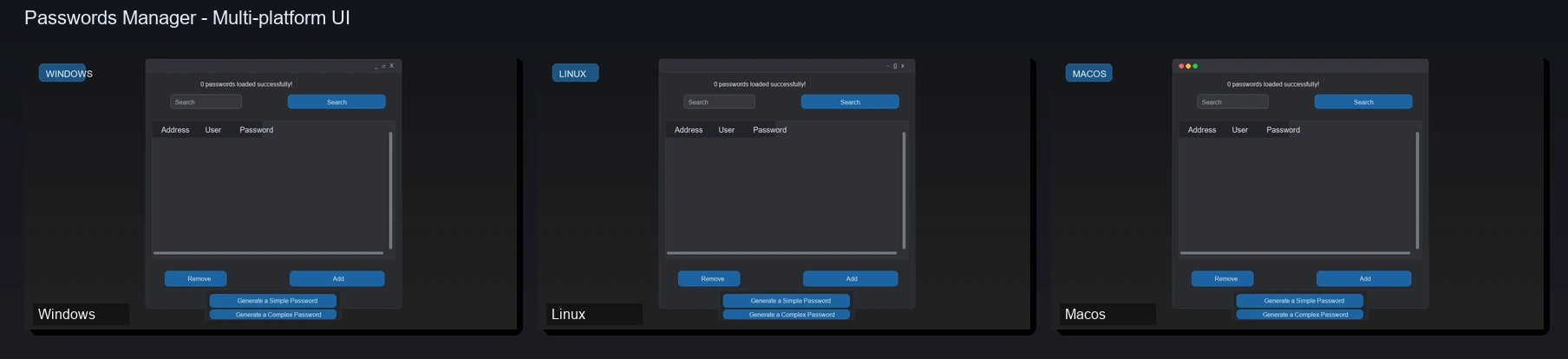



This program manages passwords saved in a passwords.json or passwords.csv file.
It can generate simple and complex passwords and save them to a passwords.json file, and also allows the addition or removal of external passwords.
If your passwords saved in a passwords.csv file, the last version of the system converts to passwords.json automatically.
🔐 Encryption System
Passwords are now automatically encrypted using the AES (Advanced Encryption Standard) algorithm through the cryptography library.
How It Works
- When saving: Passwords are automatically encrypted before being saved to the
passwords.json file
- When reading: Passwords are automatically decrypted when the program displays them
- Encryption key: A unique key is generated on first execution and saved in
encryption.key
- Automatic migration: If you have unencrypted passwords, they will be automatically encrypted on first load
- CSV conversion: If you have a
passwords.csv file, it will be automatically converted to encrypted JSON and deleted
⚠️ IMPORTANT
- Keep the
encryption.key file in a safe location! Without it, you won't be able to decrypt your passwords.
- Don't share the
encryption.key file with anyone.
- If you lose the
encryption.key file, your passwords will be permanently lost.
Automatic Migration
It's no longer necessary to run scripts manually! The system now:
- Automatically detects unencrypted passwords when loading the file
- Creates a temporary backup before migrating (deleted after success)
- Encrypts all passwords automatically
- Converts CSV files to encrypted JSON and deletes them
- All of this happens transparently on first execution
If you prefer to do the migration manually with more control, you can still use:
python migrate_to_encrypted.py
Data and Installation Compatibility
- On Windows, the program is installed in
C:\File Programs (x86)\Passwords Manager
- User data is stored in
C:\Users\\AppData\Roaming\Passwords Manager
- Compatibility with older versions is maintained by checking previous data/install locations in
AppData\Local
- During installation, if a previous version is found in
AppData\Local\Passwords Manager, the installer migrates passwords.json and the encryption key to AppData\Roaming, then removes the legacy installation before copying the new version
- Legacy key filename compatibility is also supported for
encrypton.key and encryption.key
Installation
1. Install Dependencies
Option 1 - Windows (using libs.bat):
cd src/lib
libs.bat
Option 2 - Any Operating System:
pip install -r requirements.txt
2. Run the Program
python main.py
3. Windows Installation Notes
- Installing into
C:\File Programs (x86)\Passwords Manager can require elevated permissions
- If you run the installer over an older version, it will migrate supported data files automatically before reinstalling
- The application keeps backward compatibility with older Windows layouts by searching current and legacy data paths
Structure of passwords.json
- Passwords are saved in a dict named
passwords
- Items in the list have this syntax:
{"address": "", "user": "", "password": ""}
- ⚠️ Passwords are now stored in encrypted format
Structure of passwords.csv
-
Lines are separated by Enter;
-
Columns are separated by ;;
-
The first line contains the column names, which are:
-
Address
-
Username
-
Password
Downloads
Package Managers
Windows (winget)
After the package is published in winget, install with:
winget install JLBBARCO.PasswordsManager
Beta channel (published from develop):
winget install JLBBARCO.PasswordsManager.Beta
Pre-Compiled Executables
Download the latest version compiled automatically:
⬇️ Latest Release
Available for:
- Windows Installer:
passwords-manager-windows-installer.exe
- Windows helper:
install-passwords-manager.exe
- Windows portable:
passwords-manager-windows.zip
Executables are automatically compiled via GitHub Actions with each update.
🏷️ Previous Versions
All Releases
🔧 Run from Source Code
Prefer to run from source code? See the Installation section above.
🤖 Automatic Build
This project uses GitHub Actions to automatically compile the program on the main and develop branches. The workflow also creates releases, computes SHA-256 checksums, publishes package metadata, renders the screenshots from the app UI, and commits the updated assets back to the repository.
📚 Documentation