Utterform is a lightweight desktop tool designed to convert voice into text quickly and efficiently. It allows users to record short voice clips, transcribe them using either OpenAI's GPT Transcribe or local Whisper, and then transform the text with built-in prompts before sending it to the clipboard, saving it as a file, or typing it directly into another application.
Key Features:
Voice-to-text transcription: Record voice clips and convert them into text using powerful AI models like OpenAI GPT or local Whisper.
Text transformation: Modify transcriptions with built-in prompts or custom rewrites to meet specific needs.
Multiple output options: Copy text to the clipboard, save as a TXT or Markdown file, type it directly into another application, or combine these actions.
Global shortcut control: Use a reserved key combination to start and stop recordings without needing to interact with the Utterform window.
Privacy-focused design: Local Whisper keeps audio and text processing on your device, ensuring data privacy.
Target Audience and Benefits:
Ideal for writers, professionals, and developers who need quick and efficient speech-to-text solutions. Utterform enhances productivity by allowing hands-free transcription and seamless integration with other applications. It is particularly beneficial for users who value local processing for sensitive tasks or require reliable dictation tools across multiple platforms.
README
Utterform
Type anywhere. Speak naturally.
A focused desktop dictation app for Windows, macOS, and Linux.
Utterform records a short voice clip, transcribes it with OpenAI GPT Transcribe or
local Whisper, optionally reshapes the result, then copies, saves, or types it at
the cursor. The window can stay out of the way while a global shortcut controls the
whole flow.
> Utterform is under active development. 0.7.12 — Visual delivery confirmation adds a green tray dot for five seconds after successful processing and delivery, even with sounds disabled. Recording still shows red. The Apple-Silicon build is Developer ID signed and notarized; Windows remains unsigned. See the release notes and downloads.
How it works
1. Trigger
2. Speak
3. Keep working
Press Ctrl+Alt+D or click Record.
Use GPT Transcribe, GPT Live Transcribe, or offline Local Whisper.
Copy to the clipboard, save TXT/Markdown, or type directly into the focused app.
Dictate anywhere. Start and stop from another application without bringing
Utterform forward.
Stay local when you want. Local Whisper with the Plain action keeps audio and
text on the device.
Shape the result. Clean, polish, summarize, or run prompts you can rewrite.
Choose every destination. Clipboard, file, and typing at the cursor are
independent and can be combined.
Keep control. API keys use the operating system credential store; recordings
are temporary and the local log never contains spoken or transcribed content.
This downloads the latest stable setup, verifies its SHA-256, then opens the normal
interactive installer. Quit Utterform before installing and start it normally afterwards.
Prefer downloading manually? Download the setup EXE.
Windows builds remain unsigned and may show a SmartScreen prompt.
Omarchy / Arch Linux
curl -fsSL https://github.com/jli-software/utterform/releases/latest/download/install-linux.sh | sh
This installs or updates the latest stable version in your user profile and checks
the package SHA-256. Quit Utterform first, then launch it from the app menu.
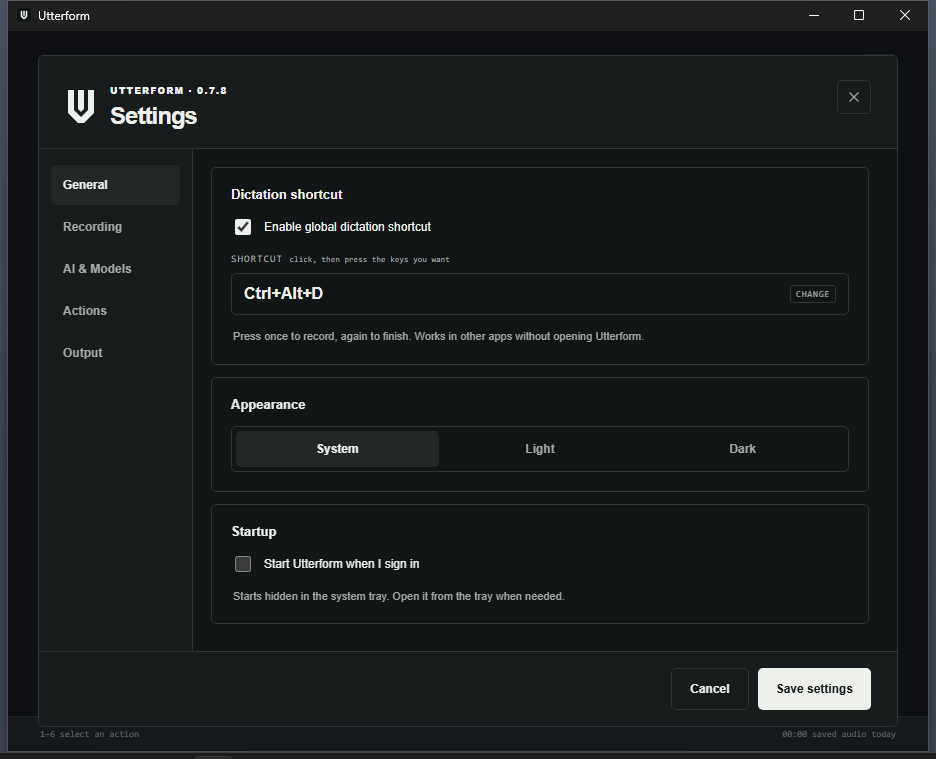
The global dictation shortcut is prominent, theme and startup controls are nearby,
and the remaining settings are grouped by recording, models, actions, and output.
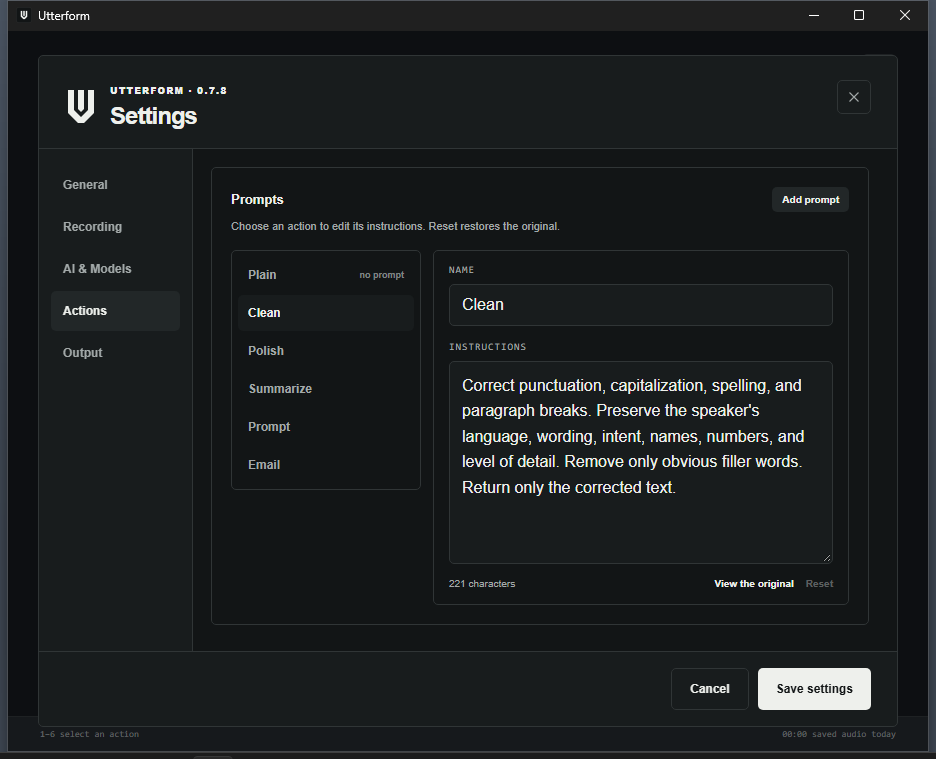
Every built-in action is readable and editable. Add your own prompt, or keep Plain
for a transcript that never calls a text model.
Category
Controls
General
Dictation shortcut, appearance, startup, support and diagnostics
Recording
Microphone, language hints, sounds, vocabulary, and context
AI & Models
Transcription mode, OpenAI key, local models, text model, and thinking effort
Actions
Built-in and custom prompts
Output
Typing method, file folder, and local history
Settings opens on General. Save applies edits across categories; Cancel restores the
previous preferences. Explicit model downloads/removals, key removal, and confirmed
history deletion take effect immediately.
Live dictation — Windows and Omarchy
In Settings → AI & Models → Transcription mode, choose GPT Live Transcribe.
The existing GPT Transcribe option keeps the complete-recording workflow unchanged.
Both cloud models use your saved OpenAI key, language hints, vocabulary and recording context.
Focus a text field in another application, press your dictation key, speak, then press
it again to finish. Text is appended at the current cursor while you speak — Plain
transcription only, with no automatic corrections or final full-text paste. Start Live
from the target with the shortcut, not by clicking Record inside Utterform.
Windows: native Unicode input; no helper installation. Elevated programs cannot
receive Live input from an ordinary Utterform process.
Omarchy / Hyprland: keep the compositor binding documented below. Live uses a
persistent Wayland virtual keyboard and Hyprland focus events; it does not need
wtype. The existing finished-text typing option still uses wtype. Only a
confirmed change of the active window, or the target window closing, stops Live;
workspace, monitor, layer, launcher and config-reload events alone do not. Hyprland
matches its own shortcuts against Utterform's keys by keycode, so Utterform keeps
characters off the keycodes Omarchy binds and waits briefly after a stop request
for the shortcut's modifier to be released. Each Live recording is numbered in the
local log (Settings → General → Support & diagnostics) with its target window address,
workspace id and the focus events it saw, without any text.
macOS and other desktops: keep using GPT Transcribe or Local Whisper. Live support
for macOS is deferred to a separate future release.
A confirmed window change permanently pauses insertion for that recording, while
transcription can continue inside Utterform. Finish and recover the transcript there, or start a new
recording from your target. No automatic replay on return. Line breaks become spaces;
Live never presses Enter, Tab or Backspace. Clipboard/File options apply only on finish.
Do not move the cursor, change tabs/fields or type concurrently while dictating. Window
observation cannot identify every in-app focus change, and native key acceptance does not
prove an application inserted the text. A revised final transcript stays in Utterform;
it does not rewrite already typed words. The Copy action copies the whole transcript,
so check existing text before pasting it after a partial delivery.
This first Live release is intended for real-world testing on Windows and Omarchy.
Automated checks do not replace microphone-to-field testing in your applications.
See the 0.6.1 release notes and the 0.6.0 release notes for scope and test limitations.
Signal design
A focused monochrome interface: white and graphite, a geometric U mark, crisp controls, and a broad, flowing pixel ribbon with fine interwoven filaments driven by your real microphone level. Light, dark, and system appearance apply across recording, settings and menus. The ribbon fills the available recording width, including compact windows. Particles flow independently in response to speech, transitions through processing stay smooth, and the ribbon settles gently over about 1.8 seconds after completion. Pause still freezes the ribbon immediately; reduced-motion preferences keep it still, and hidden windows do no decorative animation work.
The new mark is included in the executable, tray, Windows setup/uninstaller, Linux desktop icon and macOS bundle. Reinstall using the normal installer to update the desktop integration; data and product identity stay the same. Linux refreshes its local icon cache, and Windows notifies Explorer after installation/removal.
Dictate from anywhere
Press one key, speak, press it again. The window never comes forward, so you stay in whatever you were typing in. How the key reaches Utterform depends on who owns the keyboard.
Windows, macOS and X11 — a reserved key combination.Ctrl+Alt+D by default. To change it, open Settings → General → Dictation shortcut, click the shortcut field and press the combination you want — there is nothing to spell out. The key is read by its position on the keyboard, so the same physical key gives the same shortcut whatever your layout types; Escape keeps the current one and leaves Settings open. A key without Ctrl, Alt, Shift or Super/Cmd is refused, because reserving a bare key system-wide would stop it typing everywhere else, and a combination another application already holds is reported where you pressed it. On a Mac, Cmd is the key stored as Super. The same switch turns the key off entirely. Nothing to configure elsewhere.
Wayland (Hyprland, Omarchy) — a compositor binding. Wayland gives no application the right to grab a global shortcut, so Utterform takes its orders from the command line instead and the single running instance receives them. Add one line to ~/.config/hypr/hyprland.conf:
bind = SUPER, D, exec, utterform --toggle
The command line works on every platform, from any launcher, script or panel button:
Command
Effect
utterform --toggle
Start recording, or finish the running one
utterform --start
Start recording
utterform --stop
Finish and process
utterform --cancel
Discard without transcribing
utterform
Show the window
If Utterform is not running yet, the command starts it and still records.
Start with your session
Settings → General → Startup → Start Utterform when I sign in puts Utterform in
your system's startup items. It starts hidden in the system tray: no window opens and
nothing takes focus from what you signed in to do — open it from the tray when you
want it. It is off until you turn it on, and turning it off removes the entry again.
System
What is created
Needs
Windows
A startup entry for your user
No administrator rights
macOS
A LaunchAgent for your user
Utterform installed in /Applications
Linux
An autostart entry in ~/.config/autostart
No systemd service
The switch shows what your system says, not a setting of ours: there is no autostart
field in settings.json that could disagree with it. It is read each time Settings
opens, written only by Save settings and only if you changed it, and read back
afterwards; Cancel changes nothing. On Linux the entry points at the installed
executable, whose path does not change when you update, so it survives a reinstall.
On Wayland (Hyprland, Omarchy) autostart only keeps Utterform ready in the tray;
dictation is still started by the compositor binding above.
Because the window stays where it is, the sounds are the confirmation: a click when recording starts, a click when it stops, and a distinct chime once the text has been transformed and delivered. Turn them off under Settings → Recording → Recording feedback. The tray icon carries a small red dot while recording as well — on Windows 11, pin Utterform to the taskbar corner first, or the icon sits hidden behind the overflow arrow. If a sound stays silent, Settings → Recording → Recording feedback → Test sounds (5s delay) plays all three with the window in the background and reports what each did; every sound also leaves an event in the local log, which Settings → General → Support & diagnostics opens or copies.
Typing at the cursor
Enable Type in the output bar (or press T) to have the finished text put into the window you were working in, next to clipboard and file. Clipboard, file and typing are independent, and typing happens last, so a failure there costs a warning and never the text.
Paste is the default. The whole text moves in one step, so nothing can be dropped or reordered on the way — the reason a terminal used to turn "Session" into "ession". Utterform sends the paste a terminal listens for — Ctrl+Shift+V on Linux, Shift+Insert on Windows — and the one every other window takes (Ctrl+V). Paste delivery leaves the text on the clipboard.
Keystrokes is available under Settings → Output → Typing at the cursor for windows that refuse a paste. It types character by character, with a leading Shift tap for the Wayland clients that swallow the first character and an adjustable delay (15 ms by default) for the ones that reorder fast input.
On Linux both methods need the session's own input tool, because a Wayland client cannot synthesize input for another window:
On Windows nothing needs installing; Utterform uses SendInput directly, sending characters as Unicode so the active keyboard layout does not matter, and the paste chord the way a keyboard would press it. Windows Terminal, the console host behind cmd and PowerShell, mintty, PuTTY, ConEmu, Alacritty, WezTerm, Hyper and Tabby are recognised as terminals; Windows Terminal still shows its own warning before a paste with more than one line unless that is turned off in its settings. Windows refuses input from an ordinary program to a window running as administrator — an elevated terminal, say — and Utterform reports that as a delivery warning naming the program instead of pasting into nothing; the text is on the clipboard regardless. To type into an elevated window, start Utterform as administrator too.
On macOS nothing needs installing either: paste is ⌘V, which every Mac window takes, terminals included; keystrokes are posted one character at a time as Unicode, with the same delay setting as Linux. Both need Utterform under System Settings → Privacy & Security → Accessibility. The first delivery opens the system's request, Settings → Output → Typing at the cursor says so beforehand, and until it is granted the delivery is a warning with the text on the clipboard. See docs/MACOS.md.
Prompts you can rewrite
Utterform ships six actions. Plain delivers what you said, word for word, and never reaches a text model. Clean, Polish, Summarize, Prompt and Email each run a written instruction, and every one of them is yours to change under Settings → Actions.
Pick an action on the left, rewrite its name or its instructions on the right. View the original shows the text Utterform ships before you write over it, and Reset brings it back. A dot marks the ones you have changed. Add prompt creates one of your own, which appears in the action menu beside the others.
Only what differs from the shipped text is stored, so a prompt you left alone still improves when Utterform does — and an instruction you cleared falls back to the shipped one rather than costing you the recording.
Under Settings → AI & Models → Text model: the model that runs these prompts (gpt-5-mini by default) and its thinking effort — Auto, Minimal, Low, Medium or High. Auto leaves the model its own default; lower is faster and cheaper. Not every model offers every level, and one that does not know the level you chose refuses the request, in which case the plain transcript is delivered and the reason is shown.
Vocabulary
Names, products and spellings a model would otherwise guess at go under Settings → Recording → Vocabulary, one per line. Write Careum there and it stops coming back as Kareum.
GPT Transcribe receives them as keywords, the parameter it offers for exactly this; local Whisper receives them as the text it starts from, which is Whisper's own way of biasing a spelling. They are hints either way — the model still transcribes what it hears. Recording context beside it is free-form ("a standup about the billing rewrite") and reaches GPT Transcribe only.
A term containing < or > is refused by the transcription API, and it refuses the whole request with it, so Settings names such a term and leaves it out rather than letting one stray character cost a recording.
Platform notes
Windows has been used for real since 0.4.4 and 0.4.6 is confirmed working there: recording, the dictation key and changing it (Alt+C, for one), the sounds, the tray dot, and typing at the cursor into Windows Terminal, with the warning when a window runs as administrator. macOS is confirmed working since 0.7.0 beta 1, on a MacBook Air (M2, macOS 26) on 2026-09-10: the microphone dialog, GPT Transcribe and Local Whisper, the dictation key and changing it, and typing at the cursor. 0.6.1 and earlier never asked for the microphone because the bundle was signed without the entitlement the hardened runtime requires; 0.7.1 also renames the icon file so the Dock stops showing the logo macOS cached for an earlier version. If Ctrl+Alt+D is already taken on your system, Settings reports it where you pressed it; on a Mac it is ⌃⌥D, and Cmd in Settings means ⌘. The shortcut recorder and the startup switch in 0.7.2 are built and tested on all three platforms but have not yet been used on a real Windows or macOS desktop.
On macOS drag Utterform into Applications. The first recording asks for the microphone, and the first typing at the cursor asks for Accessibility. Since 0.7.5 the stable Developer ID signature identifies updates as the same app, and Apple notarizes the app before release. Windows builds remain unsigned and may trigger SmartScreen. Verify assets against SHA256SUMS.txt; do not disable system-wide security protections.
Push/PR CI runs Linux validation without release compilation. For a test binary — or to check a branch on every platform before tagging it — manually run Actions → Desktop builds on the PR branch and choose the first-test platform requested by Jonas (Linux by default), Windows, macOS, or explicitly all; it publishes nothing. Wait for user acceptance before merging and tagging, unless an immediate full release was explicitly requested. Tagged releases build all three supported targets once and publish only after all checks and packaging succeed.
Features
Batch transcription with gpt-transcribe — no realtime session required
Offline transcription through whisper.cpp, built for every supported desktop rather than for the machine that compiled it
One-click, SHA-256-verified downloads for Tiny, Base, and Small multilingual models
Plain, Clean, Polish, Summarize, Prompt, Email, and user-defined actions — every shipped prompt can be rewritten
A vocabulary of your own terms, and a reasoning effort for the text step
Clipboard, TXT, Markdown, or combined output
Selectable microphone with a system-default fallback
Global dictation with a reserved key combination on Windows, macOS and X11, or a compositor binding on Wayland: either way without raising the window
Optional typing of the finished text into the focused window, next to clipboard and file, as one paste or as keystrokes (Linux and Windows)
A dictation key recorded by pressing it, read by physical key so the layout cannot change it
Optional start with the user session on Windows, macOS and Linux, hidden in the tray
Focused-window shortcuts and a compact system tray presence
Single instance: launching Utterform again reveals the running window instead of starting a second one
Tray left click opens the window on every platform, double click on Windows and macOS, middle click on Linux; right click keeps the menu
Background recording across app switches and close-to-tray, with a native ten-minute cutoff
Signal interface in white and graphite, with a microphone-responsive monochrome contour field, optional start/stop clicks and a distinct completion chime after successful processing and delivery
Borderless window on Omarchy; standard window controls elsewhere
Pause/resume without finishing or adding silence; automatic processing after 10 minutes of active recording
Floating-friendly layout down to 360 × 400; grouped Stop/Pause controls
Latest text collapsed by default; copy stays visible with a brief checkmark confirmation after actual clipboard success
Light, dark, and system themes
API keys stored in the operating system credential store
Last 100 texts kept locally across restarts, with short titles, European dates/24-hour times, elapsed minutes today, and copy-again controls (can be disabled)
Keyboard shortcuts
Shortcuts work while the Utterform window is focused.
Key
Action
Space
Start or finish recording (also while paused)
P
Pause or resume the current recording without processing it
Escape
Discard the active or paused recording
1–6
Select Plain, Clean, Polish, Summarize, Prompt, or Email
C
Toggle clipboard output
F
Toggle file output
Ctrl+Shift+C / Cmd+Shift+C
Copy the displayed text again (latest by default)
Global dictation is separate from these: see Dictate from anywhere. An already-started recording continues when you switch apps, minimize, or close the window to tray (including Omarchy's Super+W). Reopen from the tray to pause or finish it, or let the ten-minute active-recording limit stop capture. A paused recording remains paused across app switches and close-to-tray. Paused audio is discarded, not stored or sent; the microphone device stays open so resuming works consistently across platforms. Processing resumes when the WebView is available. Tray Quit discards active audio and exits; simply launching Utterform does not start recording.
Privacy model
GPT Transcribe: the temporary audio recording is sent to OpenAI.
Local Whisper + Plain: audio and text stay on the device.
Local Whisper + transformed action: audio stays local; transcribed text is sent to OpenAI.
Temporary recordings are deleted after processing or cancellation.
The OpenAI API key is never written to settings.json; it is stored through the native OS keyring.
The last 100 completed texts are stored unencrypted on this device in history.json, including clipboard-only output. Titles are generated locally, without an AI call. Disable future storage or clear existing history in Settings; exported files and clipboard contents are not cleared.
Text history paths: Linux ~/.local/share/software.jli.utterform/history.json (or $XDG_DATA_HOME), macOS ~/Library/Application Support/software.jli.utterform/history.json, Windows %LOCALAPPDATA%\\software.jli.utterform\\history.json.
A local diagnostic log records what happened, never what was said: recording, transcription, transformation and delivery outcomes, durations, device and application names, HTTP statuses and error categories. It contains no transcripts, history, clipboard or file contents, audio, prompts, vocabulary, recording context, window titles, API keys or raw responses, and redacts home directories. Nothing is uploaded; see Support and diagnostics.
Support and diagnostics
Settings → General → Support & diagnostics shows where the log is and offers three immediate actions. They are not part of the settings draft: Save and Cancel neither apply nor undo them.
Copy diagnostics puts a report of at most 256 KiB on the clipboard — a short header (version, OS, run, whether the previous run ended cleanly) followed by the newest log lines, sanitized again. This replaces what the clipboard held; paste it wherever you want to share it.
Open log file opens the current log in the system's default application.
Open log folder shows the file in Finder, Explorer or the Linux file manager, or opens its folder where the desktop cannot select a file.
The log lives in the operating system's log directory, and Settings shows its actual path. Tauri resolves it to Linux ~/.local/share/software.jli.utterform/logs/utterform.log (or $XDG_DATA_HOME), macOS ~/Library/Logs/software.jli.utterform/utterform.log and Windows %LOCALAPPDATA%\software.jli.utterform\logs\utterform.log. At 2 MiB it is rotated, and only the two newest rotated files are kept, so it never takes more than about 6 MiB. The utterform.log that 0.7.8 and earlier wrote next to the history is left in place and never written again; a copied report includes its newest lines when there is room.
An error message that ends in (ref 1a2b3c4d-7) names the log event describing it; quote it when you report a problem. A Rust panic, an unexpected interface error and a previous run that did not exit cleanly are recorded too. A crash of the process itself — a killed process, a native driver fault — can only show up as an unclean exit; no crash dumps are collected.
npm run check
npm test
npm run build
npx playwright install chromium
npm run test:e2e
cargo fmt --manifest-path src-tauri/Cargo.toml -- --check
cargo clippy --manifest-path src-tauri/Cargo.toml --all-targets -- -D warnings
cargo test --manifest-path src-tauri/Cargo.toml
Architecture
The Rust core owns audio, secrets, network access, model files, transcription, and delivery. The Svelte frontend only drives the UI and receives non-sensitive results.