Witsy is a universal BYOK (Bring Your Own Keys) AI application designed to empower users with flexible access to large language models (LLMs) from over 20 providers. It serves as a versatile MCP (Model Control Protocol) client, enabling seamless integration of various LLMs for diverse use cases.
Key Features:
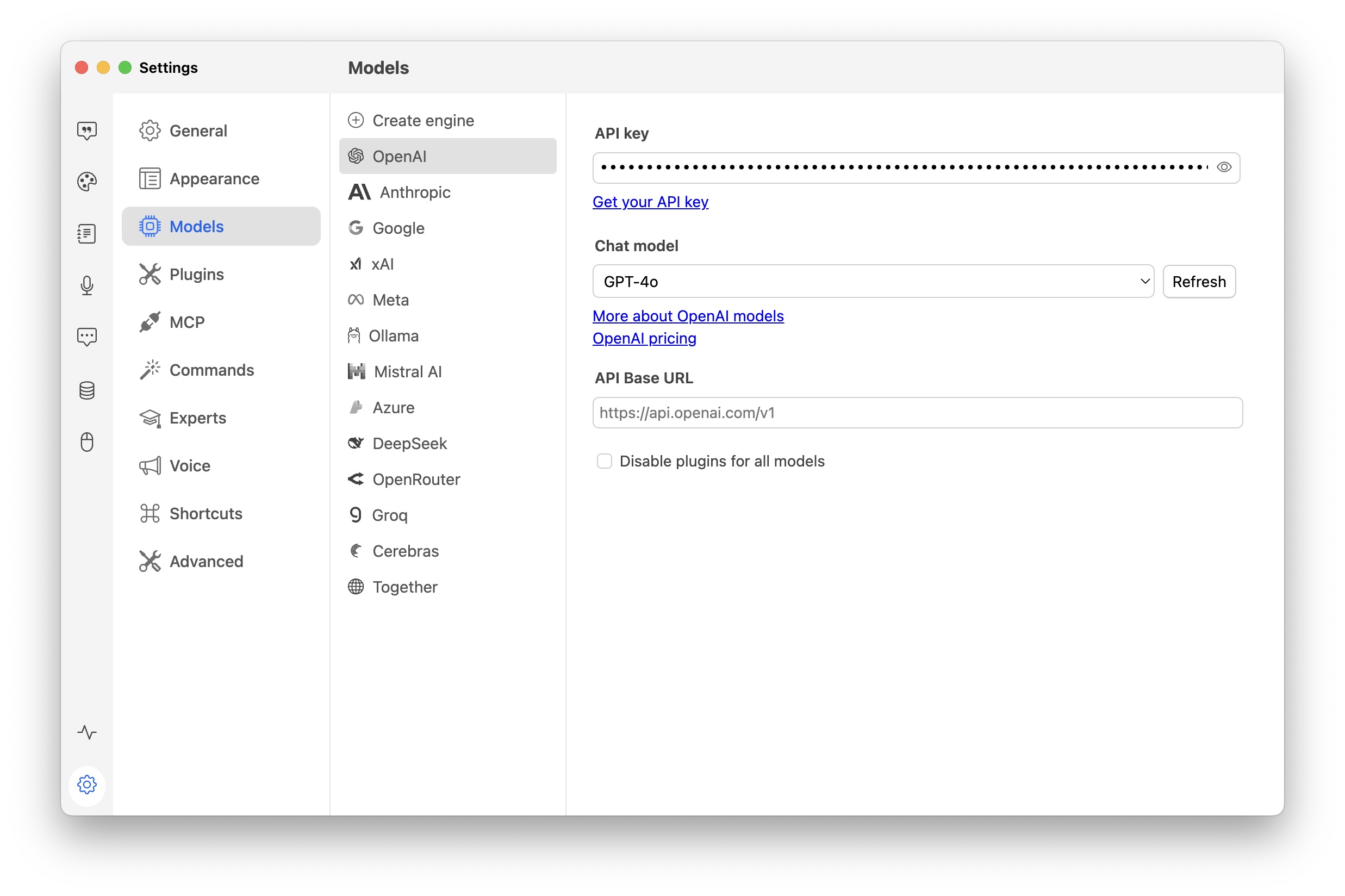
Supports OpenAI, Anthropic, Google, Ollama, and other major AI providers, with compatibility layers for additional services.
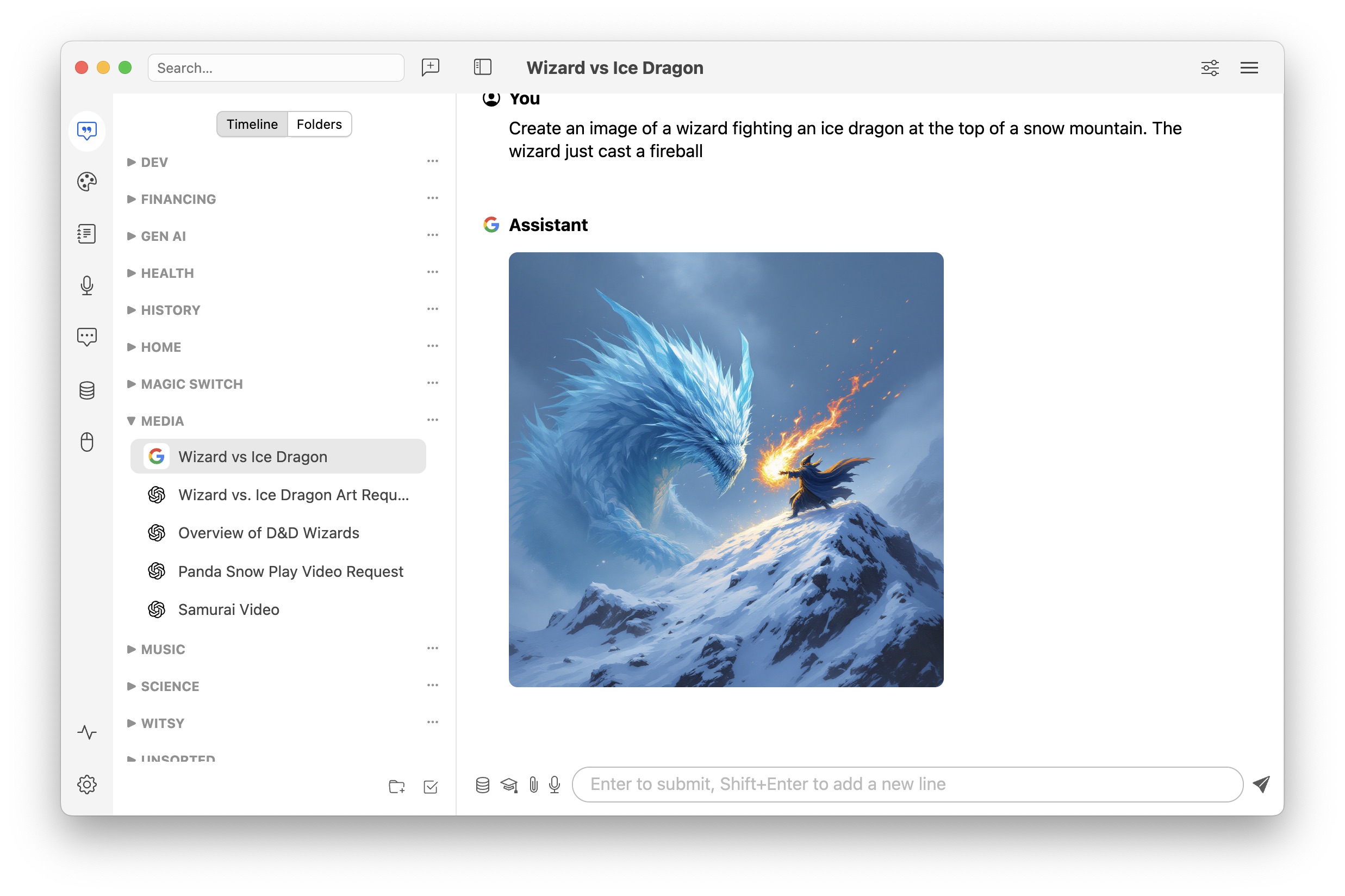
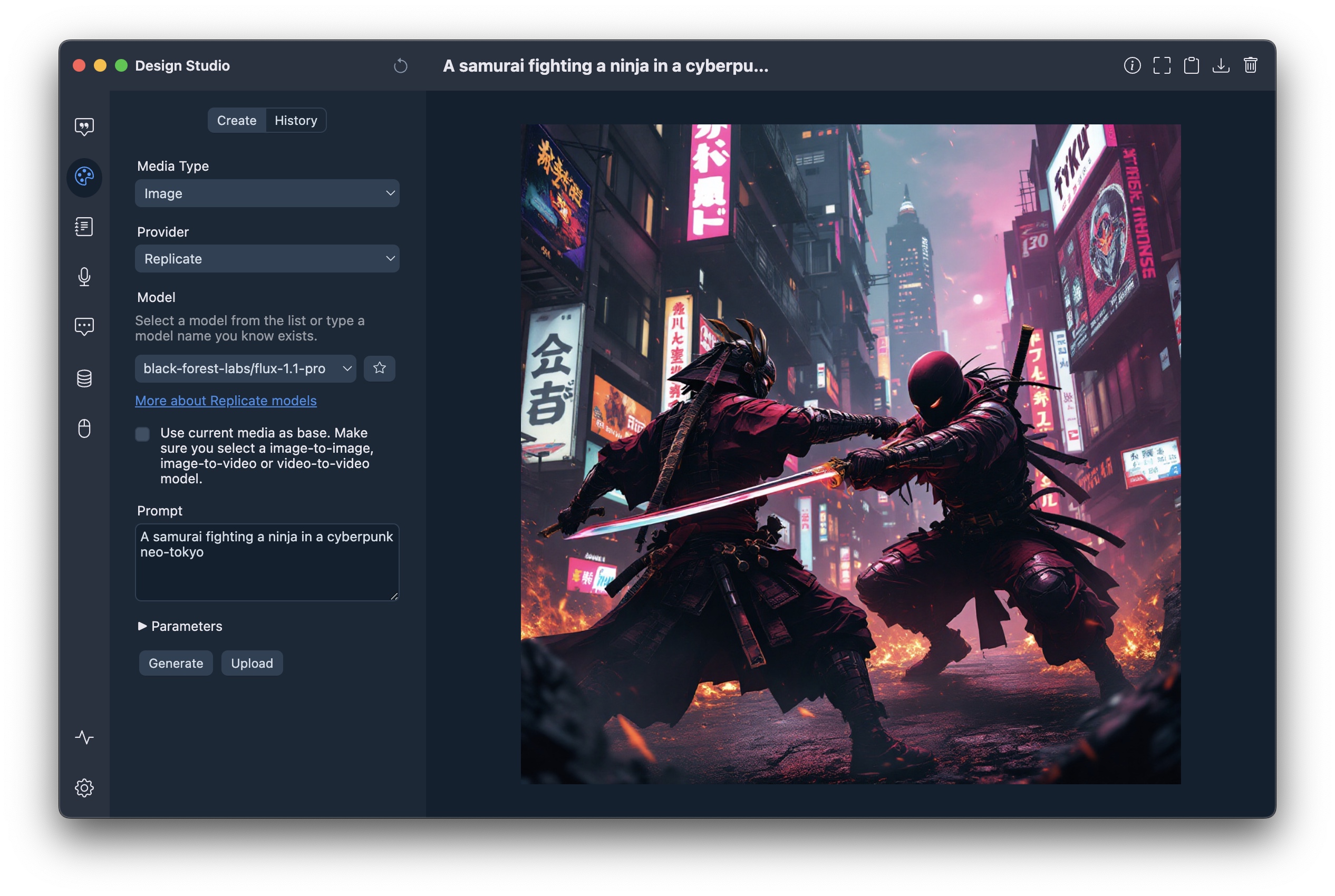
Enables text-to-image, image-to-image, text-to-video, and vision-based chat capabilities across multiple platforms.
Offers "Prompt Anywhere," allowing users to generate content directly within any application using keyboard shortcuts.
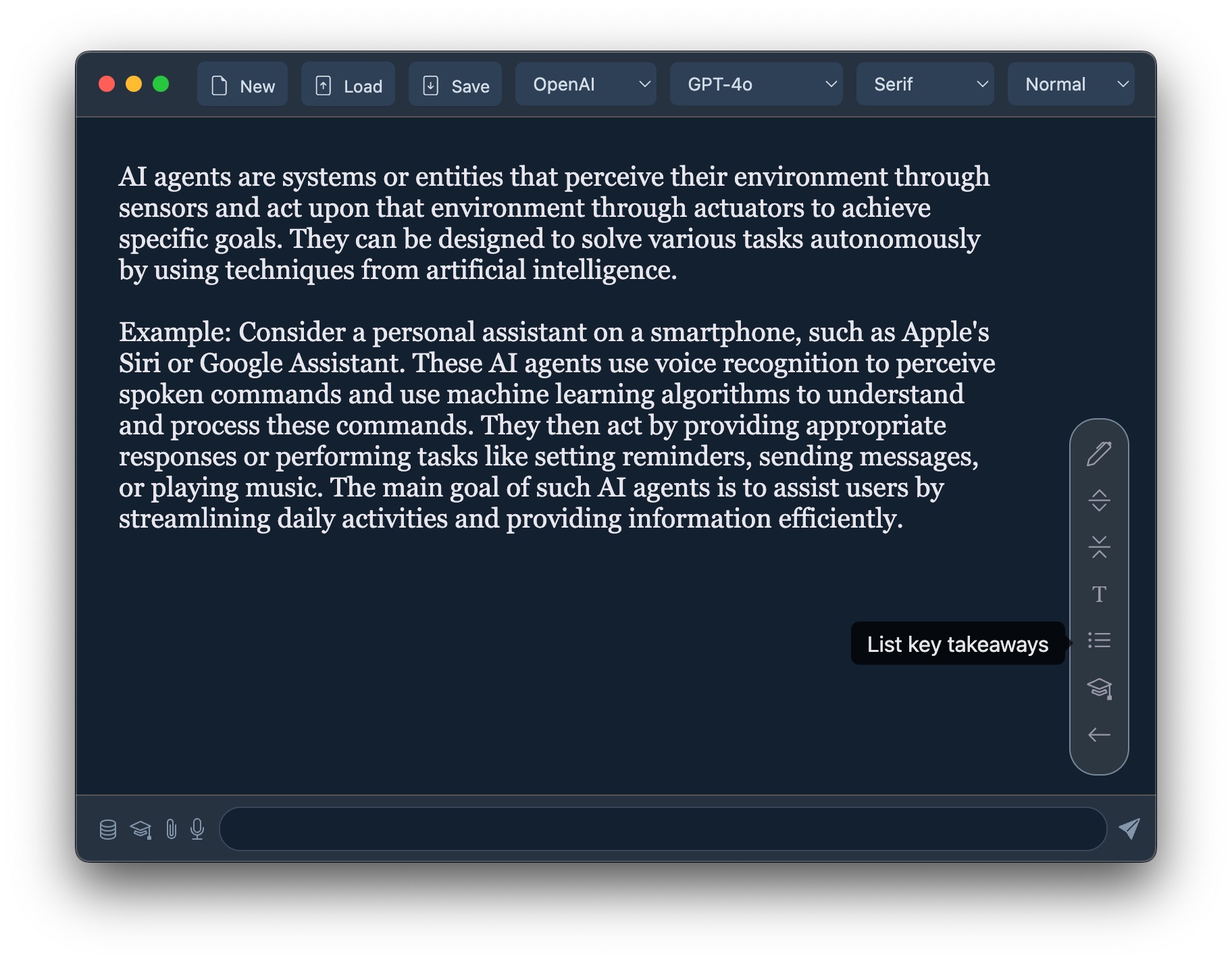
Features AI commands for enhanced productivity, enabling quick transformations of selected text.
Includes multi-modal support for voice interactions, transcription, and real-time chat.
Provides long-term memory plugins to enhance context retention in conversations.
Audience & Benefit:
Ideal for professionals, developers, and creative users who require advanced AI capabilities across applications. Witsy empowers users to leverage diverse LLMs for tasks like content creation, problem-solving, and automation without vendor lock-in. Its flexibility makes it a valuable tool for anyone seeking to integrate AI into their workflow while maintaining control over their keys and data.
Witsy is a BYOK (Bring Your Own Keys) AI application: it means you need to have API keys for the LLM providers you want to use. Alternatively,
you can use Ollama to run models locally on your machine for free and use them in Witsy.
It is the first of very few (only?) universal MCP clients:Witsy allows you to run MCP servers with virtually any LLM!
Supported AI Providers
Capability
Providers
Chat
OpenAI, Anthropic, Google (Gemini), xAI (Grok), Meta (Llama), Ollama, LM Studio, MistralAI, DeepSeek, OpenRouter, Groq, Cerebras, Azure OpenAI, any provider who supports the OpenAI API standard (together.ai for instance)
OpenAI (Whisper), fal.ai, Fireworks.ai, Gladia, Groq, nVidia, Speechmatics, Local Whisper, Soniox (realtime and async) any provider who supports the OpenAI API standard
Search Engines
Perplexity, Tavily, Brave, Exa, Local Google Search
Hit the Prompt anywhere shortcut (Shift+Control+Space / ^⇧Space)
Enter your prompt in the window that pops up
Watch Witsy enter the text directly in your application!
On Mac, you can define an expert that will automatically be triggered depending on the foreground application. For instance, if you have an expert used to generate linux commands, you can have it selected if you trigger Prompt Anywhere from the Terminal application!
AI Commands
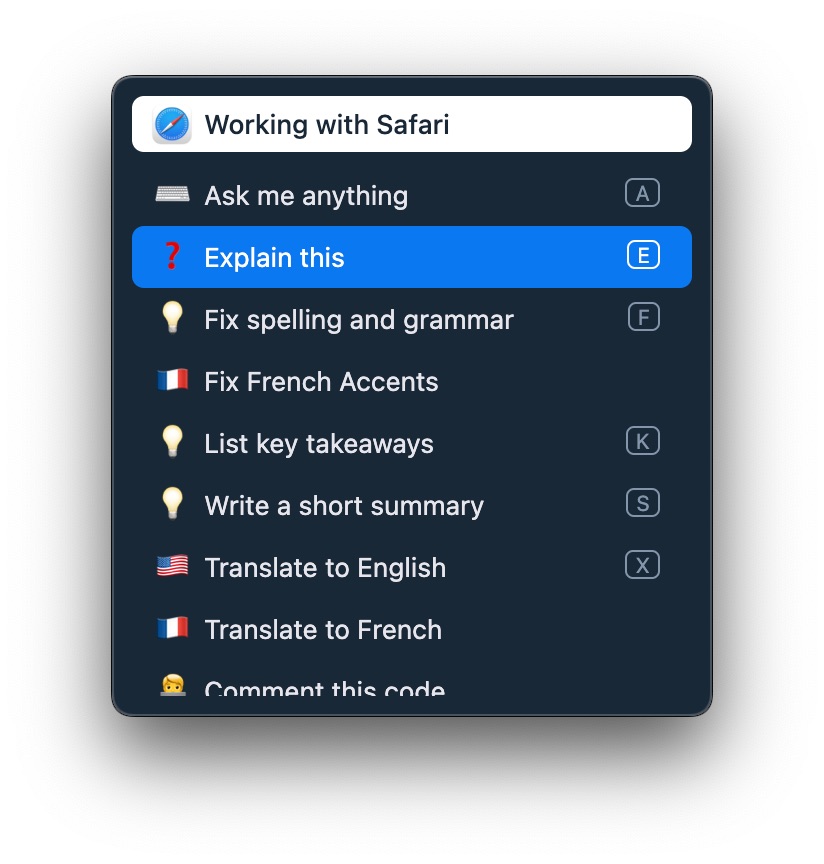
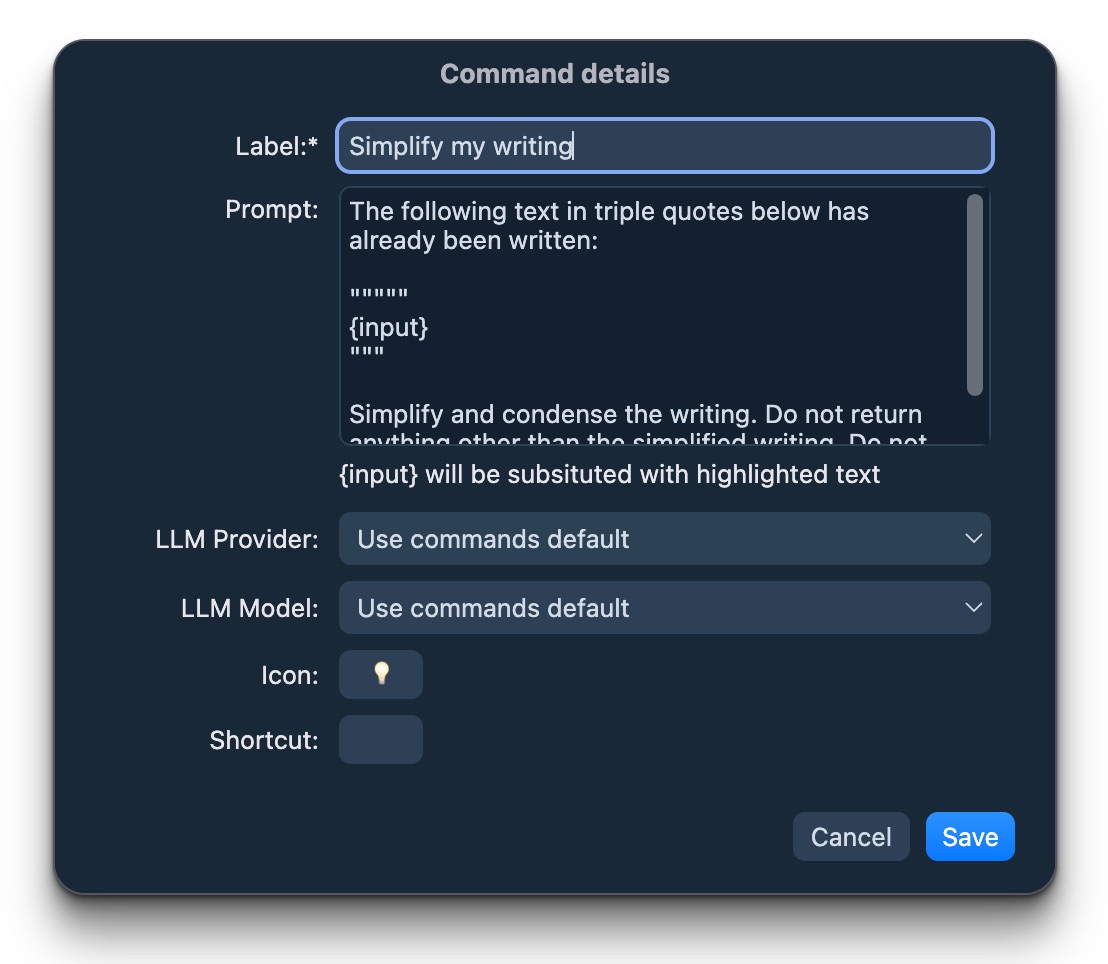
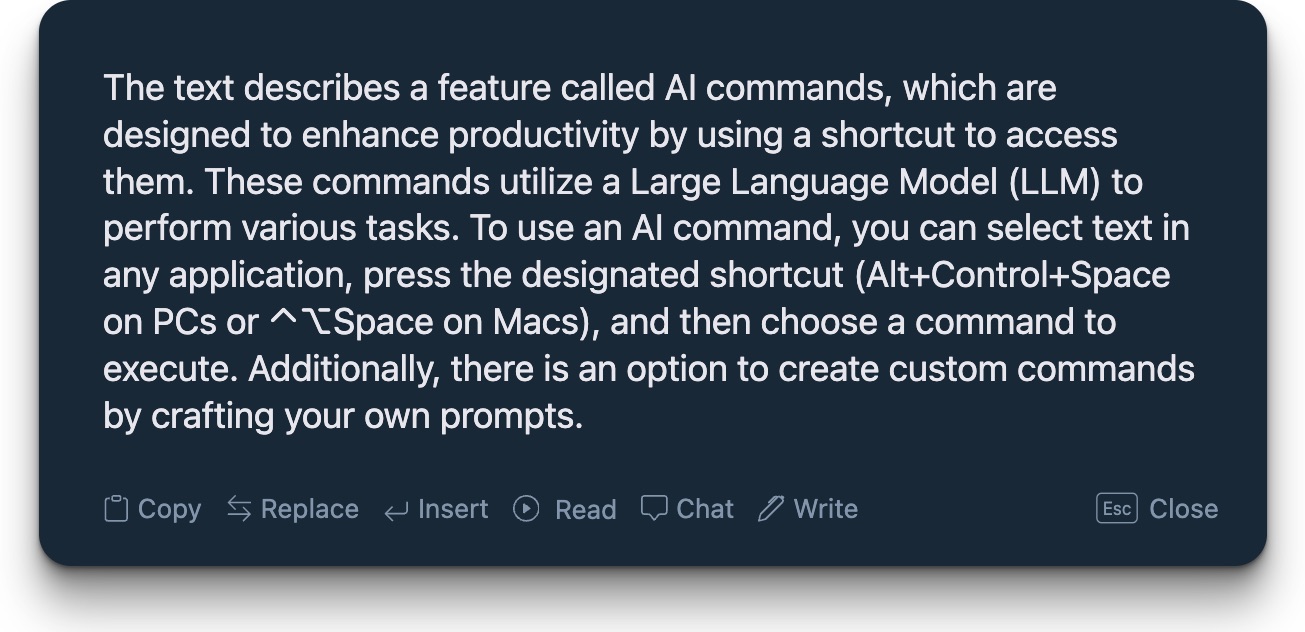
AI commands are quick helpers accessible from a shortcut that leverage LLM to boost your productivity:
Select any text in any application
Hit the AI command shorcut (Alt+Control+Space / ⌃⌥Space)
Select one of the commands and let LLM do their magic!
You can also create custom commands with the prompt of your liking!
You can connect each chat with a document repository: Witsy will first search for relevant documents in your local files and provide this info to the LLM. To do so:
Click on the database icon on the left of the prompt
Click Manage and then create a document repository
OpenAI Embedding require on API key, Ollama requires an embedding model
Add documents by clicking the + button on the right hand side of the window
Once your document repository is created, click on the database icon once more and select the document repository you want to use. The icon should turn blue
Transcription / Dictation (Speech-to-Text)
You can transcribe audio recorded on the microphone to text. Transcription can be done using a variety of state of the art speech to text models (which require API key) or using local Whisper model (requires download of large files).
Currently Witsy supports the following speech to text models:
GPT4o-Transcribe
Gladia
Speechmatics (Standards + Enhanced)
Groq Whisper V3
Fireworks.ai Realtime Transcription
fal.ai Wizper V3
fal.ai ElevenLabs
nVidia Microsoft Phi-4 Multimodal
Witsy supports quick shortcuts, so your transcript is always only one button press away.
Once the text is transcribed you can:
Copy it to your clipboard
Summarize it
Translate it to any language
Insert it in the application that was running before you activated the dictation
HTTP API
Witsy provides a local HTTP API that allows external applications to trigger various commands and features. The API server runs on localhost by default on port 8090 (or the next available port if 8090 is in use).
Security Note:
The HTTP server runs on localhost only by default. If you need external access, consider using a reverse proxy with proper authentication.
Finding the Server Port
The current HTTP server port is displayed in the tray menu below the Settings option:
macOS/Linux: Check the fountain pen icon in the menu bar
Windows: Check the fountain pen icon in the system tray
Available Endpoints
All endpoints support both GET (with query parameters) and POST (with JSON or form-encoded body) requests.
# Health check
curl http://localhost:8090/api/health

# Open chat with pre-filled text (GET with query parameter)
curl "http://localhost:8090/api/chat?text=Hello%20World"

# Open chat with pre-filled text (POST with JSON)
curl -X POST http://localhost:8090/api/chat \
  -H "Content-Type: application/json" \
  -d '{"text":"Hello World"}'

# Trigger Prompt Anywhere with text
curl "http://localhost:8090/api/prompt?text=Write%20a%20poem"

# Trigger AI command on selected text
curl -X POST http://localhost:8090/api/command \
  -H "Content-Type: application/json" \
  -d '{"text":"selected text to process"}'

# Trigger agent via webhook with parameters
curl "http://localhost:8090/api/agent/run/abc12345?input1=value1&input2=value2"

# Trigger agent with POST JSON
curl -X POST http://localhost:8090/api/agent/run/abc12345 \
  -H "Content-Type: application/json" \
  -d '{"input1":"value1","input2":"value2"}'

# Check agent execution status
curl "http://localhost:8090/api/agent/status/abc12345/run-uuid-here"

# List available engines
curl http://localhost:8090/api/engines

# List models for a specific engine
curl http://localhost:8090/api/models/openai

# Run non-streaming chat completion
curl -X POST http://localhost:8090/api/complete \
  -H "Content-Type: application/json" \
  -d '{
    "stream": "false",
    "engine": "openai",
    "model": "gpt-4",
    "thread": [
      {"role": "user", "content": "Hello, how are you?"}
    ]
  }'

# Run streaming chat completion (SSE)
curl -X POST http://localhost:8090/api/complete \
  -H "Content-Type: application/json" \
  -d '{
    "stream": "true",
    "thread": [
      {"role": "user", "content": "Write a short poem"}
    ]
  }'
Command Line Interface
Witsy includes a command-line interface that allows you to interact with the AI assistant directly from your terminal.
Installation
The CLI is automatically installed when you launch Witsy for the first time:
macOS: Creates a symlink at /usr/local/bin/witsy (requires admin password)
Windows: Adds the CLI to your user PATH (restart terminal for changes to take effect)
Linux: Creates a symlink at /usr/local/bin/witsy (uses pkexec if needed)
Usage
Once installed, you can use the witsy command from any terminal:
witsy
The CLI will connect to your running Witsy application and provide an interactive chat interface. It uses the same configuration (engine, model, API keys) as your desktop application.
Available Commands
/help - Show available commands
/model - Select engine and model
/port - Change server port (default: 4321)
/clear - Clear conversation history
/history - Show conversation history
/exit - Exit the CLI
Requirements
Witsy desktop application must be running
HTTP API server enabled (default port: 4321)
CLI Chat Completion API
The /api/complete endpoint provides programmatic access to Witsy's chat completion functionality, enabling command-line tools and scripts to interact with any configured LLM.
Endpoint: POST /api/complete
Request body:
{
  "stream": "true",       // Optional: "true" (default) for SSE streaming, "false" for JSON response
  "engine": "openai",     // Optional: defaults to configured engine in settings
  "model": "gpt-4",       // Optional: defaults to configured model for the engine
  "thread": [             // Required: array of messages
    {"role": "user", "content": "Your prompt here"}
  ]
}
Witsy includes a command-line interface for interacting with AI models directly from your terminal.
Requirements:
Witsy application must be running (for the HTTP API server)
Launch the CLI:
npm run cli
Enter /help to show the list of commands
Agent Webhooks
Agent webhooks allow you to trigger agent execution via HTTP requests, enabling integration with external systems, automation tools, or custom workflows.
How It Works
Setting up a webhook:
Open the Agent Forge and select or create an agent
Navigate to the "Invocation" tab (last step in the wizard)
Check the "🌐 Webhook" checkbox
A unique 8-character token is automatically generated for your agent
Copy the webhook URL displayed (format: http://localhost:{port}/api/agent/run/{token})
You can regenerate the token at any time using the refresh button
Using the webhook:
Send GET or POST requests to the webhook URL
Include parameters as query strings (GET) or JSON body (POST)
Parameters are automatically passed to the agent's prompt as input variables
The agent must have prompt variables defined (e.g., {task}, {name}) to receive the parameters
The webhook returns immediately with a runId and statusUrl for checking execution status
Example agent prompt:
Please process the following task: {task}
User: {user}
Priority: {priority}
Triggering the agent:
# Using GET with query parameters
curl "http://localhost:8090/api/agent/run/abc12345?task=backup&user=john&priority=high"

# Using POST with JSON
curl -X POST http://localhost:8090/api/agent/run/abc12345 \
  -H "Content-Type: application/json" \
  -d '{"task":"backup","user":"john","priority":"high"}'
# Use the statusUrl from the webhook response (relative path)
curl "http://localhost:8090/api/agent/status/abc12345/550e8400-e29b-41d4-a716-446655440000"