



English · Türkçe
Sesli Okuma
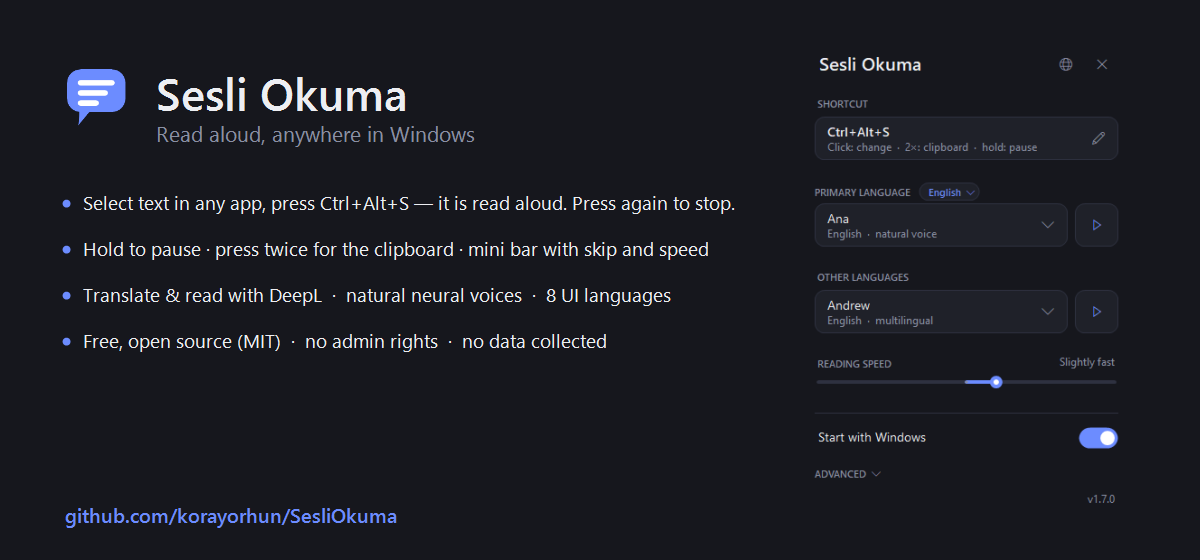
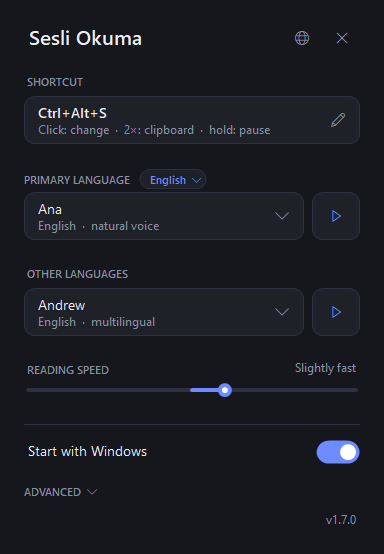
Sesli Okuma (Turkish for "read aloud") is a tiny Windows 10/11 tray tool: select text in any application and press a shortcut (default Ctrl + Alt + S) to hear it read aloud — press again to stop. Click the tray icon for a minimal panel with the shortcut, voices per language, reading speed and interface language.
Highlights
- One shortcut, three gestures — press: read the selection (or the paragraph under the mouse when nothing is selected) / stop; press twice: read the clipboard; hold: pause / resume.
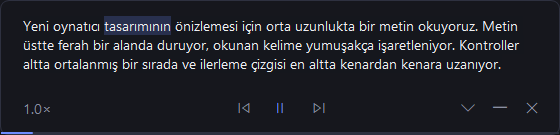
- Mini bar while reading — a thin bar at the bottom of the screen shows the current sentence with pause, previous/next sentence and speed; it disappears when reading ends (can be turned off).
- Translate & read — a second shortcut (default
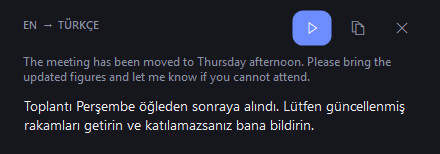
Ctrl + Alt + T) translates the selection into your primary language, shows original + translation in a small card and reads the translation aloud. Works out of the box with the free MyMemory service (no account; ~5,000 characters/day); an optional DeepL key under Advanced gives better translations.
- Read from screen (OCR) —
Ctrl + Alt + R freezes the screen: drag over any area, or press Enter for the whole window, and the OCR built into Windows reads text that cannot be selected (images, scanned PDFs, remote desktops, videos). Offline and free; if your language's OCR pack is missing, one click adds it.
- Reading shortcuts — while reading,
Ctrl + Alt + ←/→ jumps to the previous/next sentence and Ctrl + Alt + ↑/↓ changes the speed. They exist only while something is being read, so they never clash with other apps (can be turned off).
- Queue and resume — press the shortcut twice while reading to queue the selection; it plays when the current text ends. A long text you stopped continues where you left off the next time you read it (re-reading it right away starts from the top).
- Reads like a person, not a parser — a speech layer sits between the screen and the voice: list bullets become pauses instead of "bullet",
25°C is read as degrees, m² and € get their words, emoji are skipped, ALL-CAPS words are read as words (abbreviations still spelled), and English words inside Turkish text ("Netcad", "download") get a Turkish pronunciation from a built-in dictionary. Your own okunus.txt dictionary (Advanced → Edit pronunciation dictionary) overrides everything; the highlight still follows the original words.
- Small comforts — remaining time on the reading bar, optional lower other sounds while reading (crash-safe: volumes are always restored), and Copy error log in About for one-click bug reports.
- Works everywhere — browsers, Office, PDF readers, chat apps, IDEs. Text is taken through UI Automation; apps that don't expose it fall back to a transparent copy that restores your clipboard.
- Natural voices in one click — the panel offers to install the open-source NaturalVoiceSAPIAdapter, adding Microsoft's online neural voices (Turkish Emel/Ahmet, English Andrew/Ava/Aria…, and multilingual voices). Windows voice packs can be added from the panel too.
- Local Turkish neural voice (offline) — one card in the panel downloads Ema, a fully offline natural Turkish voice built on EMA Lightning (Canberk Aslan, Apache-2.0) with normalizer-tr (Erdem Tuna, Apache-2.0) and ONNX Runtime, via ema-lightning-dotnet. It becomes the default Turkish voice, reads ~20x faster than real time on CPU, keeps the word highlight, and English words inside Turkish text are adapted so they sound right. No internet, no account.
- Voice per language — the script/language of the selected text is detected; primary-language text uses your primary voice, everything else your second voice.
- 8 interface languages — English, Türkçe, 中文, हिन्दी, Español, Français, العربية, Português. Switch instantly; the installer speaks them too.
- Your shortcut — click the field, press a combination; conflicts are reported and the old shortcut kept.
- Auto-update — daily check against GitHub Releases, SHA-256-verified download, silent install, restart. Can be turned off.
- Accessibility extras (under Advanced) — read what the mouse points at: rest the pointer on any button or text and it is spoken; high-contrast Windows themes are honored; a tiny words-read counter.
- Respectful — per-user install, no admin rights, no telemetry; text goes only to the Windows speech provider (SAPI) you choose. MIT licensed.
For developers: SesliOkuma.Engine
Everything above the tray icon lives in a separate, UI-free class library — text capture, the speech layer, SAPI and the offline Turkish voice, the reading session with word positions, screen OCR, translation, audio ducking. Use it from any .NET Framework 4.8 application:
- NuGet:
SesliOkuma.Engine (also attached to every release as a .nupkg)
- Package guide: nuget/README.md · minimal console sample: samples/ReadAloudConsole
- Build from source:
build.ps1 produces SesliOkuma.Engine.dll first, then the app on top of it. No SDK needed.
Accessibility
Sesli Okuma is built to work well for blind and low-vision users, following a screen-reader-first approach:
- Screen reader friendly — every control in the panel exposes a proper name and state to Narrator, NVDA and JAWS; the whole panel is fully keyboard-operable (Tab / Space / Enter / arrows, visible focus ring).
- Accessibility mode (tray menu or Advanced) — optional spoken status cues through the app's own voice for events that have no window: "no text to read", paused / resumed, speed and voice changes. Off by default so it never talks over your screen reader; switching it on or off takes one click and does not change anything else.
- "Read the shortcuts" — with accessibility mode on, the tray menu can speak the full shortcut guide.
- Everything works from global hotkeys; no mouse needed: one shortcut reads, double-press reads the clipboard (or queues the selection while reading), holding it pauses and resumes;
Ctrl + Alt + arrows move by sentence and change the speed while reading.
- Screen OCR without a mouse —
Ctrl + Alt + R, then Enter, reads the whole active window, including apps that expose nothing to screen readers.
- Welcome for screen-reader users — when Narrator, NVDA or JAWS is running on first start, Sesli Okuma introduces itself and its shortcut once, by voice.
Install
Try the Turkish voice first, right in your browser: https://korayorhun.github.io/SesliOkuma/demo/ (runs locally in the browser; also on Hugging Face).
The quickest way, built into Windows 10/11:
winget install KorayOrhun.SesliOkuma
Scoop users: scoop bucket add korayorhun https://github.com/korayorhun/scoop-bucket then scoop install korayorhun/sesliokuma (portable; updates arrive through scoop update).
Or download the latest SesliOkuma-Setup-x.y.z.exe (or the portable SesliOkuma-Portable-x.y.z.zip — unzip and run, nothing else) from Releases and run it (no admin rights). The package is not code-signed yet, so SmartScreen may show "unrecognized app": More info → Run anyway.
| Action | How |
|---|
| Read selected text | select text → Ctrl + Alt + S (or your shortcut) |
| Stop | press the shortcut again (or tray icon → Stop) |
| Pause / resume | hold the shortcut ~1 s, or the mini bar |
| Translate & read | Ctrl + Alt + T — free, no setup; optional DeepL key for better quality |
| Read clipboard | press the shortcut twice |
| Settings | click the tray icon (or run the exe again) |
| Interface language / About | globe icon in the panel |
| Save as audio (WAV) | tray icon → right-click → Save selection as audio file |
| Read a text file | right-click a .txt / .md file in Explorer → Read with Sesli Okuma |
| Quit | tray icon → right-click → Exit |
Build from source
No SDK needed — the C# compiler shipped with .NET Framework 4.8 is enough:
.\build.ps1                  # src\*.cs -> SesliOkuma.exe (and start it)
.\release.ps1 -Version 1.3.0 # bump, build, installer, tag, GitHub release
The installer needs Inno Setup 6 (installer\SesliOkuma.iss; copy the unofficial Hindi.islu into Inno's Languages folder for Hindi).
Support
If Sesli Okuma saves you time, a one-time coffee via GitHub Sponsors is appreciated — no strings attached. Bug reports and ideas: Issues · Discussions.
Türkçe
Windows 10/11 için küçük bir sistem tepsisi aracı: herhangi bir uygulamada seçtiğiniz metni bir kısayolla sesli okur (varsayılan Ctrl + Alt + S), tekrar basınca susar. İkona tıklayınca açılan minimal panelden kısayolu, ana dili ve sesleri, okuma hızını ve arayüz dilini seçersiniz.
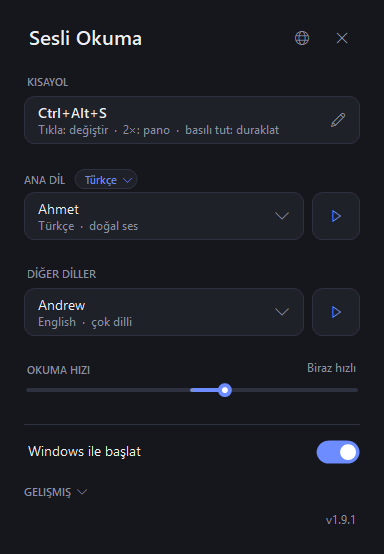
- Tek kısayol, üç jest — bas: seçimi (seçim yoksa imlecin altındaki paragrafı) oku / sustur; iki kez bas: panoyu oku; basılı tut: duraklat / devam.
- Okurken mini şerit — ekranın altında ince bir çubuk: okunan cümle, duraklat, önceki/sonraki cümle, hız; okuma bitince kaybolur (kapatılabilir).
- Çevir ve oku — ikinci kısayol (varsayılan
Ctrl + Alt + T) seçimi ana dilinize çevirir, küçük bir kartta orijinal + çeviriyi gösterir ve çeviriyi okur. Kurulum gerekmez: ücretsiz MyMemory servisi (hesapsız, günde ~5.000 karakter); daha iyi çeviri isteyenler Gelişmiş altına isteğe bağlı DeepL anahtarı girebilir.
- Ekrandan oku (OCR) —
Ctrl + Alt + R ekranı dondurur: okunacak alanı sürükleyin ya da tüm pencere için Enter'a basın; Windows'un yerleşik OCR'ı seçilemeyen yazıları okur (resimler, taranmış PDF'ler, uzak masaüstü, videolar). Çevrimdışı ve ücretsiz; dilinizin OCR paketi eksikse tek tıkla eklenir.
- Okuma kısayolları — okuma sürerken
Ctrl + Alt + ←/→ önceki/sonraki cümle, Ctrl + Alt + ↑/↓ hız. Yalnız okuma sırasında etkindir, başka programlarla çakışmaz (kapatılabilir).
- Sıra ve kaldığı yerden devam — okuma sürerken kısayola iki kez basmak seçimi sıraya ekler; mevcut metin bitince o okunur. Yarıda durdurduğunuz uzun metni sonra tekrar okuttuğunuzda kaldığı yerden devam eder (hemen tekrar okutursanız baştan başlar).
- Makine gibi değil, insan gibi okur — ekranla ses arasında bir konuşma katmanı var: madde imleri "nokta işareti" yerine duraklama olur,
25°C "yirmi beş santigrat derece" diye okunur, m² ve € sözcüğe dönüşür, emoji atlanır, BÜYÜK HARFLİ kelimeler harf harf değil sözcük olarak okunur (kısaltmalar yine harf harf), Türkçe metindeki İngilizce kelimeler ("Netcad", "download") yerleşik sözlükten Türkçe okunuş alır. Kendi okunus.txt sözlüğünüz (Gelişmiş → Okunuş sözlüğünü düzenle) her şeyin önüne geçer; vurgu yine orijinal kelimeyi izler.
- Küçük konforlar — okuma çubuğunda kalan süre, isteğe bağlı okurken diğer sesleri kıs (çökmeye dayanıklı: sesler her zaman geri gelir) ve Hakkında'da tek tıkla hata kaydını kopyala.
- Her yerde çalışır — tarayıcı, Office, PDF, sohbet, IDE. Metin UI Automation ile alınır; vermeyen uygulamalarda panonuzu geri yükleyen şeffaf bir kopyalama yoluna düşer.
- Doğal sesler tek tıkla — panel, açık kaynak NaturalVoiceSAPIAdapter'ı kurmayı önerir: Emel, Ahmet ve 15+ İngilizce neural ses, çok dilli sesler (internet gerekir). Windows ses paketleri de panelden eklenir.
- Yerel Türkçe doğal ses (çevrimdışı) — paneldeki kart, tamamen çevrimdışı çalışan doğal Türkçe ses Ema'yı indirir: EMA Lightning (Canberk Aslan, Apache-2.0) + normalizer-tr (Erdem Tuna, Apache-2.0) + ONNX Runtime, ema-lightning-dotnet üzerinden. Varsayılan Türkçe ses olur, kelime vurgusu aynen çalışır; Türkçe metindeki İngilizce kelimeler de doğru okunacak biçimde uyarlanır. İnternet ve hesap gerektirmez.
- Dile göre ses — seçili metnin dili algılanır; ana dil metinleri ana dil sesiyle, diğerleri ikinci sesle okunur.
- 8 arayüz dili, kendi kısayolunuz, otomatik güncelleme (SHA-256 doğrulamalı, kapatılabilir).
- Kurulum yönetici yetkisi istemez; veri toplamaz. Ayarlar ve günlük:
%LOCALAPPDATA%\SesliOkuma\.
Dosya oku: Explorer'da bir .txt / .md dosyasına sağ tık → Sesli Okuma ile oku. Erişilebilirlik (Gelişmiş): fareyle üzerine gelince oku, yüksek kontrast desteği, okunan kelime sayacı. Taşınabilir sürüm: Releases'ta zip.
Önce tarayıcıda deneyin: https://korayorhun.github.io/SesliOkuma/demo/ (Türkçe ses doğrudan tarayıcınızda çalışır).
Kurulum: en kolayı, Windows'ta hazır gelen winget ile — Komut İstemi'ne winget install KorayOrhun.SesliOkuma yazın. Ya da Releases sayfasından SesliOkuma-Setup-x.y.z.exe. İmzasız olduğu için SmartScreen uyarısı çıkabilir: Ek bilgi → Yine de çalıştır.
Ses dosyasına kaydet: tepsi ikonu → sağ tık → "Seçimi ses dosyasına kaydet" (WAV).
Hakkında & destek: dil menüsünün altındaki Hakkında kartında kaynak kod, sürüm notları, sorun bildirme ve isteğe bağlı Destek ol ♥ (GitHub Sponsors, tek seferlik) bulunur.
Geliştiriciler için: SesliOkuma.Engine
Tepsi simgesinin altındaki her şey ayrı, arayüzsüz bir kütüphanedir — metin yakalama, konuşma katmanı, SAPI ve çevrimdışı Türkçe ses, kelime konumlu okuma oturumu, ekran OCR, çeviri, ses kısma. Herhangi bir .NET Framework 4.8 uygulamasından kullanılabilir:
- NuGet:
SesliOkuma.Engine (her sürüme .nupkg olarak da eklidir)
- Paket rehberi: nuget/README.md · en küçük örnek: samples/ReadAloudConsole
- Kaynaktan derleme:
build.ps1 önce SesliOkuma.Engine.dll'i, sonra üstüne uygulamayı üretir. SDK gerekmez.
Erişilebilirlik
Sesli Okuma, görme engelli kullanıcılar için ekran okuyucu öncelikli yaklaşımla geliştirilmiştir:
- Ekran okuyucu dostu — paneldeki her denetim Narrator/NVDA/JAWS'a doğru ad ve durum bildirir; panel tamamen klavyeyle kullanılabilir (Tab / Boşluk / Enter / oklar, görünür odak çerçevesi).
- Erişilebilirlik modu (tepsi menüsü veya Gelişmiş) — penceresi olmayan olaylar için isteğe bağlı sesli durum bildirimi: "okunacak metin bulunamadı", duraklatıldı / devam, hız ve ses değişimi. Varsayılan olarak kapalıdır; ekran okuyucunuzun üstüne konuşmaz. Açıp kapatmak tek tıktır ve başka hiçbir davranışı değiştirmez.
- "Kısayolları oku" — mod açıkken tepsi menüsünden tüm kısayol rehberi sesli dinlenebilir.
- Her şey küresel kısayollarla çalışır; fare gerekmez: tek kısayol okur, çift basış panoyu okur (okuma sürerken seçimi sıraya ekler), basılı tutmak duraklatır/sürdürür; okurken
Ctrl + Alt + oklar cümle atlar ve hızı değiştirir.
- Faresiz ekran OCR'ı —
Ctrl + Alt + R ardından Enter, ekran okuyuculara hiçbir şey sunmayan uygulamalar dahil tüm etkin pencereyi okur.
- Ekran okuyucu kullanıcılarına karşılama — ilk açılışta Narrator, NVDA veya JAWS çalışıyorsa Sesli Okuma kendini ve kısayolunu bir kez sesli tanıtır.
Lisans
MIT — bkz. LICENSE.txt.