
Beetroot
Source code · Contribute · Max Nardit
The clipboard manager Windows should have built.
AI transforms, OCR, and fuzzy search across your full history — one shortcut away.





Download Beetroot (free) · Microsoft Store · Website · Changelog
English · Deutsch · Español · Русский · 中文 · 日本語
> Beetroot is now open source under Apache 2.0. Explore the code, report bugs or help improve it. Created by Max Nardit.
>
> Version 1.6.7 is available: more reliable pasting and history, with AI keys stored in Windows Credential Manager. Download and release notes. Microsoft Store and package-manager updates are handled separately.
Why not Win+V?
| Feature | Win+V | Beetroot |
|---|
| History | 25 clips, lost on reboot | Unlimited, persists across reboots |
| Search | No | Fuzzy + regex |
| AI transforms | No | 4 cloud providers + local models, 10 text + 5 vision built-in + custom |
| AI Vision | No | Read text, describe, extract data from images via AI |
| Source app tracking | No | Icon, name, window title per clip |
| OCR | No | Native Windows engine, on-device |
| Image history | Thumbnails only | Full images, stored locally |
| Themes | No | 9 themes + Auto mode + accent color |
| Plain text paste | No | Dedicated hotkey |
| Multi-monitor | No | Window follows your cursor |
| Pin on top | No | Pin + drag anywhere |
| Notes | No | Searchable annotations |
Screenshots
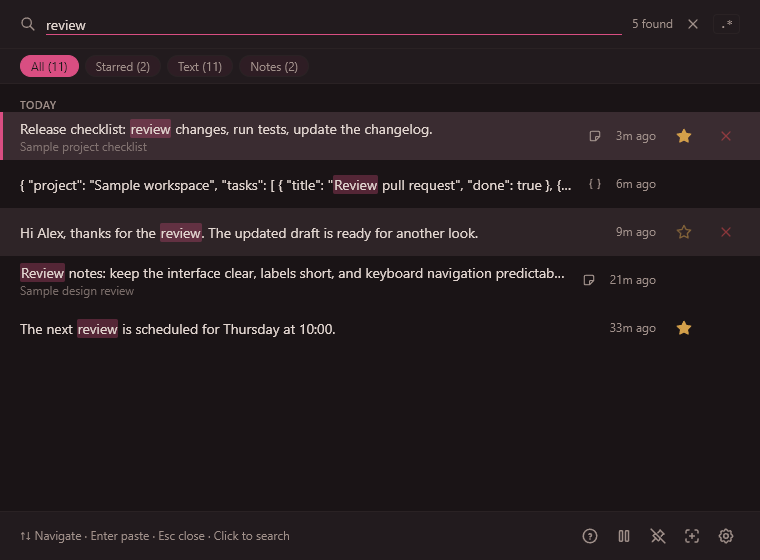
| AI commands | Appearance |
|---|
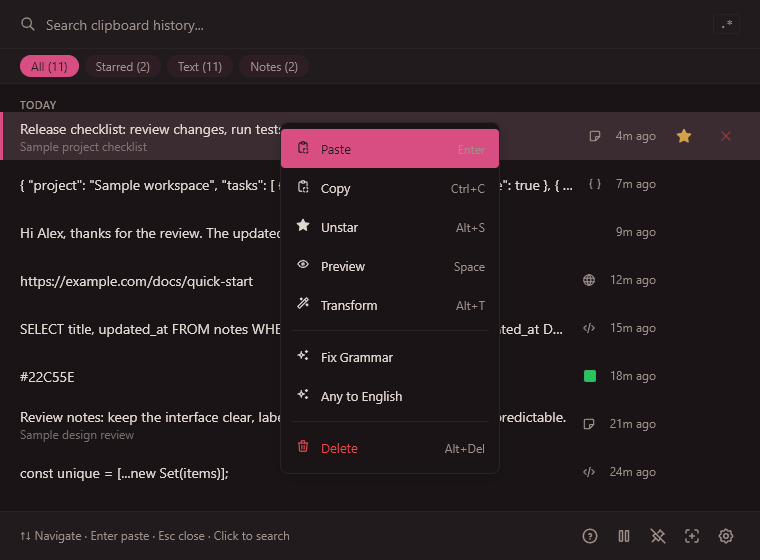 | 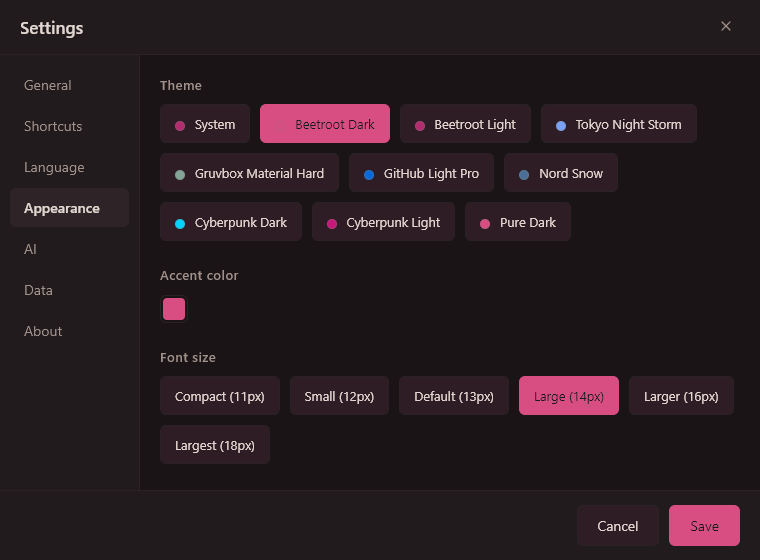 |
More screenshots
| Dark theme | Light theme |
|---|
| 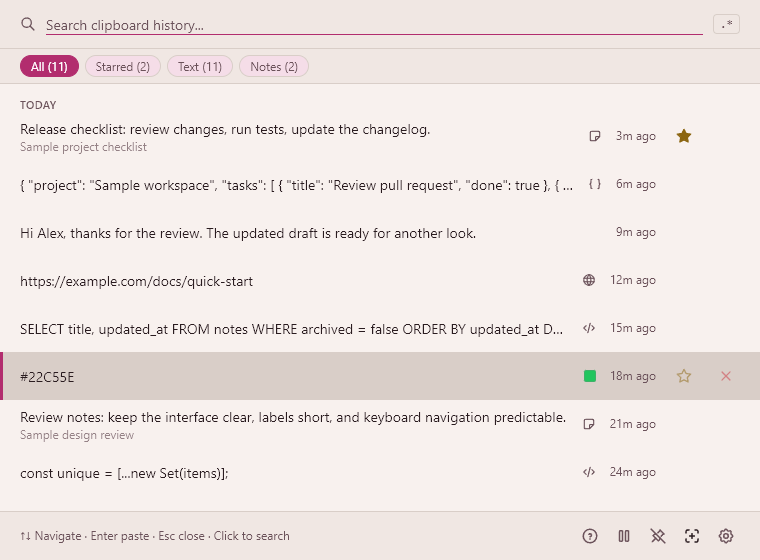 |
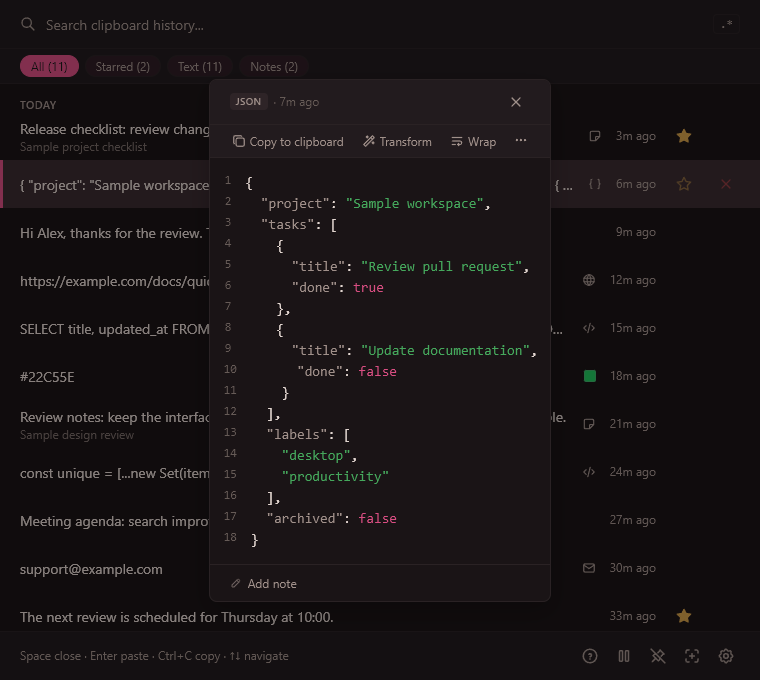
| Context menu and AI | JSON preview |
|---|
|  |
Install
Download the latest .exe from GitHub Releases or get it from the Microsoft Store.
Or use a package manager:
# Winget
winget install MNardit.Beetroot

# Scoop
scoop bucket add beetroot https://github.com/mnardit/scoop-bucket
scoop install beetroot

# Chocolatey
choco install beetroot
Requirements: Windows 10 or later.
Features
Search & workflow
- 5-phase search — exact substring → word-start tokens → metadata → fuzzy. Typo-tolerant with ranked results
- Regex mode —
/pattern/ with match highlighting
- Filters — text, images, starred, notes — one click to narrow down
- Quick paste:
Ctrl+1..9 selects a recent clip while Beetroot's list is active; it is not a global shortcut when the popup is hidden.
- Batch operations — multi-select with
Ctrl+Click, then copy (custom separator) or delete
- Content detection — auto-badges for URLs, emails, code, JSON, colors. ML-powered language detection (54 languages) for code preview
- Single instance — launching Beetroot again brings the existing window to focus
- 4 cloud + local — OpenAI, Gemini, Claude, DeepSeek, or local (LM Studio, Ollama), one-click switch
- Background processing — click a prompt, menu closes instantly, notification when done. Queue multiple transforms
- Reasoning models — Qwen3, DeepSeek R1, and similar work out of the box (auto-strips `` tags)
- 10 text prompts — fix grammar, translate, summarize, rewrite, extract data, format as code, and more
- Custom prompts — create up to 20 of your own, accessible from the right-click menu
- BYOK — bring your own OpenAI key, or skip it with a local model
- Native Rust — all AI API calls run in native code, not the browser engine. No CORS issues, works when window is hidden
AI Vision
- 5 built-in vision prompts — Read Text, Describe Image, Extract Data, Summarize Image, Translate Image Text
- Works with any image in your history — screenshots, photos, scans, handwritten notes
- Cloud + local — GPT-5.4, Claude, Gemini, or local models (Ollama llava/bakllava/moondream, LM Studio)
- Custom vision prompts — create your own in Settings → AI → type "Image"
- Use cases: read handwritten prescriptions, extract data from receipts, OCR foreign-language screenshots, describe charts and diagrams
Recommended local models for text transforms
| Model | Size | Speed | Best for |
|---|
| Qwen3 8B (Q4_K) | ~5 GB | Fast | Grammar, translation, rewriting |
| Gemma 3 4B (Q4_K) | ~3 GB | Very fast | Fixing typos, simple rewrites |
| Phi-4 Mini 3.8B (Q4_K) | ~2.5 GB | Very fast | Code and structured text |
| Llama 3.1 8B (Q4_K) | ~5 GB | Fast | General-purpose |
| Mistral Small 3.1 24B (Q4_K) | ~14 GB | Slow (16+ GB VRAM) | Premium quality |
| DeepSeek R1 7B (Q4_K) | ~5 GB | Fast | Complex rewrites, summarization |
Tested with LM Studio, Ollama, and llama.cpp. Set up in Settings → AI → Local LLM.
Source app tracking
- See where each clip came from — app icon, name, and window title
- Filter by app — "Apps" dropdown with search, sort by last used / most used / alphabetical
- Searchable — source app and window title included in fuzzy and regex search
OCR
- Extract text from images — right-click any image → OCR
- Native Windows engine — no cloud, no uploads, fully offline
- Instant — async, never freezes the UI
Customization
- 9 themes — Beetroot Dark/Light, Tokyo Night Storm, Gruvbox, GitHub Light, Nord Snow, Cyberpunk Dark/Light, Pure Dark (OLED #000000), plus Auto mode
- Window effects — Mica, Acrylic, or Solid; auto-detected by Windows version
- Typography — 8 UI fonts, 5 code fonts, 6 size presets
- 26 languages — EN, RU, DE, ES, ZH, JA, FR, PT, KO, TR, IT, PL, NL, UK, TH, HI, ID, VI, CS, HU, RO, SV, DA, FI, NB, MS
- Pin window — always-on-top, drag between monitors, or follow-cursor mode
- All shortcuts customizable — remap everything in Settings → Shortcuts; AZERTY, QWERTZ, AltGr supported
Reliability
- Automatic database backups: up to 3 rotating copies, plus a snapshot before a database migration. Image files and settings need a separate backup.
- Recovery with feedback: when possible, restores a corrupt database from a valid backup after preserving the original; recent items may be missing.
- Cloud sync warnings — alerts if data folder is inside OneDrive, Dropbox, or Google Drive
- Drive checks: warns about removable drives and cloud-sync folders; network drives are rejected for database storage.
- Auto-update — built-in updater, or disable for fully offline operation
Keyboard shortcuts
| Shortcut | Action |
|---|
Ctrl+` | Show / hide Beetroot |
Enter | Paste selected clip |
Ctrl+1..9 | Quick paste |
Space | Preview |
Alt+T | Transform with AI |
Alt+P | Pin window on top |
Alt+F | Follow cursor mode |
Shift+F10 | Context menu |
Ctrl+C | Copy to clipboard |
Alt+Del | Delete |
All shortcuts are customizable in Settings → Shortcuts. Works with AZERTY, QWERTZ, and AltGr layouts.
FAQ
Is Beetroot free?
Yes. Free for personal and commercial use — no ads, no trials, no feature gates, no telemetry.
Does Beetroot send my clipboard data anywhere?
Clipboard history is stored locally. Cloud AI sends only the selected content and prompt to your chosen provider when you request a transform. Local AI uses a loopback server; that server's own logging and network behavior depend on its configuration. Updates and key tests also make requests. See PRIVACY.md.
Can Beetroot read text from images?
Yes. Right-click any image in your clipboard history → AI → Read Text. Works with cloud providers (GPT-5.4, Claude, Gemini) and local vision models (Ollama llava, LM Studio). For simple OCR without AI, use the built-in OCR feature (native Windows engine, fully offline).
Does AI Vision work offline?
Yes, with a downloaded vision model running locally. Beetroot connects to that server over loopback; check the server's own settings for offline operation.
Where is my API key stored?
In Windows Credential Manager, separately from app settings. The key is sent to the selected AI provider when you request an AI operation or validate the saved key. See PRIVACY.md for legacy-key migration details.
Where is my data stored?
By default in %APPDATA%\com.beetroot.desktop\; see Settings > Data for your actual selected folder. Quit Beetroot from the tray before copying the whole folder for a history backup. Settings and API keys are separate. Follow the backup instructions.
Does auto-update work?
Yes, for v1.0.6+. Users on v1.0.5 or earlier need to download manually once — after that, auto-update works normally. You can disable auto-update in Settings → General.
Troubleshooting
Auto-update not working (v1.0.5 or earlier)
A one-time signing key change means you need to download the latest version manually. Future updates will work automatically.
OCR not working or low quality
OCR uses the native Windows engine. Make sure the relevant language pack is installed: Settings → Time & Language → Language → Add a language → check "Speech" or "Basic typing".
Beetroot doesn't open or hotkey doesn't work
- Check if another app is using the same hotkey (e.g. `Ctrl+``)
- Check that Beetroot is running in the same Windows session as the target app; a normal process cannot inject input into an elevated app.
- Remap the hotkey in Settings → Shortcuts
SmartScreen or antivirus warning
Windows may show a SmartScreen warning for an installer without an established publisher reputation. Use the official release page and check the file's origin before running it. Tauri updater signatures are separate from Windows Authenticode signing.
Feedback & bug reports
Found a bug or have a feature request? Open an issue.
Please include:
- Beetroot version (Settings → About)
- Windows version (
winver)
- Steps to reproduce
- Screenshot or error message if applicable
Development & contributions
Start with CONTRIBUTING.md for setup, tests and your first PR. Native development requires Windows; frontend checks also run on Linux and macOS. Signing keys are not needed for contributor builds. Architecture explains where to make changes.
Bug reports, translations and focused fixes are welcome. Please discuss larger features before implementing them. For vulnerabilities, use the private channel in SECURITY.md, not a public issue.
License
Licensed under Apache License 2.0. Personal and commercial use, modification, and redistribution are permitted under its terms. Author attribution: NOTICE. Third-party components retain their respective licenses.
Privacy Policy · Security Policy · Terms of Service
Third-party fonts & credits
Fonts (SIL Open Font License 1.1):
- Inter — Copyright 2020 The Inter Project Authors
- Open Sans — Copyright 2020 The Open Sans Project Authors
- Montserrat — Copyright 2011 The Montserrat Project Authors
- Noto Sans — Copyright 2022 The Noto Project Authors
- JetBrains Mono — Copyright 2020 The JetBrains Mono Project Authors
Built with: Tauri v2 · React 19 · Rust · SQLite · TypeScript
Download Beetroot · Enjoying it? A ⭐ helps others find it too.
Built by Max Nardit