Installation
winget install -e --id Mehuge.MultiPing
Or download from releases
Note, winget may lag behind the current release as it can take a while to be approved.
MultiPing
MultiPing is a cross-platform desktop application for monitoring network latency and tracing routes. Built with Avalonia, it provides live tables, statistics, and latency plots for both individual network paths and multiple destinations.
The application has two monitoring modes:
-
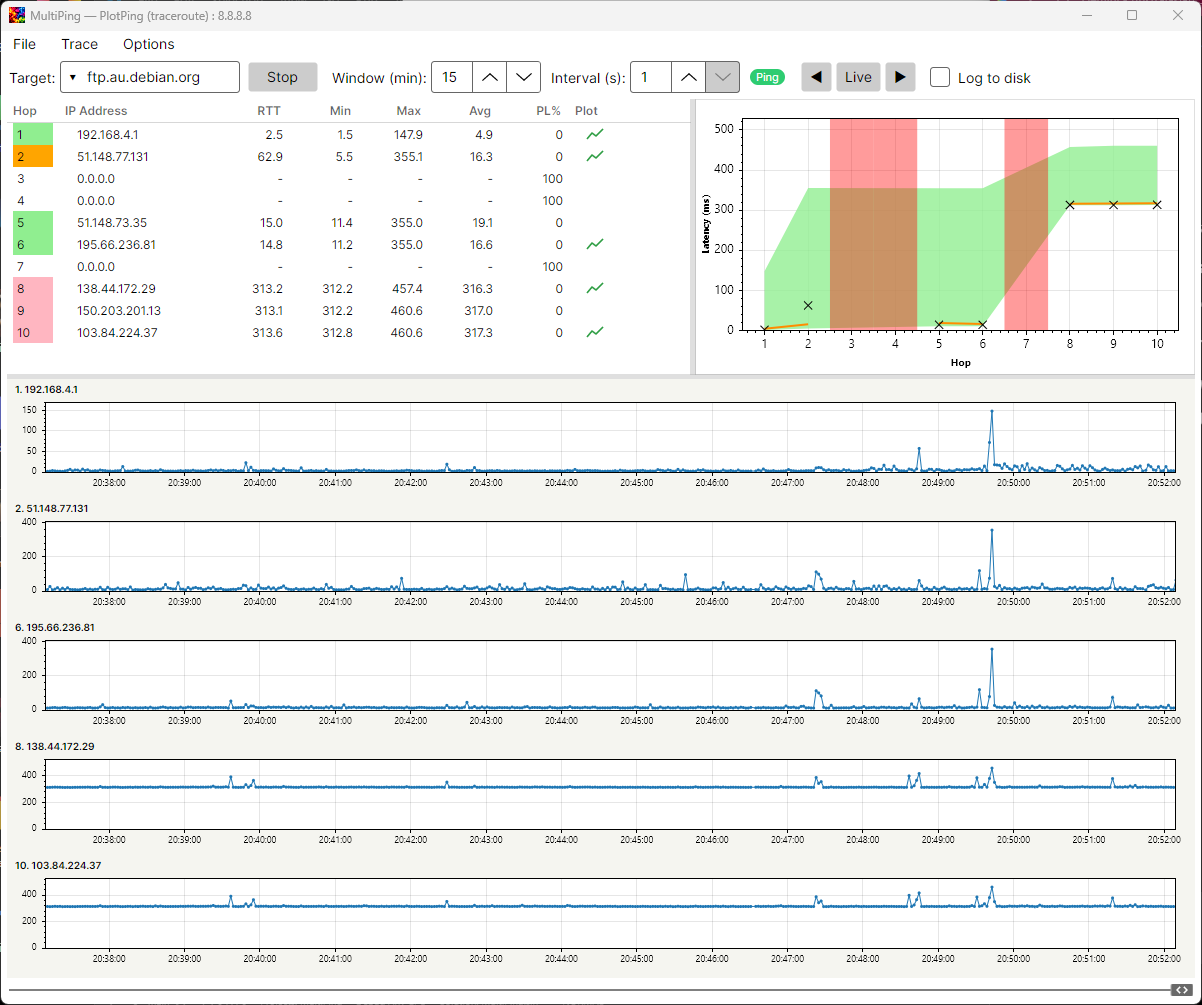
PlotPing traces one destination and displays latency and packet loss for every discovered hop.
-
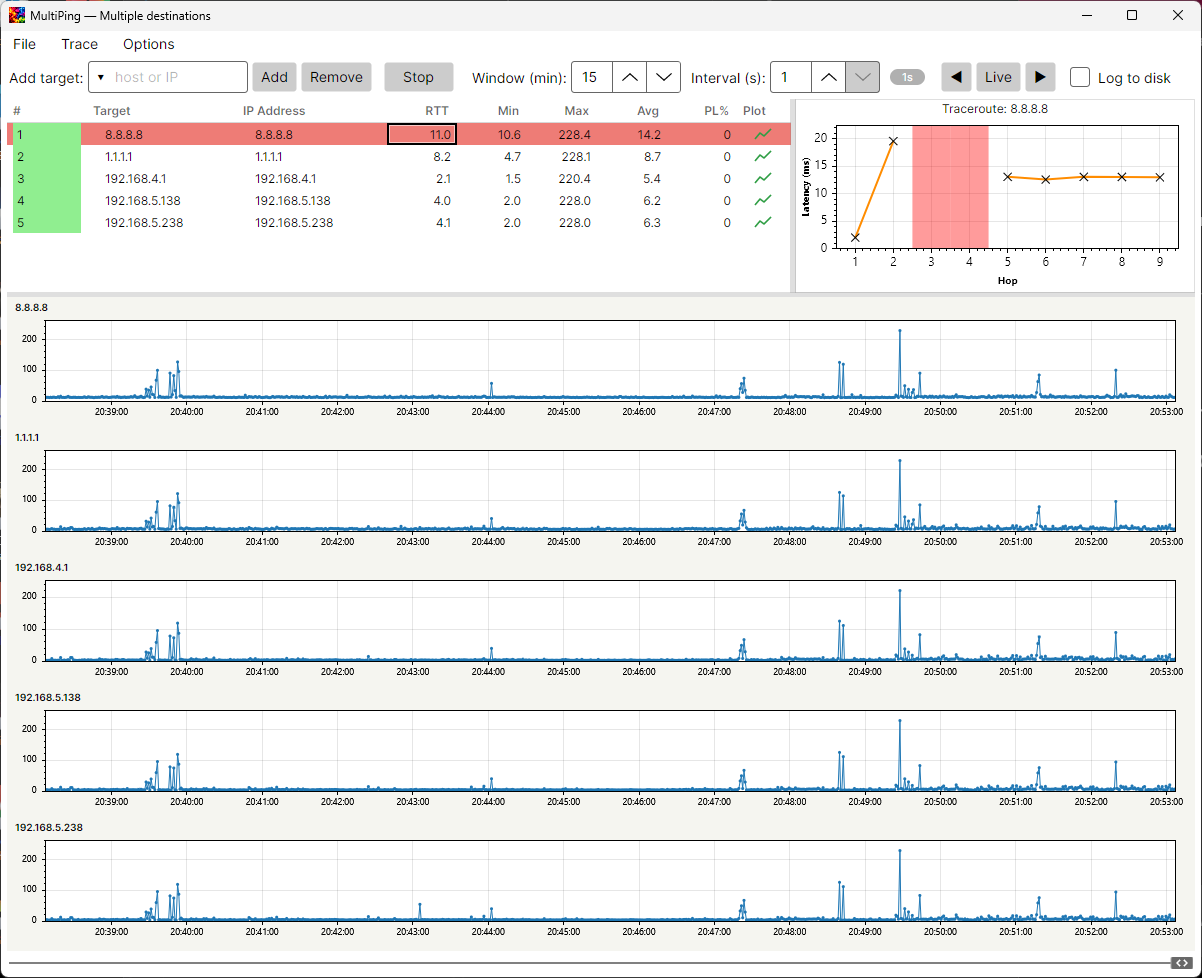
MultiPing monitors several hosts or IP addresses concurrently and can show a traceroute for the selected destination.
Features
- Live ICMP ping and traceroute monitoring
- Current, minimum, maximum, and average round-trip time (RTT)
- Per-target and per-hop packet-loss statistics
- Concurrent, adaptive TTL probing with route look-ahead
- Live and historical latency plots
- Configurable visible history window and timeline scrolling
- Multiple persistent targets and a most-recently-used host list
- Resizable hop, traceroute, and time-series panels
- Timestamped plain-text monitoring logs
- Independent PlotPing and MultiPing windows
- Persistent application settings and target lists
Requirements
To run a published self-contained build:
- Windows x64
- No separate .NET runtime installation is required
To build the application from source:
- Windows
- .NET 10 SDK
- Network access to NuGet for package restoration
Probing uses ICMP. Firewalls, routers, or destination hosts may block or rate-limit ICMP traffic even when the network is otherwise available.
Running the Application
Run MultiPing.exe from a release. If no command-line mode is supplied, MultiPing starts in PlotPing mode.
The executable also accepts an explicit mode:
.\MultiPing.exe --mode plotping
.\MultiPing.exe --mode multiping
Use File > New PlotPing Window or File > New MultiPing Window to open another independent monitoring window.
PlotPing Mode
PlotPing monitors the route to one hostname or IP address.
- Enter a hostname or IP address in Target.
- Select Start.
- Observe the discovered hops, response times, and packet loss in the upper table.
- Select a hop to inspect it.
- Use the plot icon in a row to add or remove its latency chart from the lower panel.
The panel on the right displays the latency profile across the current traceroute. The charts below show latency history for selected hops.
An asterisk (*) represents a hop that did not return a usable response before the probe timeout. This can be caused by ICMP filtering and does not necessarily mean that the destination is offline.
MultiPing Mode
MultiPing monitors a list of destinations in parallel.
- Enter a hostname or IP address in Add target.
- Press Enter or select Add.
- Select Start to begin monitoring every configured destination.
- Select a destination to view its periodically refreshed traceroute in the upper-right panel.
- Select Remove to remove the currently selected destination.
Each destination is measured with a direct ICMP echo request. Added and removed targets are saved automatically.
Monitoring Controls
The toolbar in each monitoring window provides:
- Start/Stop: Starts or stops the probe loop.
- Window (min): Changes the amount of history displayed in the charts.
- Interval (s): Changes the time between probe rounds.
- Probe indicator: Shows
Ping while a round is active or counts down to the next round.
- Back/Live/Forward: Moves the charts backward, returns to live data, or moves toward live data.
- Log to disk: Enables or disables logging for the current window.
- Timeline slider: Appears when enough history has been collected to scroll behind the visible window.
Scrolling changes only the displayed time range. It does not discard collected samples.
Options
Open Options > Options to configure application-wide and traceroute settings.
General
| Setting | Purpose | Default |
|---|
| Ping Interval | Time between complete probe rounds | 5 seconds |
| Plot Window | Default visible chart history | 30 minutes |
| Probe Timeout | Maximum wait for an individual ICMP response | 2000 ms |
Traceroute
| Setting | Purpose | Default |
|---|
| Max Hops (TTL) | Maximum TTL to probe | 30 |
| Look Ahead Limit | Number of additional TTLs to probe when a route is incomplete or changes | 3 |
After the destination is found, later rounds probe the known route instead of repeating the full TTL range. Look-ahead probing helps detect route changes or a destination beyond the previously responding hop.
Logging
- Log all traces to disk by default controls whether newly opened monitoring windows begin with logging enabled.
- Custom Log Directory overrides the default log location.
- Browse selects a folder, while Default clears the override.
Settings are saved automatically. Targets, the PlotPing target, recent hosts, and window preferences are restored when the application starts.
Logs
When logging is enabled while monitoring is running, MultiPing creates a new timestamped, fixed-width text file:
- PlotPing:
plotping_YYYYMMDD_HHMMSS.log
- MultiPing:
multiping_YYYYMMDD_HHMMSS.log
By default, logs are written to:
%APPDATA%\MultiPing\logs
Each completed probe round appends one line for every monitored row. Columns include:
Timestamp Hop/Dest IP Address RTT Min Max Avg PL%
Stopping monitoring or disabling Log to disk closes the active file. Use File > Open Log Folder to open the configured log directory.
Configuration Files
MultiPing stores its settings under the current user's application-data directory:
%APPDATA%\MultiPing\config.json
The JSON file contains targets, probe settings, traceroute settings, logging preferences, and up to 15 recently used hosts. If the file is missing or unreadable, built-in defaults are used.
Building from Source
Restore dependencies and build the debug configuration:
dotnet restore MultiPing.csproj
dotnet build MultiPing.csproj -c Debug
Run a specific mode directly from the source tree:
dotnet run --project MultiPing.csproj -- --mode plotping
dotnet run --project MultiPing.csproj -- --mode multiping
Windows
Publish a self-contained Windows x64 executable:
dotnet publish MultiPing.csproj `
  -c Release `
  -r win-x64 `
  --self-contained true `
  -p:PublishSingleFile=true `
  -p:IncludeNativeLibrariesForSelfExtract=true `
  -p:EnableCompressionInSingleFile=true `
  -o .\publish
The resulting executable is located at .\publish\MultiPing.exe.
macOS
macOS packages are built on macOS so that the script can generate a native .icns icon and, when credentials are available, sign and notarize the bundle. Install the .NET 10 SDK on the Mac, then run:
dotnet restore MultiPing.csproj
npm run build:macos:x64       # Intel Macs
npm run build:macos:arm64     # Apple Silicon Macs
Create an unsigned development/test .app bundle:
npm run package:macos:x64
# or
npm run package:macos:arm64
The bundle is written to:
bin/Release/net10.0/osx-x64/publish/MultiPing.app
bin/Release/net10.0/osx-arm64/publish/MultiPing.app
Open the .app bundle directly, or launch it from Terminal:
open bin/Release/net10.0/osx-arm64/publish/MultiPing.app
An unsigned development bundle may be blocked by Gatekeeper. To test it without a Developer ID, right-click the .app, select Open, and confirm the prompt. Signing and notarization are required for normal distribution outside the development machine.
For a Developer ID release, create an Apple notary keychain profile first, then run:
CODESIGN_IDENTITY="Developer ID Application: Your Name (TEAMID)" \
  npm run package:macos:arm64:notarized
The notarized script signs the bundle with the hardened runtime, submits it to Apple's notary service, and staples the ticket. Replace the example RID with osx-x64 when packaging an Intel release.
Technology
- .NET 10
- Avalonia 12
- CommunityToolkit.Mvvm
- ScottPlot
System.Net.NetworkInformation.Ping
Troubleshooting
Every hop or target shows a timeout
ICMP may be blocked by a local firewall, intermediate router, or destination. Verify that ICMP echo traffic is permitted and try a destination known to respond to ping.
Packet loss appears despite a working connection
Some routers and hosts intentionally drop or deprioritize ICMP packets. Compare several destinations and inspect whether loss occurs at one particular hop.
A hostname cannot be monitored
Check DNS resolution and network connectivity. MultiPing prefers an IPv4 address when a hostname resolves to multiple address families.
No log file is created
Enable Log to disk and ensure monitoring has completed at least one probe round. Check Options > Logging for a custom directory or permission issue.
Limitations
- MultiPing performs ICMP-based probing and does not support TCP or UDP traceroutes.
- ICMP filtering can hide routers and produce apparent packet loss.
- Charts and aggregate statistics are held in memory and reset when the monitoring window closes.
- Monitoring data is not exported from the UI; timestamped text logs provide the persistent record.
License
MultiPing is released under the MIT License.