
Welcome to the Intelligent Terminal repo
Table of Contents
What is Intelligent Terminal?
Intelligent Terminal is an experimental fork of Windows Terminal with native agent integration.
Intelligent Terminal works with any Agent Client Protocol (ACP)-compatible agent CLI. All you need is to install your preferred agent CLI on your PC. If you don't have a preferred agent, we'll get you setup with GitHub Copilot CLI.
Intelligent Terminal takes all the features you love in Windows Terminal such as: tabs, profiles, themes, settings, shells, and keyboard shortcuts, which all work the way you expect.
Read the announcement blog post for more details.
Installing and running Intelligent Terminal
> [!NOTE]
> Intelligent Terminal requires Windows 10 2004 (19041) or later. You also need a supported agent CLI and subscription. GitHub Copilot is the default.
Microsoft Store (recommended)
Install the Intelligent Terminal from the Microsoft Store.
This allows you to always be on the latest version when we release new builds
with automatic upgrades.
WinGet
winget users can download and install
the latest Intelligent Terminal release by installing the Microsoft.IntelligentTerminal
package:
winget install --id Microsoft.IntelligentTerminal -e
Downloads
| Distribution | Architecture | Link |
|---|
| App Installer | x64, arm64, x86 | Download |
Get Started
- On first launch, choose your agent. Intelligent Terminal auto-detects several ACP-compatible agent CLIs on your machine (Copilot/Claude/Codex/Gemini/OpenCode). If none are found, it defaults to GitHub Copilot CLI and installs it for you via WinGet.
- If you aren't already authenticated, the agent pane walks you through sign-in. For GitHub Copilot Enterprise, press E at the sign-in prompt and enter your enterprise host (for example,
your-org.ghe.com); the last host you used is remembered.
- Start asking questions and using the agent pane for assistance. The agent has context on your shell output, no copy-pasting needed. The agent pane does not run commands in your shell without your explicit approval: you choose whether to run its suggested command, copy it into your shell to run yourself, or dismiss it.
> [!TIP]
> If you see "running scripts is disabled on this system" or an UnauthorizedAccess error in PowerShell, your execution policy is blocking your profile and Intelligent Terminal can't initialize shell integration. Run:
> powershell > Set-ExecutionPolicy -Scope CurrentUser -ExecutionPolicy RemoteSigned >
> If you run into any other issues or dependency errors, see installing-dependencies.md.
Keyboard Shortcuts
All shortcuts are customizable through Intelligent Terminal settings.
| Shortcut | Action |
|---|
| Ctrl+Shift+. | Toggle the agent pane |
| Ctrl+Shift+I | Switch focus to/from the agent pane |
| Ctrl+Alt+. | Open agent pane with error context |
| Ctrl+Shift+/ | Open agent management |
| Alt+Shift+/ | Open Command Palette in prompt mode |
| Alt+Shift+B | Open an interactive delegate-agent tab with no startup prompt |
| Alt+V | Paste a clipboard image into the agent pane |
Configuration
Everything is configurable through Intelligent Terminal settings, under "Agent" settings.
| Setting | Options |
|---|
| Agent and model | GitHub Copilot (default), or any ACP-compatible agent CLI, including custom or local agents. Configurable for both the agent pane and command palette. Each agent pane can also override its model on the fly with /model; changing the global setting here overrides every pane. |
| Custom providers (BYOK) | Bring your own provider credentials and model through GitHub Copilot or OpenCode using an OpenAI-compatible Chat Completions endpoint. Add a provider under Agent settings with a Base URL, Model ID, and optional API key, then select it from /model. API keys are stored in Windows Credential Manager; keyless local endpoints such as Ollama remain supported. |
| Pane placement | Top, Bottom (default), Left, Right |
| Error detection | Allows Intelligent Terminal to automatically detect command failures |
| Error suggestions | Allows Intelligent Terminal to automatically send detected errors to the agent for fix suggestions |
| Agent session tracking (hooks) | Allows Intelligent Terminal to track active agent sessions and their status in the session management UI |
| Token usage display | Show or hide token usage and cost in the agent status bar |
You can also pin a specific agent to a profile. Open a profile in Settings (for example, "PowerShell" or "Ubuntu") and set the agent you want its agent pane to use. For a WSL profile, the picker also lists agents installed inside that distro, so an Ubuntu profile can run a Linux-side agent. Profiles you don't configure keep using the global agent.
When Settings > Agents > Sessions is off, session management shows a subtle reminder below its title to turn it on for the best experience. Existing hooks are not removed and may continue to report activity; the setting controls their installation and updates. The reminder disappears when Sessions is enabled and is not shown when organization policy prevents enabling it.
Features
Agent Status Bar
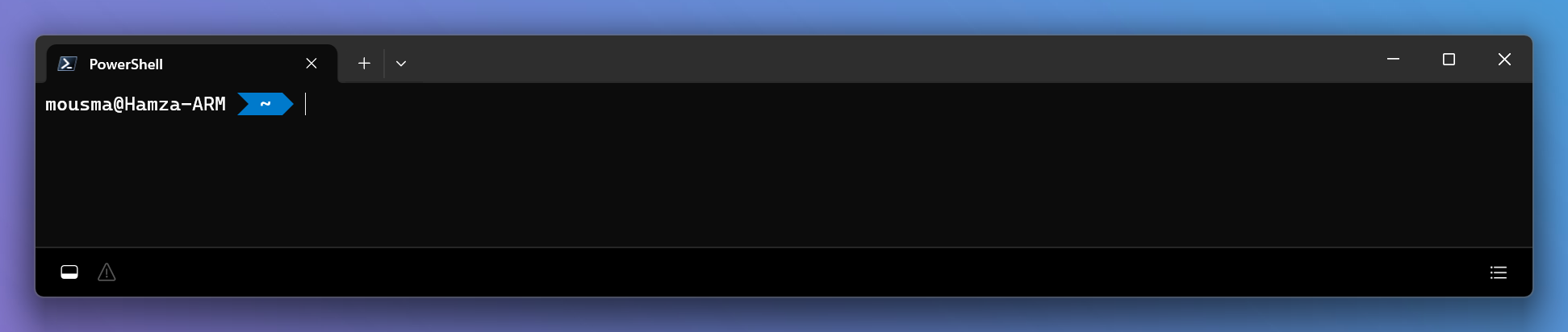
The agent status bar sits at the bottom of the window and gives you quick access to everything agent-related. On the left: the agent pane toggle (hotkey: Ctrl+Shift+.) and the error detection icon (hotkey: Ctrl+Alt+.), which lights up when a fixable error is detected. On the right: the agent management icon (hotkey: Ctrl+Shift+/) that opens your session management panel. It's a persistent, minimal control surface so you're never more than one click away from your agents. The status bar can also display your current token usage and cost as you work; toggle this on or off in Agent settings.
Agent Pane
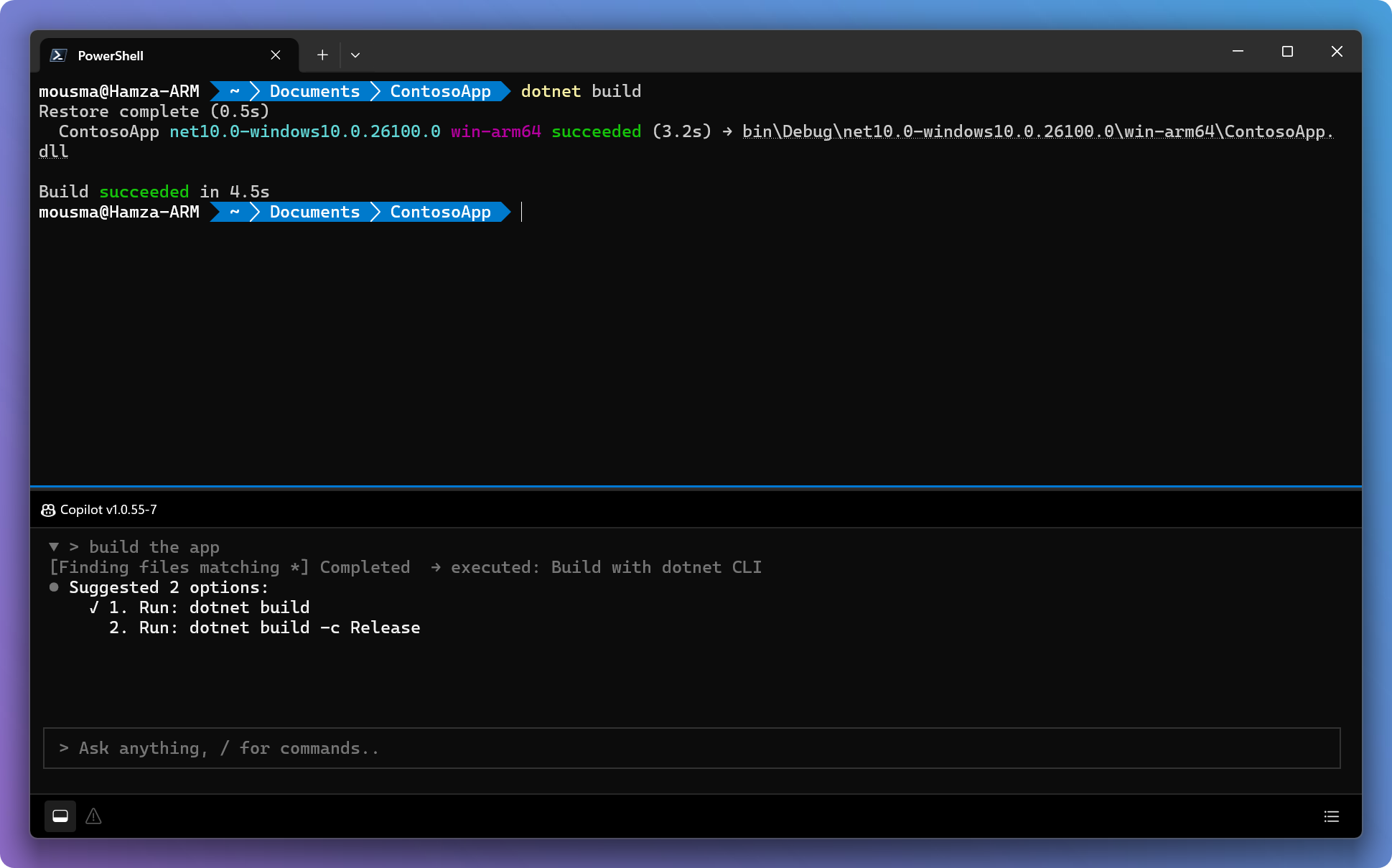
A context-aware, docked pane with your agent CLI of choice. The pane has context on your shell output across all your shells (PowerShell, Bash/WSL). Toggle with Ctrl+Shift+., switch focus with Ctrl+Shift+I. If the agent needs to do multiple or complex tasks, it spins up background tasks in new tabs so your active shell stays focused. When the agent suggests a shell command, the pane gives you the option to run or copy it rather than running it automatically. Paste a clipboard image straight into the chat with Alt+V to show the agent a screenshot, diagram, or mockup (acting on the image depends on your agent's image support).
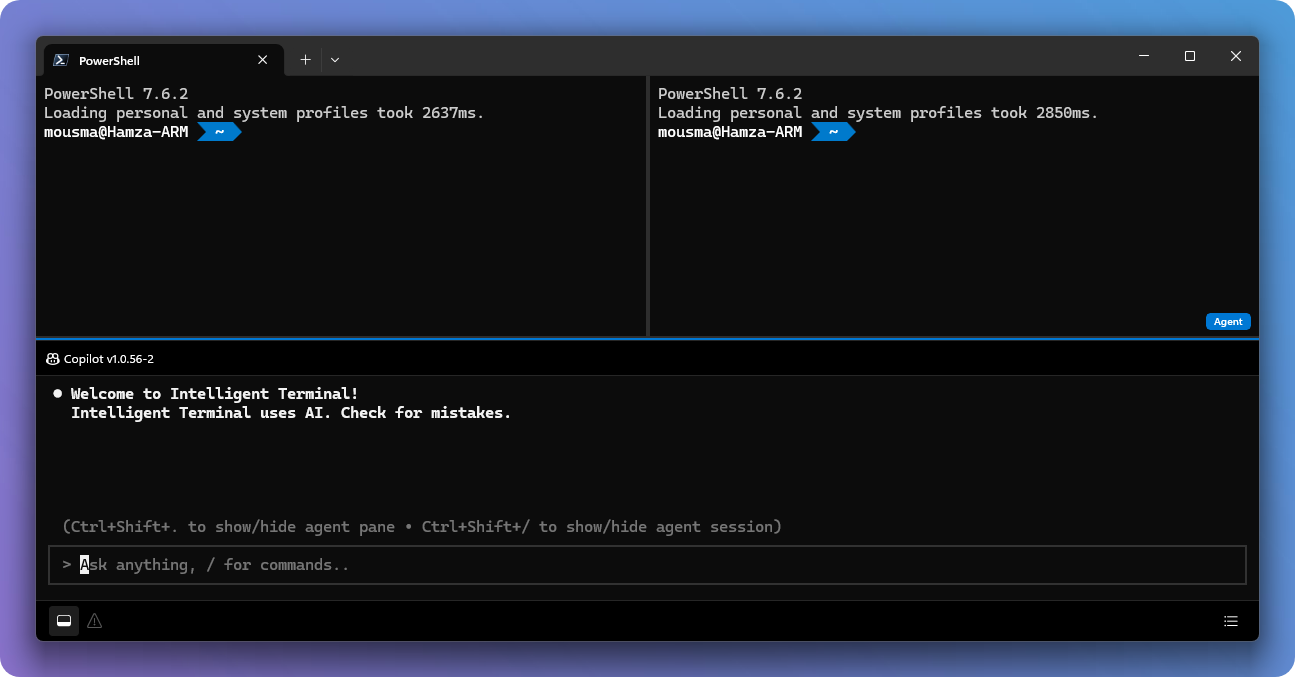
When you have multiple panes active, a small "Agent" indicator will appear on the pane that your agent has "focus" on.
Inside the pane you can scroll and drag to select with the mouse, double-click a word or triple-click a line, and press Ctrl+C to copy. Press Up and Down in the input to recall recent prompts.
Slash Commands
Inside the agent pane, type / to see available commands. Type /help at any time to show the list.
| Command | Description |
|---|
/agent [id] | Pick the agent source for this tab. In a WSL pane, the picker includes agents installed on Windows and in that pane's WSL distro; it never offers other distros. |
/clear | Clear the chat scrollback (keeps the current session) |
/config | Configure the current agent session using the options your agent exposes. With GitHub Copilot, for example, you can set the mode (agent, plan, or autopilot), model, reasoning effort, and whether it asks for approval before using tools |
/fix [hint] | Diagnose the active terminal and suggest a fix; add an optional hint to steer it (e.g. /fix the path looks wrong) |
/help | Show the command list |
/model [id] | Pick the model for this pane; bare /model opens a picker of your configured BYOK models, /model switches directly |
/move [position] | Move this tab's agent pane without changing the global setting or other tabs; /move left|right|up|down (aliases l/r/u/d) |
/new | Start a fresh agent session (drops history) |
/restart | Restart the agent with a clean session |
/sessions | Open agent management (same as Ctrl+Shift+/) |
/stop | Cancel the in-flight prompt |
Custom Providers (BYOK)
Run your agent against your own provider or a model on your machine. BYOK is supported through GitHub Copilot and OpenCode using an OpenAI-compatible Chat Completions endpoint. Under Agent settings, add a provider with a Base URL, Model ID, and optional API key, then pick it from the /model picker (configured models show as modelId (BYOK)). API keys are stored in Windows Credential Manager; a local Ollama model still works with no key:
Base URL:  http://localhost:11434/v1
Model ID:
API key:
Agent Management
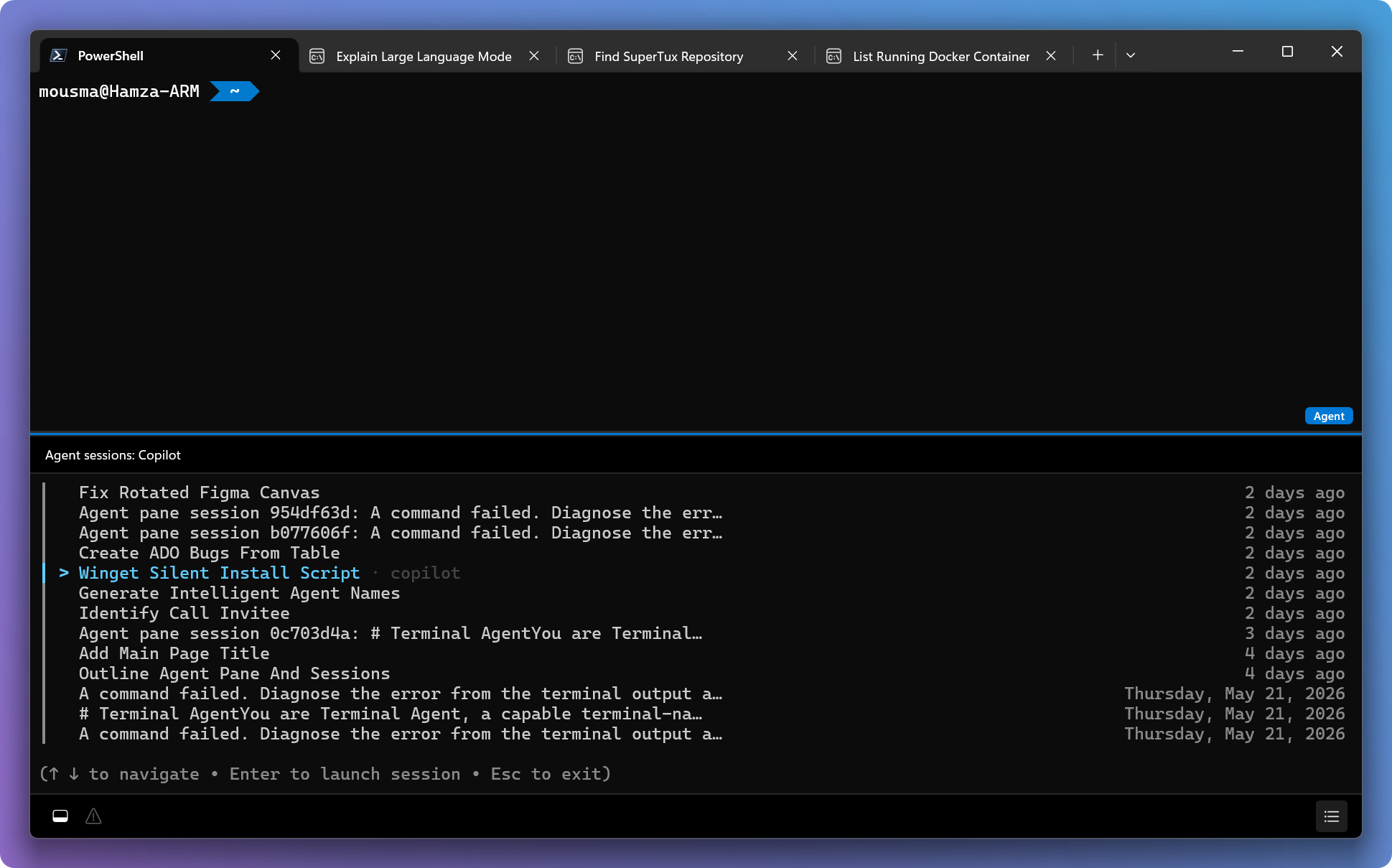
View all active agents, their status, and past sessions. Pick up a workflow where you left off or check on a long-running task. Click the agent management icon in the status bar or press Ctrl+Shift+/ to open it.
While a tracked built-in agent session is live, its terminal pane uses the agent's icon. Vertical pane rows show their own icons; tab headers in both layouts follow the focused terminal pane. Focusing the AI helper keeps its associated terminal pane as the source. When the session ends, or the provider is custom or unknown, the profile icon is used instead. This works whether or not Agent status is selected as visible tab metadata.
Error Detection
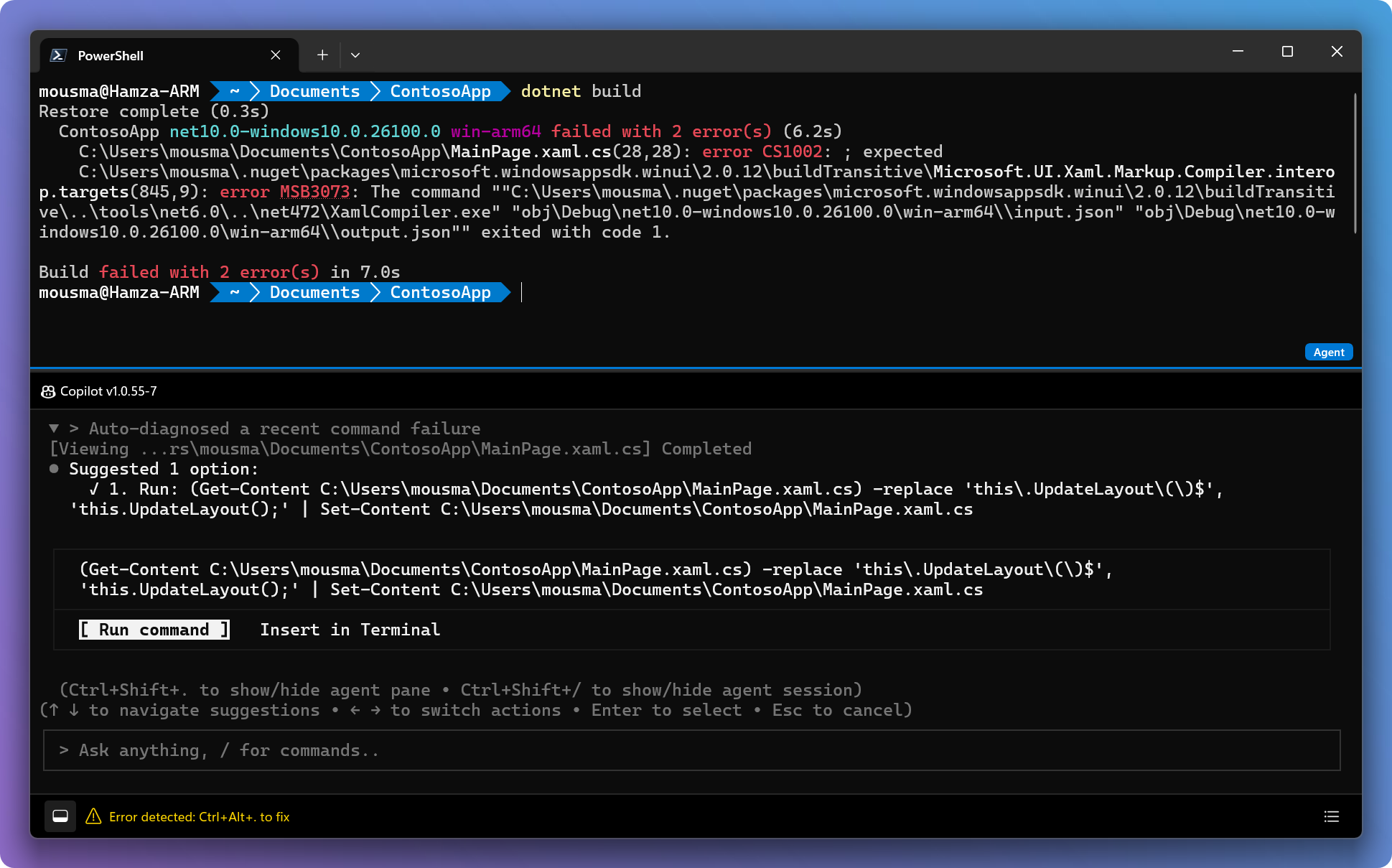
When a command fails, an indicator appears in the agent status bar. Click it or press Ctrl+Alt+. to open the agent pane with the error context already loaded. The agent can explain what happened and suggest or run a fix. Configure your settings to auto-detect errors only, or to also auto-suggest fixes. You can also trigger a fix at any time from the agent pane with the /fix slash command.
Command Palette
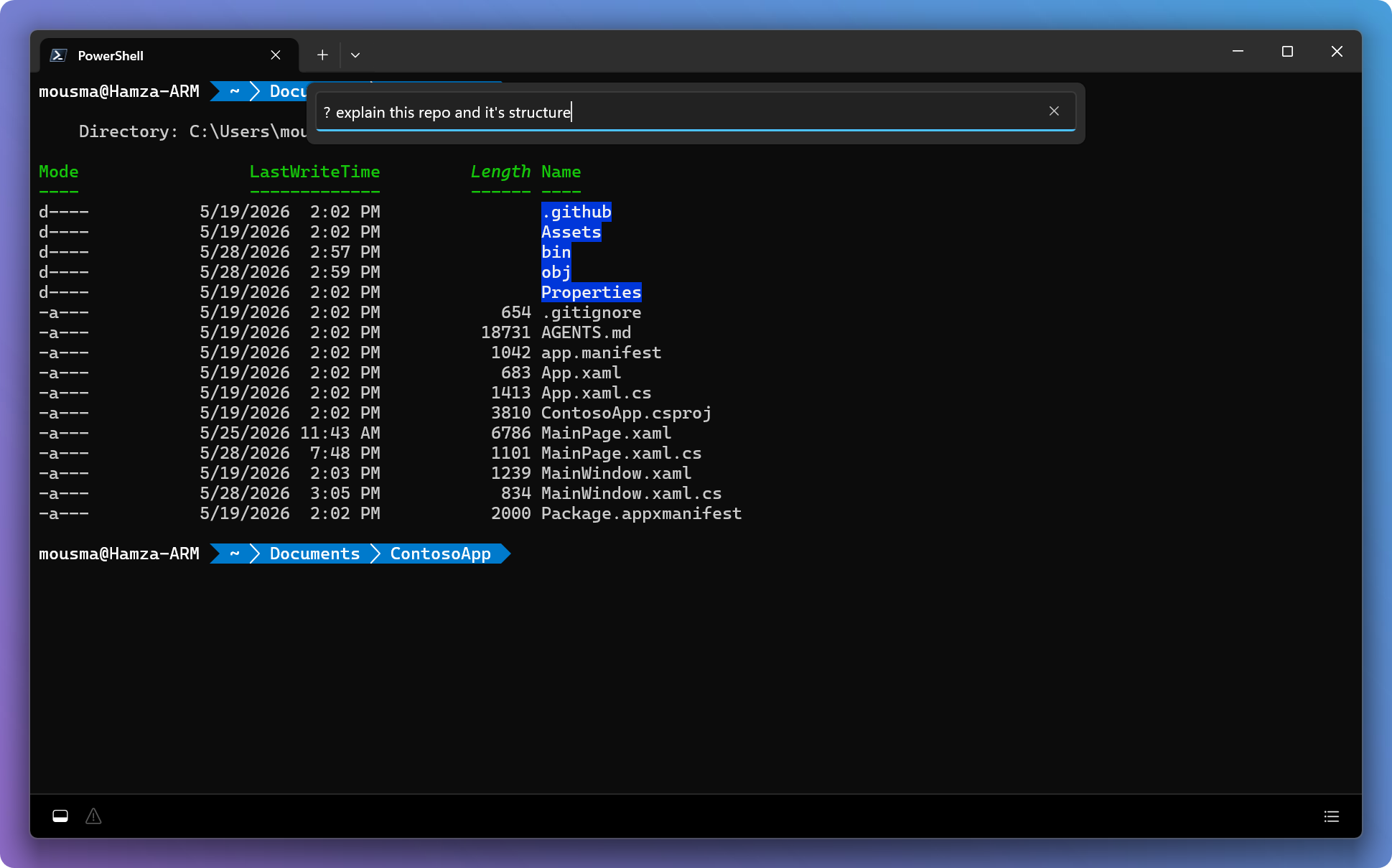
Type ? followed by your prompt in the Command Palette to kick off an agent task. Intelligent Terminal injects context from the active pane and starts the agent in a background tab. Use Alt+Shift+/ to jump directly into prompt mode.
Data & Privacy
Intelligent Terminal is a local transport layer. It passes your prompts and shell context to your selected agent CLI over stdio/ACP. Intelligent Terminal does not call any cloud APIs itself and does not persist conversation history, however, diagnostic logs may be written to disk and telemetry may be emitted as described below.
What data flows through Terminal
- Your prompts (what you type in the agent pane or command palette)
- Shell output context (recent command output shared with the agent for context)
- Basic environment metadata (shell type, OS version)
All of this is held in memory for the active session only and discarded when the session ends.
Where your data goes depends on your agent CLI
| Agent CLI | Data routing | Terms |
|---|
| GitHub Copilot (default) | GitHub backend | GitHub Copilot Trust Center. Enterprise protections (e.g., zero data retention) apply for eligible plans. |
| Third-party or custom agent CLIs | Determined by the agent vendor | Governed by that vendor's terms, not Microsoft or GitHub agreements. |
> [!NOTE]
> Terminal cannot guarantee data protections for third-party agent CLIs. When you select an agent, you're choosing where your data goes. Review your agent vendor's privacy policy before use. For more information on how to use GitHub Copilot responsibly, see Responsible use of GitHub Copilot.
Controls
- Choose your agent CLI at any time in Settings > Agent
- Disable auto error detection to prevent shell output from being detected automatically
- Intelligent Terminal always asks before running commands on your behalf in your shell
Intelligent Terminal only collects usage data and sends it to Microsoft to help improve our products and services. Read our privacy statement to learn more. See PRIVACY.md for details and instructions on how to disable telemetry.
Data Collection
The software may collect information about you and your use of the software and send it to Microsoft. Microsoft may use this information to provide services and improve our products and services. You may turn off the telemetry as described in the repository. There are also some features in the software that may enable you and Microsoft to collect data from users of your applications. If you use these features, you must comply with applicable law, including providing appropriate notices to users of your applications together with a copy of Microsoft's privacy statement. Our privacy statement is located at https://go.microsoft.com/fwlink/?LinkID=824704. You can learn more about data collection and use in the help documentation and our privacy statement. Your use of the software operates as your consent to these practices.
Building the Code
Building Intelligent Terminal is the same as building Windows Terminal. See the Developer Guidance section of the Windows Terminal README for prerequisites, build instructions, and debugging steps.
Feedback
Intelligent Terminal is in an experimental stage. If you have a feature request or find a bug, submit an issue on the GitHub repository.
Collecting Logs
To help us investigate bugs, please collect and attach diagnostic logs when filing an issue:
- Open Command Palette with Ctrl+Shift+P
- Search for Report a bug (collect logs)

- A ZIP file containing your error logs will be generated and opened in File Explorer
- Attach the ZIP to your issue so we can investigate with full context
Intelligent Terminal ships as a separate app and installs next to your existing Windows Terminal. If you don't want agents in your terminal, nothing changes for you. With this model, we can learn, experiment, and iterate with you, the community, on what this evolution might look like without breaking your existing Windows Terminal flows.
Contributing
We are excited to work alongside you, our amazing community, to build and enhance Intelligent Terminal!
Before you start work on a feature/fix, please read & follow the Windows Terminal Contributor's Guide. The contribution process is the same.
For local dev/build of this repo, see:
quick-start-local-dev
Code of Conduct
This project has adopted the Microsoft Open Source Code of Conduct. For more information, see the Code of Conduct FAQ or contact opencode@microsoft.com with any additional questions or comments.
Security
If you believe you have found a security vulnerability in this repository, please report it following the instructions in SECURITY.md.
Trademarks
This project may contain trademarks or logos for projects, products, or services. Authorized use of Microsoft trademarks or logos is subject to and must follow Microsoft's Trademark & Brand Guidelines. Use of Microsoft trademarks or logos in modified versions of this project must not cause confusion or imply Microsoft sponsorship. Any use of third-party trademarks or logos is subject to those third-party's policies.