> Disclaimer: This project is for learning and exchanging ideas about Go TUI tools. It is a non-profit open-source project and does not accept sponsorships or donations, now or in the future.
>
> This application is currently in informal development; bugs are common.
Mihari — Mihomo / Clash CLI & TUI Manager
English · 简体中文



Website · Releases
Mihari is a cross-platform mihomo (Clash Meta) manager for Windows and Linux. It provides a CLI, terminal UI (TUI), subscription management, system proxy, TUN mode, mihomo core management, and web panels. macOS is currently unsupported; the existing Unix install channel and darwin release binaries remain available.
An open-source terminal alternative to graphical Mihomo / Clash clients such as Clash Party and Sparkle. CLI, TUI, and browser panels share one daemon-owned control plane.
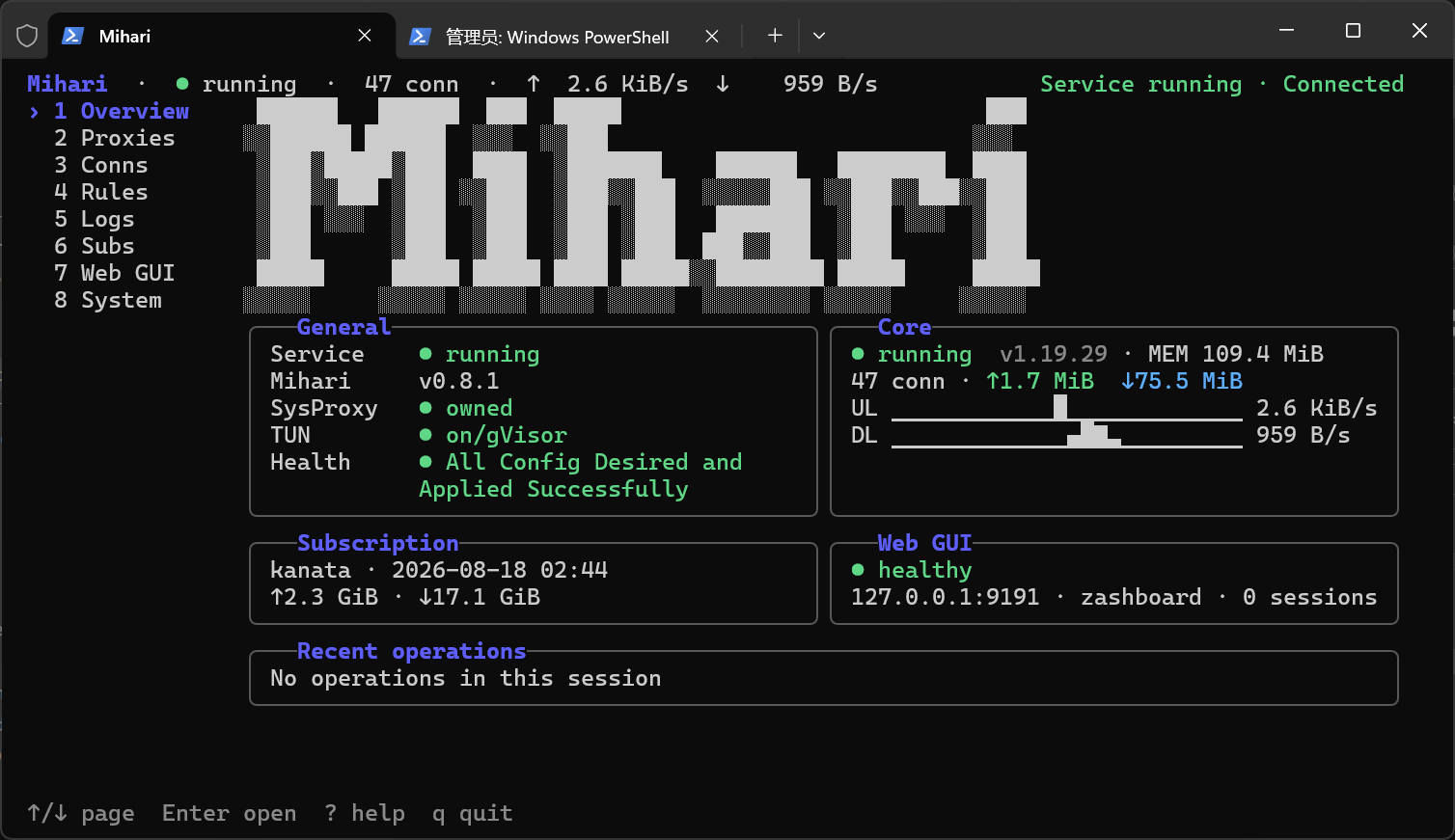
Overview's Core card shortens its traffic charts to keep each speed and its unit together on the chart line.
What is this?
TLDR: Mihari is a terminal manager for mihomo — the same family of tools as mihomo GUIs like Clash Party and Sparkle, but it runs in the terminal and is hosted by a daemon in the background, so the CLI, TUI, and browser panels share one control plane.
Specifically:
- Subscription management: add, refresh, and switch subscription profiles, with offline switching, independent refresh intervals, and per-profile fetch proxy
- Core management: install, update, reinstall, and restart the mihomo core. Online updates use the latest official stable/alpha release; existing local cores need no official provenance receipt. Mihari application updates preserve the core and its channel. Interrupted core updates block uncertain starts; use System → Reinstall core or
mihari core reinstall to fetch the original channel's latest release while retaining subscriptions and configuration.
- Service supervision: run in the background as an OS service, with crash auto-restart
- System proxy / TUN: enable system proxy or TUN; a foreign proxy or another TUN/mihomo instance requires confirmation or
--force
- Outbound interface override: choose an adapter in System → Network → Outbound Interface Override, or use
mihari egress list|status|set |auto. The System row shows the current selection in bright yellow. Use ↑/↓ to browse the scrolling list, PgUp/PgDn for details, and Enter to use the highlighted row. Unavailable saved adapters remain visible without automatic fallback. A running core reloads and closes tracked active connections; a stopped core only saves the choice. No-Override restores the original subscription configuration. This uses native mihomo bindings and does not guarantee two global TUNs can coexist. Before downgrading to an older Mihari, switch back to No-Override (mihari egress auto) to remove the new settings field.
- Web panels: one-click install and open of the zashboard / MetaCubeXD panels
- Connections & rules: live view of connections, proxy groups, and rules, with local GeoIP resolution
Quick start
Install
macOS is currently unsupported. The Unix install commands below still include the retained darwin channel.
main release channel (GitHub)
# Linux / macOS
curl -fsSL https://raw.githubusercontent.com/mihari-proxy/mihari/main/scripts/install/install.sh | bash
# Windows (PowerShell)
irm https://raw.githubusercontent.com/mihari-proxy/mihari/main/scripts/install/install.ps1 | iex
dev release channel (GitHub)
# Linux / macOS
curl -fsSL https://raw.githubusercontent.com/mihari-proxy/mihari/dev/scripts/install/install.sh | bash -s -- --channel dev
# Windows (PowerShell)
$env:MIHARI_CHANNEL = 'dev'
irm https://raw.githubusercontent.com/mihari-proxy/mihari/dev/scripts/install/install.ps1 | iex
Or download the binary for your platform from the Releases page.
China / no GitHub access (offline)
An all-in-one bundle (mihari binary + mihomo core + GeoIP, sha256-verified) is mirrored on a self-hosted AList drive, so installs never touch GitHub. The downloader is always taken from the stable AList root.
main release channel (AList / offline)
# Linux / macOS
curl -fsSL https://cloud.xn--30q18ry71c.com/p/public/mihari-release/mihari/install-aio-remote.sh | bash
# Windows (PowerShell)
& ([scriptblock]::Create((irm https://cloud.xn--30q18ry71c.com/p/public/mihari-release/mihari/install-aio-remote.ps1)))
dev release channel (AList / offline)
# Linux / macOS
curl -fsSL https://cloud.xn--30q18ry71c.com/p/public/mihari-release/mihari/install-aio-remote.sh | bash -s -- --channel dev
# Windows (PowerShell)
& ([scriptblock]::Create((irm https://cloud.xn--30q18ry71c.com/p/public/mihari-release/mihari/install-aio-remote.ps1))) -Channel dev
See docs/distribution.md for the offline distribution design.
First run
mihari
The interactive setup uses the shared TUI theme and a step-by-step layout, with the current action, an animated waiting indicator and elapsed time. Failures show a summary and next action; press F2 for scrollable, copyable diagnostic details.
Setup applies each submitted step as your chosen target, so normal background initialization does not invalidate it. A newly imported subscription becomes active while other subscription entries remain saved. Skipped steps keep existing resources, usable resources are reused, and later failures keep earlier completed steps. Changes made after a step succeeds remain in effect; finishing setup does not apply earlier steps again. Setup requires a daemon with matching setup support; update and restart an older daemon before continuing. If a subscription configuration step fails and its rollback cannot be confirmed, setup blocks further changes and stops the core. Press F2 for diagnostics, resolve the reported cause, then restart the Mihari daemon. Restarting does not guarantee recovery if the underlying problem remains.
Confirmed endpoint changes are saved immediately by the daemon. Saved resources survive interruption; reopening checks required ports/core and resumes missing setup, without requiring optional subscriptions or GeoIP. Core shows local readiness, version, channel and runtime state; GeoIP shows Country/ASN availability and update times separately. Existing subscriptions remain visible as an overview with counts, per-profile state and the current selection; Enter continues without changing them. Add more or manage existing profiles on the Subscriptions page. New subscriptions are fetched and validated before registration; a failed first import leaves no entry when rollback succeeds.
Esc during an operation asks to cancel, then checks daemon settlement and saved state. An unknown result is not proof that nothing was saved: recheck or exit without blindly resubmitting. Ctrl+Q confirms exit. A confirmed startup port conflict exposes restricted endpoint recovery over authenticated local IPC; other business mutations remain unavailable. After changing ports, restart the daemon and recheck (or wait for reconnection). Service ownership cannot currently be verified, so setup does not automatically restart a potentially different service instance.
Add a subscription and enable the system proxy
mihari sub add my-sub https://example.com/subscribe
mihari sub add local --file /absolute/path/config.yaml
mihari sub list
mihari sub use
mihari sysproxy enable
Features
- One daemon, three surfaces: CLI, TUI, and browser panels talk to the same daemon-owned control plane over a local named pipe / Unix domain socket. The control API never binds a TCP port.
- OS service supervision: install as a Windows service / systemd unit / launchd agent, with crash backoff restart.
- Subscription profiles: per-subscription independent caches, offline switching, per-profile refresh intervals, per-profile fetch proxy (
direct / proxy / auto; auto falls back to direct), and validated atomic config generation with rollback.
- Web panels: one-click install / update / activate / rollback for zashboard and MetaCubeXD, served behind a loopback Web gateway with its own access credential.
- System proxy & TUN: cross-platform system proxy control and managed TUN, both daemon-owned and persisted. Enable refuses a foreign system proxy (
system_proxy_conflict) or another TUN / mihomo instance (tun_conflict) unless --force (TUI asks for confirmation).
- Ports Config: the System page can change Mixed / Controller / Web ports; occupancy shows
Owned or Occupied by name (pid). While startup is still waiting for the core's identity, a detected listener shows neutral Checking owner…. On Linux, an unelevated TUI that cannot identify the holder shows Needs admin. Ownership follows refreshed daemon/core PIDs after a restart without requiring a page reload. Applying a change typically requires a daemon restart.
- In-TUI Mihari updates: the System page checks GitHub Releases when the rail selects System, before Enter, shows
current -> latest available or current · Up to date, and—when Mihari was started with administrator/root privileges—replaces the binary, synchronizes and restarts an installed OS-service copy, verifies its daemon version, and automatically enters the updated TUI. The update confirmation keeps safe nonstandard installed build labels as Unknown[label]; compatibility remains unknown. Long confirmation content scrolls with ↑/↓ or PgUp/PgDn, with Cancel selected by default.
- Core channel: the System page can switch the mihomo core between
stable and alpha. During core installation, update, reinstallation, channel switching or restart, both the mihomo core summary and the action row show an animated Braille progress badge. The badge precedes the existing summary and clears when the operation finishes or fails. Narrow windows prioritize the badge and clip the remaining summary to the available width.
- Automatic version checks: selecting System on the rail, before Enter, checks both Mihari and the core channel every time. Entering the page does not start another one of those checks and does not cancel a check already in progress. Entering Web GUI checks every supported panel, including uninstalled ones. Core and Mihari checks use an animated
Checking badge, then show current -> latest available, Up to date, or Check failed; these System checks do not block other System actions. A Web GUI panel check shows that same badge on Latest while it is running. Successful panel checks are cached for five minutes within the TUI session. A failed Mihari or core check retries the next time the rail selects System. Successful core installs/channel switches and panel install/update/rollback/reinstall/uninstall actions immediately refresh the affected version check. Checks only fetch metadata; installation still requires confirmation.
Mihari updates show an animated Preparing badge during download and verification, retaining the current version and channel. After confirmation, the TUI restores the terminal and shows an animated Updating Mihari status while replacing the binary and synchronizing the installation. It reports success, failure or recovery required before reopening the updated TUI. Redirected output uses ordinary status lines.
On Windows, updates can query the version of a user-owned installation (including the default AppData location) using the same user's non-administrator token. If the filtered UAC token is identification-only, Mihari can use the desktop shell's token after verifying the same user and logon session and non-administrator rights. Unsafe directory permissions or an unavailable verified token still leave the version unknown; version probing never elevates a user-writable executable.
Proxy latency tests discover provider nodes and use mihomo's provider-specific endpoint when needed. Duplicate names appear once per group and share a test result: a global node takes priority, otherwise the first matching provider in name order is used. The first successful node check after TUI startup warns about duplicates; the tested source may differ from the group's selected source. Provider reads retry transient failures up to three times. If a refresh still fails, Proxies retains the last snapshot with a Stale data notice and the key error; the notice clears after recovery. CLI/TUI and daemon should be upgraded together.
While a TUI proxy latency test is running, its node card shows only an animated Braille spinner beside the protocol.
On Proxies, PgUp/PgDn moves about one screen through group headers and expanded node cards, keeps the focused card visible, and preserves its grid column where possible. The step adapts to the window size and fixed Basic header. PgDn also enters the group list from Basic controls; paging leaves the selected proxy and expanded groups unchanged.
Each visit to Proxies starts a new round of automatic latency tests. Expanded cards are tested when their content first enters the viewport; visible group headers also test their current selected leaf, as does Basic → GLOBAL. Names share one automatic test per round. Scrolling away keeps queued work; leaving the page or disabling automatic tests cancels automatic work. Returning, re-enabling tests, changing subscriptions, or restarting the core starts another round. New test states and results replace the previous display. Failures wait for a manual test or the next round. Optional latency beside GLOBAL and each group's current selection follows nested groups to the selected leaf and uses the card's result and colors.
Press F4 on any main page to open Page Settings, or use the entry in the first row's second column of Proxies' Basic section. The two-column dialog has a section directory on the left and the complete scrollable settings list on the right. It opens with every section expanded and focuses the current page. Section expansion resets each time the dialog opens. Enter on a directory entry jumps to and expands its right-hand header, retaining other sections' expansion; moving through the right column updates the directory highlight. Other pages currently show No settings available yet. Proxies offers Extra latency display and Automatic latency test, both enabled by default, plus Test concurrency (1–50, default 5). Select Test concurrency and use ←/→ to adjust it. Manual and automatic latency tests share this limit within each TUI; raising it fills queued work immediately after saving, while lowering it lets running requests finish before starting more. These preferences are saved by the daemon, shared by its TUI clients, and survive TUI restarts. Existing Connections column settings remain independent.
Use ↑/↓ within either list, Enter/Space to expand a header or toggle an option, and Tab/Shift+Tab between the directory, settings, Cancel, and Save. The line under the title reads Tab to switch: Sections · settings · Cancel · Save. ] expands every section and [ collapses every section from any of those areas; the footer shows ] Expand all and [ Collapse all. Folding does not change the draft. The buttons stay visible. Ctrl+S or Save starts a save from any position and leaves the dialog open: an orange animated Saving badge plays, then a green Done badge or a red Failed badge followed by the error. Esc or Cancel closes the dialog. Unchanged settings do not call the daemon; Ctrl+S still stays open and shows Done. Changes take effect after a successful save. TUI and daemon should be upgraded together; older binaries cannot load a preferences file containing non-default Proxies settings. Older daemons also cannot read a non-default test concurrency value; restore it to 5 before downgrading. Restoring both switches and test concurrency to their defaults removes that optional block.
The TUI subscription table sizes Name and Traffic to their contents, capped at 40 and 24 terminal columns. Extra width stays on the right; narrow terminals hide lower-priority fields first.
Local YAML sources use an absolute native path or file:// URI (--file C:\configs\main.yaml on Windows, --file /home/user/main.yaml on Linux). Subscriptions and Setup have a Source toggle between URL and Local file; switching clears the source input. Existing profiles keep their source type. The daemon reads files using its own OS permissions, caches the original main YAML (up to 16 MiB), and generates a separate runtime configuration with Mihari's managed settings. Manual/scheduled refresh and disabling auto refresh work like remote subscriptions; Mihari does not watch the main YAML.
Relative local input references resolve against the actual main file's directory at the last successful import, including symlink targets. Editing the source retains the previous cache and directory until a successful refresh. URL providers use mihomo's native downloads and cache paths. Referenced local files are handled directly by mihomo rather than copied: native watchers may change runtime even with auto refresh off; file removal, permissions or moves may break runtime/restart, and rollback does not restore external files. Native mihomo operations may write those files. Validation and execution permit arbitrary reference paths (SKIP_SAFE_PATH_CHECK=true), subject to daemon/core OS permissions; core identity verification and the loopback controller remain enforced.
Local file acquisition propagates cancellation and bounds content size. Filesystem metadata/open calls can still block inside the OS, especially on an unavailable UNC/SMB share or network mount; cancellation and the execution budget cannot forcibly interrupt those synchronous calls.
New local and remote imports containing file references require confirmation after validation. Interactive CLI/TUI default to Cancel; scripts/JSON must pass --allow-file-references (missing acknowledgement exits with code 2). Later edits, refreshes and startup do not prompt again. A failed initial fetch or validation creates no profile. An unknown transport outcome still requires checking saved state before retrying. Local profiles expose only source_type=file in ordinary responses; full sources use the authenticated source reveal. Catalogs containing local sources include cache-base-dir and cannot be loaded by older versions: remove local profiles or restore a compatible backup before downgrading.
Subscription Mode displays auto as PROXY w Fallback to DIRECT. It retries the main subscription YAML directly after eligible proxy network failures, including a timeout while reading a successful response body; HTTP errors and invalid documents do not trigger fallback. Each download attempt allows 30 seconds. Add/Refresh share a 120-second daemon execution budget, while CLI/TUI allow 180 seconds per subscription to include bounded rollback and the response. Shorter caller deadlines and cancellation still apply; batch refresh uses a fresh budget per item. Narrow lists hide the whole Mode column when necessary; editable details retain its full value. Provider download policies and Routing Mode are independent.
In Connections, Chain receives more width and stays visible before Source, Destination and Rule in narrow windows. Traffic uses fixed, compact upload/download slots (K/M/G/T/P/E mean powers of 1024 bytes per second); connection details retain full rates and the complete chain. Rules opens full rule or provider details in a centered popup: scroll with ↑/↓ or PgUp/PgDn and close with Enter/Esc to return to the same row.
On Conns, Rules, and Logs, Ctrl+F focuses search from either the navigation rail or page content, preserves the query, and moves the cursor to its end. / remains available from page content. Open dialogs retain their focus. With a list row focused, PgUp/PgDn moves the selection by one page of rows, using the current window height and stopping at the first or last matching row. This also works in Rules' provider list. Paging in Logs stops automatic following; G returns to the newest entry and resumes following. Conns retains the newest 5000 closed connection records in the current TUI session; changing pages preserves them, while reconnecting or exiting clears them. Active connections do not count toward this limit.
In Logs, select Level and press Enter to open a multi-select popup. Use ↑/↓ to move and Space to toggle DEBUG, INFO, WARNING, ERROR, or Select all. Enter applies the selection; Esc discards it. At least one level is required. A continuous selection through ERROR appears as DEBUG+, INFO+, or WARNING+; other selections list every selected level, such as DEBUG, WARNING. These are display summaries, with exact selected levels matched together with the search query. Enter saves a changed selection asynchronously with a Saving… badge; navigation and controls remain available. A failed save keeps the current filter, shows Unsaved, and reports the error in F2. Saves are not retried or replayed on reconnection. Exiting does not wait for saving. New TUI sessions restore the last successfully saved selection shared by the same daemon; already-open windows retain their own selection across page changes and reconnections. Missing preferences default to all levels. Full selection also preserves records with unknown levels. This filter does not change System logging settings or the stream subscription. TUI and daemon must be upgraded together; older daemons cannot read preferences containing the new log_levels field.
Connection details show a vertical Application → Routing → Outbound → Destination path in one centered page. Fields stay with their stage: Routing combines the inbound name/type/protocol and Rule Matched, then expands the reported selection chain from outer group to outbound. Outbound shows Remote and its GeoIP; Destination keeps its own target address and GeoIP. The selection tree does not claim to show every underlying network hop. Upload rates and totals are green; download rates and totals are blue. Rejected outbounds have a broken connector to a muted requested destination. Long fields wrap, deep trees retain numbered levels, and the panel stays within 88 terminal columns. Use ↑/↓ to scroll and Enter/Esc to return to the selected row. Paused identifies frozen observations. Closed connections retain their last observed rates and totals; Closed observed is when the TUI noticed the connection disappear, not an exact core-reported close time.
Web GUI shows panel cards side by side in wide windows and stacked in narrow ones. Use Tab/Shift+Tab or ←/→ to focus Open/Install or Manage, then Enter; ↑/↓ selects a panel. The summary lists Gateway, Default panel and Browser sessions in aligned rows. Installing, reinstalling or updating a panel shows an orange animated badge after Manage (after Install for an uninstalled panel); the whole badge wraps below the buttons in narrow cards and clears when the operation finishes. Update available stays beside the Latest version; successful updates refresh the version status. Existing panel shortcuts remain available. Manage contains update, default selection, reinstall, rollback and uninstall, with unavailable actions marked. The yellow Ctrl+Shift+R reminder stays above the cards; gateway safeguards are in ? help. System places Network immediately after Ports Config.
System → Network shows an orange animated Applying… badge while the daemon initially applies the saved system proxy or TUN state, whether enabling or disabling it. The badge ends when that startup attempt completes, fails, or is canceled. Navigation and manual controls remain available; the badge does not indicate automatic drift repair.
Mihomo HTTP failures retain their original error text and upstream status in diagnostic logs, including gateway requests and WebSocket handshakes. Logs and local CLI/TUI error reports are not redacted: credentials, URLs, paths, and configuration fragments carried by errors remain available for diagnosis. CLI errors show the summary, classification, and original details; JSON adds optional diagnostics and warnings without changing business exit codes. In every TUI page, F2 opens shared diagnostic history with scrollable details and raw-text copying. Terminal control characters are escaped for display.
F2 keeps each occurrence as a separate record, with severity colors and a highlighted selection. The list and details appear side by side in wide terminals and stack in narrow ones. Tab switches panes; arrows, PgUp/PgDn and Home/End navigate; c copies the original detail; Esc returns. New records do not move the current selection. Web gateway messages from mihomo allow up to 1 MiB, matching the mihomo stream client; browser-originated messages retain a 32 KiB limit.
F2 clipboard writes run in the background so the dialog stays responsive. An OSC 52 handoff remains unconfirmed and keeps history-availability notices visible. Under sudo on Linux, Wayland copying prefers the invoking session's usable display socket; if it cannot be found, discovery requires exactly one usable socket. The privileged runuser helper is resolved only from fixed absolute system paths, including system profiles. Other local sessions use the system clipboard tool.
A single CGO-free static binary (< 15 MB) contains everything, with built-in GitHub Releases self-update and local GeoIP resolution.
Updates retain retired Mihari/mihomo binaries and completed transaction leftovers for a later startup. The daemon cleans its core files; daemon and TUI startup also try to clean leftovers beside the current Mihari executable. Busy files or other cleanup failures stay for the next startup and appear as warnings in F2, without failing the update or startup. Consecutive core updates remain available. Ordinary CLI queries do not trigger cleanup; interrupted recovery material and user backups are preserved.
Common commands
| Scenario | Command |
|---|
| View status | mihari status |
| Core management | mihari core status · mihari core restart |
| Proxy groups | mihari proxy groups · mihari proxy select |
| Routing mode | mihari proxy mode [rule|global|direct] · mihari proxy select GLOBAL |
| Subscription management | mihari sub add · mihari sub set --proxy auto · mihari sub use |
| System proxy / TUN | mihari sysproxy enable · mihari sysproxy enable --force · mihari tun enable · mihari tun enable --force |
| Web panels | mihari panel list · mihari panel open |
| Service control | mihari service status · mihari service stop |
| Completely uninstall | System page Completely Uninstall Mihari · mihari service uninstall --purge --yes · mihari service uninstall --purge --yes --force · mihari service uninstall --purge --yes --delete-unmatched-command |
| Update mihari | System page Update Mihari · mihari self update |
See docs/commands.md for the full command reference, and docs/architecture.md for the architecture and security model.
In TUI Proxies, the Basic card contains Mode, GLOBAL, and Page Settings. Focus Mode and press Enter to choose Rule, Global, or Direct; use ↑/↓, Enter to apply, and Esc to cancel. GLOBAL expands the core's existing candidate group and scrolls to show the whole section when it fits; larger groups start at the top of the list viewport and remain navigable with the arrow keys. Mihari saves the mode globally and the GLOBAL exit per subscription, including choices made by supported Web panels. Rule is the default. Mode and exit changes preserve existing connections. If a saved exit disappears, Mihari saves DIRECT when available, otherwise Rule; a stopped core shows saved changes as pending.
Basic uses white labels and green values. Only the focused row shows · Press Enter to Change or · Press Enter to Select after its value and optional latency; narrow windows hide the action hint to preserve the value. Status explanations remain visible without focus.
Selected proxy cards use a blue ● marker in the same color as INFO log entries. Long candidate names wrap within each card instead of being truncated; all cards in a row match the tallest card in that row. Each Proxies group, including GLOBAL, has → Jump to Selected beside its current selection (shortened to → Selected in narrow windows). On the group header, press → to focus the button and Enter to expand the group and scroll to its selected card; ← returns to the header. This only moves keyboard focus. Later refreshes do not move that focus when the selection changes. The button remains usable with retained Last selected data, and is disabled when the selection is empty or absent from the candidate list.
In TUI Subs, Enter opens editable details; a adds a profile. Use Tab/Shift+Tab or ↑/↓ to move between fields and actions, and ←/→/Space to cycle Auto refresh or Mode. Enter on a settings field advances to the next field; Enter on Save submits settings. The Enabled action enables or disables the subscription immediately; InUse → Use this subscription selects an enabled subscription with a valid cache. An already selected subscription shows In use. Disabling it also clears InUse; enabling it does not select it automatically. Actions keep details open and preserve unsaved settings. PgUp/PgDn scroll the details; long URLs scroll horizontally. All built-in TUI text is English. The list uses InUse, Enabled, Status, and Mode; p cycles fetch mode.
List columns stay compact; Name grows with its content up to 40 terminal cells and truncates longer names with an ellipsis. The header separator and focused row highlight extend to the section's right padding. Narrow windows shrink the name and hide lower-priority columns as needed.
Adding and editing share a compact centered form. Details group the live status above the settings; empty errors stay hidden and timestamps use local time to the minute. In short windows the body scrolls while Save stays visible. Auto refresh, Mode, Enabled, and InUse highlight only the focused option, keeping labels and trailing space unhighlighted; text fields use a lightened input background and white cursor. Contextual shortcuts appear once at the bottom of the terminal. Interval shows the supported units (ns/us/ms/s/m/h) in muted text beside its input. An empty input shows the current global interval as a placeholder; leaving it blank keeps inheritance.
Changing a subscription URL preserves its existing cache and InUse selection, without downloading or reloading immediately. Outdated means the cache came from another URL; you can still use it offline. Changing a profile's interval resets its next refresh and marks its cache Expired until a successful refresh, including a valid 304 response. Higher-priority states such as Disabled, Failed, Missing, and Outdated still take precedence. With Auto refresh off, Next shows Manual.
Save waits for a result before closing. A revision conflict asks whether to overwrite only your changed fields. If the result is unknown, Mihari checks the operation and current state without replaying the save; Submit again requires another confirmation and can create a duplicate when adding. Closing does not cancel a save. A failed initial fetch or validation creates no profile; correct the source and add it again. Existing profiles retain their old cache after a failed refresh; select one and press r to retry.
Upgrade the TUI and daemon together; mixed versions are not supported. Before upgrading, stop the daemon and back up the complete business data for your layout (Unix B/D, or Windows/private P), including catalog, caches, settings/state, and runtime configuration as one consistent set. New catalog fields cannot be read by old binaries. Direct downgrade is unsupported: stop the daemon and restore a compatible complete backup when reverting the binary. Removing individual YAML fields is not a supported downgrade procedure.
- Windows amd64 and arm64
- Linux amd64 and arm64
macOS is currently unsupported. The Unix install channel still publishes darwin amd64 and arm64 binaries.
All release binaries are CGO-free.
Data paths
| Platform | Default machine entry B | Business data D | Current-user diagnostics U |
|---|
| Windows | %USERPROFILE%\.mihari | Same root | Same root |
| Linux | /var/lib/mihari | B/data | Absolute XDG_STATE_HOME/mihari, otherwise trusted home .local/state/mihari |
| macOS (currently unsupported) | /Library/Application Support/mihari | B/data | Trusted home Library/Logs/mihari |
Unix E/C/channel are B/control.sock, B/control.token, and B/mihari-channel; I defaults to /usr/local/lib/mihari. B is root0711, D root0700, C/channel root0644, and E root0666. Every local user can authenticate to manage the same proxy and obtain controlled machine diagnostics without sudo; users cannot directly read D or another user's U. Windows retains \\.\pipe\mihari-control.
Explicit MIHARI_DATA=P retains the private single-root P layout and 0700/0600 permissions, never P/data; it cannot overlap default B/D. Root ignores HOME/SUDO_USER/XDG, and shared discovery does not use XDG_RUNTIME_DIR. Root installation/migration uses stopped, validated, atomic transactions and repeatable recovery, preserving the old tree and logs. All platforms preserve subscription configuration and override only Mihari-managed parameters; TUN controls change only tun.enable, leaving its other fields intact. Configuration semantics and native providers are handled by mihomo, with candidate validation and reload rollback. Unix root still requires the built-in trusted v1.19.30 core; its binary identity checks remain independent of configuration generation. See Unix layout and recovery for overrides, I/filesystem requirements, stopped credential rotation and recovery entrypoints.
File logs
Unix machine logs live in D and current-user TUI logs in U. Windows/explicit private P retain one root. Logs use newline-delimited JSON (JSONL):
| Source | Path |
|---|
| Mihari daemon | D/logs/mihari-daemon.log |
| TUI (shared by this UID’s instances) | U/logs/mihari-tui.log |
| Captured mihomo output | D/logs/mihomo.log |
Daemon and captured-mihomo file logs use the default info level, rotate each active file at 10 MiB, and retain three files (the active file plus up to two archives). The TUI starts with its bootstrap configuration—debug, 100 MiB, and 10 files—so it can log before daemon settings are available; it remains on this bootstrap configuration until a later control-plane synchronization. The TUI System page can change the daemon-owned level, maximum file size, and retained-file count; changes take effect without a daemon restart. Captured mihomo output uses recognized text/JSON severity while preserving the original line; unrecognized stdout falls back to INFO and stderr to WARN.
System → Logging → Level controls both Mihari file logs and mihomo’s global log-level; generated configuration overrides subscription values without changing the subscription cache. Active choices are debug, info, warn, and error. Online changes validate, confirm the core, reload, and persist as one compensating transaction. Stopped cores use the saved level on their next start. External core changes are observed every two seconds: failed persistence keeps the core’s current value, shows an unsaved state, and retries the latest observation. silent is supported only when adopted from the core; it keeps existing files and visible operation errors, and users can return to one of the four active levels. Older versions may reject saved silent; select a supported level before downgrading, or restore a compatible stopped backup. TUI and Web real-time log filters remain independent of file logging, including while files are silent. The gateway accepts single-field PATCH /configs {"log-level":"debug"}; mixed/unknown writes remain rejected.
Select Level and press Enter to highlight the current value as < INFO >. Use ←/→ to cycle DEBUG, INFO, WARN and ERROR, then Enter to apply; Esc discards the selection and shows the latest actual level. While editing, ↑/↓ and Tab stay on the field. Applying shows an animated spinner and locks editing; success returns focus to Level, while failure keeps the candidate for retry. An unchanged value exits without a request. External updates preserve the candidate. When starting at SILENT, → selects DEBUG and ← selects ERROR; SILENT is never an active choice.
GET /v1/logging and PATCH /v1/logging are stable v1 local-control endpoints used by the TUI. They are not CLI commands. Log export is TUI-only: press e on the Logs page, or select Export logs under System → Logging. The dialog supports the last 24 hours, last 60 minutes, a local-time interval, or all records. Its default destination is U/logs-export/; an existing archive is never overwritten, and a custom destination must be an absolute .zip path in an existing directory. There is no CLI log-export command.
Logging appears between Network and About. Unix shows separate machine and current-user log directories. Windows retains its single read-only Logging Dir: select it and press Enter to copy the path. In Export Logs, Current Time refreshes every second. Use ↑/↓ to select a field, Enter to edit or apply, and Esc to confirm discarding the current edit. While editing Range, arrows or Tab/Shift+Tab cycle modes; a custom interval displays Use YYYY-MM-DD HH:MM format. Select Export and press Enter to start.
On Windows, private logs grant the individual data user and LocalSystem access, including when an elevated process created an Administrators-owned data directory. Writer startup repairs existing daemon, TUI and mihomo logs, retained archives and lock files without changing their contents. Running services refresh the root permission policy when creating or hardening files, preserving the repaired user access after rotation. If an older version removed ordinary-user access, the updated application must run once with administrator privileges to repair it. The elevated in-TUI update flow starts the new TUI with those privileges; users who replace the binary manually may need an elevated first start.
System Unix exports use mihari-logs-export/v2, combining authenticated machine snapshots with current-user logs. Offline export requires explicitly choosing current-user logs only. Windows/explicit private P retain local v1. An archive contains manifest.json plus only the non-empty fixed entries daemon/mihari-daemon.log, tui/mihari-tui.log, and mihomo/mihomo.log. Records are validated and filtered by time while preserving the original JSON record bytes. Neither snapshots nor exports redact their content. The export dialog shows a red notice before export and after completion: logs may contain passwords, access tokens, full subscription URLs, and user configuration. Review them before sharing.
Diagnostic text, retained HTTP failure bodies, and logical mihomo output lines each have a 256 KiB limit, with explicit truncation indicators. JSON escaping can make a record larger than the existing snapshot limit; such records use bounded fragments carrying record_id, fragment_index, and fragment_count. Missing fragments remain identifiable after rotation or an interrupted write. Existing stacks are retained; ordinary errors do not trigger new stack capture.
Errors use the currently available file logger. Ordinary CLI commands do not create logs or open historical log files. Expected rejections and active cancellation are recorded at INFO, recoverable failures and retry attempts at WARN, and final failures at ERROR, subject to the configured level. A failure is recorded by its execution owner; replaying the same result does not duplicate it.
Export keeps the opened destination-directory identity for the entire operation and will not follow a path replaced while the archive is being generated. On Unix, cleanup assumes the same UID and local root/administrators are trusted. An untrusted shared parent can therefore leave an empty private workspace after its contents were removed, even if its permissions were tightened during export; a cleanup I/O failure reports that content may remain. A destination directory renamed externally after successful publication can also make the displayed absolute path stale.
Older binaries decode mihari.yaml with KnownFields(true) and cannot read a custom log: block. Before downgrading, use System → Logging to restore info / 10 MiB / 3 files, which removes that block automatically; alternatively, back up the settings file and remove log: manually. Historical redacted logs cannot be restored to their original content, and older clients may still redact exported records.
Development
go test ./...
go test -race ./...
go vet ./...
Build a local binary:
CGO_ENABLED=0 go build -trimpath -ldflags "-s -w" -o bin/mihari ./cmd/mihari
The architecture invariants, package boundaries, and contribution guidance are recorded in AGENTS.md and CONTRIBUTING.md. See docs/RELEASE.md for the release process.
Mihari is fully open source. This project recognizes LINUX DO and thanks the community for supporting open-source software.
License
GPL-3.0 © 2026 Mihar1
Mihari is an independent project and is not affiliated with or endorsed by the mihomo project or MetaCubeX.
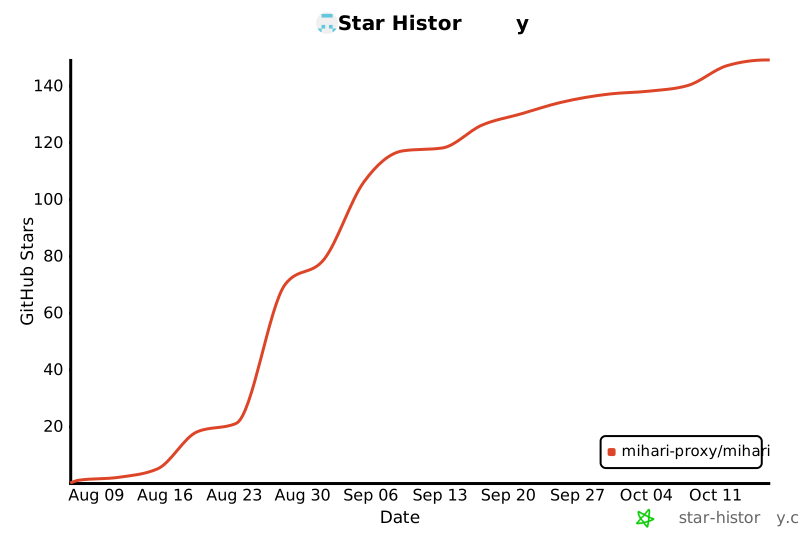
Star History