miro
A native pdf viewer for Windows, macOS and Linux (Wayland/X11) with configurable keybindings.
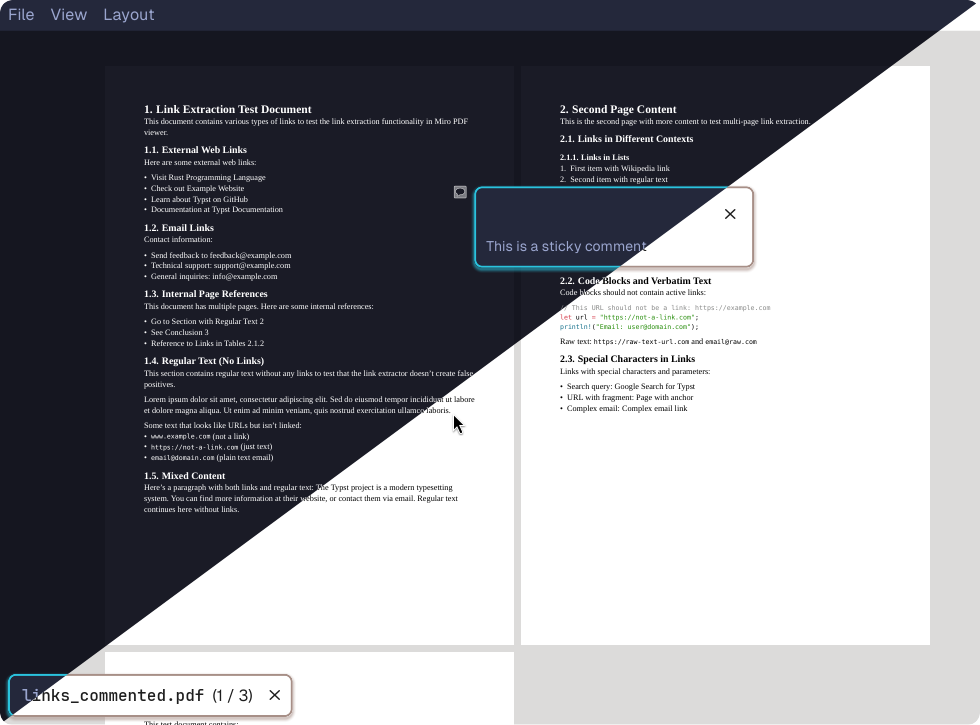
Features
- Dark mode (both for the interface and the pdf)
- Vim-like keybindings (by default)
- Configuration file for key bindings (in case you don't like Vim bindings)
- Mouse controls
- Multiple pdfs in tabs
- Cli arg for opening pdfs from the terminal
- Automatic hot-reloading of any viewed pdf (especially useful when writing anything that compiles into pdfs like Latex/Typst/etc.)
- Text copying in documents
- Internal links (such as a table of contents)
- External links (email, websites, etc. copies on click)
- Bookmarks
- Jumplist
- Optional RPC server to control the viewer from another program
- Print via the default web browser
- Open links using keyboard controls
- Fullscreen
- A presentation mode that hides all UI
- Shows recently opened files
- Search through documents using plain text or regular expressions
- Read comments and show annotations
- An overview mode showing many pages in a grid for quick navigation
Configuration
The configuration file is located at ~/.config/miro-pdf/miro.conf (or .config/miro-pdf/miro.conf in the home directory of your operating system). An example configuration file is located at /assets/default.conf which contains all the default bindings for the program.
Every binding that is possible is bound at least once in the default configuration file.
The configuration file uses a simple text format with three types of commands and comments:
Key Bindings
Bind
Key sequences can be:
- Single keys:
j, k, h, l
- Modified keys:
Ctrl+r, Shift+Tab
- Key chords (multiple keys):
"Z Z" (quotes required for sequences with spaces)
All available actions are bound in the example config file. If you need a more exact view of the syntax it is documented in the keybinds-rs crate.
The mode is one of several modes available, all of them are bound in the default config. Refer to it for the complete definition. Some examples are Normal, Presentation and Overview.
> [!WARNING]
> There is no inheritance of bindings between modes. All keys need to be bound for each mode separately. Thus, forgetting to bind TogglePresentation inside the presentation mode will leave you unable to exit to normal mode.
Mouse Bindings
MouseBind
Mouse inputs can be:
- Basic buttons:
MouseLeft, MouseRight, MouseMiddle, MouseBack, MouseForward
- With modifiers:
Ctrl+MouseLeft, Shift+MouseRight
All available actions are bound in the example config file.
Settings
Set
Available settings:
Rpc - Enable/disable RPC serverRpcPort - Set RPC server portTrackpadSensitivity - Set a multiplier on panning with a trackpad
Default Settings
Set
Default settings apply only at application startup. They can later be toggled with key bindings.
Available default settings:
DarkModePdf - Enable/disable dark mode rendering of the PDFDarkModeUi - Enable/disable dark mode for the UIOpenSidebar - Open sidebarPageBorders - Enable/disable page borders
# This is a comment
# Comments start with # and are ignored during parsing

# Empty lines are also ignored
Error Handling
The configuration parser provides detailed error messages with line numbers when parsing fails. Errors on one line don't prevent parsing of other lines
Example error output:
Configuration parsing errors:
  Line 3: Unknown command: InvalidCommand
  Line 5: Unknown action: InvalidAction
  Line 7: Invalid port number: 'not_a_number'. Must be a valid integer
Installation
Pre-compiled binary
Head over to releases and download the latest binary for your platform, then place it somewhere in your path.
Nix Cachix Binary Cache
nix.settings = {
  substituters = [
    "https://miro-pdf.cachix.org"
    # Others...
  ];
  trusted-public-keys = [
    "miro-pdf.cachix.org-1:4XzXt3PjR8lGUo00nhzAGQLdRa73iPQNTRD5tfIZf4k="
    # Others...
  ];
};
Crates.io
This is pretty much the same as the following option, but doesn't require cloning the repo. See building from source for possible complications when compiling for Windows. I've had no problems compiling on Linux thus far.
cargo install miro-pdf
Building from source
On linux, the commands below would clone the repository, compile the project and copy the resulting binary to /usr/bin/.
git clone https://github.com/vincent-uden/miro.git
cd miro
cargo r --release
cp ./target/release/miro-pdf /usr/bin/miro-pdf
Windows
On Windows, the same rough process should work, but often doesn't. I highly recommend downloading a precompiled binary for Windows. The problem lies in compiling the crate mupdf-sys which requires MSVC.
The Visual Studio project embedded in this crate requires Visual Studio 2019 which isn't available for downloading anymore, but can optionally be compiled using Visual Studio 2022. Even with this option, the build might just not work sometimes due to issues with the Windows 10/11 SDK kits which I have not managed to solve.
However, I've managed to get compilation working in github actions which is what produces the release binaries which do function correctly on Windows systems.
Linux
Mupdf-rs requries headers for fontconfig. The packages are:
libfontconfig1-dev on Ubuntu/Debianfontconfig-devel on Fedorafontconfig on Arch and derivatives
Building on linux also requires some hidden dependencies that you probably already have.
macOS
While I don't test the software for macOS since I don't own a mac. It should work although only supporting building from source or crates.io. No binary releases are made.