ThinkVision Control is an unofficial app that controls a Lenovo ThinkVision P32p-20 from the computer instead of its buttons, over DDC/CI.
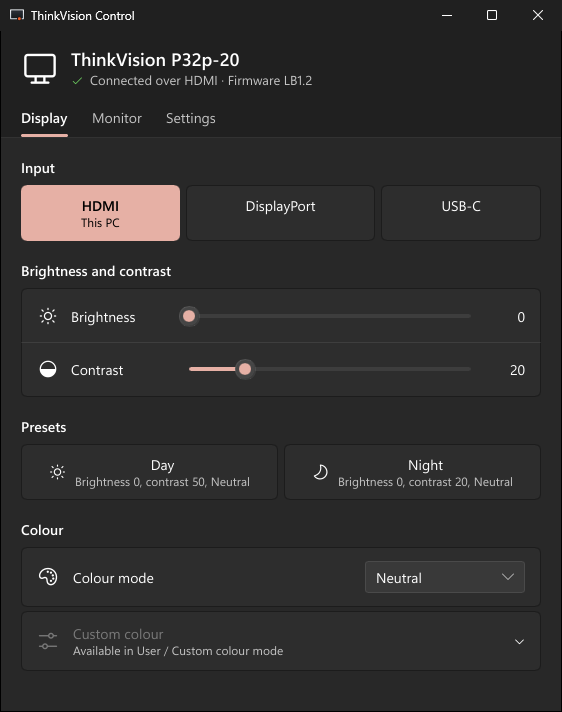
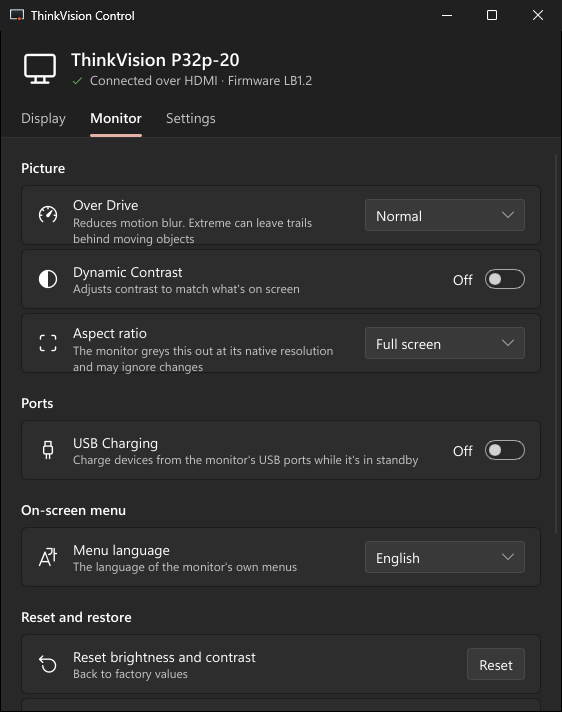
It puts the whole on-screen menu in one small window: input switching (HDMI, DisplayPort, USB-C), brightness and contrast, Day and Night presets, colour mode, Over Drive, Dynamic Contrast, aspect ratio, USB charging, menu language and resets.
It adds global keyboard shortcuts with an on-screen indicator, a tray menu, automatic Day/Night at set times or at sunrise and sunset, a "Switch to this PC" action for monitors shared between two computers, a command line (--preset, --input, --step, --get) and thinkvision:// links.
Not affiliated with Lenovo. Lenovo and ThinkVision are trademarks of Lenovo.
README
ThinkVision Control
Control your Lenovo ThinkVision P32p-20 from the computer instead of its buttons:
brightness, contrast, input, colour modes and the rest of the on-screen menu, over DDC/CI.
> Unofficial project, not affiliated with or endorsed by Lenovo.
What it does
The whole on-screen menu in one small window: input, brightness and contrast, Day/Night presets and colour on the first tab; Over Drive, Dynamic Contrast, aspect ratio, USB charging, menu language and resets on the second.
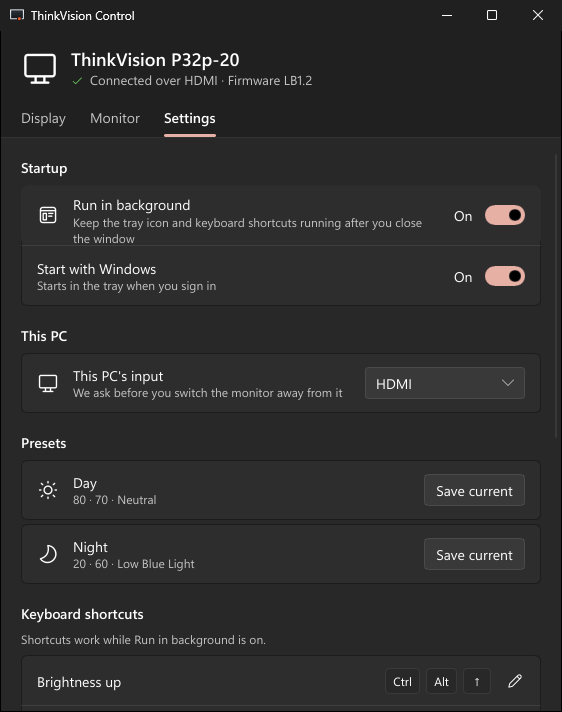
Keyboard shortcuts with an on-screen indicator, and a tray menu, so you rarely open the window.
Two PCs, one monitor: "Switch to this PC" always brings the screen back to the computer you're at.
Automatic Day/Night at set times, or at sunrise and sunset for a place you type.
Careful with your monitor: resets ask first and save a backup; it never turns the monitor off and never writes settings it doesn't understand; it waits while the monitor sleeps or the PC is locked.
Small: one 9 MB program, no runtime; about 3 MB of memory in the tray.
Windows 10/11: run ThinkVisionControl-Setup-.exe. If SmartScreen warns (the setup isn't code-signed yet), choose More info → Run anyway.
Linux (x64, preview): download thinkvision-control--linux-x64.tar.gz, then:
tar xzf thinkvision-control-*-linux-x64.tar.gz && ./thinkvision-control-*-linux-x64/install.sh
It installs for your user and offers to set up access to the monitor (asks for your password once). Log out and back in, then start ThinkVision Control from your app launcher.
macOS (Apple Silicon): there's no download yet. Build and install it with:
curl --proto '=https' --tlsv1.2 -sSf https://sh.rustup.rs | sh   # Rust, if you don't have it
git clone https://github.com/MrErrorSan/thinkvision-control.git && cd thinkvision-control
./scripts/make-macos-app.sh
The script installs the app in Applications and starts it in the menu bar. Linux and macOS haven't been tested with the monitor on real hardware yet; reports are welcome.
Before you start: connect the monitor directly (docks, KVMs and DisplayLink usually block DDC/CI), and keep DDC/CI on (it's on by default; holding the monitor's Exit key for 10 s toggles it).
Shortcuts
Active while Settings → Run in background is on; change them in Settings → Keyboard shortcuts.
Action
Keys
Brightness up / down
Ctrl+Alt+↑ / Ctrl+Alt+↓
Contrast up / down
Ctrl+Alt+← / Ctrl+Alt+→
Day / Night preset
Ctrl+Alt+Home / Ctrl+Alt+End
Input HDMI / DisplayPort / USB-C
Ctrl+Alt+F1 / F2 / F3
Switch the monitor to this PC
Ctrl+Alt+M
Open the app
Ctrl+Alt+O
Command line and links
For scripts, launchers and Stream Deck. If the app is running, the command is handed to it.
thinkvision-control --preset night          # or day
thinkvision-control --input this            # hdmi, dp, usbc, this
thinkvision-control --step brightness=+10   # or contrast=-5
thinkvision-control --get all --json        # brightness, contrast, input, colour-mode, all
thinkvision-control --help                  # everything, including exit codes
The same as links: thinkvision://preset/night, thinkvision://input/this, thinkvision://step/brightness/+10.
Troubleshooting
"Isn't connected": use a direct cable; on a Mac, USB-C or Thunderbolt rather than HDMI.
"Isn't responding": DDC/CI is probably off. Hold the monitor's Exit key for 10 s until it shows "DDC/CI enable".
Brightness won't change: the sRGB, DCI-P3 and BT.709 colour modes lock it. Switch to Neutral or Custom.
Linux: if something is still missing, the Settings tab shows exactly what to run, with a Copy button.
With Rust: cargo run --release -p tvc-app. Installers: scripts/make-windows-setup.ps1 (needs Inno Setup), scripts/make-linux-tarball.sh, scripts/make-macos-app.sh. Tests: cargo test --workspace.
Only the P32p-20 is supported today. For another model, open an issue with its capabilities string: cargo run -p tvc-ddc --example probe prints it without changing anything on the monitor.