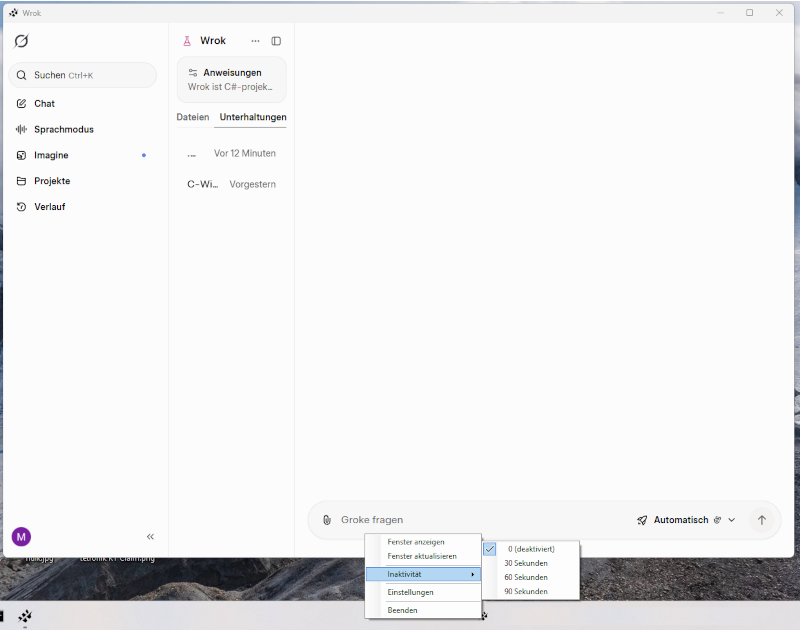
Wrok is a modern, portable client for grok.com built on WebView2. It works entirely
without API access and uses the regular sign-in inside the embedded browser.
Features:
- Up to ten freely assignable macros on the hotkeys Ctrl+1 through Ctrl+0. Macro text may
contain variables: {input} prompts for a value before sending, plus {date}, {time},
{username} and {clipboard}.
- Boss key Ctrl+Space instantly hides and restores the window.
- Media viewer: images and videos from Grok open in a separate window, placed on the left
at full screen height while Wrok fills the remaining space. Videos play in an endless
loop. Ctrl+Shift+P opens a copied media address, or the last media item if none.
- Automatic window minimization after a configurable idle period.
- Window size, position and maximized state are remembered.
- Automatic adaptation to the Windows dark and light modes, including tray icon and
title bar.
- Selective clearing of browsing data, either cache only or everything.
- Optional start with Windows.
NASS e.K. and Wrok are not affiliated with Grok, xAI or X. All trademarks mentioned are
the property of their respective owners and are used for descriptive purposes only.
README
Wrok ist ein moderner, portabler WebView2-basierter Grok™-Client.
Installation
Einfach per WinGet:
winget install --id NASS.Wrok
Voraussetzungen
Windows 10 (64 Bit) oder neuer
Microsoft Edge WebView2 Runtime — unter Windows 11 vorinstalliert. Fehlt sie unter Windows 10, bleibt das Fenster leer; sie lässt sich per winget install Microsoft.EdgeWebView2Runtime oder von Microsoft nachinstallieren.
Grok-Konto — die Anmeldung erfolgt regulär im eingebetteten Browser.
Eine .NET-Installation ist nicht nötig; die Laufzeit ist im Programm enthalten.
Er arbeitet komplett ohne API-Zugriff und bietet folgende Funktionen:
Bis zu zehn frei belegbare Makros mit Hotkeys Strg+1 bis Strg+0
Medienansicht für Bilder und Videos, links auf voller Bildschirmhöhe – Videos im Endlos-Loop
Automatische Fensterminimierung nach einstellbarem Inaktivitäts-Zeitraum
Speichern von Fenstergröße, -position und Maximierungsstatus
Vollautomatische Anpassung an Windows Dark/Light-Mode (inkl. Tray-Icon und Titelleiste)
Intelligentes Löschen der gespeicherten Daten (mit Auswahl: nur Cache oder alles)
Optionaler Start mit Windows
Anzeige der Grok-Rate-Limits
Tray-Menü mit Schnellzugriff auf alle wichtigen Funktionen
NASS e.K. und Wrok sind in keiner Weise mit Grok™, xAI oder X® (ehemals Twitter) verbunden.
Alle in dieser Software verwendeten Markennamen und Bezeichnungen sind eingetragene Warenzeichen und Marken der jeweiligen Eigentümer und dienen nur der Beschreibung.
Kurzanleitung
Tray-Menü
Das Menü ist in zwei Untermenüs gegliedert:
Einstellungen → App — Inaktivität, Makro-Import/-Export, Mit Windows starten
Einstellungen → Grok — öffnet Groks eigene Einstellungsseite
Drei benennbare Sätze zu je zehn Makros, etwa für verschiedene Figuren oder Szenarien. Ein Profilwechsel tauscht die komplette Belegung von Strg+1 bis Strg+0 aus.
Der erste Eintrag im Makro-Menü trägt den Namen des aktiven Profils und klappt zu den übrigen auf.
Wechseln:Makros → [aktives Profil] → Linksklick auf ein anderes Profil
Zurücksetzen:Aktives Profil zurücksetzen leert Name und alle zehn Makros des gerade aktiven Profils. Profile lassen sich nicht entfernen — es sind immer genau drei.
Import und Export beziehen sich auf das aktive Profil, sofern du nicht Alle Profile exportieren wählst.
Makros
Bearbeiten: Rechtsklick auf ein Makro im Tray-Menü.
Über das Menü senden: Linksklick fügt den Text ein und sendet ihn (Text + Enter).
Ohne Enter senden: Linksklick + Umschalt (oder Alt) fügt den Text ein, sendet aber kein Enter.
Hotkeys:Strg+1 … Strg+0 senden das jeweilige Makro. Standardmäßig folgt Enter wie beim Linksklick; Umschalt oder Alt beim Drücken unterdrückt es.
Makro-Variablen
Makrotext darf folgende Platzhalter enthalten, die unmittelbar vor dem Senden aufgelöst werden:
Variable
Wird ersetzt durch
{input}
Wert, nach dem ein Dialog fragt. Abbrechen verwirft den Sendevorgang.
{input:Frage}
Dasselbe, aber der Dialog zeigt deine eigene Beschriftung.
{date}
Aktuelles Datum (TT.MM.JJJJ)
{time}
Aktuelle Uhrzeit (HH:MM)
{username}
Windows-Benutzername
{clipboard}
Aktueller Text aus der Zwischenablage
Der Eingabedialog ist mehrzeilig und in der Größe veränderbar: Enter erzeugt einen Zeilenumbruch, Strg+Enter sendet, Esc bricht ab.
Beispiel: Hallo Schlingeline, es ist jetzt {time} und {input: Text}
Medienansicht
Bilder und Videos aus Grok lassen sich in einem eigenen Fenster öffnen, das links auf voller Bildschirmhöhe erscheint, während Wrok den Rest einnimmt. Es ist immer höchstens ein Medienfenster offen — ein neues ersetzt das bisherige.
Per Klick öffnen: Bild oder Video in Grok anklicken.
Per Tastenkombination: Rechtsklick auf das Medium → Bildadresse kopieren, dann Strg+Umschalt+P.
Zuletzt geöffnetes erneut anzeigen:Strg+Umschalt+P drücken, wenn nichts Brauchbares in der Zwischenablage steht, oder Werkzeuge → Letztes Bild öffnen. Bilder werden lokal unter %LOCALAPPDATA%\Wrok\images zwischengespeichert und öffnen daher ohne Netzwerk und ohne gültige Sitzung.
Videos laufen stumm im Endlos-Loop; über die Bedienelemente lässt sich der Ton zuschalten.
Tastenkürzel im Medienfenster:
Taste
Wirkung
Esc
Schließen
+ / - / Mausrad
Zoomen (Bilder)
Strg+F
Einpassen (Bilder)
Strg+S
Bild speichern
Strg+P
Anheften (immer im Vordergrund)
Ziehen mit der linken Maustaste verschiebt ein Bild.
Boss-Taste
Strg+Leertaste minimiert das Fenster sofort in den Infobereich; erneutes Drücken holt es zurück.
Ein offenes Medienfenster verschwindet mit — auch wenn es angeheftet ist — und kehrt beim Zurückholen samt Anheftung wieder. Die automatische Minimierung bei Inaktivität und das Schließen über das Fenster-X verhalten sich genauso.
Daten löschen
Werkzeuge → Daten löschen bietet zwei Möglichkeiten:
Nur Cache löschen — Bilder, Skripte und andere zwischengespeicherte Daten; du bleibst angemeldet.
Alles löschen — zusätzlich Cookies und Anmeldedaten (du wirst abgemeldet) sowie das zuletzt geöffnete Bild samt gespeicherter Adresse.
Zusätzlich ankreuzbar: alle Makroprofile leeren, standardmäßig abgewählt. Nicht betroffen sind Fenstergröße, Inaktivitätszeit und die übrigen Programmeinstellungen.
Sinnvoll bei Darstellungsfehlern, Anmeldeproblemen oder wenn eine saubere Sitzung nötig ist.
Fehlerbehebung und Tipps
Wird Text nicht abgeschickt: sicherstellen, dass die Seite vollständig geladen und das Eingabefeld sichtbar ist.
DevTools öffnen:F12 öffnet die WebView2-Entwicklerwerkzeuge zur Prüfung von DOM und Konsole.
Seite zoomen:Strg + +/-/0 oder Strg + Mausrad. Die Zoomstufe wird gemerkt.
Protokoll: Meldungen und Fehler stehen in %LOCALAPPDATA%\Wrok\logs\app.log.
Wrok is a modern, portable WebView2-based Grok™ client.
Requirements
Windows 10 (64-bit) or newer
Microsoft Edge WebView2 Runtime — preinstalled on Windows 11. If it is missing on Windows 10 the window stays blank; install it via winget install Microsoft.EdgeWebView2Runtime or from Microsoft.
Grok account — you sign in normally inside the embedded browser.
No .NET installation required; the runtime ships with the application.
It works entirely without API access and offers the following features:
Up to ten freely assignable macros with hotkeys Ctrl+1 to Ctrl+0
Boss key Ctrl + Spacebar (instant minimize/restore)
Media viewer for images and videos, left-aligned at full screen height – videos loop endlessly
Automatic window minimization after configurable inactivity period
Saving of window size, position and maximized state
Full automatic adaptation to Windows Dark/Light mode (including tray icon and title bar)
Smart clearing of stored data (with choice: cache only or everything)
Optional start with Windows
Grok rate limit display
Tray menu with quick access to all important functions
NASS e.K. and Wrok are in no way affiliated with Grok™, xAI or X® (formerly Twitter).
All brand names and designations used in this software are registered trademarks and brands of their respective owners and are used for descriptive purposes only.
Short Manual
Tray menu
The tray menu is grouped into two submenus:
Einstellungen → App — inactivity timeout, macro import/export, start with Windows
Einstellungen → Grok — opens Grok's own settings page
Werkzeuge — rate limits, open image/video, delete data
Macro profiles
Three named sets of ten macros each, for different characters or scenarios. Switching a profile swaps the whole Ctrl+1 … Ctrl+0 assignment at once.
The first entry of the macro menu carries the active profile's name and expands to the others.
Switch:Makros → [active profile] → left-click another profile.
Reset:Aktives Profil zurücksetzen clears the name and all ten macros of the currently active profile. Profiles cannot be removed — there are always exactly three.
Import/export always refer to the active profile unless you choose Alle Profile exportieren.
Macros
Edit: Right-click a macro in the tray menu.
Send via menu: Left-click a macro to insert its text and send it (Send + Enter).
Send without Enter: Left-click + Shift (or Alt) inserts the text but does NOT send Enter.
Hotkeys:Ctrl+1 … Ctrl+0 send the corresponding macro. By default the macro is inserted and followed by Enter (same as left-click). Hold Shift or Alt while pressing the hotkey to suppress the trailing Enter.
Macro variables
Macro text may contain the following placeholders, which are resolved right before sending:
Variable
Replaced with
{input}
Value you are asked for in a dialog. Cancelling aborts sending.
{input:Question}
Same, but the dialog shows your own label.
The input dialog is multi-line and resizable: Enter inserts a line break, Ctrl+Enter sends, Esc aborts.
| {date} | Current date (dd.MM.yyyy) |
| {time} | Current time (HH:mm) |
| {username} | Windows user name |
| {clipboard} | Current clipboard text |
Example: Hallo Schlingeline, es ist jetzt {time} und {input: Text}
Media viewer
Images and videos from Grok can be opened in a separate window that is placed on the left at full screen height, while Wrok fills the remaining space. There is always at most one media window — a new item replaces the previous one.
Open by click: Click an image or video in Grok.
Open by hotkey: Right-click the media in Grok → Copy image/video address, then press Ctrl+Shift+P.
Reopen the last item: Press Ctrl+Shift+P with nothing usable in the clipboard, or use Werkzeuge → Letztes Bild öffnen. Images are cached locally under %LOCALAPPDATA%\Wrok\images, so they reopen without network or session.
Videos play muted in an endless loop; use the player controls to unmute.
Keyboard shortcuts inside the viewer:
Key
Action
Esc
Close
+ / - / mouse wheel
Zoom (images)
Ctrl+F
Fit to window (images)
Ctrl+S
Save image
Ctrl+P
Pin (always on top)
Drag with the left mouse button to pan an image.
Boss key
Press Ctrl+Space to instantly minimize the window to the tray (and press it again to restore it).
An open media window is hidden along with it — even when pinned — and comes back pinned as before. The inactivity timer and closing via the window's X behave the same way.
Delete data
Werkzeuge → Daten löschen offers a choice:
Nur Cache löschen — images, scripts and other cached data; you stay signed in.
Alles löschen — additionally cookies and login data (you will be signed out) plus the last opened image together with its stored address.
An extra checkbox clears all macro profiles; unchecked by default. Not affected: window size, inactivity timeout and the remaining program settings.
Use this when you see rendering issues, login problems, or need a clean session.
Troubleshooting & Tips
If text is not sent: ensure the page is fully loaded and the editor is visible.
Open DevTools:F12 opens the WebView2 developer tools to inspect the DOM and console.
Zoom the page:Ctrl + +/-/0 or Ctrl + mouse wheel. The zoom level is remembered.
Logs: Runtime messages and logs are written to %LOCALAPPDATA%\Wrok\logs\app.log.
Quick operation overview
Left-clicking a macro and using the hotkeys behave the same: the app inserts the text and then attempts to submit it by clicking the send button or sending a real OS Enter keystroke. Some web editors ignore synthetic JS keyboard events; therefore the host application falls back to sending an actual Enter via the input simulator when necessary.