ScreenTuner
Hotkey-switchable display profiles for Windows: NVIDIA digital vibrance, plus
gamma, contrast and brightness on any GPU. Per-monitor, with live preview.
The NVIDIA Control Panel's display sliders, except you can flip between named profiles
instantly — mid-game, without alt-tabbing. Per-monitor, with a live-preview settings
window and a watchdog that puts your profile back when a fullscreen game steals it.
No dependencies, no runtime to install, no telemetry, no network access.
If you came here looking for a vibranceGUI alternative: this does the same
digital-vibrance job, and adds gamma/contrast/brightness (which work on any GPU),
per-monitor profiles, and a settings window.
Install
Installer (recommended) — grab ScreenTuner-x.y.z-setup.exe from
Releases. Per-user, so there's no
admin prompt.
winget
winget install NachoSC.ScreenTuner
Portable — download ScreenTuner-x.y.z-portable.zip, unzip anywhere, run
ScreenTuner.exe. It creates profiles.json beside itself. To register it properly
later (Start Menu entry, Installed-apps entry, run at login):
.\ScreenTuner.exe --install # and --uninstall to remove every trace
About the SmartScreen warning
ScreenTuner is not code-signed, so Windows will show "Windows protected your PC" on
first run. Click More info → Run anyway.
This is not a judgement about the software — it means nobody has paid for a certificate.
An OV code-signing certificate costs a few hundred dollars a year and now requires a
hardware token, which is hard to justify for a free, donation-funded tool. If that
bothers you, the source is right here and build.bat reproduces the binary.
Using it
It lives in the system tray. Left-click the icon for settings, right-click for
the menu. Neither changes your screen on its own — switching profiles is the hotkeys'
job, or picking one from the menu.
| Hotkey | Action |
|---|
Ctrl+Shift+1 … Ctrl+Shift+6 | Apply profile 1–6 |
Ctrl+Shift+0 | Back to driver defaults |
Ctrl+Shift+V | Cycle to the next profile |
Ctrl+Shift+= / Ctrl+Shift+- | Nudge vibrance ±5 |
Ctrl+Shift+F5 | Reload profiles.json |
Ctrl+Shift+Q | Quit |
Pressing an active profile's own hotkey again returns to neutral, so every profile
doubles as an on/off toggle. All bindings are editable.
If a combination is already taken by another app, ScreenTuner says so in its log rather
than failing silently.
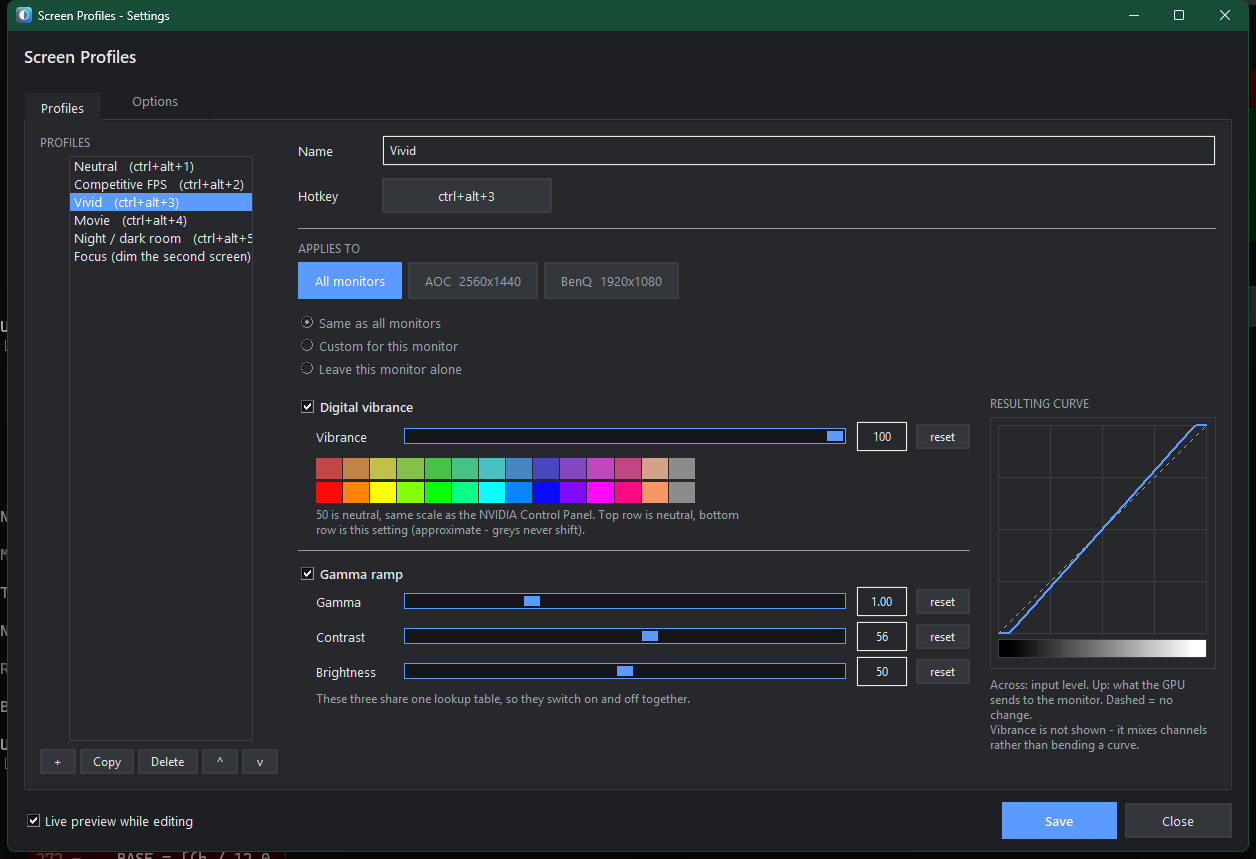
Settings window
Everything in profiles.json is editable there, so you never have to touch JSON.
- Live preview — sliders apply to your actual screen as you drag. Close without
saving and your display goes back exactly as it was.
- Applies to — edit All monitors, or pick one screen and choose Same as all /
Custom for this monitor / Leave this monitor alone.
- Hotkey capture — click the button, press the combination. It warns on conflicts.
- Resulting curve — drawn from the same lookup table that gets written to the driver,
so it's the real transfer curve rather than an illustration.
- Colour palette under the vibrance slider: top row neutral, bottom row at the
current setting.
Saving writes profiles.json and tells the running app to reload — no restart.
Profiles
{
  "name": "Competitive FPS",
  "hotkey": "ctrl+alt+2",
  "vibrance": 80,
  "gamma": 1.10,
  "contrast": 55,
  "brightness": 54
}
| Field | Range | Neutral | Notes |
|---|
vibrance | 0–100 | 50 | Same scale as the Control Panel's Digital Vibrance. NVIDIA only |
gamma | 0.30–2.80 | 1.00 | Also accepts [r, g, b] |
contrast | 0–100 | 50 | Also accepts [r, g, b] |
brightness | 0–100 | 50 | Also accepts [r, g, b] |
Omit a field to leave that knob alone. One caveat: gamma, contrast and brightness share a
single hardware lookup table, so setting any one writes all three — the omitted ones fall
back to neutral. Vibrance is independent.
Per-monitor
Top-level values are the defaults; monitors overrides individual screens, so one
hotkey can drive two monitors differently:
{
  "name": "Focus",
  "hotkey": "ctrl+alt+6",
  "vibrance": 55,
  "monitors": {
    "secondary": { "vibrance": 42, "brightness": 38 }
  }
}
{ "skip": true } leaves a monitor untouched. Monitors match by vendor ("Dell",
"LG"), position ("primary", "secondary"), index, EDID id, or adapter name.
Prefer the first two — Windows renumbers adapter names over time.
Run ScreenTuner.exe --list to see every monitor with all of its usable keys, plus each
profile expanded per screen.
Fullscreen games
Digital vibrance works in exclusive fullscreen. It's applied by the driver downstream
of what the game renders, so the game can't overwrite it.
Gamma, contrast and brightness are contested. In exclusive fullscreen the game owns
the gamma ramp, and any title with its own brightness slider will overwrite yours —
usually visible the moment you alt-tab.
So ScreenTuner watches for it. It re-checks every 2 seconds, and within ~0.6 s of any
alt-tab, and puts your profile back when something has taken it. It never fights the
settings window: enforcement pauses while that's open.
"enforce_profile": true,      // set false to leave the fight alone
"enforce_interval_ms": 2000
Borderless windowed avoids the conflict entirely. HDR does not — a monitor with HDR
enabled ignores gamma ramps altogether, though vibrance still works.
Updates
ScreenTuner checks GitHub once a day for a newer release. When one appears you get a
tray notification; clicking it — or the Update to x.y.z... item in the tray menu
— asks whether to install it.
Nothing interrupts you: no dialog ever appears on its own, because this is an app you
leave running inside a game. The notification is the only unprompted thing, and it goes
away by itself.
Say yes and it downloads the official installer, checks its SHA-256 against the digest
GitHub reports for that file, runs it silently and reopens. Your profiles and settings
are kept. A portable copy cannot replace itself while running, so it opens the download
page instead.
To turn it off: Settings — Options — "Check GitHub for new versions", or set
"check_for_updates": false in profiles.json.
The check is a plain unauthenticated GET to the public releases API. Nothing about you or
your machine is sent, and the app has no telemetry of any kind.
> The installer is unsigned, so verifying the download proves it arrived intact — not
> that the release is trustworthy. That needs code signing, which is on the roadmap.
Requirements
| |
|---|
| Windows 10/11, 64-bit | Required. It's Win32 throughout |
| Any GPU | Gamma, contrast, brightness — AMD, Intel, NVIDIA |
| NVIDIA GPU + driver | Digital vibrance only. Without it the app runs normally, logs vibrance disabled, and everything else still works |
On hybrid-graphics laptops, a panel wired to the integrated GPU won't get vibrance,
because NVAPI doesn't enumerate it. Gamma still applies.
Roadmap
AMD and Intel saturation is planned, which also fixes hybrid-graphics laptops whose
built-in panel is wired to the integrated GPU. So are profiles that follow the running
program — launch Tarkov, get your Tarkov profile, without touching a hotkey.
See ROADMAP.md. If you have AMD or Intel hardware and want to help test,
please open an issue: the main obstacle is not having the hardware to develop against.
How it works
- Digital vibrance →
NvAPI_SetDVCLevelEx, resolved at runtime through
nvapi_QueryInterface. A gamma ramp genuinely cannot do this: a ramp is a per-channel
curve, and saturation requires mixing channels.
- Gamma / contrast / brightness →
SetDeviceGammaRamp, a 256-entry RGB lookup table
per monitor. Contrast scales around the midpoint, brightness offsets, then gamma is
applied as v ** (1/g).
All three fold into that one curve, because the hardware has exactly one lookup table per
channel. Each control bends it differently:
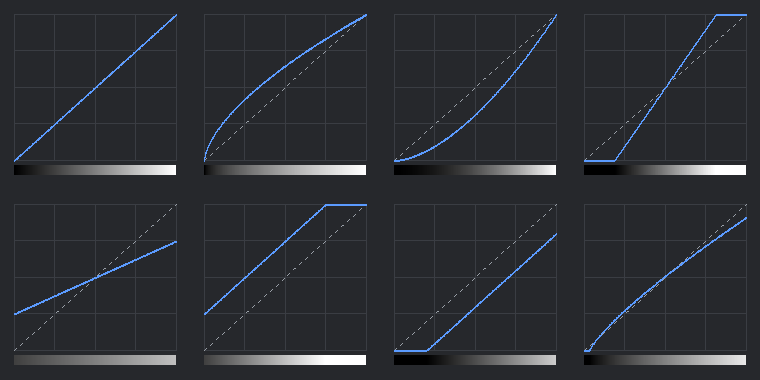
Neutral · gamma 1.60 · gamma 0.60 · contrast 80 — then contrast 25 · brightness 75 ·
brightness 30 · a combined profile. Gamma bows the curve, contrast pivots it around the
midpoint, brightness slides it — note where the ends clip.
The original ramps and vibrance levels are captured at startup and restored on exit,
including per-monitor differences.
It does not inject into games, hook APIs, read game memory, or touch the network. It
calls display APIs, the same ones the NVIDIA Control Panel uses. Anti-cheat has no reason
to care.
Gotchas
-
Windows clamps extreme gamma ramps. If an aggressive profile looks weaker than
expected, run ScreenTuner.exe --enable-full-gamma-range from an admin terminal
and reboot.
-
HDR ignores gamma ramps entirely. Vibrance still works.
-
The tray icon starts in the ^ overflow, where Windows 11 puts new icons. There's a
Pin icon to taskbar toggle in the tray menu.
-
AltGr is Ctrl+Alt as far as Windows is concerned. On layouts that use AltGr to
type characters — Spanish, German, most non-US layouts — a Ctrl+Alt+… binding fires
while you are simply typing. On a Spanish layout AltGr+2 types @, which would
otherwise trigger Ctrl+Alt+2.
Defaults are therefore Ctrl+Shift+…, which has no such clash anywhere. If you do bind
something to Ctrl+Alt, ScreenTuner detects whether your layout has AltGr and ignores
the hotkey when the key actually held is the right Alt — that is AltGr rather than a
genuine Ctrl+Alt chord. It also warns you at startup and in the settings window.
Command line
ScreenTuner.exe                     tray + hotkeys
ScreenTuner.exe --gui               settings window
ScreenTuner.exe --list              monitors, current vibrance, resolved profiles
ScreenTuner.exe --apply "Movie"     apply once and exit
ScreenTuner.exe --reset             back to neutral
ScreenTuner.exe --install [DIR]     install, with Start Menu and Installed-apps entries
ScreenTuner.exe --uninstall         remove everything it registered
ScreenTuner.exe --startup on        run at login (on/off/toggle/status)
ScreenTuner.exe --pin-tray          pin the tray icon to the taskbar
ScreenTuner.exe --diagnostics       scrubbed report for a bug report
Run from a terminal, output goes to that terminal.
Reporting a bug
Right-click the tray icon → Copy diagnostics for a bug report, and paste it into the
issue. From a terminal, ScreenTuner.exe --diagnostics prints the same thing and writes
screentuner-diagnostics.txt beside the exe.
It includes your Windows version, GPU, monitors, resolutions, current vibrance levels and
settings, plus the last 40 log lines. It deliberately excludes your username, home
folder, machine name and the contents of your profiles — profile names only, since
people put all sorts in those. Any path that does appear is reduced to %LOCALAPPDATA%
form.
The app also keeps a rolling screentuner.log next to the executable, which is where
startup problems show up if the tray icon never appears.
Building
Needs Python 3.10+ on Windows. Nothing else — the app is pure ctypes.
build.bat              -> dist\ScreenTuner\        the app
build-installer.bat    -> dist\installer\          the setup wizard (needs Inno Setup 6)
build.bat creates a throwaway venv in .build\ and installs PyInstaller there, leaving
your global Python alone. The build is --onedir deliberately: --onefile unpacks 25 MB
into %TEMP% on every launch, which costs ~0.5 s of startup, trips antivirus heuristics,
and leaves the folder behind whenever the process is killed rather than closed.
Tests
tests
un.bat unit      pure logic - any Windows machine, no GPU or build needed
tests
un.bat system    real displays, real hotkeys, real install/uninstall
The split is by what a machine can answer rather than by test size, so someone without an
NVIDIA card can still check profile resolution, hotkey parsing and the gamma maths.
Details in tests/README.md.
Contributing
Pull requests welcome — please read CONTRIBUTING.md first, especially
the contributor terms, which exist so the project can keep its licence coherent.
Licence
PolyForm Noncommercial License 1.0.0. Free for any noncommercial use —
personal, hobby, educational, charitable. Commercial rights are reserved to the
maintainer. This is source-available, not OSI open source, and that's deliberate.
Third-party components are listed in THIRD-PARTY-NOTICES.md.
Nothing NVIDIA-owned is bundled or redistributed: the app calls the driver you already
have. NVIDIA and GeForce are trademarks of NVIDIA Corporation; this project is not
affiliated with or endorsed by them.