





Downloads from Github releases :


Downloads from Jitpack :


Downloads from Sourceforge :






Looking for an Eclipse plugin ? Try ECD++
jd-gui-duo
A 2-in-1 JAVA decompiler based on JD-CORE v0 and v1.
Initially a duo of decompilers were supported (JD-Core v0 & v1), but now other decompilers are supported with the transformer-api project.
JD-Core v0 and v1 are 2 different decompilers rather than 2 different versions of the same one. They use a different algorithm :
This project is built on top of original JD-GUI written by Emmanuel Dupuy.
The binaries are built and hosted at jitpack.io (identifiable with rocket logo) and the download buttons below retrieve the distributions directly from Jitpack servers :



Windows users can also install with WinGet:
winget install --id Nbauma109.JDGUIDuo
This installs the latest stable release from the default WinGet source.
Feature tour
APKDEXAARCLASSEARJARJAVAJMODKARWARZIP
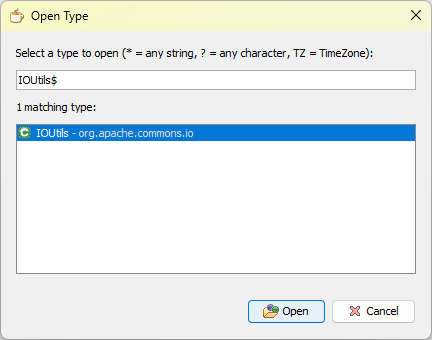
Open Type
After opening a jar, APK or similar archive, click 'Open Type' to decompile a class (tip: use $ to match the end of the class name)
Open Type Hierarchy
Open Type Hierarchy builds a supertype and subtype tree from the indexes of the currently opened containers. It is useful when a class is spread across several archives or when you want to inspect inheritance without leaving the decompiled view, and if several matching locations exist the location picker lets you choose the target container before opening it.
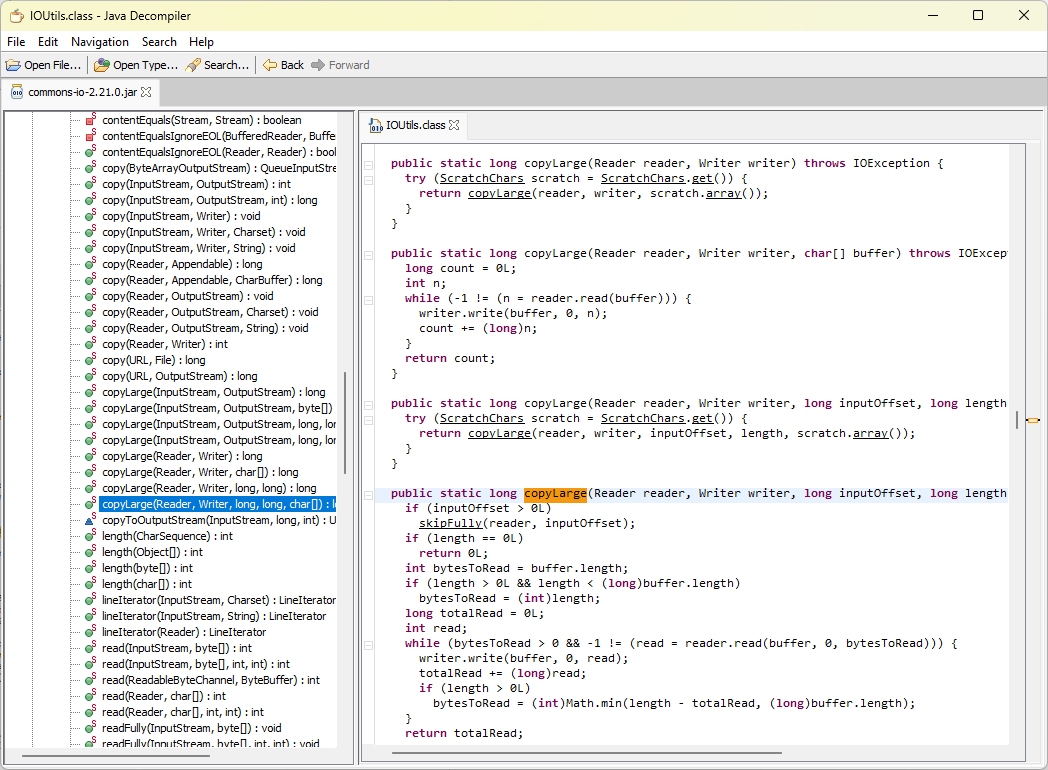
Outline tree
Use the outline tree to select decompiled methods :
Maven central
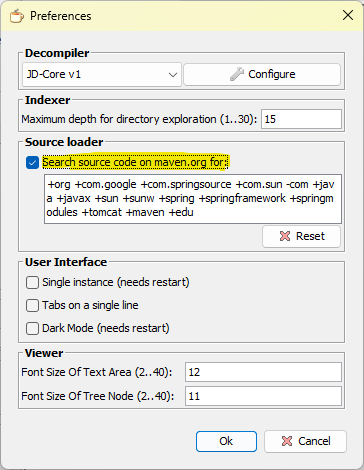
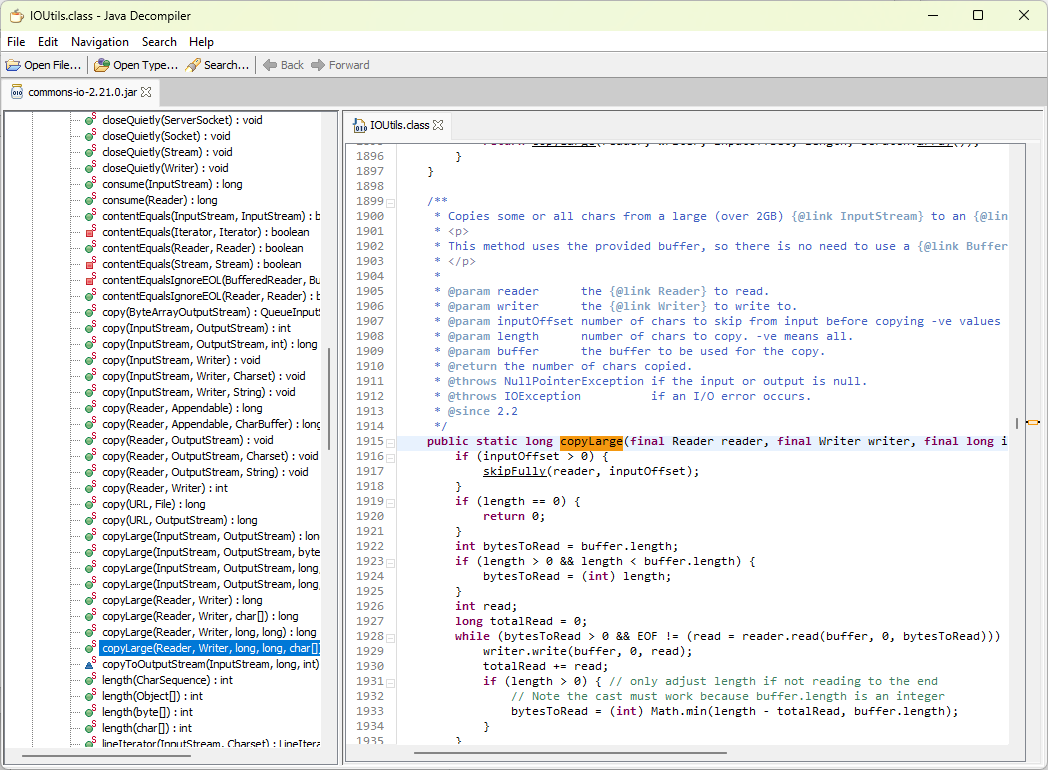
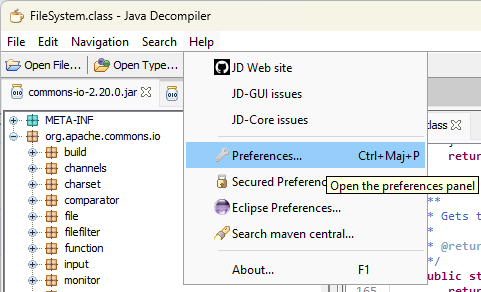
In the Help -> Preferences menu, use search source code on Maven Central if you want to show the original source code, if it's available :
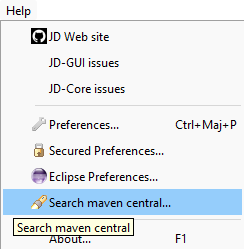
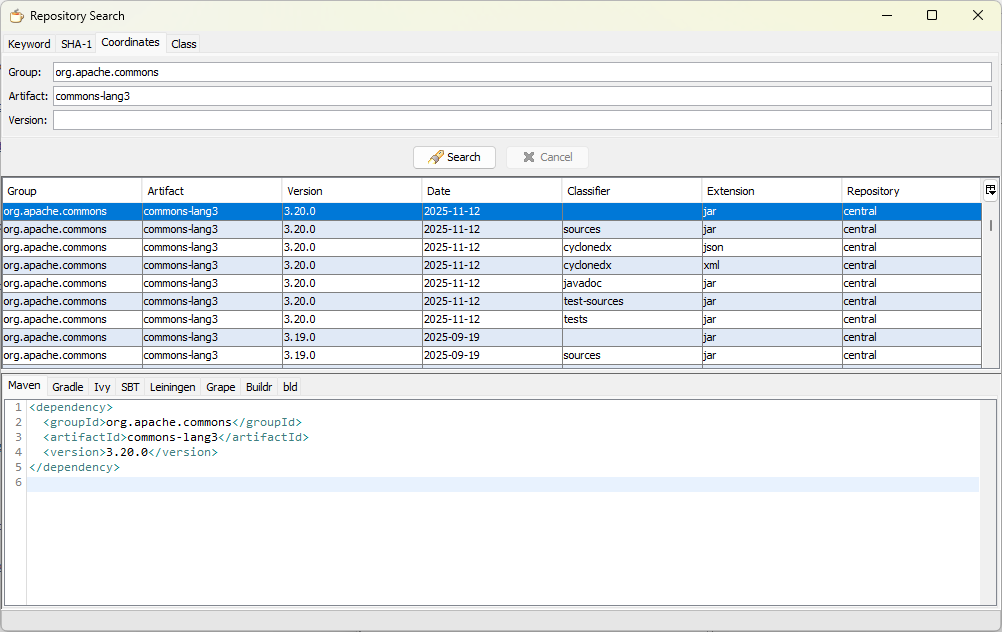
Maven central search and secured preferences
It is possible to do a maven central search behind a proxy or with a private Nexus repository.
Configure settings in Help -> Secured preferences.
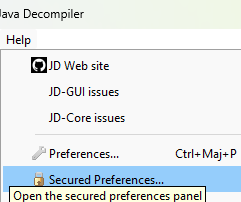
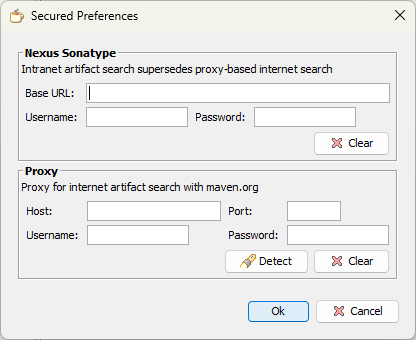
These preferences are protected by a master password that you choose after saving and which will be requested each time you re-open this panel.
You can do a maven search, with or without such settings, depending on when you need them or not :
Search
Use the search button to do a search for methods, string constants,...
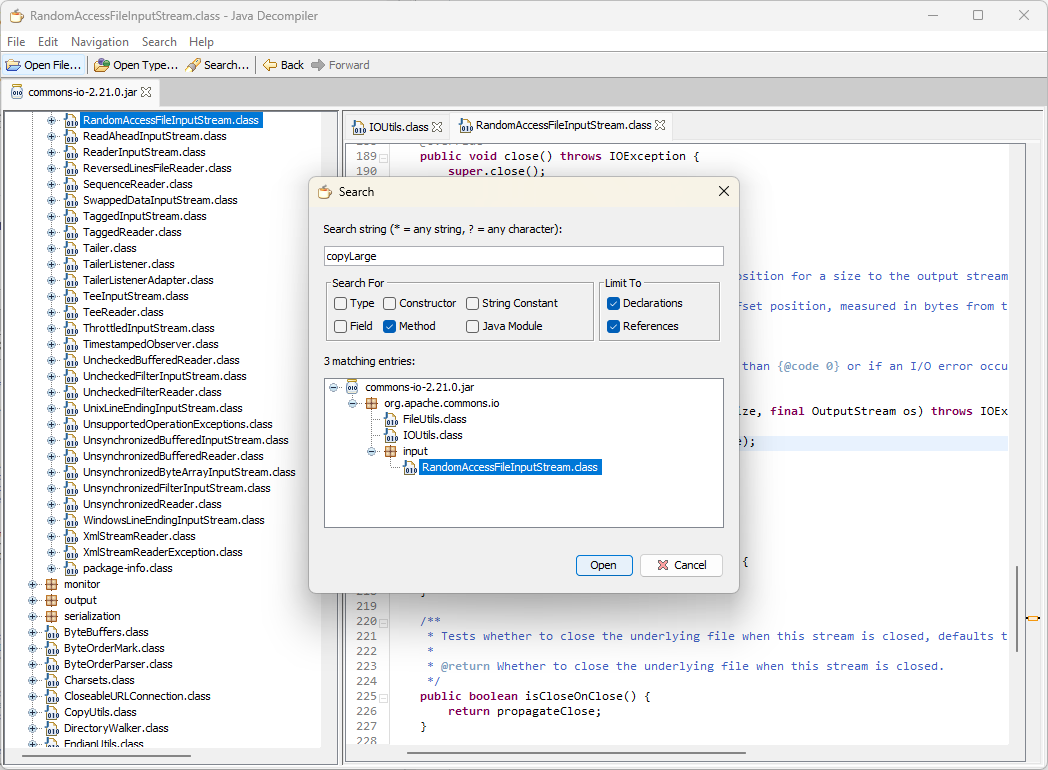
The search dialog is index-based and can do more than a plain text lookup. It can search for type, constructor, method, field, string constant and Java module declarations or references, supports * and ? wildcards, and reopens matching entries with highlight information so the relevant occurrences stay marked in the target source view.
Decompile all classes
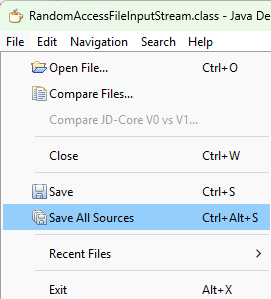
Use File -> Save All Sources to decompile all sources into a sources jar (choose a destination directory where you have rights)
Keyboard shortcuts

Key bindings
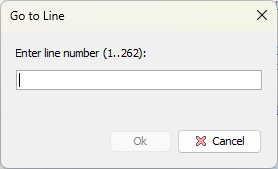
The Help menu also exposes a dedicated Key Bindings dialog. It lets you remap shortcuts for file actions, navigation, search, outline, line navigation and other commands, restore the defaults when needed, and apply the new bindings across the main window and the incremental find UI without editing configuration files by hand.
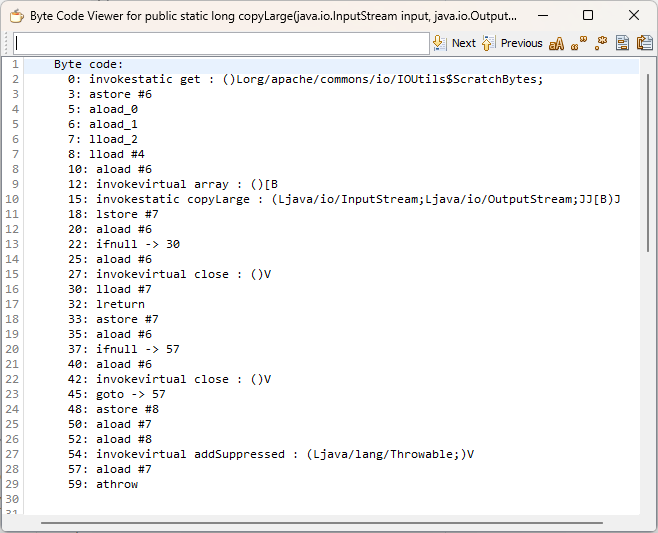
Show byte code
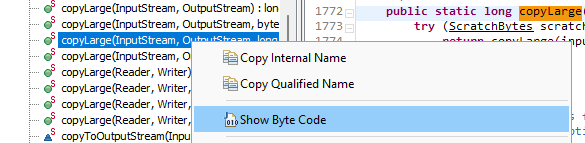
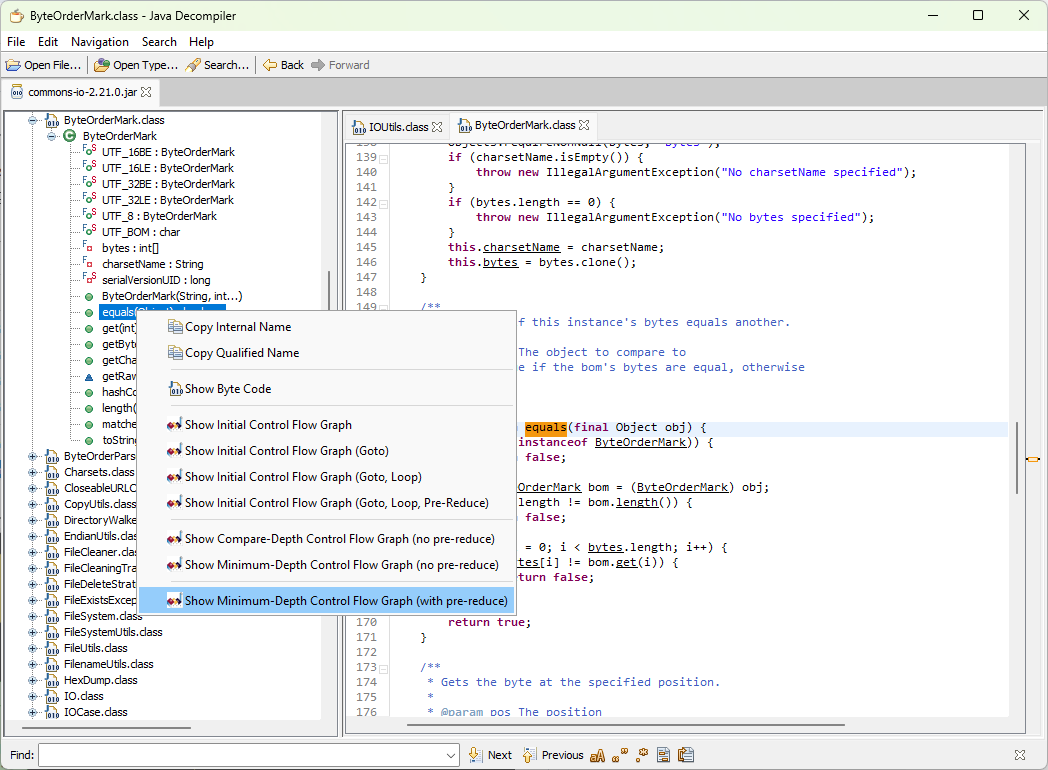
Right-click on a method of the outline tree and select 'Show Byte Code' in the context menu.
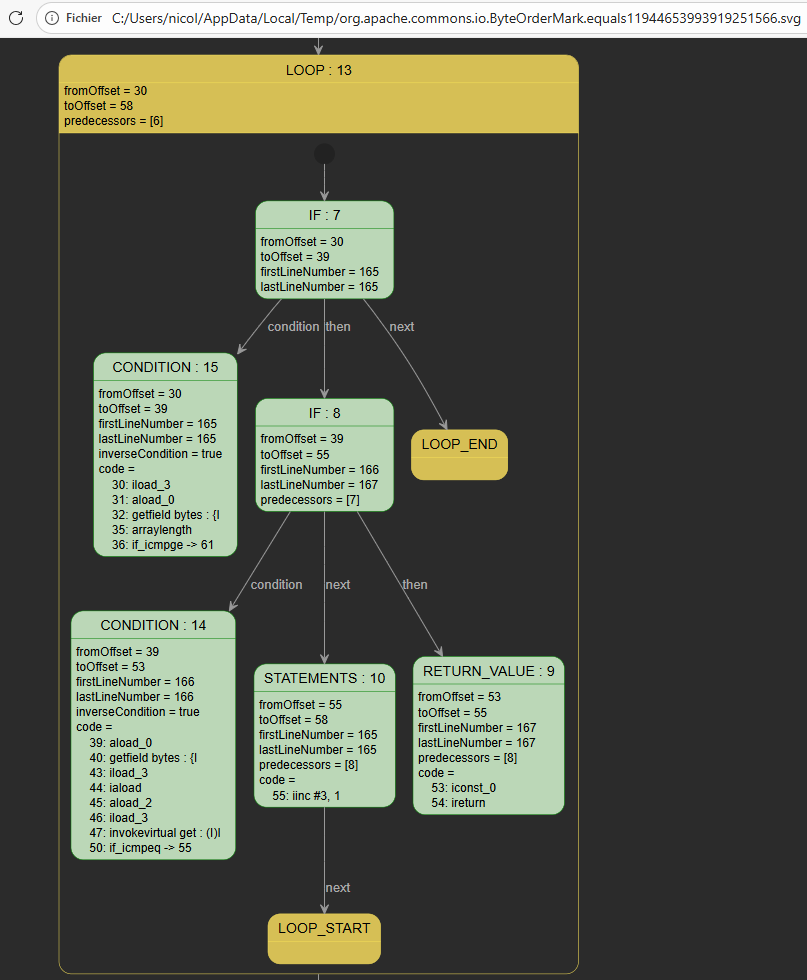
To get a visual of the control flow graph that is used by JD-Core v1 for each of the decompilation steps, select one of the menus 'Show Control Flow Graph ...'.
The graph is built by plantuml.
Method patching
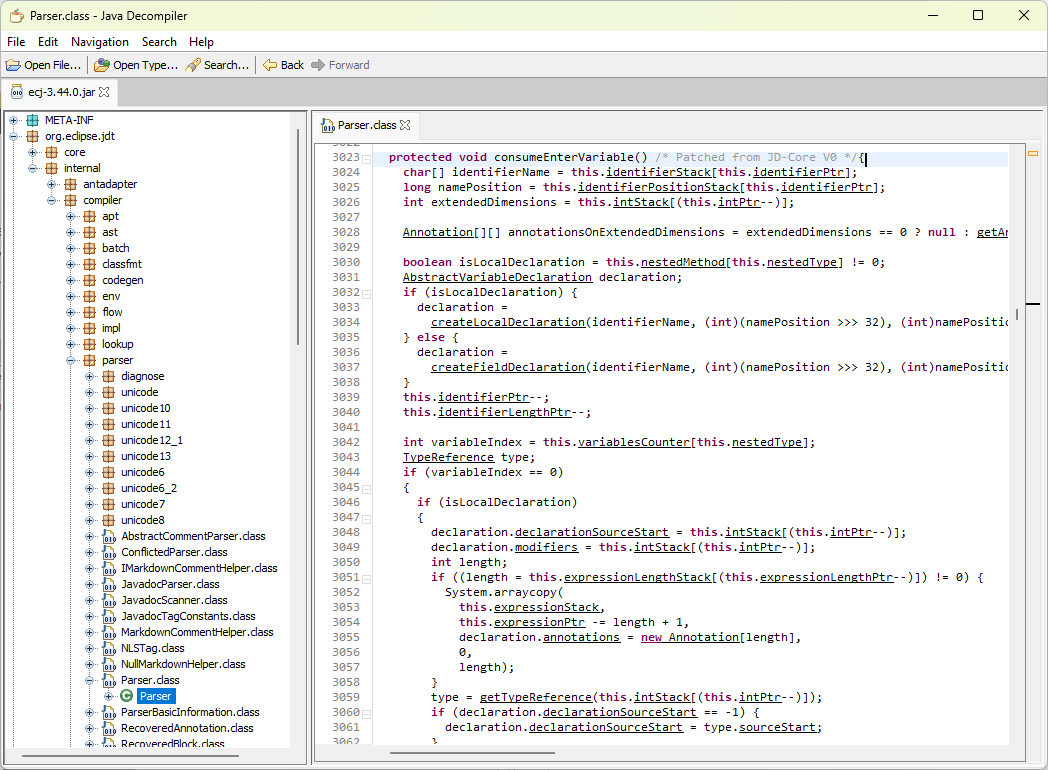
Sometimes JD-Core v1 fails to decompile a method. In this case, method will be patched from JD-Core v0 if possible and the comment 'Patched from JD-Core v0' will appear :
Comparison
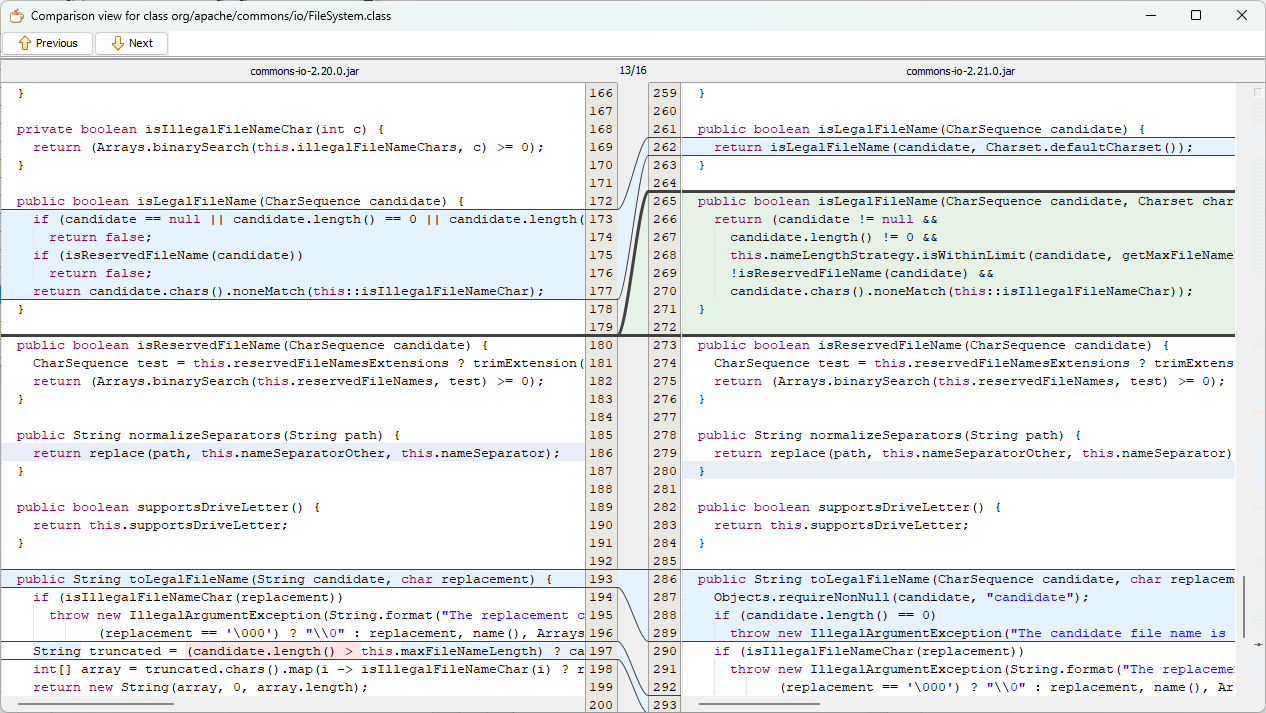
A modified version of JarComp is used to compare the jars and netbeans diff module for class comparison (see https://github.com/nbauma109/netbeans-visual-diff-standalone).
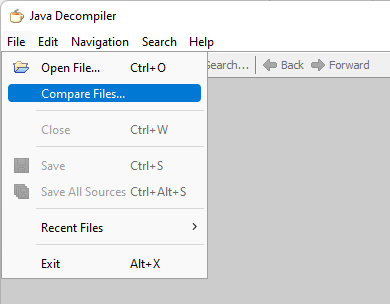
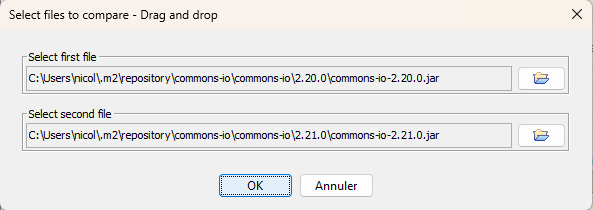
Select the 2 files to compare or drag and drop files into the inputs :
The differences in size and CRC checksums are shown :
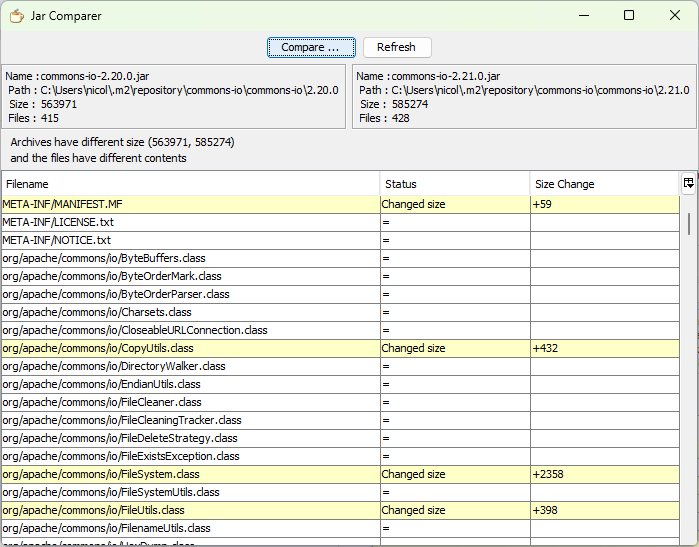
Double-click on the row you want to compare :
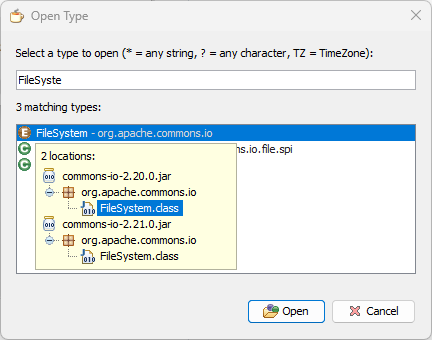
Or alternatively, if the 2 jars are opened, you can open the type you want to compare :
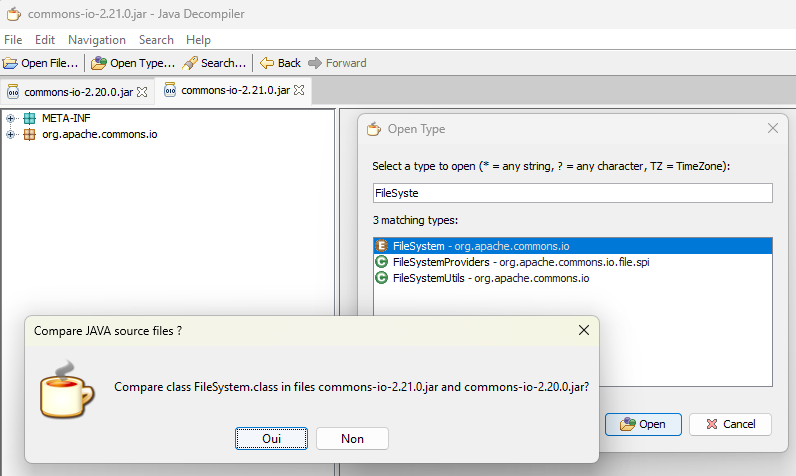
If you select no, you will be asked select which file you want to open
Compare JD-Core V0 vs V1
Besides file-level comparison, the File menu can compare JD-Core V0 and JD-Core V1 for the currently opened class. This opens a side-by-side diff for the two built-in engines, which is useful when investigating decompilation regressions, understanding algorithmic differences between both cores or checking why method patching was necessary.
Build skeleton generation
When you drag and drop three or more libraries, JD-GUI-DUO can generate a Maven/Gradle build skeleton instead of only opening them. The generator resolves SHA-1 values against Maven Central when possible, falls back to filenames and manifest metadata when it cannot, and opens a generated archive containing pom.xml, build.gradle and mvn_deploy.bat.
Hyperlinks
The navigable links are shown as underlined portions of text. Single click navigates to definition (no CTRL click, no double click).
Copy qualified and internal names
The contextual actions also let you copy either the qualified Java name or the JVM internal name of the current type, field or method. This is useful when moving between decompiled source, stack traces, bytecode tools and APIs that expect slash-separated internal names.
Paste log
Edit -> Paste Log turns the clipboard contents into an in-memory .log page. Java stack trace frames are parsed into hyperlinks, so clicking a frame can open the matching decompiled type directly or jump to the reported line number when that information is available in the log.
Select Decompiler
Choose another decompiler in the preferences window and the class will be decompiled with the newly selected decompiler as soon as you press OK.
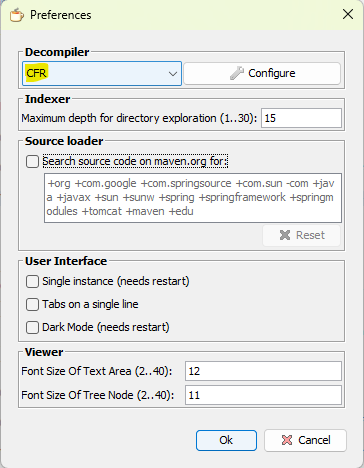
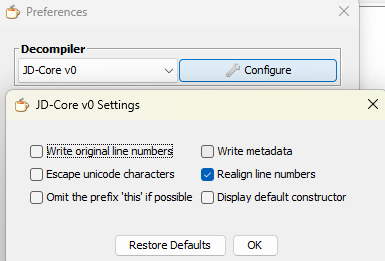
Click Configure button to choose decompiler settings (each decompiler has a different panel of its own) :
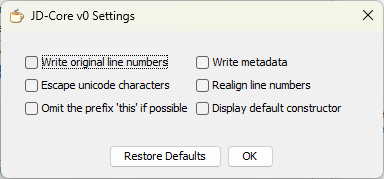
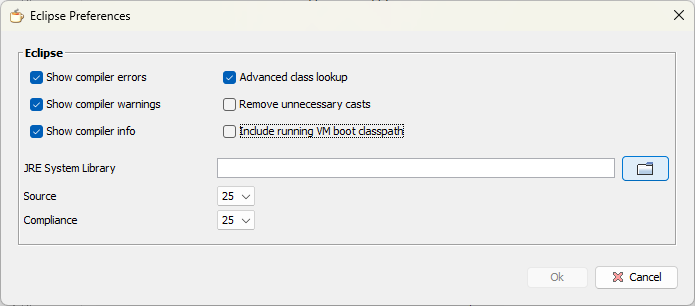
Compiler
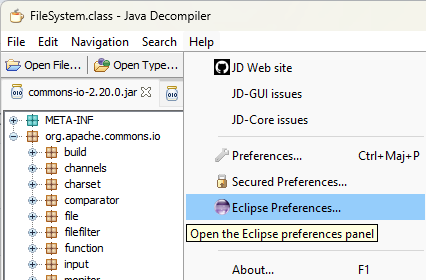
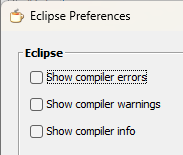
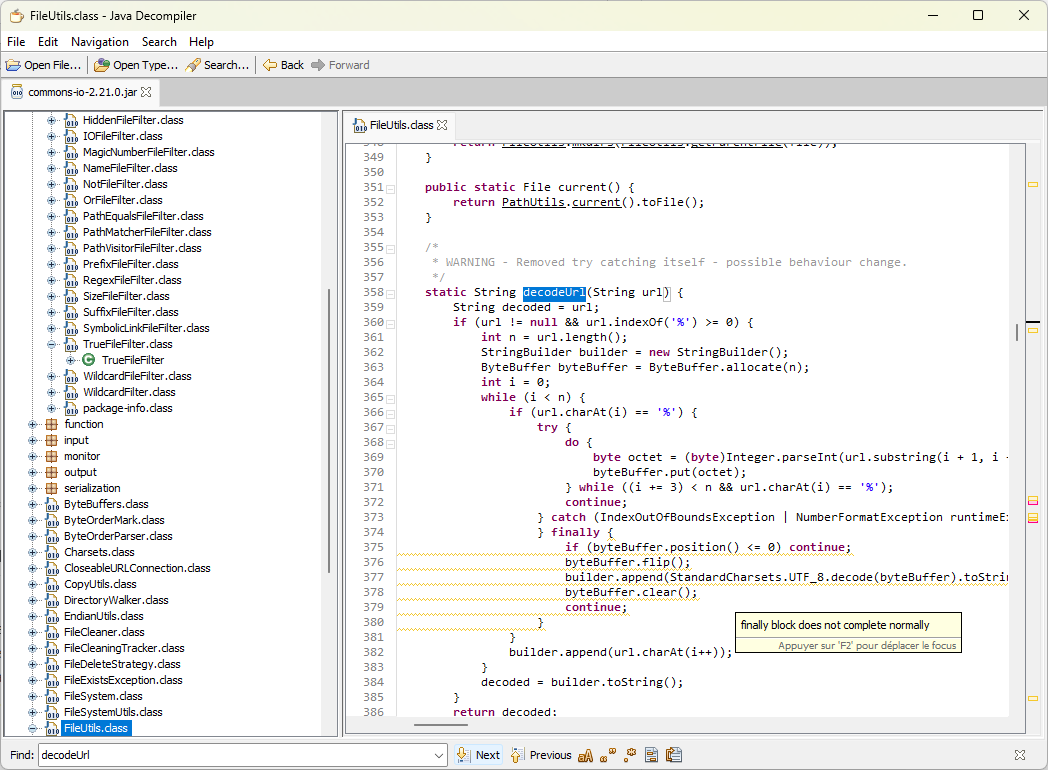
Compiler reports errors and warnings. Choose whether you want to report them in the Eclipse preferences page.
Advanced class lookup
When this option is selected, the jars located in the same directory and the jmods (or rt.jar) of JAVA_HOME will be used by decompilers for better type resolution.
Currently, the decompilers supporting this are CFR, JD-Core v1, Procyon.
For optimal results, setup your JAVA_HOME to the same JDK that was used to build the jar you want to decompile (if any doubt, check the META-INF/MANIFEST.MF inside the jar).
The running JRE of jd-gui-duo does not interfere.
This option does not support jars in war.
JRE System Library
This option applies to the Eclipse AST parser, which is used in various contexts to provide :
- hyperlinks to navigate into source files (*.java)
- indexing for search into source files (*.java)
- compiler errors and warnings in decompiled sources (*.class) and in sources (*.java)
By default, it uses the running VM of jd-gui-duo, but you can choose another JRE system library by unticking "Include running VM boot classpath".
You can also choose a compatible Source and Compliance.
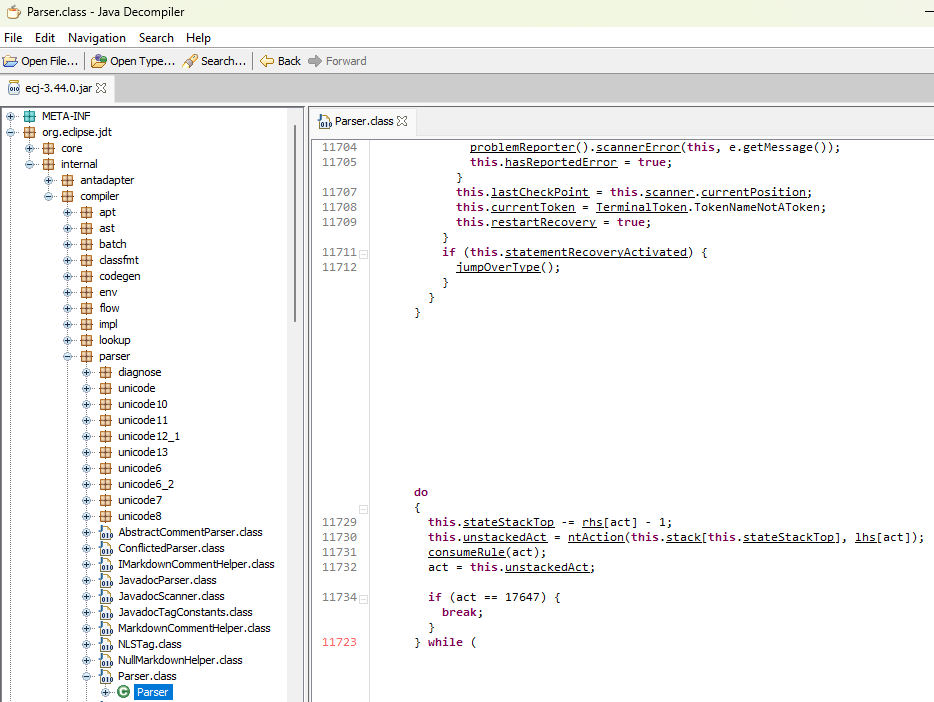
Realign line numbers
This is a known option from the original JD-GUI that enables to align code for debugging if the debugging information is present in the class files.
As of now, this is only supported by JD-Core v0 and v1.
If the code is misaligned, the numbers will appear in red.
Remove unnecessary casts
This option uses the same feature as Eclipse to cleanup unnecessary casts.
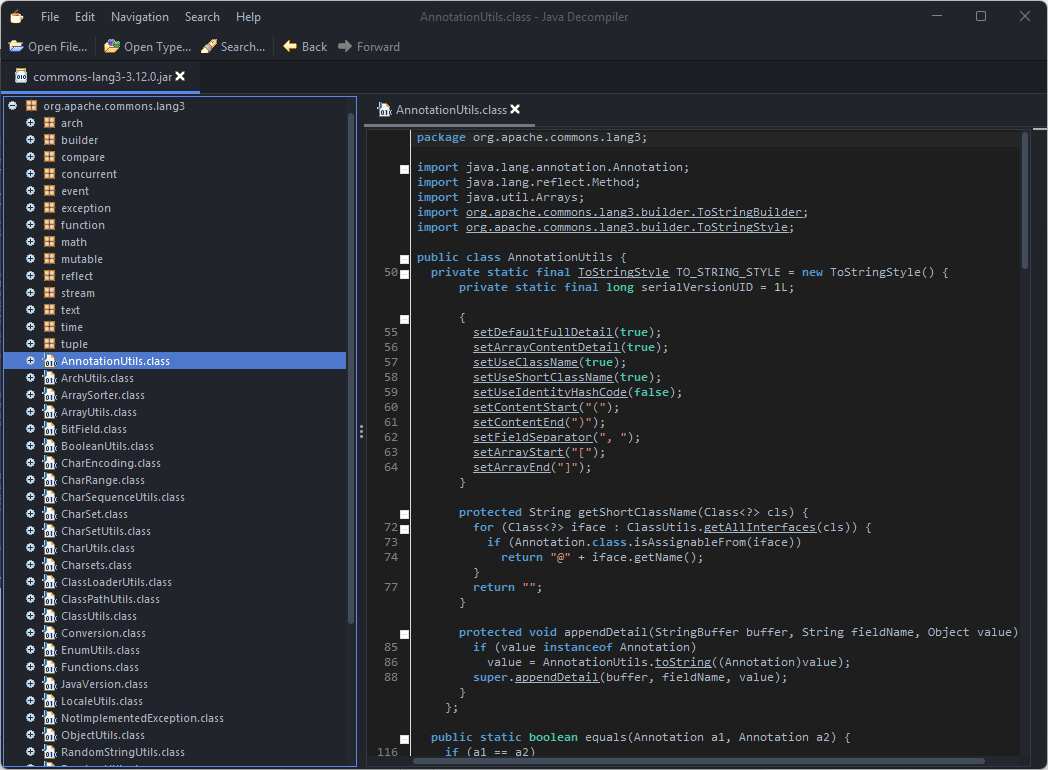
Dark mode
Quick outline
Quick outline (CTRL+SHIFT+O) is a feature which was present in the C++ versions 0.3.x of jd-gui and is now present in jd-gui-duo.
It now includes "filter as you type" feature.
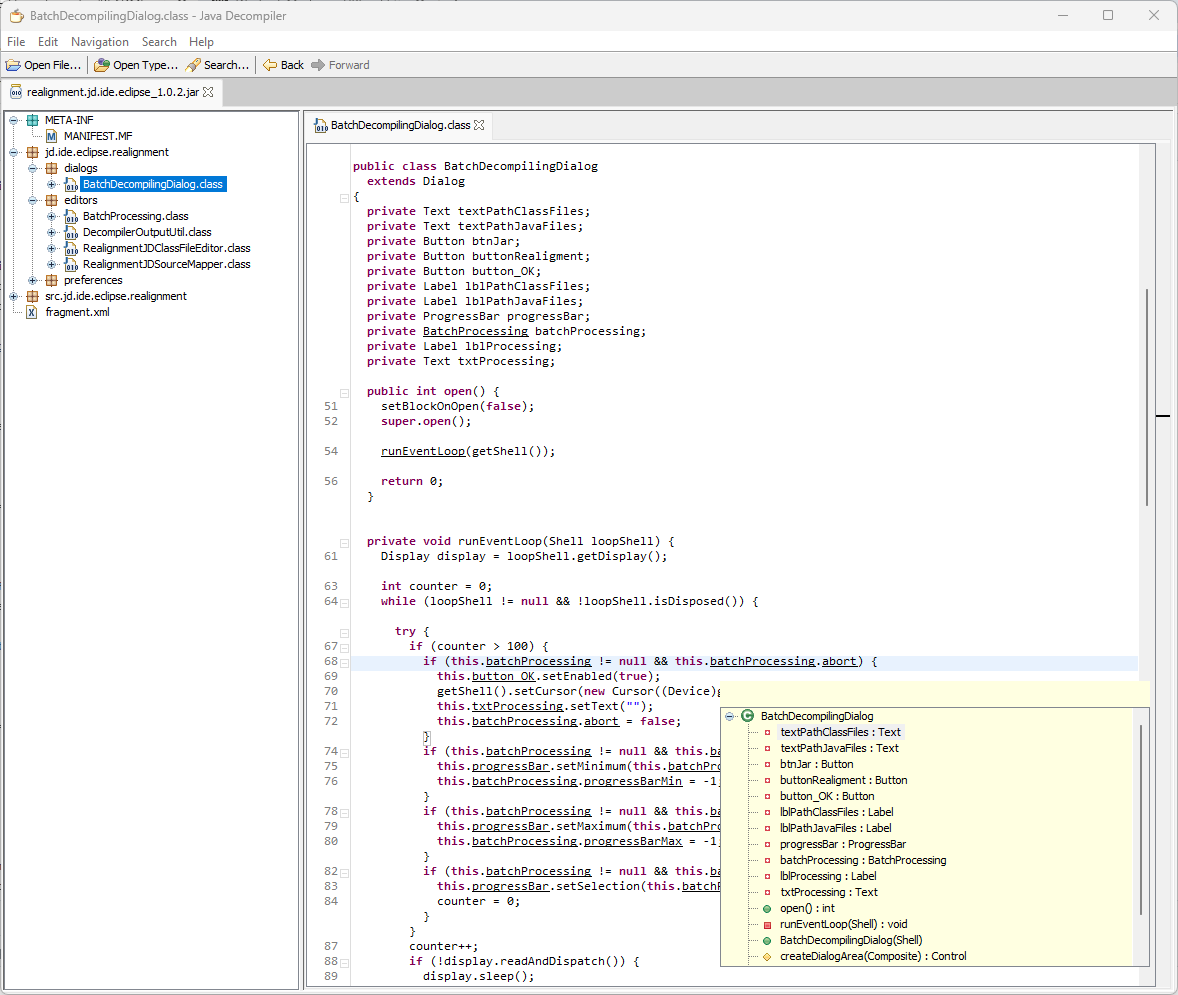
For memory, jd-gui 0.3.6 :
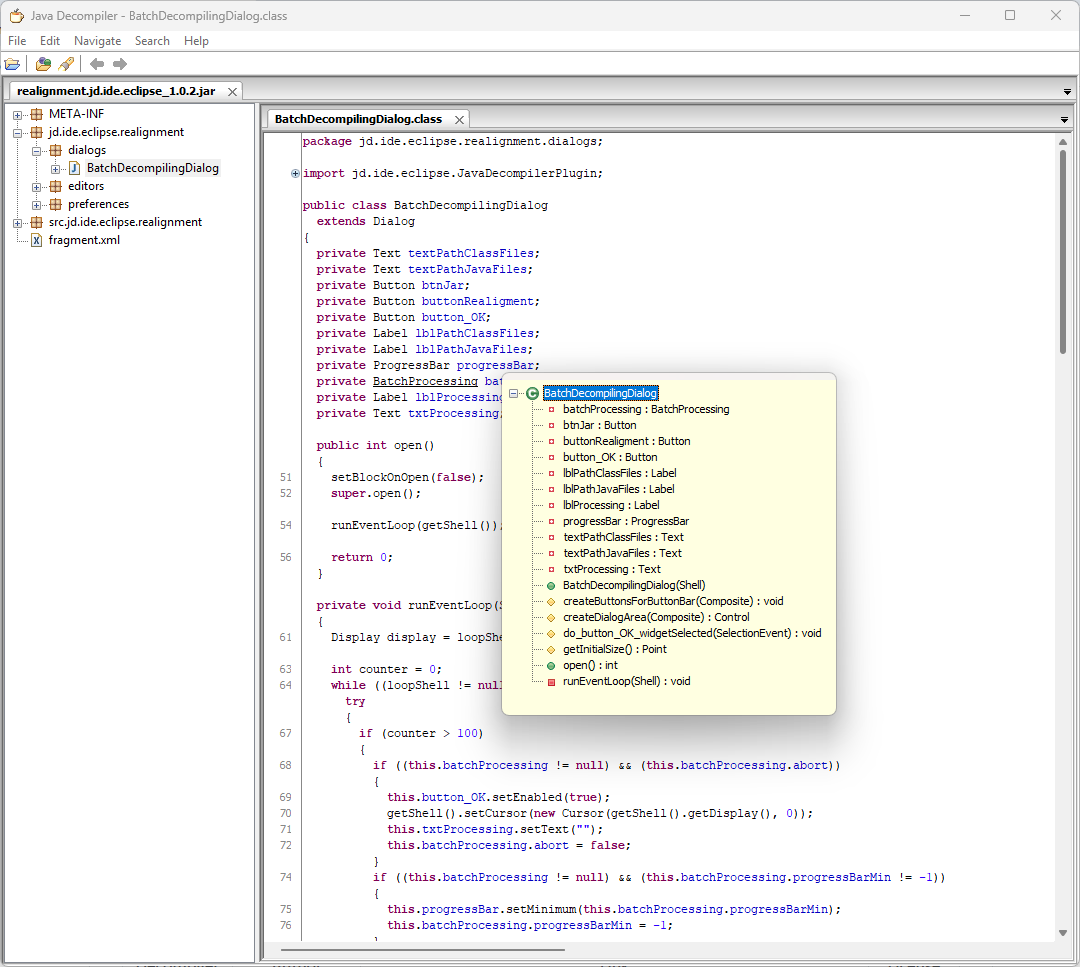
Session restore
When JD-GUI-DUO starts without explicit input files, it can reopen the files remembered from the previous session.
Single instance
On non-macOS platforms, there is also a single-instance preference for the main window. When enabled, opening files in a second launch forwards them to the already running window instead of creating another application instance.
Credits
<img src="https://raw.githubusercontent.com/SignPath/docs-product/main/docs/assets/signpath-logo.svg" alt="SignPath logo" width="200" />
Free code signing on Windows provided by <a href="https://signpath.io/">SignPath.io</a>, certificate by <a href="https://signpath.org/">SignPath Foundation</a>