ScanContext
Local-first medical image viewer, report organizer, and AI-assisted
annotation tool. Runs entirely on your own computer — Windows, macOS, or
Linux.
> ⚠️ Not a medical device. Not a diagnosis.
> ScanContext helps you organize, view, and understand medical imaging and
> reports, and prepare questions for your doctor. It does not diagnose any
> condition. Every result — especially anything AI-suggested — must be
> confirmed by a qualified clinician.
Quick links:
⬇️ Download ·
🎬 See it in action ·
🐳 Docker Desktop ·
🐞 Report a problem ·
☕ Donate
⬇️ Download & install
No GitHub account and no source code needed — and on Windows and macOS, no
terminal either. On Linux the bundle uses a short sh ./start.sh command, or
install the .deb / .rpm launcher for a click-only setup.
There are two ways to run ScanContext — pick whichever you prefer. Both
need Docker Desktop, so do Step 1 either way.
Step 1 — Install Docker Desktop (free, one time)
ScanContext runs inside Docker. Install Docker Desktop for your system:
After installing, open Docker Desktop once and wait until it says
"running". You only ever do this once.
Step 2 — Choose how to run ScanContext
All downloads are on the Releases page.
Option A — The ScanContext app (recommended, easiest)
A small desktop app that starts and stops ScanContext for you with one click —
no scripts, no files to manage. Download the installer for your system:
| System | Download | Install |
|---|
| Windows | ScanContext__x64-setup.exe | Double-click, follow the installer |
| macOS | ScanContext__.dmg | Open the .dmg, drag ScanContext to Applications |
| Linux | ScanContext__amd64.AppImage | chmod +x the file, then double-click — or install the .deb / .rpm |
Then open ScanContext like any other app. It checks Docker, downloads the
app on first run, and starts it. When it is ready, click Open ScanContext
to launch it in your browser. Use the window — or the tray / menu-bar icon —
to Start, Stop, and Open ScanContext any time.
> First launch — unsigned app warning. These installers are not yet
> code-signed, so your system may warn you the first time:
> - macOS: right-click the app → Open → Open. (Or System Settings →
> Privacy & Security → Open Anyway.)
> - Windows: on the blue SmartScreen prompt, click More info →
> Run anyway.
>
> You only need to do this once.
Option B — Install via winget (Windows, no SmartScreen warning)
If you have Windows Package Manager (winget), open PowerShell or Windows Terminal and run:
winget install NikolaReljin.ScanContext
Installs through Microsoft's trusted channel — no SmartScreen warning, no manual download.
Option C — The download bundle (.zip)
If you would rather not install an app, download the bundle and double-click a
start file:
-
Download ScanContext-.zip from the
Releases page
and unzip it anywhere (Desktop, Documents…).
-
Open the unzipped folder and start it:
| System | Do this |
|---|
| Windows | Double-click Start ScanContext.bat |
| macOS | Double-click Start ScanContext.command |
| Linux | Run sh ./start.sh in the folder |
The first start downloads the app (a few minutes). When it is ready your
browser opens ScanContext, and a short guided tour begins. Reopen help any
time with the "?" button.
Stopping it
- App (Option A): click Stop in the window or the tray / menu-bar icon.
- Bundle (Option B): double-click
Stop ScanContext.bat (Windows) or
run sh ./stop.sh (macOS / Linux).
Your studies and data are always kept between runs.
System requirements
- Windows 10/11, macOS 12+, or a modern Linux desktop.
- Docker Desktop installed and running.
- ~4 GB free disk space for the app images, plus room for your studies.
- A modern browser (Chrome, Edge, Firefox, or Safari).
What it does
- Import DICOM studies, images, ZIPs, PDFs, and text reports.
- View images and DICOM in a web viewer; draw and save annotations.
- Extract and (optionally) translate non-English reports to English.
- Optionally use AI to summarize reports and suggest regions to review —
clearly labeled "candidate findings, not a diagnosis".
- Export a doctor-friendly summary to share at an appointment.
Your data stays on your machine. Nothing is uploaded anywhere unless you
explicitly turn on a cloud AI provider in Settings. AI is off by default.
🎬 See ScanContext in action
Everything below is a real walkthrough of ScanContext, captured from the
built-in demo study — a fully fictional CT chest scan with invented
patient details. No real medical data is shown anywhere.
▶️ Watch the full walkthrough (~60 seconds)
First run — a guided tour
New users get a short guided tour the first time they open ScanContext.
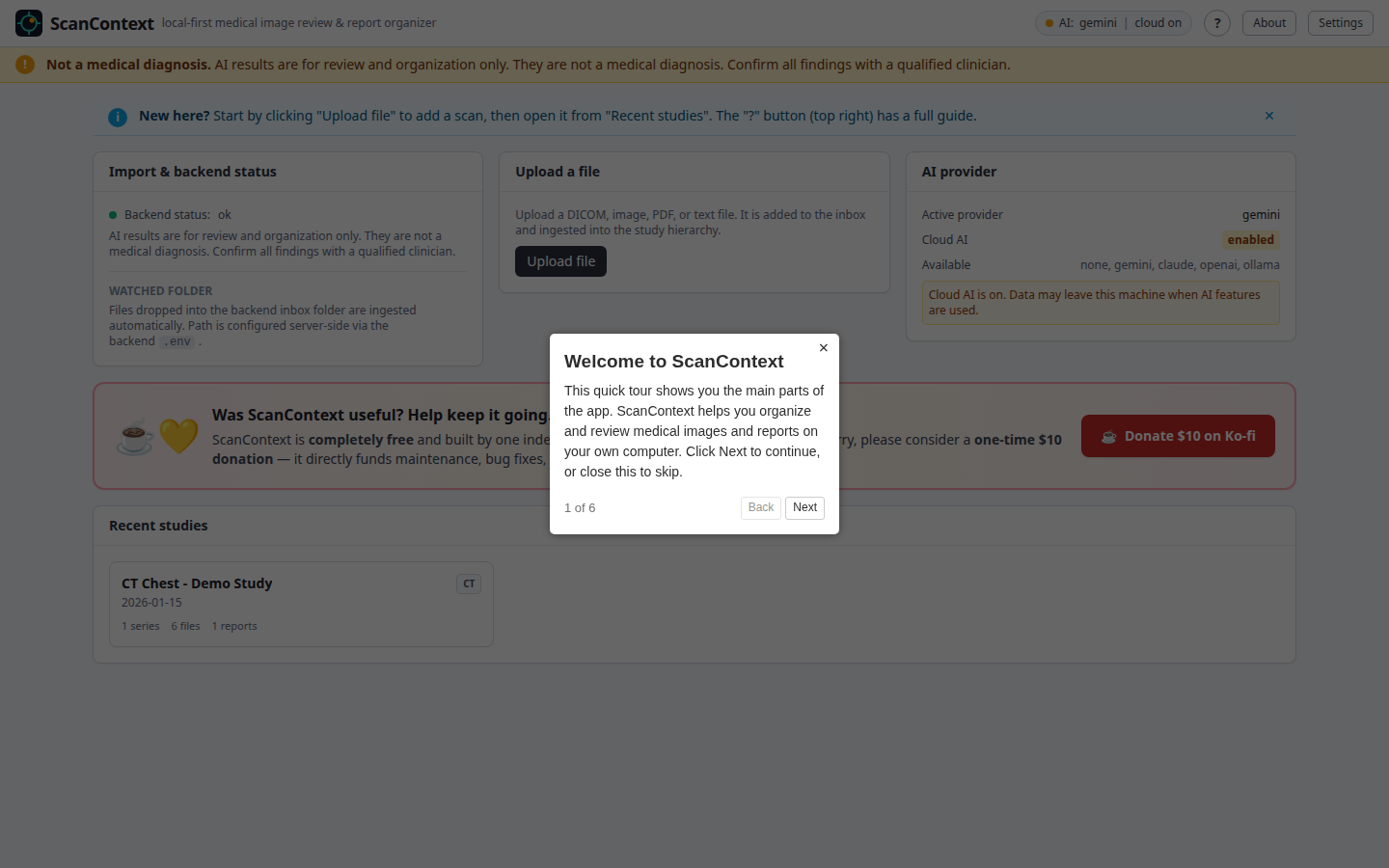
Your studies at a glance
The dashboard lists every study you have imported, with import status and the
active AI provider.
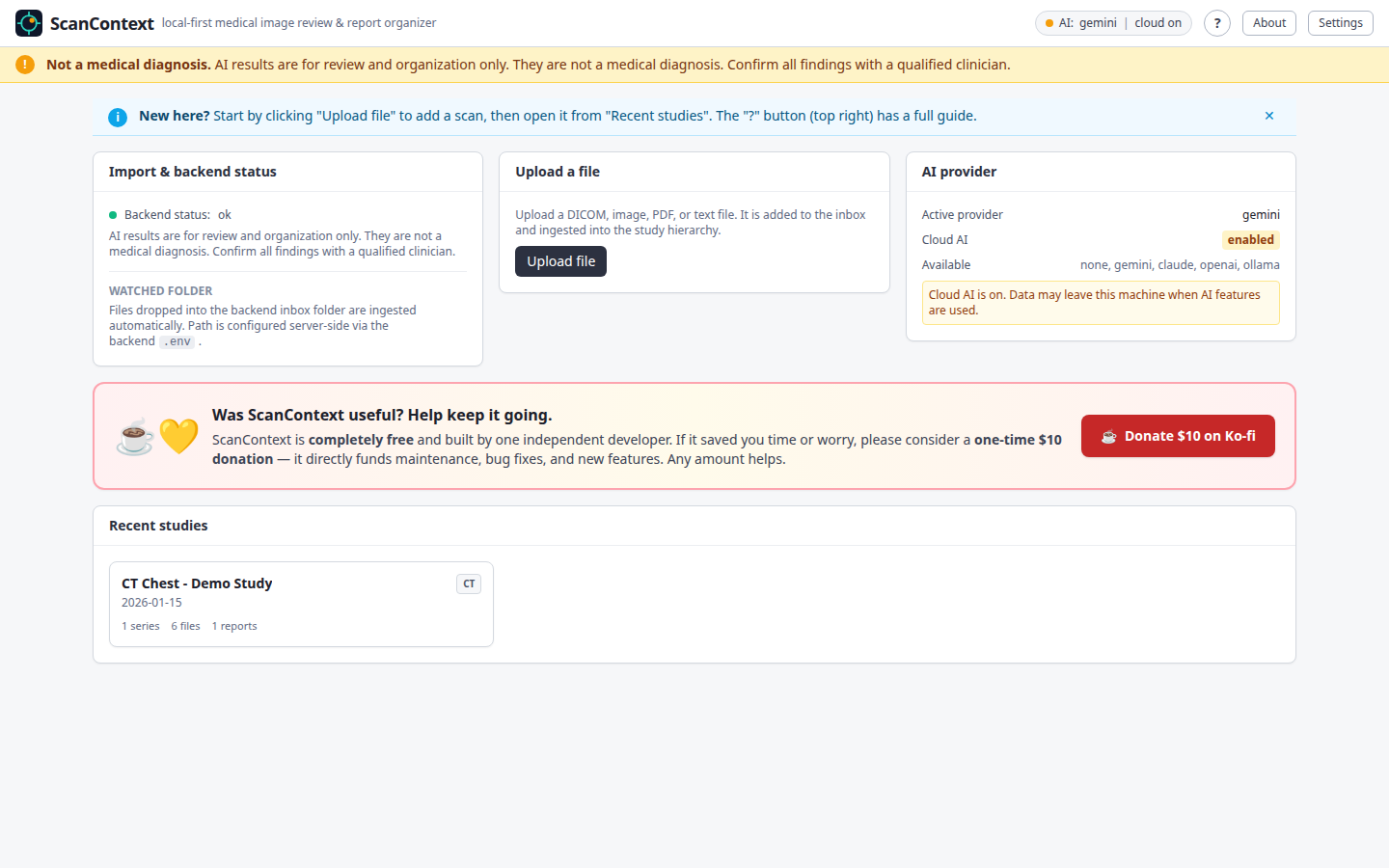
Review images
Open a study to scroll through slices, zoom, and adjust window/level in the
built-in viewer.
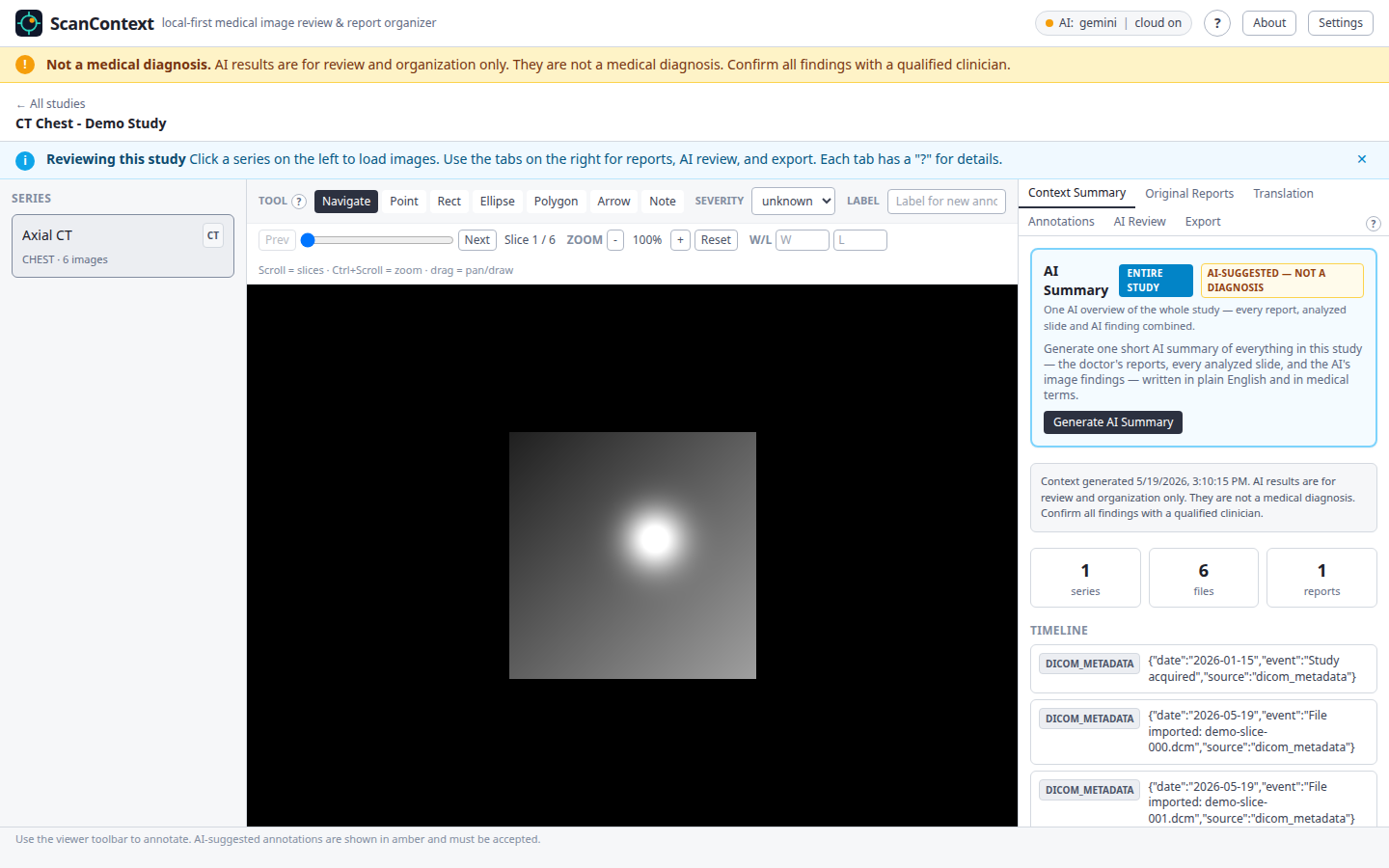
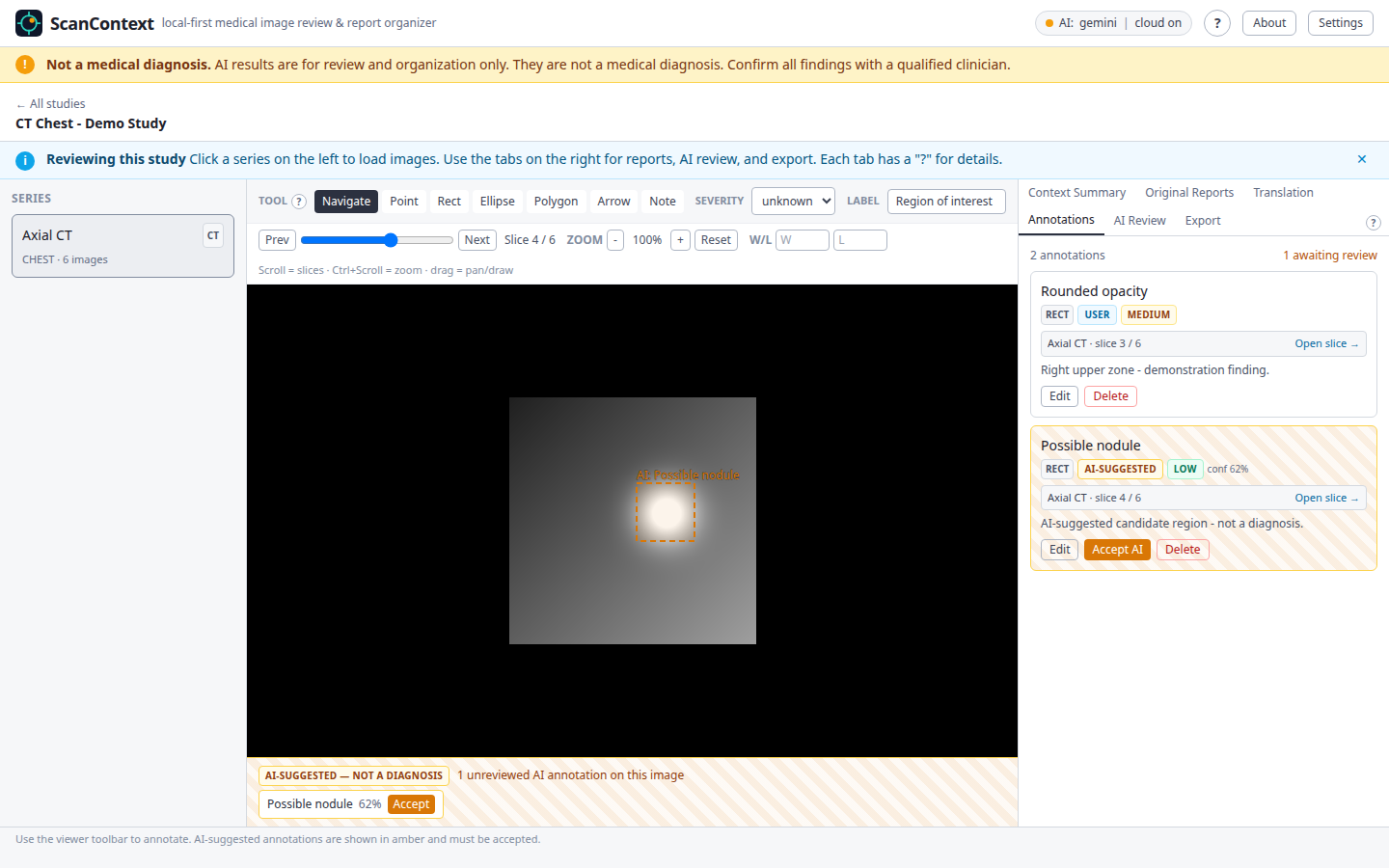
Annotate findings
Mark regions yourself, or accept AI-suggested candidate regions. Confirmed
marks show solid blue; AI suggestions awaiting your review show dotted amber.
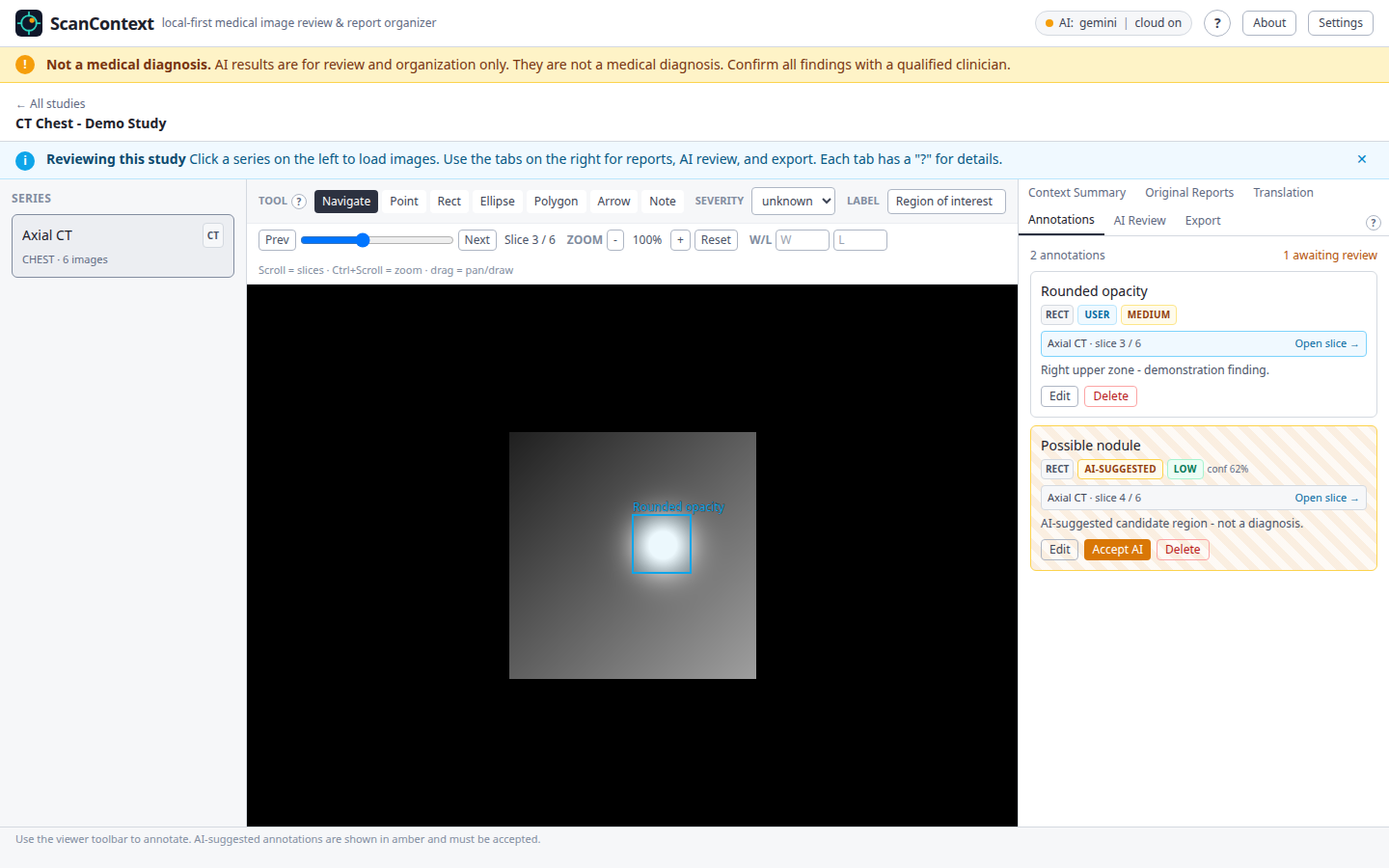
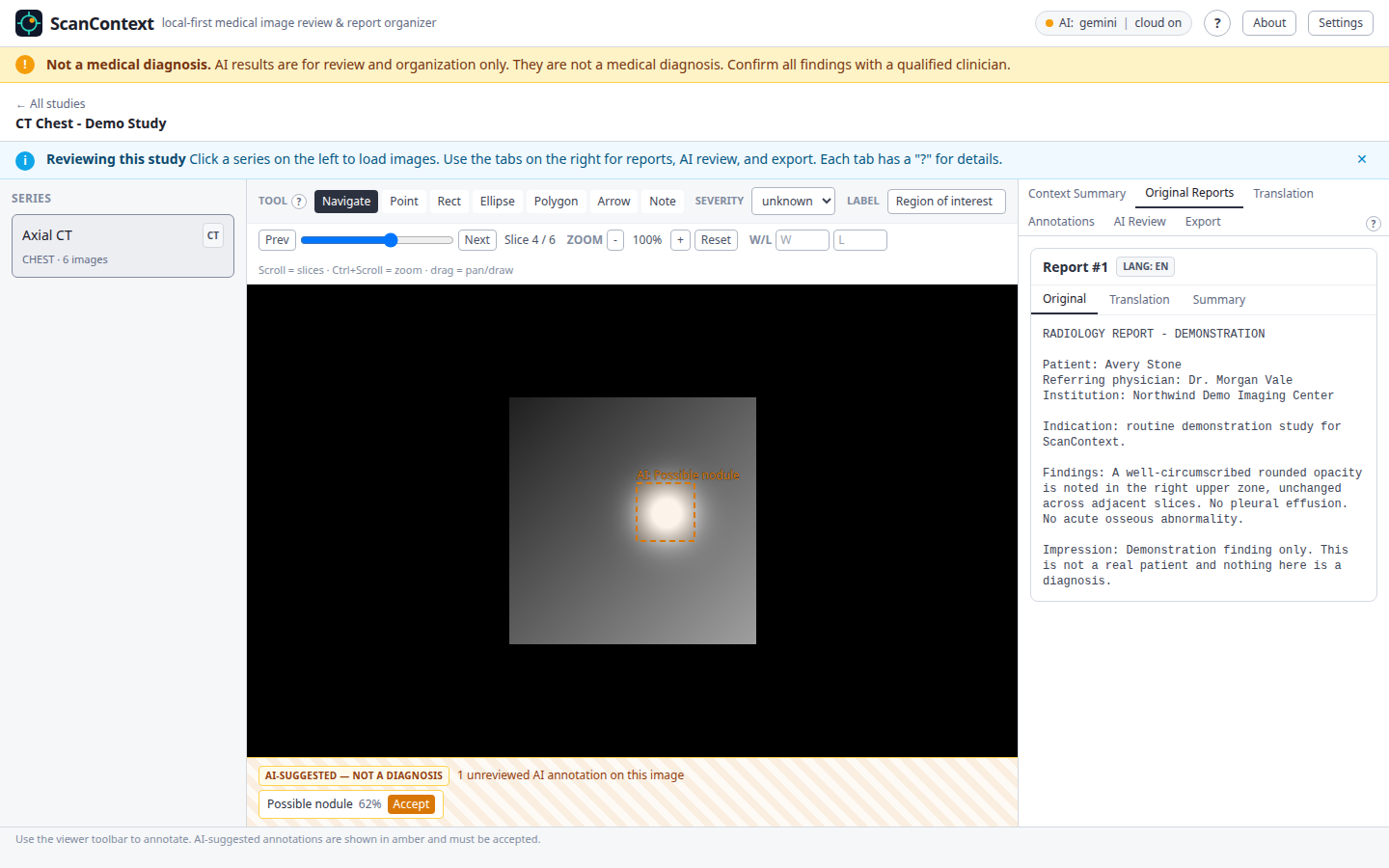
Read and translate reports
Imported reports are shown exactly as received, with optional English
translation and an AI summary.
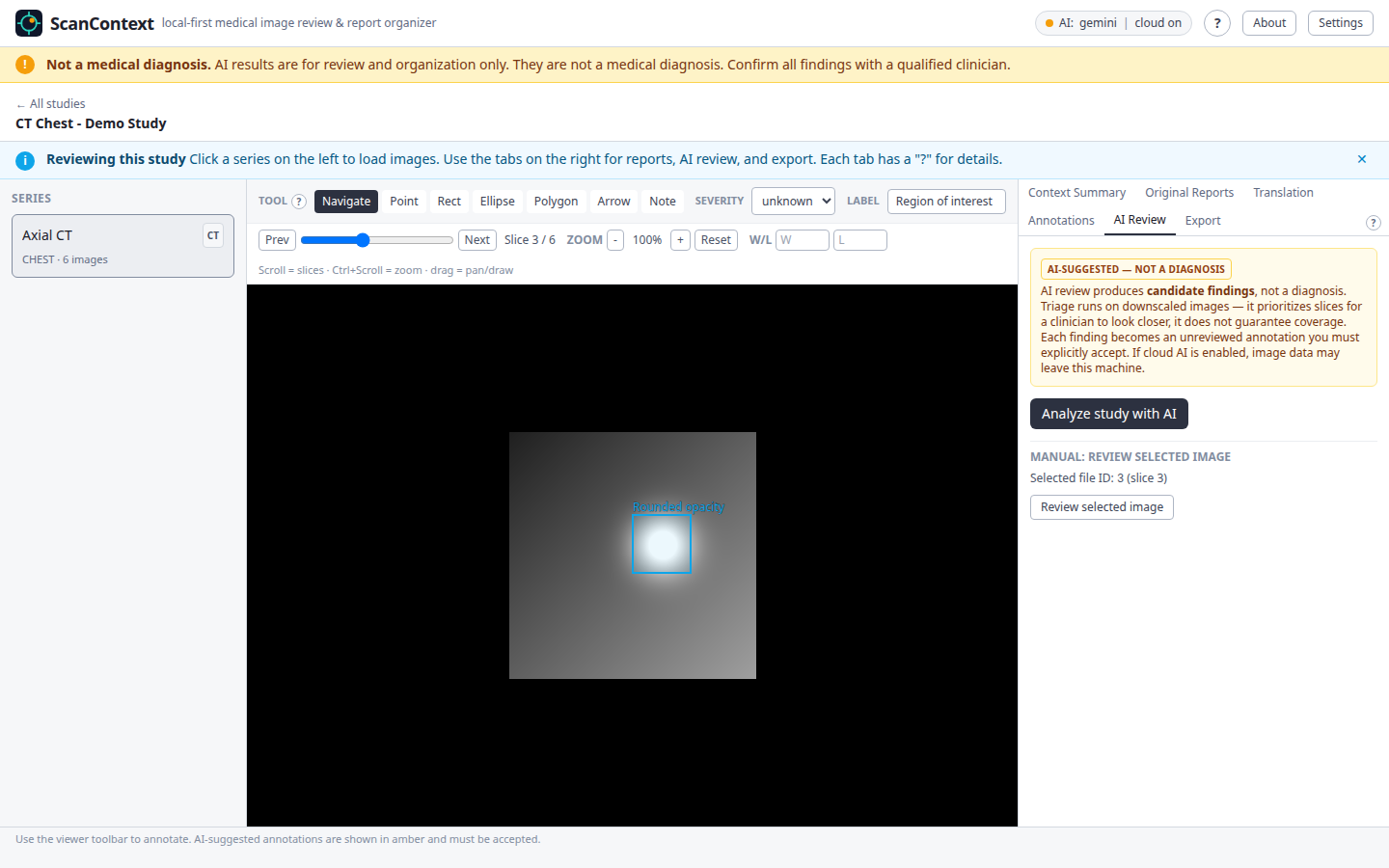
Optional AI review
Turn on an AI provider and let ScanContext analyze a study — it picks the most
relevant slices and suggests regions worth a closer look, always labeled
"candidate findings, not a diagnosis".
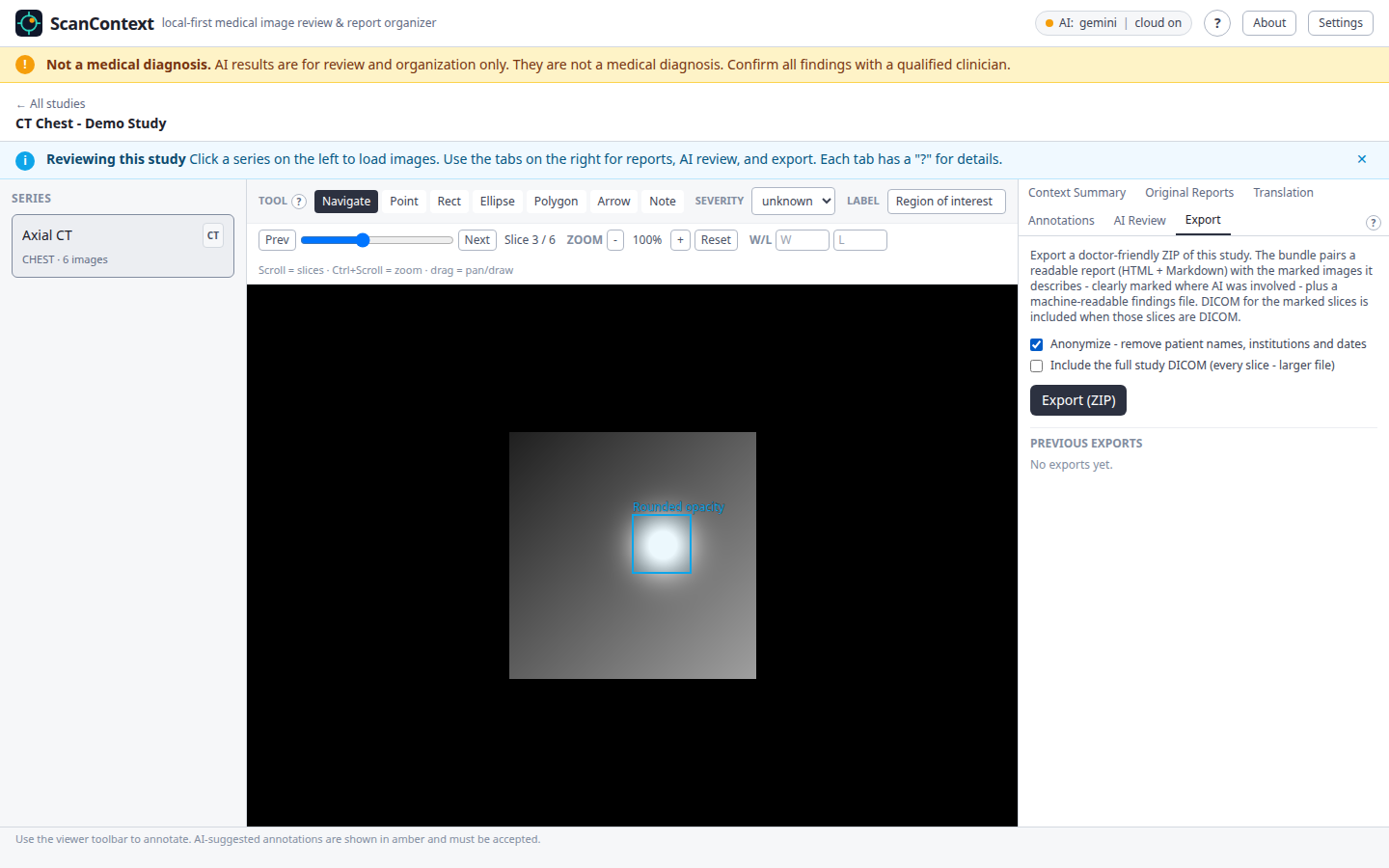
Export to share with a doctor
Export a study as a doctor-friendly ZIP — a readable report plus the marked
images. Tick Anonymize to strip patient names, institutions, and dates
before the file leaves your machine.
Help, any time
A built-in Help drawer has guides, an FAQ, a safety summary, and a button to
replay the guided tour.
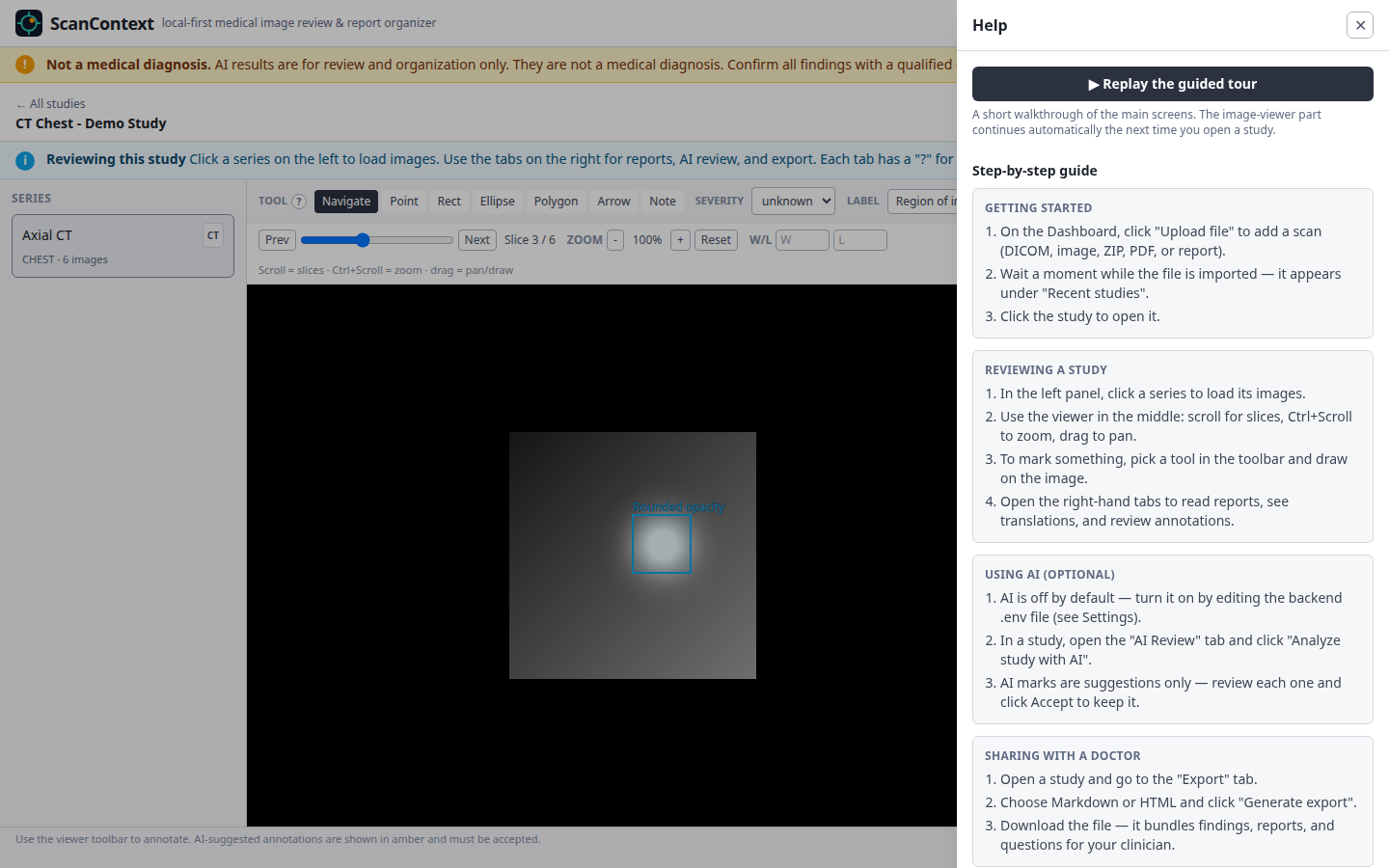
> The complete screenshot set is in
> docs/showcase/screenshots/.
Optional — connect an AI provider
AI is off by default and entirely optional — ScanContext works fully
without it. When you turn it on, it can summarize reports, translate
non-English reports, and suggest regions of an image worth a closer look —
always labeled "candidate findings, not a diagnosis".
You can use any one of these providers:
| Provider | Get a key / install | Notes |
|---|
| Google Gemini | | Recommended — free tier to try, paid tier for real use |
| Anthropic Claude | | Paid API |
| OpenAI | | Paid API |
| Ollama | | Fully local — no key, nothing leaves your computer |
When a cloud provider is enabled, image/report data for the study you
choose may be sent to that provider — ScanContext strips patient identifiers
first. Ollama keeps everything on your machine.
Setting up Google Gemini (recommended)
1. Get an API key. Open , sign in with
a Google account, click Create API key, and copy it (it looks like
AIza…). Keep it private — treat it like a password.
2. Turn on billing — important for medical privacy. A new key starts on the
free tier. Open the key's Google Cloud project and enable billing (the paid
tier):
> ⚠️ Anonymization only protects you on the paid tier. ScanContext strips
> patient identifiers before sending anything to Gemini — but on the free
> tier, Google may still use your (anonymized) images and reports to improve
> its models. Only the paid tier stops that. The anonymization step does
> not give you real privacy on the free tier — for actual medical data, use the
> paid tier.
- The most thorough model (
gemini-2.5-pro) and reliable speed need the paid
tier.
- You can set a budget cap in Google Cloud so there are no surprises.
3. Add the key in ScanContext (no files to edit). Open ScanContext, click
the Settings link in the top bar, then:
- AI provider: pick Gemini
- Paste your API key into Gemini API key (it's stored locally, never
shown back in full — only the last 4 characters)
- Turn Cloud AI enabled on
- (Recommended) leave Anonymize before AI on
- Click Save settings
Changes apply immediately — no restart needed. The Settings page is also
where you switch providers later, change the model, or remove a saved key.
Then open a study and use Analyze study; you confirm cloud use per study.
Advanced — set the key in .env instead
For unattended / scripted setups, the same values can be written to the
.env file. After editing it you must Stop, then Start ScanContext so it
reloads.
AI_PROVIDER=gemini
CLOUD_AI_ENABLED=true
GEMINI_API_KEY=AIza...your-key...
GEMINI_MODEL=gemini-2.5-flash
Where the .env file lives:
| How you installed ScanContext | .env location |
|---|
Download bundle (.zip) | Inside the unzipped ScanContext- folder |
| ScanContext app — Windows | %APPDATA%\com.nikolareljin.scancontext\.env |
| ScanContext app — macOS | ~/Library/Application Support/com.nikolareljin.scancontext/.env |
| ScanContext app — Linux | ~/.local/share/com.nikolareljin.scancontext/.env |
If both are set, the in-app Settings value wins.
Which Gemini model?
| You want… | Set GEMINI_MODEL to |
|---|
| Cheap, fast, good for everyday use | gemini-2.5-flash (default) |
| The most thorough analysis | gemini-2.5-pro |
What does it cost?
Gemini charges per use, and ScanContext only calls it when you ask it to
analyze a study. The cost per study is capped by design — ScanContext
reviews at most about a dozen sampled images no matter how many slices a scan
has, so a huge scan costs the same as a small one.
| Model | Cost to analyze one scan / series |
|---|
gemini-2.5-flash | roughly 2–3 cents |
gemini-2.5-pro | roughly 10–20 cents |
Even heavy use — 100 studies in a month — is about $2–3 on Flash or
$10–20 on Pro. Summarizing or translating a text report costs a fraction
of a cent. Prices are set by Google; current rates: .
Troubleshooting
- "Docker is not installed" / "not running". Install Docker Desktop, open
it, and wait until it says "running" — then start ScanContext again.
- The app says Docker is missing but it is installed (macOS). Make sure
Docker Desktop has been launched at least once; the ScanContext app looks for
it in the standard locations.
- A port is already in use. The packaged app uses ports
5173 and 8000
on your machine (Orthanc runs internally and is not exposed). If 5173 is
taken, change FRONTEND_PORT in the .env file and start again. 8000 is
built into the app and must stay free — if it is occupied, free it rather
than changing BACKEND_PORT.
- First start is slow. The first run downloads the app images (a few
minutes). Later starts are fast.
- Still stuck? Open an issue:
Windows: Docker Desktop won't start (virtualisation not detected)
If Docker Desktop shows "failed to start because virtualisation support wasn't
detected", it is a Windows / PC setup issue. Two independent fixes — most
people only need one:
Fix A — turn on virtualization in your PC's BIOS/UEFI. Restart and press
the setup key shown on the boot screen (usually Del, F2, F10, or
Esc). Find the virtualization setting — Intel: Intel Virtualization
Technology / VT-x; AMD: SVM Mode / AMD-V (under Advanced, CPU
Configuration, or Security) — set it Enabled, save & exit, and reopen
Docker Desktop.
Fix B — repair the Windows features and WSL.
- Press the Windows key, type
Windows features, open Turn Windows features
on or off, untick Hyper-V and Virtual Machine Platform, click OK and
restart.
- Open Windows PowerShell (Search box → type
Windows PowerShell) and run
wsl --update. If it says WSL is not installed, run wsl --install
(right-click PowerShell → Run as administrator) and restart.
- Open Docker Desktop and click Try Again.
Docker's own guide:
💛 Support ScanContext
ScanContext is free and built by one independent developer. If it saved you
time or worry, a one-time $10 donation keeps it maintained and improving —
any amount helps:
**☕ **
Privacy & safety
- ScanContext is not a diagnostic tool and not a substitute for professional
medical advice.
- Medical files may contain personal health information. Keep your downloaded
folder and any exports private.
- Cloud AI is opt-in. When enabled, image/report data may be sent to the
provider you choose; ScanContext strips patient identifiers first.
- That anonymization only gives you real privacy on a paid provider plan.
On Google Gemini's free tier, your anonymized data may still be used by
Google to improve its models — use the paid tier for genuine medical
data, or use Ollama to keep everything on your own machine.
Built and maintained by Nik Reljin · GitHub
· LinkedIn
Clone traffic
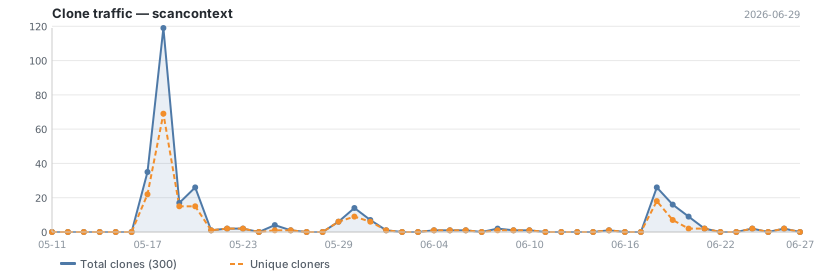
Updated daily. Total and unique cloners over the last 14 days.