Xi Control








🌐 English · Русский
A lightweight tray utility for Xiaomi / Redmi (Redmibook) laptops — first and foremost
for the Xiaomi Book Pro 14 (2026), on which it was developed and tested, but not limited
to it. Battery charge protection, performance modes, OSD and "revival" of the vendor keys.
All hardware control goes through the firmware's stock WMI interface (MiCommonInterface,
ODM Bitland "MIFS") — the same channel the official Xiaomi PC Manager uses.
No WinRing0, no third-party drivers and no direct EC access.
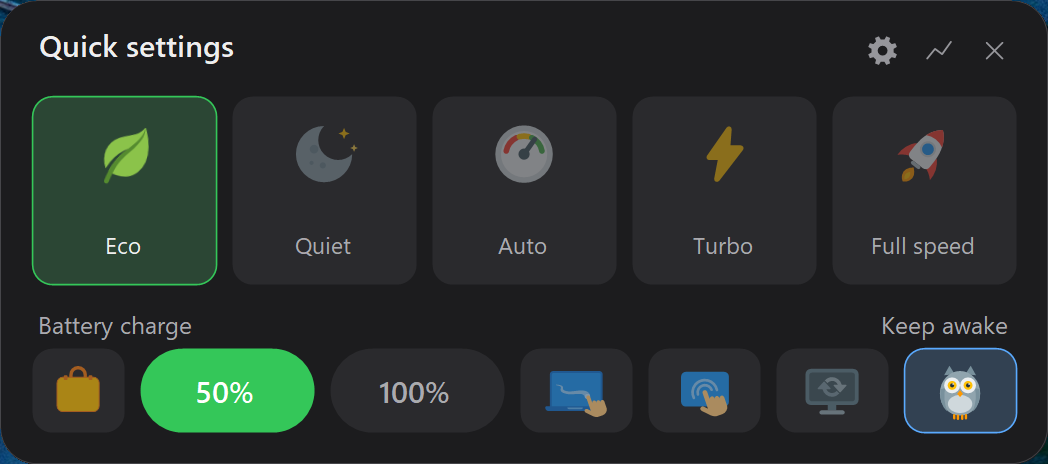
Quick settings panel (hold the Mi button): five performance modes, charge limit,
"travel charge" (a one-off charge to 100%), touchpad and touchscreen on/off,
auto refresh rate and "owl mode" (stay awake).
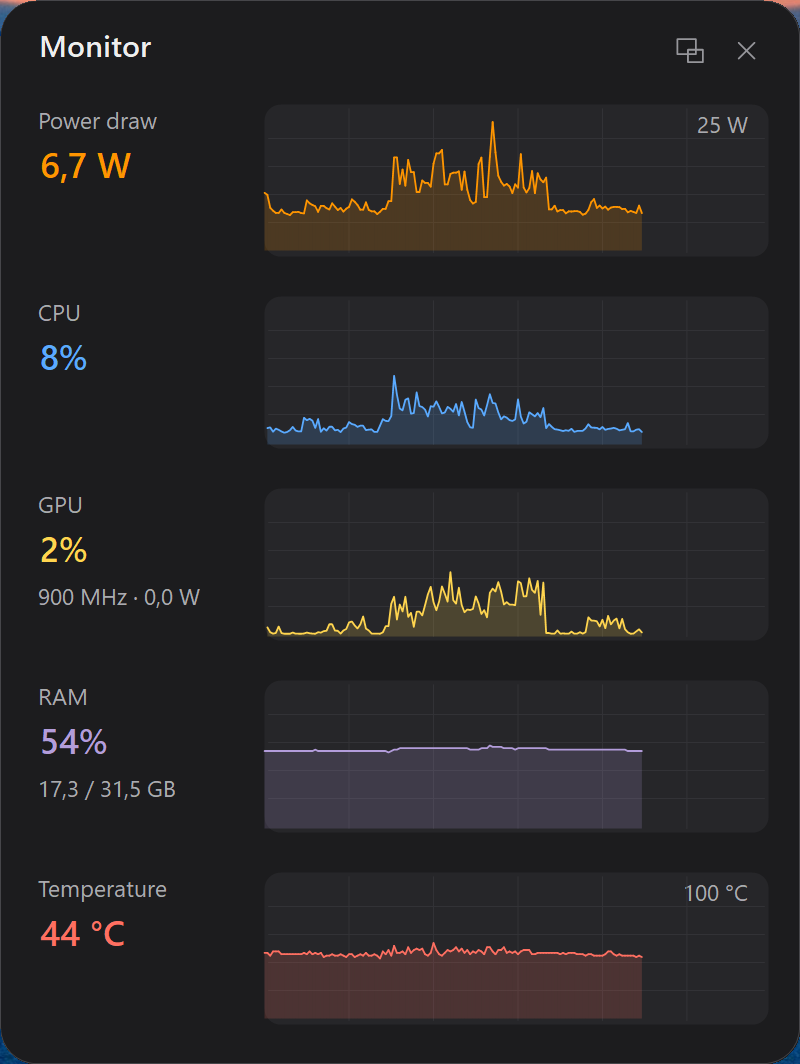
Monitor window: live graphs of power draw (W), CPU, GPU and RAM usage.

In full view — live graphs: power draw (W), CPU, GPU (clock and watts under the percentage),
NPU (if the laptop has one), RAM, hotspot temperature (hot zone in cherry red) and the
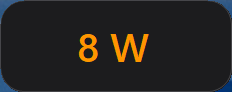
connected adapter's wattage. Collapses into a compact line (Power / CPU / GPU / NPU / RAM) or a single large readout — via the "view" button or a
double-click; current direction is shown by color (charging green / discharging orange). In the
smallest view you pick the metric with a right-click: power, CPU, GPU, NPU, RAM or temperature — on AC,
where there are no watts to show, you can watch load or degrees instead.
The tray icon changes with the active mode:
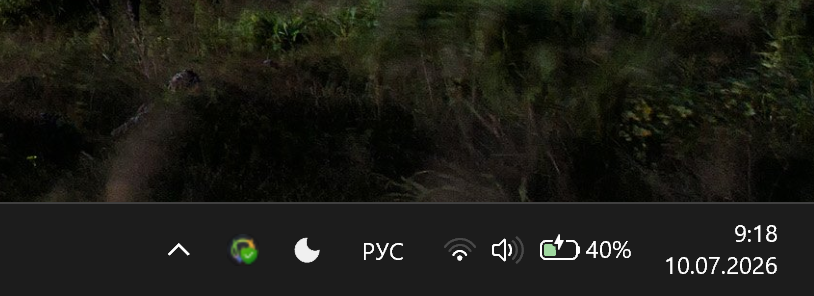
Features
- 🔋 Charge protection — "battery care" with a selectable threshold (40/50/60/70/80%,
picked in Settings → Battery) / full charge to 100%.
- ChargeGuard: the firmware drops the limit after sleep and power-source changes —
the utility re-applies it automatically.
- 🧳 "Travel" mode — a one-off charge to 100% on top of battery care: the suitcase button
in the panel / a menu item. On reaching 100% — an OSD and a sound; unplugging the charger
resets the mode by itself (the next plug-in is back to the threshold).
- ⏰ Software threshold — for models whose firmware refuses the limit: the app watches
the level and tells you to pull the cable (a popup and a sound, up to three reminders). It
shows up in Settings → Battery on those machines only, and only after the firmware has said
no: there are no model lists in the code, the hardware answers for itself. It is a reminder,
not protection — real protection comes from the webhook plus a smart plug (see HTTP API).
- 🔌 Charger wattage — when the charger is plugged in, show the connected PD adapter's
wattage (watts) in the OSD and in the Monitor. Over the charge icon — a PSU quality badge:
🔴 "!" if the adapter is weaker than the configured threshold (slow charging), ⚪ "?" if the
PSU is non-PD (e.g. plain 5 V — wattage can't be negotiated). The icon still shows the current
charge limit. The threshold is configurable (Settings → Battery). Driver-free (read-only).
- 🩺 Battery health — Settings → Battery: actual wear (current vs. design capacity),
charge cycle count, capacity in Wh. Stock ACPI/Windows data, read-only.
- ⚡ Performance modes: Eco / Quiet / Balanced / Auto / Turbo /
Full speed. Any of them can be hidden in Settings → Performance — two always stay, so
there is something to switch between. You usually won't need to: a mode the firmware
refuses both on AC and on battery switches itself off — the set differs by model (the
Book Pro 14 refuses Balanced; on the Redmi Book Pro 15 2022 only Quiet and Balanced work).
Nothing is probed behind your back: it learns from the modes you pick yourself.
- 🖥️ OSD overlay (dark card, custom icons):
- charger plug/unplug ("Charging to X%" with the actual threshold / "On battery" + level);
- performance mode and charge limit changes;
- microphone on/off, keyboard backlight (off / 50% / 100% / auto).
- 🅼 Mi button:
- short press — cycle through modes with an OSD (configurable);
- double click — toggle the charge limit (configurable);
- hold — quick settings panel (modes + charge limit, closes on Esc/X/click-outside;
configurable).
- ⌨️ Reviving "dead" keys with remapping: the Mi clicks and the "settings" / AI /
"projection" keys can be bound to any function — from cycling modes to launching your
own program (see "Key remapping"); the microphone key mutes the system mic, the backlight
key shows an OSD with the level.
- 🎛️ The rest of the stock keys answer too — nothing to configure. Xi Control follows the same
firmware dispatcher the vendor utility listens to, so Caps Lock, Num Lock, the Windows-key lock
and the touchpad indicator get a localised OSD, the snipping-tool and Task View keys do what
their icons promise, and a performance-mode key syncs the tray icon and the remembered mode.
Which of these exist depends on the model — a laptop that never sends a code simply never shows
that OSD.
- 🖱️ Touchpad on/off — an action for any key + a cell in the panel. Disabling is done the
stock way (like in Device Manager, no drivers) and by default does not survive a reboot — the
touchpad can't get stuck disabled; if you don't need it at all, "Keep it off across restarts"
(Settings → Features) turns it off again after a reboot.
- 📳 Touchpad vibration strength and click force — like in Xiaomi PC Manager, over the same
channel and without drivers; the settings are stored in the touchpad itself.
- 👆 Touchscreen on/off — same for the laptop's touchscreen: an action for a key,
a cell in the panel, stock driver-free disabling and auto re-enable after a reboot (unless
"Keep it off across restarts" is on).
The cell appears only if a touchscreen is present in the system.
- 🔔 Update check (on by default) — once a day the app asks GitHub whether a new version is out
and shows a toast linking to the release; the notice also appears on the "About" tab. Updates are
never installed automatically — this is a notification only (grab it from the release page or
run
winget upgrade Oksion.XiControl). With the toggle off the app makes no network requests at
all, and a one-off check is available on a button.
- 🧩 Driver and BIOS check with Xiaomi — the Drivers tab asks Xiaomi's server what it offers for
this model and compares it with what is installed, device by device: what matches, where you are
already newer (that is normal) and where an update exists — with a link to the package (the BIOS
link comes with a separate at-your-own-risk warning). No Xiaomi PC Manager or its services; the network is used only on the button.
What is sent: the model (board code), Windows language, region and build number, and the BIOS
version — the serial number is not; XiControl itself downloads and installs nothing.
- ⚙️ Settings window in Windows 11 style — all options across tabs (General / Features /
Battery / Display / Touchpad / Performance / Keys / Notifications / HTTP API / Drivers / About),
dark and light themes.
The Features tab controls what to show: "Owl mode", touchpad, touchscreen and refresh-rate
control; a disabled feature disappears from the menu and panel entirely.
- 🎨 The tray icon changes with the mode, monochrome to match a light/dark taskbar;
a dark menu matching the system theme (switches on the fly).
- 🦉 "Owl mode" — don't sleep, and don't turn off the display (optional); a closed lid on
AC power only turns off the display (on battery — regular sleep). Owl in the panel / a checkbox
in the menu; power timings aren't changed, the lid action is restored afterwards.
If you only need the machine to stay awake (for a remote session, say), set
"OwlIgnoreDisplay": true in config — the screen then blanks as usual instead of burning idle.
The feature can be hidden entirely ("OwlMode": false in config).
- 🖥️ Auto refresh rate — plug in the charger → 120 Hz, unplug → 60 Hz
(rates configurable in config:
AcRefreshRate/BatteryRefreshRate; if the panel lacks
such a rate, the nearest one is used). A menu toggle and a panel cell;
holds after sleep and power-source changes. Refresh-rate control can be hidden entirely
(Settings → Features or "RefreshRateFeature": false) — the menu item, panel cell and the
refresh-rate section of the Display tab go away (the tab itself stays — brightness lives there).
- 🔌 Power profiles — your own performance mode on AC and on battery
("Don't change" — leave alone). Applied at startup and on power-source changes; driver-free (firmware WMI).
- ⚡ Windows power mode along with the mode (option) — Eco/Quiet → best power efficiency,
Auto/Balance → balanced, Turbo/Full speed → best performance; replaces Xiaomi's service.
- 💡 Brightness memory — a separate option (no profiles): screen brightness is remembered
and restored separately for AC and battery (WMI ACPI, the same channel Windows uses).
- 🌗 Brightness limit — a maximum brightness, separately for AC and battery (protects an
OLED panel from burn-in): anything above the limit smoothly slides back, and not as an
ultimatum but as a "bargain" — once a minute, half the gap; raise it again and the utility
backs off for 2 hours. See "Screen brightness limit" below.
- 🔆 Auto-brightness from the light sensor (if the laptop has one) — the screen follows
ambient light along a curve that learns from your corrections: adjust the brightness once
and that's what it will be in that light from now on. Two curves (AC and battery); the
settings tab shows live lux and the learning graph. See "Auto-brightness by sensor" below.
- 📟 Tray indicator (optional, off by default) — a second icon next to the app's tray icon
showing a number: power draw (W), CPU, GPU or NPU load, used memory or temperature. The exact value
with units lives in the tooltip, a click opens the Monitor, the update interval is configurable
(Settings → General). When off, no icon, no timer and no data sources are created: zero extra load.
- 🌐 UI language: Russian / English / Chinese (中文).
- 🚀 Autostart via Task Scheduler (no UAC prompt at logon, works on battery).
- 🛰️ HTTP API for the local network (optional, off by default) — control it from a
phone or from Home Assistant automations: read status and charge (
GET /status),
switch mode, charge protection, "travel" and owl. A command allowlist, token authorization
(only the SHA-256 is stored), binds to 127.0.0.1 by default — network access is enabled by
a separate toggle. See "HTTP API" below.
Compatibility
Tested on the Xiaomi Book Pro 14 (TM2424). Should work on Xiaomi/Redmi laptops made by
ODM Bitland with the MiCommonInterface WMI class (most recent-generation Redmibook / Xiaomi
Book models).
Check your machine (PowerShell):
Get-CimClass -Namespace root/wmi -ClassName MiCommonInterface
If the class is found — the interface is there. The set of supported functions depends on the
model (the utility detects them at runtime and won't crash on unsupported ones).
Installation
The easiest way — via winget:
winget install Oksion.XiControl
Or grab a prebuilt exe from the releases page:
XiControl-vX.X.X-win-x64.exe — self-contained, nothing to install (~70 MB);XiControl-vX.X.X-win-x64-net8.exe — lightweight (~2 MB), requires the
.NET 8 Desktop Runtime.
Run as administrator (a firmware WMI-interface requirement — even reading doesn't work
without elevation).
Portable mode
By default settings live in %APPDATA%\XiControl\. To keep everything next to the app, drop
an empty file named portable.txt (or .portable, if you can create such names) into the
folder with XiControl.exe. Then config.json and log.txt live there too: the folder can be
moved to another drive or a flash stick, and survives a Windows reinstall with nothing lost.
- Settings you already had are migrated automatically on the first launch with the marker —
no starting from scratch.
- The marker isn't needed if you simply put an existing
config.json next to the exe — the app
picks it up and writes there.
- If the program folder is not writable (e.g. a winget install into
Program Files), portable
mode does not engage: settings stay in %APPDATA% and the reason is written to the log — the
app will not lose them silently.
- The current paths are always shown in Settings → About.
- One exception:
api.json (HTTP API settings) stays in %ProgramData% by design. It is
protected by "administrators only" permissions, and that's precisely why the API cannot be
enabled — or its token swapped — by editing the user config.
- Autostart is a Windows Task Scheduler entry; by its nature it lives in the system, not in the folder.
Antivirus false positives
Xi Control is unsigned, runs as administrator and touches system things (the firmware charge
limit, refresh rate, a firewall rule for the optional HTTP API, an autostart task) — enough for
some over-eager heuristics to twitch. Easy to check: upload the exe to
VirusTotal — typically, out of ~70 engines only Bkav Pro
flags it (a generic signature like W32.Malware.*), while Microsoft Defender and everyone
else stay silent. Bkav's engine is AI/ML-based — that's the vendor's own positioning, and their
generic detection is literally named W32.AIDetectMalware. That kind of analysis looks for
"suspicious" code patterns common to both legitimate and malicious software — hence its notorious
reputation for false positives. It's a false positive, and it's not a bug on our side.
Why you can trust the build:
- the source code is open — read it and compile it yourself;
- releases are built in GitHub Actions from this repository (visible in the Actions logs),
not "from someone's laptop";
- the exe is reproducible with
dotnet publish (below) — verify it yourself.
So if your antivirus complains, it's a reason for it to apologize, not for you to panic. If you
like, report the file to the vendor as a false positive: such generic signatures usually fall off
with the next database update.
Build from source:
dotnet build XiControl.sln -c Release
# → src/bin/x64/Release/net8.0-windows/XiControl.exe
dotnet test XiControl.sln -c Release --no-build   # unit tests (no hardware required)
A single portable .exe (without .NET installed):
dotnet publish src/XiControl.csproj -c Release -r win-x64 --self-contained -p:PublishSingleFile=true
Usage
Launch XiControl.exe (confirm the UAC prompt) — a tray icon appears.
| Action | Result |
|---|
| Click the tray icon | Quick settings panel |
| Right-click the icon | Menu: charge, "travel", owl, auto refresh rate, Monitor, mode, Settings…, exit |
| Mi button, single click | Next performance mode + OSD (configurable) |
| Mi button, double click | Toggle charge limit threshold ↔ 100% + OSD (configurable) |
| Mi button, hold ~0.5 s | Quick settings panel (configurable) |
| Microphone key | Mute/unmute the system microphone + OSD |
| "Settings" key | Toggle charge limit threshold ↔ 100% + OSD (configurable) |
| Keyboard backlight key | OSD with the level (off / 50% / 100% / auto) |
All options live in the Settings… window (tray menu item): tabs General (language,
autostart, panel theme, update check, logging, tray indicator), Features (owl, touchpad,
touchscreen, refresh-rate control), Battery (charge threshold with a hint, "travel" sound and file,
lock-screen sound and toast, charger-wattage OSD, "weak PSU" threshold, battery health), Display
(brightness limit and memory, auto-brightness by sensor with the curve graph; auto refresh rate, "Keep refresh rate" and the rates — the section is
hidden if refresh-rate control is off), Touchpad (bottom dead zone, edge sliders, vibration
strength and click force, force press), Performance (mode visibility,
separately for AC and battery, with a switch above the list; startup mode, power profiles),
Keys (remapping), Notifications (where popups appear, how long
they stay, transparency, which lock-key popups to show), HTTP API (port, token, permissions), Drivers (check with Xiaomi on a button) and About
(version, model with the board code, BIOS, serial number — masked by default, click to reveal).
The quick toggles (charge, "travel", owl, refresh rate, Monitor,
mode) stay in the tray menu and the panel.
Fine timings are edited only in %APPDATA%\XiControl\config.json (applied on the next
launch): MiHoldMs — the Mi-button hold threshold (400), MiDoubleClickMs — the double-click
window (300), OsdDurationMs — how long the OSD stays up (2800).
Config keys behind the UI settings (no need to edit them by hand, but worth knowing):
CareLimitPercent — the selected charge threshold; TravelLockSound / TravelLockToast — "travel"
sound and toast on a locked screen; CheckUpdates — whether to check for updates, SkippedVersion —
the version already announced, LastUpdateCheckUtc — timestamp of the last check (daily window).
For autostart, enable "Start with Windows" (Settings → General) — the scheduler task is created
elevated, so there's no UAC prompt at logon. The task is per user account (named
XiControl_S-1-5-21-…), so on a shared machine people no longer overwrite each other's autostart;
a task from older versions (plain XiControl) is recognised and migrated to the new name on the
next toggle. Self-repair on launch covers not only a missing exe but also a task pointing at an
outdated build — the typical case when the portable version is unpacked into a new folder.
Besides logon, the task also fires when you return to the session via fast user switching.
Travel mode (a one-off charge to 100%)
You usually keep battery care on (say, 80%), but before a trip you want a full charge. Press the
suitcase button in the panel (left of the threshold/100 pills) or the "Charge for the road"
menu item — the utility lifts the limit once and tops up to 100%.
- On reaching 100% — a "ready for the road" OSD and a sound (toggle
Settings → Battery → "Ready sound", on by default).
- Unplug the charger → the mode turns off by itself; the next plug-in is back to the care threshold.
- Manually picking the threshold/100 pill also cancels the mode. With a permanent "100%" the button is
inactive (nothing to top up).
The "threshold/100" pills show the base setting — "travel" is a temporary override on top of it
(driver-free, the same charge WMI channel). In config.json: "TravelMode", "TravelSound".
A custom ready sound — the "Custom sound file" field in the same settings (or config.json;
empty or a missing file → the built-in jingle; %VARIABLES% are supported; WAV/PCM only):
"TravelSoundFile": "C:\\Users\\Me\\Sounds\\ready.wav"
Hide unused modes
Settings → Performance: one toggle per mode, with an "On AC / On battery" switch above the
list. Visibility is per power source: the firmware won't accept Full speed on battery anyway, and
Eco is rarely what you want at the desk. Applied immediately; the panel doesn't shrink — the cells
of the remaining modes stretch. The list can't go empty: the "at least one visible mode" rule is
counted separately for each source.
Why you might want this:
- Eco — the most economical profile: on the tested model it turns off the keyboard backlight
and lowers screen brightness. The vendor software offers it too; it was hidden only from us,
because the protocol is undocumented and its code had to be found by hand;
- Full speed — if you don't use it or want to prevent accidental activation
(the mode is loud and only works on AC).
A mode your model doesn't have removes itself. If the firmware refuses it both on AC and on
battery, it leaves the list — one power source is deliberately not enough, since Full speed
legitimately refuses on battery and works on AC. Nothing is probed behind your back: it learns
only from modes you pick yourself.
In %APPDATA%\XiControl\config.json this is HiddenModesBySource, one list per source:
"HiddenModesBySource": { "ac": ["Eco"], "battery": ["FullSpeed"] }
The old EcoMode/FullSpeedMode fields and the flat HiddenModes list migrate automatically on
the first run of the new version — there's no need to edit them by hand any more. After editing
the config manually, restart the app.
The firmware resets the mode on reboot. What to enable at startup is a radio choice
Settings → Performance → "Mode at startup" (mutually exclusive; the fourth,
"Power profiles", is below):
- Don't touch — leave whatever the firmware set.
- Restore last — the app remembers the selected mode and brings it back after a reboot
(follows your switches). On enabling it records the current one right away.
- Pin current — fixes one mode: it will be enabled every startup, whatever you shut down
from. You pick it while in the desired mode — that one gets pinned.
If the desired mode is unavailable at startup (e.g. "Full speed" on battery), "Auto" is enabled.
The pinned mode can also be set by editing config.json: "ForceStartMode": "Eco" (allowed:
"Quiet" / "Turbo" / "FullSpeed" / "Auto" / "Eco"; null or removing the line clears it).
Power profiles (mode by power source)
The fourth "Mode at startup" option: your own performance mode on AC and on battery.
Selected in the same place — Settings → Performance → "Power profiles";
below the radio choice appear "Mode on AC" and "Mode on battery" (or "Don't change").
"PowerProfiles": true,
"AcPerfMode": "Turbo",       // mode on AC; null or "Don't change" — leave alone
"BatteryPerfMode": "Quiet"   // mode on battery
- The profile is applied at startup and on every power-source change AC↔battery (and after
sleep), through a debounced guard — like charge protection and auto refresh rate. Driver-free:
firmware WMI
0x08.
- If the firmware rejected the mode (e.g. "Full speed" on battery) — a soft fallback to "Auto".
Windows power mode along with the mode
Settings → Performance → "Windows power mode" (off by default). The laptop mode drives the
"Power mode" from Windows settings:
| Laptop mode | Windows power mode |
|---|
| Eco, Quiet | Best power efficiency |
| Auto, Balance | Balanced |
| Turbo, Full speed | Best performance |
- Fires on any mode change — from XiControl, the Fn+K key, a power profile, the HTTP API — and on
a power-source change: AC and battery each have their own Windows power mode.
- Xiaomi's MiDeviceService service used to do this. While it is running, the switch is disabled —
the service does the same thing itself and there is no point fighting it. You can disable it on
the Drivers tab.
- Works on top of the Balanced power plan (with another plan Windows itself doesn't offer the
power mode either).
- Turn the switch off and the power mode goes back to Balanced, if it still holds the value we
set. A choice you made by hand in Windows settings is left alone.
"PowerModeSync": true
Screen brightness memory
A separate option Settings → Display → "Remember screen brightness" (off by default),
independent of "Power profiles". The utility tracks your brightness separately for AC and battery
and restores it on each transition: you set 80% on AC → the next plug-in returns 80%. Driver-free:
WMI WmiMonitorBrightness* (ACPI backlight, the same channel Windows uses).
- Xi Control overrides Windows' brightness with its value — which is why the option is enabled
explicitly; a transition may briefly do a double adjustment (Windows → ours ~1.5 s later).
AcBrightness/BatteryBrightness in config fill themselves in.
- Mode and brightness changes run in the background (the UI isn't blocked); on a panel without
WMI brightness the feature degrades silently (logs to
log.txt, doesn't crash). Config writes are
debounced (sparing the SSD).
Screen brightness limit
Settings → Display → "Limit brightness" (off by default) + two limits — one for AC, one
for battery. Made with OLED panels in mind: constant high brightness accelerates burn-in, and the
limit gently keeps it from living there. Driver-free — the same ACPI backlight WMI channel.
Up front and honestly: locking the Windows brightness slider itself is impossible — no such
API exists. The utility can only bring brightness back after the fact, so the rollback is made as
unobtrusive as possible:
- Excess is lowered smoothly (~10 s for the whole path, 1% steps), never as a jump.
- A "polite bargain" instead of an ultimatum: set 80 with a limit of 60 — the utility doesn't
rewind immediately, but halves the gap once a minute: 80 → 70 → 65 → 63 → … → 60. A remainder
of ≤2% is closed in one go.
- Raised it again after its step — that's a "I really need it brighter" signal: the utility
yields and leaves brightness alone for 2 hours. The pause resets on session lock, sleep,
a power-source change and an app restart.
- Lowering below the limit is never touched — the utility never raises brightness.
- With Windows adaptive brightness on, the limit doesn't work (two systems would fight over
brightness): the utility detects this and states the reason right on the tab. Turn adaptive off
in Settings → System → Display.
- Plays nice with "Remember brightness": values above the limit are not remembered at all
(rather than clamped) — your comfortable brightness in the slot isn't eroded; on restore the
slot is pressed down to the current limit but stays untouched in the config.
In config.json: BrightnessCapEnabled, BrightnessCapAc/BrightnessCapBattery (limits, %),
and fine timings — BrightnessRampMs (smooth-slide duration, 10000), BrightnessConvergeMs
(interval between bargain steps, 60000), BrightnessBackoffMin (pause after a repeated raise, 120),
BrightnessGapDivisor (gap divisor, 2), BrightnessSnapPercent (close-out threshold, 2).
The dropdowns in Settings offer 5% presets (100–30), but the limit accepts any percentage: put,
say, "BrightnessCapBattery": 47 into config.json (range 10–100) — the Settings window will show
your value as the first list item and won't overwrite it unless you pick another one yourself.
Auto-brightness by sensor
Settings → Display → "Auto-brightness by sensor" (off by default; the option appears
only if the laptop has an ambient light sensor). The screen follows the light — but unlike
Windows' adaptive brightness, it does so along a curve that learns from your corrections:
adjust the brightness by hand and the app remembers "in this light I want that much".
- Works out of the box, no training required: a sensible default curve ships with it
(dark room ≈10%, office ≈60%, outdoors 100%).
- Two curves — AC and battery: at the same lux level you want more brightness at your desk
than on the road. The one that learns is the one that was active when you turned the knob.
- No neural networks, no cloud — a plain explainable model of a dozen points, stored in
your own
config.json. "Why did the screen dim?" always has an exact answer.
- Learning is never reset by turning the feature off — only the "Reset the learned curve"
button forgets it.
- Learning can be switched off (the "Curve learning" toggle) — for when the curve is already
tuned to your taste: brightness tweaks become temporary and the curve stays intact. What
happens next is up to "Return to learned": Always — after a minute brightness gently
slides back to the curve (same polite bargaining as the limit: half the gap once a minute, in
both directions; insist with another tweak and it yields for 2 hours or until the screen is
locked), On battery only — on AC the tweak lives until the light changes, Off — never
return. In any mode a light change, a power switch or locking the screen recalculates
brightness from the curve — a temporary tweak does not survive Win+L. Timings —
AutoBrightnessRevertMs/AutoBrightnessRevertBackoffMin in config.json.
- "Sensor inertia" (0–60 s, 10 by default) — the app reacts to the median ambient light
over that window: a stray glare, a headlight or your own shadow won't jerk the brightness.
- You can see it working: the tab shows live lux and a graph of both curves (AC in the
accent color, battery in orange) with anchor points and a marker at the current light level.
Adjust the brightness and a few seconds later the new point appears on the graph.
- The curve is editable right on the graph, no config.json required: drag a point with the
mouse, double-click empty space to add one, right-click a point to remove it (2 to 12 points).
Same from the keyboard: ←/→ to pick a point, ↑/↓ for brightness (Shift for bigger steps),
Ctrl+←/→ for the light level, Insert and Delete. You edit one source at a time — the one
picked by the "On AC / On battery" switch above the graph; the other stays as a faint line for
comparison. A point never crosses its neighbours: "brighter room, dimmer screen" is something
the curve can neither learn nor be dragged into.
It plays nice with the other brightness features: the limit (above) acts as an output
filter — the curve learns your true intent while the limit simply caps the result (the graph
shows it as a dotted line: nothing above it reaches the screen);
"Remember brightness" is switched off while
auto-brightness is on (the curve replaces those slots). With Windows adaptive brightness the
feature stays inactive (two controllers of one slider inevitably fight) and says so on the tab.
In config.json: AutoBrightness, AutoBrightnessPointsAc/…Battery (the curves — they
maintain themselves), AutoBrightnessMedianSec, plus fine thresholds
AutoBrightnessHysteresis, AutoBrightnessSettleMs, AutoBrightnessLearnMs,
AutoBrightnessDeadband.
> 🤓 How it works inside — the logarithmic scale, the point-eviction rules, a proof that the
> curve stays monotonic, why median and not mean: docs/13-auto-brightness.md
> (in Russian).
Auto refresh rate (screen rate by power source)
The screen switches to a different rate depending on the power source: on AC — higher (smoothness),
on battery — lower (savings). Enabled from the tray menu item, a panel cell, or in
Settings → Display; the rates are picked there too (applied immediately). In config.json:
"AutoRefreshRate": true,
"HoldRefreshRate": false,
"AcRefreshRate": 120,
"BatteryRefreshRate": 60
How it actually behaves (plain Win32: the built-in panel is located via QueryDisplayConfig, the
rate is set with ChangeDisplaySettingsEx — no driver needed):
- The laptop's built-in panel only, resolution and color depth are untouched — only the rate
changes. External monitors are never touched, even when one of them is set as primary; if the
panel isn't currently active (lid closed, "second screen only") nothing changes at all.
- The nearest supported rate at the current resolution is taken: you asked for 120, the panel
can only do 90/60 → it picks 90 (ties go to the higher). So entering "144" on a 60 Hz matrix is
safe — it just stays 60. A value ≤ 0 in config is ignored.
- Triggers at app startup, on AC↔battery changes and on wake from sleep (the latter two are
debounced ~1.5 s, events arrive in bursts), and immediately when you enable the option.
- If the desired rate is already set — the screen doesn't blink (no redundant call is made).
- The rate is written to the display registry (
CDS_UPDATEREGISTRY), i.e. it survives a reboot;
but with the option off the app doesn't touch the rate at all (including at the moment you
uncheck it — whatever was set stays, restore it manually).
- The actual mode switch runs on a background thread (doesn't block the UI), and a failure is
merely logged to
log.txt, the app doesn't crash. The power-change OSD appends the actual rate ("… • 120 Hz").
- On supported Xiaomi models, the refresh-rate hotkey (
0x1A, with 0x13 as a compatibility
alias) cycles the built-in panel's available modes and shows the resulting rate in the localized
OSD. With Keep refresh rate enabled, that deliberate choice becomes the configured rate for
the current power source, so the guard does not undo it 1.5 seconds later.
- Touchpad edges as sliders. Slide a finger up and down along the left edge for brightness,
along the right edge for volume (Settings → Touchpad). The pointer does not move inside those
strips: it uses the same stock Windows curtain zone as the bottom dead zone. A movement that
began in the middle of the pad continues into the strips as usual and never becomes a slider —
one gesture does one thing. Two fingers still scroll. Sensitivity has three presets, and
brightness and volume move in step. Requires a Windows Precision Touchpad. On touchpads with
the Xiaomi vendor channel (the same one used for vibration strength below) every step comes
with a short click of the motor, like in Xiaomi PC Manager — on by default. Next to the
sliders: a toggle, the click strength (light / medium / strong; separate from the click
vibration and also stored in the touchpad) and the click rate (every step / every other step /
rarely, like PC Manager; any value from 50 to 500 ms via
TouchpadEdgeHapticsMs in
config.json).
- No such key on your model? The same cycle is available as the assignable action
hz
("Cycle screen refresh rate") in Settings → Keys, so it can be put on the Mi button or any other
remappable key. It obeys the same Refresh rate control toggle: with the feature off, nothing
touches the display.
- Rates you never use can be left out of the cycle. The panel reports every mode it has, so on
a 48/60/75/100/120 Hz screen you press the key four times to reach the one you want — each press
a real display mode change with a black frame. Settings → Display → "Cycling by key" lists the
rates of this panel with toggles: keep the ones you actually switch between. Keep fewer than
two and cycling falls back to all of them — a key that silently stopped working looks like a
bug, not like a setting. Panels with only two modes (60/120 on the Book Pro 14, for one) don't
get the section at all: there is nothing to choose.
When editing AcRefreshRate/BatteryRefreshRate directly in the config, restart the app
(a choice in the settings window applies immediately; a non-standard value from the config is shown too).
"Keep refresh rate" (HoldRefreshRate, off by default) — a separate toggle in the same
Settings → Display. With it, auto refresh rate watches the screen itself, not just the power
source: if the mode is changed by someone else — Windows settings, another utility, the driver after
a reset — the configured rate is restored through the same ~1.5 s debounce. Without it the setting
quietly stops holding until the next power event. It works on top of auto refresh rate (with it off
there is nothing to restore), so the toggle is greyed out while auto rate is disabled. No polling:
the system's display-mode-changed event only.
> An expected side effect, and the point of the feature: while the option is on, you can't change
> the rate via Windows settings — we restore it faster than Windows asks "Keep these settings?".
> To change it there by hand, turn the toggle off; the supported hardware hotkey remains usable.
Tray indicator
An optional second icon next to the app's tray icon showing a number: power draw (W, from the
battery sensor), CPU, GPU or NPU load, used memory or temperature (Intel DPTF). Enable it in
Settings → General, where you also pick the metric and the update interval (1/2/5/10 s;
editing TrayMetricPeriodSec in the config allows anything from 1 to 60). The exact value with
units lives in the tooltip; clicking the icon opens the Monitor.
Notes:
- Windows may hide the new icon behind the overflow chevron — drag it onto the taskbar once and
the spot is remembered.
- Power draw is honest only on battery or while charging: on AC with no charging there is no
sensor data and a dash is shown (same as in the Monitor). GPU load needs Intel graphics,
temperature needs DPTF, NPU load is offered only if the laptop has a neural processor; a metric
unavailable on your hardware shows a dash too.
- When off, the indicator costs nothing: no icon, no timer and no data sources are created —
zero extra load.
Bottom dead zone on the touchpad
If the bottom edge of the pad keeps catching your palm or thumb, turn on Settings → Touchpad →
"Bottom dead zone" and pick the strip height (8/10/12/15/20 mm, 12 by default). In config.json
these are TouchpadDeadZone and TouchpadDeadZoneMm.
It's important to know what the zone actually does: it suppresses the start of a touch. A
finger first placed inside the strip doesn't move the cursor and doesn't tap — but a gesture
started higher up keeps working all the way down, so scrolling and dragging aren't cut off.
Pressing inside the zone still clicks — the strip doesn't become truly dead.
Under the hood this is a stock Windows Precision Touchpad setting (SuperCurtainBottom), not
input interception: a single machine-wide registry value, no drivers and no hooks. It applies
right away — the app restarts the touchpad node itself, no need to sign out and back in (the pad
disappears for a second). Turning the option off removes the value rather than writing a zero.
> The zone lives inside Windows palm rejection. If Settings → Bluetooth & devices → Touchpad
> is set to maximum sensitivity, palm rejection is off entirely — and so is our zone. XiControl
> notices this and shows a warning right on the tab.
Touchpad vibration and click force
Settings → Touchpad → "Haptic feedback" sets how strongly the pad clicks under your finger
(low / medium / high) and how hard you have to press (light / medium / firm; "medium" in both
lists is the factory setting). This is the same thing Xiaomi PC Manager does, over the same
vendor channel of the touchpad — plain HID reports, no drivers. The protocol was recovered from
PC Manager's own code and verified on a TM2424.
The values live in the touchpad itself, so they survive sleep and reboots and aren't stored in
config.json: the app reads them once at startup and writes only when you pick a new value,
checking every write by reading it back. On a laptop with a different touchpad the section
simply doesn't appear.
Force press. Press the touchpad noticeably harder than a normal click to run any action —
the same list as for keys, plus "Screenshot (Win+Shift+S)" (Settings → Touchpad → "Force press",
TouchpadHeavyPressAction in config.json). Like in Xiaomi PC Manager, where it takes a
screenshot. The press is recognised from the finger pressure the touchpad already reports
(normal click ≈ 130, force press ≈ 1000, threshold 500), and while the action is on the firmware
clicks a second time so you feel it went through. The normal click still happens as well. With
"No action" nothing extra runs: pressure isn't even parsed.
Key remapping
Each key gets its own action: Settings → Keys. The slots are the single click, double click and
hold of the Mi button, plus the "Settings" (gear), AI and "Projection" keys. Any slot can be bound
to: cycle modes, charge limit on/off, quick panel, owl mode, Monitor, "travel", touchpad and
touchscreen on/off, the system "Projection (Win+P)" / "Windows Settings" / "Copilot (Win+C)", media
controls (play/pause, next and previous track, stop), the calculator, launching your own program,
or "Nothing".
Media actions work with any player — the key goes to whoever owns the Windows media session. Volume
is deliberately absent: the keyboard already has dedicated keys for it.
The touchpad and touchscreen are disabled with Windows' stock mechanism (like "Disable device" in
Device Manager, no drivers) and by default re-enable on their own after a reboot — they can't get
stuck disabled. Their cells are also in the quick panel, next to auto refresh rate (the touchscreen
cell only if a touchscreen is present).
If you don't need a device at all, Settings → Features has a "Keep it off across restarts"
toggle (one for the touchpad, one for the touchscreen). Then it stays off after a reboot too (if it
comes back on its own, the app turns it off again at startup); you can bring it back with the same
toggle in the panel or menu. What the app did not turn off it
never touches: disable the touchscreen in Device Manager and it stays that way.
- Holding the Mi button opens the quick panel by default, but it can be remapped — e.g. put the
panel on a single click and "travel" on the hold.
- Double-click Mi = "Nothing" → the gesture is off, a single click fires instantly
(no ~300 ms wait window).
- Hold Mi = "Nothing" → the gesture is off, and a long press falls back to a plain click
(rather than doing nothing at all).
- With the panel open, the "Settings" key always toggles charge (the pill in the panel).
- For "Launch a program…" an exe, a document or a URL will do; environment variables
(
%USERPROFILE% etc.) are expanded, a path with spaces goes in quotes, arguments can follow the
path: "C:\\Program Files\\App\\app.exe" --flag. Note: Xi Control runs with administrator rights —
the launched program inherits them.
In config.json these are *Action/*Command pairs (MiClick, MiDouble, MiHold,
SettingsKey, AiKey, ProjKey, and TouchpadHeavyPress for a force press); action values:
modes, charge, panel, owl, monitor, touchpad, touchscreen, autobright, hz, travel,
projection, screenshot, settings, copilot, play, next, prev, stop, calc, launch, none:
"MiClickAction": "modes",
"MiDoubleAction": "charge",
"AiKeyAction": "launch",
"AiKeyCommand": "\"C:\\Program Files\\App\\app.exe\" --flag"
The old options (MiShortPress, MiDoubleClick, SettingsKey, AiKeyProgram/AiKeyArgs)
are migrated automatically on the first launch of the new version.
Stock keys that answer without being asked
Beyond the remappable slots above, the firmware announces a whole family of key events — the same
ones the vendor's own utility listens to. Xi Control follows that dispatcher, so these need no
configuration at all:
| Key | What happens |
|---|
| Caps Lock / Num Lock / Windows-key lock | localised OSD with the new state |
| Touchpad indicator | on/off OSD (the firmware has already switched it) |
| Snipping tool | Win+Shift+S |
| Task View | Win+Tab |
| Calculator | the system calculator key |
| Performance mode | tray icon, remembered mode and OSD are kept in sync |
| Weak-power warning | a warning OSD, if charger wattage in the OSD is on |
Which of these your laptop has depends on the model. A machine that never sends a given code
simply never shows that OSD — nothing is broken and nothing needs switching off. Codes we recognise
but that carry no action are written to log.txt instead of being swallowed: that line is how the
owner of a model we have never seen finds their own codes and puts them into KeyCodes (see
docs/07-keymap.md).
Performance mode is a special case worth knowing about: the mode shown is read back from the
firmware, never taken from the key event. On the Redmi Book Pro 15 2022 the stock key cycles three
modes while the firmware accepts two — press it into the third and the vendor's own OSD announces a
switch that never happens. Xi Control stays quiet rather than repeating the claim.
HTTP API (control from the local network)
An optional web API to poke Xi Control from a phone or Home Assistant automations.
Off by default — enabled in Settings → HTTP API. There you set the port, generate a token
(shown once — copy it right away; only the SHA-256 is stored) and allow commands one by one. By
default only reading state is available.
Routes (all with an Authorization: Bearer header, body — JSON):
| Method / path | What it does |
|---|
GET /status | Mode, charge protection, "travel", owl, charge %, charging fact, watts, battery health |
POST /mode {"value":"turbo"} | Performance mode (eco/quiet/auto/turbo/fullspeed) |
POST /care {"on":true} | Battery care on/off (the configured threshold) |
POST /travel {"on":true} | "Travel" mode (a one-off charge to 100%) |
POST /owl {"on":true} | "Owl mode" (stay awake) on/off |
curl -X POST http://192.168.1.50:58125/travel \
  -H "Authorization: Bearer " -d '{"on":true}'
Ready-made commands carrying your own port live right on the tab, at the bottom under "Example
requests": copy one, drop in your token, done.
Webhook: an outgoing event. The flip side of the API — XiControl tells another system that the
battery reached its limit: a smart plug cuts the power with nobody in the room, and Home
Assistant stops polling us in a loop. The recipient address and the toggle are on the same tab; the
"Test" button sends a test event down the same path and with the same body as the real one. The body
carries the same fields as GET /status, plus the reason and the limit:
{"event":"chargeLimit","limit":60,"hardwareLimit":true,"time":"2026-09-22T15:20:05Z",
 "mode":"Auto","care":true,"travel":false,"owl":false,"batteryPercent":60,"charging":true,
 "watts":null,"health":100}
hardwareLimit tells you whose limit it was, and the difference matters for a scenario: true —
the firmware has already stopped charging (switching the plug off is useful but not urgent),
false — the limit is a software one and charging continues until the plug goes off. The
event name is the same in both cases: an automation written for chargeLimit must not silently
stop seeing the second one — which is the more dangerous of the two.
It fires once per charge and re-arms when the charger is unplugged. It works independently of
the server itself: no listening socket is needed for an outgoing event. With no address set, not a
single network request is made — the same promise the update check makes. We only speak http/
https, never follow redirects and never read the response — the status code is enough.
Security (the utility runs as administrator, so — deliberately and with caveats):
127.0.0.1 only by default — unreachable from the network even with a token. LAN access is a
separate "Access from local network" toggle with a warning; it then creates a firewall rule scoped
to LocalSubnet (your subnet only), removed when turned off.- The command allowlist is baked into the code — settings, autostart and launching programs via
the API are impossible; a disabled command answers
403, an unknown path — 404, no token — 401.
- The API settings live in
%ProgramData%\XiControl\api.json under a "write only for
administrators" ACL: a non-elevated third-party process can neither enable the server nor swap
the token.
- Small bodies, short exchanges: a request body over 4 KB is answered
413 (chunked bodies
too), and the whole exchange gets 10 seconds — a stalled client is dropped instead of holding the
API for everyone else.
- Plaintext HTTP (no TLS) is a deliberate trade-off: the allowlist's blast radius is small.
None of this runs or spends resources while the API is off (the server simply isn't started).
Limitations
- The "battery care" threshold is picked from a discrete set the firmware supports — an arbitrary
percentage via WMI is impossible. On the tested model (TM2424) that's 40/50/60/70/80/100%;
on other models the set may differ (the firmware validates it itself and rejects unsupported levels).
And some models have no hardware limit at all — on the TM2113 the firmware refuses the
command. There the app offers a software threshold: it will tell you to pull the cable, but it
cannot stop the charging (see "Charge protection" above).
- The Fn+Mi combo is indistinguishable from a single Mi (the firmware sends identical events),
which is why short/long presses are used.
- The feature set depends on the model: firmware telemetry (fan RPM) is unsupported on the tested
machine. Temperature is shown anyway — not from the firmware, but via Intel DPTF
(WMI
EsifDeviceInformation), as a line graph in the Monitor.
- GPU usage comes from Intel IGCL — the graphics driver's user-mode API (
ControlLib.dll in
System32, installed with the Intel driver; no administrator rights needed). On machines without
Intel graphics the GPU row simply does not appear. This channel exposes no temperature or fan RPM
for integrated GPUs — only usage, power and clock.
- NPU usage is read the same way Task Manager does it — from the Windows performance counters
GPU Engine (engines of type Neural), no driver or administrator rights. The row appears only
if Windows lists a neural processor (device class Compute accelerators, e.g. Intel AI Boost on
Core Ultra).
- Xiaomi's MiDeviceService service interferes with brightness. It comes preinstalled and stays
after PC Manager is uninstalled. When you leave Eco mode, the service restores the brightness
you had when entering it: a manual change made in the meantime is lost, and with auto-brightness
the screen visibly jumps. XiControl does not need this service: disable it on the Drivers tab
with the Disable button. What it does — see docs/17-oem-services.md.
How it works
The MIFS protocol is reverse-engineered and documented in docs/ (in Russian; the full
index is docs/README.md):
- 01-wmi-protocol.md — transport, buffer format, command codes, key events, driver-free channels beyond WMI (the main document);
- 05-open-questions.md — what is and isn't possible driver-free, and how each answer was checked on the hardware;
- 07-keymap.md — the key-code map;
- 09-power-monitoring.md — where the Monitor gets watts, temperatures, GPU and NPU load;
- 12-charge-levels.md — the charge limit levels the firmware accepts;
- 13-auto-brightness.md — the math behind the learned auto-brightness curve 🤓;
- 15-http-api.md — the whole HTTP API: routes, response codes, the webhook and a Home Assistant setup;
- 16-oem-driver-check.md — how the OEM checks for driver and BIOS updates: the reverse-engineered request, its signature and the response catalog;
- 17-oem-services.md — Xiaomi's MiService and MiDeviceService services: what they do, how they get in XiControl's way and how to disable them;
- planning-stage records: 02-feature-catalog.md (the feature catalog and what came of it), 03-architecture.md (why there is no service).
In short: the MiInterface method takes a 32-byte buffer
([1] — GET 0xFA / SET 0xFB, [3] — command, [4]/[6] — arguments) and returns a
status in OUT[1] (0x80 — ok). Charge is command 0x10, modes are 0x08,
key events arrive as the WMI event HID_EVENT20.
The protocol was reconstructed from open sources (including the Linux kernel driver) without
copying anyone's code — only facts about the interface were carried over. Details and source
licenses: docs/04-references.md.
Development
src/            the app (C# / .NET 8 / WinForms): Wmi/ — the MIFS protocol, Input/ — keys
                and gestures, Ui/ — tray, panel, OSD, monitor, settings (Ui/Settings/ — tabs),
                SystemIntegration/ — guards, power, touchpad/screen, Config/, Localization/
tests/          unit tests (xUnit) of pure logic on fakes — run without Xiaomi hardware
assets/svg/     icons: osd/ — color 128×128, tray/ — monochrome 24×24 (currentColor),
                ui/ — non-square interface art (the Buy Me a Coffee button)
assets/sound/   embedded WAV jingles for "travel" mode
tools/          IconPreview/ — renders icons to PNG + generates app.ico; helper scripts
docs/           protocol and architecture documentation
reference/      PowerShell probes, firmware research logs
How the code is structured (the command layer, seams for tests, the guard pattern) — CLAUDE.md,
how to contribute — CONTRIBUTING.md.
Diagnostics: errors are written to %APPDATA%\XiControl\log.txt (in portable mode — log.txt
next to the exe).
Changelog: CHANGELOG.md · Plans: ROADMAP.md
License
GPL-3.0.
Did the utility come in handy? You can buy me a coffee ☕.