Translator for Command Palette
Languages: English | 繁體中文

Translator for Command Palette is a translation extension for Windows Command Palette. It brings translation, language selection, copying results, and opening the original translation website into a single Command Palette workflow.
The project has been upgraded to .NET 10. The main app is packaged as an MSIX Command Palette extension and supports win-x64 and win-arm64 releases.
Screenshots
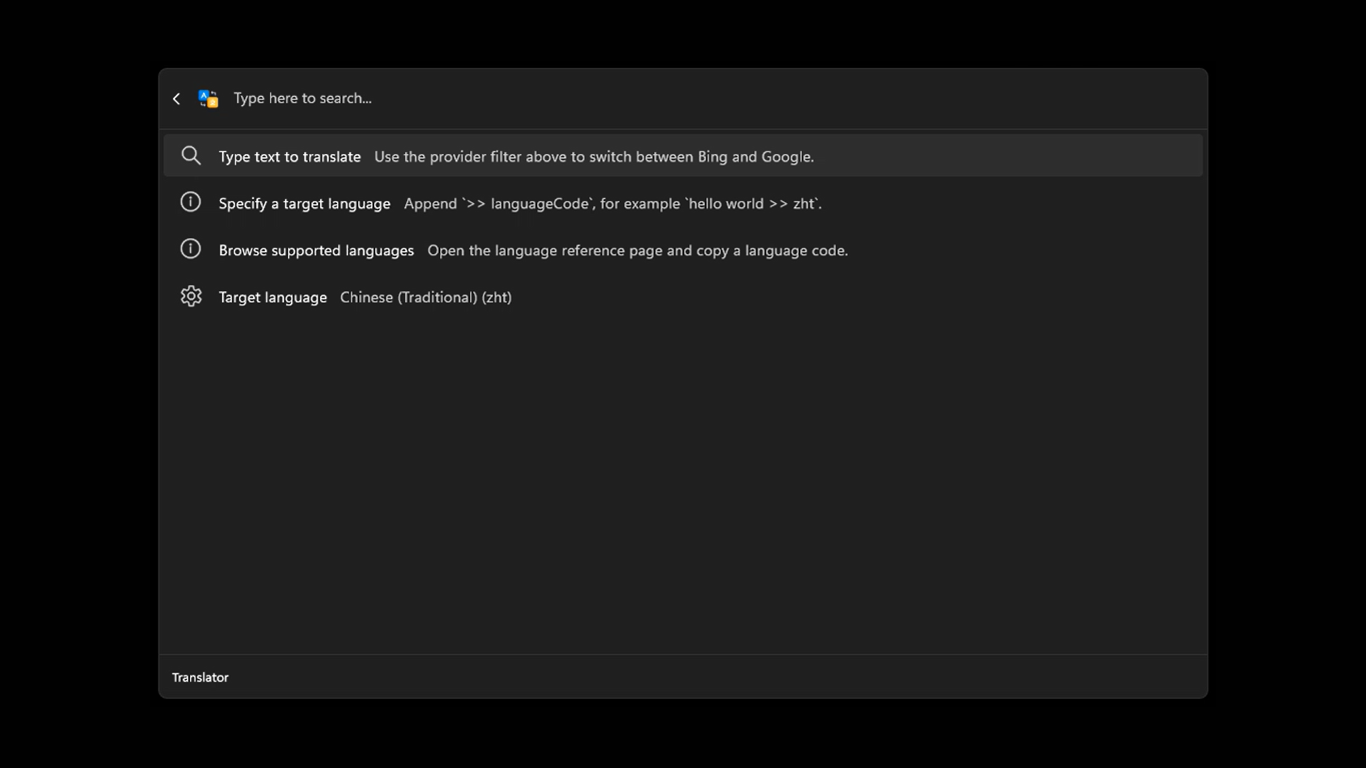
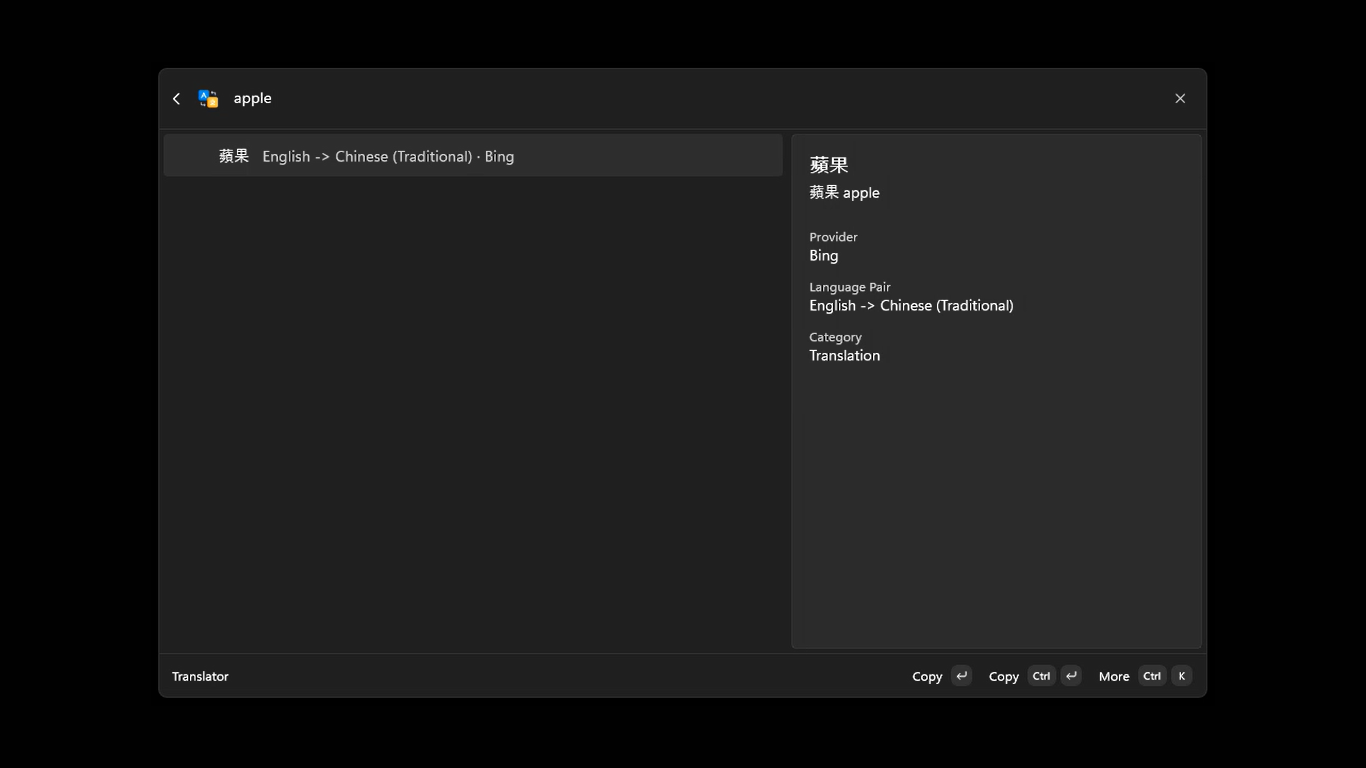
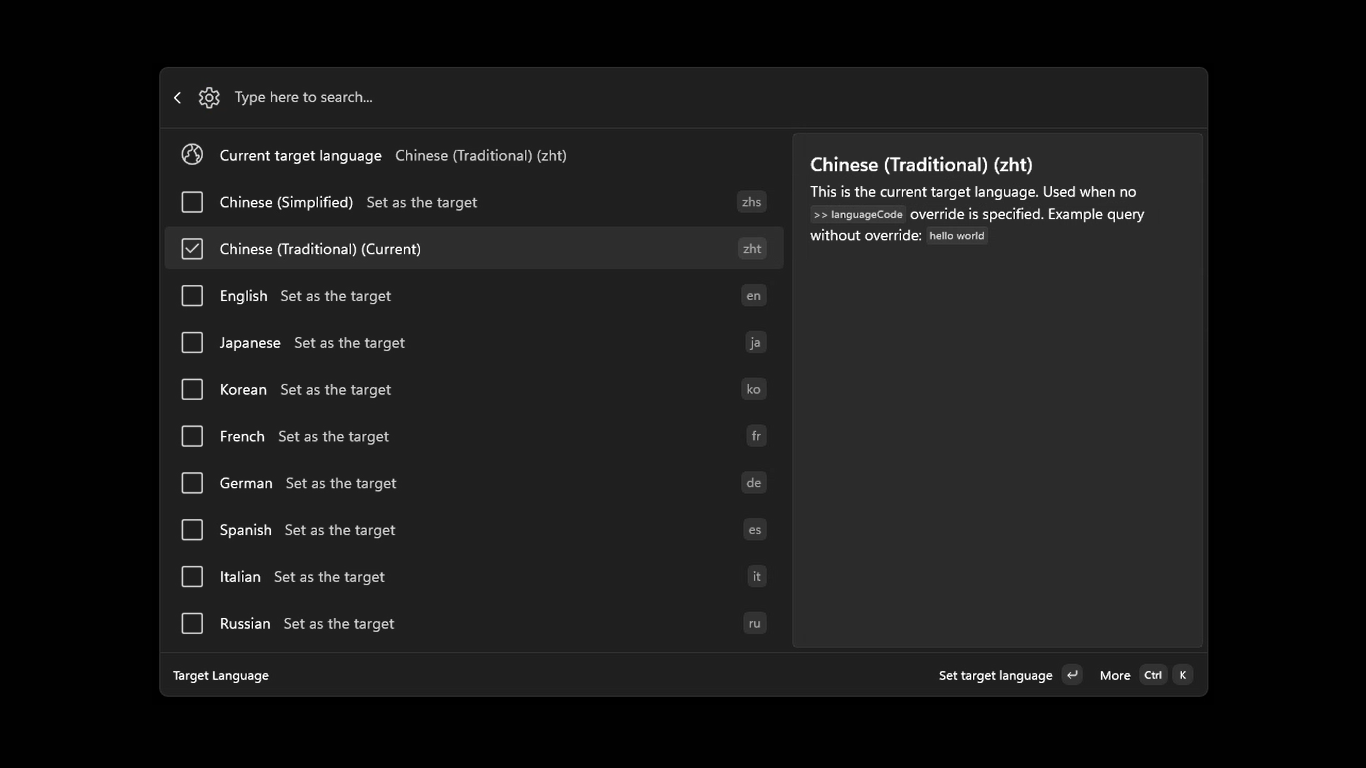
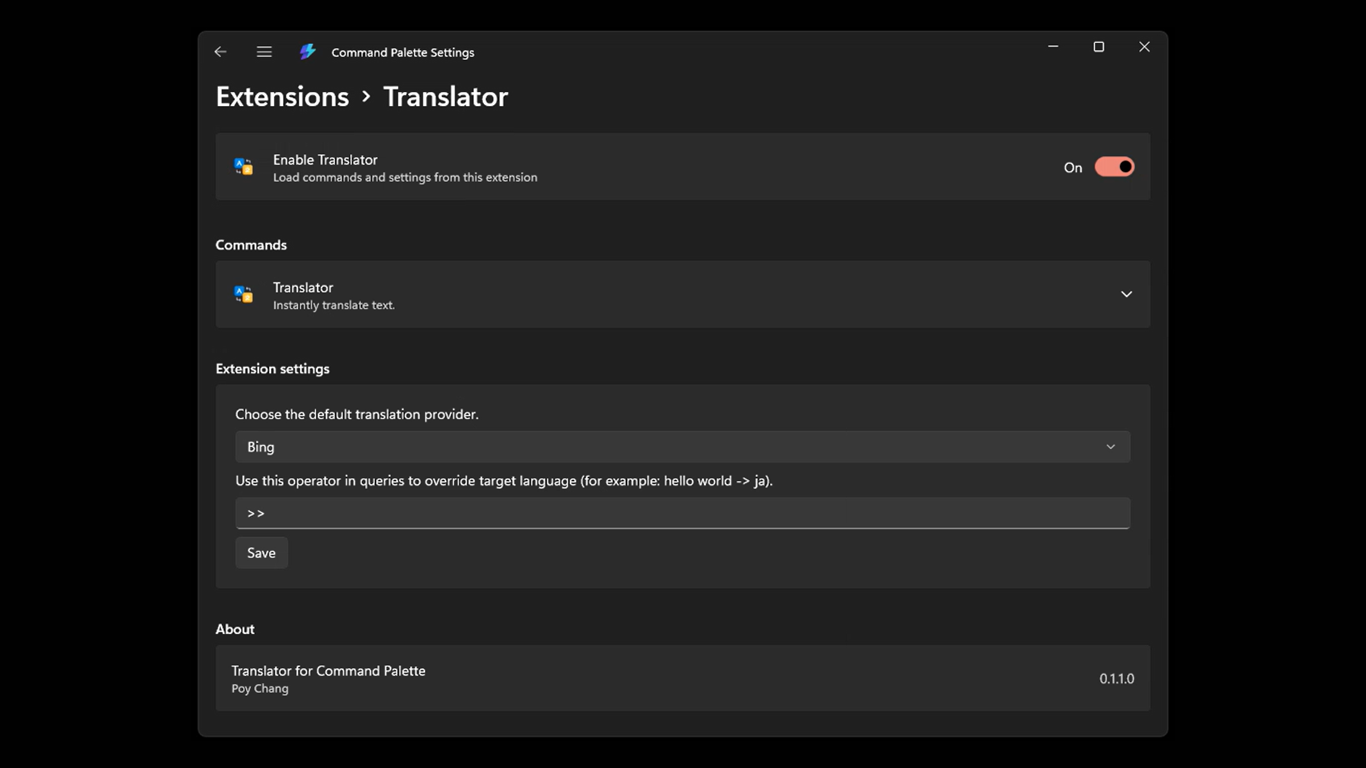
Features
- Integrates with Windows Command Palette and provides a top-level
Translator command.
- Includes three translation providers,
Bing, Google, and Aliyun, with Bing as the default.
- Lets you choose the default translation source from
Preferred provider in the extension settings.
- Supports automatic source-language detection, with Traditional Chinese
zht as the default target language.
- Lets you search, select, and save the default target language from the
Target language page.
- Supports the
text >> languageCode query syntax to override the target language for a single translation.
- Lets you customize the query operator from
Translate operator in the extension settings, for example by changing it to =>.
- Translation results can be copied directly. More actions can also copy the original text or open the Bing / Google / Aliyun Translate webpage.
- The Google provider also shows Dictionary items when dictionary data is included in the response.
- Includes a built-in
Supported Languages page for browsing language codes and copying example queries.
- Translation input uses a short delayed update to avoid sending a request on every keystroke.
Usage
After installation, open Windows Command Palette, then search for and run Translator.
> [!IMPORTANT]
> Install the extension from one channel only (WinGet EXE installer or MSIX bundle). Installing both can create duplicate Translator entries in Command Palette extension settings.
> If duplicate entries appear after an update, uninstall both copies, then install only one channel again.
Enter text directly to translate it:
hello world
When no target language is specified, the configured Target language is used. The initial default is Traditional Chinese zht.
To specify the target language for a single translation, use the default operator >>:
hello world >> ja
open source software >> fr
今天天氣很好 >> en
If you change Translate operator to => in settings, queries will use that operator instead:
hello world => ja
Blank or invalid custom operators fall back to the default value, >>.
Settings
Command Palette extension settings currently provide three options:
Preferred provider: Choose the default translation provider. Available options are Bing, Google, and Aliyun.Translate operator: Set the operator used in queries to override the target language. The default is >>.Display language: Choose the language used for the extension's interface.
The Target language item on the translation page opens the language settings page. The selected language is saved immediately. Settings are written locally to:
%LOCALAPPDATA%\CmdPalTranslator\settings.json
The settings file stores:
targetLanguageIdpreferredProviderIdtranslateOperatordisplayLanguageId
If the settings file does not exist, has invalid contents, uses an unknown target language, or sets the target language to auto, the project falls back to its built-in defaults.
Supported Languages
The currently built-in language codes are:
| Code | Language |
|---|
en | English |
zht | Chinese (Traditional) |
zhs | Chinese (Simplified) |
ja | Japanese |
ko | Korean |
fr | French |
de | German |
nl | Dutch |
es | Spanish |
it | Italian |
ru | Russian |
ar | Arabic |
he | Hebrew |
pt | Portuguese |
th | Thai |
LanguageCatalog maps the internal language codes to the provider codes required by Bing, Google, and Aliyun. For example, Traditional Chinese uses zh-TW in Google, zh-Hant in Bing, and zh-tw in Aliyun.
Project Structure
.
├─ README.md
├─ privacy.md
└─ src
   ├─ CmdPalTranslator.slnx
   ├─ CmdPalTranslator
   │  ├─ Pages
   │  ├─ Commands
   │  ├─ Assets
   │  └─ Package.appxmanifest
   ├─ CmdPalTranslator.Core
   │  ├─ Models
   │  ├─ Providers
   │  └─ Services
   └─ CmdPalTranslator.Tests
src/CmdPalTranslator/: Main Command Palette extension app, commands, pages, MSIX manifest, and assets.src/CmdPalTranslator.Core/: Core logic for translation providers, query parsing, language catalog, settings read/write, and related functionality.src/CmdPalTranslator.Tests/: MSTest project containing unit and live integration tests.
Development
Requirements
- Windows 11
- Visual Studio 2022 with .NET / Windows app development workloads
- .NET 10 SDK
- Windows SDK / MSIX build tools
- Network access, because providers call public web endpoints
Package versions are centrally managed in src/Directory.Packages.props. The test runner uses Microsoft Testing Platform.
Restore and Build
Run from the repository root:
dotnet restore src/CmdPalTranslator.slnx
dotnet build src/CmdPalTranslator.slnx -p:Platform=x64
To build only the main app:
dotnet build src/CmdPalTranslator/CmdPalTranslator.csproj -p:Platform=x64
ARM64 is also supported:
dotnet build src/CmdPalTranslator.slnx -p:Platform=ARM64
Run Tests
Run unit tests:
dotnet test src/CmdPalTranslator.Tests/CmdPalTranslator.Tests.csproj --filter TestCategory=Unit
Run live integration tests:
dotnet test src/CmdPalTranslator.Tests/CmdPalTranslator.Tests.csproj --filter TestCategory=Integration
Integration tests call the live Bing, Google, and Aliyun online translation endpoints. They are useful when verifying network access and provider behavior.
Build MSIX
Create an x64 Release MSIX:
dotnet build src/CmdPalTranslator/CmdPalTranslator.csproj -c Release -p:Platform=x64 -p:GenerateAppxPackageOnBuild=true -p:AppxPackageDir=AppPackages\x64\
Create an ARM64 Release MSIX:
dotnet build src/CmdPalTranslator/CmdPalTranslator.csproj -c Release -p:Platform=ARM64 -p:GenerateAppxPackageOnBuild=true -p:AppxPackageDir=AppPackages\ARM64\
Before building, scale-specific icons are automatically copied to the base filenames required by Store / MSIX validation.
Adding a Display Language
The extension stores all UI strings in JSON files under src/CmdPalTranslator/Localization/. At startup, LocalizationService scans that directory and discovers every *.json file automatically. Adding a new display language therefore requires only one step.
Create a new JSON string file
Add a file named .json in src/CmdPalTranslator/Localization/ (for example, ja-JP.json). The file must contain a _meta.displayName key with the native name of the language, plus every UI key translated from en-US.json.
// src/CmdPalTranslator/Localization/ja-JP.json
{
  "_meta.displayName": "日本語",

  "Settings.PreferredProvider.Label": "優先翻訳プロバイダー",
  ...
}
Keep all {0}, {1} format placeholders exactly as they appear in en-US.json; they are replaced at runtime with context-specific values.
On the next startup, LocalizationService reads _meta.displayName from every JSON file in the directory and builds SupportedLanguages from those entries. The Display language dropdown in the settings panel is then populated from that list automatically — no code changes are needed.
Publishing
You can publish to Microsoft Store through Microsoft Partner Center, or submit to WinGet. See the official documentation for the Command Palette extension packaging and publishing workflow:
Publish a Command Palette extension
Notes
- The Bing, Google, and Aliyun providers currently obtain translation results through public web endpoints. Endpoint behavior may change in the future.
- The Bing provider first obtains and caches validation information from the translation page. If validation expires, it retries once.
- The Aliyun provider fetches and caches CSRF metadata before submitting translation requests.
- The HTTP client has built-in gzip/deflate decompression, a 30-second timeout, and retries for transient errors.
- Release builds enable trimming and use source generation for JSON serialization to support NativeAOT/trim-friendly builds.
- To add a new translation source, implement
ITranslatorProvider, then register the provider in TranslatorService.