PresenceJam

Sync what you're playing on Spotify into your Microsoft Teams status — automatically.



What it does
PresenceJam polls Spotify's Web API for your currently playing track and sets it as your Microsoft Teams custom status message. When the track changes, your status updates automatically. When you pause or stop, it clears your status (if you've enabled that option).
The app lives in your system tray, syncs while you work, and stays out of the way.
Features
- Real-time Spotify detection — polls Spotify's Web API while a track is playing.
- Teams status sync — sets your Teams custom status via Microsoft Graph.
- Smart polling — sleeps until the track ends; ETag conditional GETs skip redundant Spotify calls.
- Auto-clear — clears status when Spotify pauses or stops.
- Profanity filter — replaces profane track names with a safe placeholder.
- Customisable status template —
{artist}, {track}, {album}, {emoji}, {device}, {playlist} (or {context}), {progress}, {shuffle} and {repeat} placeholders, substituted in a single pass.
- Podcasts & audiobooks — episodes get their own
🎙️ {show} - {episode} template instead of being reported as "nothing playing" (adverts still clear the status).
- Dark / Light / System themes — pick whichever matches your desktop, or follow the OS live; a compact-density toggle tightens the spacing and type scale (USAGE).
- System tray — runs silently in the background.
- Tray playback controls — Play/Pause, Previous, Next, Shuffle and Repeat toggles, plus Devices and Up Next submenus, straight from the tray icon.
- Tray snooze — pause syncing for 30 minutes, 1 hour, or until tomorrow from the tray menu, with a Dashboard chip and a Resume now button (USAGE).
- Global shortcuts —
CmdOrCtrl+Alt+P toggles playback on your active Spotify device and CmdOrCtrl+Alt+S starts or stops the poller; both are rebindable in Settings (USAGE).
- Diagnostics page — one-click local support snapshot (versions, sanitized config, token expiry metadata, redacted log tail). Never leaves your machine.
- Detachable Logs & Settings — pop Logs or Settings out into their own window and back in again.
- Interface languages — eight of them via an in-app language picker: English, German, French, Spanish, Italian, Polish, Brazilian Portuguese and Dutch.
pt-BR resolves to pt longest-tag-first and an unknown tag falls back to English.
- Availability sync (opt-in) — optionally show yourself as Available in Teams while you listen, with the requested session bounded to the remaining listening time (Microsoft's
PT5M–PT4H window) and cleared when you quit.
- Meeting/call-aware gating — skips status writes while you're busy, in a meeting, on a call, or presenting, with optionals for out-of-office and for never overwriting a status you set by hand. The Dashboard chip names which one fired.
- Status rules (quiet hours & track rules) — suppress the Teams status write during chosen hours/days or for matching tracks, post an optional replacement status, and set your Teams availability/activity while the rule applies.
- Desktop notifications (opt-in) — four independent classes: track change (throttled to one per 5 s, replaced in place where the OS supports it), sync stopped, Teams sign-in required, and update staged (USAGE).
- Auto-update — silent update checks at startup and every ~24h; install immediately in-app, or defer with Install on quit, which stages the verified payload with live progress and a Cancel action and applies it as the app exits.
- Launch at login — optional auto-start on boot.
- Settings export/import — back up or restore your settings from a file; the export never contains your Spotify client secret or any token material (USAGE).
- Secure auth — Authorization Code + PKCE OAuth for Spotify (confidential client), Device Code flow for Teams.
Screenshots
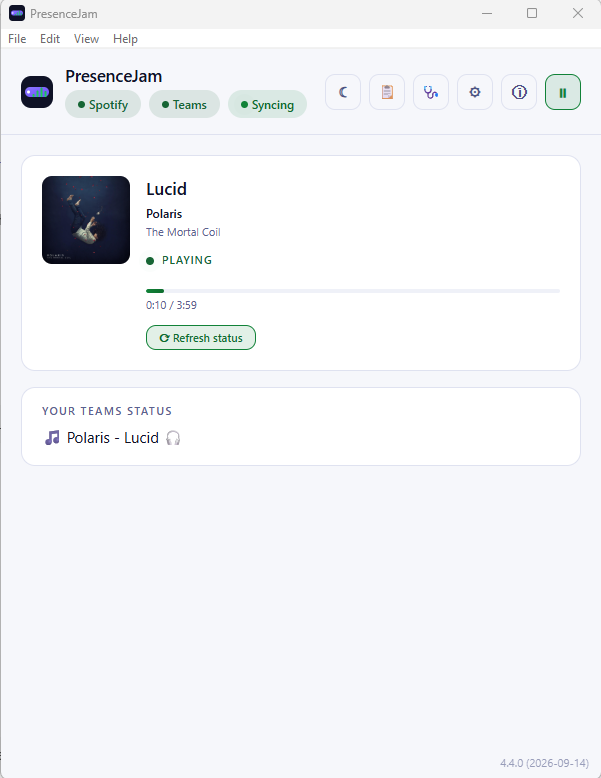 Main dashboard — connection badges, currently playing card, and your live Teams status.
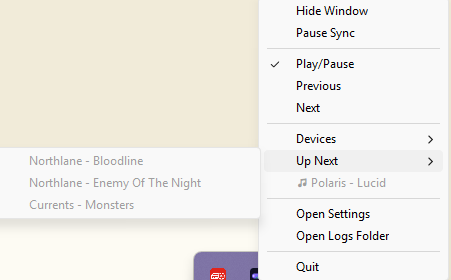 System tray menu — playback controls, Devices and Up Next submenus, Settings and Logs shortcuts.
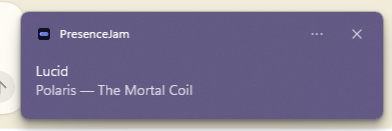 The result in Teams — your status follows what's playing on Spotify.
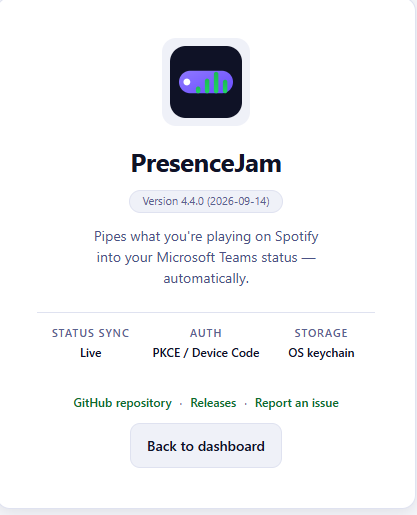 About page — version, sync/auth/storage summary, and support links.
Downloads
Latest release: GitHub Releases. See CHANGELOG.md for the full version history.
Download the installer for your platform from the latest release:
- Windows 10/11 (64-bit) —
PresenceJam--setup.exe (e.g. PresenceJam-v4.0.0-setup.exe). This NSIS installer is the one the in-app updater replaces, and it installs per-user with no elevation. PresenceJam-.msi is also published for managed/machine-wide installs, but it installs per-machine under Program Files and cannot be updated by a non-admin user, so use it only where you can install as administrator.
- macOS (Apple Silicon) —
PresenceJam-macos.dmg
- Debian / Ubuntu / Mint / popOS (64-bit) —
PresenceJam-linux-amd64.deb
- Fedora / RHEL / openSUSE (64-bit) —
PresenceJam-linux-amd64.rpm. Install with sudo dnf install ./PresenceJam-linux-amd64.rpm.
- Any modern Linux (64-bit, no install required) —
PresenceJam-linux-amd64.AppImage
- macOS via Homebrew —
brew install carme99/tap/presence-jam (Apple Silicon only: the formula declares depends_on arch: :arm64 and refuses an Intel install rather than copying a bundle that cannot run)
- Windows 10/11 via winget —
winget install PresenceJam.PresenceJam
Filenames are canonical: PresenceJam-macos.dmg, PresenceJam-linux-amd64.deb / PresenceJam-linux-amd64.rpm / PresenceJam-linux-amd64.AppImage, PresenceJam--setup.exe (per-user, the updater payload) and PresenceJam-.msi (per-machine, managed installs) — see the latest release for the current version.
Linux install
Debian / Ubuntu / Mint / popOS (one-time):
sudo apt install ./PresenceJam-linux-amd64.deb
# or if apt refuses the local path:
sudo dpkg -i PresenceJam-linux-amd64.deb && sudo apt-get install -f
AppImage (any distro, no install required):
chmod +x PresenceJam-linux-amd64.AppImage
./PresenceJam-linux-amd64.AppImage
To get a launcher entry and an icon for the AppImage — without one, a hidden
window is only reachable by re-running the file from a terminal — copy it into
place and write a desktop entry:
mkdir -p ~/.local/bin ~/.local/share/applications ~/.local/share/icons
install -m755 PresenceJam-linux-amd64.AppImage ~/.local/bin/PresenceJam-linux-amd64.AppImage
cat > ~/.local/share/applications/presencejam.desktop <<'EOF'
[Desktop Entry]
Type=Application
Name=PresenceJam
Exec=/home//.local/bin/PresenceJam-linux-amd64.AppImage
Icon=presencejam
Terminal=false
Categories=Utility;
StartupWMClass=presencejam
EOF
update-desktop-database ~/.local/share/applications
Replace /home/ in Exec= with your real home path — desktop entries do not
expand ~ or $HOME. Name an icon at ~/.local/share/icons/presencejam.png (or a
stock icon name in Icon=) so the launcher has artwork. Launch at Login does not
depend on this: the autostart plugin writes its own
~/.config/autostart/PresenceJam.desktop pointing at the AppImage. The recipe
copies the file, so the "no install required" description still holds.
macOS first-run note
The macOS DMG is currently unsigned (Apple Developer Program enrollment is not in scope — see issue #90). On first open, macOS shows "unidentified developer". To open:
- Right-click the app → Open (confirms once), or
- System Settings → Privacy & Security → Open Anyway
Subsequent opens work without the prompt.
Quickstart
First time? Follow the Setup Guide — it covers installing the app, registering a Spotify Developer app, and connecting Teams.
Already set up? Just run:
# Install dependencies
npm install

# Start development mode
npm run tauri dev

# Build for release
npm run tauri build
Command-line flags
PresenceJam is a tray app, but the binary also answers nine CLI flags — useful from a script,
a cron job or a support session. None of them opens the app window, and any other argument is
ignored, so the app starts normally exactly as it always has.
| Command | What it does |
|---|
presencejam --status | Prints the sync status as JSON on stdout and exits 0 — the same fields the app's get_sync_status command returns. Fully headless: builds no window and no tray icon and takes no single-instance lock. spotify_connected / teams_connected come from the same config.json and tokens.json the app reads. |
presencejam --sync-once | Runs exactly one poll iteration (including the Teams status write) and exits 0 on success, or 1 with the reason on stderr. Needs a configured Spotify client_id and a sign-in to both Spotify and Teams; logs go to the normal log file. |
presencejam --set-status | Writes a manual Teams status, then exits. Replacement text is capped at 128 characters. |
presencejam --set-status-expiry | Sets how long that manual status lives before the poller clears it. |
presencejam --clear-status | Clears any manual status immediately. |
presencejam --serve[=PORT] | Serves a token-guarded localhost control API on 127.0.0.1 (default port 8649). GET /status and GET /events are read-only; POST /pause, /resume, /snooze and /profile are mutating and all five require Authorization: Bearer . |
presencejam --daemon | Runs the background daemon without a window — what the systemd unit, the launchd plist and the Windows Task Scheduler definitions under packaging/ invoke. |
presencejam --profile | Switches the active presence profile to ``, or to the base configuration with --profile base. Third switch surface alongside the tray submenu and the hotkey. |
presencejam --help | Prints the usage text and exits 0. Fully headless. |
presencejam --minimized | Starts with the window hidden (what the autostart plugin passes at login). This is a normal GUI launch. |
Platform requirement. --status and --help need no desktop at all. --sync-once does on
Linux: it drives the same poller as the app, and that poller works through the app's Tauri
runtime, which needs a display server. On a bare machine run it under xvfb-run (wrapped by
cron or a CI step); without one it aborts at startup with an abnormal exit instead of the exit
codes below, because the runtime itself cannot be created.
Exit codes for --sync-once: 0 — the iteration completed (no track playing, a deduplicated
write and a suppressed gate are all completions); 1 — a transient or auth failure, with the
poller's own reason on stderr (spotify: Failed to get currently playing: …,
reconnect-required: …); an abnormal exit (101) when no display is available.
See USAGE.md — Command-line flags for the field-by-field
details and the exact exit conditions.
Documentation
| Doc | What it's for |
|---|
| Docs index | What to read for what — every guide, by task |
| Setup | Installing the app, Spotify app registration, Teams auth |
| Supported platforms | OS and architecture matrix, packages and update paths |
| Usage | Day-to-day guide — tray, dashboard, settings |
| Architecture | How it works under the hood |
| Troubleshooting | Common problems and fixes |
| Changelog | Version history |
| Security | Token storage, privacy, network |
| Contributing | Dev setup, coding standards, PR process |
| Acknowledgements | Open-source dependencies |
Architecture
The app is built with:
- Backend: Tauri 2 (Rust) — polling thread, API clients, token storage, system tray
- Frontend: Svelte 5 + TypeScript — SPA rendered via
@sveltejs/adapter-static
- Storage:
tokens.json encrypted at rest with AES-256-GCM (decryption key in the OS keychain — DPAPI on Windows, Keychain on macOS, Secret Service on Linux), plaintext JSON for config
- Auth: Spotify Authorization Code + PKCE (confidential client) + Microsoft Teams Device Code flow
See ARCHITECTURE.md for deep-dive diagrams and explanation.
Customise your Teams status using placeholders:
| Placeholder | Output |
|---|
{artist} | Artist name — on an episode, the show name |
{track} | Track name — on an episode, the episode name |
{album} | Album name — on an episode, the publisher |
{emoji} | 🎵 (playing track), 🎙️ (playing episode) or ⏸️ (paused) |
{device} | Name of the device Spotify is playing on |
{playlist} / {context} | The playlist/album/artist/show it was started from (the two tokens are exact aliases) |
{progress} | Playback position (3:07); empty when Spotify reports none |
{shuffle} / {repeat} | 🔀 / 🔁 while on, nothing while off |
{show} / {episode} / {publisher} | Episode-only fields; empty on a music track |
Default: 🎵 {artist} - {track} 🎧
Example: 🎵 Daft Punk - One More Time 🎧
Substitution is a single pass: text that a token produced is never re-scanned, so a track literally named {album} is not expanded into the album name. Podcast and audiobook episodes are formatted with their own built-in 🎙️ {show} - {episode} template, so your music template is not applied to them. See USAGE.md — Status Format for the live-preview details.
License
MIT — see LICENSE for details.