Claude Sessions Sidekick
> Tray sidekick for Claude Code — paste screenshots straight into Claude Code, live usage tracking, session browser, quick launchers, and more.



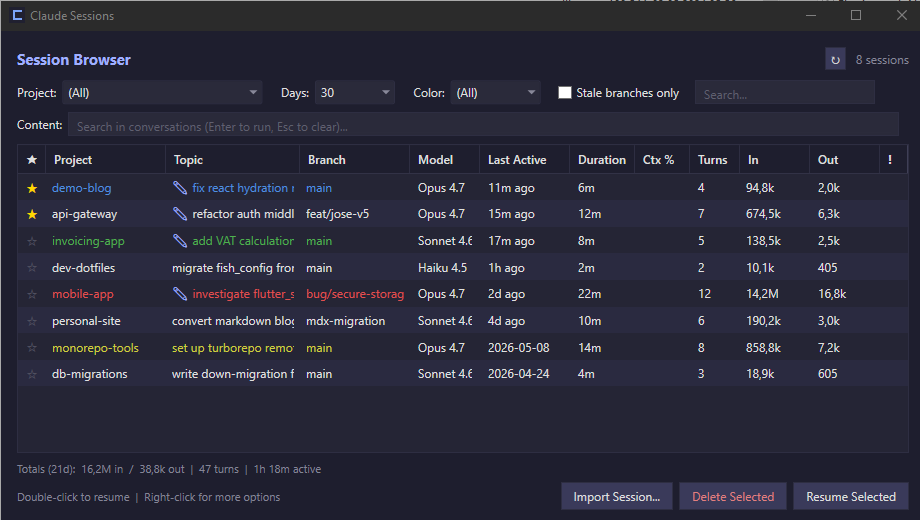
Claude Code's CLI is great at writing code; it's less great at telling you how much of your 5-hour block is left, where you parked that one session from last Tuesday, or which /model your latest project actually uses — and it can't even paste a screenshot on native Windows terminals. Sidekick is a tray-resident companion that fills those gaps — one-hotkey screenshot paste, a persistent usage view, a searchable browser for every session you've ever had, per-session notes and color tags, project quick launchers with global hotkeys, and a prompt library.
Native WPF — single self-contained binary, ~50 MB RAM idle. No Electron, no background services, no telemetry.
Status: v1.0.0 — first public release. Tested on Windows 10/11 with .NET 10 runtime.
> Note: This is a hobby project built using vibe coding with Claude Code — most of the source is AI-assisted. It's been dogfooded by the author for a few months on real workloads, but please treat it as a useful utility rather than production-grade software. Bug reports liberally welcomed via GitHub Issues.
What it does
📸 Paste screenshots into Claude Code · New in v1.0.6
Native Windows terminals can't paste an image into Claude Code — normally you have to save the screenshot to a file and type its path by hand. Sidekick fixes that with a global hotkey (default Ctrl+Alt+V):
- Take a screenshot to your clipboard (Snipping Tool, PrtScn, ShareX, …)
- Press Ctrl+Alt+V with the terminal focused
- The screenshot's path drops into your prompt — add your question and Claude reads the image with its Read tool
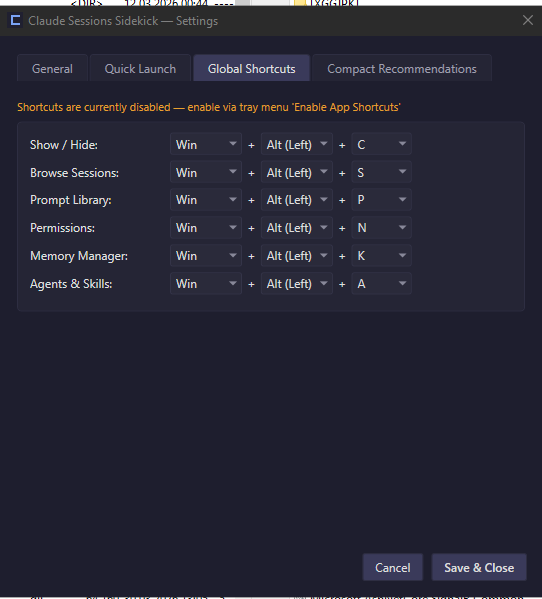
Under the hood it saves the clipboard bitmap as a PNG and types the path in for you (it only fires when the clipboard actually holds an image — plain text is a no-op). Shots are auto-pruned (newest 50 kept) under %APPDATA%\ClaudeSessionsSidekick\Screenshots; the hotkey, retention count, and folder are all configurable in Settings → Global Hotkeys.
Live usage tracking
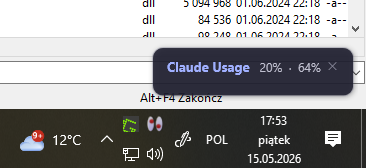
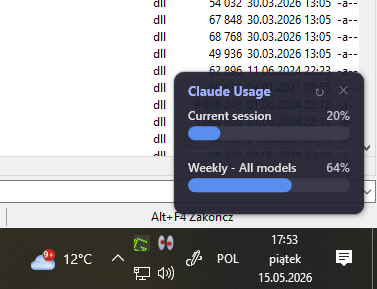
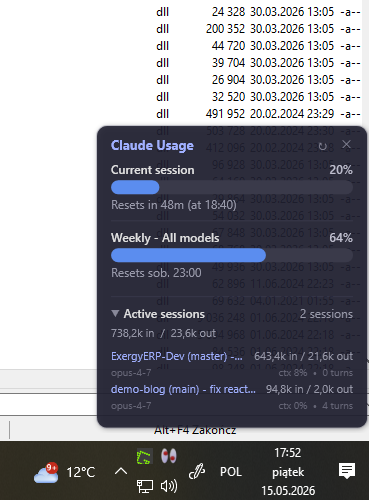
- 5-hour rolling block + weekly Sonnet/Opus utilization in your tray
- Optional
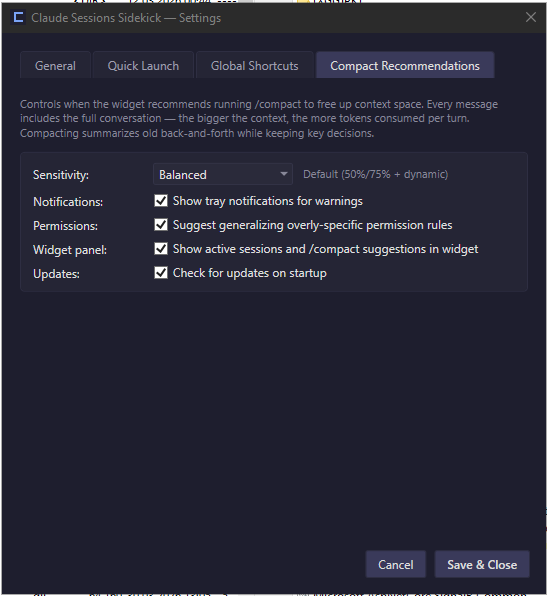
/compact recommendations when context gets tight
- Auto-refresh on Claude Code OAuth token rotation
- Multiple view modes: Mini, Compact, Full
Session browser
- All sessions across all projects in one list
- Full-text search inside session JSONL contents (filters out tool results, thinking signatures)
- Per-session free-text notes (right-click → Edit Note)
- Per-session topic override (right-click → Rename Topic) when the auto-derived topic isn't recognizable
- Per-session color tags for visual grouping
- Favorites with greyed star ☆ for unflagged
- Persistent column widths/order + window size — right-click header to restore defaults
- Quick "Resume" launches
claude --resume {sessionId} in your shell of choice
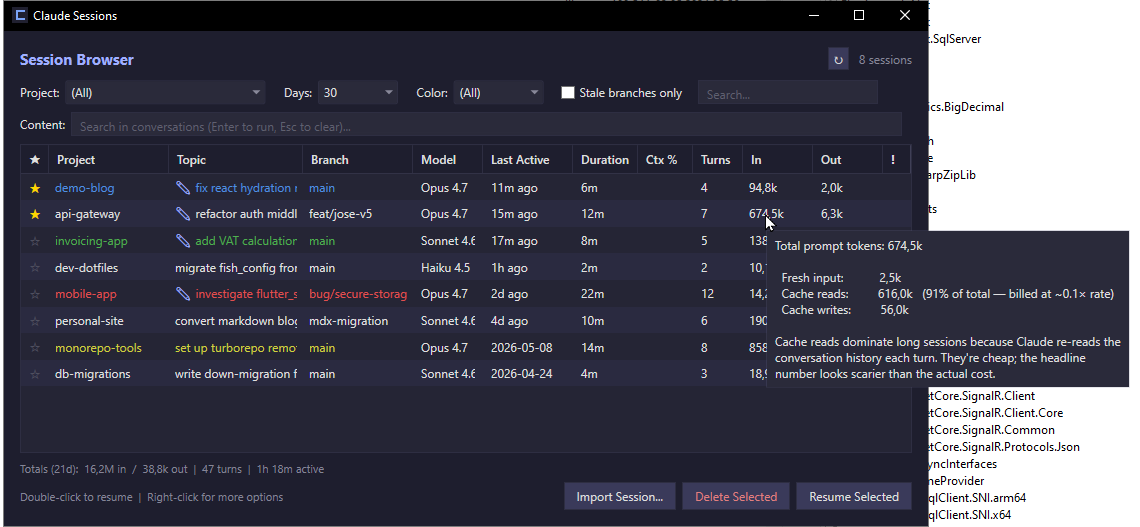
- Hover the In column to see the breakdown of fresh input vs. cache reads vs. cache writes — the headline number is dominated by cache reads, which bill at roughly 1/10 the rate
Quick launchers
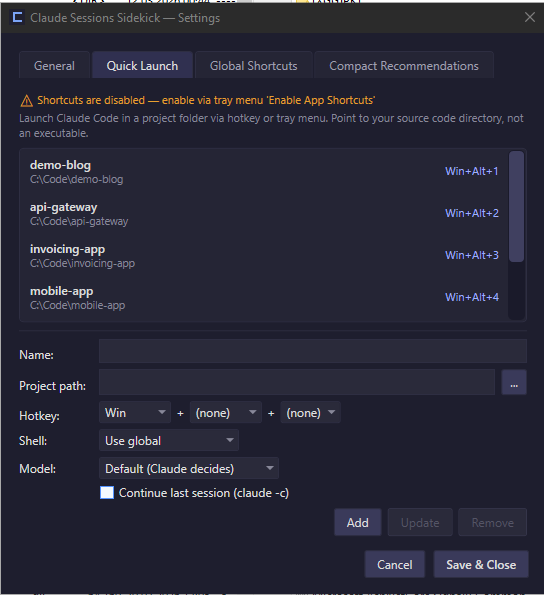
- Per-project entries with global hotkeys (low-level keyboard hook — works even when Claude Code isn't focused)
- Optional
--continue (resume last session) per entry
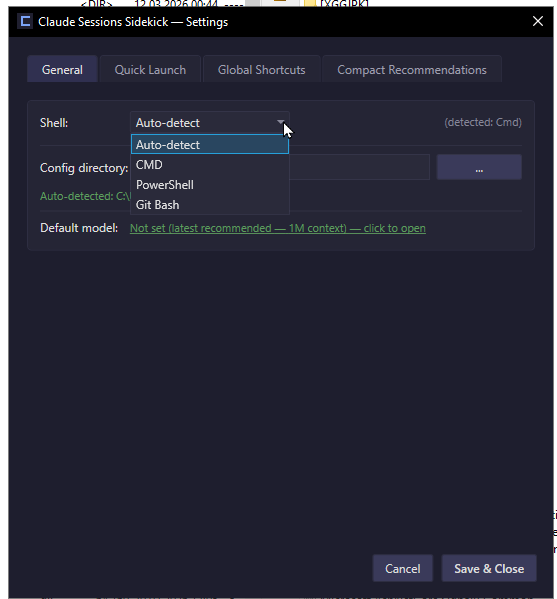
- Per-entry shell override: CMD / PowerShell / Git Bash / Auto-detect
- Per-entry model override (Sonnet 1M / Opus 1M / Haiku 200k) — forces
--model X on every launch, overrides whatever the project's last /model choice would otherwise produce
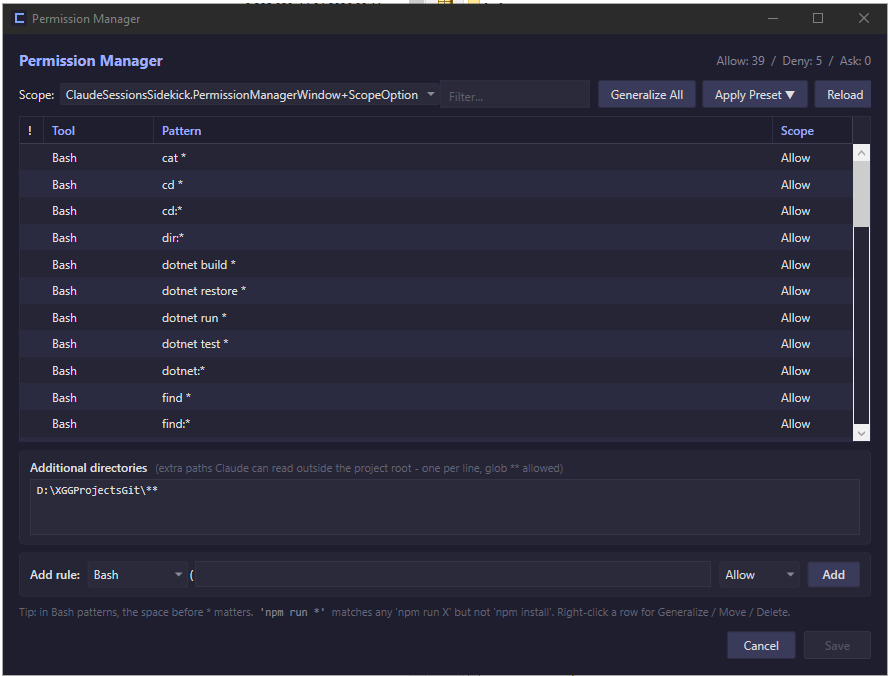
Permission helper
- Watches Claude Code permission additions; suggests generalizing overly-narrow rules (e.g.
cd /specific/path && grep ... → broader pattern) — opt-in
Prompt library
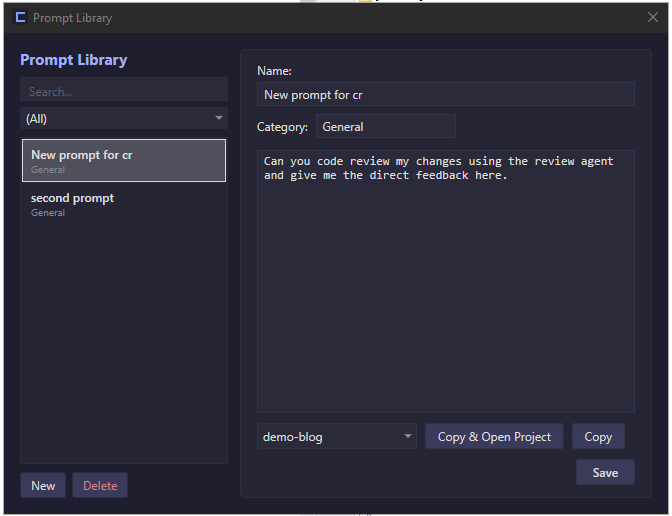
- Stash reusable prompts; one-click "Send to Claude" (clipboard + launch)
Claude config + MCP browser
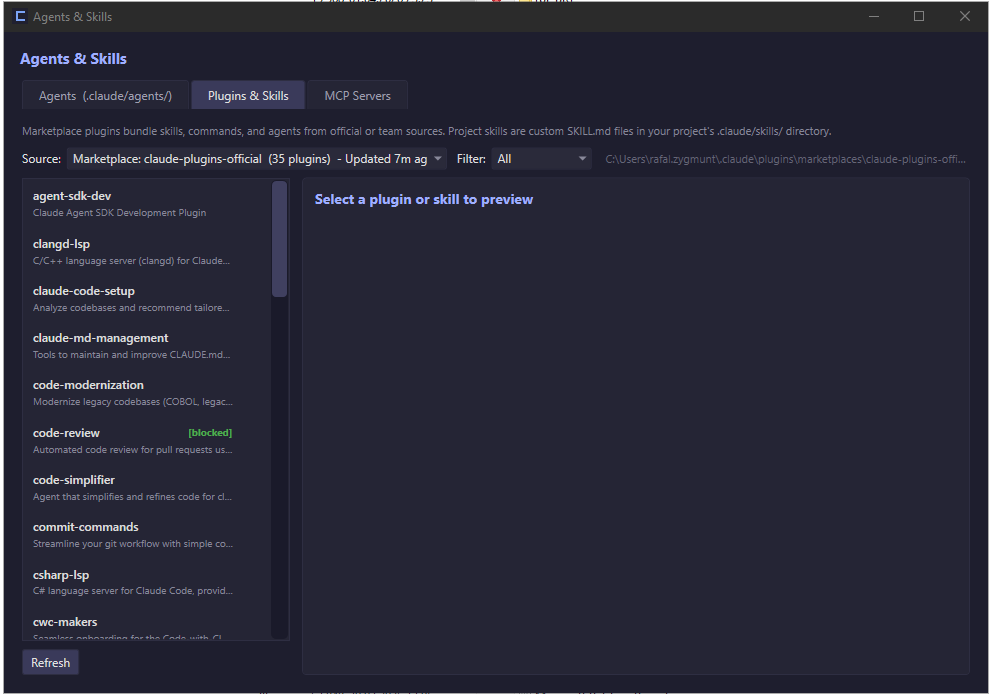
- View detected Claude Code installation, model defaults, MCP servers per project
- Block/install MCP servers across projects
Working with saved sessions
The session list is meant to be a journal — a searchable, color-coded record of past Claude Code work — not a place to live in one ever-growing conversation. Notes, color tags, and favorites are here so you can recognize a session and decide what to do next; they're not arguments for keeping a 500-turn session alive forever.
When to resume, compact, or start fresh
| Situation | Action |
|---|
| Same task, picking up within ~a day | Resume (double-click the session) |
| Sessions started on an older model line you want to migrate forward | Resume with model → (right-click a row) — picks the alias for that one launch |
Same task, but the session feels bloated or /compact warnings are firing | /compact inside the session, then keep going |
| New task or new problem | Start fresh — don't pay for last week's context every turn |
| Long-running project spanning weeks | Periodic /compact + a short "status: done X, next Y" snapshot at the top of each new session |
Why long sessions aren't free
- Cache TTL is ~5 minutes. A session you come back to hours later pays full input on the next turn regardless of how active it was earlier — there's no "warm session" benefit.
- Every turn re-processes the full history. A 100k-token session pays for 100k input on every reply, even for a one-line fix.
- Compact ≠ free. Compacting trims to ~5–20k of summary; baseline per turn drops from ~100k+ to ~10–30k. Fresh starts at ~5–10k. On Opus that's roughly $0.05–0.10 per turn difference between compacted-vs-fresh, and an order of magnitude between bloated-vs-compacted.
The session browser exists so you can quickly find the right anchor for new work — scroll, recognize "ah, that's the migration thread from two weeks ago", grab the context you need (or just remind yourself of the next step), and then either resume briefly or open a fresh session with a one-line status snapshot. That's the workflow notes / colors / favorites are designed for.
Requirements
Install
Three install paths, pick the one that suits your environment:
Via winget (recommended for personal install)
winget install RafalZG.ClaudeSessionsSidekick
Installs silently to %LocalAppData%\ClaudeSessionsSidekick\. No SmartScreen prompt — winget verifies the installer hash against its manifest and runs the install in the context of the Microsoft-signed winget.exe.
> Pending acceptance into the public winget catalog. Until then, install from the in-repo manifest: winget install --manifest winget/1.0.0 after cloning. See winget/README.md.
Direct download from GitHub
- Download
ClaudeSessionsSidekick-win-Setup.exe from Releases
- Run it. On first launch you may see a Windows SmartScreen warning ("Windows protected your PC") — click More info → Run anyway. This is expected for unsigned OSS; see Code signing policy below for the plan.
- The app lives in your tray. Right-click → Settings → Quick Launch to add your projects.
Via Intune / Company Portal (corporate deployment)
For IT admins pushing the app to managed devices via Microsoft Intune:
| Field | Value |
|---|
| Install command | ClaudeSessionsSidekick-win-Setup.exe --silent |
| Uninstall command | Read UninstallString from HKCU\Software\Microsoft\Windows\CurrentVersion\Uninstall\ClaudeSessionsSidekick (registered by the installer) |
| Detection rule | File exists: %LocalAppData%\ClaudeSessionsSidekick\current\ClaudeSessionsSidekick.exe |
| Install context | User |
| Architecture | x64 |
Per-user install, no admin elevation required. Intune deployment bypasses SmartScreen entirely because the install runs through the Intune Management Extension, which is trusted by the managed device's policy.
Updates
The app checks for a new version on startup and shows a tray balloon when one is available. To install: right-click the tray icon → Check for updates…. The download + swap + restart is handled automatically (powered by Velopack).
Uninstall
- Right-click the tray icon → Exit
- Open Windows Settings → Apps → Installed apps, find Claude Sessions Sidekick, click Uninstall
This removes the application binary and the auto-update infrastructure under %LocalAppData%\ClaudeSessionsSidekick\. Your user data (settings, favorites, color tags, notes, prompt library) lives separately under %APPDATA%\ClaudeSessionsSidekick\ and is not removed by uninstall — so you can reinstall later without losing your customizations. For a fully clean removal, delete that folder manually after uninstall.
Build from source
Requires .NET 10 SDK + Windows.
git clone https://github.com/RafalZG/claude-sessions-sidekick.git
cd claude-sessions-sidekick
dotnet build ClaudeSessionsSidekick.sln
dotnet test ClaudeSessionsSidekick.sln
dotnet run --project ClaudeSessionsSidekick.csproj
Where data is stored
%APPDATA%\ClaudeSessionsSidekick\:
settings.json — hotkeys, quick-launch entries, view preferencesfavorites.json — starred sessionssession-colors.json — color tagssession-notes.json — free-text notes per sessionsession-browser-layout.json — column widths, window sizeprompts.json — prompt librarylogs\ — recent app logs
FAQ
Q: Does this read my Claude Code conversations?
Yes — it parses session JSONL files in %USERPROFILE%\.claude\projects\ for the browser/search features. Everything stays on your machine; nothing is sent anywhere.
Q: Why "Sidekick"?
The tool is a sidekick to Claude Code, not a replacement — it adds tray-resident utilities and a session navigator that the CLI itself doesn't provide.
Q: Will this work on macOS / Linux?
No — WPF is Windows-only. A cross-platform port would need a rewrite.
Q: Does this use Anthropic's API or my Claude Code subscription?
The widget piggybacks on your local Claude Code installation. It reads the same OAuth token Claude Code uses for the usage limits API, and never makes any other API calls.
Contributing
PRs welcome.
Security & Privacy
Security issues: please report privately via GitHub Security Advisories. See SECURITY.md.
Privacy: the app does not transmit any data to the author or any third party. The only outbound network call is to Anthropic's official Claude Code usage API using your own OAuth token. See PRIVACY.md for full details.
Code signing policy
Current status (May 2026): The Windows binary is unsigned. An application to the SignPath Foundation OSS program was declined as of 2026-05-21 — the project is too fresh for their public-visibility threshold. A re-application is planned once community adoption accumulates. In the meantime, the recommended install paths above (winget, Intune) bypass SmartScreen friction for almost every user; direct-download from GitHub Releases shows a one-time "Run anyway" prompt.
When code signing eventually lands, this is the policy it will follow:
Free code signing on Windows is provided by SignPath.io, certificate by the SignPath Foundation.
Roles
- Committer / Reviewer / Approver: Rafał Zygmunt (@RafalZG)
All source changes are made through this public repository. Releases are built from source by GitHub Actions (see .github/workflows/release.yml) and published as GitHub Releases. The signing step runs server-side at SignPath on the built artifact — the certificate's private key never leaves SignPath infrastructure and is not accessible to the project author.
Privacy
See PRIVACY.md. Claude Sessions Sidekick does not transmit user data to the project author. The only outbound network calls are to Anthropic's Claude Code usage API (using the user's own OAuth token) and to GitHub Releases for update checks and downloads.
More screenshots
Tray view modes (Mini / Compact / Full)
The widget cycles between three sizes via the tray menu. Mini is a slim
pill showing just the two utilization percentages; Compact adds the
progress bars; Full adds the per-session breakdown.
Settings tabs
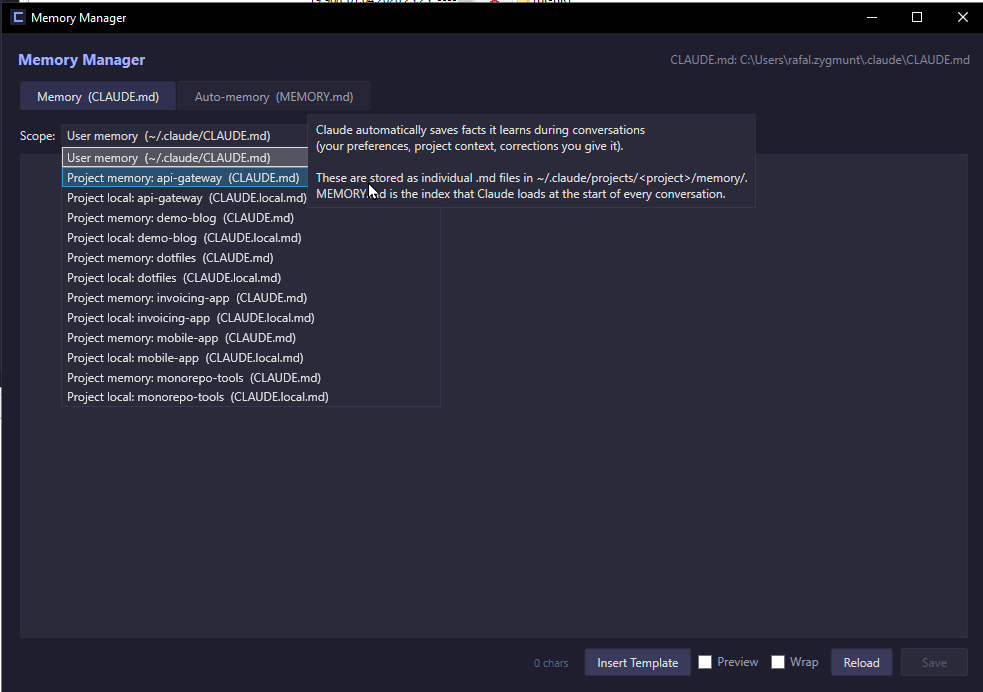
Permission Manager, Memory Manager, Agents & Skills, Prompt Library
License
MIT — © 2026 Rafał Zygmunt