Raspberry Pi Imager
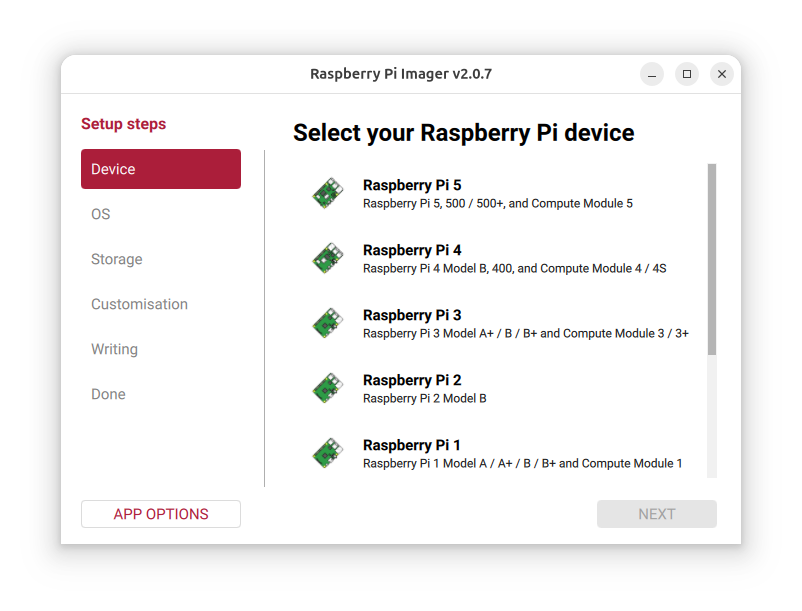
Raspberry Pi Imaging Utility
- To install on Raspberry Pi OS, use
sudo apt update && sudo apt install rpi-imager.
- Download the latest version for Windows, macOS and Ubuntu from the Raspberry Pi downloads page.
How to install and use Raspberry Pi Imager
Please see our official documentation.
Development
To build Raspberry Pi Imager from source-code, see our separate instructions in CONTRIBUTING.md
For the Linux release pipeline — the rootless, multi-architecture chroot build that produces the AppImages and .deb packages — see doc/linux-build.md.
Other notes
Custom repository
If the application is started with "--repo [your own URL]" it will use a custom image repository.
So can simply create another 'start menu shortcut' to the application with that parameter to use the application with your own images.
Anonymous metrics (telemetry)
Why and what
In order to understand usage of the application (e.g. uptake of Raspberry Pi Imager versions and which images and operating systems are most popular), Raspberry Pi Imager collects anonymous metrics (telemetry) by default. These metrics are used to prioritise and justify work on the Raspberry Pi Imager, and contain the following information:
- The URL of the OS you have selected
- The category of the OS you have selected
- The observed name of the OS you have selected
- The version of Raspberry Pi Imager
- A flag to say if Raspberry Pi Imager is being used on the Desktop or as part of the Network Installer
- The host operating system version (e.g. Windows 11)
- The host operating system architecture (e.g. arm64, x86_64)
- The host operating system locale name (e.g. en-GB)
If the Raspberry Pi Imager is being run a part of the Network Installer, Imager will also collect the revision of Raspberry Pi it is running on.
Where is it stored
This web service is hosted by Heroku and only stores an incrementing counter using a Redis Sorted Set for each URL, operating system name and category per day in the eu-west-1 region and does not associate any personal data with those counts. This allows us to query the number of downloads over time and nothing else.
The last 1,500 requests to the service are logged for one week before expiring as this is the minimum log retention period for Heroku.
Viewing the data
As the data is stored in aggregate form, only aggregate data is available to any viewer. See what we see at: rpi-imager-stats
Opting out
The most convenient way to opt-out of anonymous metric collection is via the Raspberry Pi Imager UI:
- Select "App Options"
- Untoggle "Enable anonymous statistics (telemetry) collection"
- Press "Save"