RedSalamander
RedSalamander is a Windows dual-pane file manager with:
- A fast DirectX-based folder view
- A modeless Find Files and Directories workflow with native, indexed, and fallback search backends
- Virtual file systems (archives, FTP/SFTP/SCP/IMAP, S3, …)
- Viewer plugins (Text/Hex, SQLite, Images/RAW, WebView2-based viewers, …)
- A themed Preferences experience (themes, plugins, shortcuts, associations)

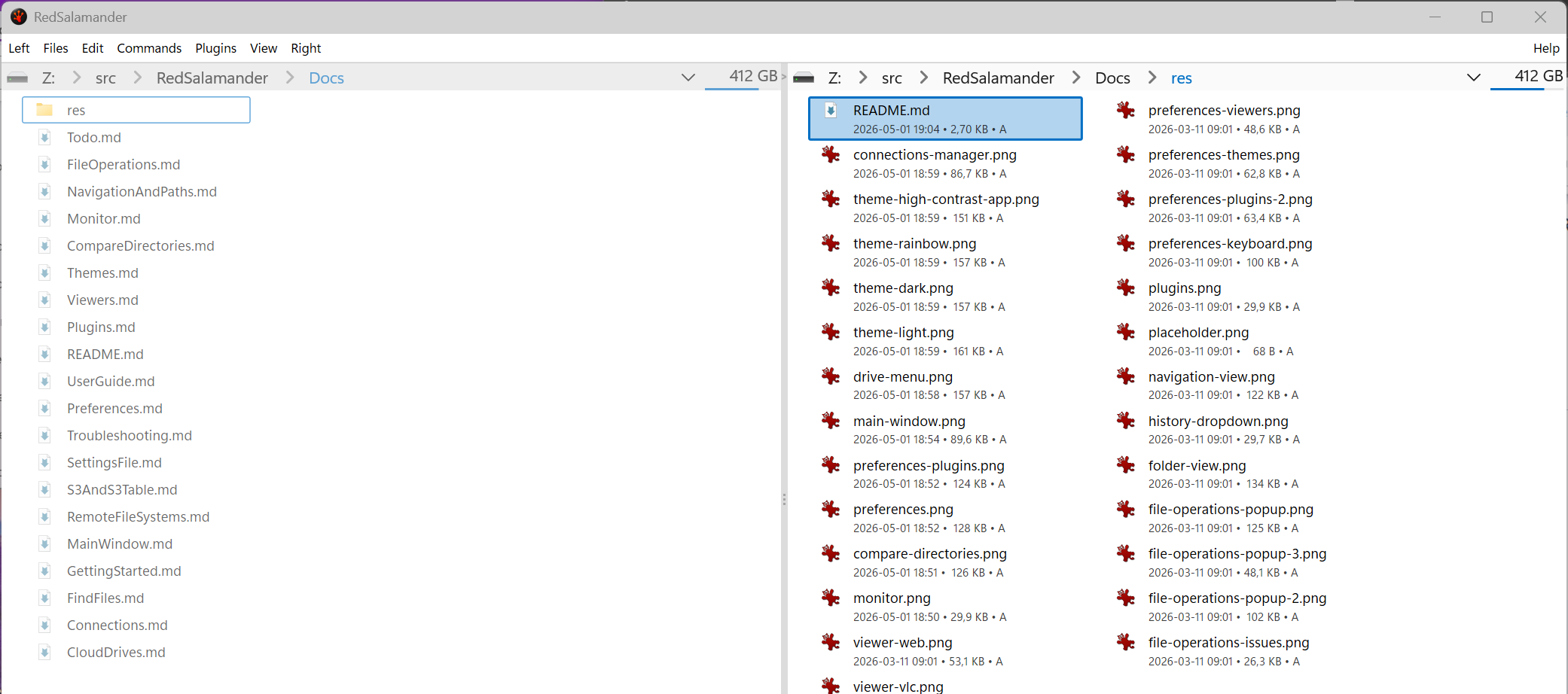
Complete User Documentation
Why another file manager?
This project is a tribute to Servant Salamander and especially Open Salamander.
Thanks to the Open Salamander contributors:
- David Andrš
- Lukáš Cerman
- Jakub Červený
- Tomáš Jelínek
- Milan Kaše
- Tomáš Kopal
- Jan Patera
- Martin Přikryl
- Juraj Rojko
- Jan Ryšavý
- Petr Šolín
You've done an amazing job.
Open Salamander appears to be quiet these days, so I wanted to start fresh with a modern, themeable, plugin-based successor.
RedSalamander is not yet at the level of other file managers. This is a work in progress.
Enjoy!
For Developers
RedSalamander is a Windows-native C++23 application featuring advanced text visualization, real-time debugging (ETW), and high-performance graphics rendering (DirectX / Direct2D / DirectWrite).
Key engineering specs for the current search stack and self-test contract:
Specs/Core/Core_Search.mdSpecs/Plugins/Plugins_VirtualFileSystem.mdSpecs/UI/UI_CommandMenuKeyboard.mdSpecs/Testing/Testing_SelfTests.md
Building the Project
Prerequisites
- Visual Studio 2026 with C++ toolset v145 (Desktop development with C++)
- vcpkg (manifest mode) for dependencies
- Windows 11 build 22000.2600 or later
Quick Start
Command Line Build
Use the build.ps1 PowerShell script for easy building:
# One-time: install dependencies (writes to .build\vcpkg_installed\)
.\vcpkg-install.ps1

# Build entire solution in Debug configuration (default)
.\build.ps1

# Build in Release configuration
.\build.ps1 -Configuration Release

# Build for ARM64
.\build.ps1 -Platform ARM64

# Build specific project only
.\build.ps1 -ProjectName RedSalamanderMonitor
.\build.ps1 -ProjectName RedSalamander
.\build.ps1 -ProjectName Common

# Clean build
.\build.ps1 -Clean

# Rebuild all
.\build.ps1 -Rebuild

# Bound MSBuild workers on resource-constrained machines
.\build.ps1 -Rebuild -MaxCpuCount 4

# Combined options
.\build.ps1 -Configuration Release -ProjectName RedSalamanderMonitor -Rebuild
Build Script Parameters:
-Configuration : Debug (default), Release, or ASan Debug-Platform : x64 (default) or ARM64-ProjectName : Specific project name (builds entire solution if not specified)-Clean : Perform clean build-Rebuild : Rebuild all projects-MaxCpuCount : Optional MSBuild worker limit; 0 uses the default-Msix : Build an MSIX package after a successful Release build-Msi : Build an MSI package after a successful Release build
Build and test artifact lifecycles serialize only when they use the same
repository, platform, and configuration. Disjoint profiles and worktrees can
otherwise proceed in parallel; same-platform MSBuild phases briefly share a
separate lock because every configuration uses the same vcpkg triplet. The build
never terminates an independently launched application: if
its executable path exactly matches an output being replaced, the build aborts
with PID, path, and available command-line diagnostics so you can close it and
retry. Same-name processes at other paths are ignored.
AddressSanitizer (ASan Debug)
Build an ASan-instrumented binary from the console with:
.\build.ps1 -Configuration 'ASan Debug' -ProjectName RedSalamander
.\build.ps1 -Configuration 'ASan Debug' -ProjectName RedSalamanderSearchService
Outputs land in:
.build\x64\ASan Debug\
.build\ARM64\ASan Debug\
Run them directly from the output folder:
.\.build\x64\ASan Debug\RedSalamander.exe
.\.build\x64\ASan Debug\RedSalamanderSearchService.exe --run-foreground
The build copies the required clang_rt.asan_dynamic-*.dll next to each ASan executable automatically and attests that staged DLL in the ASan build receipt. If you still see a missing ASan runtime DLL, rebuild after updating Visual Studio C++ tools and verify the ASan runtime exists under $(VCToolsInstallDir)\bin\Host*\.
Visual Studio Build
- Open
RedSalamander.sln in Visual Studio 2026
- Select configuration (Debug/Release) and platform (x64/ARM64)
- Build → Build Solution (Ctrl+Shift+B)
Solution Structure
The solution contains the following projects:
- Applications:
RedSalamander, RedSalamanderMonitor, RedSalamanderSearchService
- Standalone tools:
RedConfigure, RedLauncher
- Installer:
RedSalamanderInstaller (MSIX packaging)
- Shared library:
Common
- Plugins (all under
Plugins\):
- File-system plugins:
FileSystem, FileSystem7z, FileSystemCurl, FileSystemS3, FileSystemGoogleDrive, FileSystemMicrosoftDrive, FileSystemDummy
- Viewer plugins:
ViewerText, ViewerSqlite, ViewerSpace, ViewerImgRaw, ViewerVLC, ViewerPE, ViewerWeb
- Tests: 8 standalone test projects (e.g.
DxUiTests, PerformanceTests2)
- Tools: inventoried PowerShell commands and modules; start with
Tools/README.md, and find Pester contracts in Tools\Tests
- PoC projects:
ls1, ls2, ls3, ls4, FlipSequentialDiscard, MonitorTest
The solution also contains per-language localization satellite projects, so Solution Explorer shows far more than the core projects listed above.
Output
Built executables and libraries are located in:
.build\x64\Debug\     (Debug builds)
.build\x64\Release\   (Release builds)
.build\ARM64\Debug\   (Debug builds)
.build\ARM64\Release\ (Release builds)
All build outputs and intermediate files are written under .build\ to keep the source tree clean.
Alternate data stream cleanup
Tools\remove-ads.ps1 is the canonical SupportsShouldProcess command for removing NTFS named streams. It
supports file/directory roots, recursion, a case-insensitive -StreamName filter, -WhatIf, and a truthful
matched/previewed/removed/skipped/failed summary; any resolution, enumeration, or removal failure returns a
nonzero exit code.
Self-tests (Debug by default; opt-in test-facing Release)
RedSalamander includes three in-product self-test suites. Debug and ASan Debug builds expose them by default;
test-facing Release builds require RSBuildEnableTests=true, while production Release builds omit all self-test
entry points and hooks:
- CompareDirectories self-test (
--compare-selftest)
- Commands self-test (
--commands-selftest)
- FileOperations self-test (
--fileops-selftest)
Run self-tests
Build a Debug binary and run the suites (recommended: run all suites in one process so the aggregated results.json includes everything):
# Build Debug (x64)
.\build.ps1 -Configuration Debug -ProjectName RedSalamander

# Run all suites in one process (recommended)
.\.build\x64\Debug\RedSalamander.exe --selftest --selftest-timeout-multiplier=2.0

# Run suites individually
.\.build\x64\Debug\RedSalamander.exe --compare-selftest
.\.build\x64\Debug\RedSalamander.exe --commands-selftest
.\.build\x64\Debug\RedSalamander.exe --fileops-selftest

# Optional: fail-fast for CompareDirectories
.\.build\x64\Debug\RedSalamander.exe --compare-selftest --selftest-fail-fast
The process exit code is 0 on success and non-zero on failure.
Every declared self-test case must report passed, failed, or skipped. Conditional coverage stays part of the suite and uses skipped with a reason when prerequisites are absent. See Specs/Testing/Testing_SelfTests.md.
Note: the Commands self-test is UI-driven and may take longer to run.
Note: RedSalamander.exe is a GUI app, so PowerShell may return to the prompt immediately after launching it. Use Start-Process -Wait if you need to wait for completion and capture the exit code.
Run all tests with one command
Tools\Run-AllTests.ps1 is the canonical local test runner. It builds (unless -SkipBuild), runs the selected suite(s), prints a color pass/fail/skip summary, writes run-all-tests-results.json, run-all-tests-case-history.jsonl, and run-all-tests-dashboard.md, and exits with code 0 when everything is green.
Full and CI use aggregate v2 with separate repository/change verdicts and keep the v1
compatibility sidecar. Fresh is the default and the required closeout/CI/release mode.
Local exact resume and affected iteration are explicit:
.\Tools\Run-AllTests.ps1 -Suite Full -ValidationMode Resume -ResumeFrom
.\Tools\Run-AllTests.ps1 -Suite Full -ValidationMode Affected -ImpactBase origin/master
.\Tools\Run-AllTests.ps1 -Suite Commands -CommandsFamily file-operations -SkipBuild
Affected and Commands-family runs report repository NOT_EVALUATED. Commands families
partition the broad native inventory but remain non-cacheable because they share
RedSalamander.exe; they do not replace a broad Commands Full seal.
# The GitHub Actions gate for pull requests and pushes (about ten minutes of tests), and the nightly suite:
.\Tools\Run-AllTests.ps1 -Suite PR
.\Tools\Run-AllTests.ps1 -Suite CI

# Full local/closeout gate — builds the whole solution with tests enabled:
.\Tools\Run-AllTests.ps1 -Suite Full

# Just the three in-process selftest suites (default), reusing an existing Debug build:
.\Tools\Run-AllTests.ps1 -SkipBuild

# One suite, one case, on a slow machine:
.\Tools\Run-AllTests.ps1 -Suite Commands -SkipBuild -CaseFilter cmd_pane_batchRename_ -TimeoutMultiplier 2.0

# Repeat one FileOps case twice and record a reproducible shuffle seed:
.\Tools\Run-AllTests.ps1 -Suite FileOps -SkipBuild -CaseFilter FileOps_ProviderCapabilityMatrix -SelfTestRepeat 2 -SelfTestShuffleSeed 789 -TimeoutMultiplier 0.1
-Suite PR is the GitHub Actions gate for pull requests and pushes to main: the non-interactive standalone entries of Suite CI (ProductUiTests, FileSystemCurlTests, the non-interactive ViewerPE and ViewerSqlite groups, MonitorTest, LocalizationTests, RedConfigureTests, PluginContractTests, SettingsSchemaTests, CrashHandlingTests, PerformanceTests2, the current tooling Pester profile, and the vcpkg-merge synthetic test), about ten minutes on a hosted runner, with no in-product self-test suite, no interactive-desktop entry, and no failure-classification reruns.
-Suite CI is the nightly suite (nightly-ci.yml, all four native profiles, skipped when main has not changed) through Run-AllTests.ps1: the three in-product self-test suites as separate processes, everything in Suite PR (ProductUiTests, FileSystemCurlTests, the non-interactive ViewerPE and ViewerSqlite groups, MonitorTest, LocalizationTests, RedConfigureTests, PluginContractTests, SettingsSchemaTests, CrashHandlingTests, PerformanceTests2, the current tooling Pester profile, and the vcpkg-merge synthetic test), plus the interactive ViewerPE and ViewerSqlite groups and the explicit ViewerPE find/goto prompt cases. The current profile dynamically discovers ordinary Tools\Tests coverage while excluding the SHA-256-sealed historical Terminal cohort; use the explicit archival profile documented in Tools/TerminalEngine/README.md when reproducing Gate0 or Round4.
-Suite CI also enables failure classification automatically. A standalone pass-on-rerun is reported as blocking FLAKY, and fail-again is blocking REGRESSION. For broad in-product suite failures, failed cases first rerun through --selftest-case; if those pass, the runner performs shuffle triage across three seeds. Pass-all-shuffle evidence becomes blocking FLAKY, fail-any-shuffle evidence becomes blocking REGRESSION, and missing shuffle evidence remains blocking ISOLATION_SUSPECT. Use -ClassifyFailures to enable the same retry evidence on non-CI suites.
Debug self-test builds expose -SelfTestFlakyProofCase NAME / --selftest-flaky-proof-case=NAME and -SelfTestOrderProofCase NAME / --selftest-order-proof-case=NAME only to prove the classifier path: flaky proof must classify as blocking FLAKY, and order-dependent proof must classify as blocking REGRESSION after shuffle triage.
-SelfTestRepeat N forwards --selftest-repeat=N to in-product self-test suites and repeat result rows include repeat_index; Commands and CompareDirectories repeat through the shared case runner, and FileOperations expands its phase-state run plan per repeat attempt. -SelfTestShuffleSeed SEED forwards --selftest-shuffle=SEED to Commands, CompareDirectories, and FileOperations. FileOperations uses explicit seeded phase ordering when a shuffle seed is supplied, while preserving Setup and Cleanup_RestorePluginConfig rows in the aggregate result.
The expensive repeat+shuffle lane lives in .github\workflows\nightly-flake.yml, not the PR gate. It runs -Suite All -SelfTestRepeat 5 -SelfTestShuffleSeed -ClassifyFailures on schedule or manual dispatch and uploads selftest-artifacts-nightly-shuffle.
The absence of Tools\test-quarantine.jsonl is the canonical no-quarantine state. When a reviewed temporary quarantine is required, create that JSONL blocking repair ledger or pass an explicit ledger through -QuarantinePath. Each entry must name the harness/case, owner, opened/expires dates, issue/spec link, root-cause hypothesis, and fix-or-replace plan. Active or invalid entries keep the runner red. Active entries that match a runner harness adapter execute again in a separate repair lane, and run-all-tests-results.json records the repair attempt evidence. In GitHub Actions, the runner also appends classification counts, active quarantine owner/expiry, and repair-lane results to GITHUB_STEP_SUMMARY.
Across worktrees, the runner holds the Windows-session interactive mutex only
while a plan entry that uses foreground focus, UI Automation, pointer, clipboard,
prompts, or monitor ETW state is executing. Build/setup, noninteractive tests,
archival, cleanup, and result reporting remain concurrent; quarantine repair
attempts inherit the matched entry's interactive classification.
Self-test crashes remain failures, but they should not erase evidence: suite results.json is flushed after every case, and an in-flight crash is written as status: "crashed" in partial aggregate results for the runner to report. Debug self-test builds expose --selftest-crash-case=NAME only for proving that crash-signal path.
-Suite Full builds the full solution (test projects included) and additionally runs the broader closeout surface: the artifact-mutating build-toolchain Pester lane (a targeted rebuild plus a full re-attestation build) and RedSalamanderMonitorEtwLatency. It is the local closeout gate; GitHub Actions runs -Suite PR on pull requests (x64 and ARM64 Debug) and on pushes to main (both Debug and Release profiles), -Suite CI nightly on all four native profiles, and keeps ASan Debug weekly in asan.yml (never on pull requests). Results land under exact X:\RedSalamander.Perf\runs\\artifacts\selftest\last_run\, where X: defaults to the repository drive and may be any selected fixed local drive. First initialization uses -AllowExternalTestRoot; later runs require the ownership marker.
Test tooling never creates, audits, or cleans runtime data outside X:\RedSalamander.Perf. Tools\Clean-TestSandbox.ps1 is dry-run by default and can remove only one explicitly named direct-child run beneath that marked root; historical locations must be handled manually outside the test workflow.
Self-test cases that launch another RedSalamander process must give that child a private unified
REDSALAMANDER_TEST_ROOT and a safe REDSALAMANDER_TEST_RUN_ID, then restore the parent environment after the child
finishes. A child must never share the parent process's canonical settings path: doing so can invalidate the parent's
expected settings-file stamp and can turn a test-isolation defect into misleading settings-open or CAS failures.
The runner defaults to Debug configuration. Debug and ASan Debug first-party builds enable self-test plumbing by
default; a test-facing Release build must opt in explicitly with RSBuildEnableTests=true. Production Release builds
omit those entry points and hooks.
Self-test artifacts and results
When launched through Tools\Run-AllTests.ps1, self-test output is written under:
X:\RedSalamander.Perf\runs\\artifacts\selftest\last_run\
The runner writes a per-invocation aggregate summary, and native self-tests resolve their last_run writer directly from REDSALAMANDER_TEST_ROOT plus REDSALAMANDER_TEST_RUN_ID:
X:\RedSalamander.Perf\runs\\artifacts\selftest\last_run\X:\RedSalamander.Perf\runs\\artifacts\selftest\last_run\run-all-tests-results.jsonX:\RedSalamander.Perf\runs\\artifacts\selftest\last_run\run-all-tests-case-history.jsonlX:\RedSalamander.Perf\runs\\artifacts\selftest\last_run\run-all-tests-dashboard.md
Key files:
trace.txt (host trace)compare\trace.txtcompare\results.jsoncommands\trace.txtcommands\results.jsonfileops\trace.txtfileops\results.jsonrun-all-tests-results.json (runner-owned aggregate summary)run-all-tests-case-history.jsonl (per-case and retry history rows)run-all-tests-dashboard.md (slow-case and failure/retry dashboard)
Search Service (Developer)
RedSalamanderSearchService.exe supports terminal-friendly management commands.
Default identities:
- Debug:
RedSalamanderSearchService.Debug on \\.\pipe\RedSalamander.SearchService.Debug.v3
- Release:
RedSalamanderSearchService on \\.\pipe\RedSalamander.SearchService.v3
Useful commands:
# Show all supported options
.\.build\x64\Debug\RedSalamanderSearchService.exe --help

# Run in the current terminal
.\.build\x64\Debug\RedSalamanderSearchService.exe --run-foreground

# Run offline SQLite maintenance
.\.build\x64\Debug\RedSalamanderSearchService.exe --compact

# Ask a running SQLite-backed service to compact in place
.\.build\x64\Debug\RedSalamanderSearchService.exe --request-compact

# Register / unregister the Windows service for the current build
.\.build\x64\Debug\RedSalamanderSearchService.exe --register
.\.build\x64\Debug\RedSalamanderSearchService.exe --unregister
Notes:
--register and --unregister typically require an elevated terminal.--compact targets the SQLite store, acquires the single-instance guard, truncates WAL, runs VACUUM, and exits with a before/after space summary. Stop any running service instance first.--request-compact asks the running service to run live SQLite maintenance in-process and prints the refreshed DB/WAL/free-page state after the request completes.--run-foreground now auto-attaches to the parent terminal when needed, prints a startup banner with PID/build/mode details, shows a live status dashboard in a console, and falls back to readable lifecycle log lines when output is redirected.- Press
Ctrl+C to stop foreground mode cleanly.
--pipe-name=... can target a non-default running service for --request-compact, and --protocol-version=..., --max-requests=..., and --disconnect-after-batches=... are intended for foreground-mode development and self-tests.--storage-root=..., --store-backend=..., and --sqlite-path=... can be used with --run-foreground or --compact.--storage-root=... overrides the snapshot/storage root, which is useful for isolated self-tests and local service debugging.
MSIX Installer
Build Release + MSIX in one command:
.\build.ps1 -Msix
Or build/package separately:
.\build.ps1 -Configuration Release
msbuild Installer\msix\RedSalamanderInstaller.wapproj /p:Configuration=Release /p:Platform=x64
MSIX output is written to:
.build\AppPackages\
See Specs/Installer/Installer_Msix.md for signing and deployment details.
MSI Installer
Build Release + MSI in one command (requires WiX Toolset v6+):
.\build.ps1 -Msi
MSI output is written to:
.build\AppPackages\
See Specs/Installer/Installer_Msi.md for details.
vcpkg
Installing dependencies
Install all libraries from vcpkg.json into .build\vcpkg_installed\\. Each platform has a
private vcpkg metadata root so an ARM64 manifest install cannot purge x64 packages, or vice versa. The vcpkg executable itself must come from a
Git checkout at the exact commit in vcpkg-tool.json. A repo-local vcpkg\vcpkg.exe is discovered automatically:
git clone https://github.com/microsoft/vcpkg.git vcpkg
git -C .\vcpkg checkout --detach ((Get-Content .\vcpkg-tool.json -Raw | ConvertFrom-Json).commit)
.\vcpkg\bootstrap-vcpkg.bat

.\vcpkg-install.ps1

# ARM64:
.\vcpkg-install.ps1 -Platform ARM64
The install script validates that local tool identity before modifying the selected platform root beneath .build\vcpkg_installed. The repository and
CI use manifest/toolchain integration and do not require or permit a user-wide vcpkg integrate install step. CI
imports vcpkg.props and vcpkg.targets directly from the pinned checkout for the lifetime of the build so headers
and the complete installed library set come from the same reviewed tool revision.
Adding New Libraries
To add a new library:
.\vcpkg\vcpkg.exe add port
Then re-run .\vcpkg-install.ps1.
Using vcpkg in Visual Studio
- Open Visual Studio
- Open the project you want to use vcpkg with
- Ensure vcpkg integration is enabled:
- Right-click on the project in Solution Explorer
- Select "Properties"
- Under "Configuration Properties", check if "Vcpkg" is listed
- If listed, vcpkg integration is enabled
Technology Stack
- Language: C++23
- Build System: MSBuild / Visual Studio 2026 (v145)
- Package Manager: vcpkg
- Graphics: Direct2D, DirectWrite, Direct3D 11, DXGI
- Platform: Windows 11 build 22000.2600 or later (Unicode UTF-16)
ETW Tracing (RedSalamanderMonitor)
RedSalamanderMonitor is a real-time ETW (Event Tracing for Windows) viewer for RedSalamander events.
On some machines it may need extra privileges to start its ETW listener.
One-time permission setup (avoid UAC prompts)
Run the helper script once to add your account to the local Performance Log Users group (the script will self-elevate):
.\init-etw-trace.ps1
Then sign out/in (or reboot) so your access token picks up the new group membership, and launch:
.build\x64\Debug\RedSalamanderMonitor.exe (Debug), or.build\x64\Release\RedSalamanderMonitor.exe (Release)
To undo the change later:
.\init-etw-trace.ps1 -Remove
Optional: capture an .etl trace file
If you need an external ETW session (e.g. Windows Performance Analyzer), use:
.\start-etw-trace.ps1.\stop-etw-trace.ps1.\clean-etw-trace.ps1
Note: RedSalamanderMonitor.exe has its own built-in ETW listener and does not require an external session for normal use.
Normal Release builds keep Info/Perf/debug-style ETW diagnostics quiet, and RedSalamanderMonitor filters out its own ETW messages. To build a dedicated Release set that emits and displays those diagnostics in RedSalamanderMonitor, use:
.\build.ps1 -Configuration Release -MonitorDiagnostics
Additional Documentation
- docs/: User and developer documentation (start at
docs/UserGuide.md or docs/DeveloperGuide.md)
docs/RemoteFileSystems.md: Remote file systems (FTP/SFTP/SCP/IMAP)docs/DxUi.md: Shared DirectX UI developer guide- AGENTS.md: Comprehensive development guidelines for AI assistants and developers
- .github/copilot-instructions.md: GitHub Copilot specific guidelines
- Specs/: Detailed specifications for various components
License
See LICENSE.txt for license information.